
For many PC players, Resident Evil Requiem refuses to get past the launch screen, crashing with one of several brutal error messages: a Resident Evil Requiem Fatal D3D Crash Error, the dreaded "An Unhandled Exception Occurred" popup, or a silent re9.exe crash with no explanation at all. These errors have been widely reported since the game's release on Steam in February 2026 and can be caused by everything from a faulty GPU driver to an improperly sized Windows pagefile.
The good news is that every one of these errors has a known fix. This guide covers all confirmed solutions — ordered from the simplest to the most advanced — so you can diagnose the problem and get back into the game as quickly as possible. You will also find a bonus tip on how to enhance your gameplay recordings once everything is running smoothly.
Table of Contents
-
- Fix 1. Restart Your PC and Delete the Steam HIDL DLL File
- Fix 2. Disable Frame Generation in the Game Config File
- Fix 3. Clear the NVIDIA Shader Cache
- Fix 4. Perform a Clean Installation of Your Graphics Driver
- Fix 5. Run re9.exe as Administrator and Adjust Compatibility Settings
- Fix 6. Allow the Game Through Controlled Folder Access and Windows Firewall
- Fix 7. Force the Game to Run on the Dedicated GPU
- Fix 8. Try DirectX 11/12 Launch Options and Verify Game Files
- Fix 9. Install or Repair Visual C++ Redistributables
- Fix 10. Increase Windows Virtual Memory (Pagefile)
Part 1. Why Do Fatal D3D Crash, Unhandled Exception, and re9.exe Errors Occur in Resident Evil Requiem?
The Resident Evil Requiem Fatal D3D Crash Error, An Unhandled Exception Occurred message, and re9.exe 0x140000000 error all share common root causes. Unlike a simple "game won't launch" problem, these errors indicate that the game process started but hit a fatal low-level failure — usually in the graphics subsystem, system memory management, or Windows security layer. Here are the most frequently confirmed triggers:
- Faulty or Incompatible Graphics Drivers: The Fatal D3D (Direct3D) crash is almost always GPU-driver related. The game calls into the D3D12/D3D11 API, and if the driver returns an unrecoverable error — as several NVIDIA driver versions have done specifically with RE Requiem — the process terminates with a Fatal D3D Crash or unhandled exception.
- Frame Generation Enabled on Unsupported Hardware: Resident Evil Requiem's config file may have frame generation set to "on" by default. On GPUs that do not support this feature natively (non-RTX 40-series or non-RX 7000-series cards), this directly causes D3D crashes at startup.
- Corrupted NVIDIA Shader Cache: Stale or corrupted DXCache and GLCache files in the NVIDIA AppData folder can cause Direct3D initialization failures that manifest as unhandled exceptions or re9.exe crashes.
- Corrupted or Conflicting Steam Files: A specific file in the Steam installation folder — hidl.dll — has been identified as causing launch crashes in RE Requiem. This file, related to HID (Human Interface Device) handling, can conflict with the game's process.
- Insufficient Windows Virtual Memory: Resident Evil Requiem is a memory-intensive title. If the system pagefile is too small or set to automatic on a nearly-full drive, the game can run out of addressable memory and throw an unhandled exception error.
- Windows Security Blocking Game Files: Controlled Folder Access (ransomware protection) and Windows Defender can silently block or quarantine the re9.exe process or its associated DRM files, causing an unhandled exception during startup.
Part 2. 10 Proven Fixes for Resident Evil Requiem Fatal D3D / Unhandled Exception / re9.exe Error
Follow the fixes below in order and test the game after each one. The earlier fixes resolve the vast majority of cases and take only a few minutes to apply. The later fixes address more specific hardware and system configurations.
Fix 1. Restart Your PC and Delete the Steam HIDL DLL File
Before anything else, a simple PC restart clears temporary memory states and resolves transient conflicts that can cause the re9.exe error. If the crash persists, the next step is to delete a specific file in the Steam installation folder — hidl.dll — which multiple players have confirmed causes conflicts with Resident Evil Requiem at startup.
Step 1. Restart your computer completely and try launching Resident Evil Requiem again. If the error persists, proceed to the next step.
Step 2. Right-click on the Steam shortcut and select "Open file location" to open the Steam installation folder (typically C:\Program Files (x86)\Steam\).
Step 3. Look for a file named hidl.dll in this folder. Before deleting it, right-click the file, choose Copy, and paste a backup copy somewhere safe (e.g., your Desktop).
Step 4. Delete the original hidl.dll from the Steam folder. Then close Steam fully (including the system tray icon) and reopen it. Launch Resident Evil Requiem and test.
Fix 2. Disable Frame Generation in the Game Config File
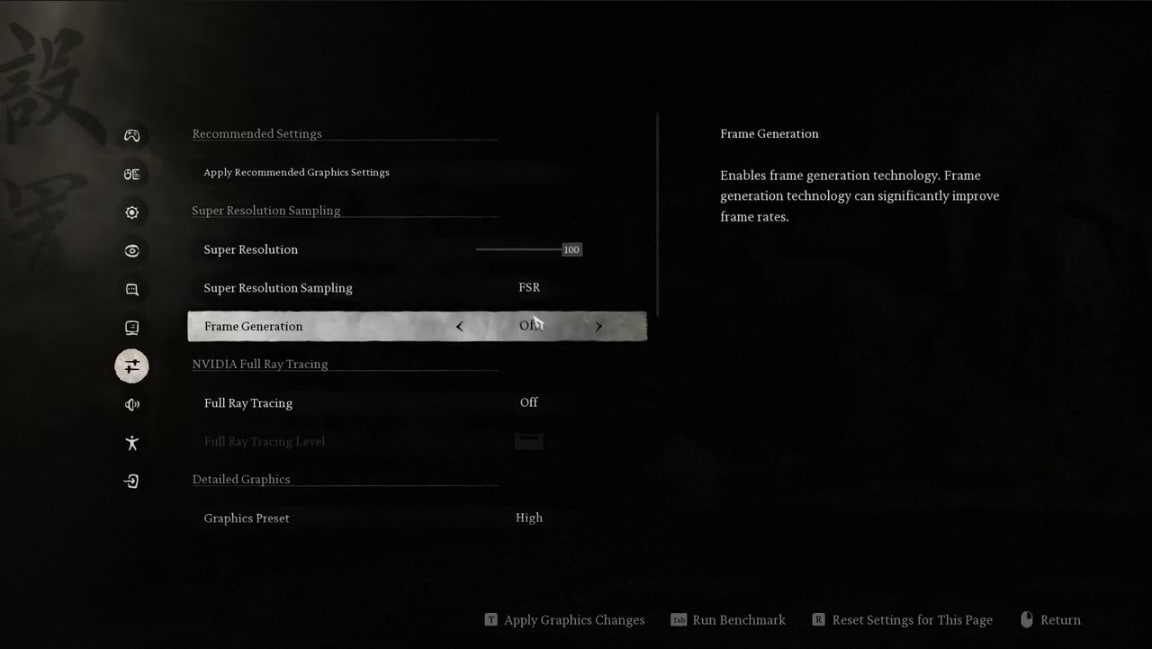
Frame generation is one of the most common direct causes of the Resident Evil Requiem Fatal D3D Crash Error. If the game's config file has frame generation enabled but your GPU does not support it (required: NVIDIA RTX 40-series or AMD RX 7000-series), the Direct3D layer will fail immediately with a fatal crash. Turning it off in the config file takes less than two minutes.
Step 1. In Steam, right-click Resident Evil Requiem and go to Manage → Browse local files to open the game installation folder.
Step 2. Navigate into the config subfolder and open the configuration file (usually a .ini or .cfg file) with Notepad.
Step 3. Use Ctrl+F to search for "frame generation". If the value is set to "on" or "true", change it to "off" or "false".
Step 4. Save the file (Ctrl+S), close Notepad, and relaunch the game.
Alternative: If you can't find the setting or want a faster reset, simply rename the entire config file (e.g., add .bak to the filename). The game will regenerate a clean default config on next launch — though this will reset any graphics settings you had customized.
Fix 3. Clear the NVIDIA Shader Cache
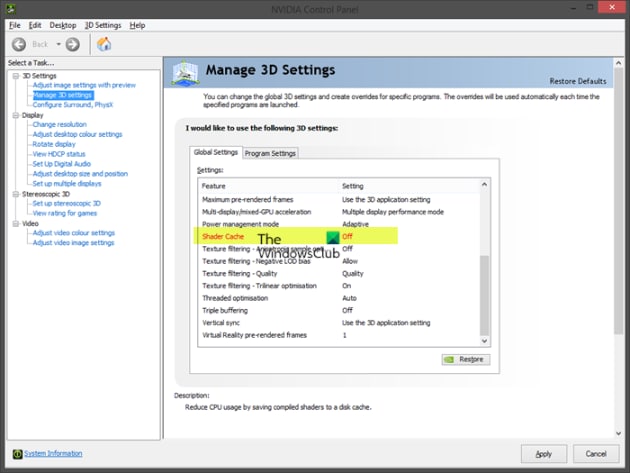
The NVIDIA shader cache stores pre-compiled shader programs to speed up rendering. However, when these cached files become stale or corrupted — especially after a driver update — they can cause Direct3D initialization failures that produce the Resident Evil Requiem An Unhandled Exception Occurred error. Deleting the cache forces the driver to rebuild it cleanly.
Step 1. Close Resident Evil Requiem, Steam, and all NVIDIA overlay applications (GeForce Experience, NVIDIA app) completely, including from the system tray.
Step 2. Open File Explorer and navigate to: C:\Users\[YourUsername]\AppData\Local\NVIDIA\
Note: The AppData folder is hidden by default. To reveal it, click View → Show → Hidden items in File Explorer.
Step 3. Inside the NVIDIA folder, locate and delete the DXCache and GLCache folders. You can right-click each folder and select Delete.
Step 4. Restart your computer. The cache folders will be recreated automatically by the NVIDIA driver on next use. Launch Resident Evil Requiem and test.
Fix 4. Perform a Clean Installation of Your Graphics Driver
A corrupted, outdated, or incompatible graphics driver is the single most common cause of the Fatal D3D Crash Error in Resident Evil Requiem. A clean installation removes all previous driver remnants before installing a fresh copy — preventing old, broken data from interfering with Direct3D calls.
Step 1. Close all running applications and NVIDIA/AMD software. Download the latest driver: NVIDIA users go to nvidia.com/Download; AMD users go to amd.com/support.
Step 2. Run the downloaded installer. When asked for the installation type, select "Custom (Advanced)" rather than Express.
Step 3. On the component selection screen, check the box labeled "Perform a clean installation." This option wipes all old driver files before installing the new version.
Step 4. Complete the installation and restart your PC when prompted. Then launch the game and test.
Note for AMD users: If the latest driver still causes crashes, click "View more versions" or "Previous versions" on the AMD support page and try installing an older driver release. Some driver versions have known compatibility issues with RE Requiem.
Fix 5. Run re9.exe as Administrator and Adjust Compatibility Settings
Without elevated privileges, the re9.exe process may fail to access certain system resources required for D3D initialization. Additionally, incorrect fullscreen optimization or compatibility mode settings can prevent the Direct3D context from creating successfully. Adjusting these settings is a quick and commonly effective fix.
Step 1. In Steam, right-click Resident Evil Requiem and go to Manage → Browse local files to open the game folder.
Step 2. Right-click the re9.exe file and select "Properties." Click the "Compatibility" tab.
Step 3. Check "Run this program as an administrator" and click Apply → OK. Try launching the game now.
Step 4. If the error persists, return to the Compatibility tab and also check "Disable fullscreen optimizations." Apply and test again.
Step 5. As an additional option, in the Compatibility tab check "Run this program in compatibility mode for:" and select Windows 8 from the dropdown. Apply and test. If this does not help, uncheck it and proceed to the next fix.
Fix 6. Allow the Game Through Controlled Folder Access and Windows Firewall
Windows Controlled Folder Access (ransomware protection) and Windows Defender Firewall can silently block the re9.exe process or its DRM components from writing files or accessing network services — causing the An Unhandled Exception Occurred crash before the game even loads.
Step 1 — Controlled Folder Access: Press Win + I, go to Privacy & Security → Windows Security → Virus & Threat Protection → Manage ransomware protection. Click "Allow an app through Controlled folder access," then "Add an allowed app → Browse all apps" and navigate to the Resident Evil Requiem folder to select re9.exe.
Step 2 — Windows Firewall: Open Control Panel → System and Security → Windows Defender Firewall → Allow an app or feature through Windows Defender Firewall. Click "Change settings" → "Allow another app" → "Browse" and select re9.exe from the game folder. Ensure both Private and Public boxes are checked, then click Add → OK.
Step 3. If you use a third-party antivirus (Kaspersky, McAfee, Bitdefender, etc.), add the entire Resident Evil Requiem installation folder as an exclusion in that software's settings as well.
Step 4. Restart your PC and relaunch the game.
Fix 7. Force the Game to Run on the Dedicated GPU
On laptops and desktops with both an integrated GPU and a discrete GPU (e.g., Intel + NVIDIA), Windows may route the game to the integrated graphics by default. Since integrated GPUs often lack full D3D12 support for modern AAA games, this directly triggers Fatal D3D Crash and unhandled exception errors.
Step 1. Press Win + I and go to System → Display → Graphics (under Related settings).
Step 2. Click "Add desktop app" and browse to select re9.exe from the game installation folder. Click Add.
Step 3. The game will appear in the list. Click on it, then click "Options." Select "High performance" (which maps to your discrete GPU) and click Save.
Step 4. For desktop users: ensure your monitor cable (HDMI or DisplayPort) is connected to the dedicated GPU's output port on the back of the graphics card — not to the motherboard's built-in output.
Step 5. Restart the game and test.
Fix 8. Try DirectX 11/12 Launch Options and Verify Game Files
Forcing a specific DirectX version via Steam launch options can bypass D3D compatibility issues that cause the Fatal D3D Crash Error. At the same time, verifying game files ensures no installation-level corruption is triggering the crash.
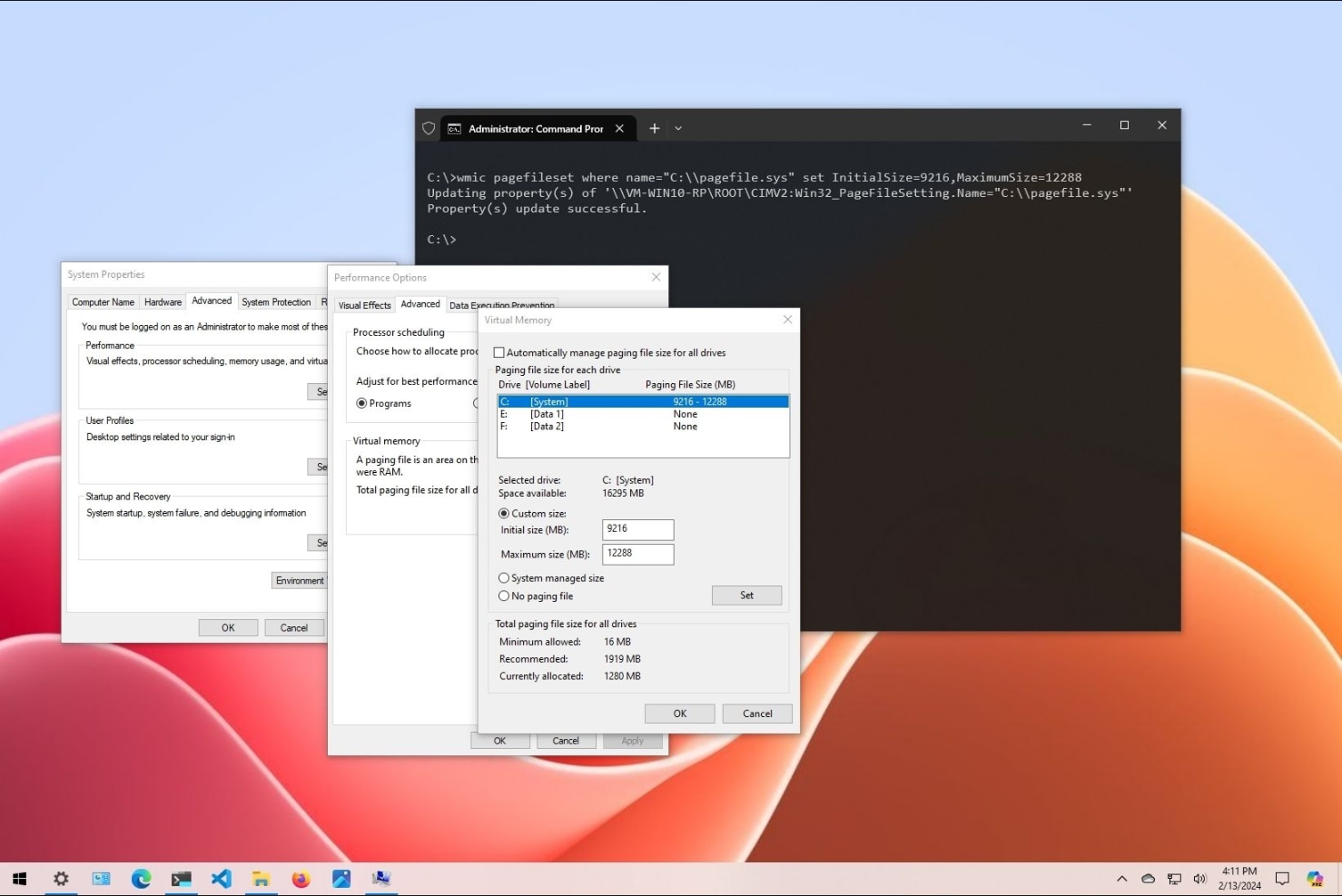
Step 1 — Set DirectX Launch Option: In Steam, right-click Resident Evil Requiem and select Properties. In the "Launch Options" field, type -dx11 and close the window. Launch the game and test. If it still crashes, clear the field and try -dx12 instead.
Step 2 — Verify Game Files: Right-click Resident Evil Requiem in Steam and select Properties → Installed Files. Click "Verify integrity of game files" and wait for the process to complete. Steam will automatically re-download any missing or corrupted files.
Step 3. After verification is complete, remove any launch option from the field and relaunch the game normally to test. If DX11 worked, keep the -dx11 flag set.
Fix 9. Install or Repair Visual C++ Redistributables
Resident Evil Requiem relies on the Microsoft Visual C++ runtime libraries to operate. If the x86 or x64 Visual C++ Redistributable packages are missing, outdated, or corrupted, the game's executable can throw an unhandled exception error immediately upon launch.
Step 1. Open a web browser and go to the Microsoft Visual C++ Redistributable download page.
Step 2. Download and install both the x86 (32-bit) and x64 (64-bit) versions of the latest Visual Studio redistributable package.
Step 3. If the installer shows a "Repair" button instead of "Install," click Repair to fix the existing installation.
Step 4. After installing/repairing both packages, restart your computer and launch Resident Evil Requiem again.
Fix 10. Increase Windows Virtual Memory (Pagefile)
Resident Evil Requiem is a memory-intensive title, and if Windows' virtual memory (pagefile) is too small — or if it's set to automatic on a nearly full drive — the game can run out of addressable memory during initialization and throw an An Unhandled Exception Occurred error. Manually increasing the pagefile size provides the game with the memory headroom it needs.
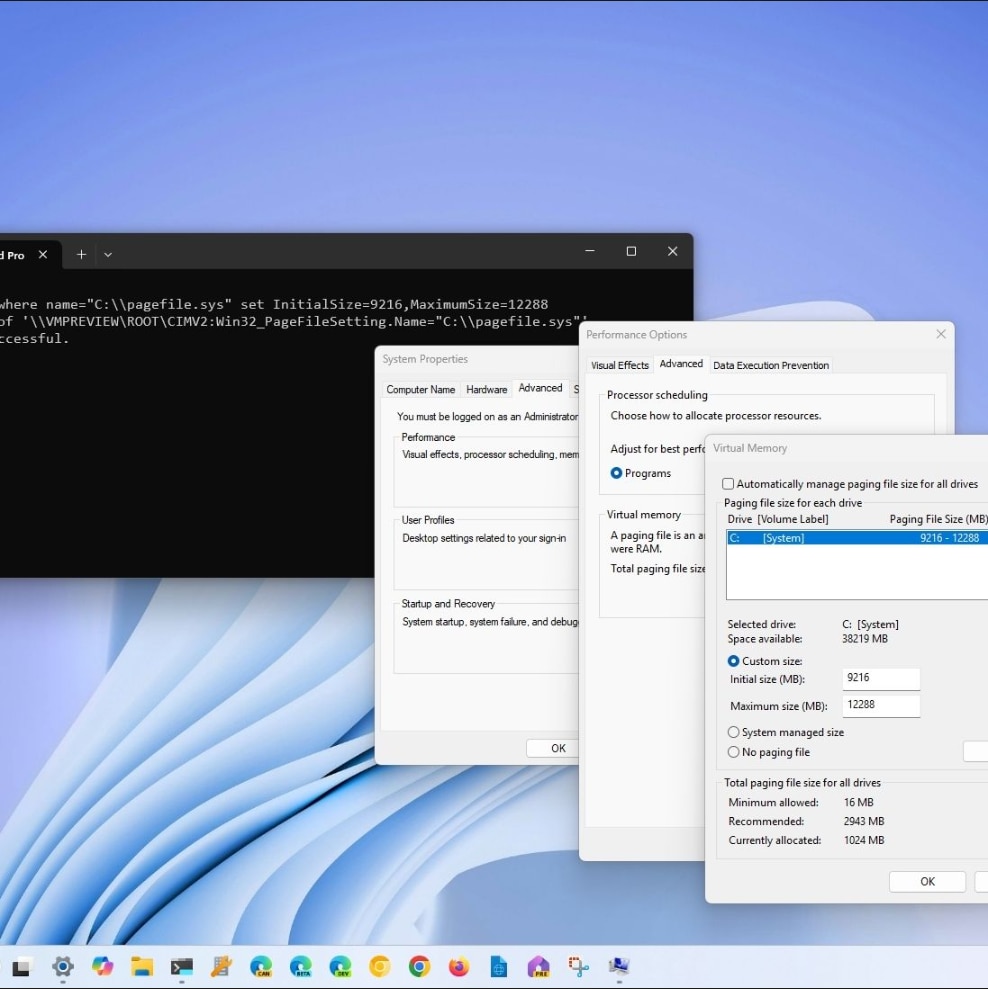
Step 1. Press Win + S and search for "View advanced system settings." Open it and click the Advanced tab.
Step 2. Under the Performance section, click "Settings" → Advanced tab → Change (under Virtual Memory).
Step 3. Uncheck "Automatically manage paging file size for all drives." Select the drive where Resident Evil Requiem is installed.
Step 4. Select "Custom size" and enter the following values (example for a system with 16 GB RAM):
- Initial size: 24576 MB (= 1.5 × 16 GB in MB)
- Maximum size: 49152 MB (= 3 × 16 GB in MB)
For other RAM sizes, multiply your total RAM in MB by 1.5 for the initial value and by 3 for the maximum value.
Step 5. Click Set, then OK through all dialogs. Restart your computer and launch the game.
Alternative: If you prefer a simpler approach, select "System managed size" instead of Custom size in Step 4 and click Set. This allows Windows to manage the pagefile automatically, which is a safer option if you're unsure of the values.
Pro Tip: Enhance Your Resident Evil Requiem Gameplay Recordings with Repairit
Once you've solved the Resident Evil Requiem Fatal D3D Crash or Unhandled Exception error and you're fully back in the game, you'll want to capture those hard-won moments. However, when RE Requiem runs at full GPU load — especially with ray tracing or path tracing enabled — video capture software is forced to sacrifice quality, leaving recordings blurry and pixelated. Repairit's AI Video Enhancer solves this by intelligently upscaling and sharpening your clips to up to 4K resolution.
Beyond enhancement, Repairit also repairs video files that were corrupted by an unexpected game crash mid-recording. If a D3D crash interrupted your recording session and the video file won't play, Repairit can restore it. It supports all major formats — MP4, MOV, MKV, AVI, and more — and can process multiple files at once in batch mode, saving you time.

Wondershare Repairit - Video Repair & AI Enhancer
7,302,189 people have downloaded it.
-
AI Video Enhancement: Automatically sharpens blurry gameplay recordings and upscales to 1080p, 2K, or 4K with a single click — perfect for RE Requiem's visually rich environments.
-
Crash-Interrupted Video Repair: Fixes corrupted video files caused by unexpected Fatal D3D crashes during recording — restoring unplayable clips without losing your footage.
-
Batch Processing: Enhance or repair multiple Resident Evil Requiem recordings simultaneously — no need to process files one at a time.
How to Enhance Your Resident Evil Requiem Gameplay Recordings via Repairit
Follow these 3 easy steps to sharpen and upscale your Resident Evil Requiem gameplay clips using Repairit's AI Video Enhancer:
Step 1. Open AI Video Enhancer and Add Your Recordings
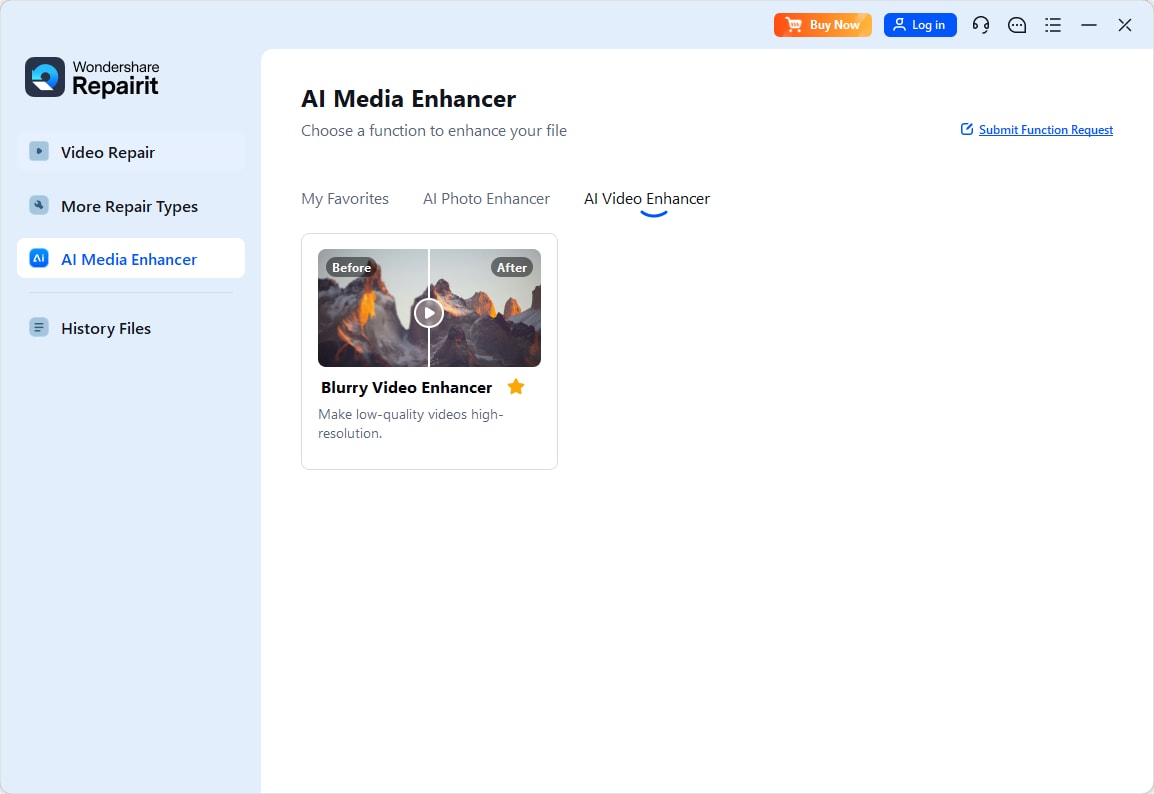
Step 2. Select Enhancement Model
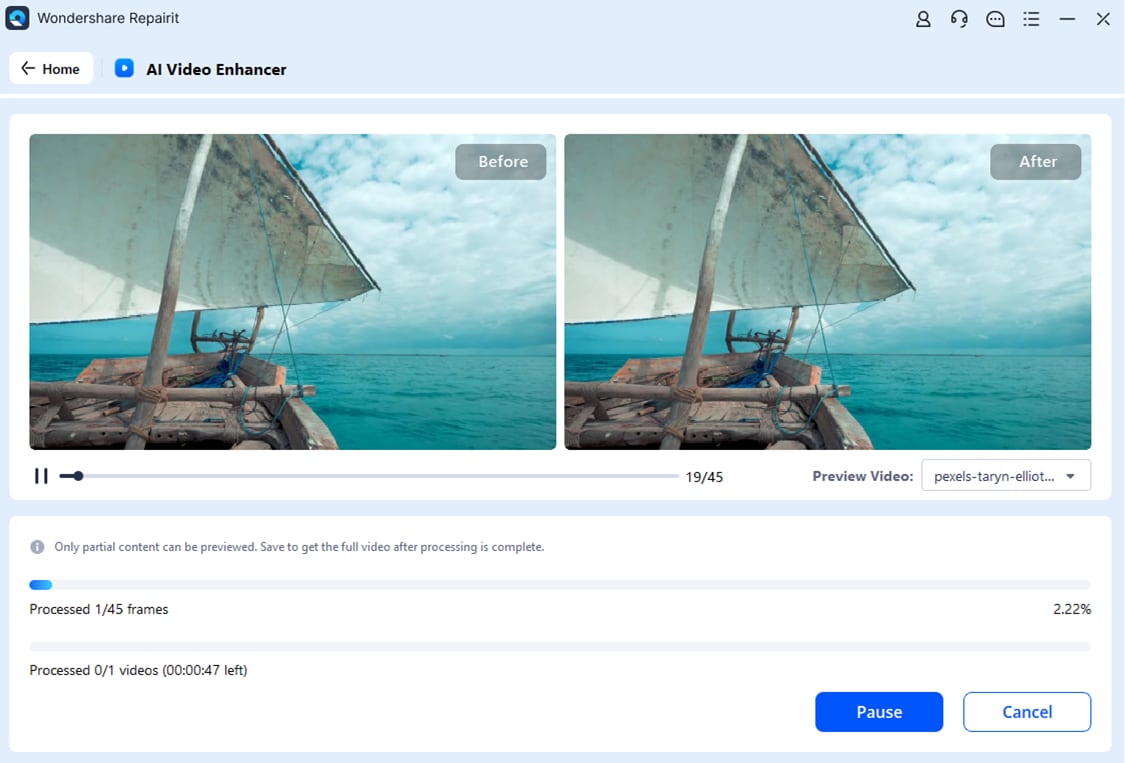
Step 3. Preview and Save

Repair and Enhance Your Resident Evil Requiem Recordings
 Security Verified. Over 7,302,189 people have downloaded it.
Conclusion
To wrap up, the Resident Evil Requiem Fatal D3D Crash Error, An Unhandled Exception Occurred message, and re9.exe error are all resolvable with the fixes outlined in this guide. Start with the quick wins — restarting your PC and deleting the HIDL DLL file, disabling frame generation in the config file, and clearing the NVIDIA shader cache — as these three steps alone resolve the majority of reported crashes. If the problem persists, work through the graphics driver clean install, administrator and compatibility settings, security exceptions, and finally the virtual memory adjustment.
Once you're back in the game and recording your sessions, don't forget that Repairit can enhance those recordings to crisp 4K quality — and repair any clips that were corrupted by an unexpected crash.
Frequently Asked Questions
-
1. What is the Fatal D3D Crash Error in Resident Evil Requiem?
The Fatal D3D Crash Error is a Direct3D graphics API failure that occurs when the game cannot successfully initialize or communicate with the GPU's rendering pipeline. It is most commonly caused by an incompatible or corrupted GPU driver, frame generation being enabled on unsupported hardware, or a corrupted NVIDIA shader cache. Fix 1 through Fix 4 in this guide address the most frequent causes of this error. -
2. Why does Resident Evil Requiem show "An Unhandled Exception Occurred"?
The "An Unhandled Exception Occurred" error means the re9.exe process encountered an unrecoverable internal error and could not handle it gracefully. Common causes include Windows Security or Controlled Folder Access blocking the game, insufficient virtual memory (pagefile too small), missing Visual C++ Redistributables, or a D3D-level crash that wasn't caught by the error handler. Work through Fix 5 to Fix 10 if the earlier GPU-related fixes did not resolve it. -
3. How do I know if frame generation is causing my Fatal D3D Crash?
If you experience an immediate crash at startup (within the first few seconds, before any in-game menu appears) and you have an older GPU (pre-RTX 40-series for NVIDIA, or pre-RX 7000-series for AMD), frame generation is very likely the cause. Apply Fix 2 — opening the game config file and setting frame generation to "off" — and the crash should stop immediately.




