
Facing endless loading screens in Crimson Desert can destroy your gaming experience. You have been waiting for this game release for a very long time. Yet, you find Crimson Desert not loading/stuck on loading screen/infinite loading screen on PC. Your screen stays dark while the music plays on a loop forever.
This common issue ruins the excitement and wastes your free time. In such cases, you want to play the game without any further delays. Yet, most loading problems are easy to fix with some simple steps. Therefore, this tested and reliable guide will show you how to get back into the action.
Table of Contents
Part 1. Why Crimson Desert Gets Stuck on Loading Screen
Many factors can stop your game from loading on your gaming computer. So, check these common reasons below to understand why your screen is frozen:
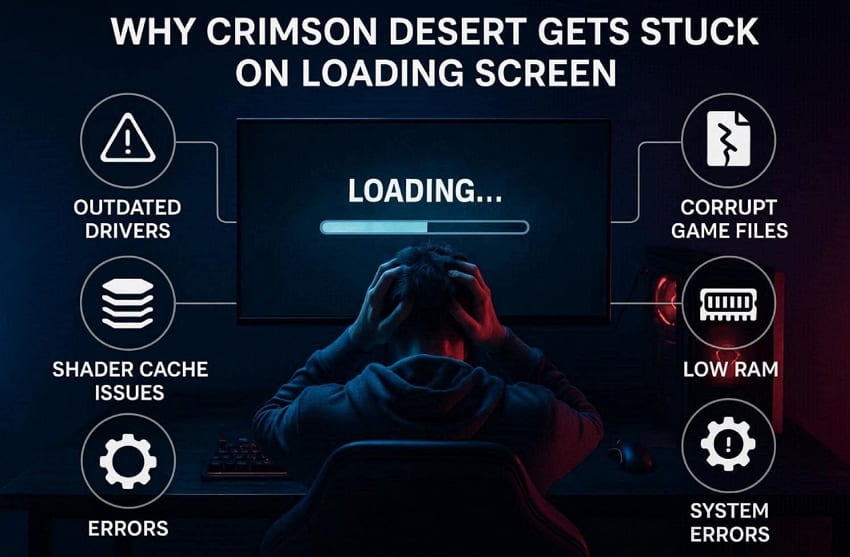
- Outdated Drivers: Old GPU drivers cause compatibility issues with modern video games. The hardware fails to communicate with the engine for this reason.
- Shader Issues: Stored shader cache files might become very buggy after a game update. Invalid data fragments in the cache prevent the world from rendering your screen.
- Corrupt Files: Broken game files prevent the software from starting the main menu. The launcher cannot read data when essential folders are missing or badly damaged.
- Low Memory: Your system might lack enough RAM to handle the heavy game assets loaded. The loading process freezes when the computer runs out of available memory space.
- System Errors: Missing updates can also cause the game engine to crash during startup. Incompatible system files create a conflict that stops the loading bar from moving.
Part 2. Try 4 Game and Graphics Fixes (Most Common Solutions)
You can quickly solve Crimson Desert not loading/stuck on loading screen/infinite loading screen on PC issues. So, use these 4 simple graphics and game fixes to start your adventure right:
Fix 1. Verify/Repair Crimson Desert Game Files in the Launcher
Verifying game files helps fix missing or broken data, causing loading issues. This method scans your installation and replaces damaged files without reinstalling. Most game launchers like Steam or Epic Games support this native repair feature. Moreover, it improves game stability and prevents crashes during startup or loading screens. Thus, adhere to these steps to verify and repair your game files:
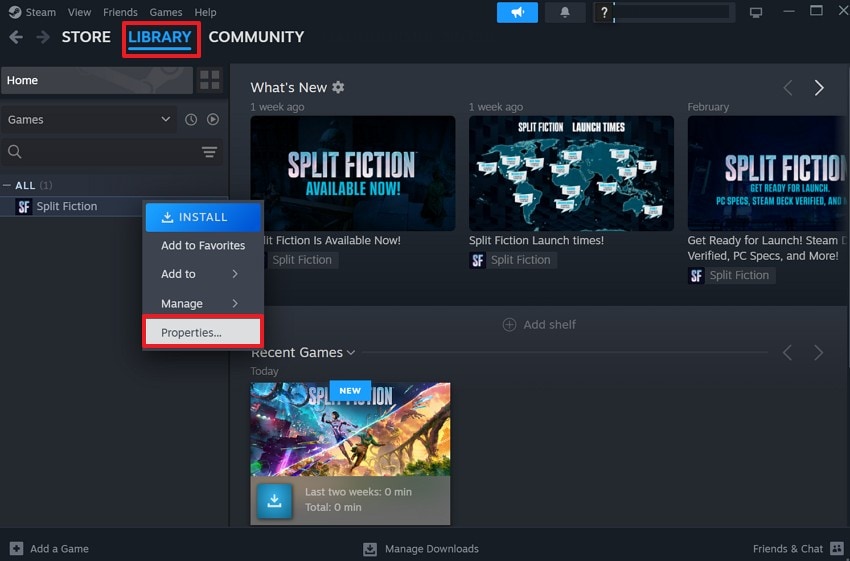
Step 1. As you run the launcher like "Steam," head to the "Library" tab. Right-click the "Crimson Desert" game and opt for "Properties."
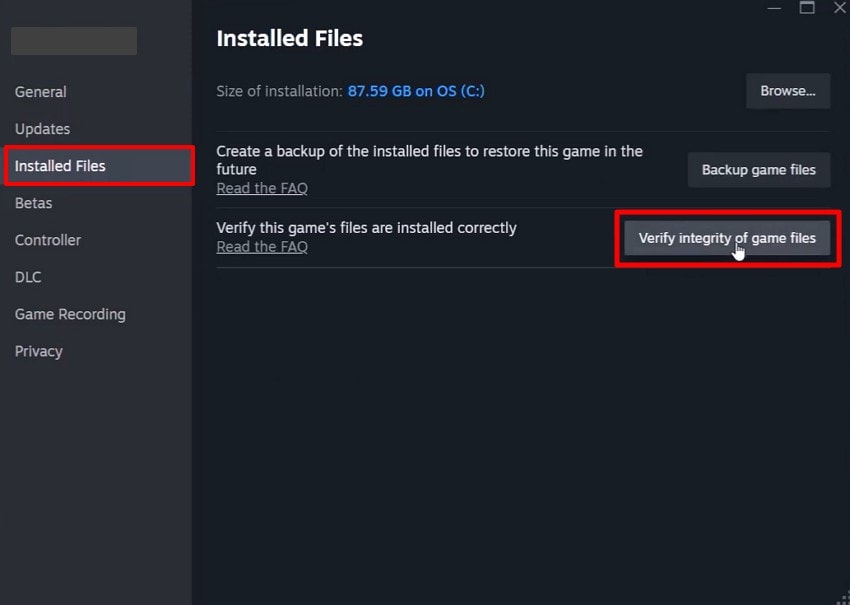
Step 2. Subsequently, go to the "Installed Files" tab and click on "Verify Integrity of Game Files."
Fix 2. Clear or Reset Shader Cache and Temporary Game Files
Resetting your shader cache is another powerful way to improve your gaming performance. This process removes old visual data that might be causing very slow loading. By clearing temporary files, you allow the engine to build fresh new graphics. This method often solves Crimson Desert not loading/stuck on loading screen/infinite loading screen on PC. So, go through the following steps to clear your game cache files:
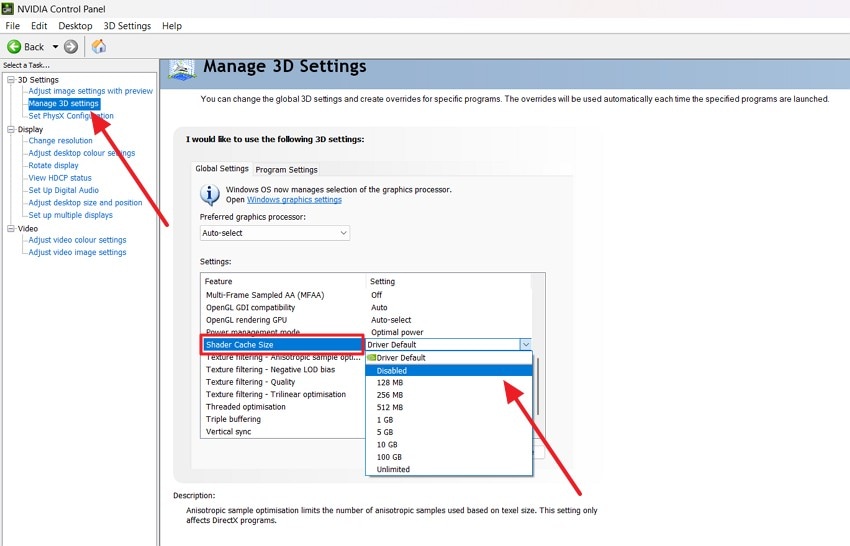
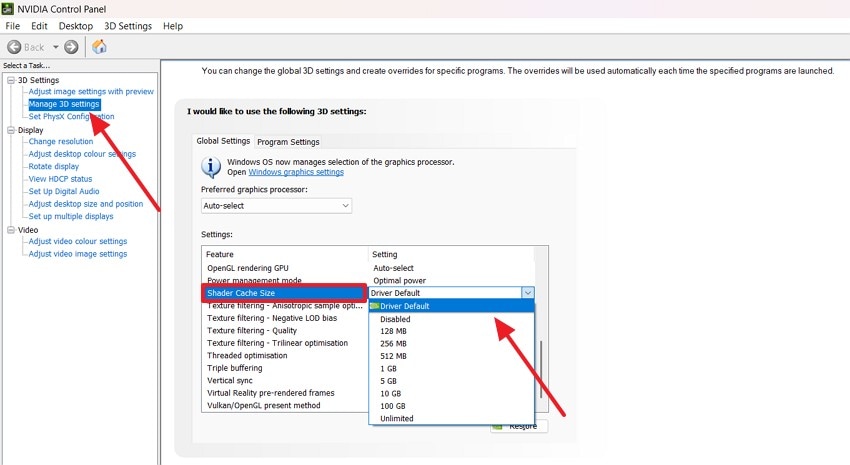
Step 1. Open the "NVIDIA Control Panel" and navigate to "Manage 3D Settings." Find the "Shader Cache Size" option and change it to "Disabled."
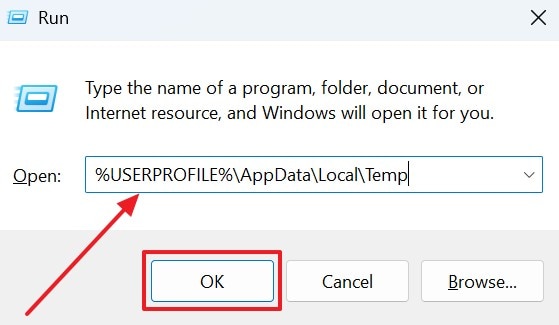
Step 2. Reboot your system and then press "Windows + R". After that, type "%USERPROFILE%\AppData\Local\Temp" and click "OK" to open the Temp directory.
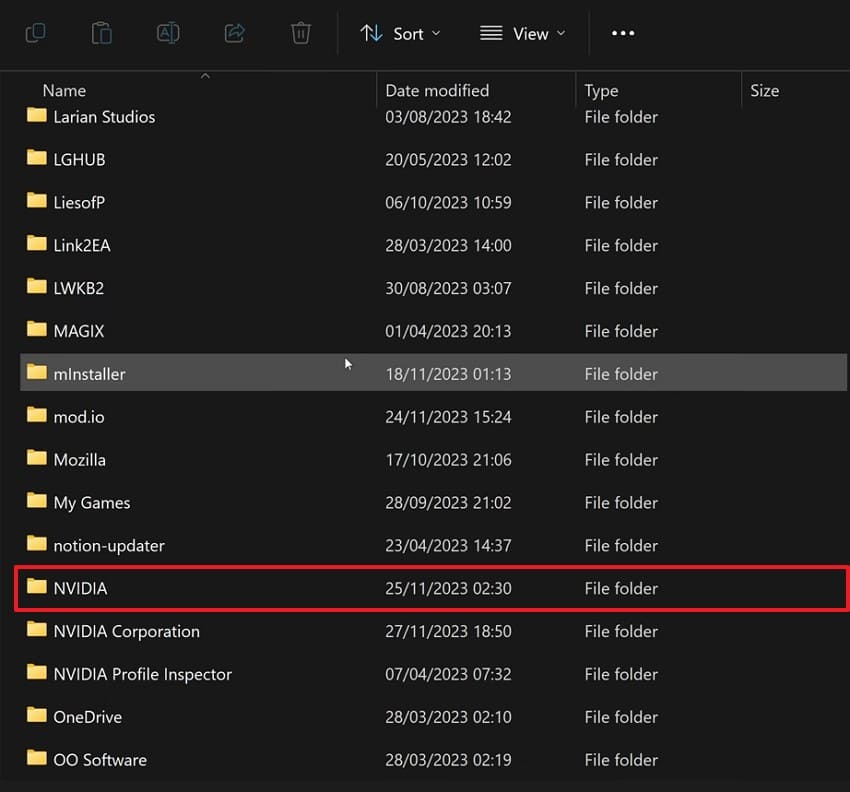
Step 3. In the upcoming "Temp" window, scroll through the list and find the "NVIDIA" folder.
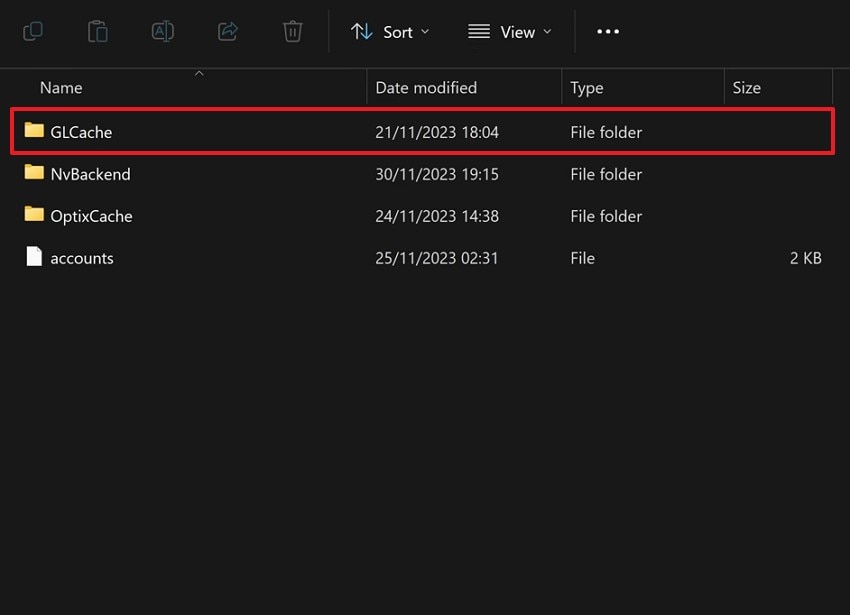
Step 4. Following that, you need to enter the "GLCache" folder to view stored cache files.
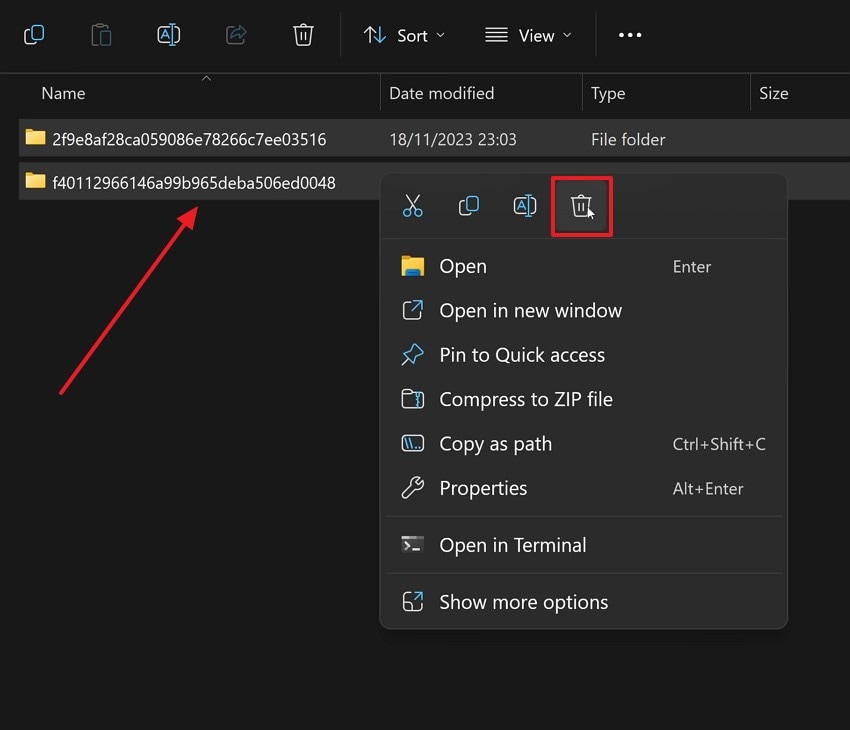
Step 5. Subsequently, select everything inside the folder and right-click to choose "Delete." Later, repeat the same process for the "DXCache folder" and restart the system.
Step 6. Upon rebooting, reopen the "NVIDIA Control Panel" and set "Shader Cache Size" to "Driver Default."
Fix 3. Switch to Windowed/Borderless and Lower Graphics Settings
Steam allows gamers to change how a game starts before it opens, which makes it helpful when Crimson Desert gets stuck. Windowed or borderless mode helps prevent full-screen related crashes during game startup. Lower graphics settings reduce pressure on the GPU and improve loading speed. It helps fix Crimson Desert not loading/stuck on loading screen/infinite loading screen on PC issues. Hence, let’s dive below to adjust display mode and graphics settings:
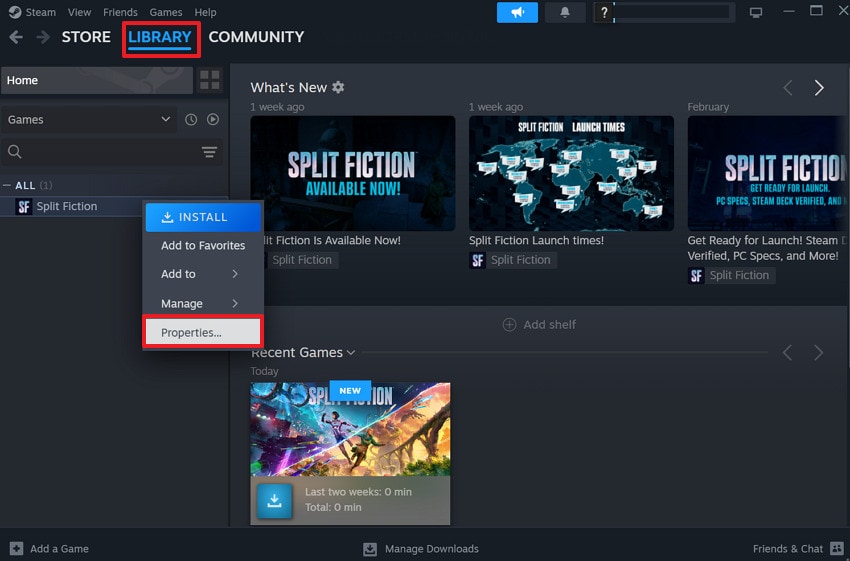
Step 1. As you access the "Library" tab of the game launcher, right-click the game and choose "Properties."
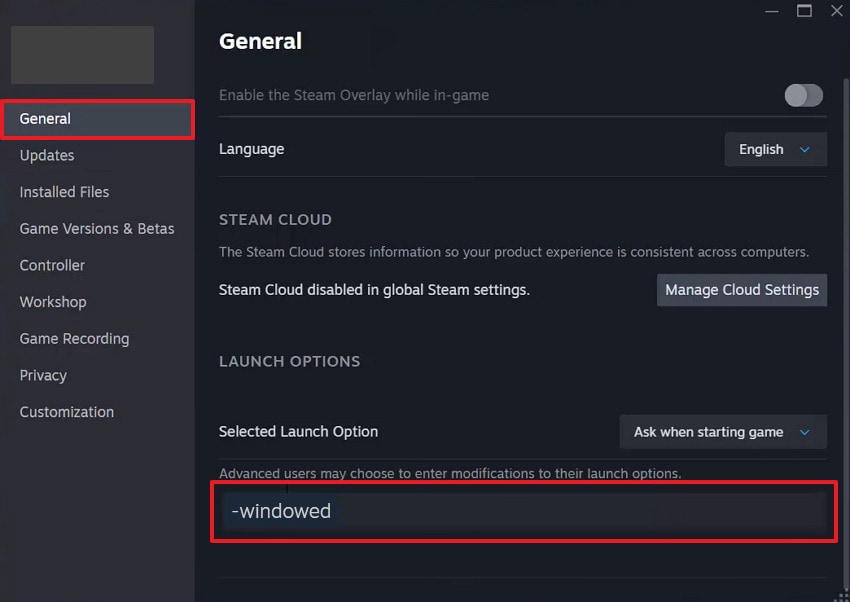
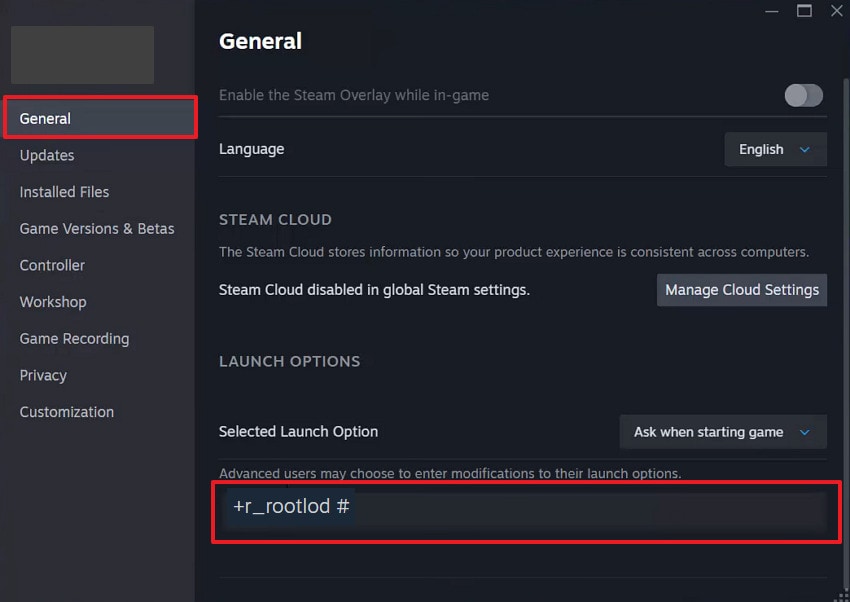
Step 2. When you head to the "General" tab, type "-windowed" in the provided field under "Launch Options." This will help you run your game in windowed mode instead of full screen.
Step 3. If you want to lower the graphic settings, type "+r_rootlod #" in "Launch Options." It will help you adjust the mode details of Crimson Desert.
Fix 4. Move Crimson Desert to an SSD and Free Up Disk Space
SSDs read data much quicker than traditional hard drives during game startup. Hence, relocating the game to an SSD enhances the access speed and loading time. It will ensure that the system does not slug files or cause interruptions. This hardware upgrade fixes Crimson Desert not loading/stuck on loading screen/infinite loading screen on PC. So, follow these steps to move game files and free up storage space:
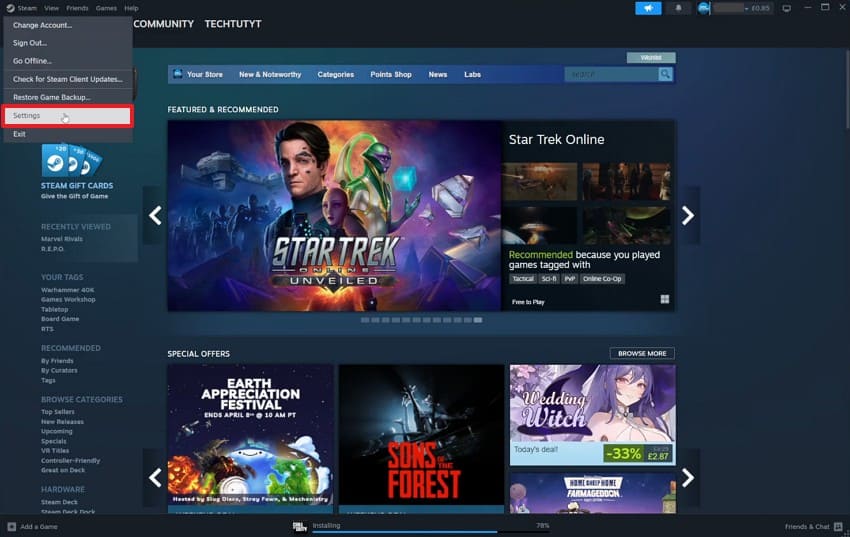
Step 1. Upon opening the game launcher, click the "Steam" icon and opt for "Settings."
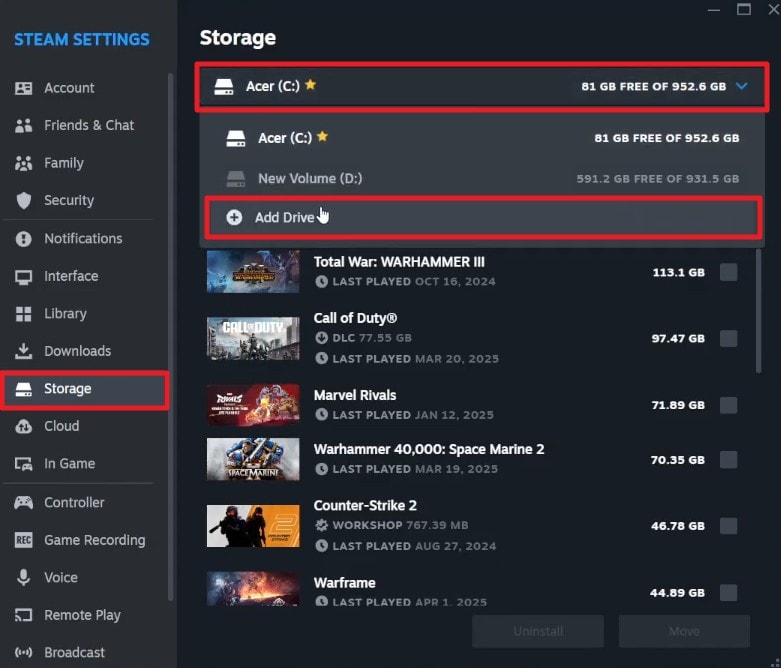
Step 2. After that, navigate to the "Storage" tab and click the added "C:" drive. As you see the drop-down menu, click "Add Drive" and select your SSD from your PC.
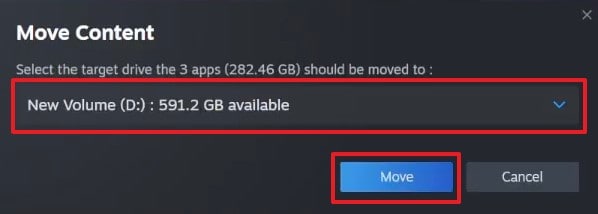
Step 3. Following this, check the box next to your "Crimson Desert" game and press "Move."
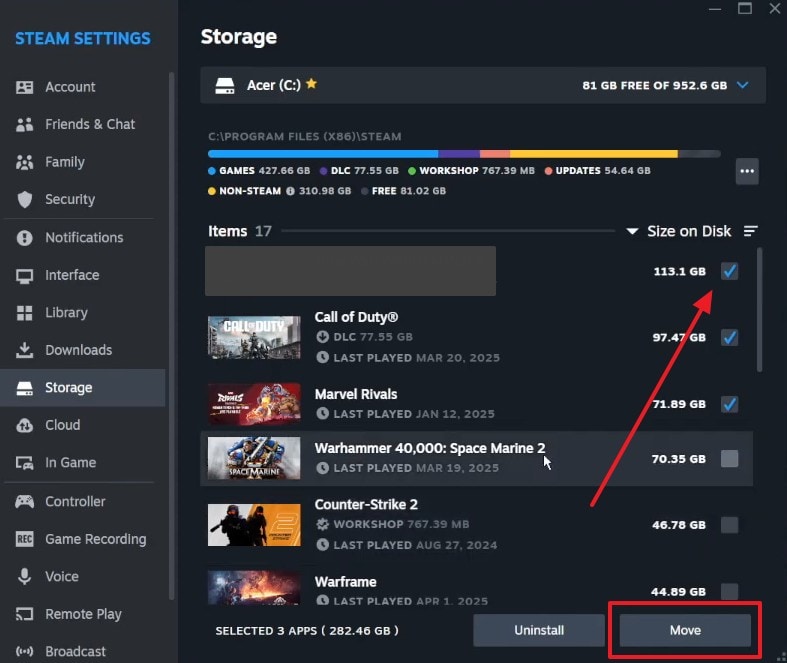
Step 4. Upon seeing a small prompt, choose your SSD storage and click the "Move" button.
Pat 3. 4 Advanced Windows & System Fixes for Crimson Desert Not Loading on PC
If basic methods fail, advanced fixes can resolve deeper loading problems. So, apply these solutions below to fix Crimson Desert not loading/stuck on loading screen/infinite loading screen on PC:
Fix 1. Run the Game as Administrator and Disable Fullscreen Optimizations
High privilege levels allow the game to access all necessary system files. Administrative rights help bypass many security restrictions that block the startup process. Thus, disabling optimizations prevents Windows from interfering with the game's display mode. These changes ensure a very stable connection between the game and Windows. So, head to these simple instructions to adjust your game file properties:
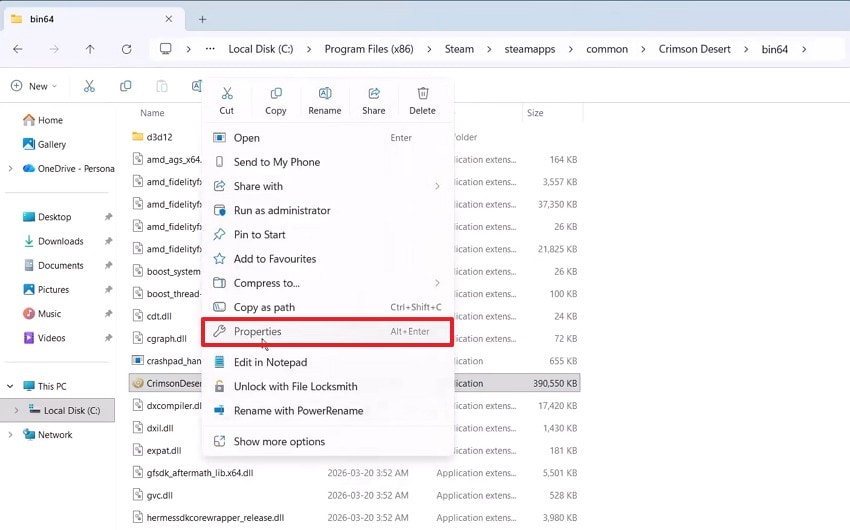
Step 1. Navigate to your installed "Crimson Desert" files and right-click on the ".exe" file. As you see a menu, click the "Properties" option.
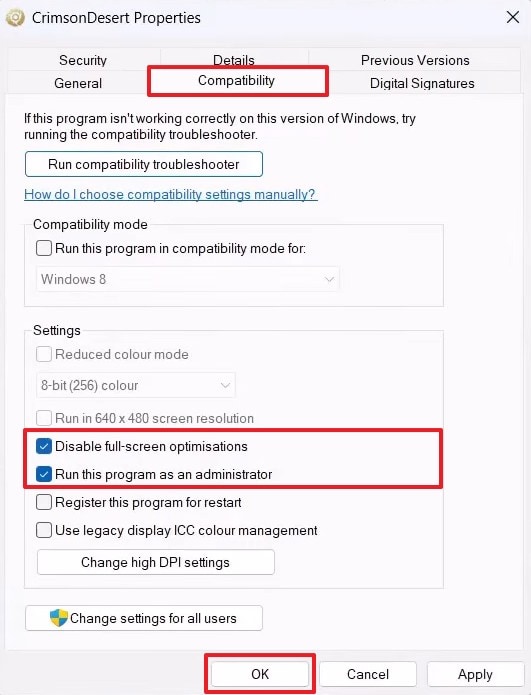
Step 2. Tick "Disable Fullscreen Optimizations" from the "Compatibility" tab. Subsequently, check the "Run This Program as an Administrator" box and press "OK."
Fix 2. Update DirectX, Visual C++ Redistributables, and .NET
Modern games demand some software elements to operate and produce images. These essential libraries provide the basic building blocks for your computer's graphics. Updated files ensure your hardware understands every command from the game engine. Installing these tools solves Crimson Desert not loading/stuck on loading screen/infinite loading screen on PC. Adhere to the steps to update your gaming components to the latest version:
Update DirectX
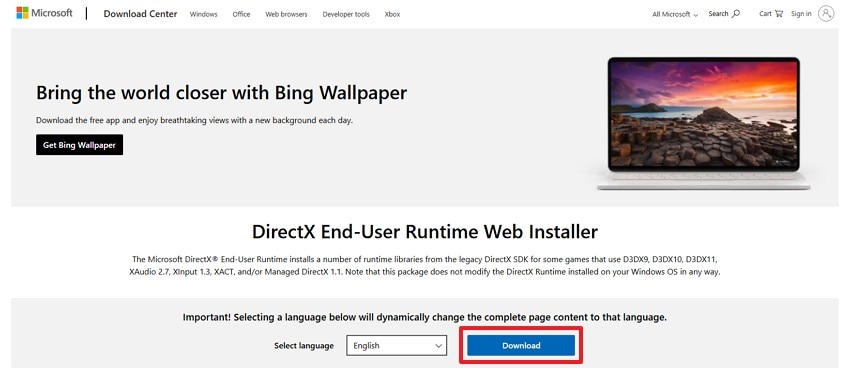
Step 1. Access the website of "DirectX End-User Runtime Web Installer" and click "Download."
Step 2. After that, run the ".exe" file to check "I Accept the Agreement" and click "Next."
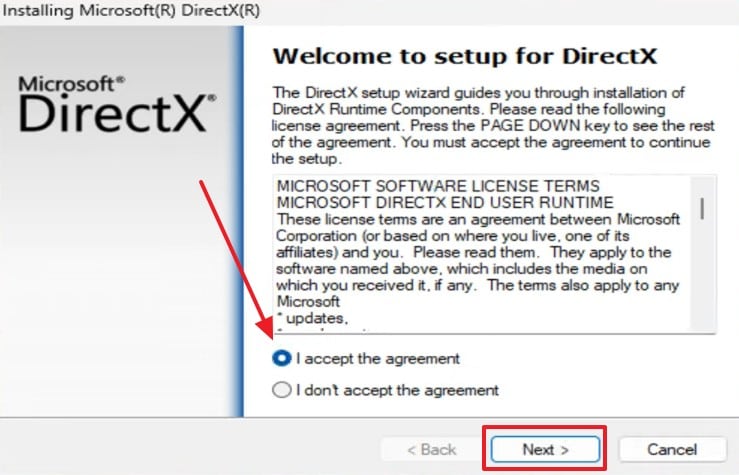
Step 3. Upon following the displayed prompt and completing the installation, press "Finish."
Update Visual C++ Redistributables
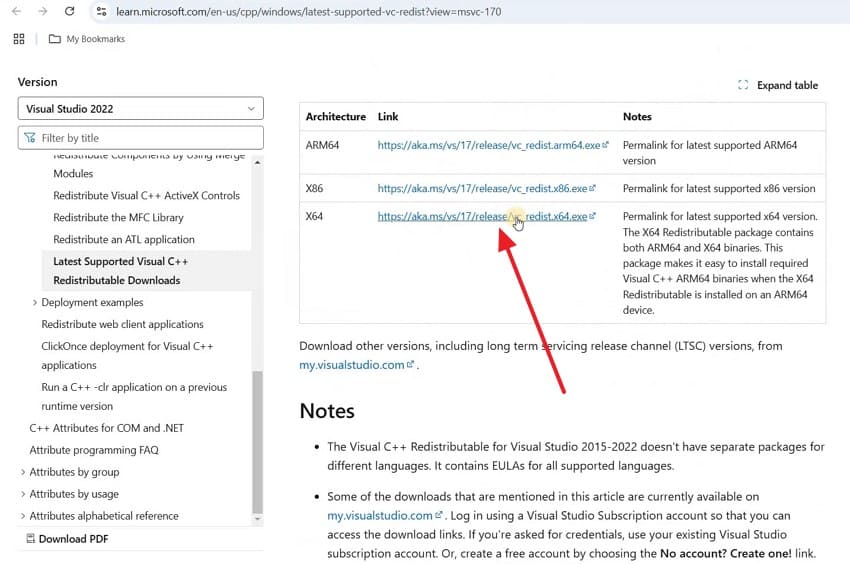
Step 1. Visit the official page for "Visual C++ Redistributable" and select the download link labeled "X64".
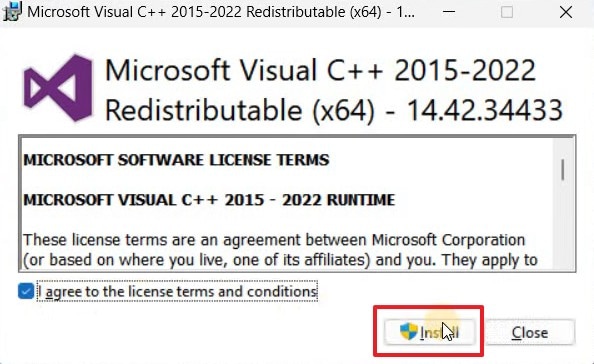
Step 2. After the file is downloaded, you need to open the ".exe" installer. Accept the license terms by checking the agreement box, then click the "Install" button.
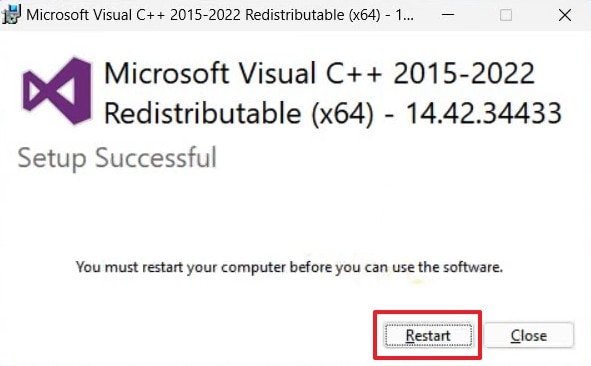
Step 3. Next, go through the visual instructions until completion, then click "Restart."
Update .NET Framework Runtime.
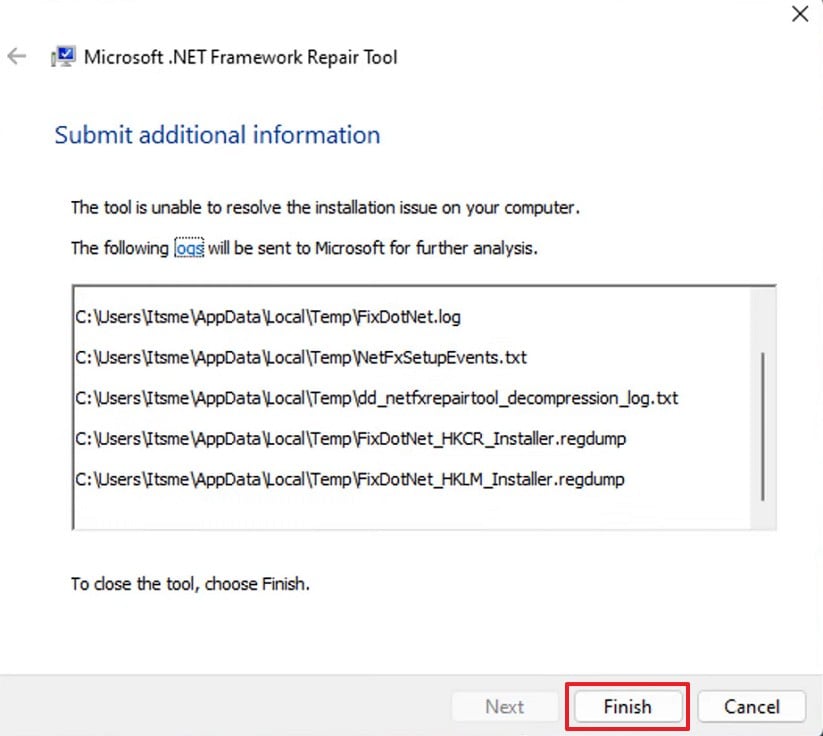
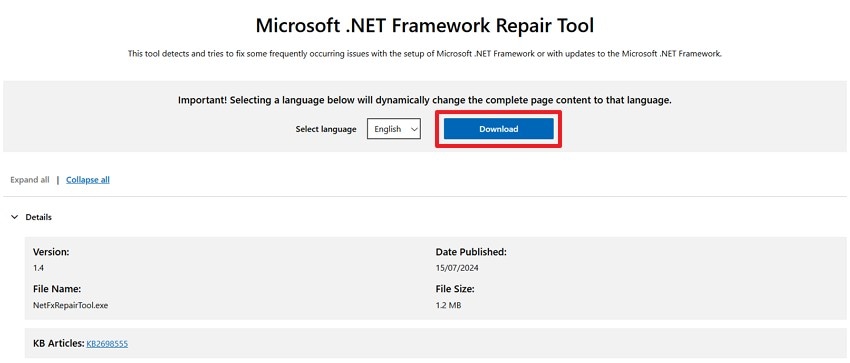
Step 1. Go to the ".NET Framework Repair Tool" webpage and click the "Download" button.
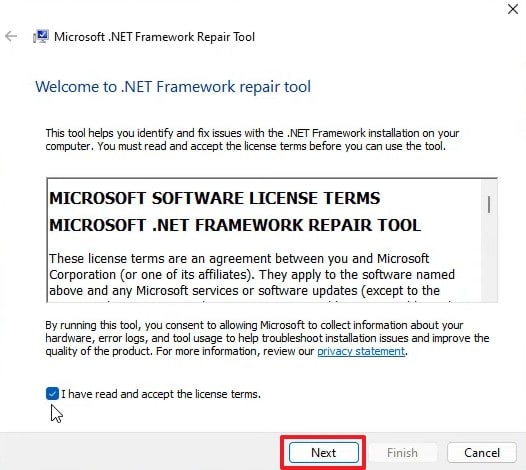
Step 2. As you run the ".exe" file, agree to the license terms and click "Next" to continue.
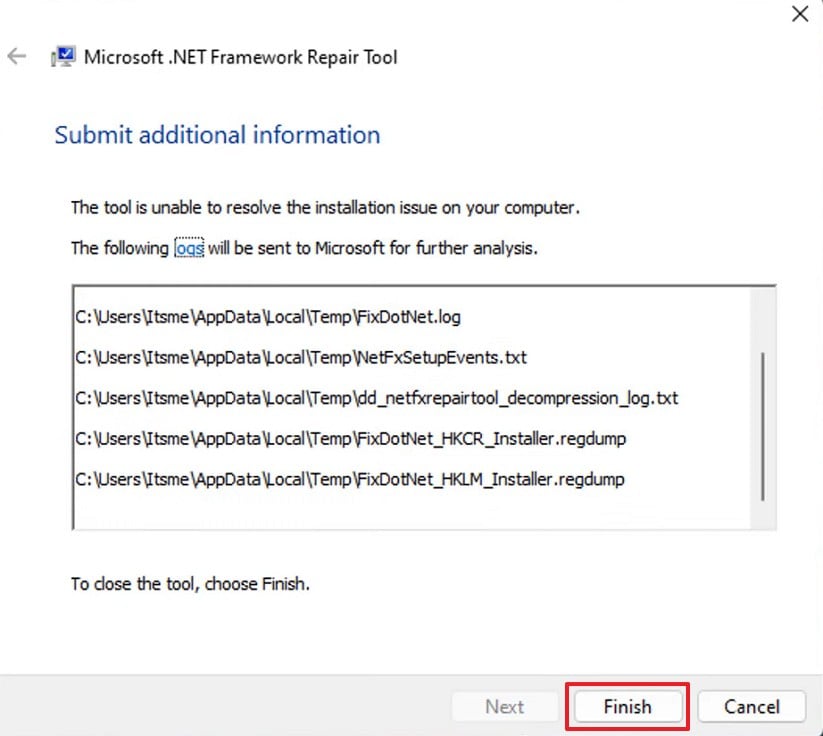
Step 3. After adhering to the upcoming prompts, click "Finish" to finalize the process.
Fix 3. Check Antivirus/Firewall Rules & Add Crimson Desert as an Exception
Security software often blocks new game files because they look like unknown threats. Therefore, your firewall might stop the game from communicating with the online data servers. Yet, adding a simple exception tells your computer that the game is totally safe. This action fixes Crimson Desert not loading/stuck on loading screen/infinite loading screen on PC. So, review the steps to add your game to the safe software list:
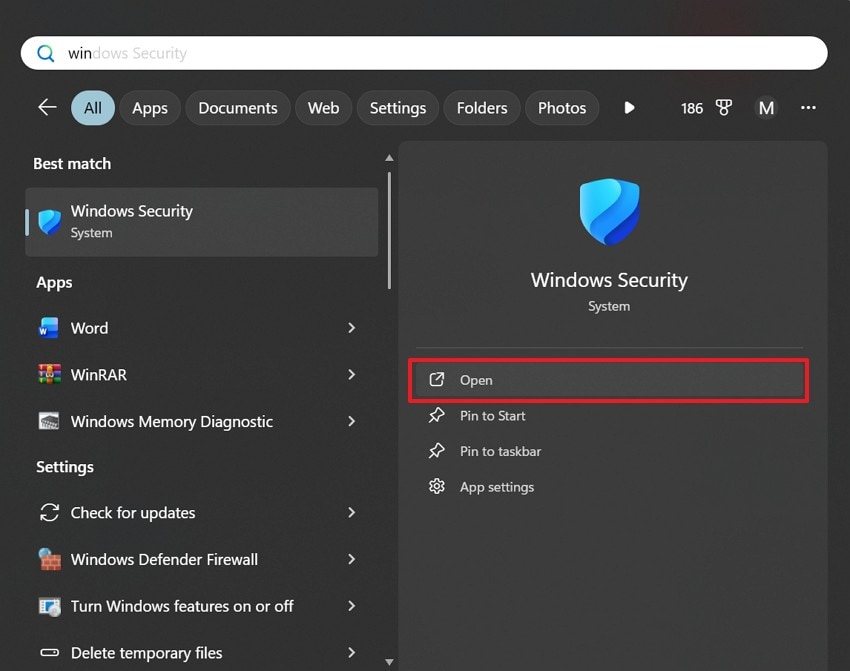
Step 1. Upon searching for "Windows Security," you need to click "Open."
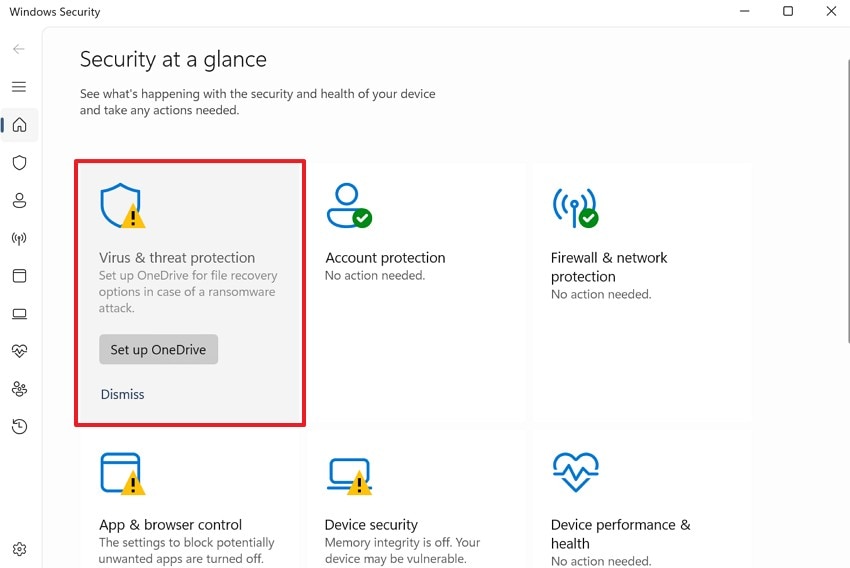
Step 2. Subsequently, navigate to the "Virus & Threat Protection" section to move forward.
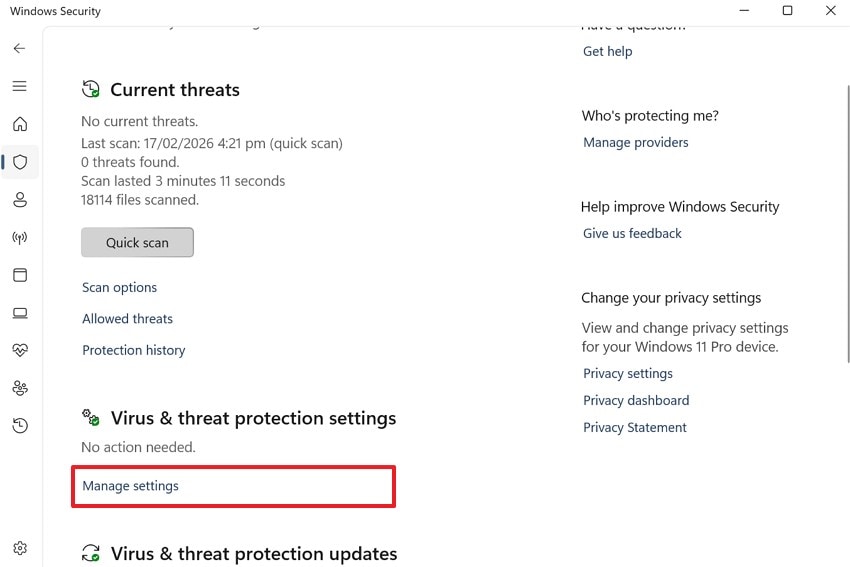
Step 3. Going ahead, click "Manage Settings" under the protection settings section.
Step 4. Scroll down within the settings and choose the "Add or Remove Exclusions" option.
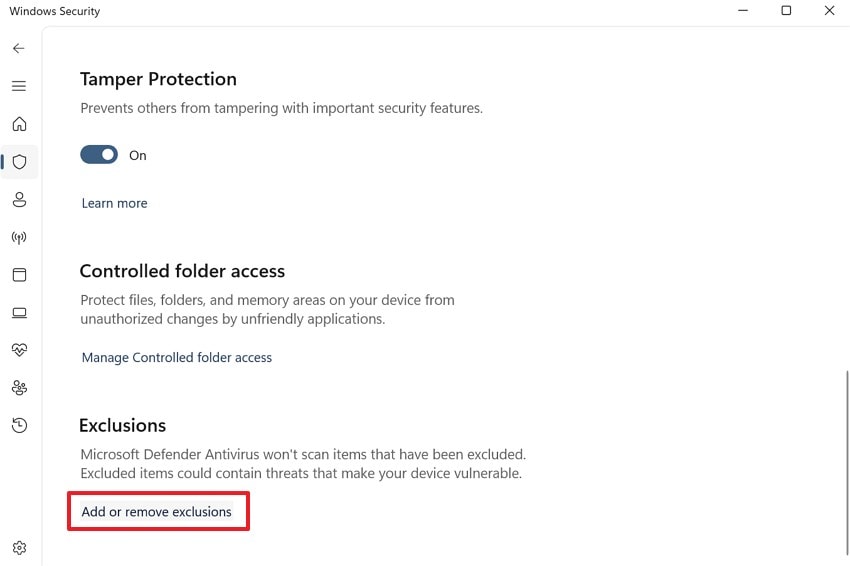
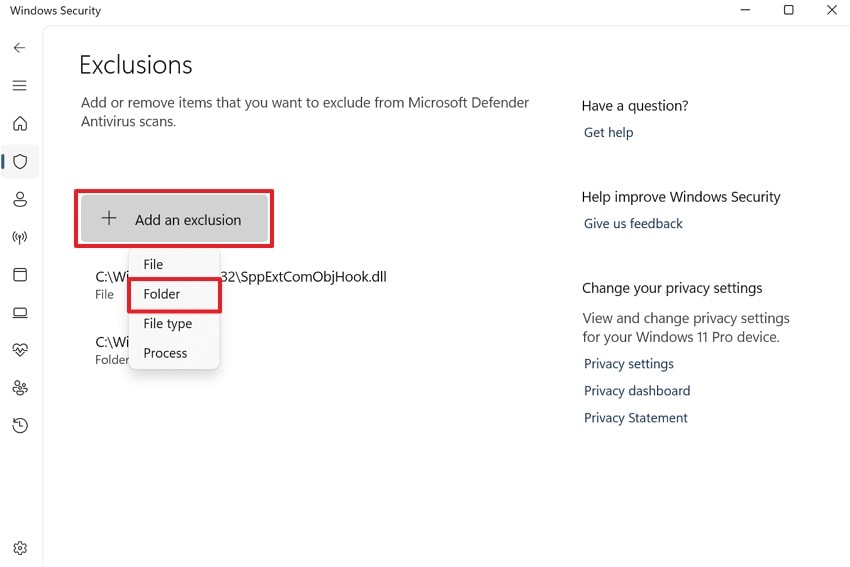
Step 5. Next, click "+ Add an Exclusion" to pick the "Folder" option. After that, locate the Crimson Desert’s folder on your PC and confirm to whitelist it.
Fix 4. Run System File Checker//DISM to Repair Windows System Files
SFC scans and replaces corrupted system files in the background. Moreover, the DISM tool restores system image health and fixes deeper hidden Windows errors. Together, these native features scan your entire computer to find and repair internal errors. Thus, a healthy operating system provides a stable foundation for all your gaming software. Take guidance from the given steps to verify and repair your Windows system files:
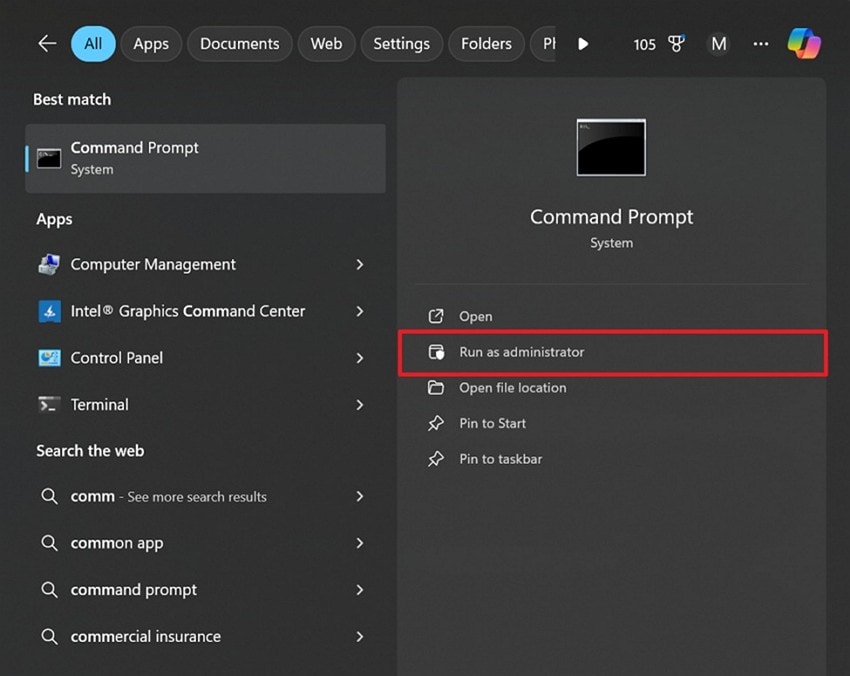
Step 1. In the "Start" menu, search for "Command Prompt" and select "Run as Administrator".
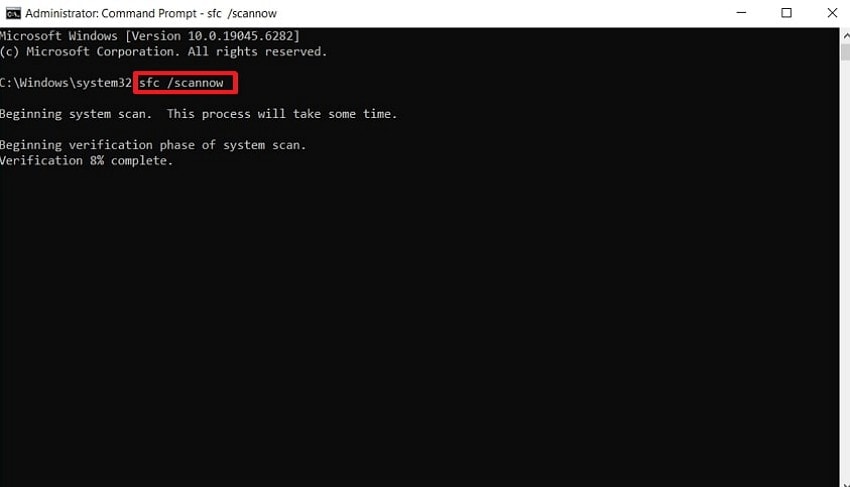
Step 2. Moving forward, type "sfc /scannow" and press "Enter" to begin scanning.
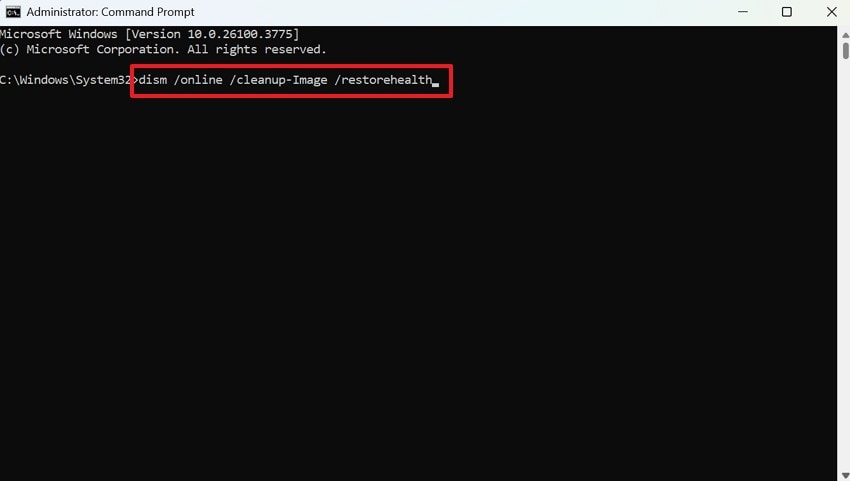
Step 3. After the above scan, run the "dism /online /cleanup-image /restorehealth" command. This will help you repair any issues with the Windows image.
Pro Fix. Repair Corrupted Crimson Desert Saves and Videos with Repairit
When your game loads but saves or replays keep crashing, you need a pro-level fix. These issues can also involve broken video or save files after failed loads or sudden crashes. That is where a specialized tool like Repairit can help repair corrupted media. This professional video repair tool uses advanced AI technology to fix many types of video damage quickly.
Alongside that, you can use the Quick Repair mode to resolve common playback error codes. Besides, the Advanced Repair feature fixes severely broken videos by using a sample file. As a result, it can restore blurry, flickering, or grainy footage to its original quality. In addition, the Batch Repair function allows you to fix multiple video files at once. You can even preview your repaired Crimson Desert clips before saving them.
Key Features

-
Mainstream Video Format Support: Fixes 25+ video formats, including MP4 and MOV, created while troubleshooting your broken Crimson Desert game startup.
-
Full 4K Resolution Support: Restore every tiny detail of your HD gameplay footage without losing any of the original visual quality.
-
Audio Video Sync Repair: Correct timing issues where the game sound does not match the action on your frozen loading screen.
Guide to Repair Corrupted Crimson Desert Saves and Videos with Repairit
Using this professional software is the best way to restore your broken gaming video files. So, go through the simple steps to repair your corrupted Crimson Desert clips:
Step 1. Import Corrupted Crimson Desert Recordings
You need to choose the "Video Repair" option and click the "Start" button. Then, import the damaged Crimson Desert’s video files into the tool.

Step 2. Repair Your Corrupted Crimson Desert Recordings
After the Crimson Desert recordings are added, click the "Repair" button to begin fixing them.

Step 3. Save the Fixed Crimson Desert Videos
Once the process finishes, click "Preview" to see the repaired Crimson Desert clips. Finally, you need to click "Save All" to store them on your device.

Repair Corrupted Files
 Security Verified. Over 7,302,189 people have downloaded it.
Conclusion
In summary, fixing loading errors can be done in a few simple steps. You should try basic settings first before moving to any advanced system repair methods. These proven solutions fix Crimson Desert not loading/stuck on loading screen/infinite loading screen on PC. Yet, if your game loads but videos or saves break, use Repairit to restore them fast. This tool helps you repair damaged clips and enjoy your Crimson Desert adventure.
Frequently Asked Questions
-
1. Why does Crimson Desert freeze after the loading screen finishes?
This happens when game files load but fail during the final initialization stage. Background apps or overlays may interrupt resources needed for a smooth game launch. So, disabling overlays and closing extra apps often resolves this freezing problem. -
2. Can an outdated Windows version cause loading issues in Crimson Desert?
Yes, an outdated Windows version may lack updates required for new game compatibility support. Missing patches can create conflicts between system files and game engine processes. Thus, updating Windows ensures better stability and reduces the chances of loading screen problems. -
3. Why are my recorded gameplay videos corrupted after loading issues occur?
Crashes during recording can interrupt the file saving and corrupt video data structures. Furthermore, incomplete encoding may result in unplayable or broken gameplay recordings. In such cases, Repairit can repair these damaged videos and restore them for smooth playback.




