

If you've just launched Resident Evil Requiem and hit a dead end with the message "Sorry, Something Went Wrong," you're far from alone. This crash error has been widely reported by PC players on Steam since the game's release in February 2026, and it can appear instantly after pressing Play — blocking you from even reaching the title screen.
The good news is that the "Resident Evil Requiem something went wrong crash error" almost always has a fixable root cause. Whether it's a problematic GPU driver, a corrupted Steam client, or Windows Security blocking the game's DRM service, the solutions are within reach. This guide covers every confirmed fix, organized in the most effective order, so you can get back into the game as quickly as possible.

Table of Contents
Part 1. Why Does Resident Evil Requiem Show "Sorry Something Went Wrong"?
Understanding what triggers the "Fix Resident Evil Requiem Error Sorry Something Went On PC" message saves you time and helps you target the right solution first. This error is not a simple runtime exception — it usually indicates a deeper conflict between the game, the Steam client, or a Windows system component. Below are the most commonly reported root causes:

- Outdated or Incompatible GPU Drivers: Resident Evil Requiem relies on modern GPU rendering features. A recently-released driver with bugs — such as NVIDIA's problematic 572.xx Game Ready Driver series — can prevent the game from initializing and trigger this error immediately at startup.
- Corrupted or Outdated Steam Client: If the Steam client has corrupted internal files, cache mismatches, or broken registry entries, it can fail to properly hand off control to the game — causing the "Something Went Wrong" popup before the game even loads.
- Shader Pre-Caching Conflicts: Steam's built-in shader pre-caching feature compiles graphics shaders in the background. After a driver update or game patch, these cached files can become mismatched and corrupt, causing a crash at launch.
- Windows Security (Defender) Blocking the Game: Windows Defender may flag Resident Evil Requiem's DRM executable (Denuvo) as a potential threat and quarantine or block it — preventing the game from launching entirely.
- Insufficient Administrator Privileges: Steam and the game sometimes need elevated system rights to write files and access protected APIs. Without admin privileges, the launch process may fail partway through and display this error.
- DRM Service (Denuvo) Failure: Resident Evil Requiem uses Denuvo anti-tamper technology. If Denuvo's service cannot initialize — often due to VBS (Virtualization-Based Security), Hypervisor, or Credential Guard settings on Windows 11 — the game will refuse to launch and show this error.
Part 2. 5 Proven Fixes for Resident Evil Requiem "Sorry Something Went Wrong" Error
With the causes identified, follow the solutions below in order. Each fix is tested and confirmed by players in the Steam community and official Capcom support threads. Test the game after each fix to see whether the issue is resolved before moving to the next.
Fix 1. Perform a Clean Installation of Your Graphics Driver
This is the single most effective fix for the Resident Evil Requiem something went wrong crash error. A clean driver installation removes all traces of previous driver files — including corrupted registry entries and leftover shader caches — before installing a fresh, compatible version. NVIDIA has officially acknowledged that certain Game Ready Driver versions caused compatibility issues specifically with Resident Evil Requiem.

Step 1. Close Resident Evil Requiem, Steam, and any NVIDIA or AMD overlay applications completely (check the system tray).
Step 2. Download the latest compatible driver for your GPU: NVIDIA users go to nvidia.com/Download; AMD users go to amd.com/support; Intel Arc users go to intel.com/download-center.
Step 3. Run the downloaded installer and when prompted, select "Custom (Advanced)" instead of Express Installation.
Step 4. On the components screen, check the "Perform a clean installation" checkbox. This option wipes all previous driver data before installing the new version.
Step 5. Complete the installation and restart your PC when prompted. Then launch Resident Evil Requiem and test.
Note: If you recently updated your GPU driver and the error appeared immediately afterward, try rolling back to the previous driver version instead. NVIDIA users can also use DDU (Display Driver Uninstaller) from Safe Mode for the most thorough clean removal.
Fix 2. Disable Shader Pre-Caching and Clear Steam Download Cache
Steam's shader pre-caching feature pre-compiles graphics shaders to improve in-game performance. However, after a driver update or game patch, these pre-cached files can become corrupted or mismatched — causing the "Resident Evil Requiem sorry something went wrong" error at startup. Disabling this feature and clearing the cache often resolves the issue instantly.

Step 1 — Disable Shader Pre-Caching: Open Steam and click Steam → Settings from the top menu bar. Go to the "Downloads" section in the left panel and uncheck both "Enable Shader Pre-Caching" and "Allow background processing of Vulkan shaders." Click OK to save.
Step 2 — Clear Steam Download Cache: Still in Steam → Settings → Downloads, click the "Clear Download Cache" button at the top. Confirm the action — Steam will restart and ask you to log in again.
Step 3. After logging back in, launch Resident Evil Requiem and check whether the error is resolved.
Fix 3. Add the Game Folder to Windows Security Exclusions
Windows Defender (Windows Security) may be silently flagging and blocking Resident Evil Requiem's Denuvo DRM files as suspicious. When this happens, the game cannot initialize its protection layer and throws the "Something Went Wrong" error. Adding the game folder as a Windows Security exclusion tells Defender to skip scanning those files entirely.

Step 1. Press Win + I to open Windows Settings and go to Privacy & Security → Windows Security → Virus & Threat Protection.
Step 2. Under "Virus & threat protection settings," click "Manage settings," then scroll down to the "Exclusions" section and click "Add or remove exclusions."
Step 3. Click "+ Add an exclusion" and choose "Folder." Navigate to your Resident Evil Requiem installation folder (default path: C:\Program Files (x86)\Steam\steamapps\common\RESIDENT EVIL REQUIEM) and select it.
Step 4. Optionally, also add steam.exe as a "File" exclusion from your Steam installation directory for extra safety.
Step 5. Restart your PC and launch the game again.
Fix 4. Allow Resident Evil Requiem Through Windows Firewall
The Windows Firewall can silently block the game executable from accessing required network services. This prevents the DRM authentication and other startup routines from completing, which directly causes the "Fix Resident Evil Requiem Error Sorry Something Went On PC" message. Multiple players in the Steam community confirmed this fix worked for them.
Step 1. Click the Start menu and search for "Allow an app through Windows Firewall," then open it.
Step 2. Click "Change settings" (requires admin confirmation), then click "Allow another app..." → "Browse."
Step 3. Navigate to your Resident Evil Requiem game folder and select the main executable (re9.exe). Click Add.
Step 4. Ensure both the Private and Public checkboxes are ticked for the game entry. Also check that steam.exe is already in the list and has both boxes ticked.
Step 5. Click OK and restart your PC before relaunching the game.
Fix 5. Verify Integrity of Game Files on Steam
Corrupted or missing game files can cause the Resident Evil Requiem sorry something went wrong error even when the installation appears complete. Steam's built-in file verification tool scans all game files and automatically re-downloads anything that is corrupted or absent — without requiring a full reinstall.

Step 1. Open Steam and go to your Library.
Step 2. Right-click on Resident Evil Requiem in the game list and select "Properties."
Step 3. Click on the "Installed Files" tab and click "Verify integrity of game files." Wait for the process to complete — this may take several minutes depending on your storage speed.
Step 4. Once verification is done, Steam will report any files it repaired or re-downloaded. Restart Steam and launch the game to test.
Pro Tip: Enhance Your Resident Evil Requiem Gameplay Recordings with Repairit
Once you've fixed the Resident Evil Requiem sorry something went wrong crash and you're back in the game, you may want to record and share your gameplay. However, when the game runs at high GPU load, recording software is often forced to reduce quality — leaving your clips blurry or pixelated. Repairit's AI Video Enhancer can sharpen those recordings and upscale them to up to 4K resolution, making your clips look professional and share-worthy.
Beyond video enhancement, Repairit also repairs corrupted video files — so if your recording was interrupted by a crash and the file won't play, Repairit can fix that too. It handles all major formats (MP4, MOV, MKV, AVI, and more) and can process multiple files at once in batch mode.

Wondershare Repairit - Video Repair & AI Enhancer
7,302,189 people have downloaded it.
-
AI Video Enhancement: Automatically sharpens blurry gameplay recordings and upscales resolution to 1080p, 2K, or 4K with a single click.
-
Batch Processing: Enhance multiple Resident Evil Requiem recordings at once — no need to process them one by one.
-
Video Repair: Fixes crash-interrupted recordings and corrupted video files in MP4, MOV, MKV, AVI, and more — fully non-destructive.
How to Enhance Your Resident Evil Requiem Gameplay Recordings with Repairit
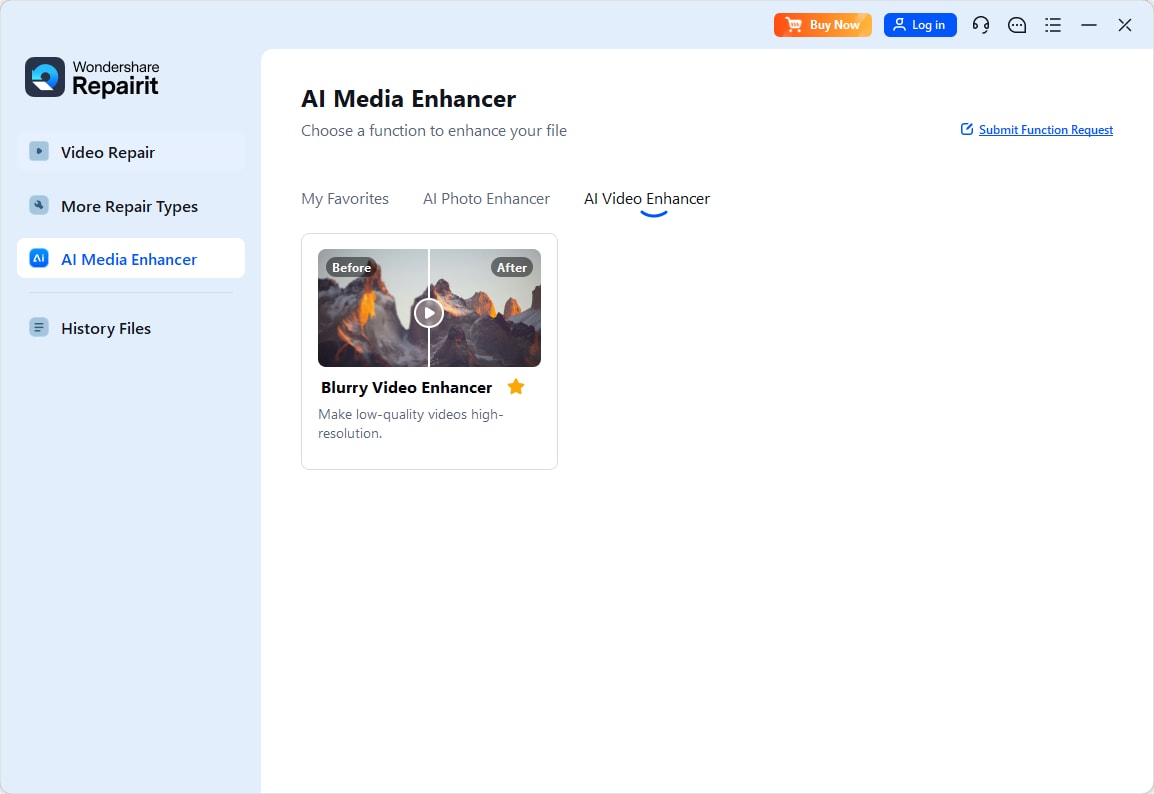
Follow these 3 simple steps to improve the quality of your Resident Evil Requiem gameplay videos using Repairit's AI Video Enhancer:
Step 1. Open the AI Video Enhancer and Add Your Files
Click the "+ Add" button and browse to your Resident Evil Requiem recordings folder to import the video files you want to enhance.
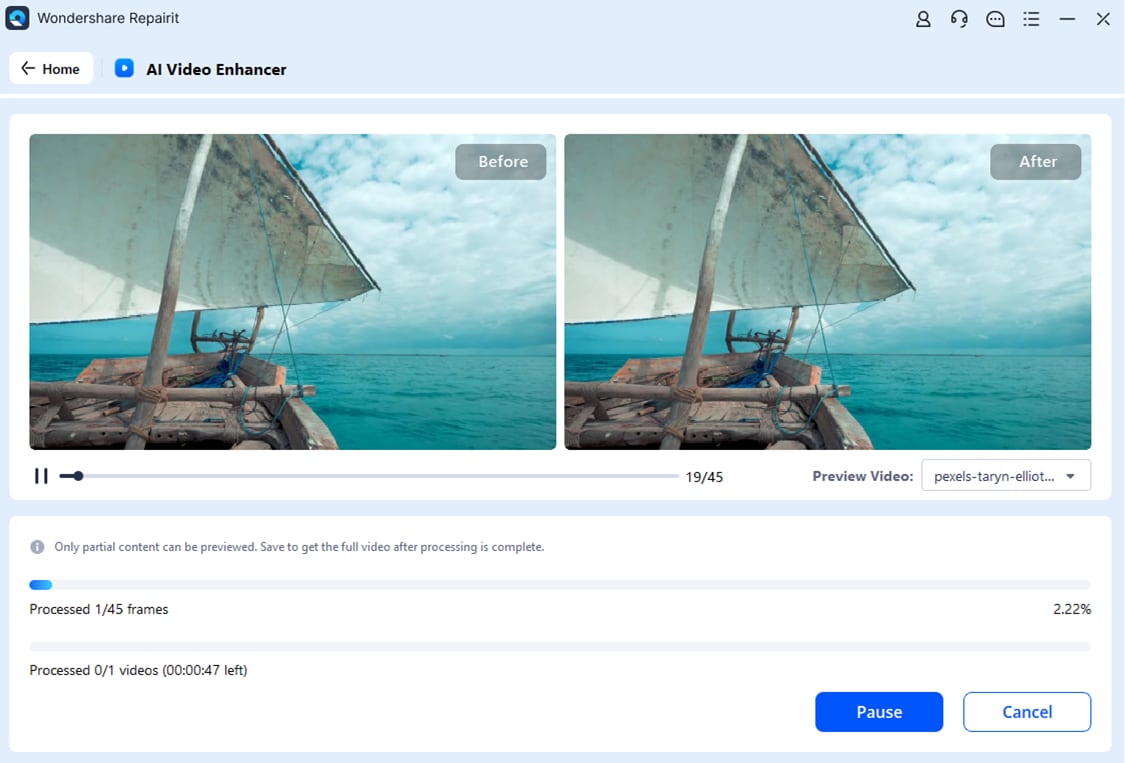
Step 2. Select Enhancement Model and Output Resolution
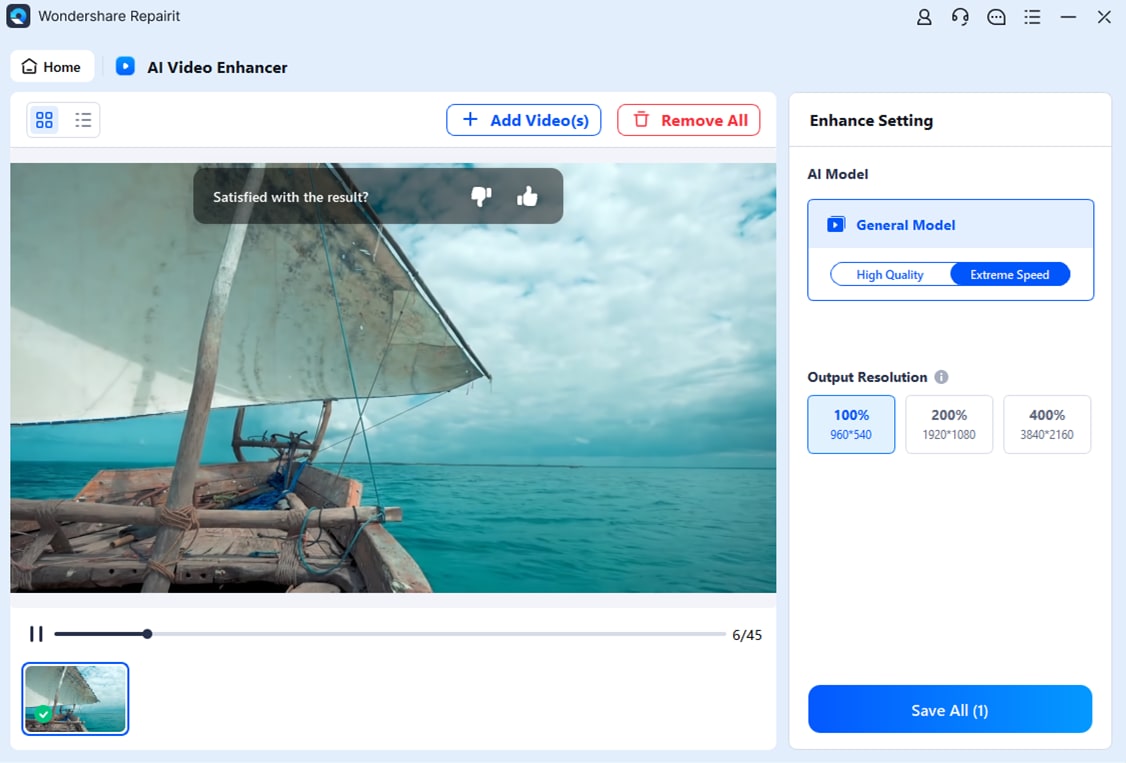
Step 3. Preview and Save the Enhanced Video
When satisfied, click "Save All" to export all enhanced Resident Evil Requiem recordings to your chosen output folder, ready for sharing on YouTube, Twitch, or social media.
Enhance Your Resident Evil Requiem Gameplay Recordings
 Security Verified. Over 7,302,189 people have downloaded it.
Conclusion
To wrap up, the Resident Evil Requiem "Sorry Something Went Wrong" error is frustrating but entirely fixable. The root cause in most cases is either an incompatible GPU driver or a corrupted Steam client cache. Start with Fix 1 (Clean GPU Driver Install) and Fix 2 (Disable Shader Pre-Caching & Clear Cache) — these two solutions resolve the error for the vast majority of players. If the issue persists, work through the remaining fixes in order: add the game to Windows Security exclusions, allow it through the firewall, run Steam as admin, verify game files, reinstall Steam, and finally reinstall the game on a different drive.
Once you're back in the game and recording your Resident Evil Requiem sessions, don't forget that Repairit can enhance your recordings to crisp 4K quality and repair any corrupted video files caused by unexpected crashes.
Frequently Asked Questions
-
1. Why does Resident Evil Requiem crash with "Sorry Something Went Wrong" immediately after I press Play?
This usually points to a GPU driver conflict or a corrupted Steam client. The most common culprit is an incompatible or buggy NVIDIA driver — particularly the 572.xx Game Ready Driver series. Start with Fix 1 (clean GPU driver install) and Fix 2 (clear Steam cache). These two fixes resolve the immediate-crash variant of this error for most players. -
2. Does the "Sorry Something Went Wrong" error mean my game files are corrupted?
Not necessarily. This error is more commonly caused by GPU driver issues, Steam client corruption, or Windows Security blocking the game — rather than corrupted game files. However, it's still worth running Fix 6 (Verify Integrity of Game Files) as part of your troubleshooting, since it can detect and repair any damaged files without requiring a full reinstall. -
3. Will reinstalling Steam delete my downloaded games?
No — as long as you back up the steam apps folder before uninstalling. The Steam client and your game library are stored separately. Follow Fix 7 carefully: copy thesteamappsfolder to a safe location before uninstalling, then reinstall Steam and copy it back. Steam will detect and verify your games automatically when it restarts.




