
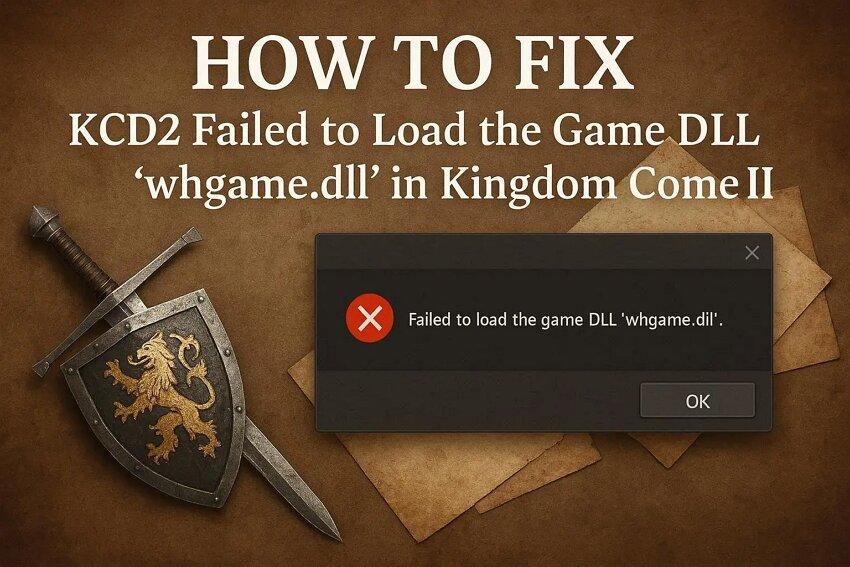
Many players face the error "KCD2 Failed to Load the Game DLL ‘WHGame.dll’" when trying to start Kingdom Come II. This issue stops the game from launching and shows a crash message on PC. In terms of causes, the error often happens because the game cannot find or read the essential files needed to run.
There are other reasons too, but users report that the error appears after updates or after moving game files. No matter the cause, resolving the Kingdom Come Deliverance II KCD2 issues is seamless with quick fixes, as this guide explains in detail.
Table of Contents
-
- Fix 1: Restart PC and Relaunch KCD2
- Fix 2: Verify Your Kingdom Come Deliverance II Files
- Fix 3: Update Your Graphics Drivers
- Fix 4: Install or Repair Microsoft Visual C++ Redistributables
- Fix 5: Check DirectX & DLL Dependencies
- Fix 6: Run System File Checker and DISM Scan
- Fix 7: Copy Missing DLLs (Advanced/Community Solution)
Part 1. What Does Kingdom Come Deliverance II KCD2 Failed to Load WHGame.dll Mean?
Let’s start by knowing what "Kingdom Come Deliverance II KCD2 Failed to Load the Game DLL "WHGame.dll" FIX" means. To put it simply, this error means that the game cannot start because it cannot access its main engine file. This DLL is essential for the game’s engine to run, so if the WHGame.dll fails, the launcher cannot start the game, and players cannot reach the main menu.
Common Errors and Issues Related to WHGame.dll
When a user faces the Kingdom Come Deliverance II KCD2 issues, users can encounter various errors. Thus, this section lists a few of them and highlights the meaning and major cause behind them:
| Error Type | Meaning | Typical Causes |
| Failed to load WHGame.dll | The game’s EXE requested the DLL, but Windows failed to load it | DLL missing or in wrong Bin/Win64 folder; corrupted file; missing/broken Visual C++ Redistributables |
| "WHGame.dll missing / not found." | Windows cannot locate the DLL in the expected folder at startup | Incomplete install/patch; manual file moves; antivirus quarantined/deleted DLL |
| Crash at launch referencing WHGame.dll | Game window flashes or closes; logs point to WHGame.dll | Corrupted game files; conflicting overlays, mods, or third-party DLLs |
| Errors after moving/copying folders | EXE looks in the wrong folder for WHGame.dll | DLL only in Bin\Win64Shared, manual folder changes without updating paths |
| WHGame.dll errors after reinstalling Windows or Visual C++ | The DLL exists but cannot be loaded. | Missing/corrupt Visual C++ Redistributables; damaged system libraries or outdated components |
Part 2. Kingdom Come Deliverance II KCD2 WHGame.dll Failed to Load — Working Fixes
To fix the "Kingdom Come Deliverance II KCD2 Failed to Load the Game DLL "WHGame.dll" FIX" issue, try the 7 solutions mentioned ahead:
Fix 1: Restart PC and Relaunch KCD2
This simple solution clears temporary glitches, finishes pending Visual C++ or system updates, and reloads all game files in a clean state. In addition, a reboot makes Windows use new runtime libraries, removes stuck processes that block the DLL, and refreshes paths after moving or verifying DLLs. After restarting the PC, you can see WHGame.dll in the correct location, and it will load properly, as demonstrated:
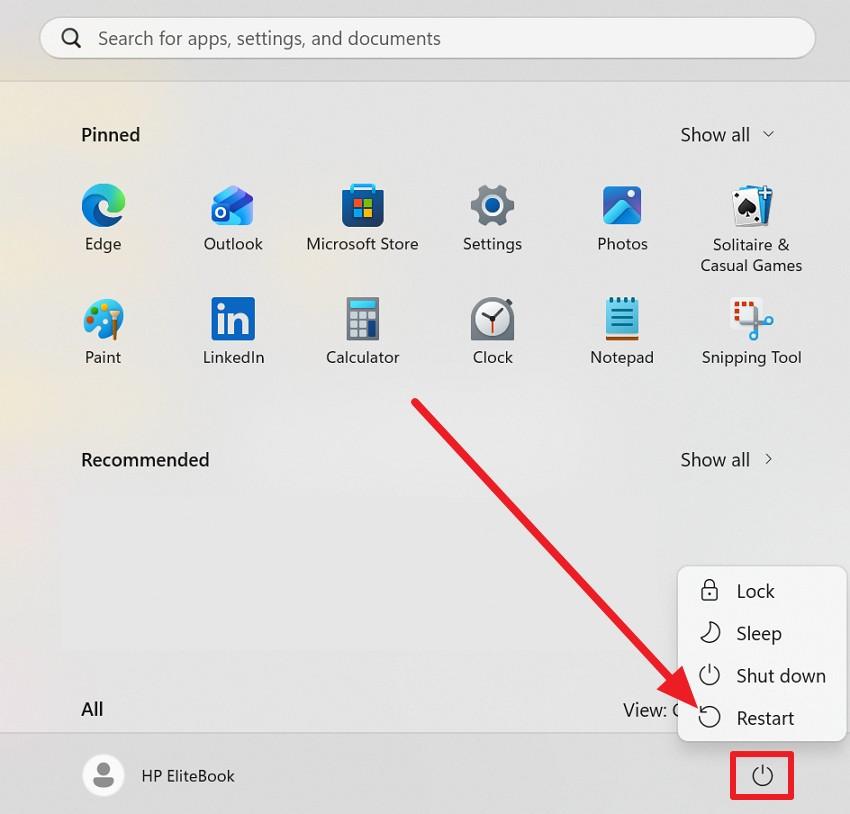
Step 1. Close the Kingdom Come: Deliverance II, and go to the PC’s start menu and press the "Power" icon to choose "Restart."
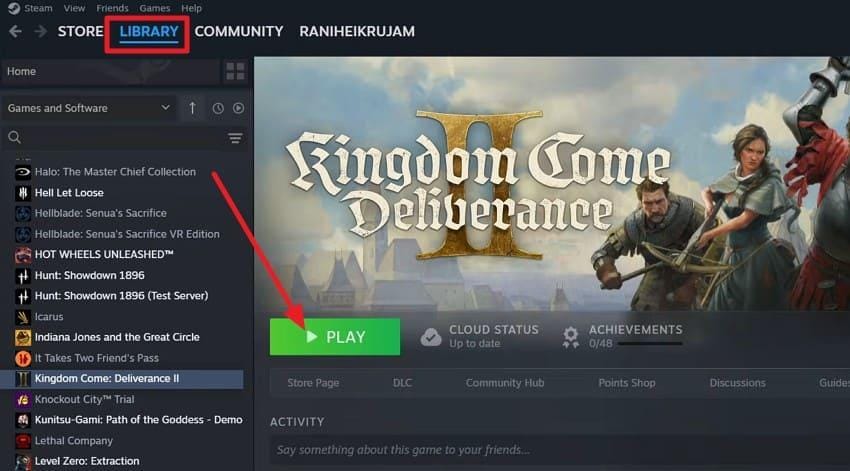
Step 2. Once it's done, head to Steam and, in the "Library," click the "Play" button.
Fix 2: Verify Your Kingdom Come Deliverance II Files
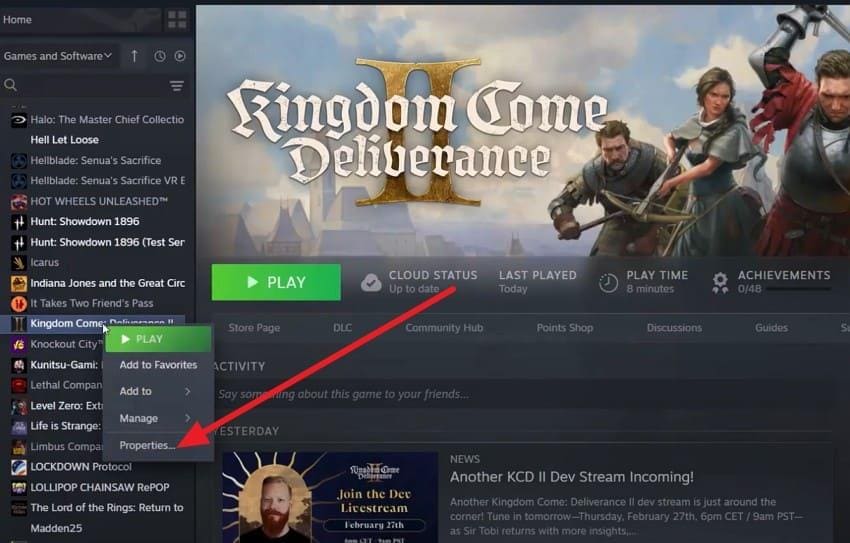
For the "Kingdom Come Deliverance II KCD2" issues, it's also suggested to verify your Kingdom Come: Deliverance II files. This ensures WHGame.dll and related engine DLLs are correct and in the right location. Furthermore, verification also fixes incomplete updates, file layout issues caused by manual changes, and avoids the need for a full reinstall. So, here are the simple steps you can follow to verify the game files:
Step 1. In the Steam Library, right-click on the Kingdom Come Deliverance II and pick the "Properties" option.
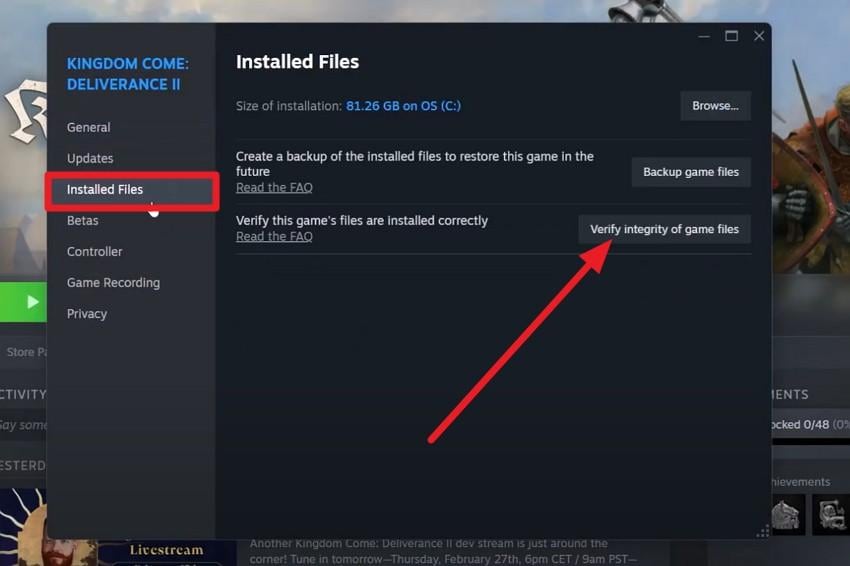
Step 2. Here, go to the "Installed Files" section and press "Verify integrity of Game Files." When verification completes, relaunch Steam and press "Play" in Kingdom Come: Deliverance II to see if the issue persists.
Fix 3: Update Your Graphics Drivers
This is another solution for "Kingdom Come Deliverance II KCD2 Failed to Load the Game DLL "WHGame.dll" FIX" issue. New drivers fix bugs in DirectX, memory handling, and shader compilation, which prevent crashes when KCD2 loads WHGame.dll. Not just that, they ensure compatibility with modern DirectX features the game uses, reduce low-level API errors, and improve device handling during startup, once updated via the mentioned steps:
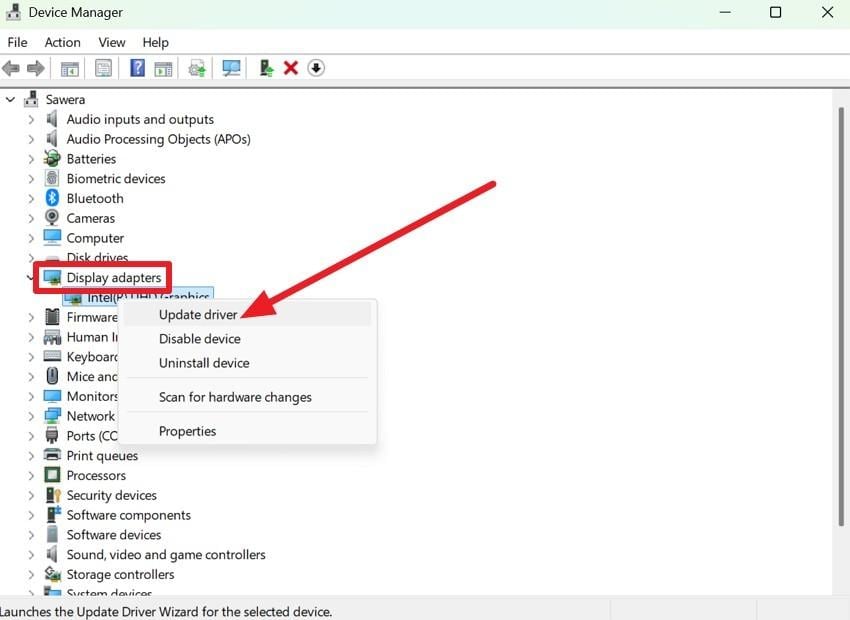
Step 1. Search for the Device Manager on PC and expand the "Display Adapters" menu. Then, right-click on the graphic driver and press the "Update Driver" option.
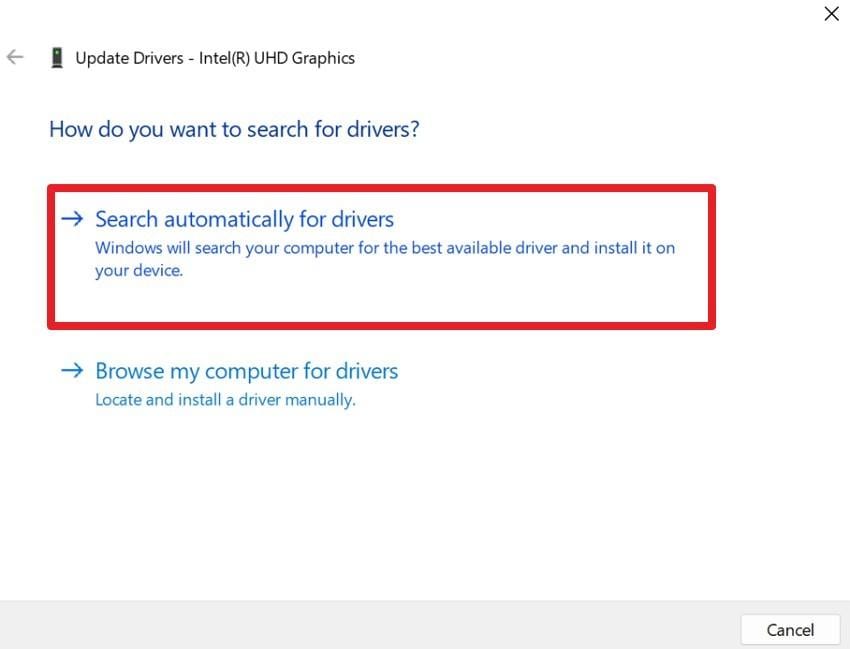
Step 2. After that, select the "Search Automatically for Drivers" option and begin updating.
Fix 4: Install or Repair Microsoft Visual C++ Redistributables
If you still get the Kingdom Come Deliverance II KCD2 issues, try to repair or install the Microsoft Visual C++ Redistributables. WHGame.dll calls functions from VC++ runtimes like MSVCP140.dll and VCRUNTIME140.dll, so missing or broken runtimes stop it from loading. Thus, as you reinstall both x64 and x86 versions, it will restore these files. Furthermore, this fixes corrupted or outdated VC++ installs and resolves dependent DLL errors, as guided:
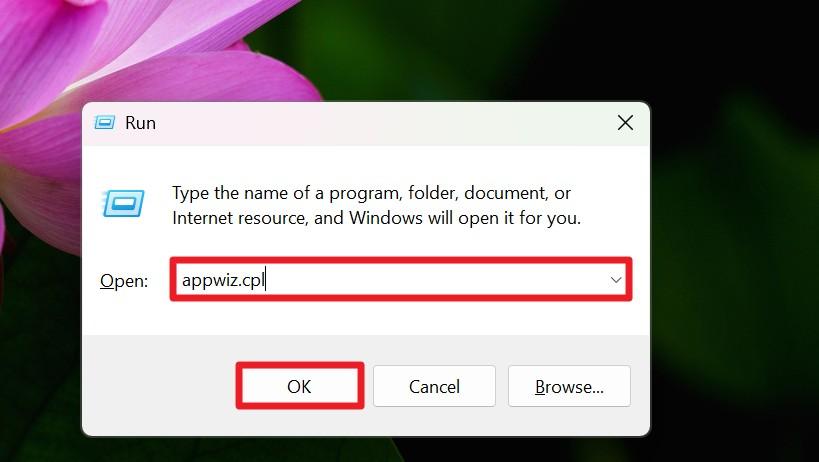
Step 1. To repair, press "Win + R," type "appwiz.cpl" and press the "Enter" key.
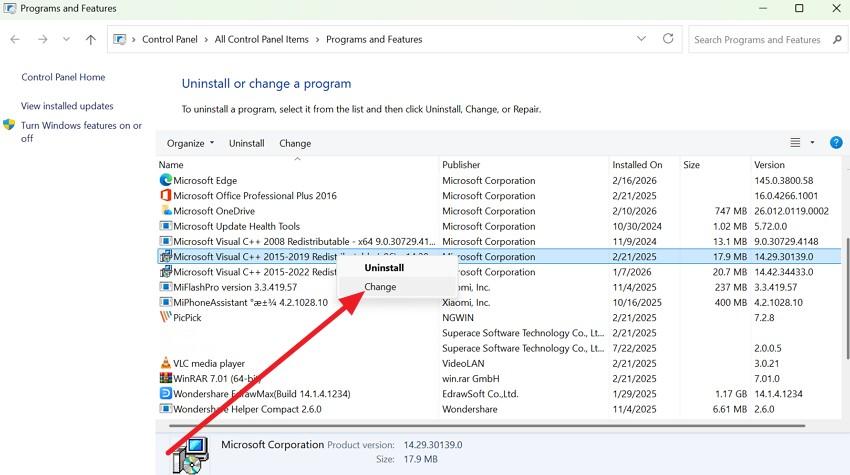
Step 2. Locate the "Microsoft Visual C++ Redistributable" entries, choose one, and press the "Change" button.
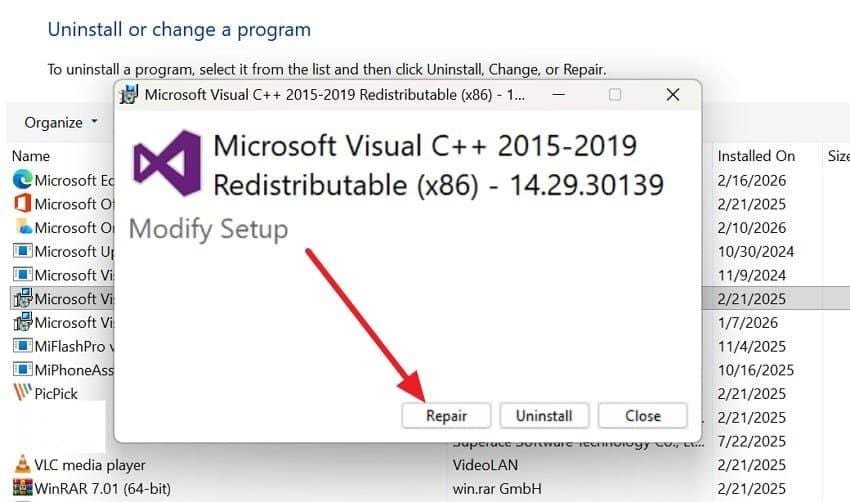
Step 3. When the popup appears, choose the "Repair" button, and when it ends, check if the "Failed to load the Game DLL ‘WHGame.dll’" error is gone.
Fix 5: Check DirectX & DLL Dependencies
Consider this fix for the "Kingdom Come Deliverance II KCD2 Failed to Load the Game DLL "WHGame.dll" FIX" issue. If any DirectX or runtime DLL is missing, outdated, or broken, Windows blocks the DLL even if it is present. This is why updating or repairing DirectX ensures all required graphics and system DLLs are available for WHGame.dll. Alternatively, it fixes hidden dependency issues and improves graphics stability, as illustrated:
Update Visual C++ Redistributables
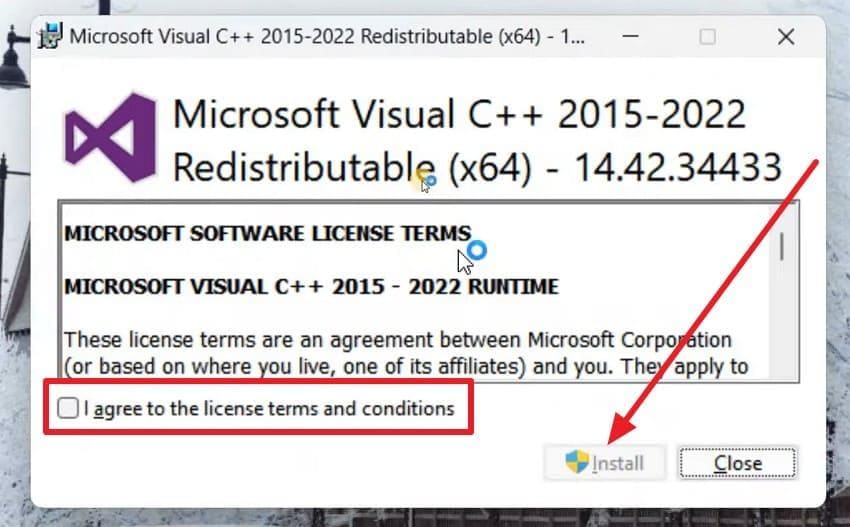
Step 1. Go to the official Latest supported Visual C++ Redistributable downloads page on Microsoft Learn, and locate updated redistributable versions.
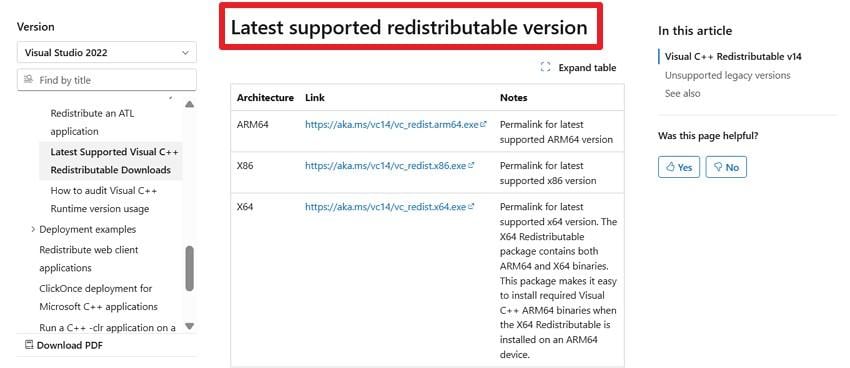
Step 2. Choose versions like "x64" and "x86" as it downloads, open it, agree to the terms in the popup, and choose the "Install" option.
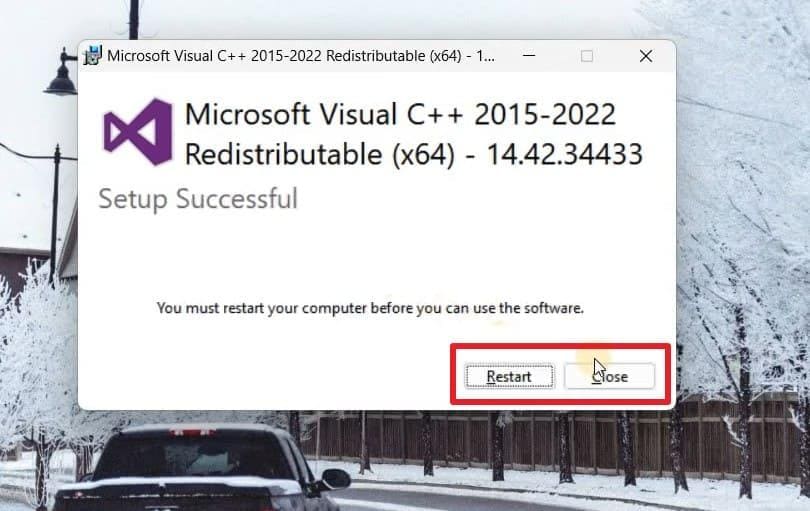
Step 3. Once it ends, choose to "Close" or "Restart" the computer.
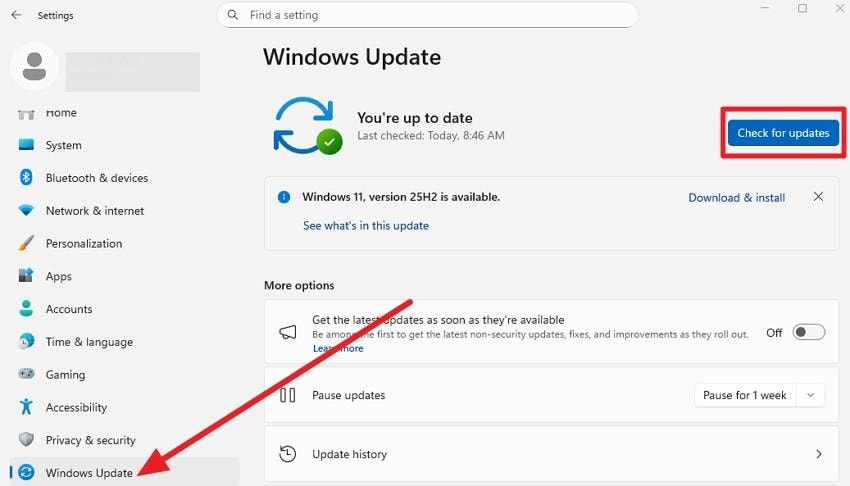
Update DirectX
In settings, go to the "Windows Updates" section and press the "Check for Updates" option.
Note: Users can also run the DirectX End‑User Runtime Web Installer from Microsoft as an extra step if they still suspect DirectX issues.
Fix 6: Run System File Checker and DISM Scan
When the Kingdom Come Deliverance II KCD2 issues remain, try this fix instead. WHGame.dll relies on core Windows libraries, so damaged system files can block it even if the game is fine. Thus, SFC scans and restores protected system files, while DISM repairs the component store to allow SFC to work properly. Together, they fix hidden DLL and runtime issues, and the steps are mentioned below:
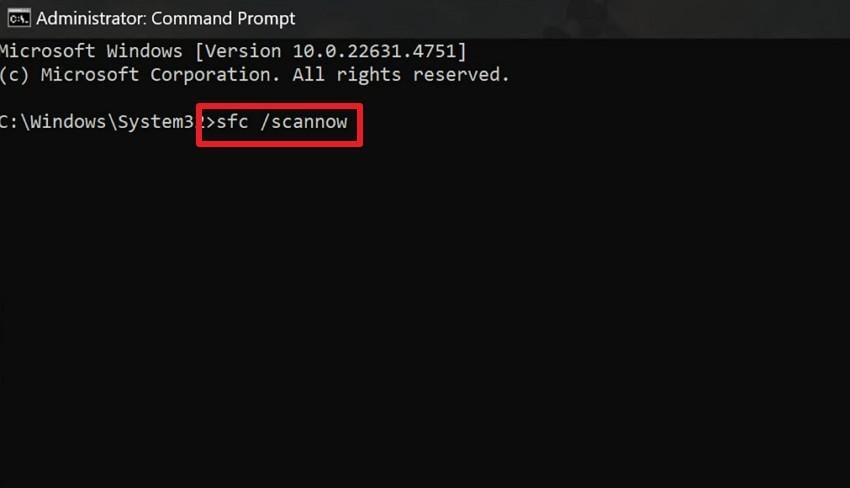
Step 1. Run Command Prompt as administrator and enter the command "sfc /scannow" and press the "Enter" key.
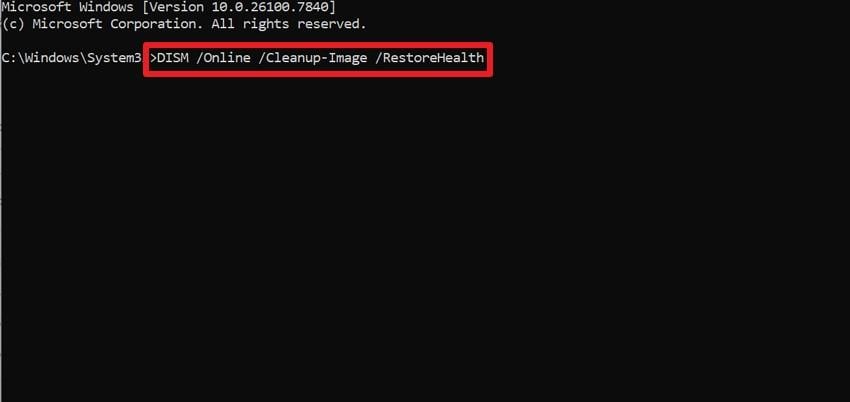
Step 2. After that SFC scan ends, enter the command "DISM /Online /Cleanup-Image /RestoreHealth" and press "Enter." Wait for the scan to complete and repair files, as it ends, restart the PC.
Fix 7: Copy Missing DLLs (Advanced/Community Solution)
You can also try this fix for "Kingdom Come Deliverance II KCD2 Failed to Load the Game DLL "WHGame.dll" FIX" issue. Some installs keep WHGame.dll and other DLLs only in the shared folder, which causes the executable to fail. Therefore, manually copying all DLLs ensures the EXE sees the correct files. So, to know how you can copy the missing DLLs, here is a concise stepwise guide for you:
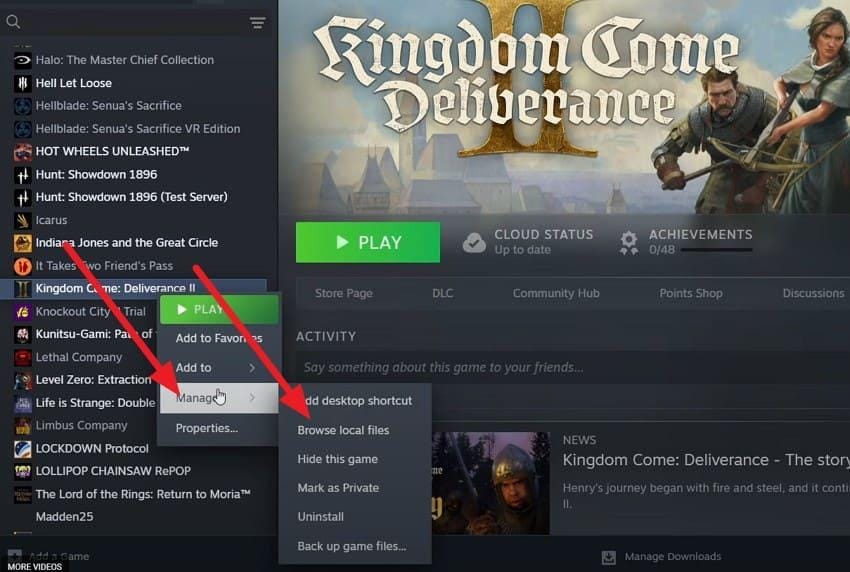
Step 1. Right-click the Kingdom Come Deliverance II on the Steam Library and choose the "Manage" option to pick "Browse Local Files."
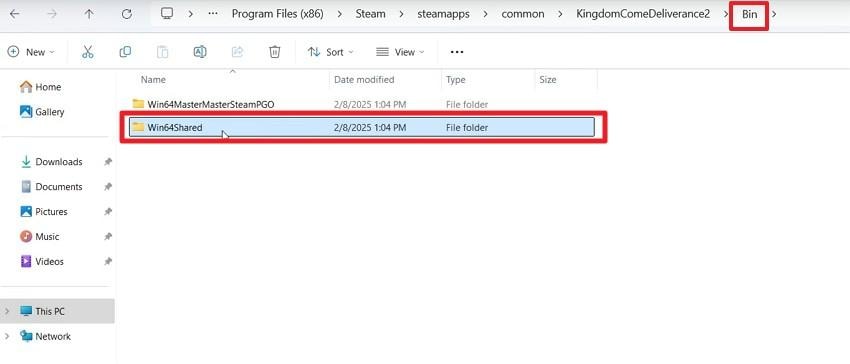
Step 2. In the File Explorer, head to the "Bin" folder and choose the "Win64Shared" folder.
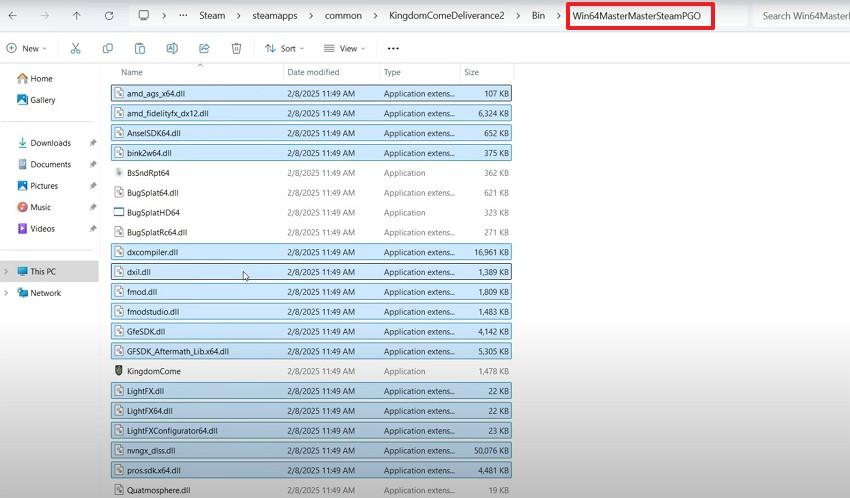
Step 3. There, copy all the files and paste them into the "Win64MasterMasterSteamPGO" folder.
Pro Tip. One-Click Solution to Fix Your Damaged KCD2 Game Video Files with Repairit
If Kingdom Come Deliverance II KCD2 crashes with the WHGame.dll error while recording, your MP4, MOV, or MKV clips can get corrupted. Here, Repairit can scan and fix these broken videos so they play normally, saving your gameplay footage. It repairs common formats like MP4, MOV, AVI, MKV, FLV, 3GP, MXF, INSV, RAW, and more, used by OBS, ShadowPlay, Xbox Game Bar, and capture cards.
In addition, it works with HD, 4K, and 8K clips from PCs, consoles, or cameras, so you can fix high-quality KCD2 recordings instead of losing them. To fix these files, it offers Quick Repair to repair broken clips that won’t open, show black screens, freeze, or lose sound. On the contrary, the Advanced/Professional Mode uses a sample video from the same device or settings to rebuild severely damaged KCD2 files.
Key Features

-
Desktop & Online Options: Desktop apps repair large KCD2 files on Windows/macOS with multiple tasks; online repair fixes single small clips quickly.
-
Multi-Format Crash Repair: It can also fix photos, documents, and audio damaged during KCD2 crashes.
-
Preserves Quality: Repairs KCD2 clips while keeping original resolution, codec, frame rate, color, and HDR/RAW, ready for editing without transcoding.
Guide to Fix Corrupted Game Video Files of Kingdom Come: Deliverance II
To know how this tool can fix various formats of KCD2 video game files, adhere to the detailed guide given below:
Step 1. Access the Repairit Video Repair Tool
Press the "Start" button and begin importing the KCD2 video files as you access the "Video Repair" toolkit.

Step 2. Add Multiple KCD2 Video Files & Repair
Choose to import more KCD2 video files by using the "+Add Files(s)" button and then click the "Repair" button.

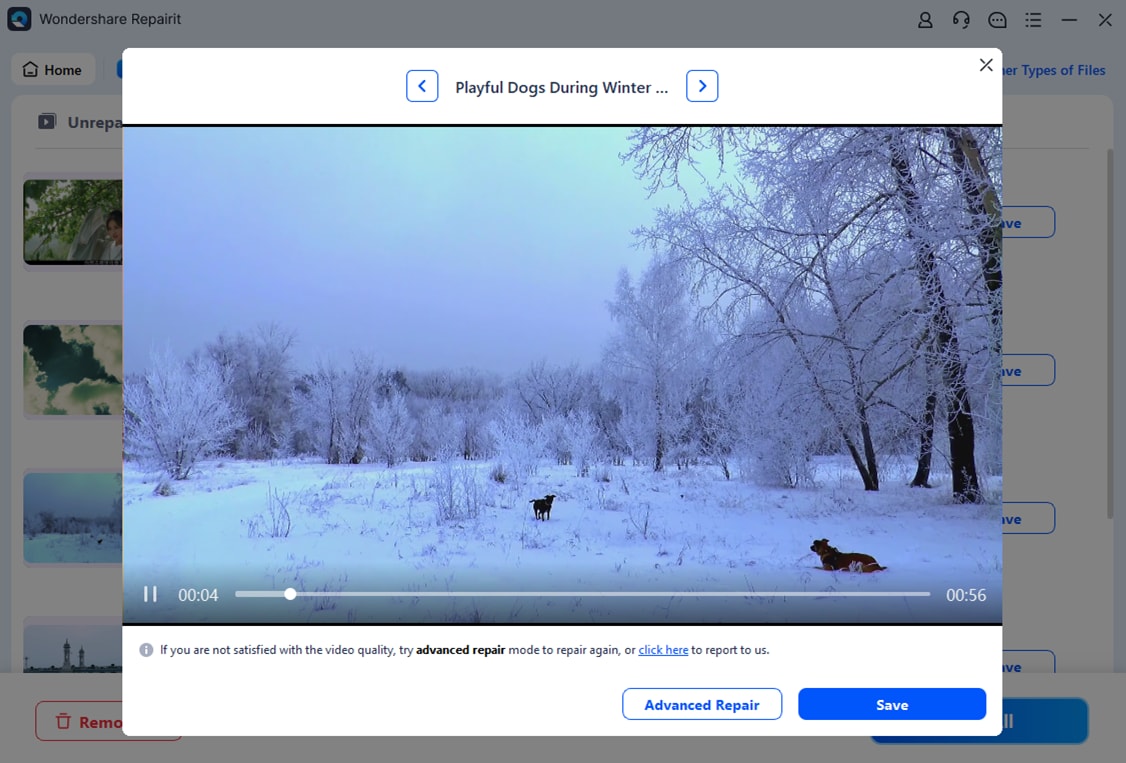
Step 3. Save or Preview the KCD2 Video Files
When the KCD2 video files get fixed, "Preview" them and press "Save All" after determining the accuracy.
Fix Corrupted Game Video Files
 Security Verified. Over 7,302,189 people have downloaded it.
Conclusion
To conclude, this guide has explained various types of Kingdom Come Deliverance II KCD2 issues and why they occur. Whereas for the "Failed to load WHGame.dll" problem, 7 effective solutions are explained in detail to help play again smoothly. However, if this error erupts while recording, and video files lead to corruption, the usage of Repairit is suggested to batch repair game video files.
FAQs
-
1. Is Kingdom Come: Deliverance II an open world?
Yes, KCD2 offers a large open world with towns, forests, and castles. In addition, players can travel freely and explore many detailed medieval locations. -
2. Why does KCD2 crash randomly during gameplay?
KCD2 may crash due to driver issues, weak hardware, or system conflicts. As a result, sudden shutdowns can occur during battles or heavy action scenes. -
3. Why does KCD2 stutter or lag in towns?
Towns have many NPCs, buildings, and effects that use more system power. Therefore, low system specs can cause frame drops and slow movement.




