
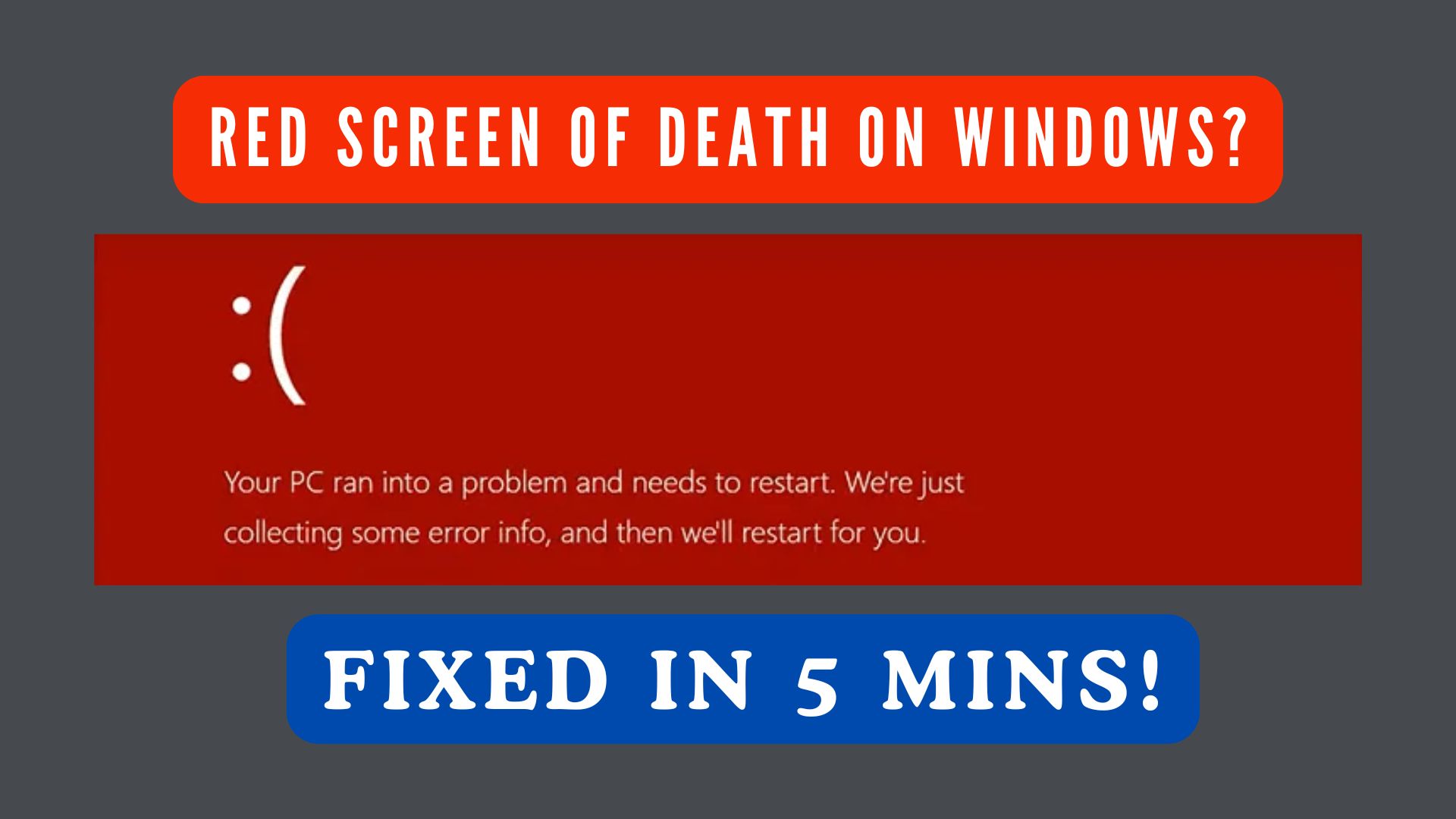
Sudden screen crashes can be alarming, especially when your display turns completely red and stops responding. This issue, commonly known as the Red Screen of Death (RSOD), may appear during gaming, video playback, driver updates, or even while starting the computer. It can affect several Windows versions, including Windows 10 and Windows 11, and may occur unexpectedly when the system encounters critical display or stability issues.
In this guide, common causes, quick self-checks to identify what’s triggering the error, and step-by-step solutions ranging from simple fixes to advanced methods will be discussed. By the end, you’ll also know how to stabilize your system and prevent the red screen from disrupting your work or play.
Table of Contents
Part 1. What Is the Red Screen of Death on Windows?
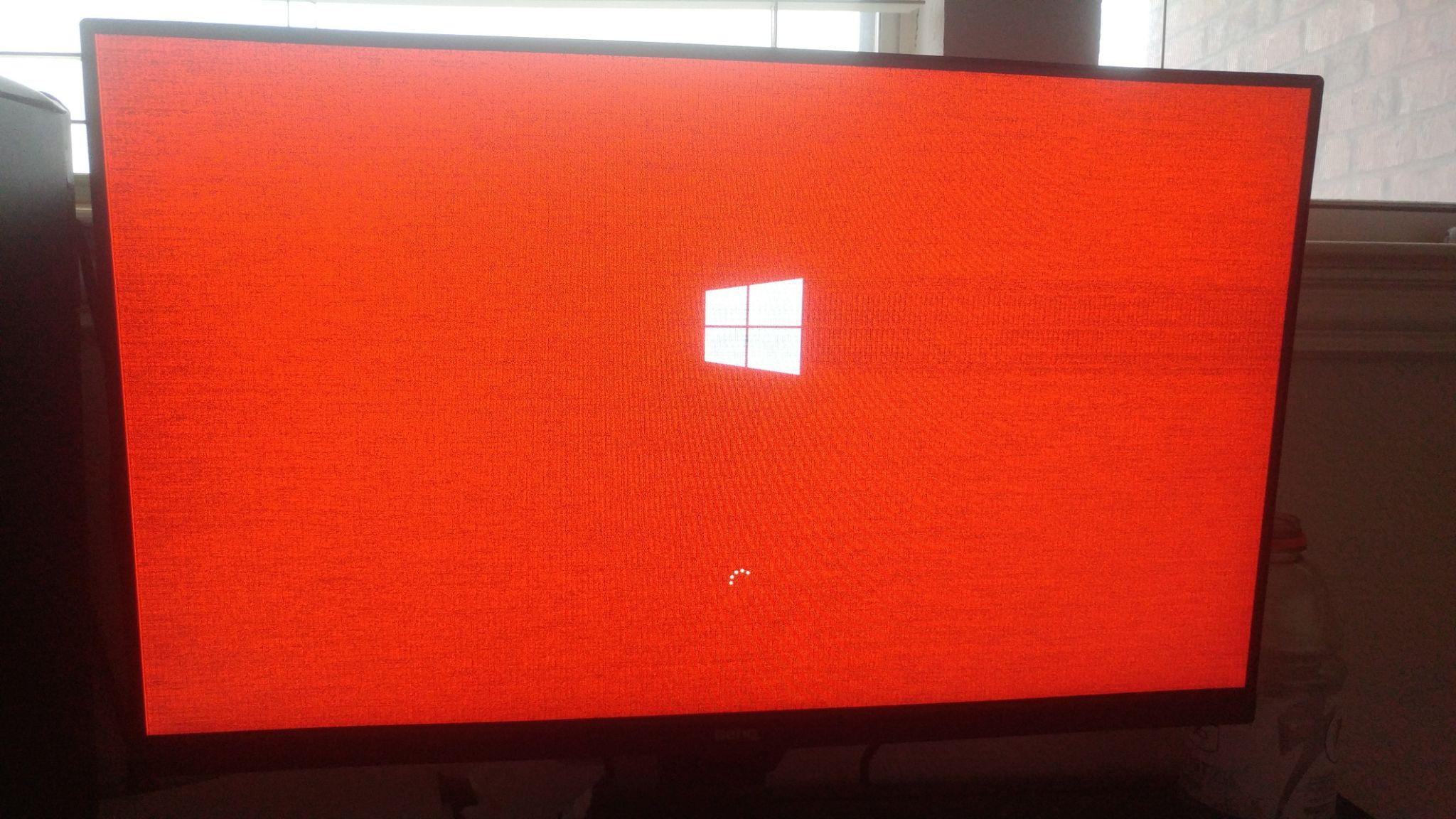
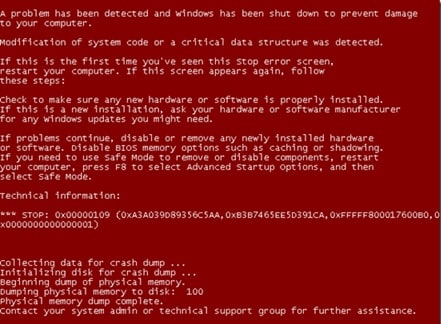
The red screen of death (RSOD) is a critical system crash that causes Windows to freeze or restart while displaying a red background instead of the normal desktop. It typically appears when the system detects severe graphics, driver, or hardware instability that prevents safe operation.
Unlike the Blue Screen of Death (BSOD), RSOD is more commonly associated with GPU/graphics processing, driver conflicts, overclocking instability, or display-related hardware failures.
Signs of RSOD
- Solid red screen with no warning message
- System freeze or forced restart after the red screen appears
- Red flashes or flickering during gaming or video playback
- Crash occurring during system startup or loading screens
Different Types of Red Screen Errors You May Encounter
RSOD can appear in different ways depending on what triggers the crash. Here are three of the most frequent cases:
- Startup Red Screen: Appears while Windows is booting. Often linked to incompatible drivers, corrupted system files, or firmware/driver conflicts.
- Laptop-Specific Red Screen: RSOD occurring mainly on laptops is frequently related to graphics card instability or conflicts between integrated and dedicated GPUs.
- Flashing or Flickering Red Screen: Instead of a stable red display, the screen may flicker or flash red repeatedly. This often happens when CPU or GPU overclocking settings become unstable.

Part 2. Why Does the Red Screen of Death Happen? (Common Causes)
The Red Screen of Death can result from several technical and user-related factors. Here are some:
- Graphics Driver - Graphics drivers allow Windows to communicate with GPU hardware. When these drivers become outdated, corrupted, or incompatible with system updates, they may fail to process graphical tasks correctly.
- GPU or CPU Overclocking - Overclocking increases processor or graphics card performance by raising clock speeds and voltage levels. While it improves performance in some cases, unstable overclocking settings can cause hardware timing conflicts and system crashes, especially during gaming or video rendering.
- BIOS / UEFI Compatibility Problems - BIOS or UEFI firmware manages communication between hardware components and the operating system. Outdated firmware may conflict with modern GPUs, RAM modules, or updated Windows features, and may lead to unexpected system instability.
- Overheating Hardware - Hardware components such as GPUs, RAM, or power supply units can malfunction or overheat over time. Excessive heat or hardware failure can disrupt normal data processing, triggering display crashes and forcing the system to halt operations.
- Software or Game Configuration Conflicts - Some games or applications attempt to use graphics settings that exceed hardware capabilities or conflict with DirectX versions. Incorrect configuration files may trigger RSOD when launching or running these programs.
Part 3. Quick Self-Check: What’s Triggering Your RSOD?
Before applying fixes, identifying when RSOD occurs can help determine the most effective solution.
- If RSOD appears only during games or videos, the issue is likely GPU performance, driver instability, or decoding conflicts.
- If it appears after overclocking or hardware changes, system instability or improper voltage settings may be responsible.
- If RSOD happens during system startup, BIOS compatibility, corrupted drivers, or failing hardware components should be checked first.
Performing this quick assessment helps users select the appropriate troubleshooting method and reduces the risk of unnecessary system modifications.
Part 4. Safe Fixes for Red Screen of Death on Windows (Easy to Follow)
It is recommended to start with low-risk troubleshooting methods before attempting advanced repairs. These fixes address the most common RSOD causes while minimizing the risk of data loss or system damage.
Fix 1. Restart in Safe Mode
Best for: Startup crashes, driver conflicts, repeated RSOD after login
Safe Mode starts Windows using only essential drivers and system services. This helps isolate problematic drivers or software conflicts.
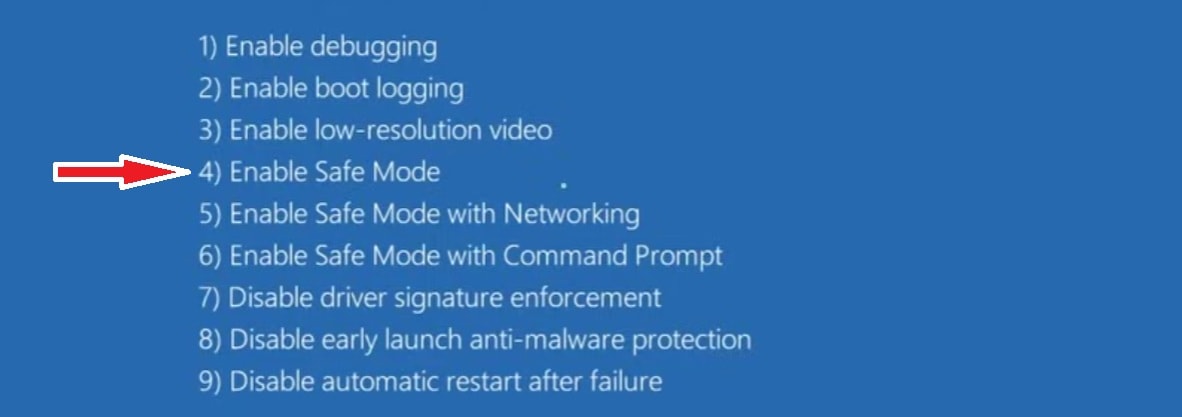
Step 1. Press Shift + Restart from the Start menu. Navigate to Troubleshoot. Choose Advanced Options. Go to Startup Settings and click Restart.
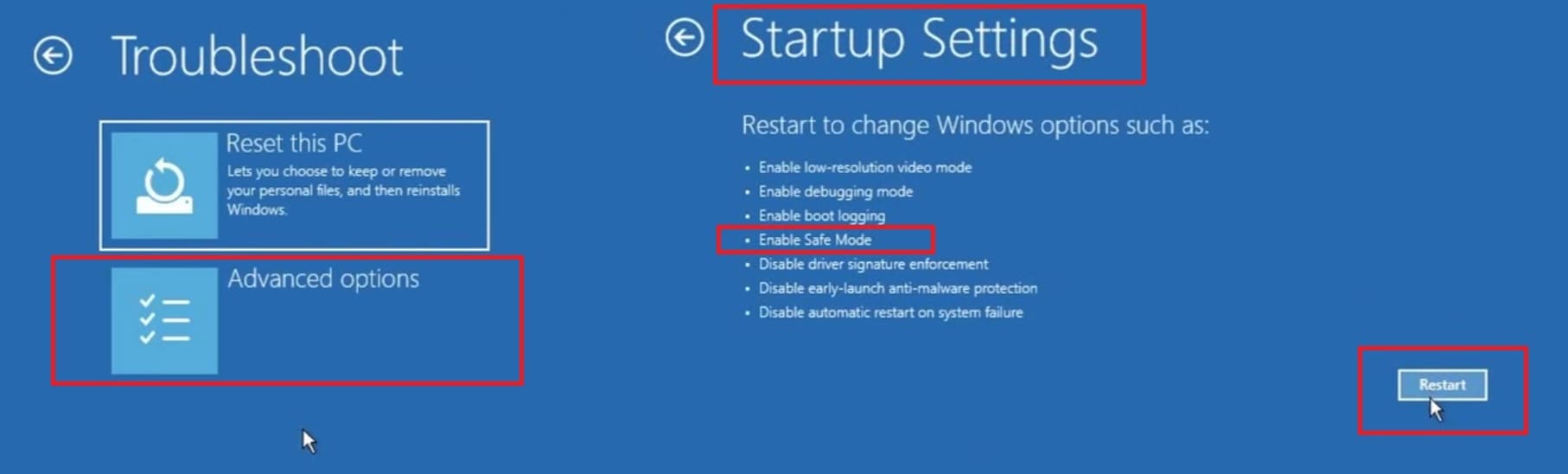
Step 2. Select Enable Safe Mode or Press 4.
Fix 2. Update or Roll Back Graphics Drivers
Best for: RSOD after driver updates, gaming/video playback crashes
Updating drivers resolves compatibility issues, while rolling back drivers helps if RSOD began after a recent update.
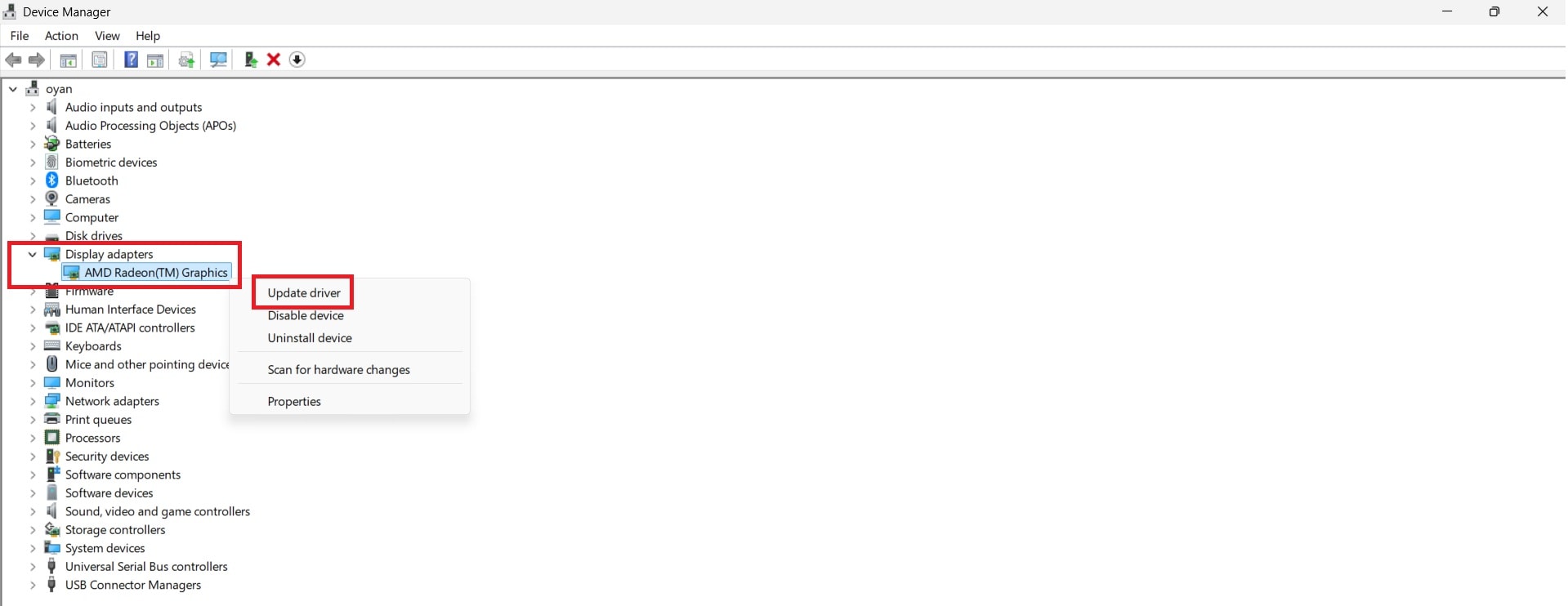
Step 1. Open Device Manager and expand Display Adapters. Right-click the GPU and select Update Driver.
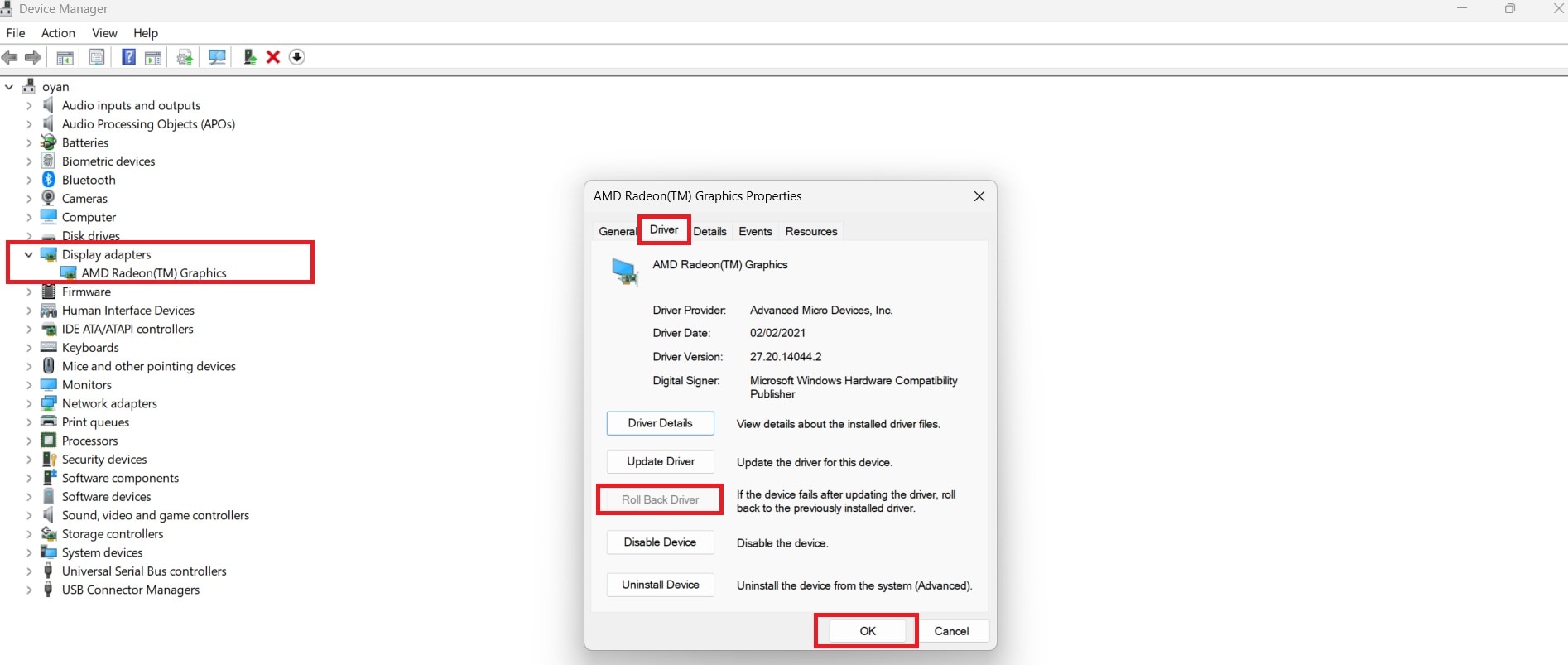
Step 2. You can also roll it back if available. Right-click, choose Properties. Under Driver, choose Roll Back Driver.
Fix 3. Disable CPU/GPU Overclocking
Best for: Flickering red screens, crashes under load, unstable performance after tuning
Returning hardware settings to default speeds improves stability and prevents voltage-related crashes.
Step 1. Enter BIOS/UEFI by pressing the designated key during startup (commonly F2, DEL, or ESC).
Step 2. Restore CPU and GPU settings to default values and save changes.
Fix 4. Uninstall Recently Installed Software or Games
Best for: RSOD started after installing a game/app/driver tool
New applications or games may introduce compatibility conflicts with graphics drivers or system libraries.
Step 1. Open Settings. Scroll down to Apps. Click on Installed Apps.
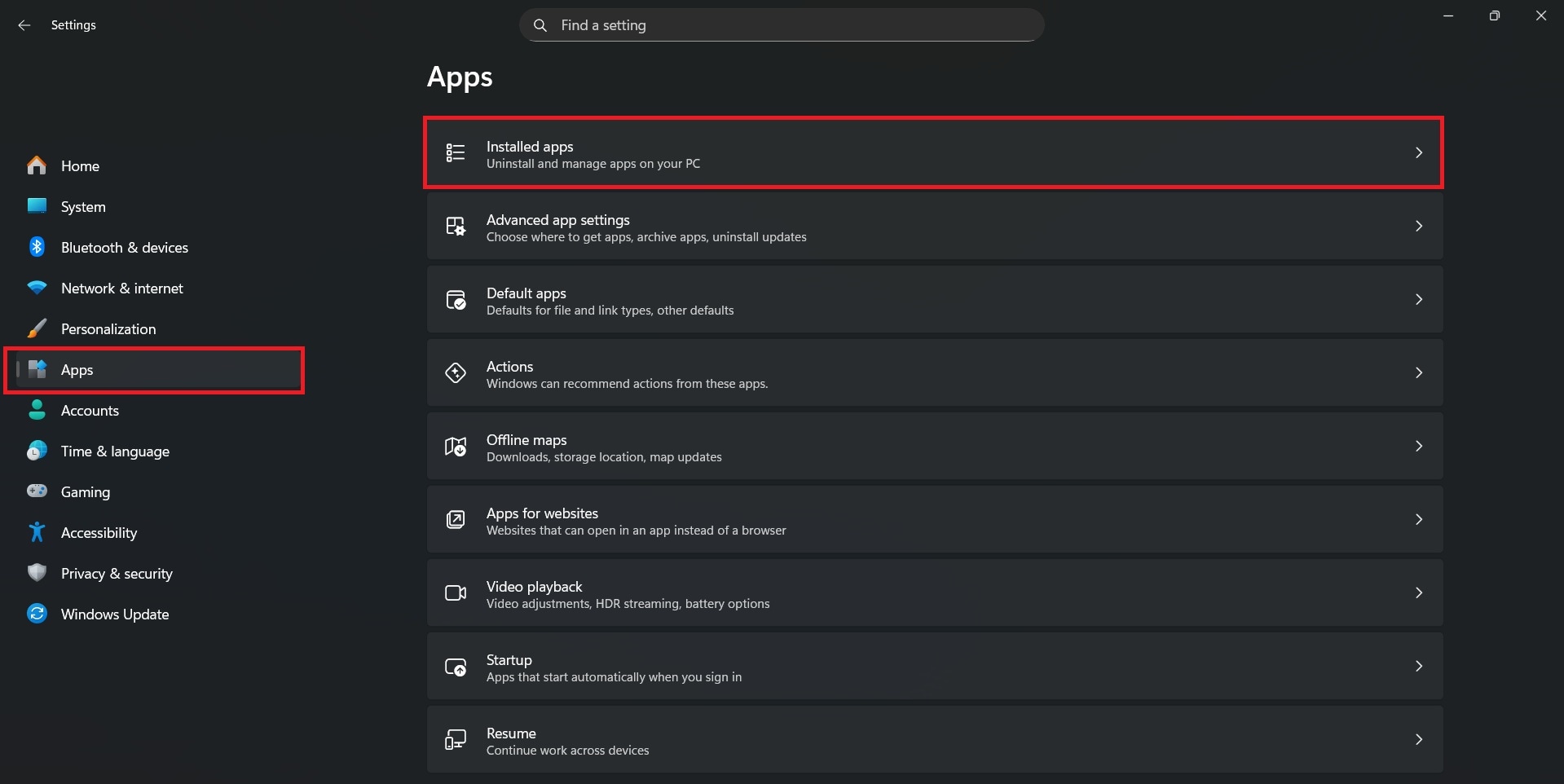
Step 2. Remove recently installed software or games. Restart the system and check for stability.
Fix 5. Test System RAM for Errors
Best for: Random freezes/restarts, repeated crashes across multiple scenarios
Faulty or unstable RAM can cause display crashes, system freezes, and unexpected red screen errors.
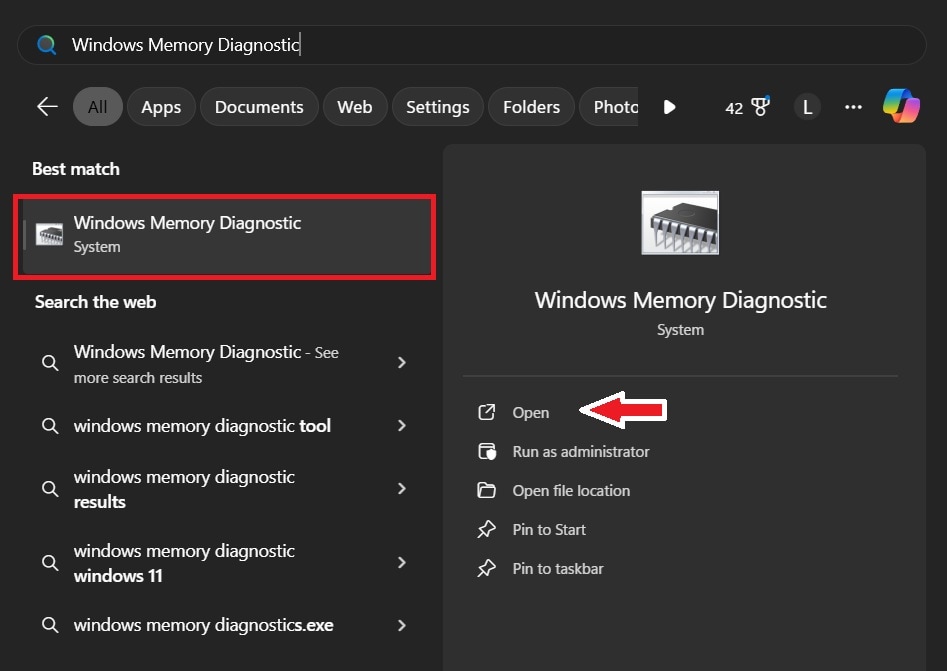
Step 1. Go to the Search bar, type Windows Memory Diagnostic, then select Open.
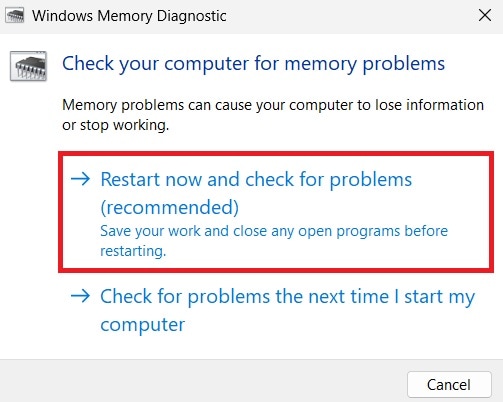
Step 2. Choose Restart now and check for problems (recommended). The computer will restart and automatically scan the RAM for errors.
Part 5. Advanced Methods for Red Screen of Death on Windows (Use Only If Basic Fixes Fail)
These solutions involve deeper system changes and should only be attempted if standard troubleshooting does not resolve the issue. Always back up important files before proceeding.
Advanced Fix 1. Perform System File Repair Using SFC and DISM
Best for: Startup crashes, suspected system file corruption
System file corruption can sometimes cause display failures and unexpected crashes. Running built-in repair tools can restore damaged Windows components.
⚠️ Risk Note: This method is generally safe, but interrupting the scan or shutting down the system during repair may cause additional system errors.
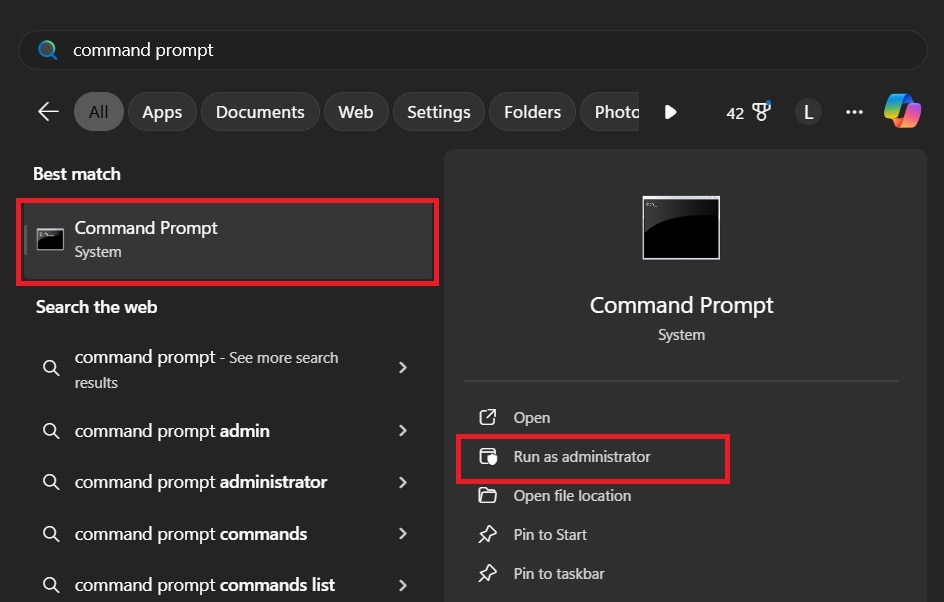
Step 1. Search for Command Prompt. Click on Run as administrator.
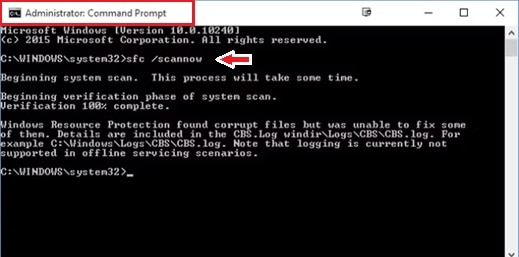
Step 2. Type sfc /scannow and press Enter.
Advanced Fix 2. Reset Windows Using System Restore
Best for: RSOD started after updates/driver installs/software changes
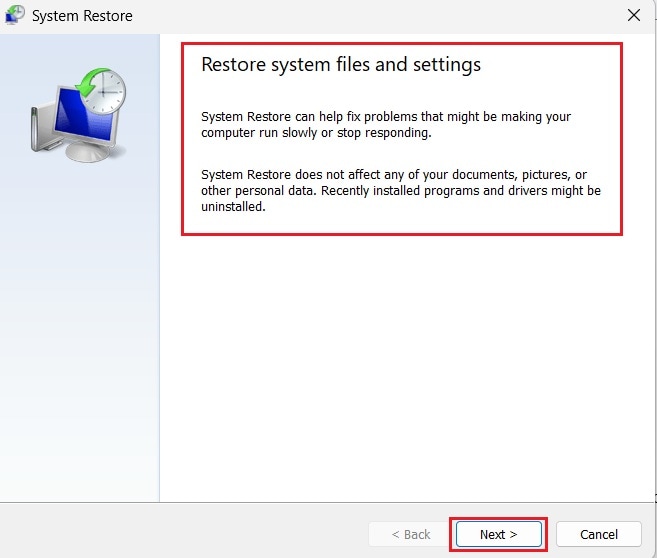
System Restore rolls Windows back to a previous working state without removing personal files. This can help if the RSOD started after driver or software changes.
⚠️ Risk Note: Recently installed applications, drivers, or updates may be removed after restoration, and some system settings may revert to earlier configurations.
Step 1. Press Windows + R, type rstrui, then press Enter.
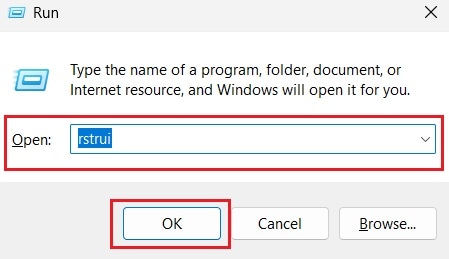
Step 2. Click Next and choose a restore point created before the red screen problem started. Click Finish and allow Windows to restore the system. The computer will restart automatically.
Advanced Fix 3. Reinstall Windows (Last Resort)
Best for: RSOD persists after all troubleshooting; suspected deep OS corruption
If RSOD continues after all troubleshooting steps, reinstalling Windows may remove deep system conflicts or corrupted OS files.
⚠️ Risk Note: Reinstalling Windows can remove applications, system settings, and potentially personal files if backups are not created beforehand.
Step 1. Back up important files to an external drive or cloud storage. Proceed to Settings. Open System. Scroll down and find Recovery.
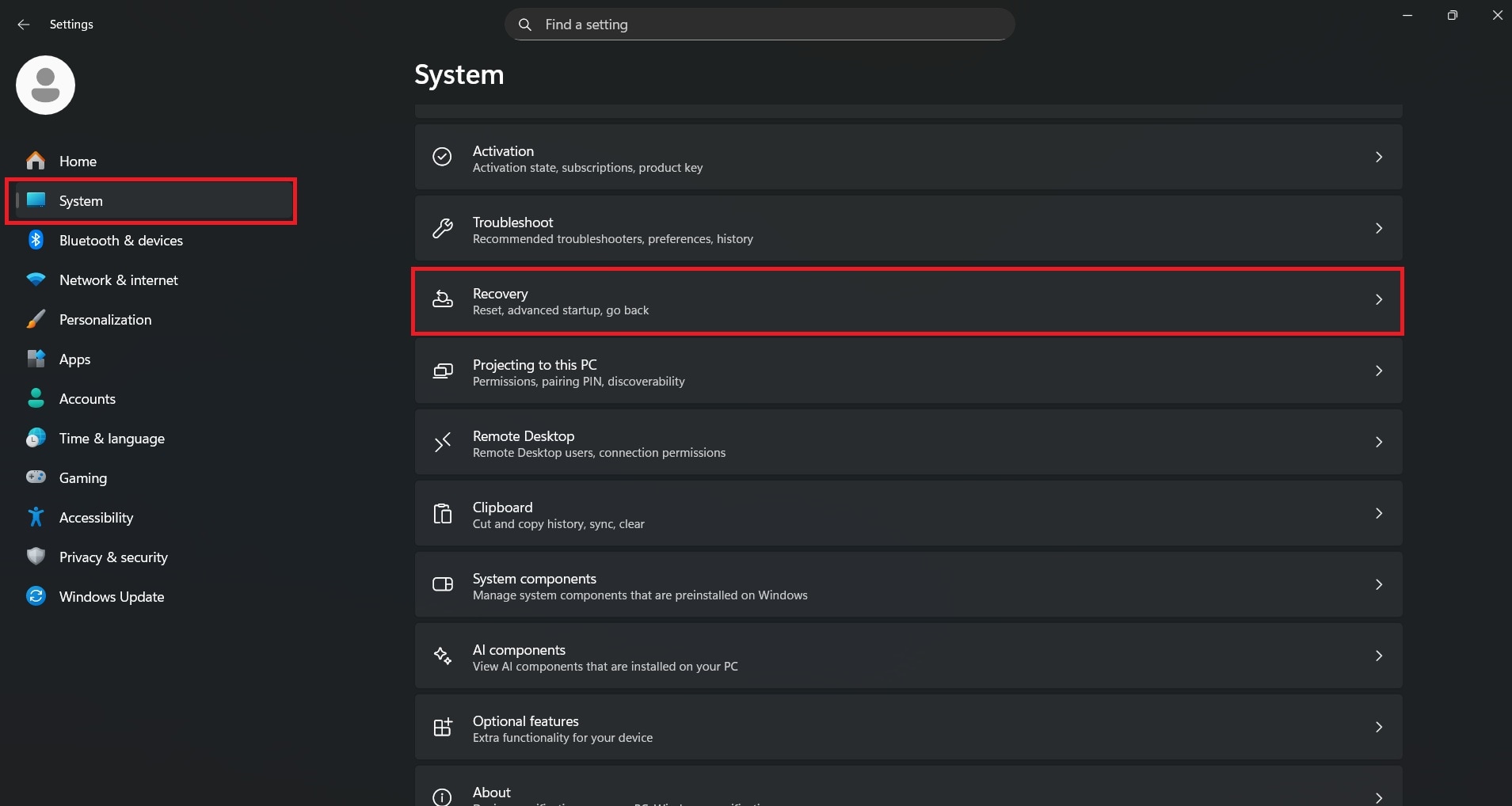
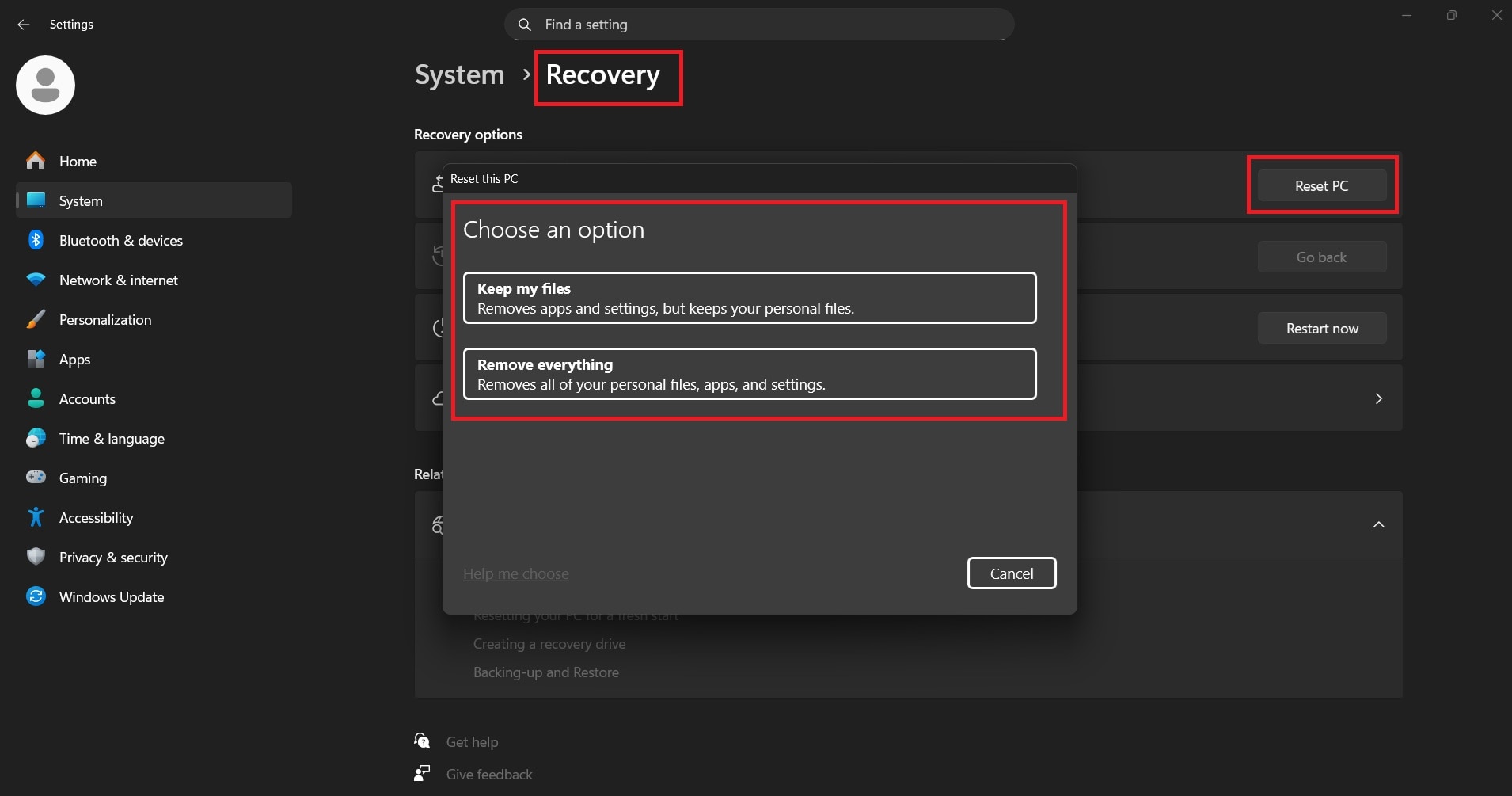
Step 2. Under Reset this PC, click Reset PC. You will choose from two prompts. Choose to Keep my files – Removes apps and settings but keeps personal data or Remove everything – Performs a full clean installation. Follow the on-screen instructions and allow Windows to reinstall.
More related solutions to windows:
Windows Update Keeps Failing? 4 Troubleshoots
Windows 10 Explorer Keeps Crashing? 10 Workable Fixes!
How to Recognize and Fix Windows 10/11 Video Problems
Part 6. Rare Case: When Video Files Can Trigger Red Screen Crashes (Optional)
RSOD is rarely caused by video file corruption. However, if crashes happen only when playing certain videos, it may be a decoding conflict or a damaged file that triggers GPU stress.
⚠️ Important Note: This will not fix driver/hardware/system-wide RSOD. Only consider this if specific videos trigger crashes.
6.1 Repairing Corrupted Videos That Trigger Crashes (Optional)
A video repair tool may help rebuild damaged video structure for local files. In this example, we use Repairit Video Repair to demonstrate the process. This tool works by analyzing the file structure and rebuilding missing or broken data to make the video playable again. It is ideal for videos affected by app crashes, sudden shutdowns, or incomplete transfers, but it cannot fix hardware, system, or driver-level issues. In short:
It CAN:
- Repair corrupted or incomplete video files
- Restore playable structure without re-encoding
- Support formats like MP4, MOV, MKV, AVI
It CANNOT:
- Fix GPU hardware failures
- Resolve Windows driver conflicts
- Repair system-level RSOD errors
Step-by-Step (Optional)
Step 1. Add the corrupted video file that crashes during playback.

Step 2. Repair the video. Start the process.

Step 3. Preview and save the fixed video separately.

Remember: These steps are not required for most users and should only be followed if certain videos still trigger crashes after trying the usual fixes.
If RSOD Keeps Happening (Next Steps)
If the red screen keeps returning after the fixes above:
- Check Reliability Monitor (search “Reliability history”) for crash patterns
- Check Event Viewer → Windows Logs → System/Application for repeated error entries
- Monitor GPU/CPU temperatures during load (overheating is a frequent trigger)
- If crashes happen under load, consider PSU/power delivery and GPU stability
- If you suspect hardware failure, contact your device manufacturer or a repair professional
Conclusion
The red screen of death on Windows is usually caused by driver issues, unstable system settings, or hardware/firmware problems. Most users can fix it by starting in Safe Mode, updating or rolling back graphics drivers, disabling overclocking, and checking RAM/system files.
If RSOD happens only when playing specific videos, repairing the affected file may help restore playback, but it won’t fix broader system instability. Identifying when RSOD appears is the safest way to choose the right fix.
FAQs
-
What causes the Red Screen of Death on Windows?
Common causes include GPU driver failures, unstable overclocking, overheating, BIOS/UEFI compatibility issues, or hardware instability. -
Is the Red Screen of Death related to the GPU?
Often, yes. RSOD is frequently linked to graphics drivers, GPU stability, overclocking, or overheating—especially when it happens during gaming or video playback. -
Can overclocking cause a red screen error?
Yes. Unstable CPU/GPU overclocking can trigger crashes under heavy load. Restoring default clocks/voltages often improves stability. -
Does reinstalling Windows fix RSOD?
It can, especially if RSOD is caused by deep system file corruption or persistent driver/software conflicts. However, if the root cause is hardware instability (overheating, failing GPU/PSU/RAM), reinstalling may not permanently fix it. -
Can corrupted video files trigger red screen crashes?
In rare cases, yes—if the crash happens only when playing specific files. This points to decoding conflicts or file damage rather than a system-wide issue.




