
Have you ever needed to save a web page or an entire website for offline use or easy sharing? To solve this, you can convert HTML into PDF. A PDF preserves the layout, text, and images, allowing you to read or distribute the content anytime without an internet connection.
Thus, this step-by-step instruction will demonstrate easy ways to convert any page or site to PDF on your computer or phone. In the process, find out the constraints and the step-by-step manual to select the tool that fits your requirements.
Table of Contents
Part 1. The Importance of Converting Websites and HTML to PDF
Before you learn about the best tools to convert a website into a PDF, do you know why doing so is important? If not, adhere to these 5 points in detail to understand the benefits fully:
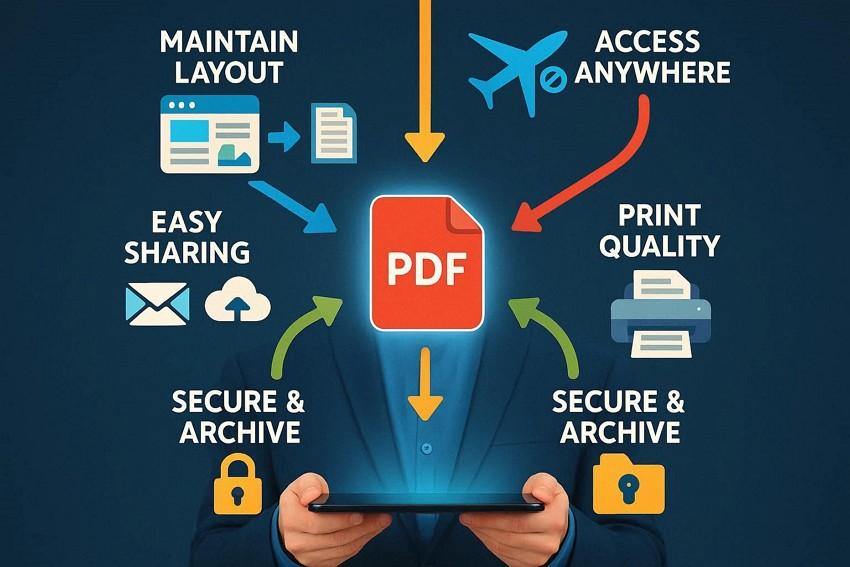
- Maintains Page Structure & Content: The PDF maintains the page format, pictures, and text in the same way they are seen on the internet. Despite the change of the site or disappearance, you still have your PDF to refer to.
- Enhanced Accessibility: When stored in a PDF, you can read it without the internet on any device. This comes in handy when travelling or in locations with a weak signal, or when reading long articles, when one is not in a good location.
- Easy Sharing and Universal Compatibility: PDF files can be opened on practically any device or operating system, regardless of the browser. Therefore, it is easy and safe to send PDFs through email, chat applications, or cloud storage.
- Improv ed Quality of Printing: Understand that PDFs are printed out neatly, without cut corners, advertisements, or sidebars that are apparent on websites. The design is also constant and thus ideal for reports, study materials, or documents.
- Security and Archiving: You can encrypt PDFs with a password or deny other users the opportunity to make changes. Therefore, this renders PDFs secure in record keeping, legal evidence, receipts, or professional records.
Part 2. Convert Websites and Web Pages to PDF: 6 Online Options to Try
So, if you have decided to convert a web page into a PDF, here are the 6 best tools you can try. Review the stepwise guide in detail and determine whether they are correct based on the given cons.
1. Sejda
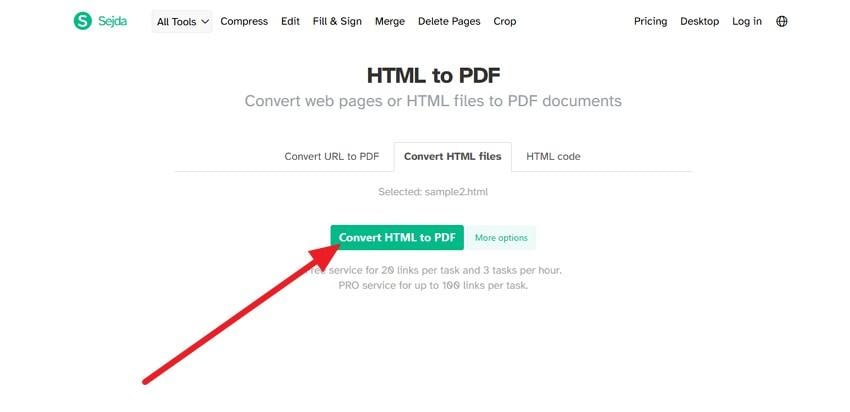
Sejda is an option to consider because it allows uploading the web page file via Google Drive, Dropbox, or OneDrive. This online tool enables you to compress, edit, or extract pages once they have been converted to PDF, making it a more versatile choice. In addition, the process is straightforward and requires minimal verification to securely convert HTML into PDF, as shown below:
Step 1. As you upload the HTML file via the given options, press the “Convert HTML to PDF” button.
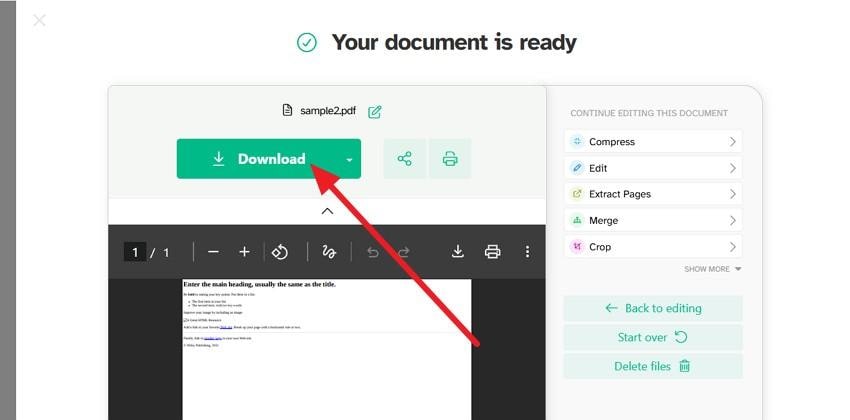
Step 2. The tool will verify and commence the conversion, after which you can “Download” or edit further.
Cons
Modern sites may not render correctly due to complex content.
Internet and server required; offline conversion is not possible.
2. iLovePDF
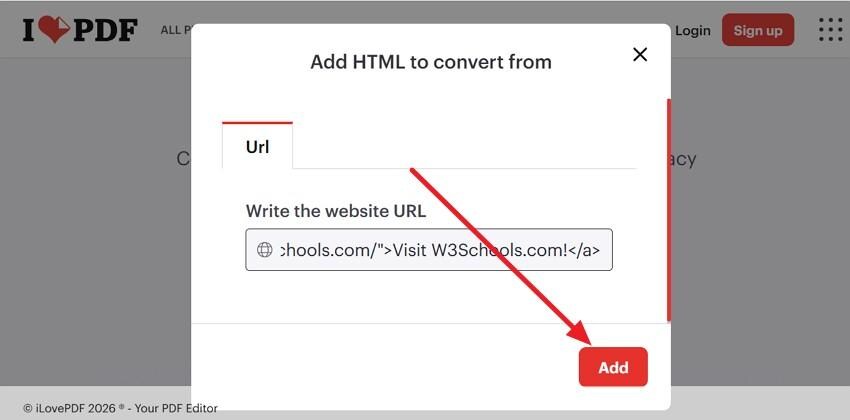
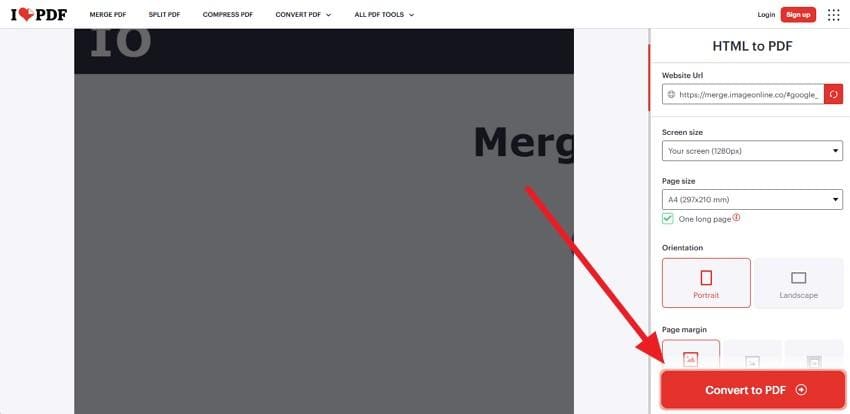
To convert a website into a PDF, this tool allows you to paste the site link and offers a detailed preview before the conversion. In addition, users can adjust the Screen and Page sizes on the preview screen to achieve the desired results. Unlike other sites, you can choose orientation and page margin, after which it automatically converts the link to PDF, as illustrated:
Step 1. Press the “Add HTML” button on the main interface and add the URL in the given box. After that, press the “Add” button to get a detailed preview of the new interface.
Step 2. There, choose the page and screen settings displayed on the right side and tap on the “Convert to PDF” option.
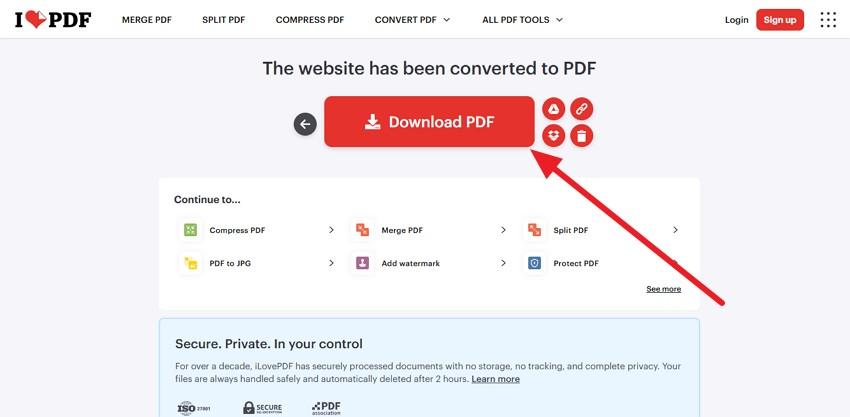
Step 3. Once directed to the new screen, choose the “Download PDF” option and wait for the tool to complete.
Cons
The tool fails if the server is down, blocked, or slow.
Dynamic or script-heavy sites may not convert perfectly.
3. PDFCrowd
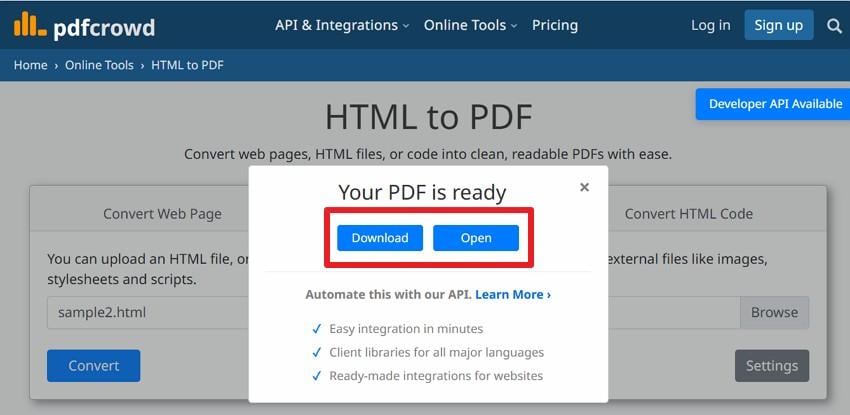
PDFCrowd enables you to convert a web page into a PDF in 3 different ways. It means users can convert a Web Page, an HTML file, or HTML Code, which is why it is a flexible tool. Moreover, it automatically deletes ads, pop-ups, and the sidebar in order to create a cleaner PDF. In order to transform an HTML file, follow the following steps:
Step 1. In the “Convert HTML File” section, press the “Browse” button to upload the HTML file. After that, tap the “Convert” button to let the tool convert the file.
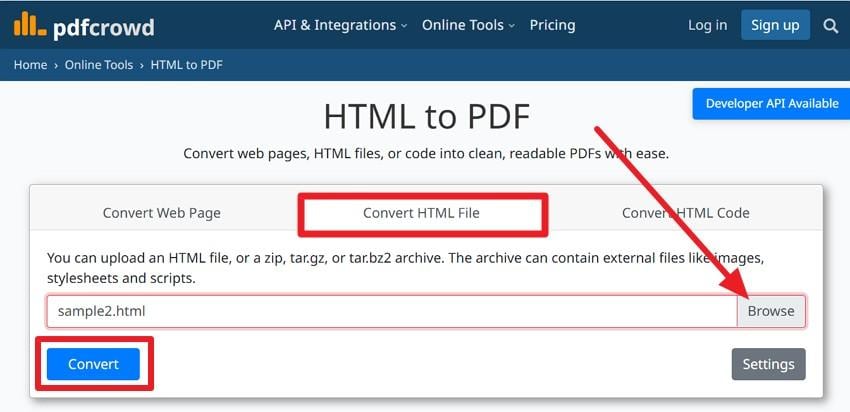
Step 2. Once done, choose to “Download” or “Open” the PDF file.
Cons
Free UI offers only basic layout options, not advanced control.
Conversion requires an internet connection and a server; offline use is impossible.
4. CloudConvert
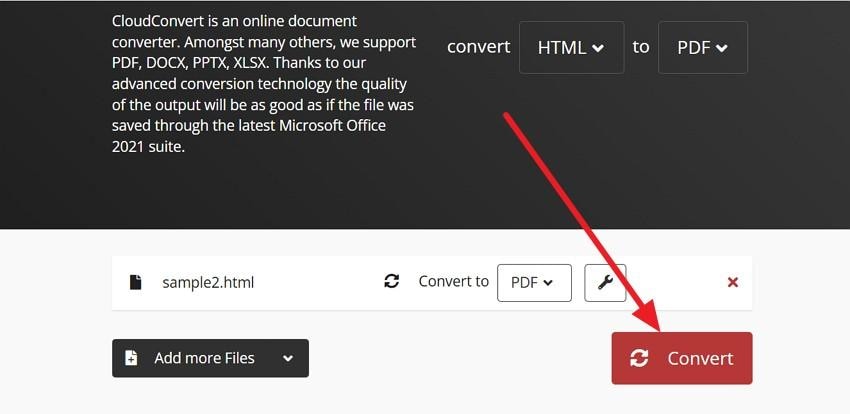
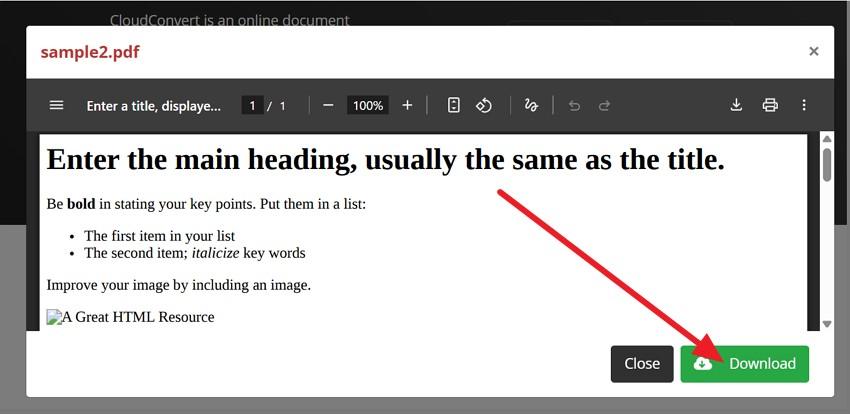
Being a renowned converter, it allows one to convert HTML into PDF either by adding the link or uploading the file from a computer, Google Drive, Dropbox, or OneDrive. Compared to other online tools, it lets you add multiple HTML files thanks to its batch conversion support. After it converts it to PDF via the mentioned steps, users can change the orientation or draw for further tailoring:
Step 1. Add the files via the given option and press the “Convert” button on the tool.
Step 2. When it is converted to PDF, select the “Download” button to export.
Cons
Interactive elements like forms or scripts are not preserved.
Uploading sensitive pages may raise privacy and security concerns.
5. HTML2PDF
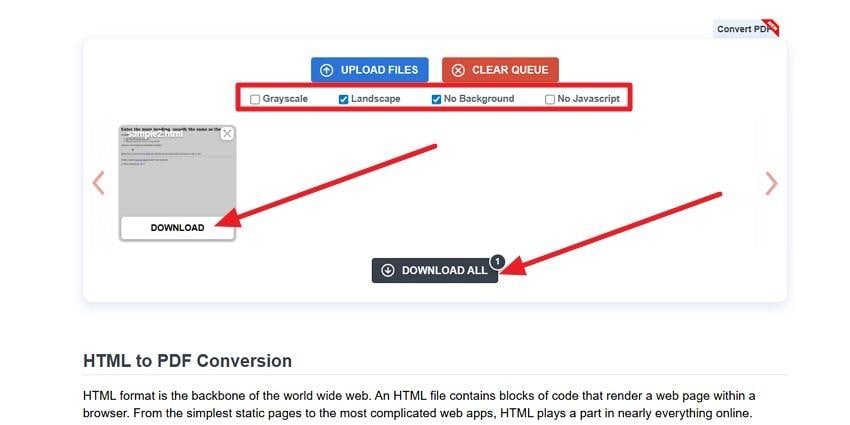
This is another tool you can use to convert a web page into a PDF, as it allows you to process multiple files at once. So, while avoiding manual hassle, you can also customize the output with four options: Grayscale, Landscape, No Background, and No JavaScript. Hence, with the option to upload 20 HTML files or ZIP archives, the tool automatically renders the HTML and converts it into multi‑page PDFs, as demonstrated:
Step 1. Tap the “Upload Files” button and upload at least 20 HTML files at once or add just one.
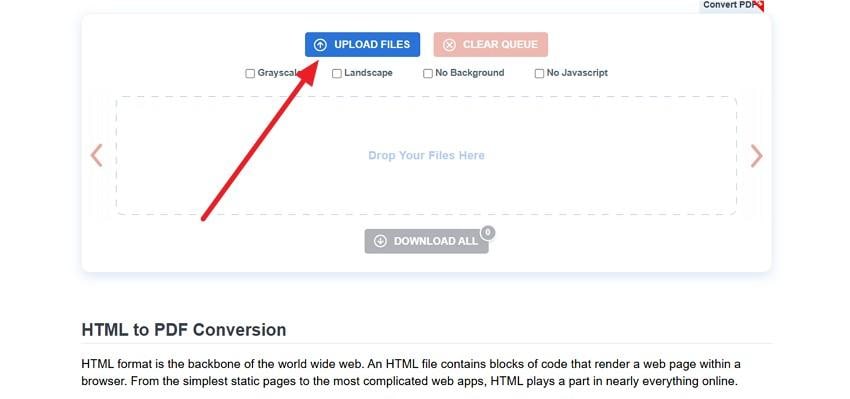
Step 2. After that, pick the given customization settings and press the “Download” button. For batch conversion, choose “Download All,” and it will be saved automatically to the device.
Cons
Convert HTML files only; cannot process live webpages via URL.
Output is static; scripts are removed if No JavaScript is selected.
6. Free Convert
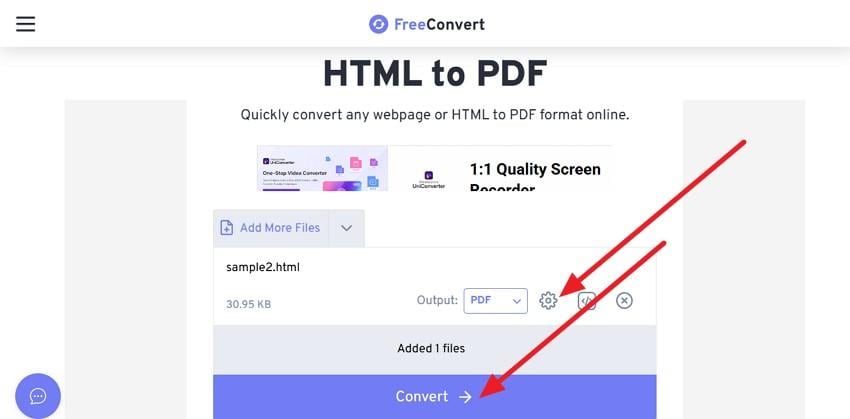
If you seek to co nvert HTML into PDF, Free Convert allows you to upload 1GB files from a device, Dropbox, or OneDrive. Moreover, users can choose Advanced Settings, such as page size, orientation, margins, or width, to control results. With the option to rest settings, you can also add multiple HTML files to batch convert. Hence, adhere to the listed guide and determine how its usage is seamless:
Step 1. Choose to add HTML files to the tool and press the “Settings” icon to choose the page orientation or other parameters. After that, tap the “Convert” button to initiate the conversion.
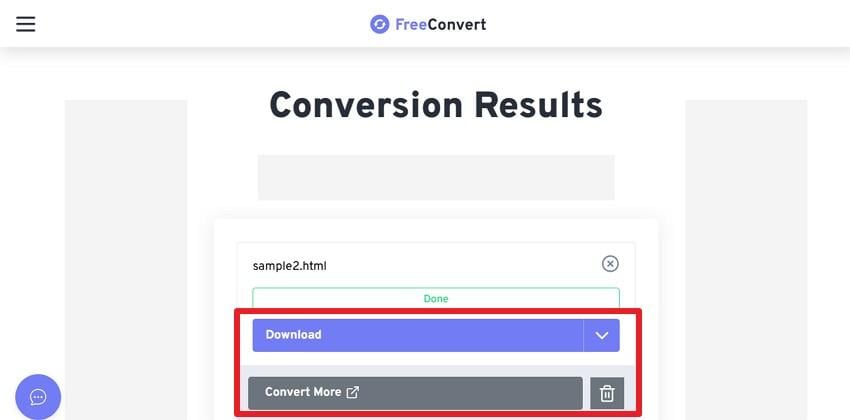
Step 2. When you get the done alert on the new interface, pick the “Download” button or “Convert More.”
Cons
Online only, no offline app for HTML-to-PDF conversion.
Free tier includes ads, queues, and file size limits.
Pro Tip: Use Repairit to Fix Converted PDF Files from Websites
When you try to convert a web page into a PDF, if the PDF becomes corrupted, you can use a reliable repair tool, Repairit. Leveraging innovative algorithms, the tool can easily handle loading errors, corrupted pages, and unreadable PDF files. Additionally, it supports PDF versions 1.2, 1.3, 1.4, 1.5, 1.6, and 1.7, making it an ideal, versatile file repair tool.
In addition to support, it can fix text, hyperlinks, forms, headers, footers, graphs, and watermarks without causing any quality loss. As a result, the repaired files remain compatible with standard PDF readers and workflows. Other than that, users can batch-repair corrupted PDFs, with the option to preview them after repair. For on-the-go solutions, you can also use its online version to repair a PDF in 3 simple steps.
Key Features

-
Supports Various Versions of Office: It works with Word, Excel, and PowerPoint from 2007 to 2019, as well as Office 365.
-
Restore Engineering Files: In addition to basic formats, it can repair PSD, AI, PRPROJ, CAD, and other complex project files, restoring layers, metadata, and previews.
-
Fix Archive Files: Repairit allows you to restore corrupted ZIP, RAR, ISO, 7Z, and other archives, supporting files over 1GB.
Simple Guide to Fix Corrupted PDFs After Conversion from HTML
As you convert the website into a PDF, and it leads to corruption, here is how you can fix it in 3 simple steps:
Step 1. Insert Corrupted or Damaged PDFs
Press the “Start” button under the “Document Repair” tab and add the damaged PDFs by clicking the “+Add” button.

Step 2. Add More Damaged PDFs If Any
Now, insert more PDFs if you wish to via the “+Add Files(s)” button and tap on the “Repair” button to commence.

Step 3. Check the Fixed PDF Files & Export Them
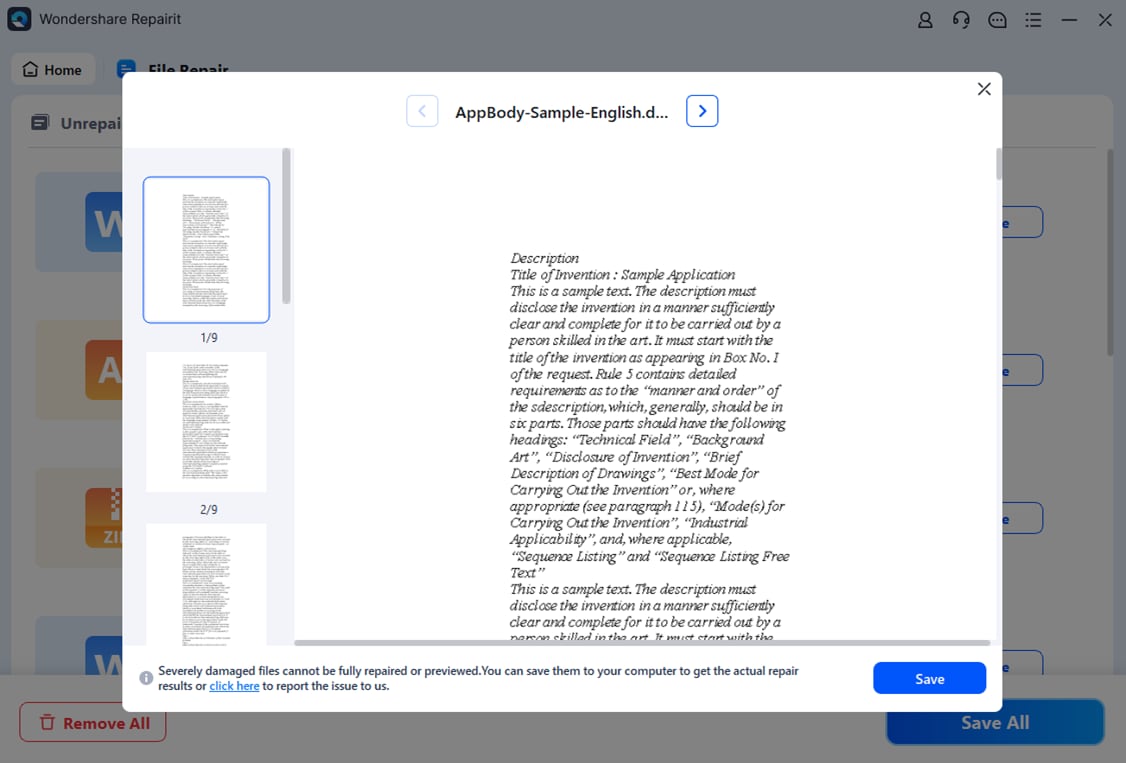
After that, preview the fixed PDFs in detail when the repair ends, and choose the “Save All” button to export them to your computer.
Fix Converted PDF Files Now
 Security Verified. Over 7,302,189 people have downloaded it.
Conclusion
In a nutshell, to convert HTML into PDF, this guide has explored how and why one needs this conversion. While doing so, 6 tools have been uncovered along with a detailed guide and limitations to help users decide which one is best. If one encounters PDF corruption while converting HTML, Repairit is the recommended choice for fixing PDFs in batches.
Frequently Asked Questions
-
1. Can PDFs retain the original image and graphic quality?
Yes, PDFs keep images and graphics clear, and formats stay the same as the website. Moreover, tools like Smallpdf help preserve high quality during conversion easily. -
2. Can I compress a PDF after conversion?
Yes, PDF files can shrink in size, and this saves space on your device. Furthermore, Smallpdf or iLovePDF can compress PDFs without losing much visible content or clarity. -
3. Does converting to PDF keep the text searchable?
Yes, text stays searchable so that you can find words quickly in your saved PDF. Thus, Adobe Acrobat or PDFelement ensures all text remains searchable and easy to copy.




