
![How to Compress GIFs Without Losing Quality [Step-by-Step Tutorial]](https://images.wondershare.com/repairit/article-trans-image/3364/compress-gif-without-losing-quality-1.jpg)
Large GIF files take up too much space and load very slowly on websites or chats. Not just that, they can fail to upload, reduce site speed, or exceed file size limits on social platforms. This creates problems for creators, marketers, and casual users who want fast and smooth sharing. However, the good news is that you can compress GIFs online or offline without quality loss.
With the right steps, you can reduce file size while images stay clear and sharp. Thus, this detailed guide explains safe, simple methods to compress GIFs without losing quality and to improve load speed without complex tools.
Table of Contents
Part 1. 6 Online Methods to Compress GIF Without Losing Quality
If you are looking for an ideal GIF compressor without losing quality, here are 6 options you can consider:
1. Free Convert
This tool allows you to add GIFs up to 1GB in size, with the option to add multiple GIFs for batch compression. After a user adds GIFs from a device, Dropbox, Google Drive, or OneDrive, they can choose from various Advanced settings. This implies that it enables you to manually choose the compression level and “Drop Frames to reduce the file size?” settings for controlled outcomes, as guided:
Step 1. Add the GIF file, then press “Settings” on the main interface to choose the compression level and other settings. After that, pick the “Compress GIF” button and let the tool process the file.

Step 2. Once done, press the “Download” button or “Arrowhead” icon to choose where to save: Dropbox, Google Drive, or OneDrive.

Pros
Choose Optimize Transparency to replace duplicate or repeated color pixels.
Let you download directly or save to Dropbox, Google Drive, or OneDrive.
Cons
Complex animations may show blur, noise, or compression artifacts.
Free version contains ads and occasional usage limitations.
2. iLoveIMG
To reduce GIF size without losing quality, this is another option that lets you drag and drop or upload GIFs from your device or Dropbox. The simple interface lets you add multiple GIFs to the batch process in 2 steps. Since it's versatile, you can also use it to rotate, resize, or convert GIF to JPG. So, to know how it works, here is the simple stepwise guide you can follow in detail:
Step 1. After adding the GIF file, pick the “+” icon to insert more GIFs, and then press the “Compress Images” button.

Step 2. When the process completes, note the reduced size, then press the “Download Compressed Images” option to export.

Pros
Shows clear progress during upload and compression.
Free basic use without signing up for quick tasks.
Cons
Limited control over compression strength and output quality.
No frame editing or advanced GIF optimization features.
3. EzGIF
EzGIF also lets you reduce GIF file size without losing quality, with options to insert a GIF link, add a file from your device, or drag & drop a file. While doing so, users can choose the compression level from 30 to 200 via sliders for complete control. Additionally, the Eliminate local color tables settings let you reduce the number of colors for smaller file sizes and better optimization, as illustrated below:
Step 1. Import the GIF by picking the “Choose File" button and then clicking the "Upload” button to continue.

Step 2. Here, choose the compression level, then tap the “Optimize GIF!” button.

Step 3. When the GIF size is reduced, tap the “Save” button or edit via the listed features.

Pros
Control frame and color settings for precise size reduction.
Coalesce rebuilds frames to fix compatibility issues.
Cons
High compression may cause visible noise or artifacts.
Multiple options can confuse beginners and casual users.
4. SwitchLabs
This GIF compressor without losing quality features a simple interface with a before-and-after preview panel to determine changes. Additionally, it enables users to adjust compression settings and the color palette for better control over file size and visual quality. At the same time, the frame rate settings let you reduce the frames per second to further reduce the overall file size. So, to know how you can set all these settings, review the simple steps ahead:
Step 1. Head to the “Compression Settings” tab as you add the GIF file and choose the compression level. There, also select Color Palette and Frame Rate settings, then press the “Compress GIF” button.

Step 2. In the preview panel, see the before and after GIF size and select the “Download” button to save.

Pros
Runs directly inside the browser without installing any software.
Quick compression speed for small and medium GIF files.
Cons
Handles only one GIF at a time, no batch support.
No cloud storage export options like Google Drive integration.
5. XConvert
This renowned tool also lets you compress GIFs without losing quality, with the option to add files from Google Drive, Dropbox, or your device. Furthermore, various image sizes, quality, color palettes, and drop-frame settings make it easy to optimize GIFs for precise file size and visual clarity. Unlike other tools, you can save the compressed GIF to Dropbox or share it across social media platforms directly, as guided:
Step 1. Press the “Add GIF Files” button to import GIFs, choose advanced settings, and tap on the “Compress” button.

Step 2. Now, tap the “Eye” icon to preview it, select “Download” to save, or share to Facebook, Twitter, or LinkedIn.

Pros
Free browser-based tool; no installation required for GIF compression.
Uses multiple techniques to optimize GIF compression effectively.
Cons
Tool options aren’t clearly shown; controls may be unknown.
Batch processing support is unclear; multiple GIFs may not work.
6. GUMLET
You can also try GUMLET to reduce GIF size without losing quality, with a file limit of 100 MB. Additionally, you can choose from various compression levels, ranging from high to medium and low. Other than that, the resize setting lets you adjust dimensions to further reduce file size while maintaining visual clarity. So, with the seamless interface, the following steps highlight its effortless usage:
Instructions: “Click to Upload” to add GIF files, and choose the “Compression” and “Resize” settings. After that, press the “Compress Now” button and wait for the tool to reduce the GIF size.

Pros
Supports compressing multiple GIFs at once for batch processing.
Free browser-based tool with no watermarks or subscriptions.
Cons
Only high/medium/low compression; no detailed sliders for fine control.
Output size reduction varies depending on original GIF complexity.
If you want to know which tool is best to reduce GIF file size without losing quality, review the given comparison table:
| Metrics | FreeConvert | iLoveIMG | EzGIF | SwitchLabs | XConvert | GUMLET |
| Compression Control | Multiple methods and advanced options | Mostly automatic | Highly granular control (lossy, frames, colors) | Adjustable sliders (lossy, colors, FPS) | Basic adjustable options | Simple preset levels (low, medium, high) |
| Batch Support | Yes (images and GIFs) | Yes | One GIF per operation | Primarily single file | Limited or unclear batch support | Yes, supports multiple GIFs |
| Privacy Model | Server-side processing, files auto-deleted | Server-side web processing | Server-side online processing | In-browser processing, no file upload | Server-side online processing | Files processed online, not permanently stored |
| Ease of Use | Moderate, many configuration options | Very easy one-click workflow | Powerful but slightly technical | Easy but includes advanced controls | Simple interface with limited settings | Guided interface with simple choices |
| Extra Editing Features | Compression only | Compression only | Many tools (crop, resize, optimize) | Compression focused | Compressor only, not a full editor | Compression and optimization features |
Part 2. Command-Line Guide to Reduce GIF Size Without Losing Quality
Other than online tools, FFmpeg is an offline GIF compressor without losing quality, which you can consider. It provides strong control and maintains high quality with a smaller file size. Additionally, this free, open-source solution works on Linux, Windows, and macOS, so the same command works across all systems. Furthermore, you can handle many GIF files at once and add commands to scripts instead of clicking work in a tool, as guided:
Step 1. Download FFmpeg from the official website, extract the files, and add the bin folder to your system Path. For that, copy the path, open the “Environmental Variable” settings, and select “Environmental Variable.”

Step 2. After that, press the “Path” option in the new window, paste the path to the “Bin” folder where the “FFmpeg.exe” file is, save the changes, and exit.

Step 3. Type the “ffmpeg -version” command in Command Prompt. If version information appears, FFmpeg is installed correctly. Then move input.gif to a simple path such as C:\gif\ and open Command Prompt in that folder.
Generate an Optimized Color Palette
Type “ffmpeg -i input.gif -vf "palettegen" palette.png” to analyze the GIF, create an optimized color palette, and improve compression quality.
Create the Compressed GIF
Enter “ffmpeg -i input.gif -i palette.png -lavfi "paletteuse" output.gif” and you now have a compressed “output.gif.”
Optional Steps to Reduce File Size Further
Type “ffmpeg -i input.gif -vf "fps=12" small.gif” since Lower FPS means a smaller file size, try 10-15 FPS for a good balance between quality and size. After completing these steps, your GIF will have a smaller file size, smooth playback, and good color quality.
Pro Tip. Restore GIFs That Won’t Play After Compression Using Repairit
While trying to reduce GIF size without losing quality, if it gets corrupted, it's important to use an image repair tool. Here, Repairit fixes damaged images and other media that do not open, show errors, or lose frames after compression, download, or transfer. Its dedicated “Photo Repair” tool supports many image formats, like PNG, JPG, BMP, and GIF. In addition to common formats, users can also repair RAW and specialized formats.
This includes DNG, ARW, NRW, CRS, and technical formats such as GPR and SWF. Thus, it uses AI models to rebuild missing or damaged visual details, such as blur, noise, or artifacts in images and videos. Unlike other tools, it can fix multiple GIFs at once with the option to preview the repaired files in detail. Hence, it is designed for non-technical users and offers a simple graphical interface rather than a command-line tool.
Key Features

-
Wide Format and Size Support: Desktop versions usually support large file sizes and unlimited files, subject to license limits.
-
Cross‑Platform Availability: Available on Windows and macOS as installable software, with an online version for smaller tasks but with more limits.
-
Safety and Non‑destructive Design: Works on copies of your files, keeping repaired files close to the original while restoring playability and visibility.
Guide to Repair Corrupted GIFs That Occurred During Compression
When you reduce a GIF file size without losing quality, it leads to corruption. Here is how you can fix it in 3 simple steps:
Step 1. Add the Corrupted GIFs
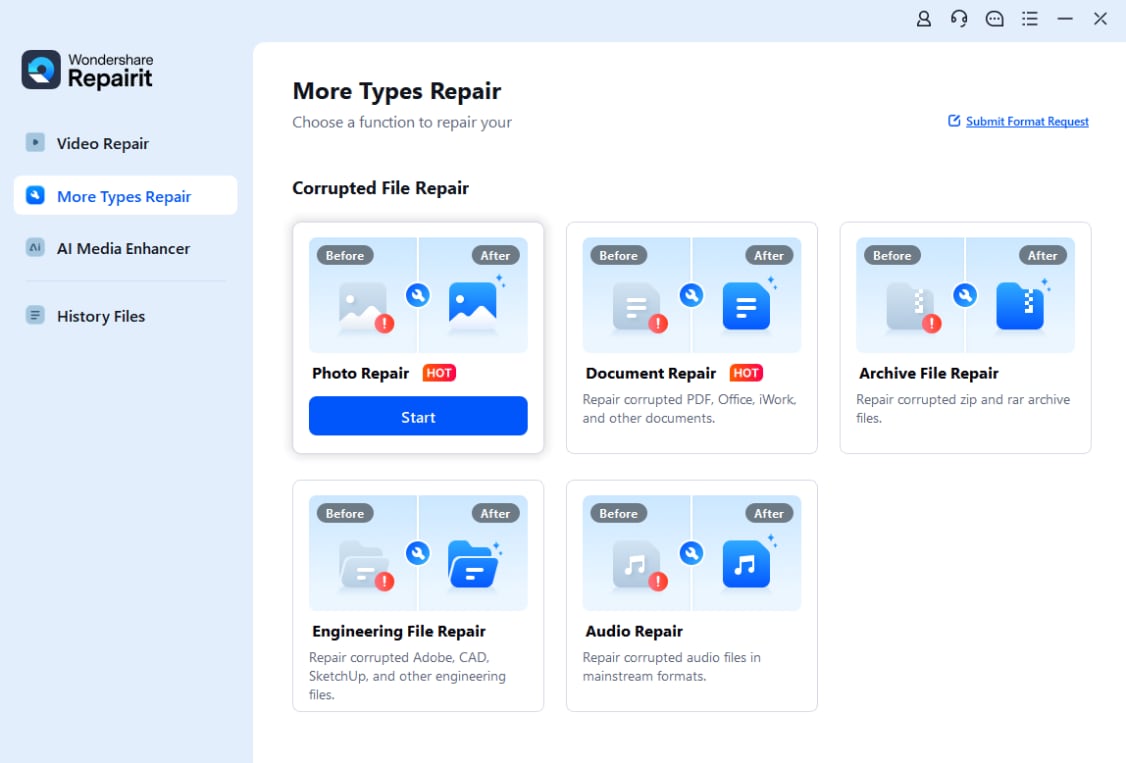
In the “More Types Repair” tab, press on the “Photo Repair” tool and choose the “Start” button.
Step 2. Add GIFs in Batches and Pick the Repair Button
After that, press the “+Add” button and then the “+Add Files(s)” button to import multiple corrupted GIF files to the tool. Once done, tap the “Repair” button and wait for the AI and innovative algorithms to fix the GIFs.

Step 3. Choose to Preview and Export the Fixed GIFs
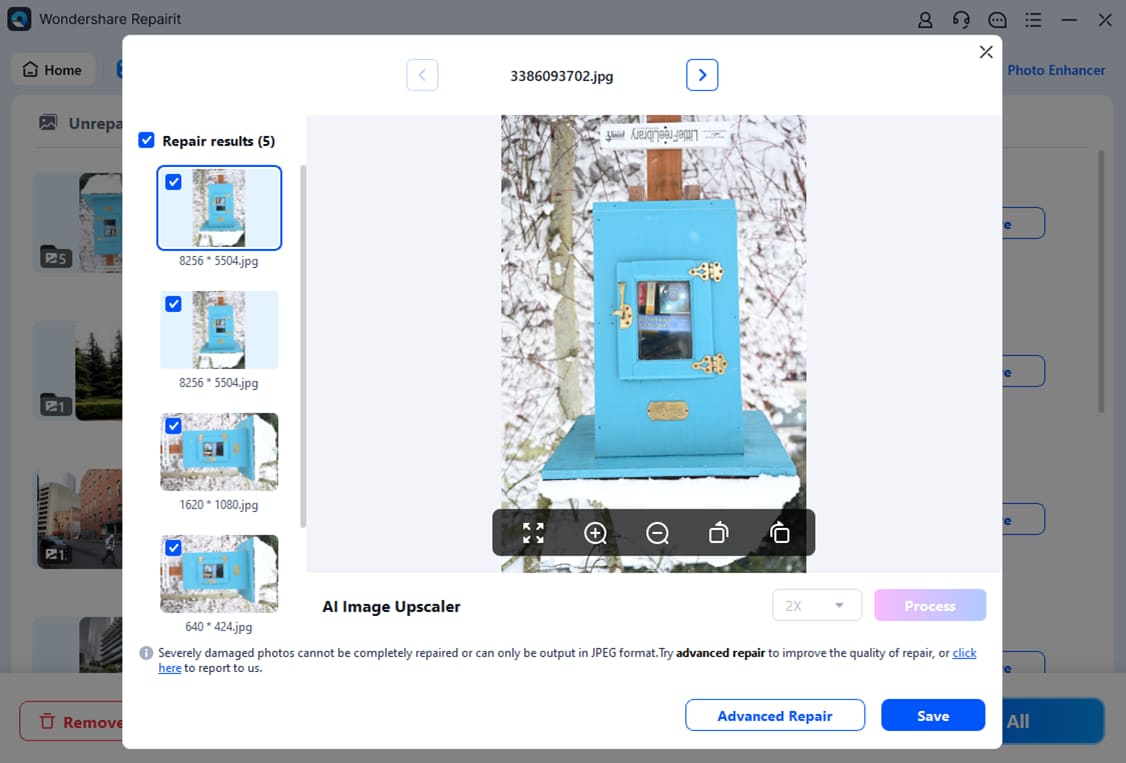
As you get the popup menu of successfully fixed GIFs, choose between “Preview” and “Save." If you decide to preview, determine the fixed changes, and then click the "Save All” button to export.
Repair Corrupted Compressed GIFs
 Security Verified. Over 7,302,189 people have downloaded it.
Conclusion
In conclusion, if you want to know how to compress GIFs without losing quality, this guide has explained this via 6 online tools. Not just that, for those who prefer to have complete control over the compressions, the usage of FFmpeg is also explained in detail. Somehow, if your GIF gets corrupted during compression or transfer, it is recommended to use Repairit to fix it in batches.
FAQs
-
1. How does reducing colors affect GIF size?
Reducing colors removes extra shades, so the GIF file becomes smaller without losing visible quality. Besides, it keeps main visuals clear while lowering the amount of data each frame needs to store. -
2. Can resizing a GIF help?
Resizing a GIF reduces its width and height, lowering the total number of pixels and the file size. Moreover, smaller dimensions make the GIF load faster while still showing key details clearly. -
3. What is dithering in GIF compression?
Dithering mixes colors to hide banding after reducing the palette, keeping the image smooth. Additionally, it creates the illusion of more colors while still maintaining a smaller file size.




