
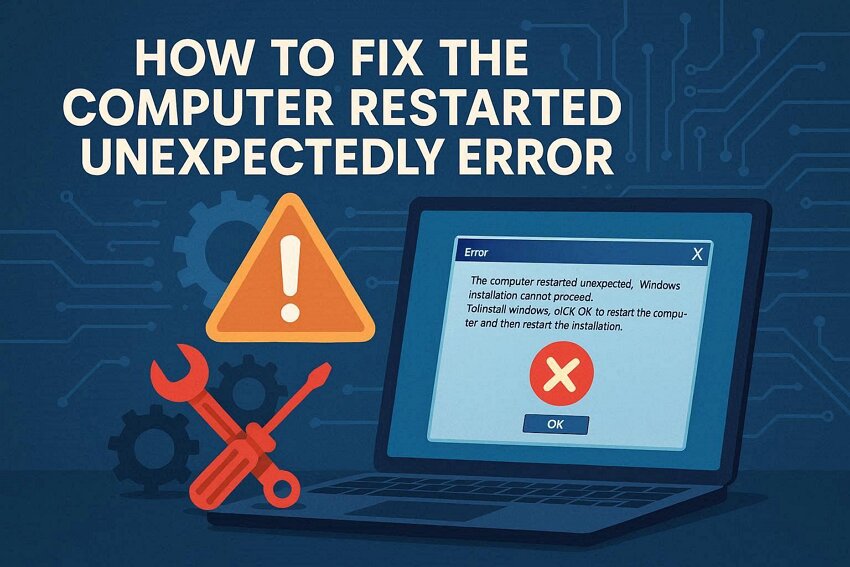
The moment a computer keeps restarting during setup, users feel worried. As a result, you will see a message "the computer restarted unexpectedly," stopping progress and blocking access to the system. Many people face this loop due to various reasons, such as after updates or resets. Without clear guidance, repeated restarts create stress and fear of losing important files. Thus, this guide explains causes and simple fixes, helping anyone restore Windows.
Table of Contents
-
- Fix 1. Disconnect External Devices
- Fix 2. Use Windows Automatic Repair
- Fix 3. Remove Recently Installed Updates or Drivers
- Fix 4. Run System File Checker and DISM
- Fix 5. Reset BIOS / UEFI Settings to Default
- Fix 6. Modify Registry to Bypass Loop
- Fix 7. Perform Clean Windows Installation (Last Resort)
Part 1. Why "The Computer Restarted Unexpectedly" Loop Happens
The computer restarted unexpectedly loop happens when the setup cannot finish important steps. This section explains common reasons behind Windows stopping and restarting during setup repeatedly:
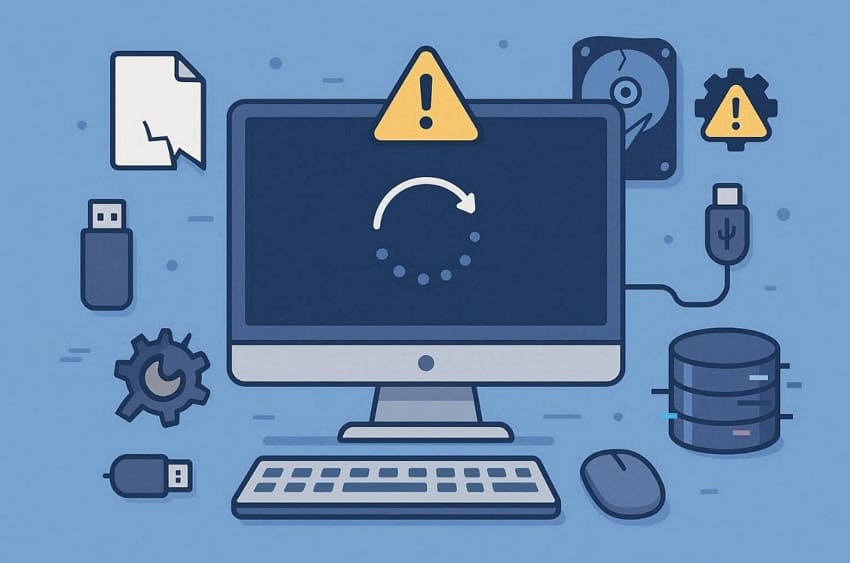
- Broken Files: Damaged files stop Windows from reading needed data and force repeated restarts. These files often break after failed downloads or sudden power loss events.
- Registry Damage: Broken system records can block Windows from loading after the installation process begins. This damage often comes from shutdowns, harmful software, or interrupted updates during setup.
- Extra Devices: Connected external devices can confuse setup, causing errors during early startup. Windows may restart to protect itself, then repeat the setup with the same problem.
- Boot Errors: Windows may restart if it meets serious problems while starting basic system services. Instead of fixing itself, the system reloads the setup and repeats the same stage.
- Disk Problems: Failing storage parts can corrupt files, making Windows restart when those files load. Loose cables or bad drive areas commonly create these repeating setup failure issues.
Common Error Messages / Symptoms
- Logo Flash: The system shows the Windows logo or loading text before the error returns.
- Screen Message: Windows shows the computer restarted unexpectedly during installation or reset.
- Endless Restart: Clicking "OK" restarts the system and returns to the same error screen.
- After Reset: Loop often begins after reset, clean install, or major upgrade process.
- Install Warning: The message may say Windows installation cannot proceed during every restart.
Part 2. Solve Windows Restart Loop Caused by "The Computer Restarted Unexpectedly"
When the computer restarted unexpectedly, the system became stuck and could not finish Windows setup. Below are various methods to fix this issue and safely exit the restart loop:
Fix 1: Disconnect External Devices
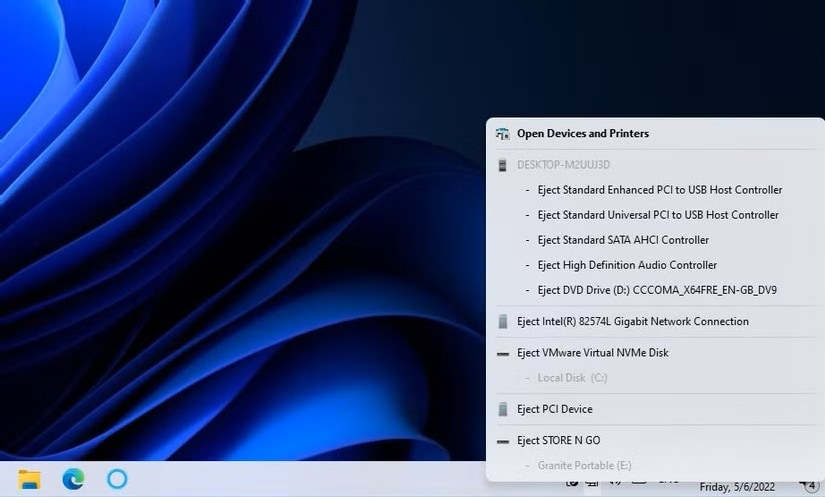
Disconnecting external devices prevents conflicts that interrupt Windows setup during installation. However, external devices such as a USB may confuse the installer and cause restarts. Faulty cables or ports can crash the setup when drivers load inside. Multiple boot devices may trigger the computer restart unexpectedly. Explore the given instructions to disconnect the USB from the system:
Instructions: To initiate, in the right-hand lower corner of the taskbar, click the "Show Hidden Icons" icon. Next, select your USB device name from the list and opt for the "Eject USB" option.
Fix 2: Use Windows Automatic Repair
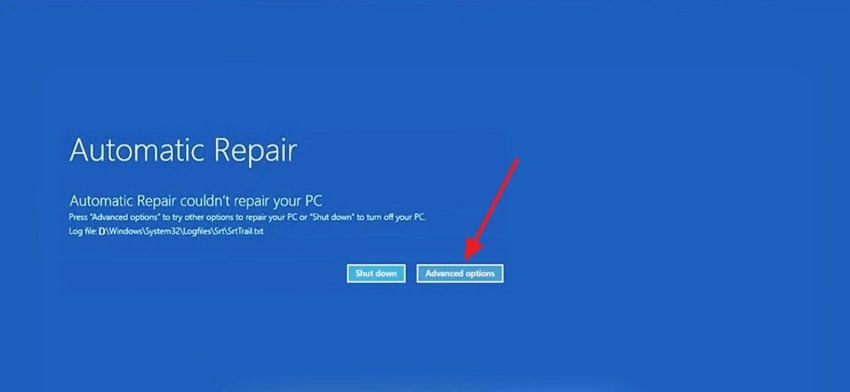
You should use Windows Automatic Repair when the computer restarts unexpectedly or encounters repeated errors. This tool scans for damaged system files and broken drivers that cause setup crashes. It fixes or replaces key startup components like BCD, MBR, and essential system files. By repairing these issues, Windows can boot past the restart loop and continue installation. Adhere to the guide below to use Windows Automatic Repair:
Step 1. Turn on the PC and let it restart 2 to 3 times until "Automatic Repair" starts. On the preparing Automatic Repair screen, click "Advanced Options" when prompted.
Step 2. On the next interface, choose the "Troubleshoot" option.
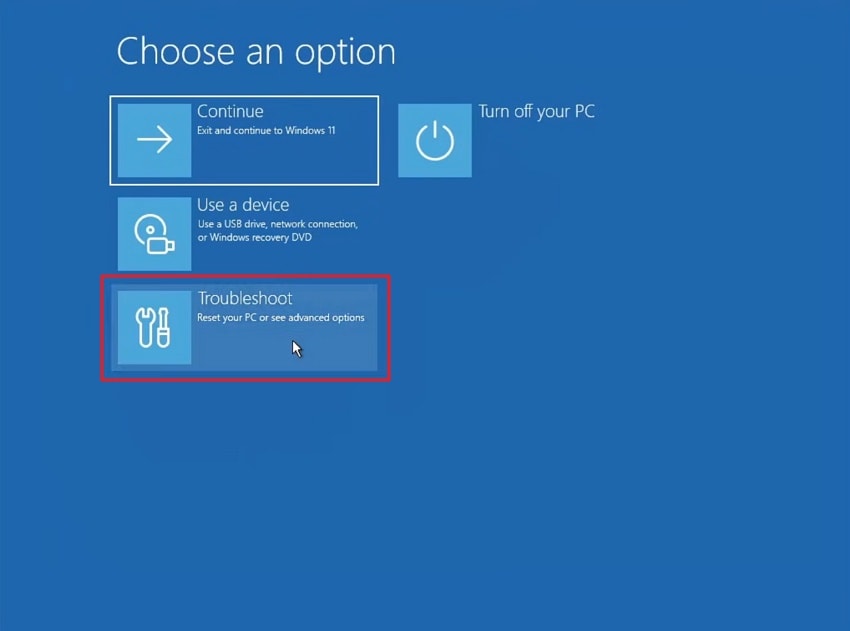
Step 3. After assessing it, opt for the "Advanced Options."
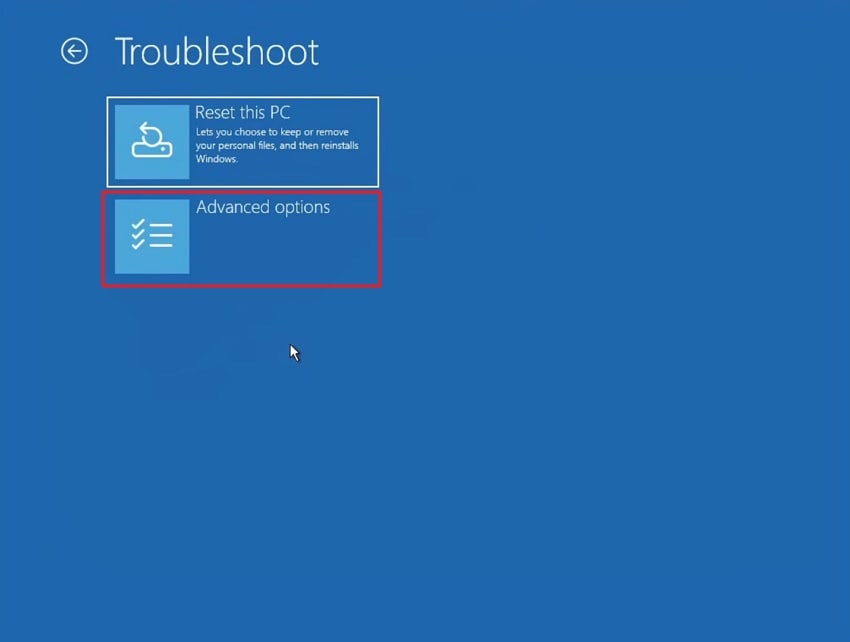
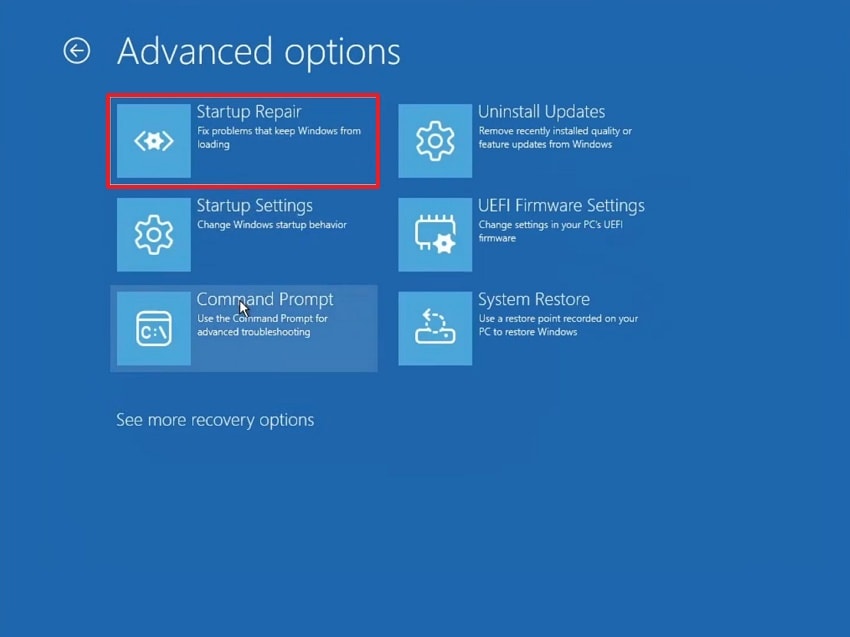
Step 4. At last, press the "Startup Repair" option to use Windows Automatic Repair
Fix 3: Remove Recently Installed Updates or Drivers
Another way to fix the computer restarted unexpectedly loop is by removing recent updates or drivers. Sometimes, bad updates can replace system files or boot components, triggering repeated restarts. Uninstalling these restores previous versions of files and registry entries altered by updates. This helps Windows regain stability and complete installation without entering a loop again. Thus, review the steps below to remove recently installed updates of the system:
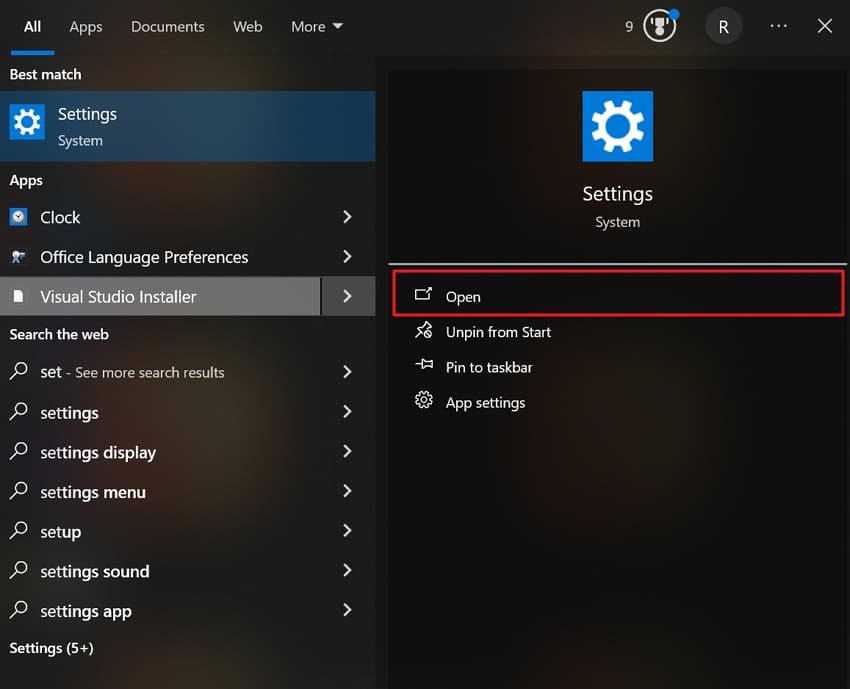
Step 1. Access the "Settings" app from the "Start" menu and click the "Open" option
Step 2. Upon accessing it, navigate to the "Update and Security" option.
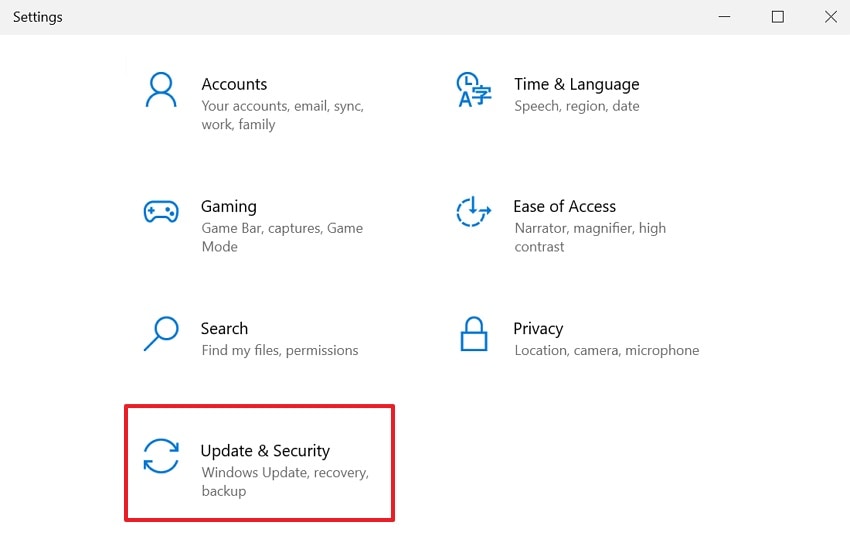
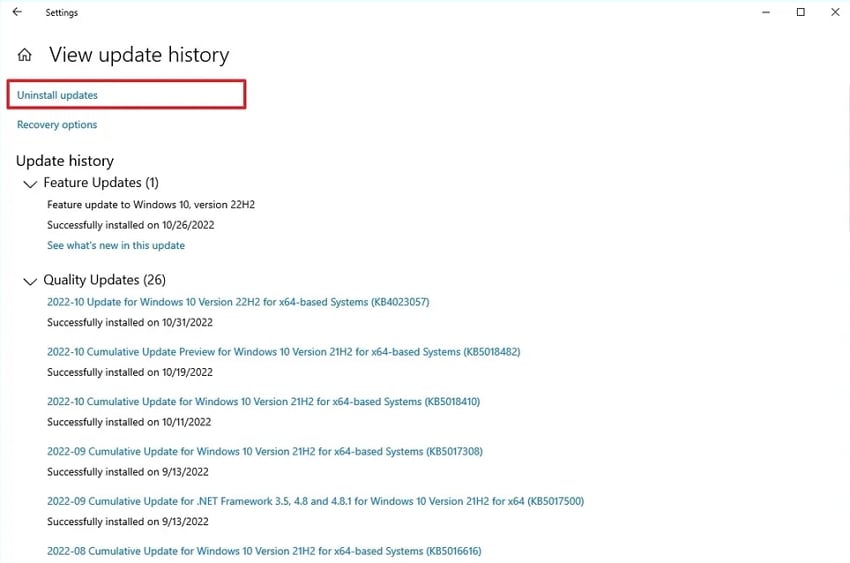
Step 3. After that, go to the "View Update History" section and opt for the "Uninstall updates" option. At last, follow the on-screen instructions to remove recently installed updates.
Fix 4: Run System File Checker and DISM
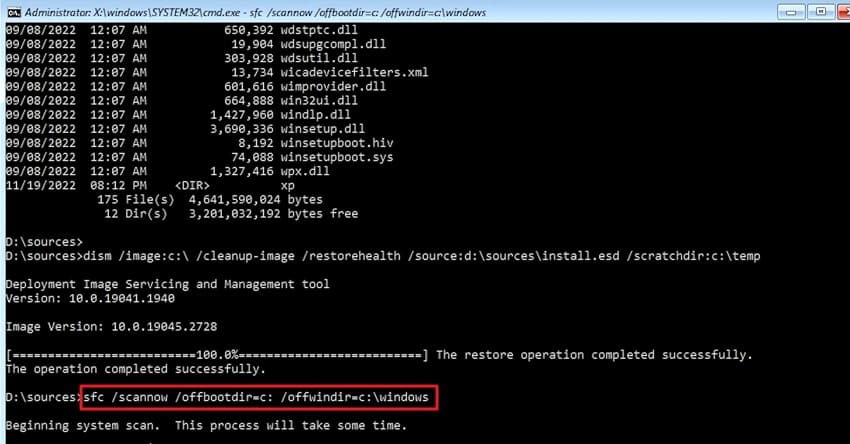
This solution fixes the computer restarting unexpectedly or encountering repeated errors. SFC scans protected Windows files and swaps corrupted or missing system files with clean versions. On the other hand, DISM repairs the Windows image, ensuring SFC has a healthy source to restore files. Together, they fix damaged components that cause setup crashes, allowing Windows to boot past the restart loop. Hence, go through this guide to run SFC and DISM:
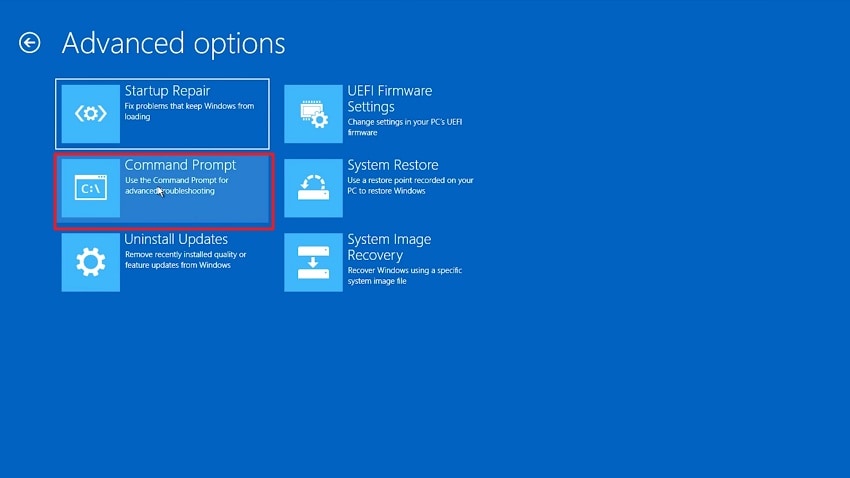
Step 1. Restart your PC and interrupt the boot 2–3 times to trigger (WinRE). Next, choose the "Troubleshoot" option and click "Advanced Options." After accessing it, opt for the "Command Prompt" option.
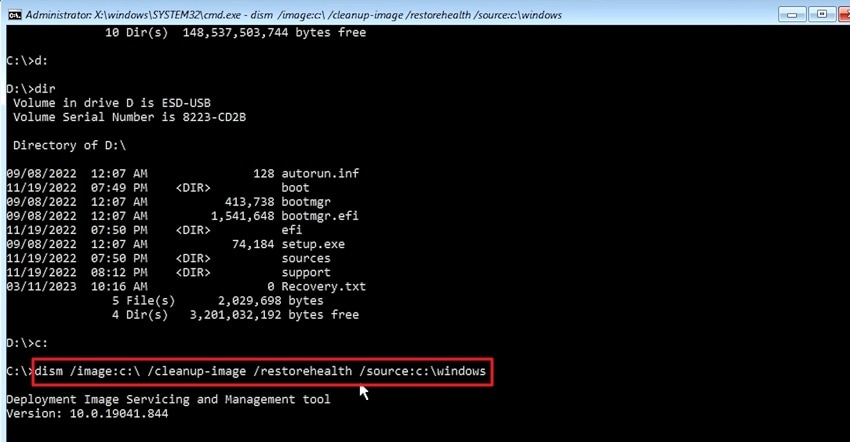
Step 2. In the "Command Prompt," type "DISM /Image:C:\ /Cleanup-Image /RestoreHealth" and press "Enter."
Note: Replace C: if your Windows is on a different drive.
Step 3. Enter the "sfc /scannow /offbootdir=C:\ /offwindir=C:\Windows" prompt after the process. Now, SFC will detect corrupted system files and automatically repair them.
Fix 5: Reset BIOS / UEFI Settings to Default
The BIOS settings may be incorrect if your PC is still restarting and setting up Windows. Wrong boot order and unstable tweaks are the frequent causes of the computer restarting unexpectedly. Booting into BIOS default unfreezes the boot order and removes corrupt NVRAM configurations. This allows the Windows operating system to boot into the right drive and do its usual install. Let’s explore the given steps to reset the UEFI:
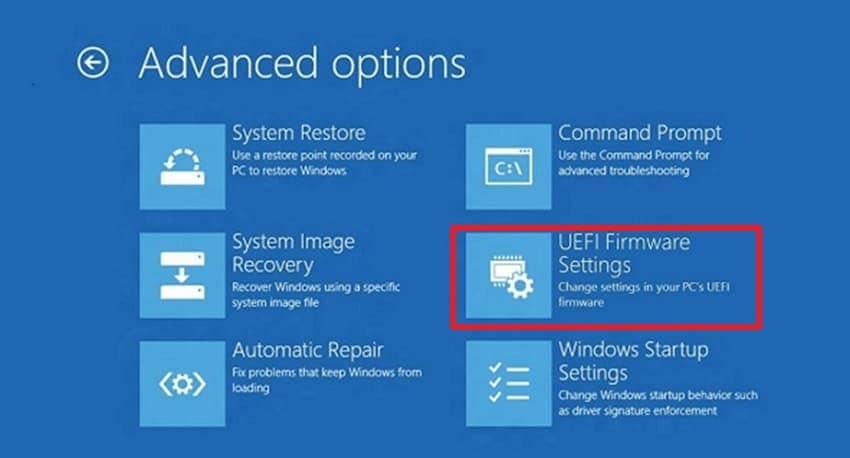
Step 1. Power up your computer and press the "F11" or "F8" key to access the Windows Recovery Environment. Now, go to the "Troubleshoot" section and enter the "Advanced Options." Opt for the "UEFI Firmware Settings" from this point, then select the "Restart" button to configure BIOS settings.
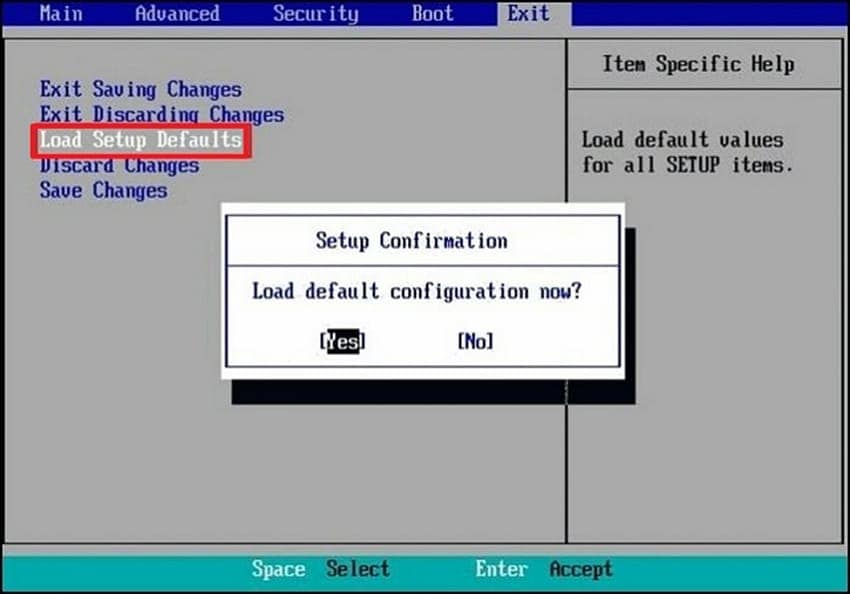
Step 2. Once the settings are made, change to the tab of "Exit" and proceed to the tab of "Load Setup Defaults." Here, click the "Yes" button in order to solve this problem.
Fix 6: Modify Registry to Bypass Loop
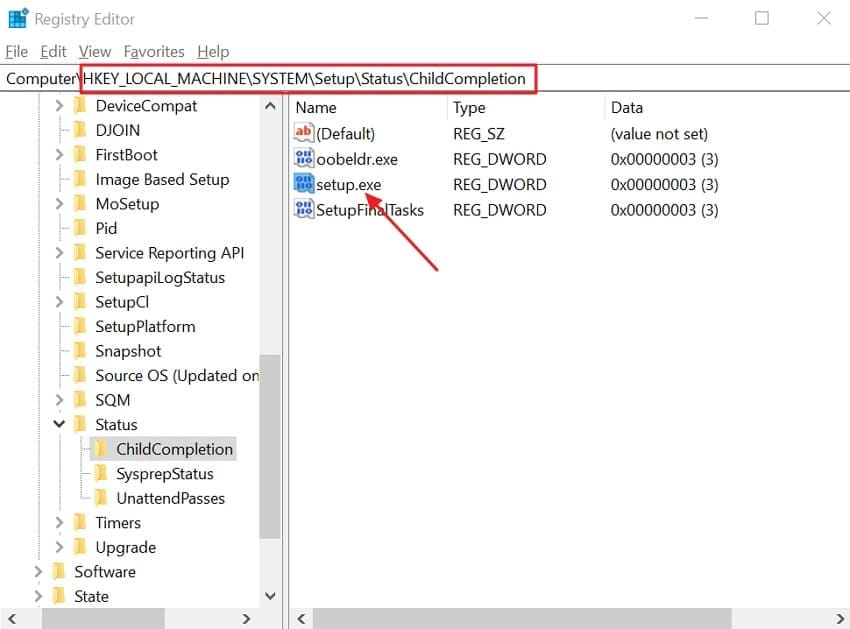
You should also modify the registry to help Windows continue past setup errors. During installation, Windows tracks progress in the ChildCompletion key and setup.exe value. Changing the setup.exe value marks the current phase as finished, skipping repeated steps. This stops the computer restarting loop unexpectedly by letting setup move to the next stage. So, take guidance from below to modify the registry to bypass the loop:
Step 1. Restart your PC and interrupt the boot 2–3 times to access (WinRE). Afterward, select the "Troubleshoot" option and opt for "Advanced Options." Upon accessing it, click the "Command Prompt" option and type "Regedit," then press "Enter."
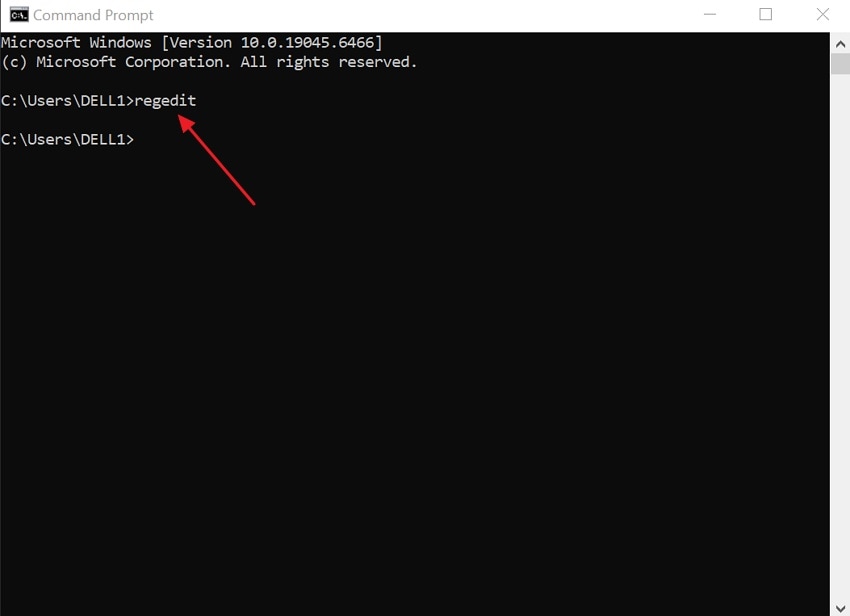
Step 2. Next, go to the "HKEY_LOCAL_MACHINE\SYSTEM\Setup\Status\ChildCompletion" path. After that, look for the "Setup.exe" entry in the right pane and double-click on it.
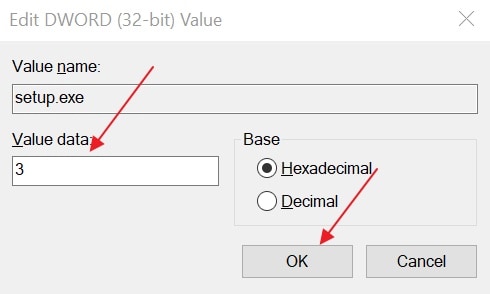
Step 3. Then change the "Value Data" of 1 to 3 by pressing the "OK" button. Finally, close "Registry Editor" and "Command Prompt" and click "Continue" to boot into Windows normally.
Fix 7: Perform Clean Windows Installation (Last Resort)
If recent fixes fail to stop Windows from repeating the same error, a clean install may be necessary. The computer restarted unexpectedly often due to corrupted files or a setup environment. A clean install replaces all damaged files and broken configurations from scratch. This ensures a fresh, stable system and removes hidden issues from failed resets or OEM recovery partitions. Follow the steps below to perform a Windows Installation:
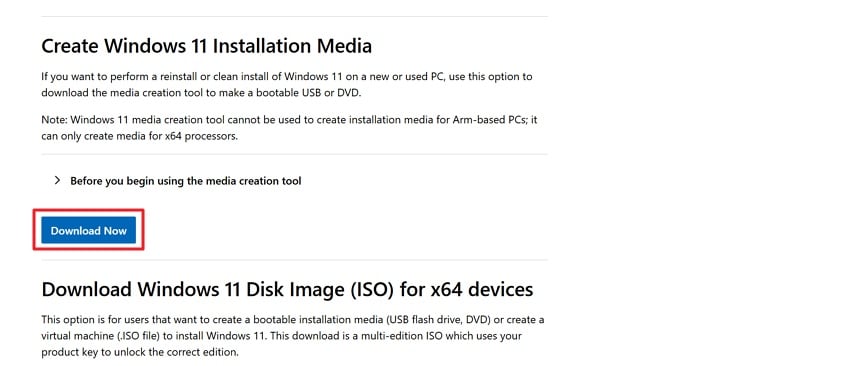
Step 1. Go to the official site of "Microsoft" using another computer and click the "Download Now" button.
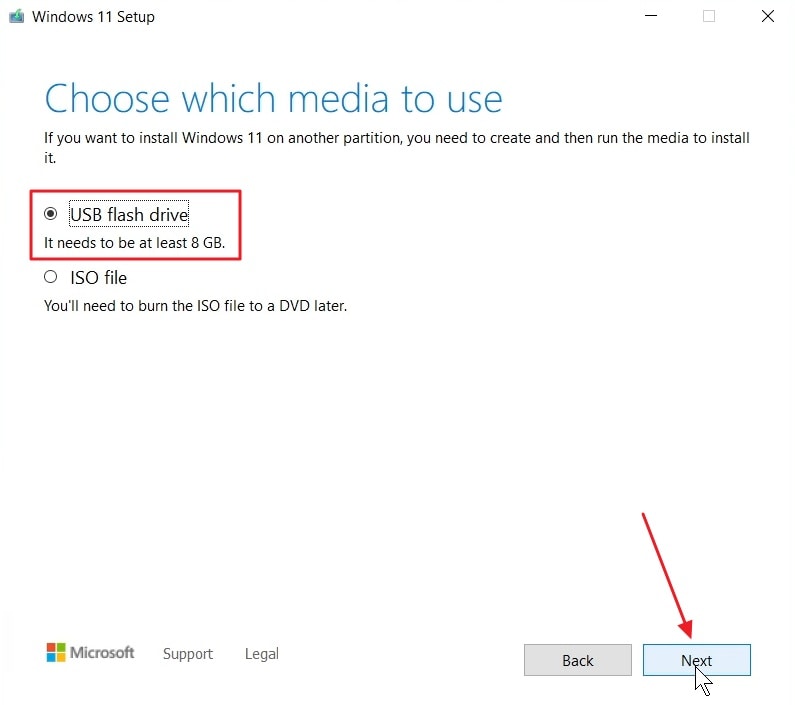
Step 2. After downloading it, choose the "USB Flash Drive" option and opt for the "Next" button.
Step 3. Now, choose "Removable Drive" and opt for the "Next" button. Once the progress is completed to 100%, hit the "Finish" button.
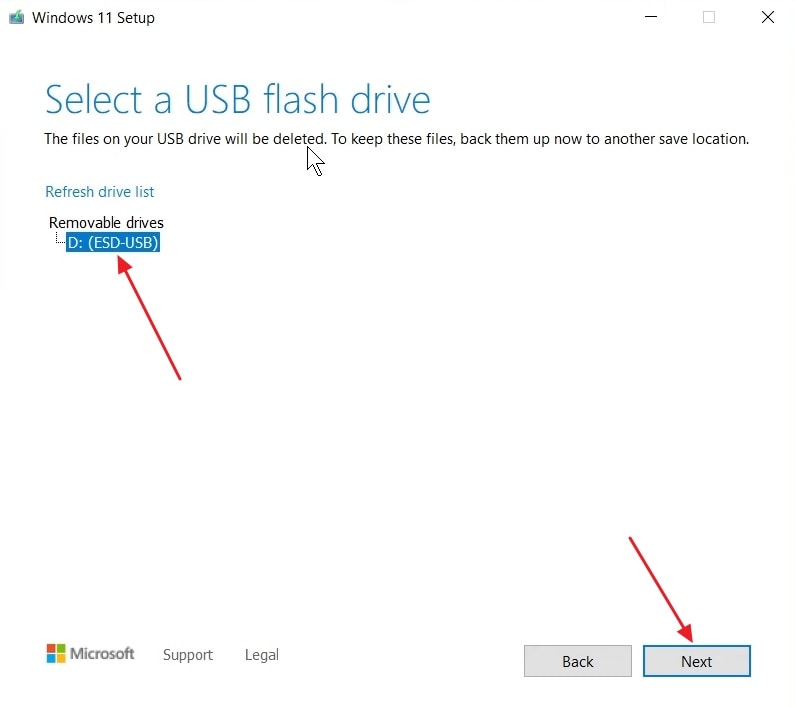
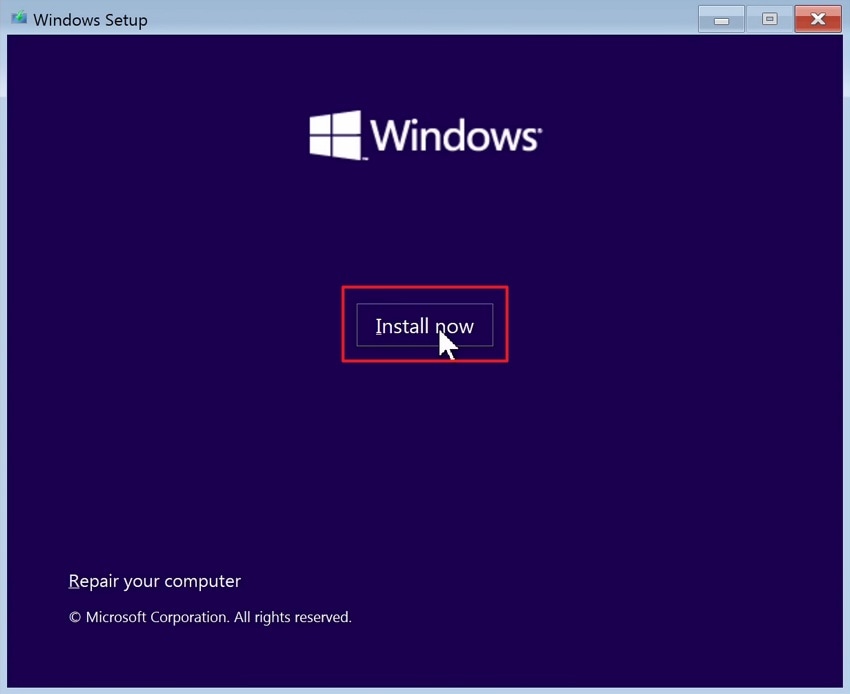
Step 4. Now, attach this USB to your problematic computer and press the "F2" key to boot from your USB. After selecting the desired preferences, click the "Install Now" button.
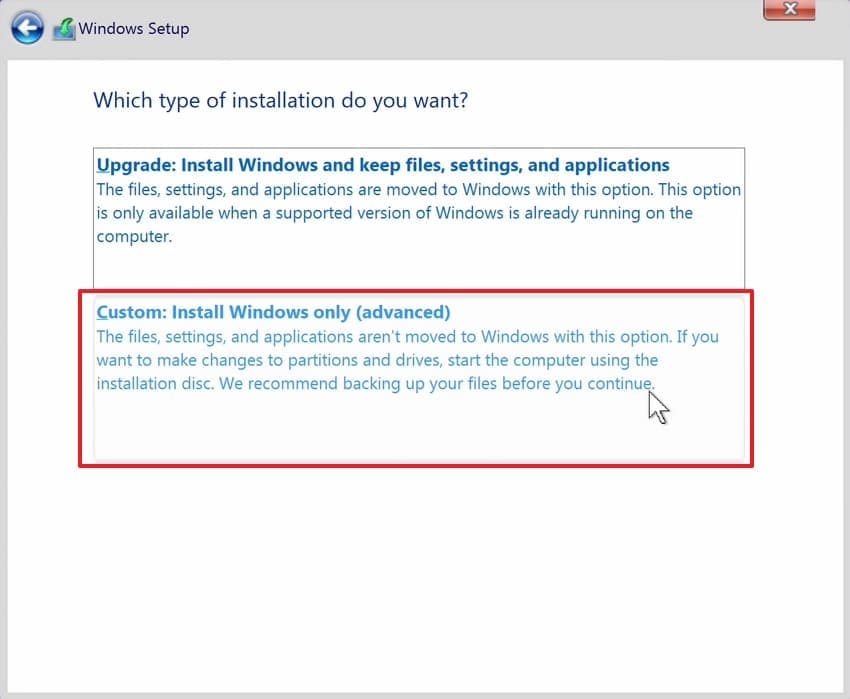
Step 5. For a fresh install, click the "Custom Install Windows Only" option.
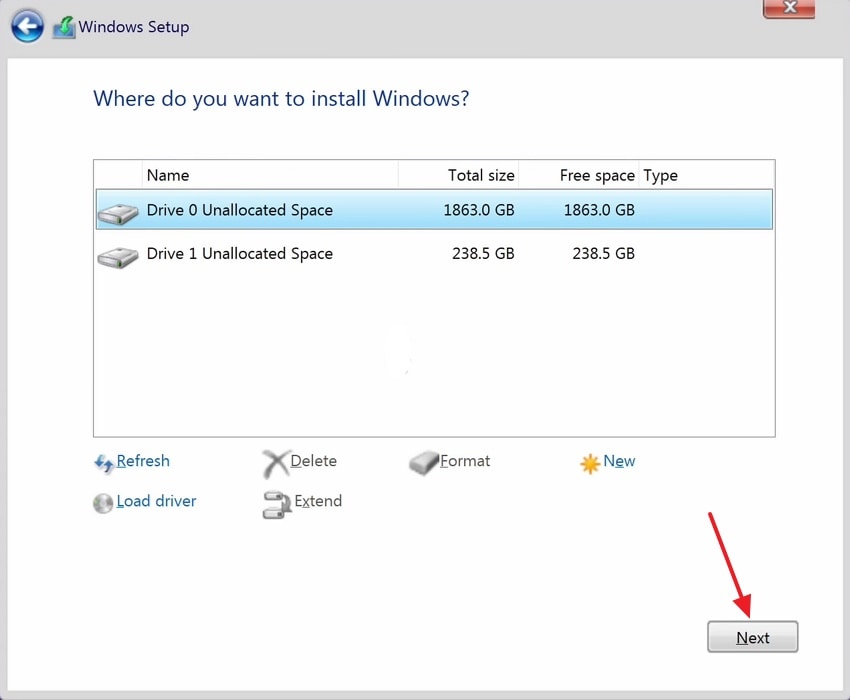
Step 6. Here, select the drive where you want to install the clean version of Windows and click "Next."
Bonus Tip. Safely Restore Corrupted Windows Files to Stop Restart Loop
Sometimes, corrupted Windows files also keep causing and show "the computer restarted unexpectedly loop." This is where Repairit helps you repair your corrupted or damaged files with ease. This dedicated tool repairs multiple files that cause the Windows restart loop simultaneously. It also supports 30+ file formats, including documents, archives, media, and engineering files. You can repair files corrupted by malware or virus attacks without spreading the infection.
This advanced tool repairs files without modifying original content or risking data loss. Moreover, it repairs files over 1GB efficiently without crashes or performance issues. You can even decompress and restore repaired damaged files to their original states. Repairit offers an online file repair service and desktop software for offline use. Besides, it enables previewing repaired files before saving the final output to the PC.
Key Features

-
Crash Recovery: Repairs files corrupted by system crashes, restarts, or sudden power failures.
-
AI Reconstruction: Uses AI logic to rebuild damaged file headers and internal structures.
-
Metadata Recovery: Maintains metadata and document properties during the file repair process.
Guide to Repair Your Damaged or Corrupted Files That Cause Problems
You need to go through a simplified tutorial to repair your damaged system files using Repairit:
Step 1. Add Your Damaged System Files
When you access the tool and go to the "More Types Repair" tab. Next, select the "Document Repair" option and then opt for the "Start" button.

Step 2. Start Repairing Your Imported Files
After adding damaged system files, opt for the "Repair" button to begin the repair process.

Step 3. Preview or Download Repaired Files
If the damaged system files get repaired, opt for the "Preview" button to view the repaired files. Finally, hit the "Save" button to export the repaired files to your system.

Repair Your Damaged or Corrupted Files That Cause Problems
 Security Verified. Over 7,302,189 people have downloaded it.
Conclusion
In conclusion, this guide explained why Windows enters restart loops and how each fix helps. From device conflicts to damaged system files, each cause has a practical solution. Applying these methods can save time and prevent data loss. However, when the computer restarts unexpectedly, it keeps returning due to corrupt files; a robust file repair solution is needed. Therefore, Repairit helps repair corrupted files safely and restores system stability with ease.
Frequently Asked Questions
-
1. Is such a mistake capable of permanent loss of data?
This error usually does not delete files, but repeated restarts increase corruption risks. Power cuts during looping can damage system files and user data stored locally. Early backup of important files would minimize the risk of a loss of data that cannot be guaranteed. -
2. Can overheating cause the restart loop?
Overheating hardware may force automatic restarts to protect internal components from damage. This can interrupt Windows setup and create a repeating restart behavior. Moreover, cleaning fans and checking airflow helps prevent heat-related restart problems. -
3. Can a failing SSD or HDD cause this error?
A failing storage drive can corrupt setup files and force endless restarts. Bad sectors often interrupt file reading during Windows installation stages. Therefore, running disk health checks helps detect storage-related problems early.




