

The Microsoft Edge out-of-memory error has become a pressing concern for users who expect an uninterrupted browsing experience. Today, with multitasking across numerous tabs and applications being common, facing this error can significantly affect productivity. Promptly recognizing the impact of this issue emphasizes the need for effective solutions and proactive memory management.
If left unsolved, it can lead to more frequent crashes, slower page load times, and, at worst, data loss. For proactive action, this tutorial will guide you in applying reliable fixes by examining the signs and causes. Moreover, each fix is explained thoroughly, with proper guidance to improve understanding.
Table of Contents
-
- Fix 1: Close Extra Tabs & Apps
- Fix 2: Clear Cache and Cookies
- Fix 3: Disable Heavy/Unused Extensions
- Fix 4: Turn Off “Enhance Your Security on the Web”
- Fix 5: Toggle Hardware Acceleration
- Fix 6: Increase Windows Virtual Memory (Page File)
- Fix 7: Repair Microsoft Edge in Apps & Features
- Fix 8: Scan and Repair System Files (SFC/DISM)
Part 1. What the "Out of Memory" Error Means in Edge
This "Out of Memory" error in Microsoft Edge means the browser thinks it has run out of usable RAM for that tab. It can happen if your PC still has free memory available, because Edge tabs and extensions have their own memory limits. As a result, it can’t load pages, keeps running tabs, or can be blocked by heavy pages and system settings.
Signs You’re Facing the "Out of Memory" Error
To fix the Microsoft Edge error code out of memory when opening any website, review the listed signs for improved analysis:
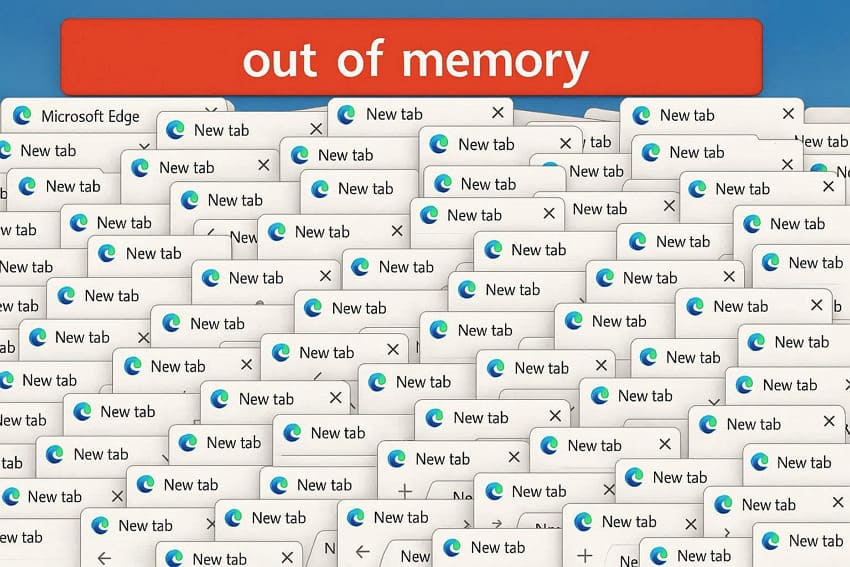
- Error Message on the Page: You see a message like "This page is having a problem" or "Error code: Out of Memory" when opening websites in Edge.
- Tabs Crashing or Reloading: One or more tabs suddenly crash, go blank, or reload on their own while other programs seem fine.
- Very Slow and Laggy Browsing: Edge becomes slow to scroll, click, or type, especially on heavy pages like video and dashboards.
- High Memory Use in Task Manager: You’ll see one tab, site, or extension using a lot of memory if you open Task Manager.
- Edge Closing or Restarting Itself: In more serious cases, the tab may crash, or Edge may close unexpectedly without reopening automatically afterward.
Common Causes of Edge Running Out of Memory
After signs, here are the most common causes behind Edge running out of memory and what you should watch out for:

- Too Many Tabs and Heavy Websites: When many tabs or windows open at the same time, Edge can hit the memory limit and display an error code.
- Problematic or Too Many Extensions: Faulty extensions or multiple extensions (add-ons) like ad blockers can consume much memory in the background.
- Limited System Resources (Low RAM): If your PC has low RAM or multiple apps running simultaneously, Edge has less memory available.
- Corrupted Cache, Cookies, or Browser Profile: Old or corrupted files, cookies, or a damaged Edge profile can make sites use more memory than usual.
- Edge/Windows Bugs and Security Features: Sometimes, a problematic Edge update or a strict security option can interact badly with some sites, leading to high memory usage.
Part 2. Complete Fixes for Microsoft Edge Out of Memory Error
To tackle the Microsoft Edge out-of-memory error, apply the following practical solutions and optimize Edge for faster browsing:
Fix 1: Close Extra Tabs & Apps
Multiple tabs and heavy applications eventually build up large portions of your system’s RAM, leaving less memory for Edge. Thus, it's better to close unnecessary tabs and background apps to reduce memory strain or avoid crashes. This simple fix ensures that Edge can allocate more resources to active tasks, making page loading faster. Simply, follow the guidelines to close all the additional tabs or applications running in the background:
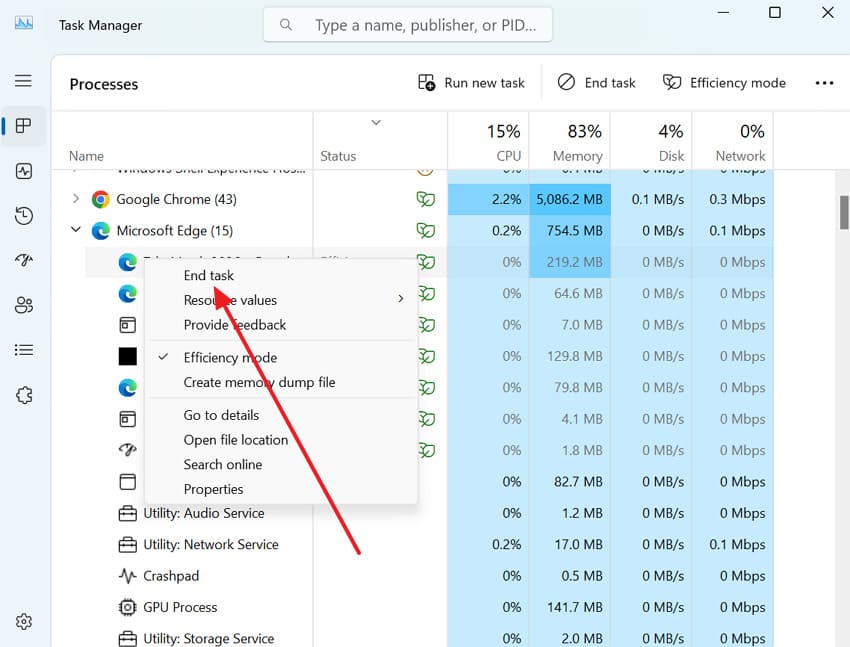
Instructions. First, review all the open tabs in Edge and close those not currently in use. Then, access Task Manager in Windows to locate and expand the Microsoft Edge processes. After this, identify the high-memory-consuming tab, right-click it, and choose the "End Tasks" option.
Fix 2: Clear Cache and Cookies
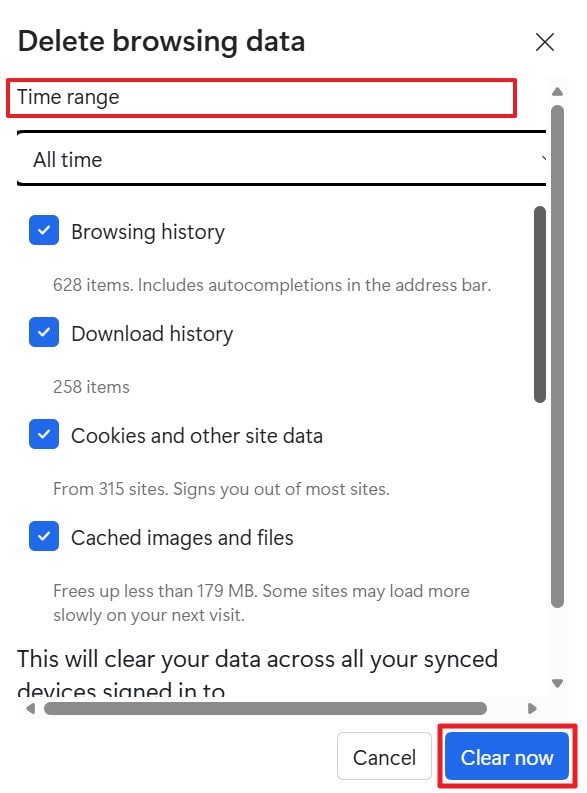
Cached cookies or files accumulate and take up memory, which can slow your browser or contribute to memory errors. This is why clearing them frees up valuable memory and storage, reduces lag, and ensures web pages load quickly. A regular clearance of cookies and caches further prevents issues caused by outdated or corrupted site data. Review the tutorial and fix the Microsoft Edge error code out-of-memory when opening any website by clearing the cache:
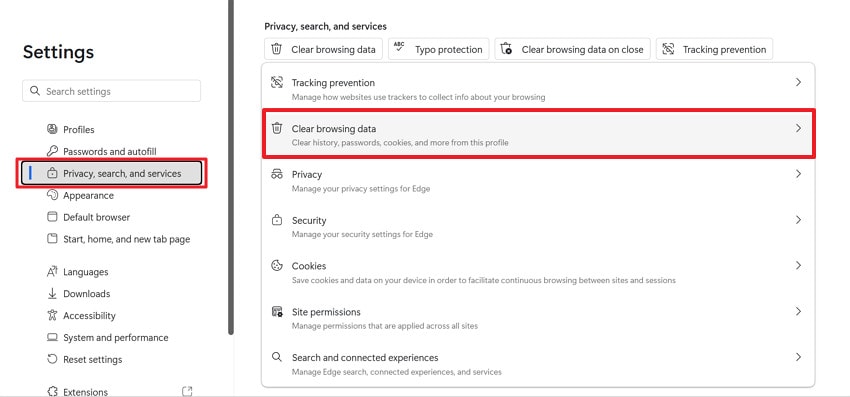
Step 1. Open Edge, navigate to the Three Dots icon, and choose the "Settings" option from the menu. Access the "Privacy, Search, and Services" tab and press the "Clear Browsing Data" option to proceed.
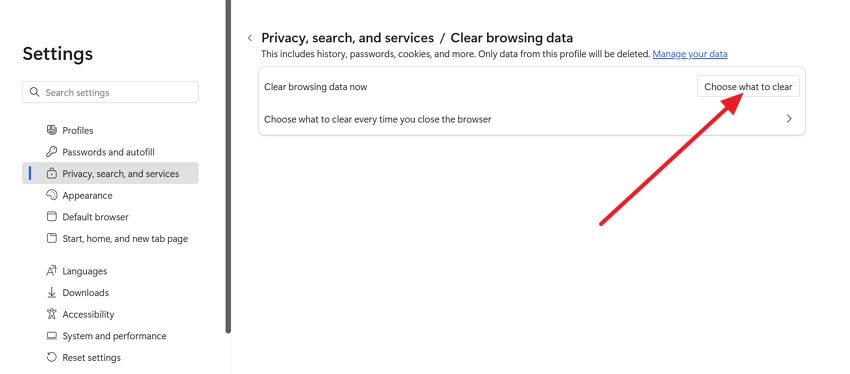
Step 2. After this, click the "Choose What to Clear" option from Clear Browsing Data for more options.
Step 3. Move forward, expand the "Time Range" menu, and choose All Time from the options. Next, select "Cached images and files" and "Cookies and other site data," then click "Clear Now."
Fix 3: Disable Heavy/Unused Extensions
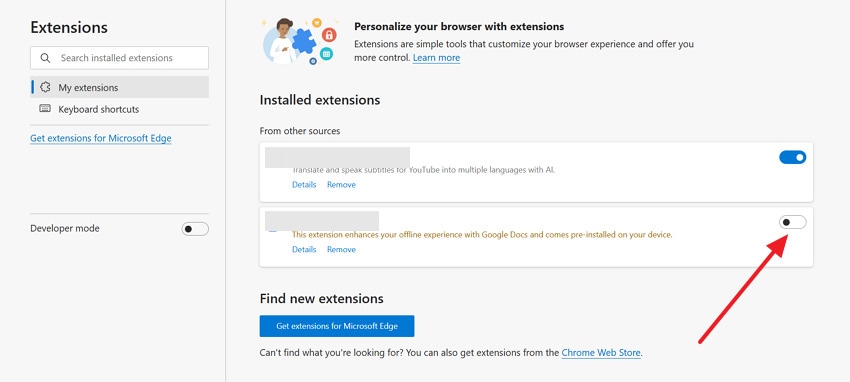
Extensions can enhance browsing, but some run constantly in the background, consuming significant memory. In this context, disabling or removing extensions that you don’t use reduces background memory usage sufficiently. Not only this, but it ensures that your browser is focused on essential tasks, improving stability and responsiveness. Adhere to the tutorial and learn how to disable heavy or unused extensions from Microsoft Edge:
Step 1. Enter Edge, press the "Three Dots" icon, expand the menu for "Extensions," and click "Manage Extensions."

Step 2. Under Installed Extensions, review unnecessary extensions and toggle them off to free up memory.
Fix 4: Turn Off "Enhance Your Security on the Web"
The Enhance Your Security on the Web feature adds extra layers of protection by applying stricter security rules when browsing. Still, these additional processes can increase memory consumption, and turning them off is recommended to reduce memory usage. This adjustment might improve page responsiveness and reduce the chances of Microsoft Edge out-of-memory errors. To proceed, follow the guided tutorial and turn off relevant settings in the security for better browsing:
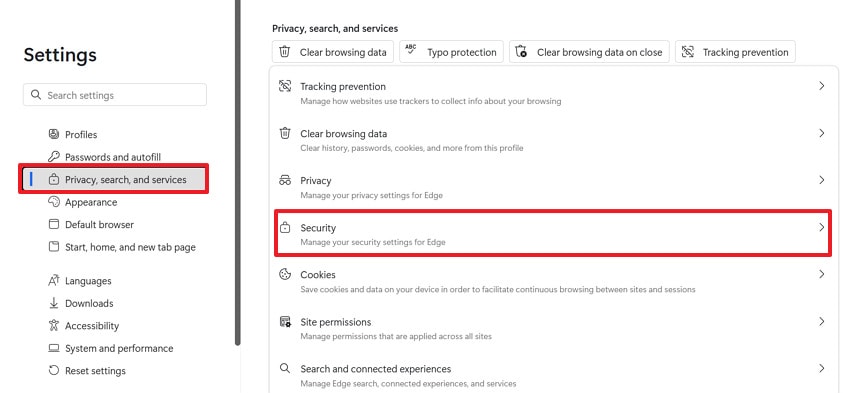
Step 1. Reveal Microsoft Edge Settings, access the "Privacy, Search and Services" section, then access the "Security" option.
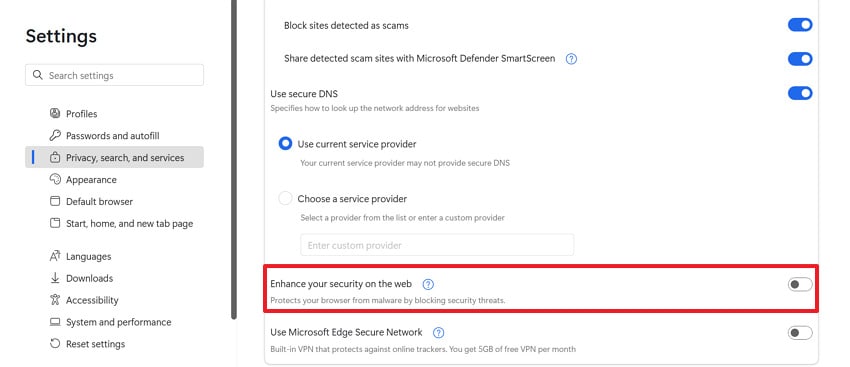
Step 2. Next, search and toggle off the "Enhance Your Security on the Web" feature from security settings.
Fix 5: Toggle Hardware Acceleration
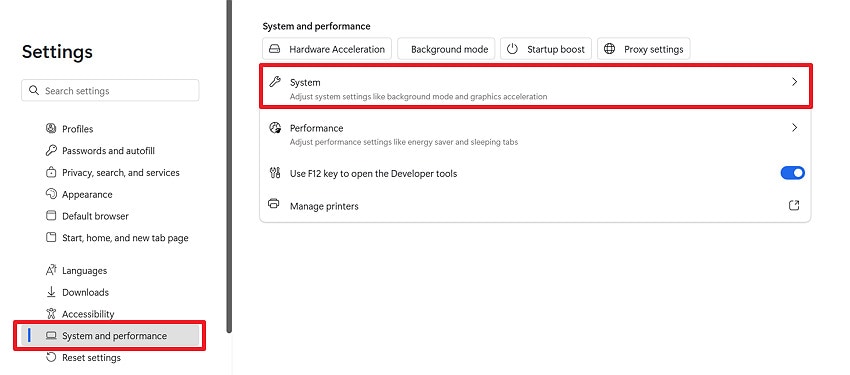
Hardware acceleration allows Edge to use your computer’s GPU and handle visual tasks such as rendering pages. Although this feature improves performance, it can sometimes conflict with certain graphics drivers or system configurations. For this, toggling hardware acceleration on or off can help determine the most stable configuration for your system and resolve memory-related issues. To proceed, adhere to the tutorial and toggle hardware acceleration settings as needed:
Step 1. Enter Edge Settings, open the "System and Performance" tab, then click the "System" option.
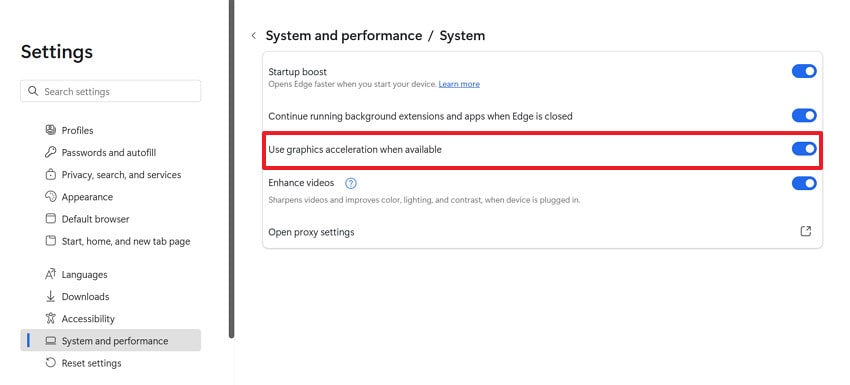
Step 2. Now, find "Use Graphics Acceleration When Available" and turn it off, then "Restart" to relaunch Edge. If it was already off, turn it on instead and restart; some PCs work better with it enabled.
Fix 6: Increase Windows Virtual Memory (Page File)
When your system’s physical RAM is fully utilized, Windows uses virtual memory (Page File) to store temporary data. Thus, increasing the virtual memory size gives Microsoft Edge additional resources to handle large workloads, multiple tabs, and demanding web applications.
This can reduce memory pressure during heavy browsing sessions and fix the Microsoft Edge error code out-of-memory when opening any website. For additional memory space, increase Windows virtual memory, following the tutorial below:
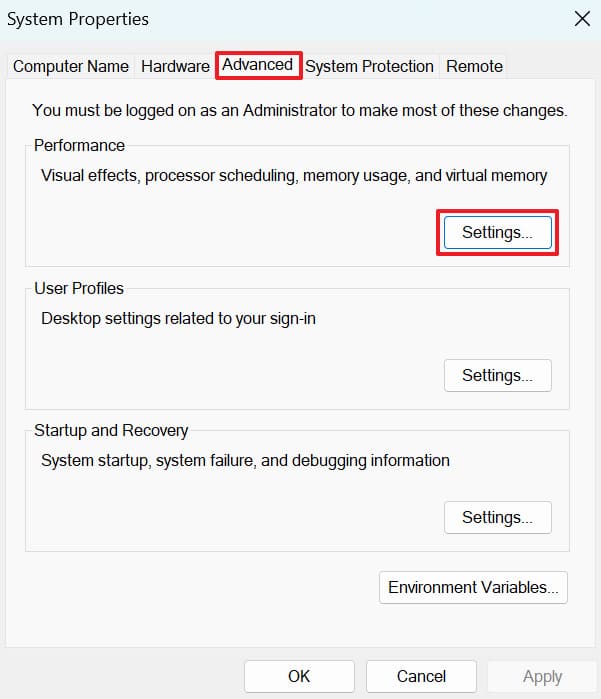
Step 1. Press the "Windows + R" keys, type "sysdm.cpl" in the given space, and hit enter. In the System Properties window, access the "Advanced" tab and click the "Settings" button from the Performance section.
Step 2. From the Performance Options, open the "Advanced" tab and press the "Change" button for Virtual Memory.
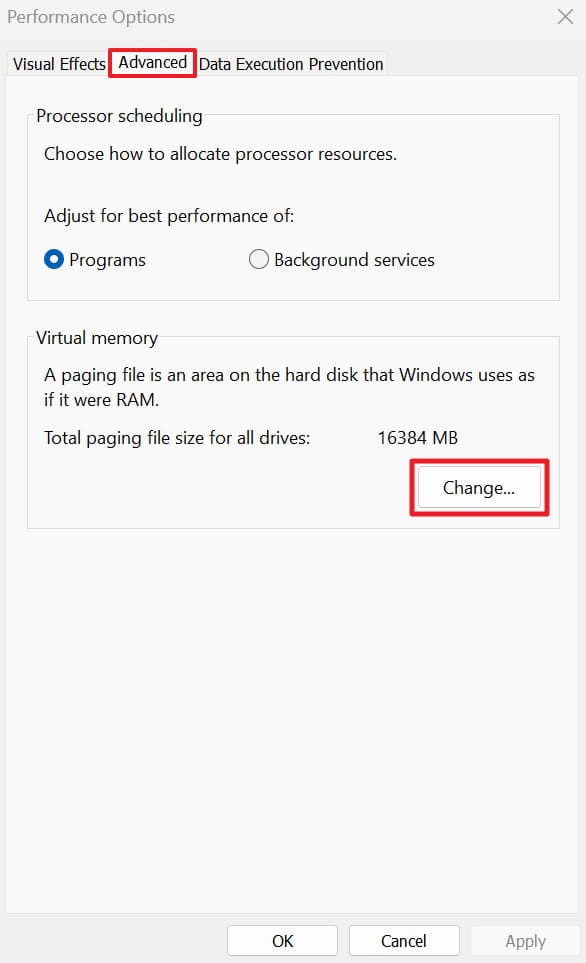
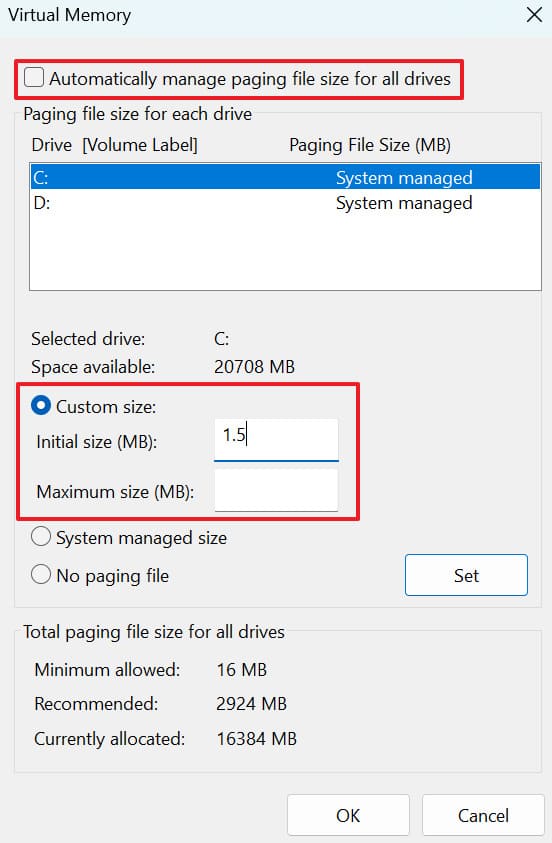
Step 3. Next, uncheck the "Automatically Manage Paging File Size for All Drives" option, then check "Custom Size." Now, specify increased "Initial Size (MB)" and "Maximum Size (MB)" values, then "Set" and "OK" for confirmation.
Fix 7: Repair Microsoft Edge in Apps & Features
More often, the Microsoft Edge out-of-memory error can happen due to corrupted or missing browser files. Here, the built-in Repair feature reinstalls core Edge components without removing your personal data or settings. Essentially, it refreshes the browser installation, fixes an internal file error, and restores Edge to stable working. Explore the provided manual and repair Microsoft Edge through the Apps & Features settings for memory-related crashes:
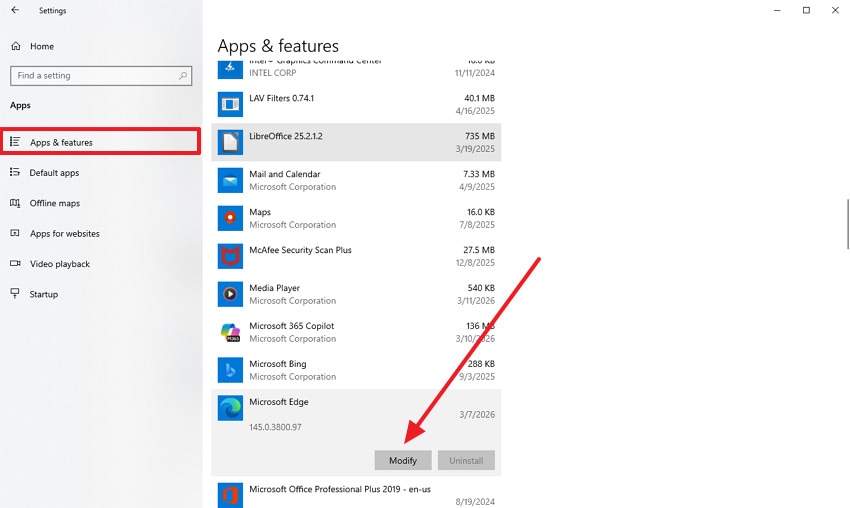
Step 1. From Windows Settings, choose the "Apps" option, then access the "Apps & Features" tab (Windows 10). After this, locate Microsoft Edge and press the "Modify" button to proceed with the repair.
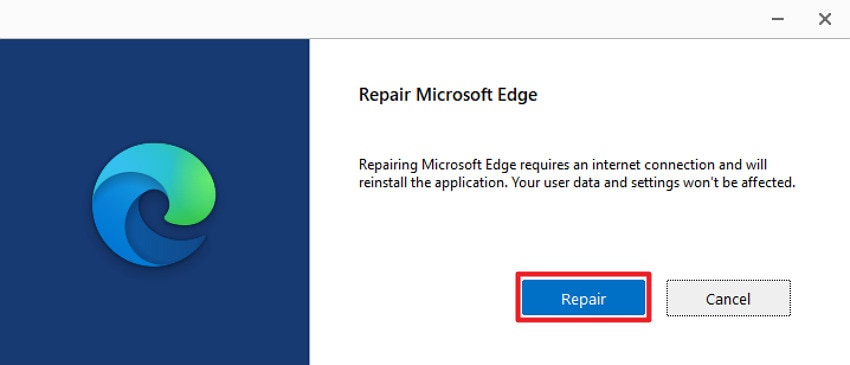
Step 2. Move forward and click the "Repair" to allow Windows to reinstall the necessary files. Wait for the process to complete, then restart Microsoft Edge and check if the error still appears.
Fix 8: Scan and Repair System Files (SFC/DISM)
System-level issues can sometimes interfere with how applications access memory and system resources. Therefore, running the SFC and DISM scans helps detect and repair damaged system files if the error is caused by them. Addressing these underlying problems can improve overall system performance and reduce the possibility of memory-related errors happening in Edge. Read the instructions to run system scans and identify even minor system-level issues for out-of-memory Edge error:
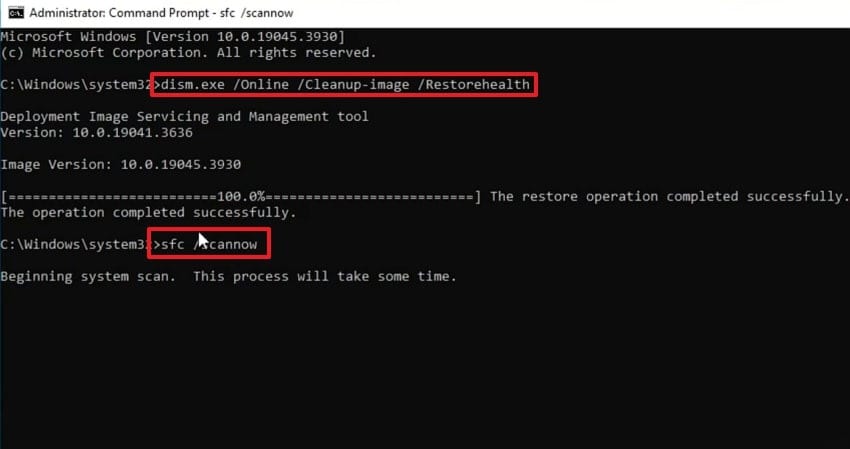
Instructions. Initially, search for Command Prompt and run it as Administrator. In the terminal window, type "DISM /Online /Cleanup-Image /RestoreHealth" command and press Enter. Now, allow the process to complete, as it might take several minutes. Once done, type "sfc /scannow" and enter, then wait for the system to automatically repair any corrupted files it finds.
Pro Tip. Resolve Corrupted System Files Causing Different System Errors via Repairit
Mostly, persistent system errors occur because certain files have been corrupted or damaged beyond basic repair. These hidden file issues might also contribute to browser instability, making a repair tool like Repairit necessary. It fixes problematic files, eliminates corruption-related issues, and helps fix the Microsoft Edge error code out-of-memory when opening any website. This program can repair damaged Word or project files that often become corrupted after system errors.
It's useful when system errors make files unreadable or jumbled, but you want them to open exactly as before. The software tries to keep the original text, fonts, and slide layouts while repairing the internal file structure. It solves problems like files not opening or showing error dialogs that are common after memory issues interrupt saving. Importantly, you can add multiple corrupted documents at once and repair them in a single batch.
Key Features

-
Offer Lossless File Repair: The lossless approach aims to recover as much of the original file as possible, rather than stripping content.
-
Cross-Platform Desktop and Online Repair: It supports full desktop software for Windows and Mac, along with a web-based service for quick repair.
-
Works Across Many File Formats: As it supports ZIPs, RARs, Engineering files, Office docs, and more, it can repair most files you commonly open or download from Edge.
Simple Guidelines to Repair Corrupted System Files
Follow the provided guidelines to repair system files, and keep your applications, like Microsoft Edge, running smoothly:
Step 1. Load Damaged Files into the Program
Go to the "More Types Repair" tab and press the "Start" button in the Document Repair. After this, click the "+Add" button to import broken or corrupted system files for instant repair.

Step 2. Start Fixing Your Damaged System Files
Once you’re done adding system files, press the "Repair" button at the bottom to start the process.

Step 3. Analyze and Download the Repaired System Files
Soon, when the process completes, review your repaired files and save those you’re convinced of.

Repair Corrupted Files Now
 Security Verified. Over 7,302,189 people have downloaded it.
Conclusion
In conclusion, the "Microsoft Edge out-of-memory" error occurs when the browser runs out of available system memory. Fortunately, all the solutions discussed in the article can significantly improve Edge’s performance and reduce the likelihood of error recurrence. When the issue comes from corrupted system files, only Repairit can help you make the recovery easier.
FAQ
-
Does updating Microsoft Edge help fix the Out of Memory Error?
Surely updating Microsoft Edge can fix the out-of-memory error, as browser updates include performance improvements and bug fixes. Besides, the latest version guarantees that Edge handles system resources more efficiently and minimizes memory issues afterward. -
Is the Microsoft Edge Out of Memory Error related to specific websites?
Indeed, the error might appear sometimes when visiting websites that use heavy scripts, large images, or complex web applications. These websites require more memory to load or function properly, and display errors if there isn’t enough. -
What to do if the Microsoft Edge Out-of-Memory Error keeps appearing?
If the error persists, start with basic troubleshooting steps like clearing browser data or disabling unnecessary extensions. If these methods do not work, system file corruption might be affecting browser stability. In such cases, you can use Repairit to repair damaged files and restore system functionality. Addressing these issues can help reduce the chances of Microsoft Edge error code out-of-memory when opening any website and restore smoother browsing.




