
You try downloading your favorite new game, but face an annoying system error. These interruptions often stop your progress within the Microsoft Store and Xbox App. It is now common for users to encounter the "0x80070426/0x80070422" error code. You feel confused while trying to resolve these complex Windows service connection issues.
In some cases, updates fail, and authentication services cannot verify accounts. Yet, these issues are usually fixable with simple system checks. So, this guide explains what causes these errors and offers practical methods to fix them.
Table of Contents
-
- Fix 1. Check Date, Time, and Region Settings
- Fix 2. Run Store/Xbox Troubleshooter
- Fix 3. Reset Microsoft Store (wsreset.exe)
- Fix 4. Repair/Reset the Xbox App
- Fix 5. Enable Microsoft Sign-in Assistant Service
- Fix 6. Repair System Files (SFC/DISM)
- Fix 7. Reset Windows Update Components
- Fix 8. In-Place Upgrade/Repair Windows 10/11
Part 1. Error 0x80070426/0x80070422 - What These Windows Error Codes Mean
Windows error codes often appear when important background services stop working. These services manage updates and app downloads across Microsoft system applications. When one required service stops, Windows cannot complete certain actions normally. That situation triggers codes such as 0x80070426 during store downloads or account sign-ins. It often appears while installing updates or signing into Microsoft services. When this happens, your essential apps cannot connect to Microsoft servers.
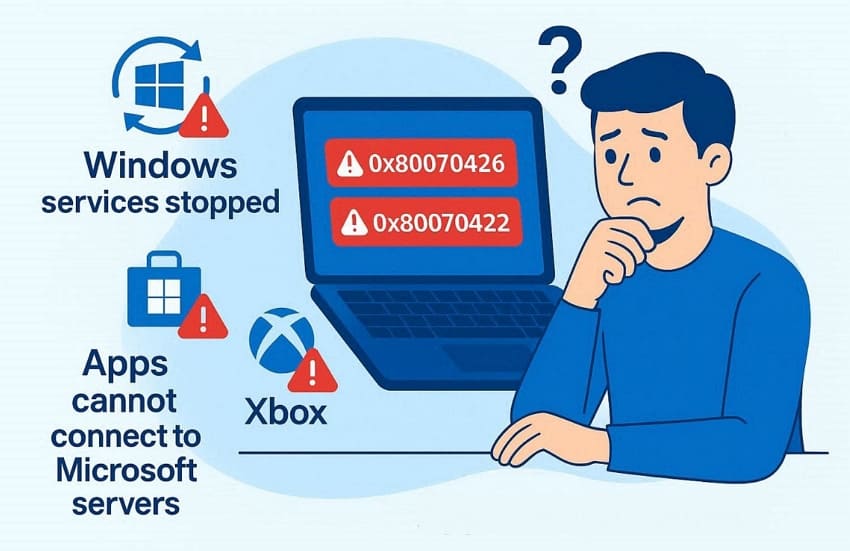
Apart from the above, another related issue appears as the 0x80070422 error in systems. This code occurs when the Update service becomes disabled. Without that service, Windows cannot contact Microsoft servers to download updates. So, Microsoft Store and Xbox apps may also fail to function. Thus, both errors signify that a critical piece of software is not functioning. Besides, your apps lose their ability to communicate with the main core.
Part 2. 5 Common Causes of Error 0x80070426/0x80070422
Several specific technical issues can cause these errors on your computer. So, understanding these root causes will help you select the most effective solution:
- Disabled Services: Your critical update services might be turned off within the system settings. This prevents the Microsoft Store from communicating with the download servers.
- Wrong Time: Incorrect settings will cause major security certificate validation failures. Your device must sync with the server time to allow secure connections.
- Corrupt Files: Damaged system files interfere with services and cause operations to collapse. When system integrity breaks, the Microsoft Store or update processes fail to launch.
- Pending Updates: Missing system updates can create conflicts between your apps and OS. Outdated software versions may also trigger these specific error codes.
- Software Conflict: External antivirus programs interfere with background Microsoft services. These security tools might flag legitimate system processes as a potential threat.
Part 3. 8 Quick Ways to Fix 0x80070426/0x80070422 Errors
You can fix Error 0x80070426/0x80070422 when logging to the Microsoft Store/Xbox App on Windows 10/11 using the solutions below. These 8 practical fixes help restore system services and resolve the error codes efficiently.
Fix 1. Check Date, Time, and Region Settings
Your computer needs an accurate time to connect with the Microsoft verification servers. Incorrect settings often break secure connections and trigger errors like 0x80070426. Therefore, setting these values removes the sync problem with almost no risk. This simple adjustment ensures your device validates security certificates. So, you need to follow these specific steps to sync your clock and update your region:
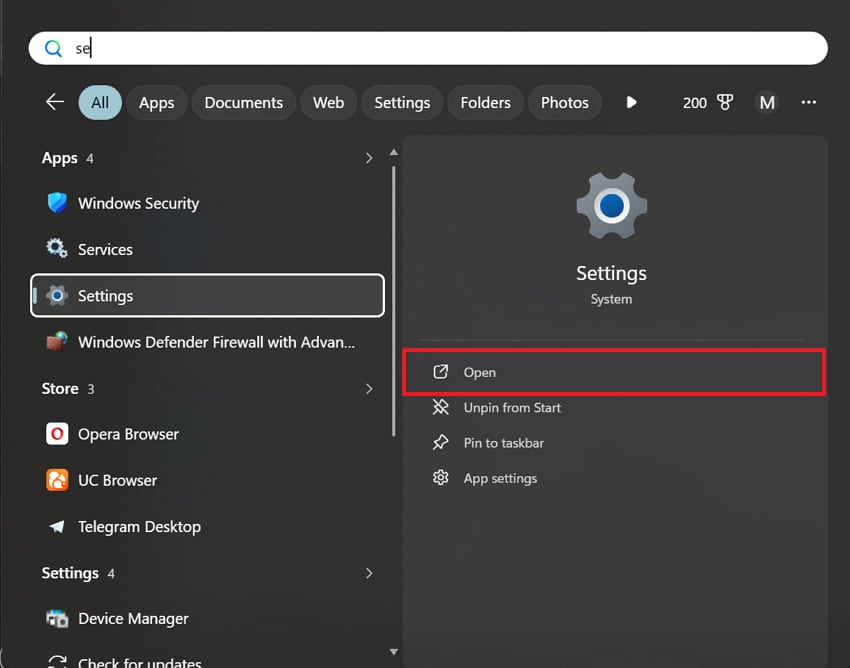
Step 1. To initiate, click the "Open" option upon typing "Settings" in the search bar.
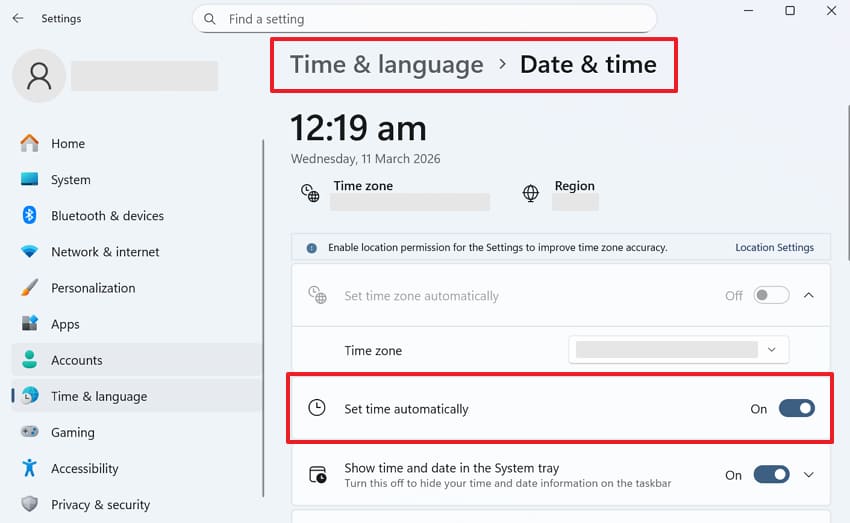
Step 2. Moving forward, access the "Date & Time" settings upon opting for the "Time & Language" section. After that, either enable the "Set Time Automatically" or set it yourself.
Fix 2. Run Store/Xbox Troubleshooter
Windows includes native tools designed to find and fix common application problems. Running such tools can resolve service issues without any manual configuration. This particular tool checks why your computer is showing the 0x80070422 error code. It scans for mismatches in your configuration and replaces the default app service settings. Anyhow, adhere to the given steps to find out how you can run the utility and repair your system:
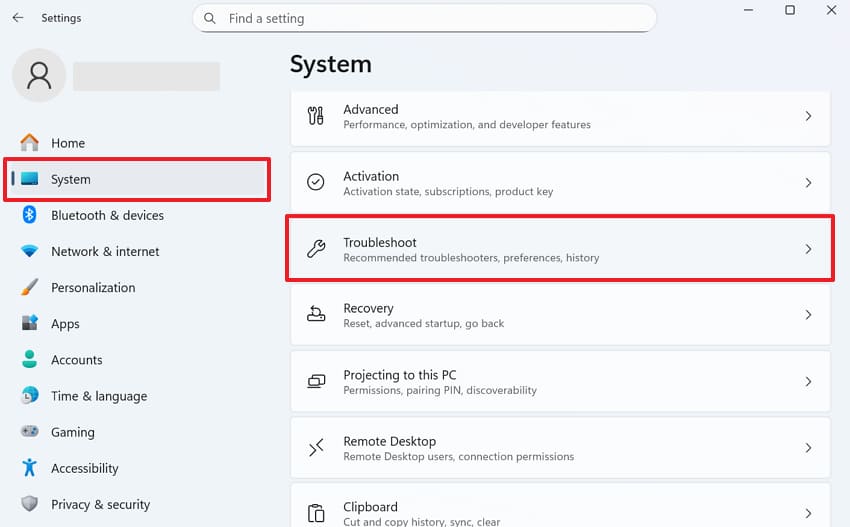
Step 1. As you access the "Settings" app on your device, head to "System." On the subsequent display, you need to click the "Troubleshoot" option.
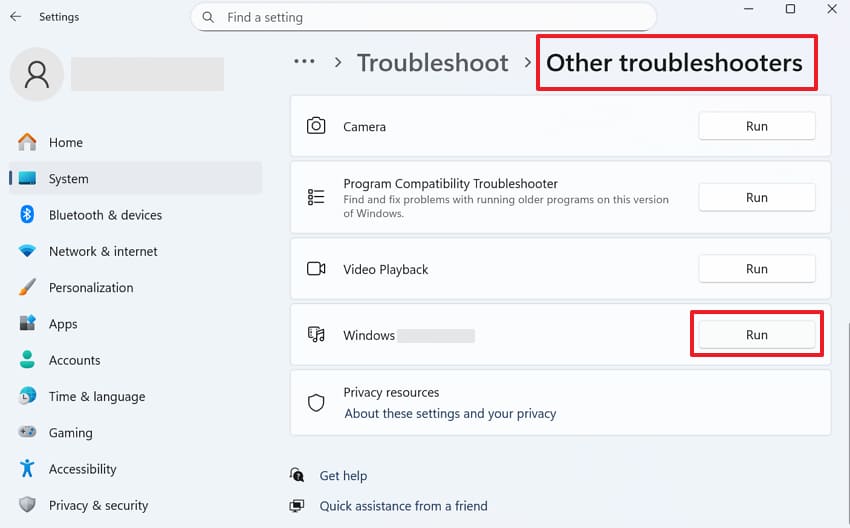
Step 2. Going ahead, access "Other Troubleshooters" and look for "Windows Store Apps." Upon seeing it, press the "Run" button next to it to finish the task.
Fix 3. Reset Microsoft Store (wsreset.exe)
This native command clears the Microsoft Store cache without removing your installed apps. It refreshes the internal database and fixes various Xbox app download errors. Using the wsreset.exe command resolves specific issues linked to your Microsoft Store cache. Plus, your Microsoft account and app library remain completely untouched during this reset. So, go through these specific steps to run the reset command on your Windows system:
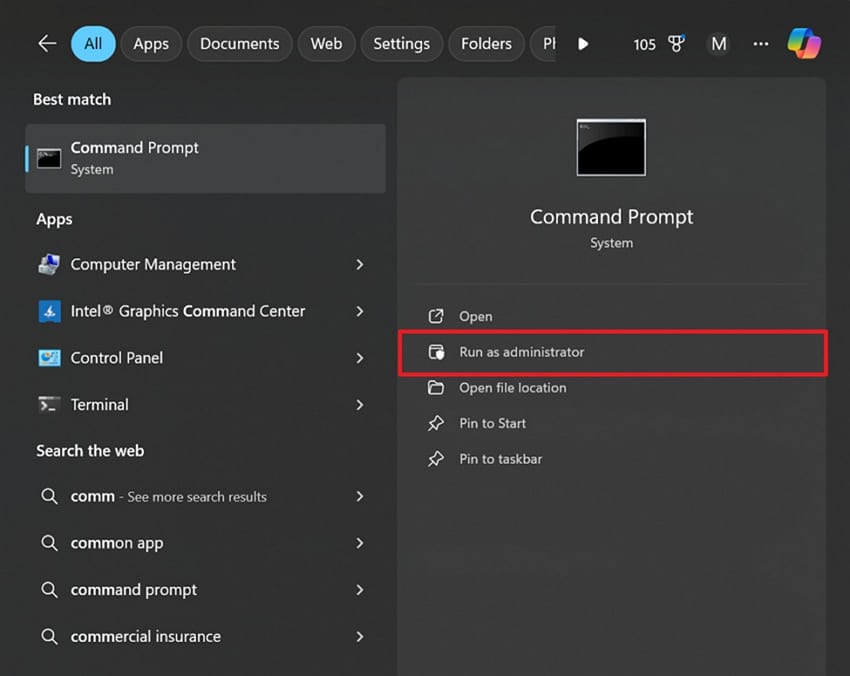
Step 1. Upon searching or typing for "Command Prompt," select "Run as Administrator."
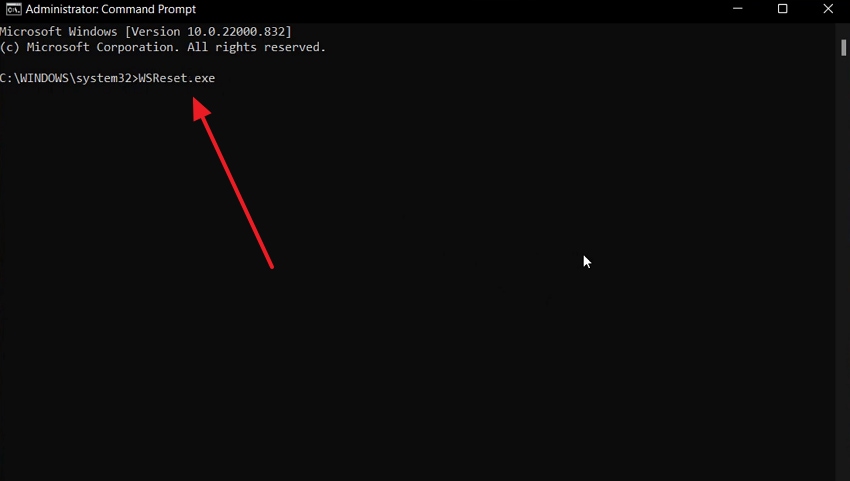
Step 2. Once you access the CMD main screen, type "wsreset.exe" and hit the "Enter" key.
Fix 4. Repair/Reset the Xbox App
Windows allows you to repair or reset individual applications without full reinstallation. The repair function checks your app files while keeping all your data safe. On the other hand, a complete reset will clear the app data and resolve the persistent error, like 0x80070422. These native recovery options resolve a lot of common Xbox login failures. Follow these specific steps to repair or reset your problematic Windows system apps:
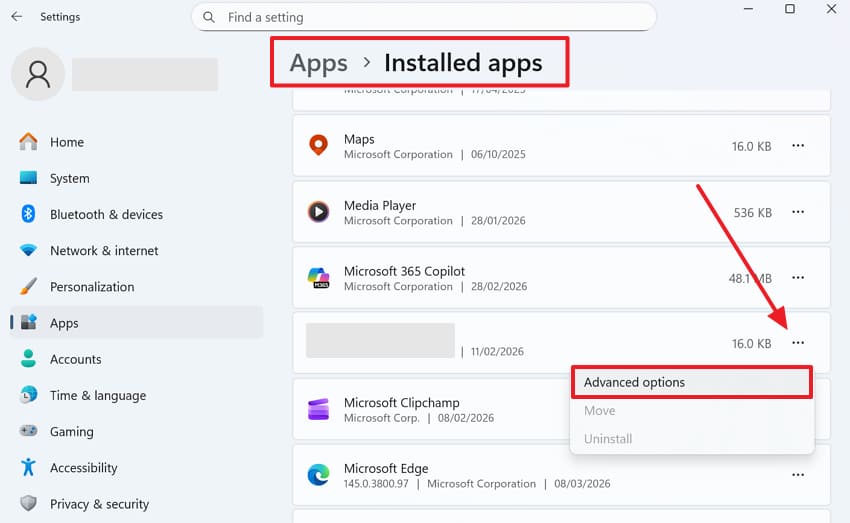
Step 1. After heading to the "Apps" settings on your device, click "Installed Apps." Scroll down to find "Xbox" and click "Three Dots" to choose "Advanced Options."
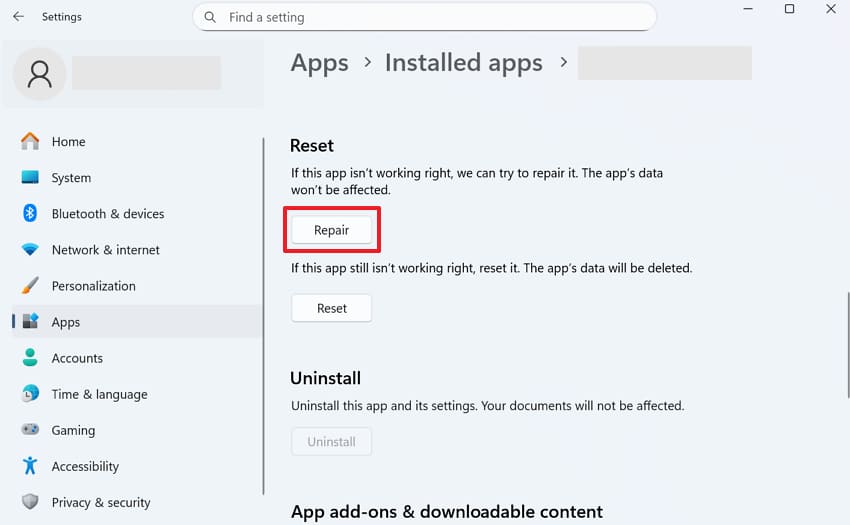
Step 2. Finally, you need to press the "Repair" button under the "Reset" section.
Fix 5. Enable Microsoft Sign-in Assistant Service
This critical background service manages your account authentication for all system apps. So, you cannot access your digital library or games when this service stops. Ensuring it runs will fix Error 0x80070426/0x80070422 when logging in to the Microsoft Store/Xbox App on Windows 10/11. This solution restores communication between your local profile and Microsoft servers. Thus, review the given steps to locate and enable this service:
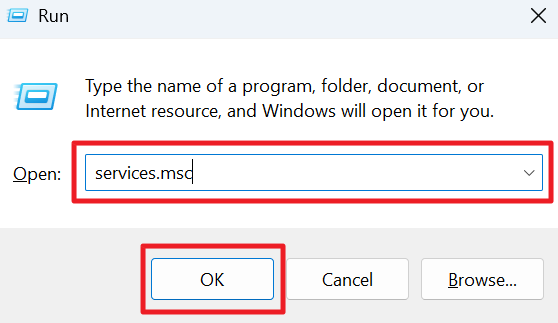
Step 1. To initiate, access the "Run" prompt upon pressing the "Windows + R" keys together. Then add the "services.msc" command inside the "Open:" dropdown section and click "OK."
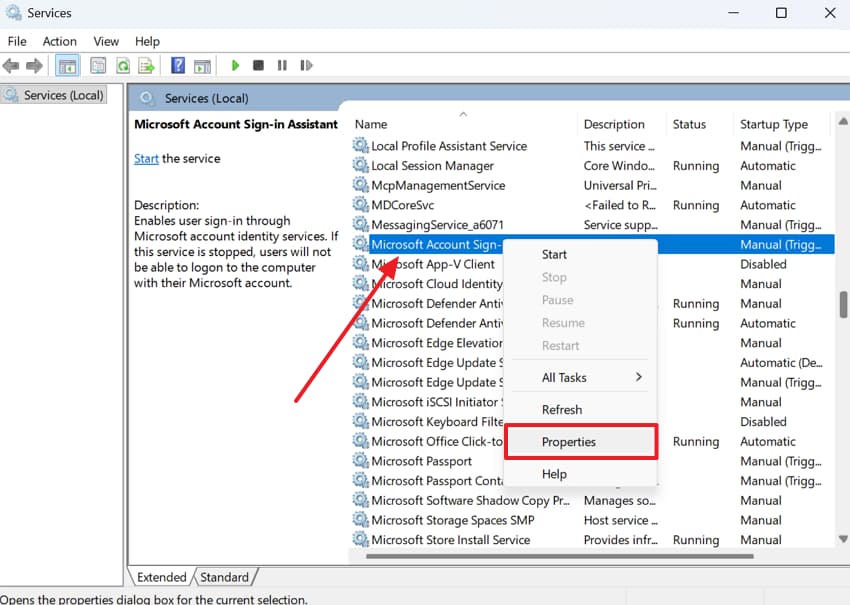
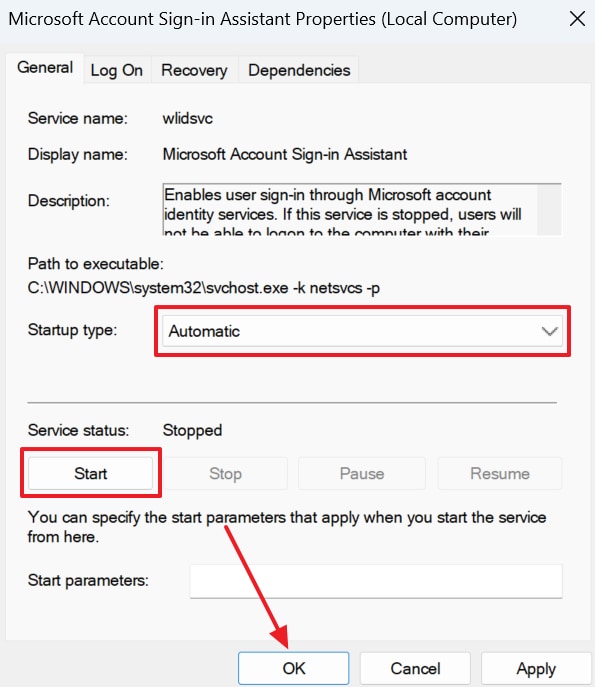
Step 2. Moving forward, right-click the "Microsoft Account Sign‑in Assistant" feature. Upon seeing the upcoming menu, opt for the "Properties" option.
Step 3. Next, choose "Automatic" next to the "Startup Type" section and press "Start." After that, hit "OK," and then you need to reboot your system to complete the process.
Fix 6. Repair System Files (SFC/DISM)
Windows offers another great tool to recover damaged or missing core files. The SFC command scans for corrupted data that triggers error 0x80070426. Whereas DISM provides a more effortless repair by downloading new system files from Microsoft servers. These tools repair your OS integrity without impacting your personal data. Thus, take guidance from these specific steps to run both repair tools on your Windows device:
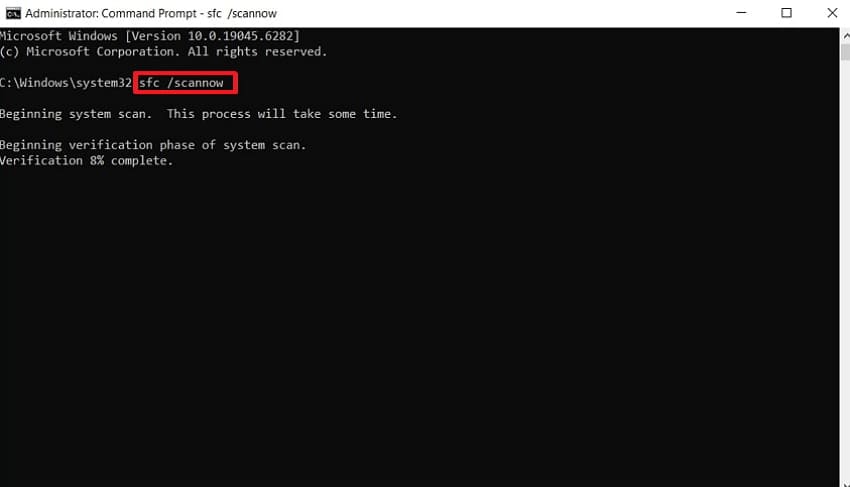
Step 1. Inside the admin terminal screen of "CMD," you have to type "sfc /scannow" and press the "Enter" key.
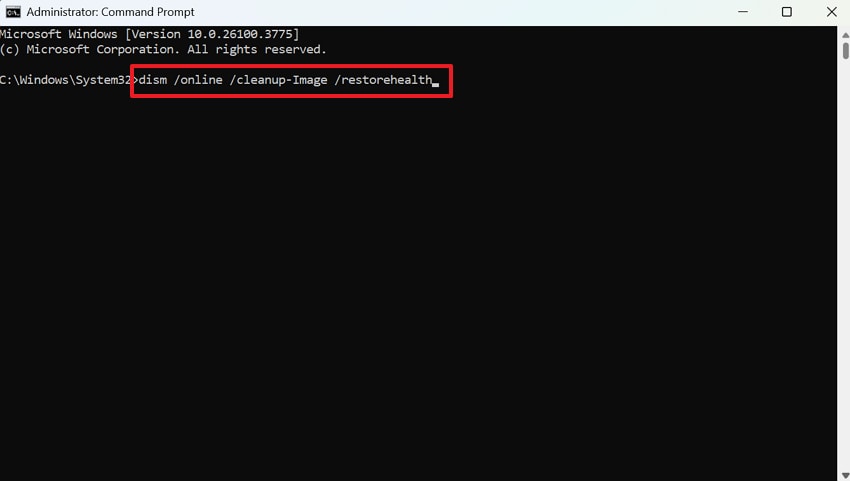
Step 2. Next, run the "dism /online /cleanup-image /restorehealth" command. It will initiate taking action to repair the problem with Windows system image files. Upon running both commands, restart your device to resolve the error codes.
Fix 7. Reset Windows Update Components
Resetting the update components clears out old data and restarts background services. This process fixes deep-seated issues like 0x80070426/0x80070422 that prevent the Store from downloading apps. It refreshes the software distribution folder where temporary update files are stored. By doing this, you eliminate any corrupted data blocking your current system's progress. So, follow these detailed steps to reset the update components and restore the default state:
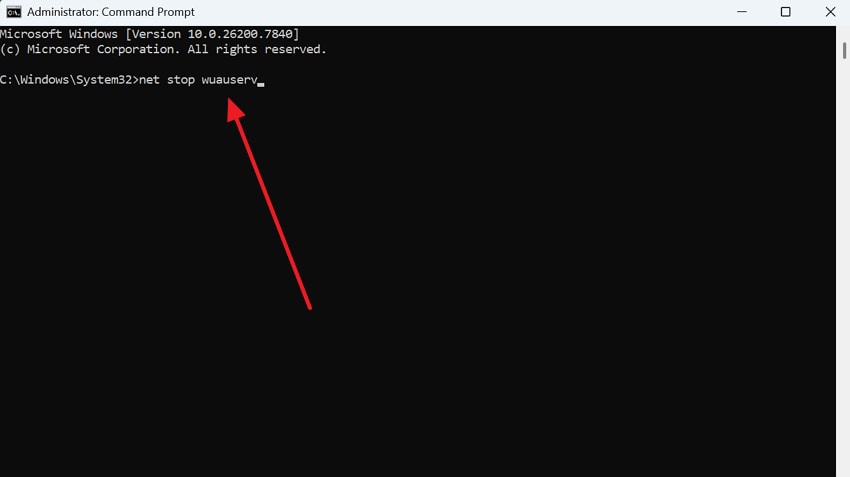
Step 1. Upon running "CMD" as admin on your device, input "net stop wuauserv" and press "Enter." After that, you need to run the "net stop bits" and "net stop cryptsvc" commands one by one.
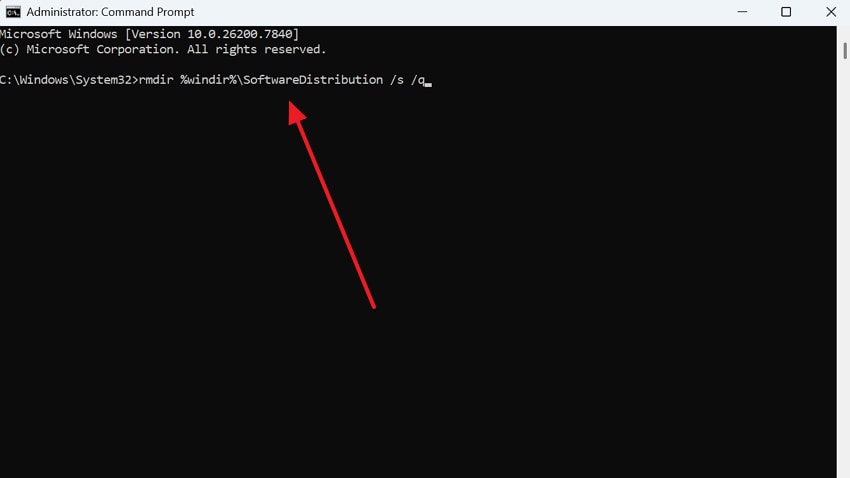
Step 2. Next, delete the "SoftwareDistribution" folder by running "rmdir %windir%\SoftwareDistribution /s /q." Once done, your error code dilemma will be over as you reboot your system.
Fix 8. In-Place Upgrade/Repair Windows 10/11
Such an upgrade refreshes your entire operating system while keeping all your files. This powerful method is used in place of the broken system components that cause the 0X80070422 error. It acts as a deep repair for the registry and critical background services. Besides, this final solution resolves the most stubborn Windows Store and Xbox issues. Thus, adhere to the steps to perform a successful repair upgrade on your computer:
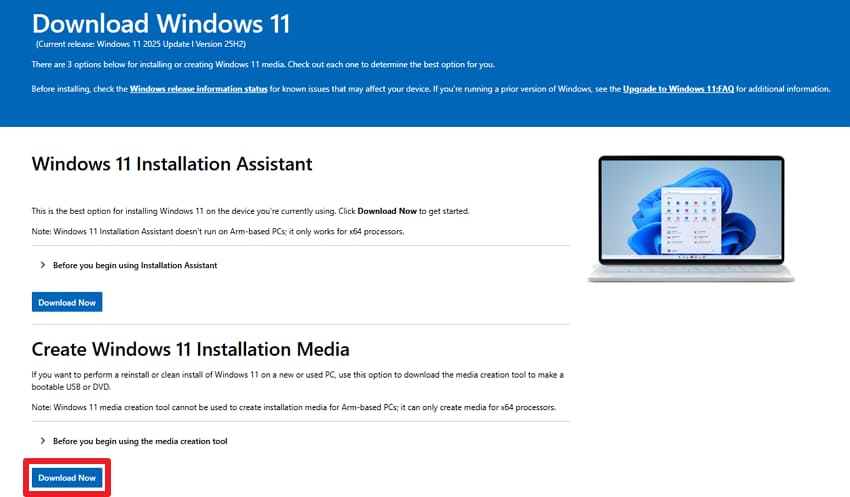
Step 1. To initiate, access the official "Media Creation Tool" page on your PC. On the subsequent screen, access "Create Windows 11 Installation Media" and press "Download Now."
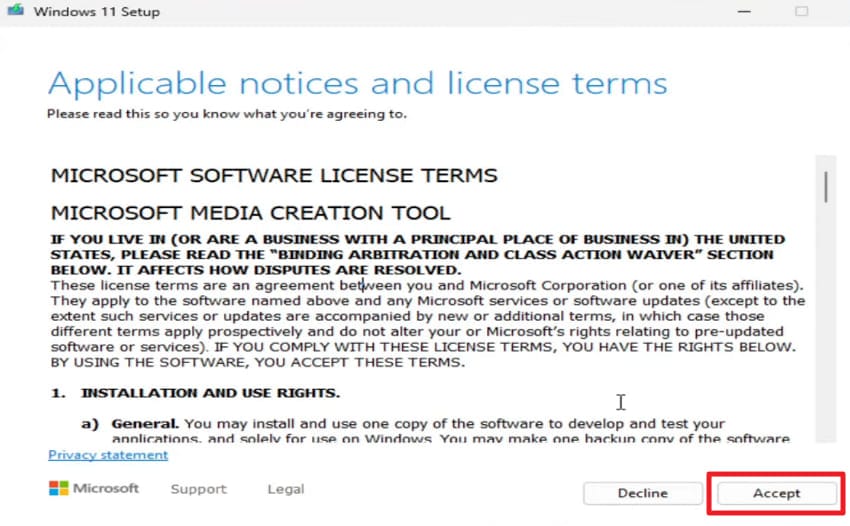
Step 2. When you open the ".exe" file, press the "Accept" button and adhere to the visual prompts.
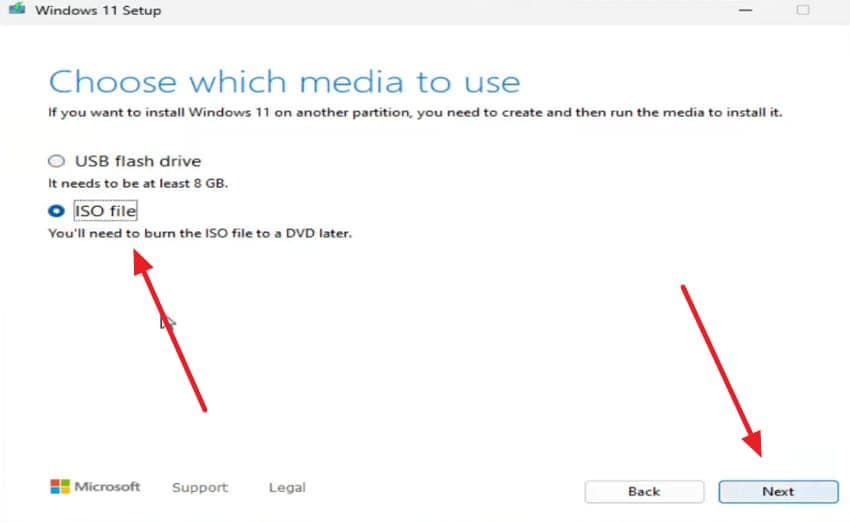
Step 3. As "Choose Which Media to Use" appears, opt for "ISO File" and click "Next." Now, you need to save the chosen ISO file on your device.
Step 4. Going ahead, locate the ISO file and right-click on it to choose "Mount."
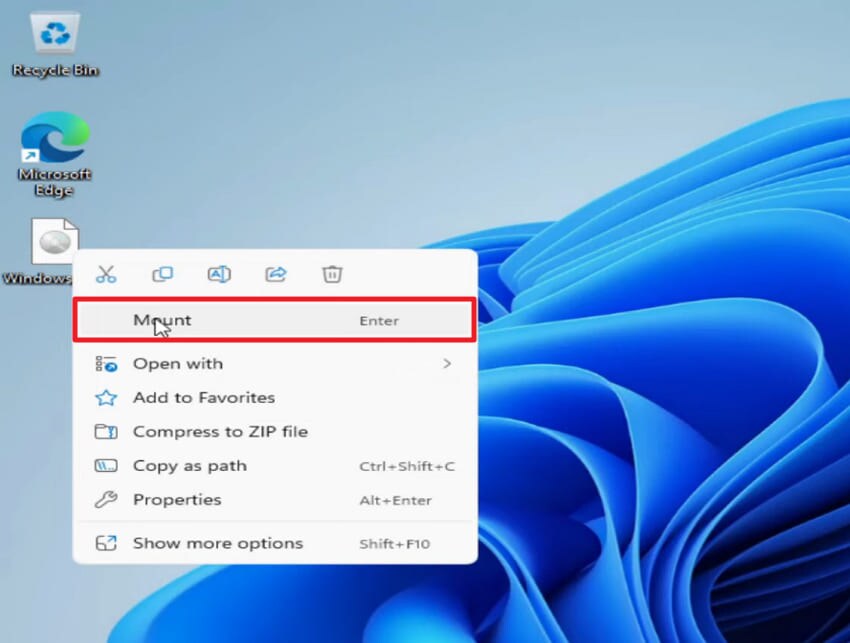
Step 5. Navigate to the "Mounted Drive" from "File Explorer" and click the "Setup" app.
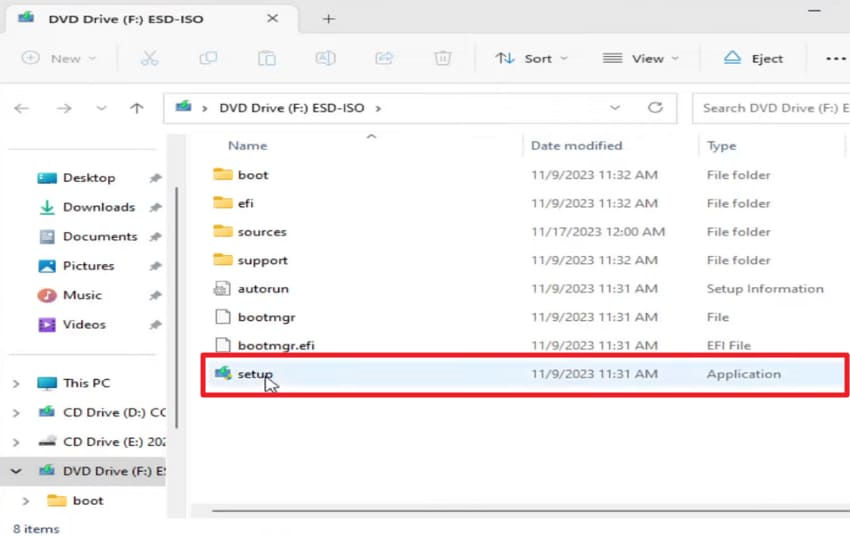
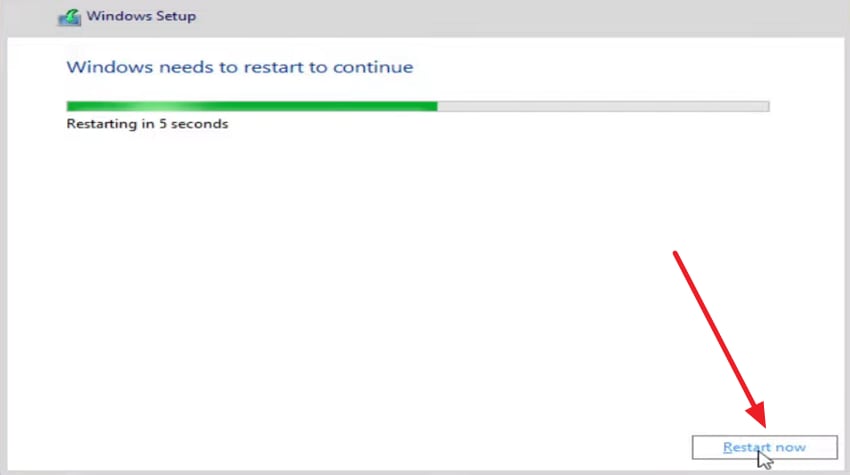
Step 6. Moving forward, wait for the system to complete the entire refresh/Windows Setup process while selecting the "Keep personal files and apps" option. Once completed, press the "Restart Now" button and let the system complete the task.
Pro Tip. Fix Corrupted Files Causing Store/Xbox Errors Efficiently via Repairit
Sometimes, Store or Xbox errors appear because underlying files become corrupted. When these files break, applications cannot open content or verify downloads. This situation may contribute to corrupted downloads or files linked with Store or Xbox use. That is where Repairit provides an efficient and dedicated File Repair approach. It is specifically designed to reconstruct damaged internal file structures with high accuracy.
The program even supports all versions of Microsoft Office and Adobe file formats. Moreover, Repairit helps you fix unreadable, garbled, or broken files that refuse to open. Users can even fix corrupted or inaccessible RAR archive files caused by sudden download errors. You can also repair multiple large files at once without any size or quantity limits. Repairit offers a lossless repair while preserving original quality and your important content.
Key Features

-
Store Support: Restores files damaged during interrupted Store or Xbox game downloads, helping you recover corrupted installers and content without downloading everything again.
-
Format Versatility: Supports 30+ file formats, including documents, archives, RAR, and ISO files, making it useful for repairing different types of corrupted downloads or saved files.
-
AI Repair Engine: Uses advanced AI-based algorithms to analyze file structures and improve repair accuracy, increasing the chances of restoring damaged files successfully.
Guide to Fix Corrupted Files Causing Store/Xbox Errors via Repairit
Repairit offers a structured workflow to restore corrupted files affecting Store or Xbox operations. Thus, review the steps below to repair corrupted files causing Store/Xbox-related errors:
Step 1. Import Your Corrupted Files Showing Error
Navigate to the "More Types Repair" tab, then click "Start" under "Document Repair." From there, use the "+Add" button to browse and import specific files, causing Store/Xbox errors.

Step 2. Execute the Repair Sequence
As your files are shown in the queue, click the "Repair" button. The software will then analyze the file structures and attempt to reconstruct broken data segments.
Step 3. Check the Files and Export Results
Now, click "Preview" to verify that the file contents are intact. If everything looks good, hit the "Save" button to download the functional versions back onto your PC.

Fix Corrupted Files Causing Store/Xbox Error
 Security Verified. Over 7,302,189 people have downloaded it.
Conclusion
To conclude, resolving system service errors is essential for maintaining a functional Windows. This guide provided several methods to eliminate the persistent 0x80070426 error. You can now restore your Microsoft Store and Xbox apps with these simple steps. Alongside that, if corrupted system files continue to cause problems, you must use Repairit. This professional tool will rebuild your damaged data and restore your digital productivity.
FAQ
-
Q1. Does VPN usage trigger 0x80070426 during downloads?
Many times, VPN connections interfere with Microsoft server certificate validation. So, disable it completely before attempting Store or Xbox app operations. Plus, server geolocation conflicts cause most VPN-related authentication failures. -
Q2. What should I do if the Windows Update service is missing from my system?
A missing service indicates deep corruption within your main Windows operating system files. You must use the DISM tool to restore the healthy image from Microsoft servers. This process will reinstall the essential components needed for your apps to function. -
Q3. Can disabled Windows services cause the 0x80070426 or 0x80070422 error?
Yes, if services like Windows Update, BITS, or Microsoft Sign-in Assistant are disabled, the Microsoft Store or Xbox App may show the 0x80070426 or 0x80070422 error. Therefore, restarting these services usually fixes the issue.




