
 TL;DR:
Xbox error code 0x87e107df usually indicates a failure to verify digital licenses or server connectivity, which should be resolved through network and account checks before addressing any resulting corrupted media files.
● Always check the official Xbox Status page and verify your Game Pass or digital license on the original purchasing account before attempting to clear the alternate MAC address or reinstall games.
● Wondershare Repairit cannot fix the 0x87e107df console error, network outages, or firmware issues; its function is strictly limited to fixing existing but unplayable gameplay recordings or screenshots, such as exported videos with black screens or out-of-sync audio.
● Choose a file repair tool if a damaged clip is still visible on your storage device, but use dedicated data recovery software instead if the crash caused the media file to be deleted or completely missing.
Ask AI for a summary
 ChatGPT
 Perplexity
 Gemini
 Claude
 Grok
Grok
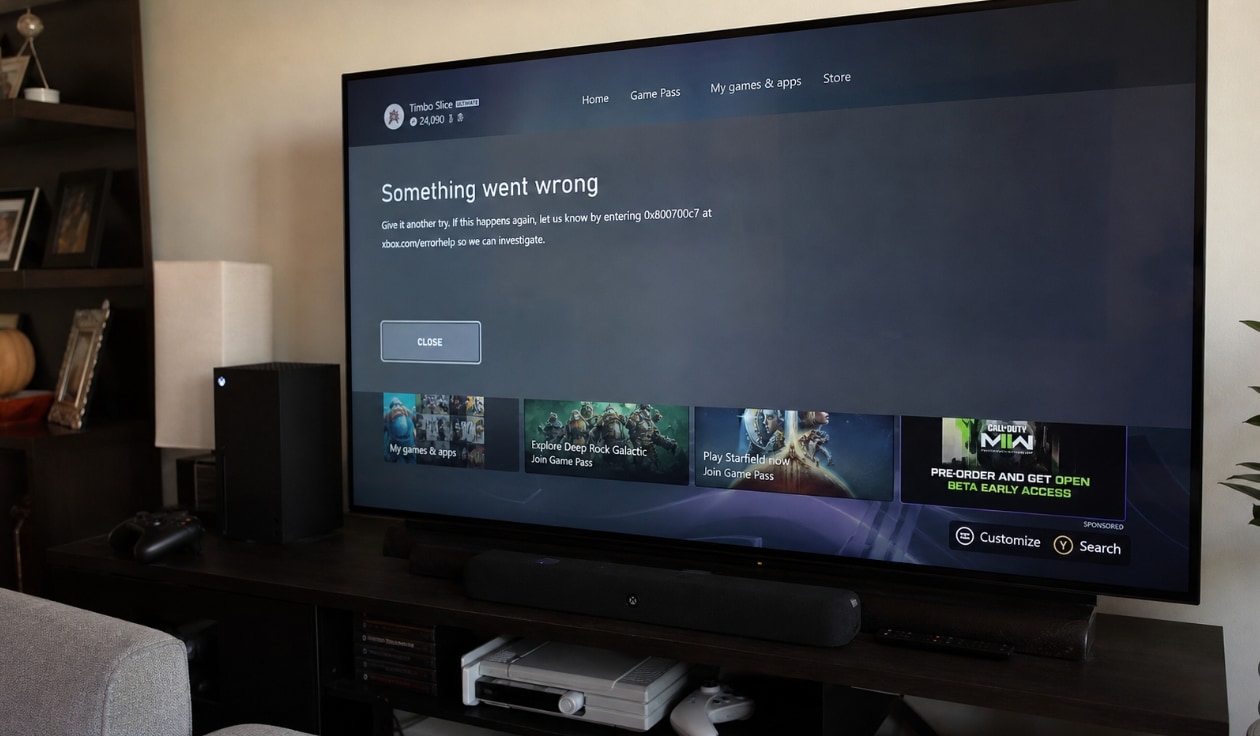
When Xbox shows 0x87e107df with "There might be an outage in our online service," the game launch problem is usually service, account, subscription, or license related. If a crash also damages a gameplay recording, that is a separate video repair problem.
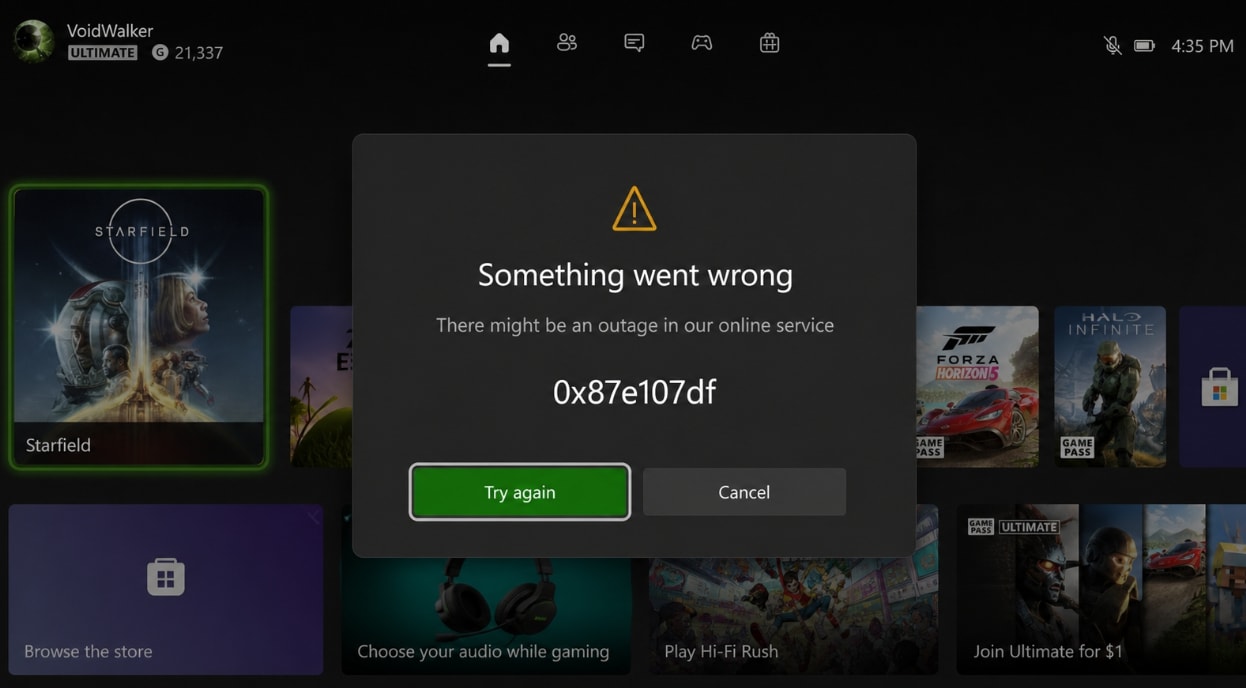
0x87e107df can appear when launching a digital game on Xbox Series X/S, Xbox One, or the Xbox app on Windows. The message often means Xbox cannot verify your game license, Game Pass access, Microsoft account session, or online service connection at that moment.
This article is intentionally different from a data recovery guide. It first explains how to fix Xbox Error Code 0x87e107df There Might Be An Outage In Our Online Service, then focuses on a Repairit use case: corrupted game clips, black-screen gameplay recordings, broken exported videos, and damaged screenshots that still exist but will not play or open correctly.
Important: Repairit does not fix Xbox outages, Microsoft account issues, digital licenses, Game Pass subscriptions, console firmware, or network problems. It can help repair damaged media files such as corrupted gameplay videos and screenshots. If a clip or screenshot is deleted or missing, use backup or recovery options instead.
In this article
Part 1. What Does 0x87e107df Mean on Xbox?
Error code 0x87e107df usually means Xbox cannot verify access to a digital game, app, subscription title, or online service. It may appear with messages like "Something went wrong" or "There might be an outage in our online service."
You may see the error when:
- Launching a digital Xbox game.
- Opening a Game Pass title.
- Signing in to an Xbox profile.
- Starting an online-only game.
- Using the Xbox app on Windows.
- Opening a game shortly after an Xbox service disruption.
If many users see 0x87e107df at the same time, local reinstall steps may not help until Microsoft restores the related Xbox service.
Part 2. Why Xbox Error Code 0x87e107df Happens
Use this table to separate service-side problems from local console, account, or media file issues.
| Cause | What It Means | What to Do First |
|---|---|---|
| Xbox service outage | Xbox services may not be able to validate game ownership, purchases, or online access. | Check official Xbox Status and wait if an alert is active. |
| Digital license verification failure | The console or Xbox app cannot confirm that your account owns the game. | Sign in with the purchase account and check ownership. |
| Game Pass subscription issue | The subscription may be expired, delayed, not synced, or the game may no longer be in the catalog. | Check subscription status and the game's catalog availability. |
| Network connection problem | Wi-Fi, DNS, NAT, router, VPN, or ISP issues can interrupt Xbox service checks. | Run Xbox network tests and try a stable connection. |
| Local cache or app issue | A temporary console cache, Xbox app, or Microsoft Store component can block launch. | Restart, power cycle, update, or repair the Xbox app. |
| Recording or export interruption | A crash, forced shutdown, or interrupted transfer can damage a gameplay video or screenshot. | Fix Xbox access first, then repair the corrupted media file with Repairit. |
Part 3. Fix 0x87e107df Before Touching Game Files
Start with service and license checks. These fixes protect your games and clips by avoiding unnecessary deletes or resets.
Fix 1. Check Xbox Service Status
Open the official Xbox Status page and check services such as account and profile, store and subscriptions, purchase and content usage, games and gaming, and cloud gaming. If Xbox reports a current outage, wait for Microsoft to resolve it.
During a service outage, restarting the console once is fine, but repeated reinstall attempts usually waste time and can create separate local file problems.
Fix 2. Restart or Power Cycle the Console
If Xbox services are normal, restart the console first.
- Press the Xbox button on the controller.
- Go to Profile & system.
- Select Power.
- Choose Restart console.
- Launch the game again.
If the error returns, power cycle the console:
- Hold the console power button for about 10 seconds until it shuts down.
- Unplug the power cable.
- Wait at least 30 seconds.
- Plug it back in and turn on the console.
Fix 3. Sign Out and Sign Back In
A stale sign-in session can stop Xbox from validating a digital game.
- Press the Xbox button.
- Go to Profile & system.
- Sign out of the current account.
- Restart the console.
- Sign in with the account that owns the game or has the active Game Pass subscription.
Fix 4. Check the Game or Game Pass License
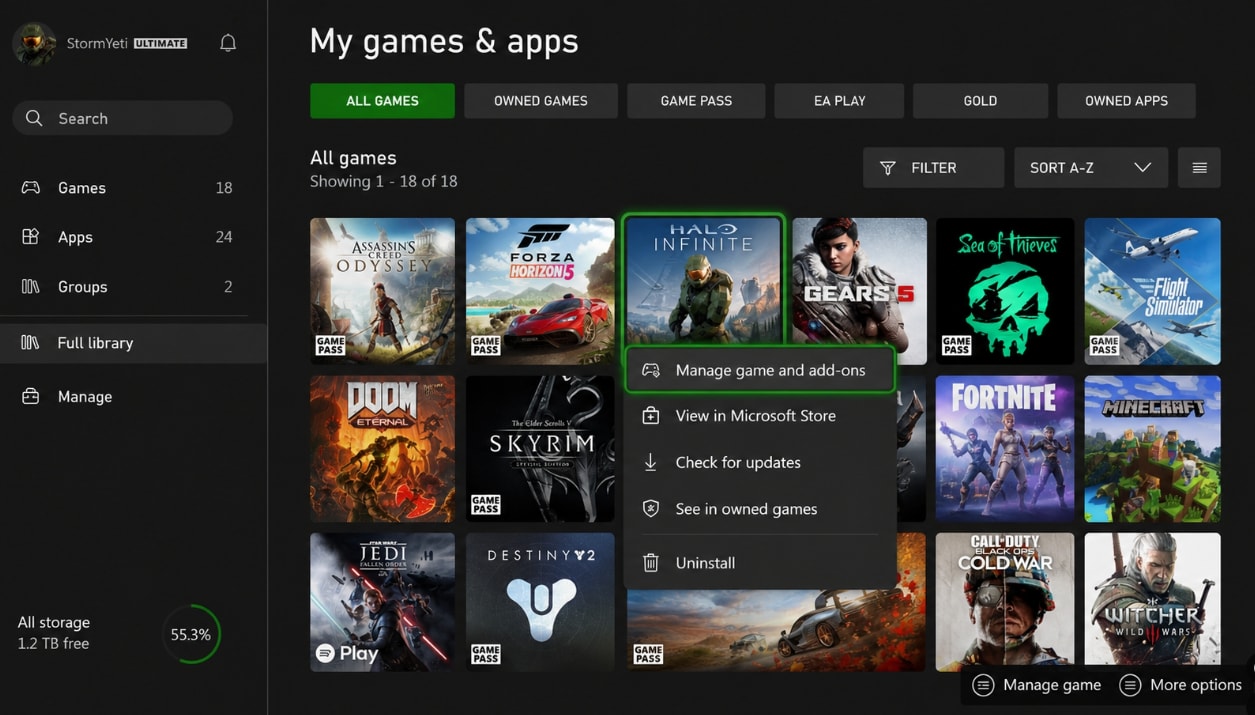
If only one title triggers 0x87e107df, check the license before reinstalling.
- Confirm the game was purchased on the current Microsoft account.
- Check that Game Pass is active if the title comes from Game Pass.
- Confirm the game has not left the Game Pass catalog.
- Check home Xbox settings if you rely on another user's digital license.
- Check whether the purchase was refunded, canceled, or made on another account.
Fix 5. Test Network Connection
Xbox needs a stable connection to validate digital games and subscriptions.
- Open Settings.
- Go to General > Network settings.
- Select Test network connection.
- Use Test multiplayer connection if online play also fails.
- Restart your router or switch to Ethernet if the test fails.
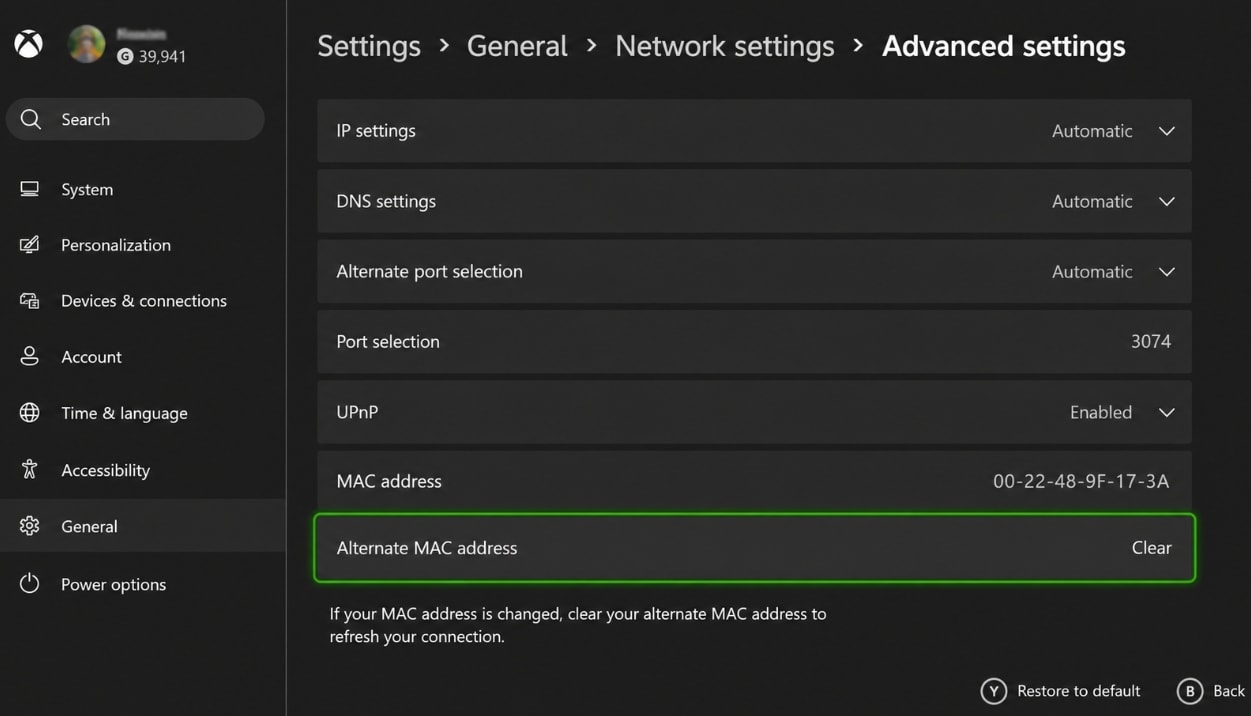
Fix 6. Clear Alternate MAC Address
Clearing the alternate MAC address can refresh some Xbox network configuration issues.
- Open Settings.
- Go to General > Network settings.
- Select Advanced settings.
- Choose Alternate MAC address.
- Select Clear.
- Restart the console.
Fix 7. Update Console, Xbox App, or Game
Update the platform before removing games.
- On console, open Settings > System > Updates and install available updates.
- On Windows, update the Xbox app, Microsoft Store, and Gaming Services from the Microsoft Store Library.
- Update the affected game from My games & apps or the Xbox app.
- Reinstall the game only if Xbox services are normal, the account license is valid, and one specific title keeps failing.
Part 4. When 0x87e107df Leads to Corrupted Game Clips
The 0x87e107df error itself does not corrupt videos. However, a launch failure, crash, forced restart, interrupted recording, failed export, storage disconnect, or transfer error can leave a game clip or screenshot damaged.
Signs that you have a corrupted media file include:
- The clip exists but will not play.
- The video opens with a black screen.
- Gameplay recording freezes or plays in slow motion.
- Audio and video are out of sync.
- The clip is blurry, pixelated, flickering, or choppy.
- The screenshot is distorted or cannot open.
- The export finished, but the file size or duration looks wrong.
This is the key distinction: if the file is missing, you need backup or recovery. If the file still exists but is broken, you need file repair.
Part 5. Repair Corrupted Game Clips with Wondershare Repairit
Wondershare Repairit is a file repair tool for damaged videos, photos, documents, audio files, and other supported file types. For this Xbox topic, its best fit is repairing corrupted gameplay videos and screenshots after a crash, recording interruption, export failure, or transfer problem.
What Repairit Can Help Repair
Repairit may help with game media issues such as:
- MP4, MOV, AVI, MKV, MTS, 3GP, FLV, and other common video files that will not play.
- Black-screen gameplay recordings where the file opens but shows no picture.
- Choppy, frozen, slow, blurry, grainy, pixelated, or flickering clips.
- Audio-video sync problems after recording or export.
- Videos damaged by power failure, recording interruption, transfer interruption, editing crash, metadata loss, or encoding problems.
- Damaged game screenshots when the photo file still exists but cannot open correctly.
Repair success depends on how badly the file is damaged, whether key video data is still present, and whether the storage device produced a complete file. It should not be presented as a guaranteed fix for every broken clip.
How to Repair Broken Game Clips
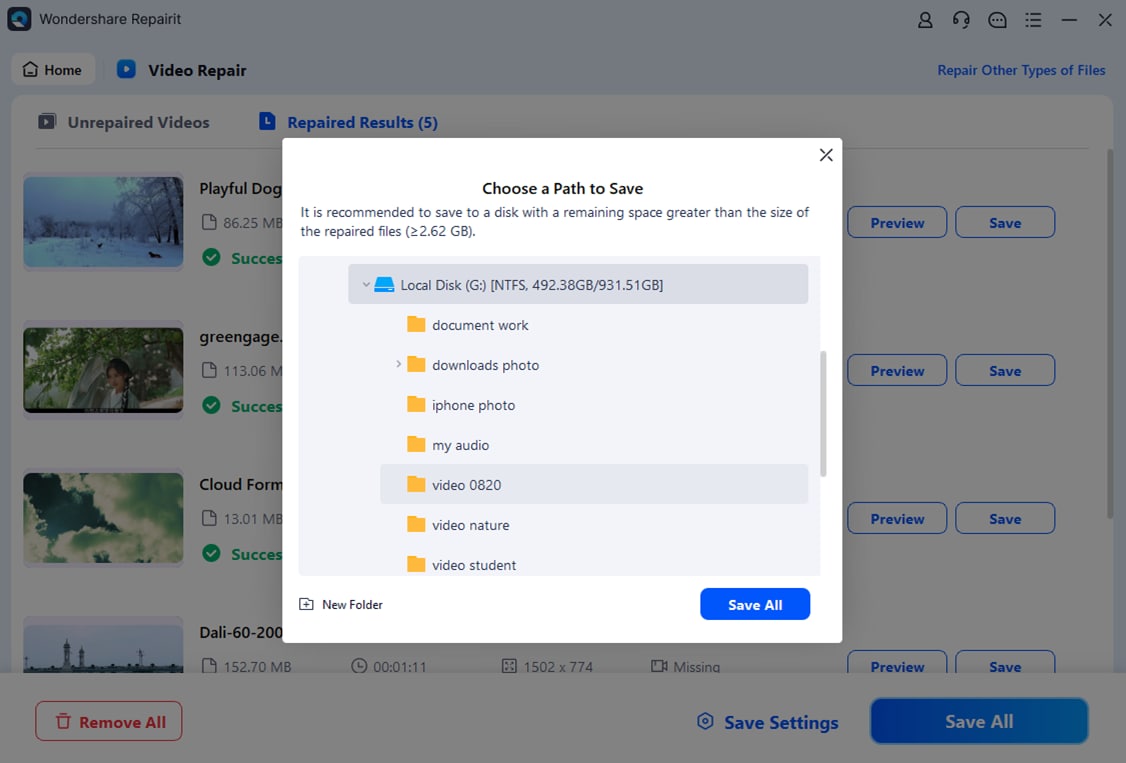
Step 1. Open Program and Add Broken Video Files
Import one or more corrupted files by clicking on the "+Add" option.

Step 2. Verify and Repair the File
Then choose the "Repair" option.

Step 3. Preview and Save Repaired Video
Once the repairing procedure is completed, review the repaired video carefully. Click the "Save" button to download the video onto the PC.
Fix Xbox Error 0x87e107df Now
 Security Verified. Over 7,302,189 people have downloaded it.
Do not overwrite the original file until you confirm the repaired clip opens and plays correctly. If the video is severely damaged, use advanced repair options when available and provide a healthy sample video recorded by the same device or software.
Conclusion
Xbox error 0x87e107df usually points to Xbox service availability, digital license validation, account sign-in, Game Pass access, or network connectivity. Start by checking Xbox Status, then restart or power cycle the console, sign back in, check the license, test the network, clear alternate MAC address, and update the console, Xbox app, or game.
If a crash, forced restart, interrupted recording, export failure, or transfer problem leaves a gameplay clip or screenshot corrupted, use Wondershare Repairit for the media file repair side of the problem. Repairit is the right recommendation when the file still exists but is damaged; it is not the tool for Xbox outages, digital licenses, Game Pass access, or missing files.
FAQ
-
What does 0x87e107df mean on Xbox?
0x87e107df usually means Xbox cannot verify a digital game, subscription title, Microsoft account session, or online service connection. It may appear with "There might be an outage in our online service." -
How do I fix Xbox Error Code 0x87e107df There Might Be An Outage In Our Online Service?
Check Xbox Status first. If there is an outage, wait for Microsoft to restore the service. If services are normal, restart or power cycle the console, sign in again, check the game or Game Pass license, test the network, clear alternate MAC address, and update the console or Xbox app. -
Can Repairit fix Xbox error 0x87e107df?
No. Repairit cannot fix Xbox service outages, Microsoft account access, Game Pass subscriptions, digital licenses, console firmware, or network validation. It can help repair corrupted game clips or screenshots after the media file itself becomes damaged. -
When should I use Repairit for Xbox game clips?
Use Repairit when the clip or screenshot still exists but is corrupted, such as a video that will not play, opens with a black screen, freezes, stutters, loses audio sync, or becomes blurry or pixelated after a crash, export failure, or transfer interruption. -
Should I use Repairit or Recoverit for game clips?
Use Repairit when the file exists but is damaged. Use data recovery software only when the clip, screenshot, or local save file was deleted, lost, formatted, or missing from a readable storage device.




