
Many people face unexpected alerts while browsing, and one common issue among them is the message an error in the script on this page. This notification can interrupt page loading and make a website unusable, which frustrates users who want a smooth experience.
Most individuals look for fast and simple methods to fix it so they can continue their work without stress. This guide presents clear and easy steps that anyone can follow to remove this problem and restore normal browsing.
Table of Contents
Part 1. Why "An Error Has Occurred in the Script on This Page" Happens
Many web pages or applications fail because scripts can not run correctly. So, this section explains why "an error has occurred in the script on this page" shows up:
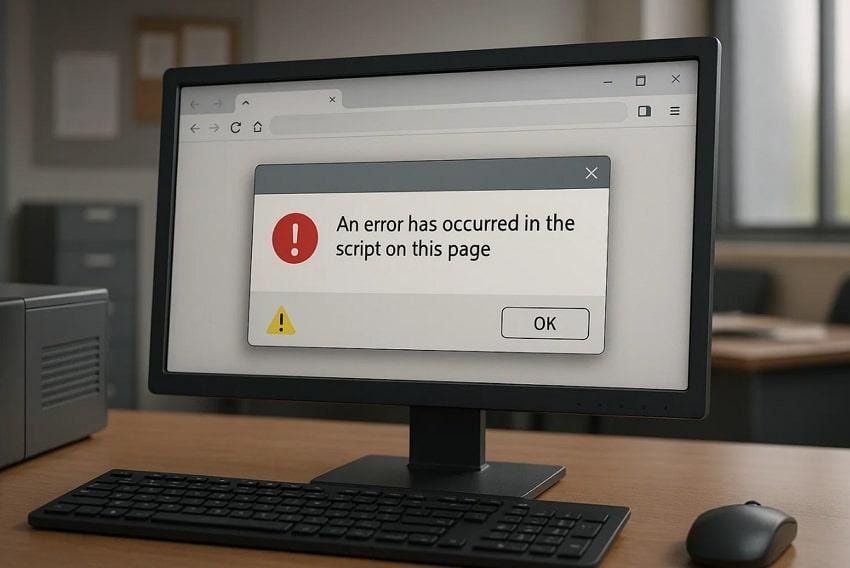
- Script Failure: Web pages may have mistakes in JavaScript or VBScript code lines. These mistakes prevent scripts from executing properly and cause visible errors.
- Older Browser: The aged browsers, such as Internet Explorer, are unable to support newer web technologies. This incompatibility often triggers script failure in modern webpages.
- Missing Component: Required runtimes like Java or Visual C++ may be missing or damaged. Application embedding web content fails to run scripts without these important support files.
- Cached Data: Corrupted temporary Internet files or cached folders interfere with script loading. Browsers rely on these files, so a damaged cache can cause page scripts to error out.
- Antivirus Interference: Security software may block or scan browser temporary folders actively. This can interrupt scripts as they try to run on your system.
Part 2. How to Fix "An Error Has Occurred in the Script on This Page"
Many times, pages stop working because scripts fail, which can frustrate users. In this part, you will go through the 5 easy solutions to fix common script issues:
Fix 1. Disable Script Debugging in Internet Options
This specific feature basically hides constant script error pop-ups. It tells Internet Explorer to stop opening developer-style messages when webpage scripts fail. When debug prompts are disabled, messages like "an error has occurred in the script on this page" usually stop appearing. However, it doesn't correct faulty scripts, missing components, or blocked website features. Go through the given guide below to disable Script Debugging in IE:
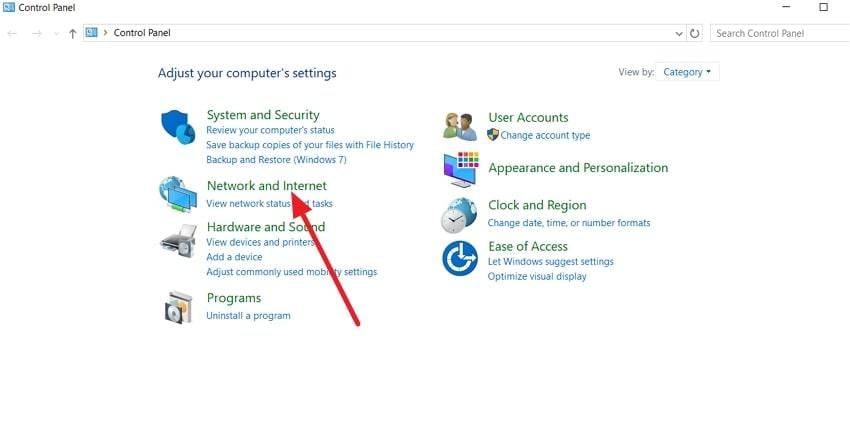
Step 1. Open "Control Panel" to get access to network settings by clicking "Network and Internet."
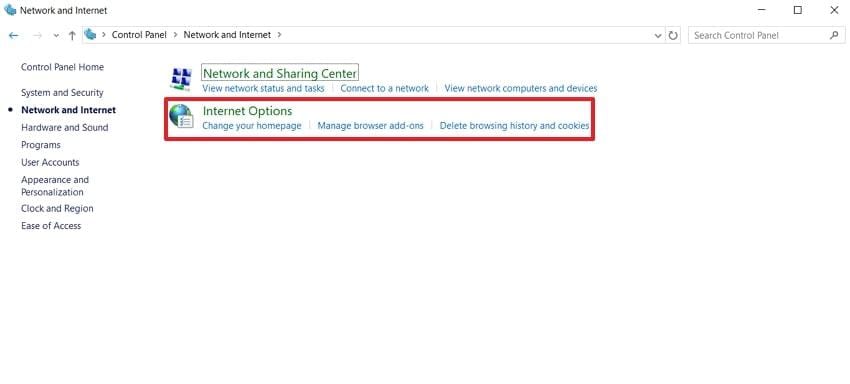
Step 2. Go to "Network and Internet" and choose the "Internet Options" section.
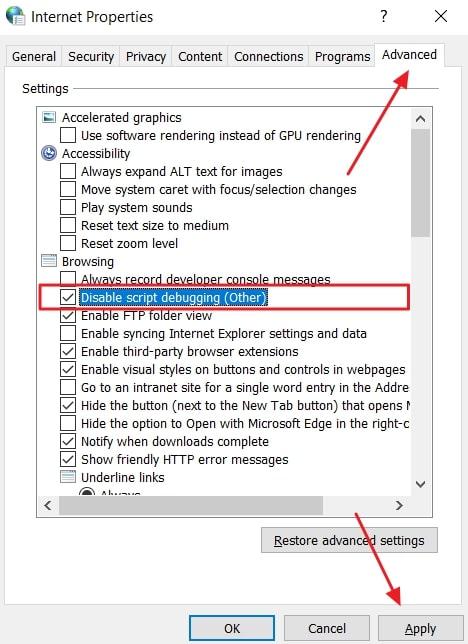
Step 3. You have to now switch to the "Advanced" tab and choose the option of "Disable Script Debugging." Next, press the "Apply" button to save the changes.
Fix 2. Clear Temporary Internet Files
The deletion of temporary internet files destroys webpage and script copies. These files break or are incomplete at times and display faults such as "an error has occurred in the script on this page." Besides, the process of deleting the cache makes the browser download new versions of each of the elements. Hence, follow the steps below to clear the temporary cache file on your browser:
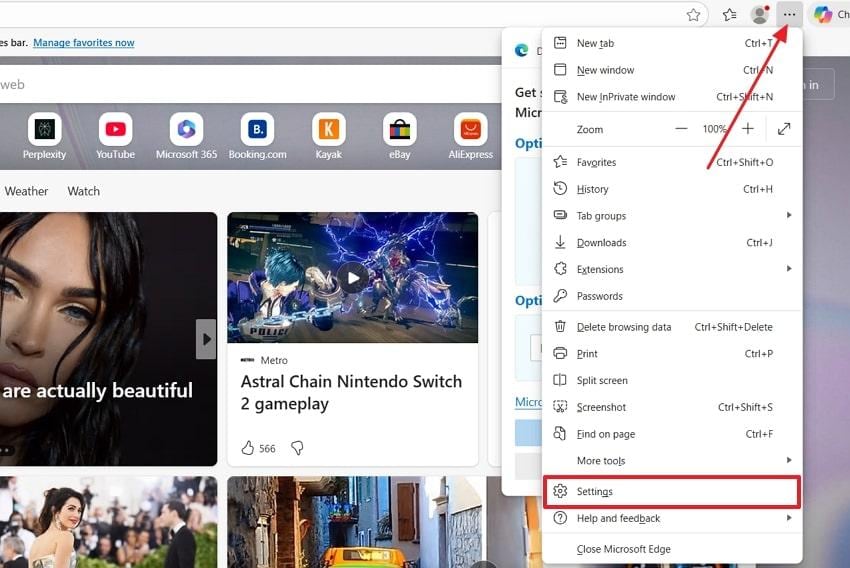
Step 1. Launch your browser like Microsoft Edge, click the "Three Dots" icon, and select "Settings."
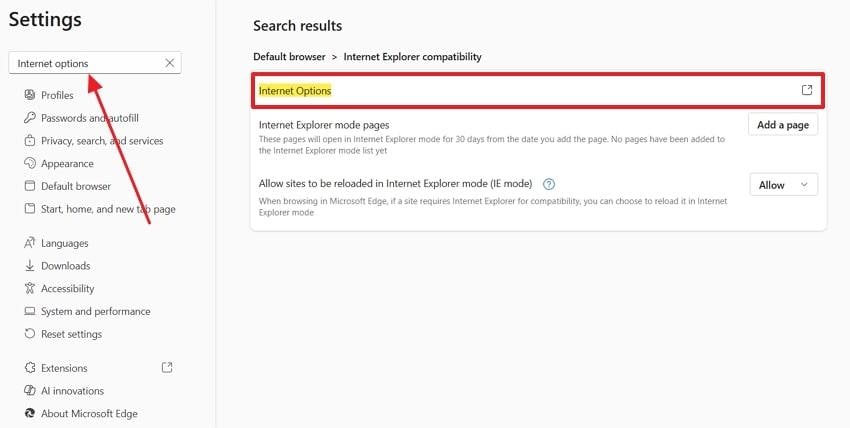
Step 2. Inside the "Settings," search "Internet Options" and click it.
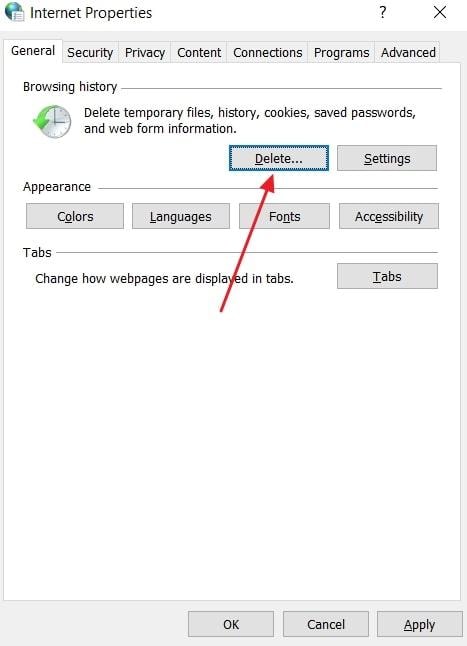
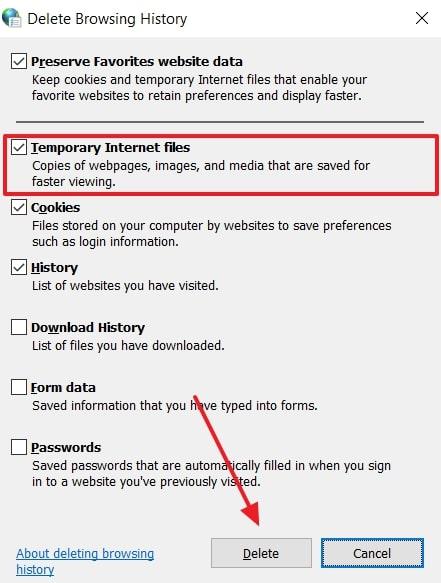
Step 3. Now, go to the "General" tab and press the "Delete" button.
Step 4. Inside "Delete Browsing History," tick the "Temporary Internet Files" and press the "Delete" button.
Fix 3. Register the Urlmon.dll File
The file URLmon.dll assists Windows and Internet Explorer in handling URLs and web-related activities. If it is lost, damaged, or misregistered, errors in the scripts, such as the one that just occurred on this page, may be displayed in several programs. This fix addresses broken or missing URL-handling components, not website coding issues. So, adhere to the given guide below to register the Urlmon.dll File in the browser:
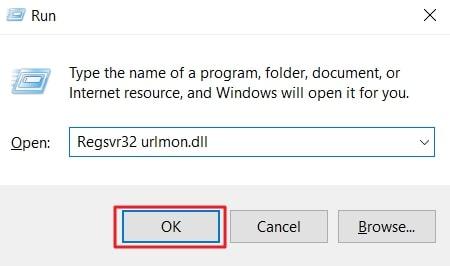
Step 1. Press "Window + R" to open the Run dialogue box and type "regsvr32 urlmon.dil," then press the "OK" button.
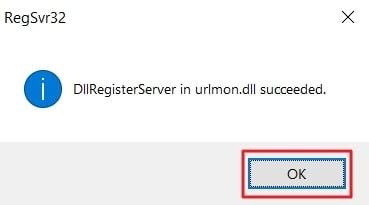
Step 2. In the case of a User Account Control window, a "Yes" choice is to make the change. On completion of the command in the proper manner, a confirmation message, which will state "DllRegisterServer in urlmon.dll succeeded," will be displayed.
Fix 4. Install or Update Java
Besides the above, older sites or apps sometimes need the Java Runtime Environment to run. Without the correct Java version, scripts may fail because the browser cannot access necessary Java components. As a result, this failure can appear as "an error has occurred in the script on this page." Therefore, updating ensures compatibility and fixes plugin issues that block scripts. Thus, follow the steps below to know how to update the Java version:
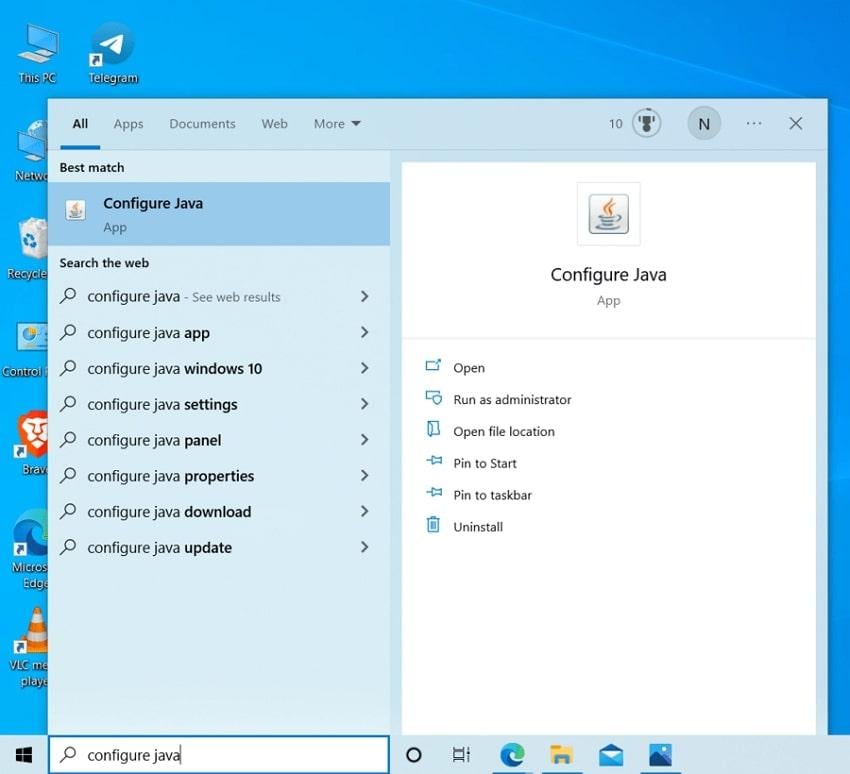
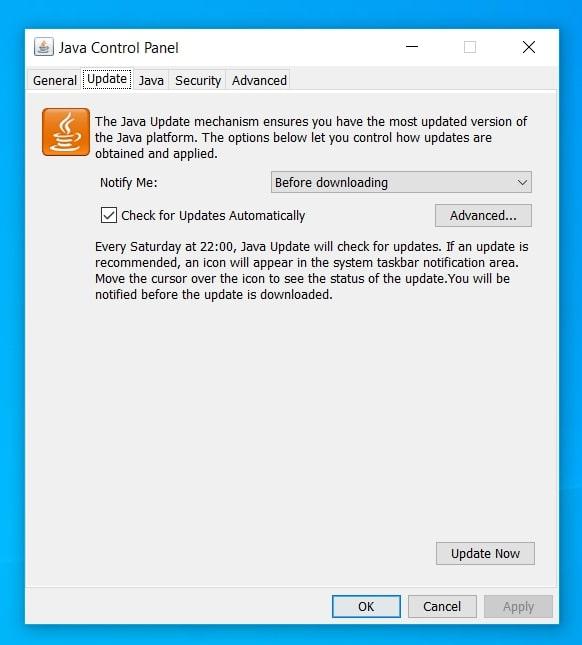
Step 1. Search for the "Configure Java" app using the Search feature on your Windows and open it.
Step 2. Following this, access the "Update" tab and press the "Update Now" button to download and install the latest Java version. You can also enable the "Check for Updates Automatically" to update your Java version automatically in the future.
Fix 5. Disable Third-Party Browser Extensions (Internet Explorer Only)
You can also turn off third-party browser extensions in Internet Explorer in order to remove more add-ons. Many toolbars, security plug-ins, and helper objects change scripts as pages load and may trigger an error has occurred in the script on this page. When these extras are outdated, they can interrupt JavaScript and cause crashes. Hence, you can follow the given steps below to disable third-party Browser Extensions:
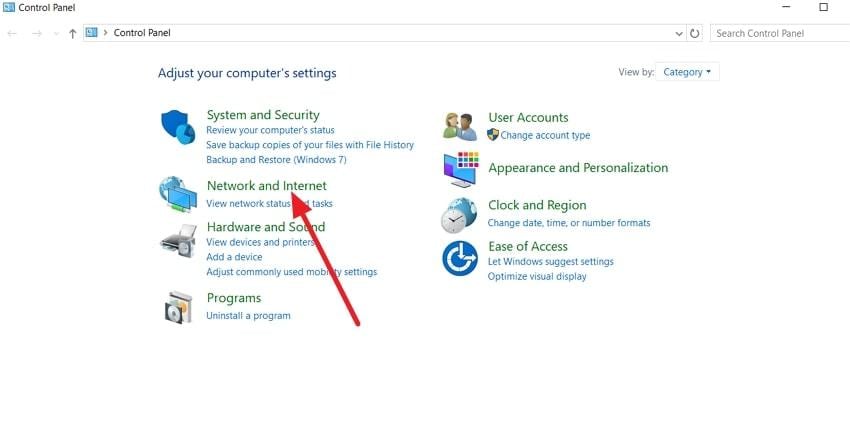
Step 1. Launch "Control Panel" and choose the "Network and Internet" option.
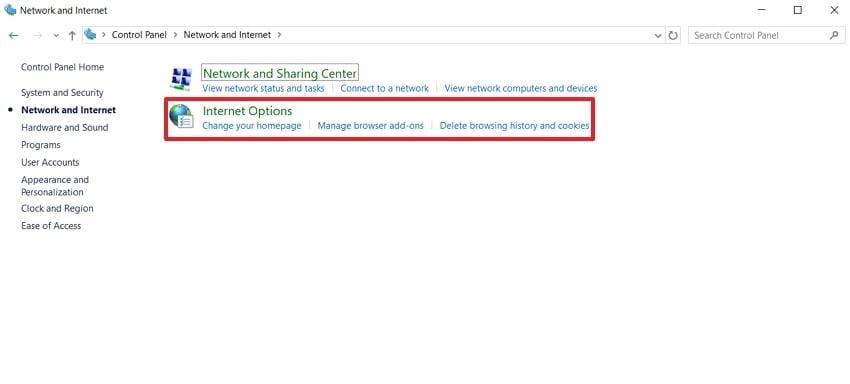
Step 2. Now, on the next window, click the "Internet Options" section.
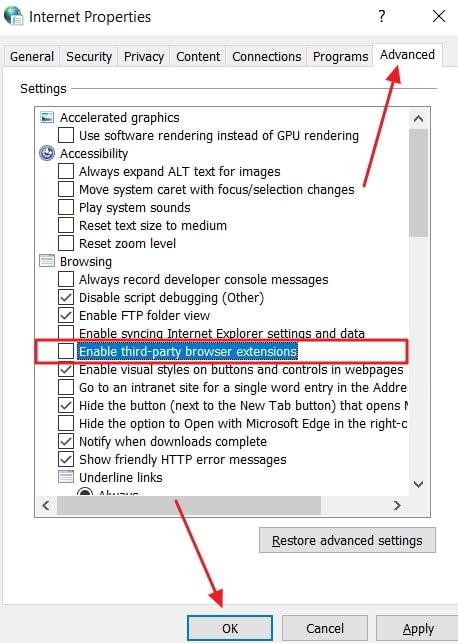
Step 3. Go to the "Advanced" tab, disable the "Enable Third-Party Browser Extensions" feature, and press the "OK" button
Pro Tip. Fix Any File in a Flash: Using Repairit for Corrupt or Error-Prone Documents
Apart from that, many people get stressed when their essential files are damaged and can't be opened. In such cases, you must try Repairit to repair your broken or damaged files easily. This innovative file repair tool supports 30+ file formats for a reliable and efficient file recovery process. You can also fix your unreadable or corrupted DOC and DOCX files without any changes.
Moreover, it enables batch repair for multiple corrupted or damaged files larger than 1GB. Users can also restore corrupted SKP files and repair 3D models quickly without any harm. While repairing, the tool fixes loading errors and even unreadable pages rapidly and safely. Additionally, it allows for fixing all PowerPoint objects, including headers and footers. You can also rebuild layers, metadata, and previews to ensure engineering files reopen correctly.
Key Features

-
Repair damaged files with all levels of corruption, including blank files, files not opening, unrecognizable format, unreadable content, files layout changed, etc.
-
Support to repair all formats of PDF, Word, Excel, PowerPoint, Zip, and Adobe files.
-
Perfectly repair corrupted files with a very high success rate, without modifying the original file.
-
No limit to the number and size of the repairable files.
-
Support Windows 11/10/8/7/Vista, Windows Server 2003/2008/2012/2016/2019/2022, and macOS 10.13~macOS 15.
Guide to Fix Corrupt or Damaged Files of Any Format Using Repairit
This section covers the guide below to recover your damaged files without data loss or formatting with the help of Repairit:
Step 1. Add Your Corrupt Documents/Files
Navigate to the "More Types Repair" tab, select the "Document Repair" feature, and click the "Start" button.

Step 2: Initiate the Repair Process Instantly
On the following screen, hit "+Add" to choose your corrupted files, then press "Repair" to start restoration.

Step 3: Preview & Export Repaired Files
After the repair completes, preview them and click "Save All," followed by "Save" to secure your fixed documents.

Fix Corrupt or Damaged Files Now
 Security Verified. Over 7,302,189 people have downloaded it.
Conclusion
To sum up, web browsing becomes frustrating when messages like an error has occurred in the script on this page appear. Every task slows down when pages freeze or display unexpected warnings. This guide has shown several effective ways to restore normal browser behaviour.
In addition, broken files or components can still cause problems on your system. Whenever this happens, you require a trusted data repair tool such as Repairit to repair corrupted files.
FAQs
-
Q1. Why does this error appear only on certain websites sometimes?
Specific sites are running ancient scripts or scripts that are not compatible with older browsers, which are unable to run them correctly. The mistakes tend to occur when a page loads a complex JavaScript library that the browser does not support. Updating your browser or disabling conflicting extensions usually fixes site-specific script failures quickly. -
Q2. Can any tool restore complex project files like CAD or Adobe documents?
Yes, Repairit repairs CAD, Photoshop, Illustrator, and other complex files with layers intact. It restores metadata and project structure and ensures files open after repair. This prevents workflow disruptions caused by unreadable or corrupted professional engineering and design files. -
Q3. Will fixing Urlmon.dll completely resolve the script error for all websites?
No, registering Urlmon.dll fixes system references but cannot repair site-specific script issues. Other factors, such as browser version or missing runtimes, may still cause errors. Combine Urlmon.dll repair with cache clearing, extension management, and Java updates for the best results.




