
The "mfc140u.dll was not found" error can stop a program from opening properly. It usually appears when a required support file is missing from Windows. This file helps many apps load the right functions during startup. As a result, the program may crash, freeze, or fail.
However, the problem is often easier to fix than users expect. This guide explains what the file does and why the error appears. It also shows safe ways to fix the mfc140u.dll, which was not found on Windows PCs.
Table of Contents
-
- Fix 1: Reinstall the Affected Program/Game
- Fix 2: Reinstall Visual C++ Redistributables
- Fix 3: Run SFC and DISM System Scans
- Fix 4: Scan PC for Malware/Viruses
- Fix 5: Download MFC140U.DLL from a Trusted Source
- Fix 6: Copy DLL to System32 and SysWOW64
- Fix 7: Re-register MFC140U.DLL via Command Prompt
Part 1. What is MFC140u.dll? Why It’s Required By Windows Programs And Apps
MFC140u.dll is a Dynamic Link Library linked to Microsoft Foundation Classes. It provides shared runtime functions that many Windows applications depend on. Programs use this file to handle core interface and processing tasks. Since it supports common operations, developers do not build everything separately. This makes software lighter, more consistent, and easier to maintain.
In practical terms, MFC140u.dll helps applications access required code during execution. It is commonly associated with programs built through Microsoft Visual C++ tools. When the file is present, those applications can load key functions correctly. However, when it is missing, the program may fail before opening fully.
Why It’s Required By Windows Programs And Apps
To understand the "mfc140u.dll was not found" error, it helps to know what this file does. When the file is missing, those actions cannot load properly, and the reasons are below:

- Shared Code: This mfc140u.dll file stores reusable code that many Windows programs can access. That setup saves space and helps apps load required functions efficiently.
- Runtime Support: Many apps need runtime files to start and perform tasks correctly. Without this support, programs may crash or refuse to open normally.
- Visual Dependency: Programs built with Visual Studio often depend on linked library files. If one file is missing, startup errors can appear very quickly.
- Function Access: Applications call DLL files when they need built-in support functions. Missing access stops those functions and breaks the normal launch process.
- System Efficiency: Shared libraries help Windows programs stay smaller and more efficient. This design avoids storing the same code inside every installed application.
- App Stability: Correct DLL files help software run smoothly without startup interruptions. When files break, users may face repeated loading failures and crashes.
Part 2. 6 Causes of the MFC140u.dll Was Not Found Error
Several issues can trigger this message on otherwise healthy computers. Thus, start by reviewing the following common causes behind the "mfc140u.dll was not found" error before applying any repair:
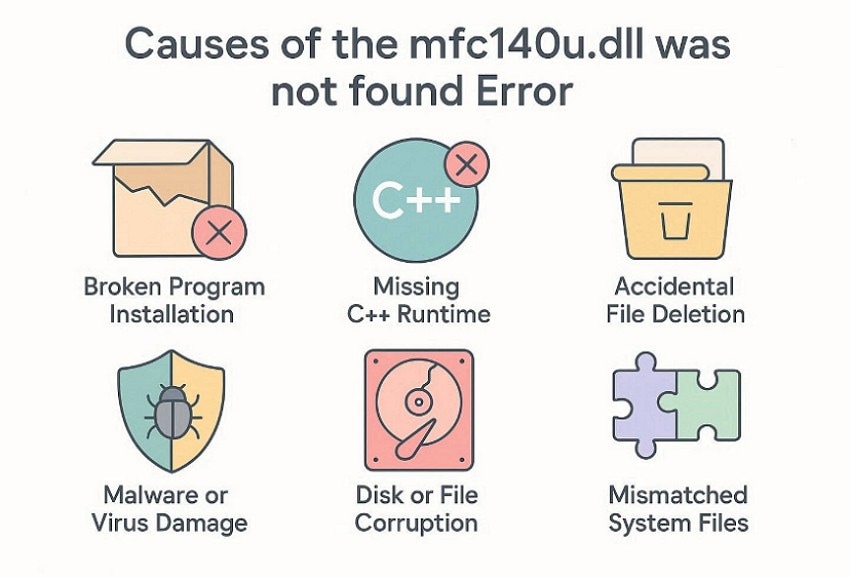
- Broken Program Installation: A damaged installation may remove files the program expects during startup. That can immediately trigger the "mfc140u.dll was not found" error after launch.
- Missing C++ Runtime: Some apps need Microsoft Visual C++ redistributables installed before opening. Without them, the mfc140u.dll was not found because dependencies failed.
- Accidental File Deletion: A cleanup tool or user action may mistakenly delete shared files. That missing component can cause the "mfc140u.dll was not found" error instantly.
- Malware or Virus Damage: Malware can corrupt DLL files, registry entries, or application folders. That damage often leads to "mfc140u.dll was not found" errors.
- Disk or File Corruption: Improper shutdowns can damage system data and shared application files. Corruption may later show as missing .dll file messages.
- Wrong DLL Version: Copying mismatched files from another computer can quickly cause compatibility issues. Thus, when the file is not found, the error may persist.
Part 3. 7 Quick Fixes for MFC140u.dll Was Not Found on Windows PC
Now that the file's role and common causes are clear, it is time to fix the problem. The following solutions will help you repair the "mfc140u.dll was not found" error on your Windows PC:
Fix 1: Reinstall the Affected Program/Game
Reinstalling the affected program can restore broken files and dependencies together. It often resolves errors linked to the mfc140u.dll, which was not being found. This fix is useful when one program shows the problem repeatedly. It refreshes core application files that may no longer work correctly. Adhere to the stepwise guide for this fix, as given below:
Step 1. To start, navigate to "Settings" and choose the "Apps" option to proceed further.
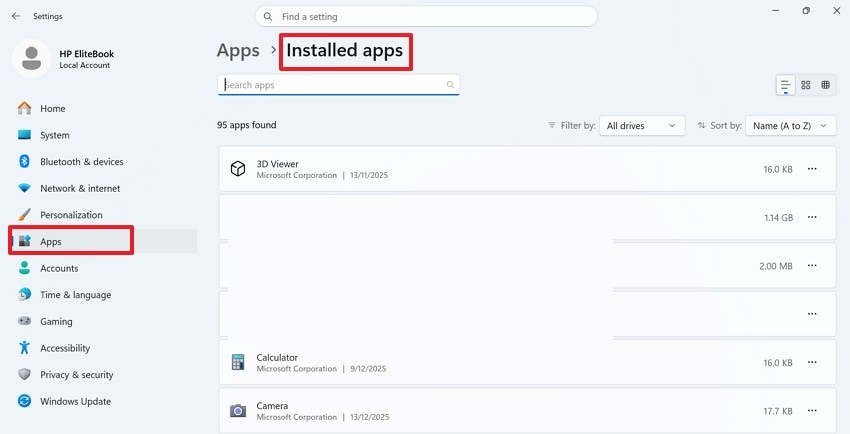
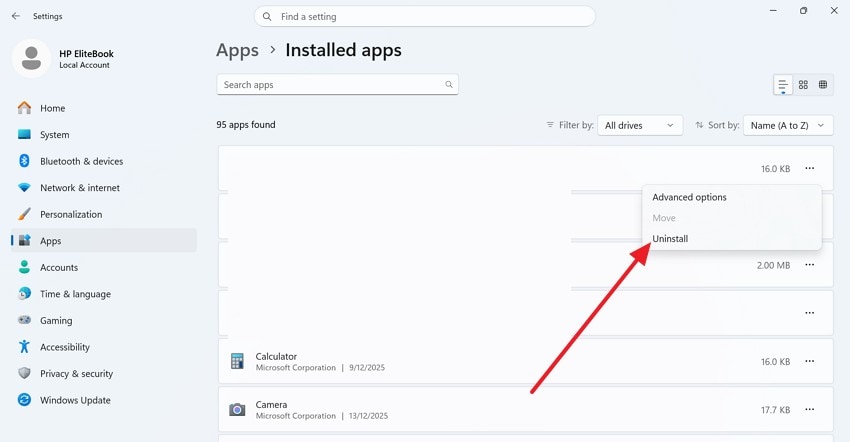
Step 2. Next, find the affected program or game in the installed list. Then click "Uninstall" and remove the software completely from Windows.
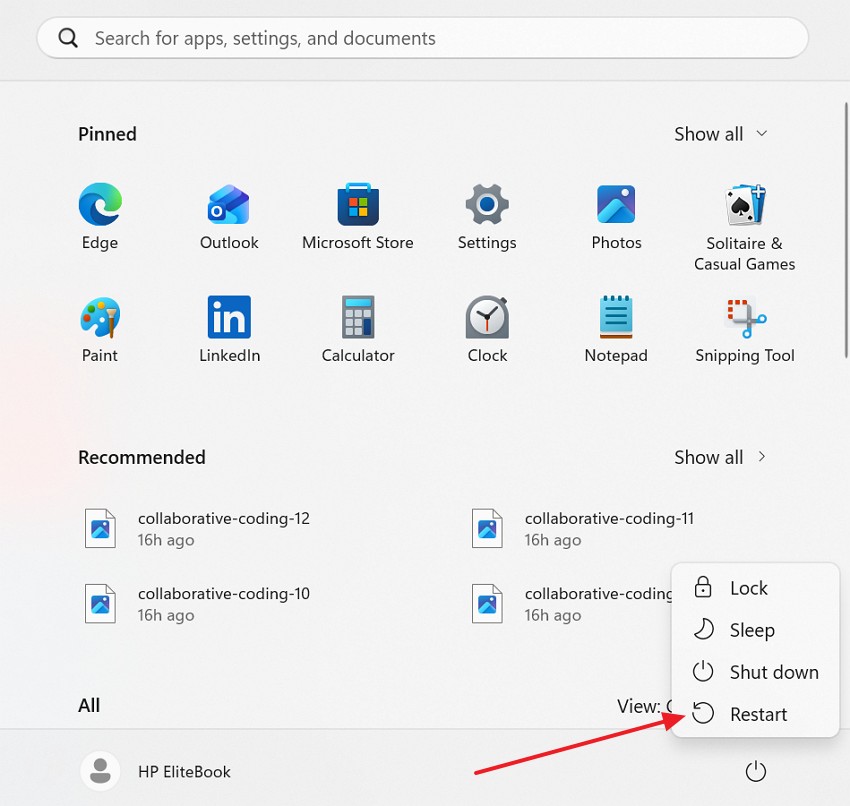
Step 3. After that, "Restart" your computer after the uninstall process finishes properly. Later, download the latest installer from the official program website and install the program again.
Fix 2: Reinstall Visual C++ Redistributables
Visual C++ redistributables provide the runtime files required by many applications. Missing packages can easily trigger "mfc140u.dll was not found" errors. Reinstalling them restores shared components that support program startup operations. This fix is especially helpful when multiple apps fail together. Follow the steps below to try this fix with ease:
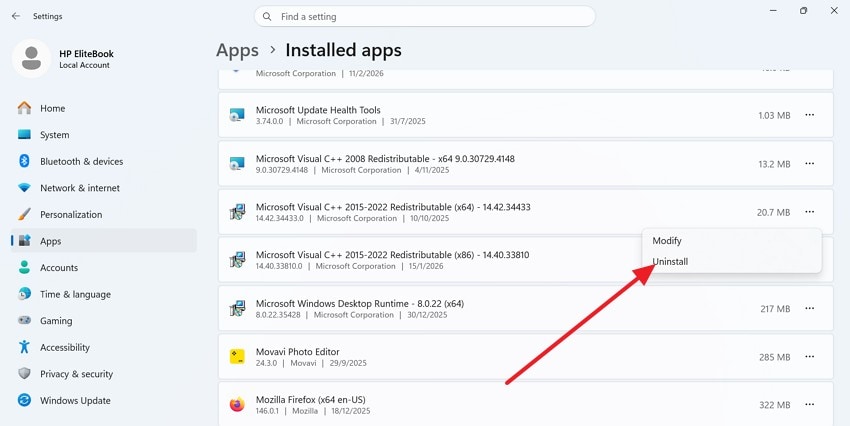
Step 1. Upon accessing the "Apps" section in "Settings," find the "Microsoft Visual C++ Redistributable" packages and tap on the "three dots" to select "Uninstall."
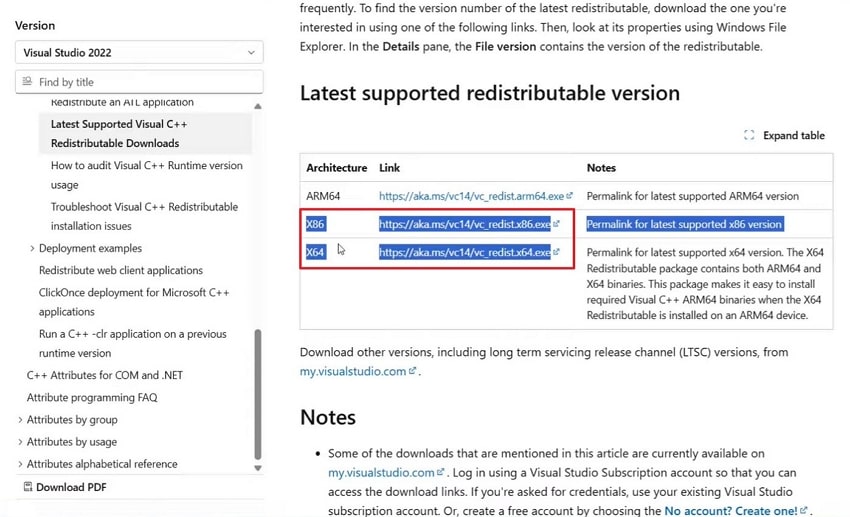
Step 2. Next, go to Microsoft’s official site and download the "x86" or "x64" version according to your device architecture.
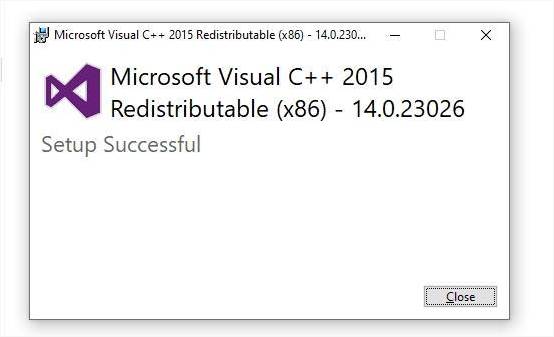
Step 3. Afterwards, click the "Install" button to successfully install, then restart the PC, and test the program again.
Fix 3: Run SFC and DISM System Scans
SFC and DISM scans help repair corrupted Windows files and images. These scans are useful when system corruption affects normal program behavior and leads to errors like "mfc140u.dll was not found." They strengthen Windows stability and improve file repair reliability overall. The guide below shows how to execute both system scans properly:
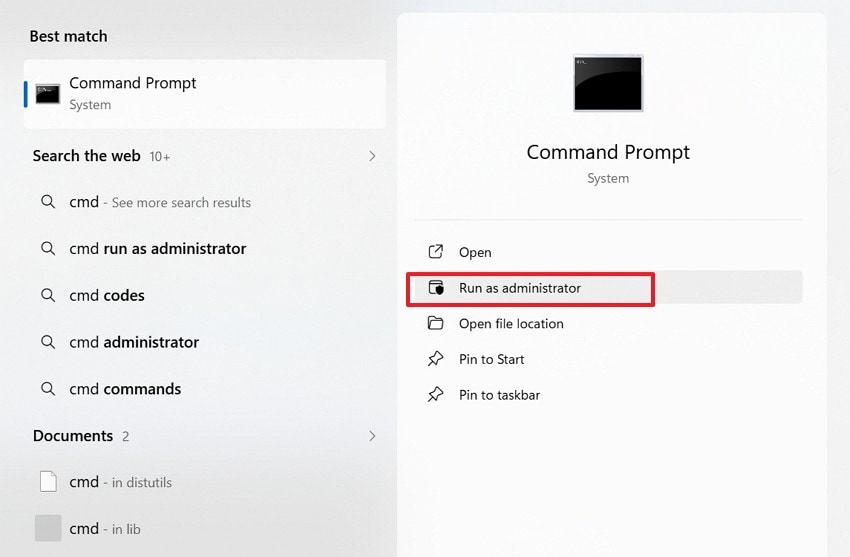
Step 1. To initiate, search for "Command Prompt" and open it with administrator rights to continue.
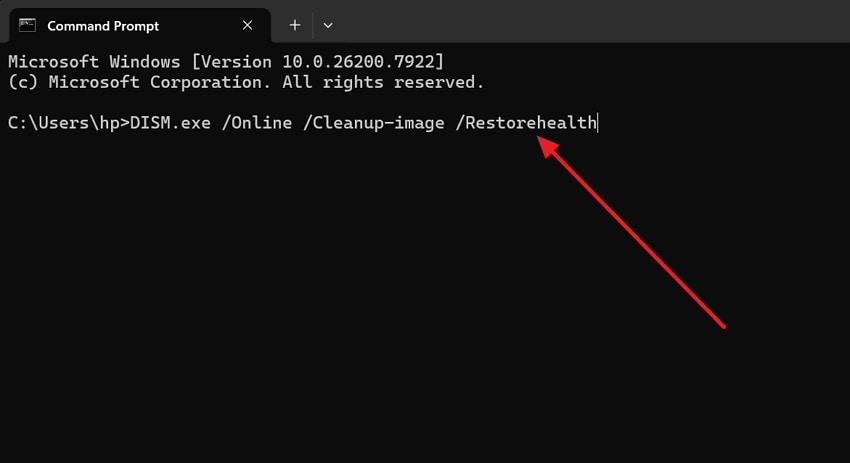
Step 2. Next, run the command "DISM.exe /Online /Cleanup-image /Restorehealth" and press "Enter."
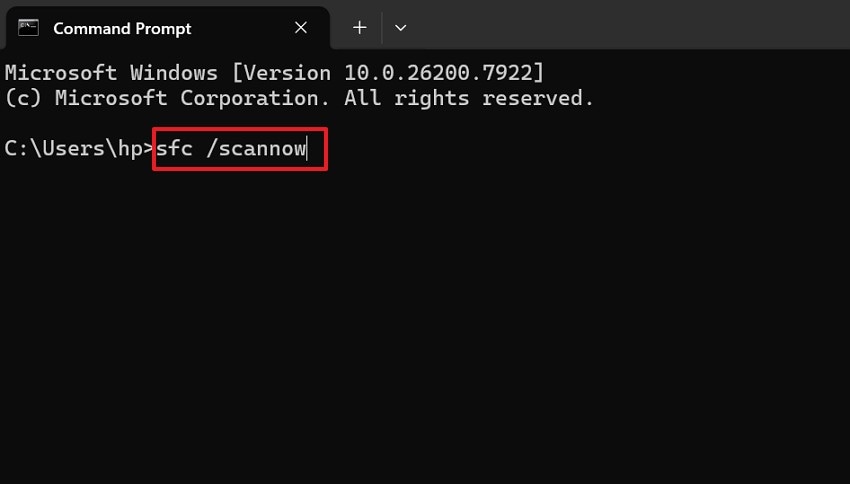
Step 3. After that, run this scanning command "sfc /scannow" and choose the "Enter" key. Following a successful scan, restart your computer and check whether the error remains.
Fix 4: Scan PC for Malware/Viruses
Malware can damage DLL files and disturb normal software performance. That hidden damage may cause the mfc140u.dll file to be repeatedly missing. A full security scan helps detect threats behind unexpected launch failures. This fix becomes important when errors appear with other system issues. To apply this fix with ease, adhere to the steps below:
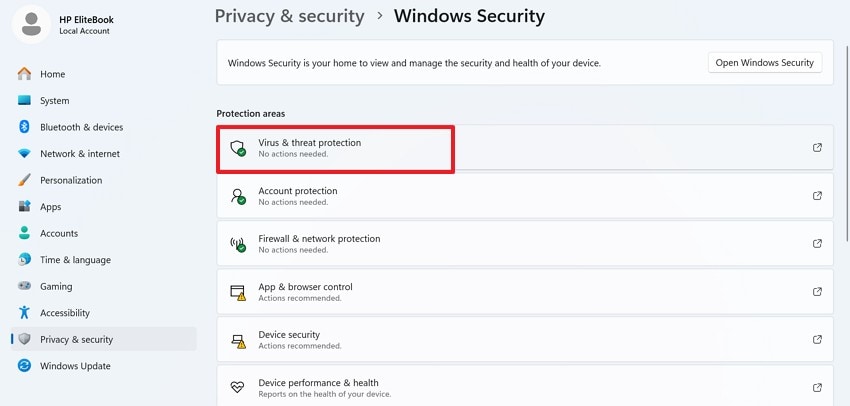
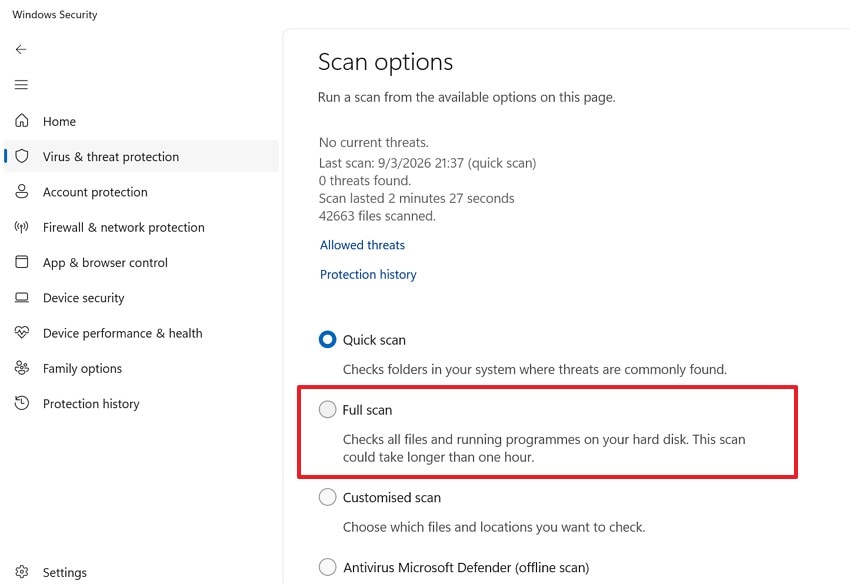
Step 1. Firstly, access the "Windows Security" settings and select the "Virus & threat protection" option.
Step 2. Now, choose the "Scan options" and pick the "Full Scan" to continue.
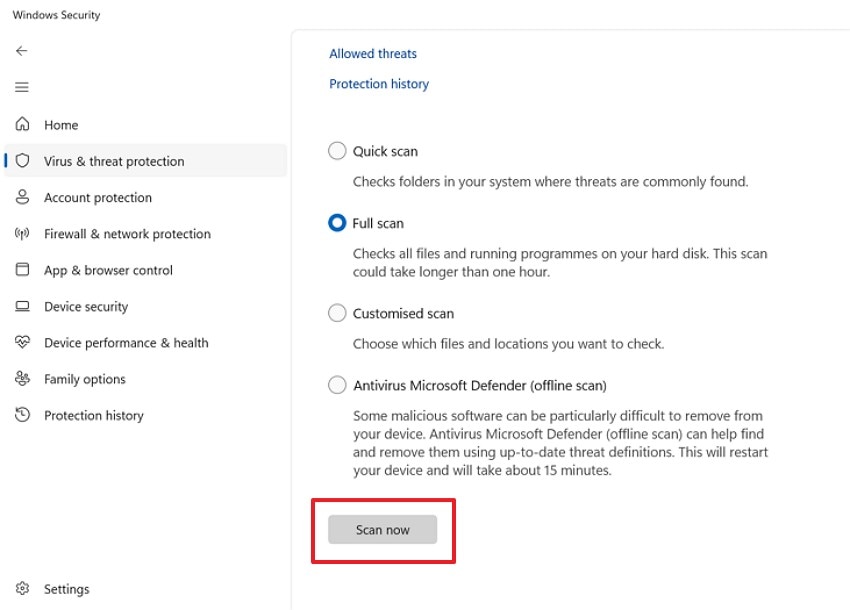
Step 3. After that, select the "Scan now" button and wait for the results to appear. Then remove the detected threats, restart the PC, and test the app showing issues.
Fix 5: Download MFC140U.DLL from a Trusted Source
A trusted source matters when replacing a missing DLL file. Unsafe downloads can worsen the "mfc140u.dll was not found" problem quickly. This fix focuses on getting the correct file safely installed. To download mfc140u.dll from a trusted source, follow the steps below:
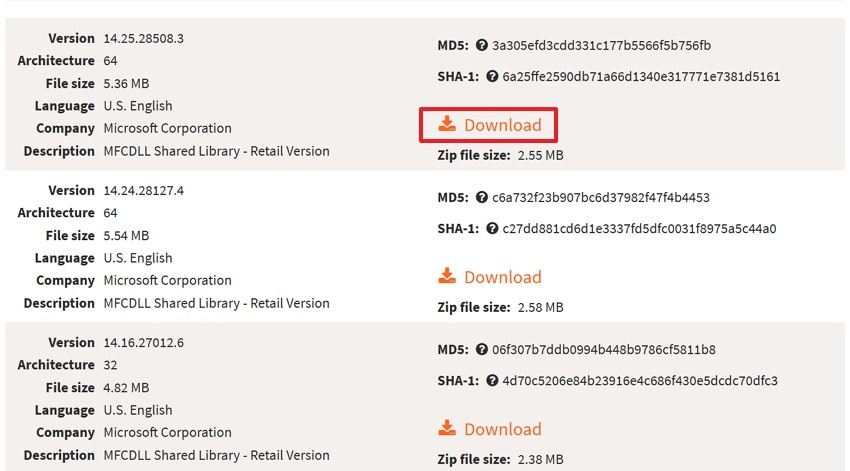
Step 1. To start, visit the official software website or Microsoft support page. Then find the correct installer or runtime package for your system and choose the "Download" option.
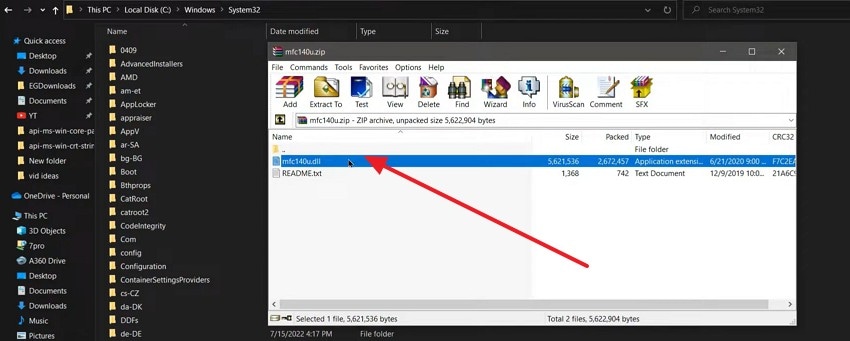
Step 2. Next, open the downloaded ZIP archive, select "mfc140u.dll", and extract it so the file becomes usable. After that, drop it in the "C:\Windows\System32" folder.
Fix 6: Copy DLL to System32 and SysWOW64
Copying the DLL into the Windows folders can restore missing file access. This may help resolve the issue where "mfc140u.dll was not found" in some cases. The fix works best when the correct file version already exists. Accuracy matters here because mismatched files can create more errors. To determine how this fix works, stick to the steps below:
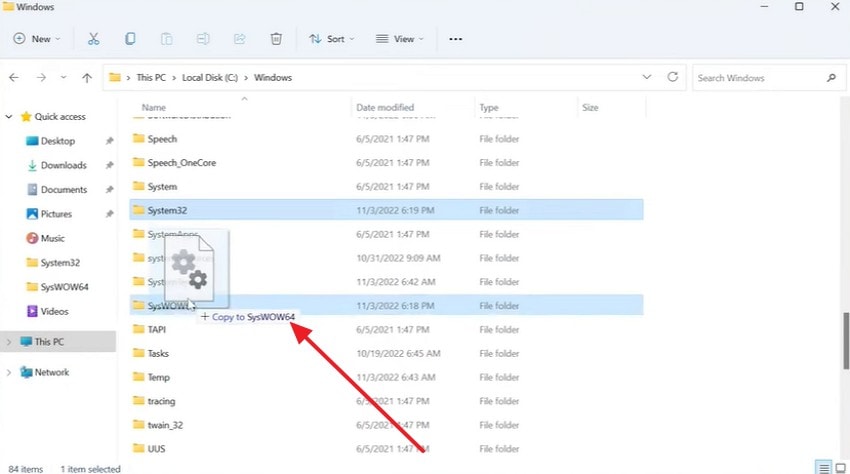
Step 1. First, make sure the DLL file comes from a trusted source. Then copy the file into "C:\Windows\System32" on your computer.
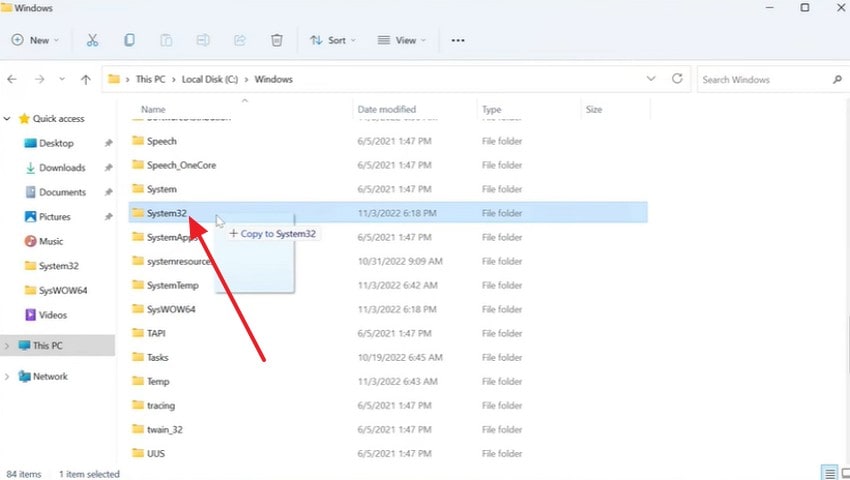
Step 2. Now, on 64-bit systems, also copy it into "C:\Windows\SysWOW64." Then restart the PC and test whether the software opens properly.
Fix 7: Re-register MFC140U.DLL via Command Prompt
Re-registering the DLL can restore how Windows recognizes that file. This may reduce the "mfc140u.dll was not found" after file replacement. It is mainly useful when the file exists but remains unlinked. This fix helps restore proper communication between programs and components. To understand how this fix works, follow the steps below:
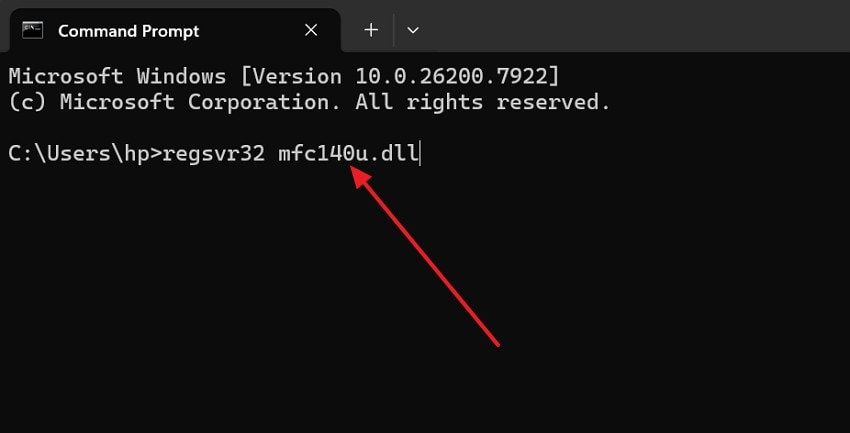
Instructions. To start, open "Command Prompt" as administrator from Windows search results. Now, type the command: "regsvr32 mfc140u.dll" and press "Enter" to continue.
Ultimate Tip. Resolve Corrupted MFC140u.dll and System Files Using Repairit
Sometimes the error refuses to leave, even after several careful fixes. You reinstall the app, restart the system, and try again. Still, the same warning appears and blocks your work completely. That moment often suggests deeper file corruption inside the system. When the mfc140u.dll file is missing, a smarter repair approach helps.
In that situation, Repairit can feel like a practical backup option. It helps users deal with damaged files through a simpler process. Instead of guessing which file broke, you move toward guided repair. That makes the recovery process feel less stressful and more controlled. With its lossless repair ability, you can fix the corrupted files and make your system free of all issues.
Key Features

-
Unreadable File Repair: Fixes unreadable, garbled, or unopened files caused by crashes, interruptions, malware, or storage-related corruption.
-
Original Layout Protection: Restores damaged documents while preserving text, formatting, hyperlinks, headers, footers, charts, and overall structure.
-
Special Format Compatibility: Supports 30+ document, archive, and engineering file formats for broader corrupted file recovery.
Guide to Resolve Corrupted MFC140u.dll and System Files Using Repairit
If repeated errors suggest deeper corruption, a guided repair process can help. The guide below resolves corrupted MFC140u.dll and system files via Repairit:
Step 1. Import Corrupted Files into Repairit
First, open "File Repair", then click "+Add" to import damaged DLL-related or corrupted system files to proceed.

Step 2. Start the File Repair Process
Next, review imported files, then choose the "Repair" button to begin scanning and fixing detected corruption.

Step 3. Preview and Save Repaired Results
Finally, preview repaired files, then select "Save" or "Save All" to export results to your device.

Repair Corrupted Files
 Security Verified. Over 7,302,189 people have downloaded it.
Conclusion
To conclude, the "mfc140u.dll was not found" error may look serious, but in most cases responds well to safe fixes. Reinstalling programs, restoring runtimes, and scanning Windows often solve the issue without much trouble. When deeper corruption affects important files, recovery needs a more reliable approach. For that reason, many users may find Repairit a practical option.
Frequently Asked Questions
-
1. What does the MFC140u.dll was not found error mean?
It usually means the required Visual C++ runtime file is missing or corrupted. Programs depending on that library cannot start until Windows restores the needed support properly. -
2. Can reinstalling the affected program fix this error?
Yes, reinstalling the affected app often replaces missing files and resets broken dependencies. This works best when only one program shows the startup error repeatedly. -
3. Is it safe to download MFC140u.dll from any DLL website?
Downloading random DLL files is risky because versions may mismatch or contain malware. Use Microsoft packages or trusted software sources instead of unknown download websites. -
4. When should I use Repairit for this problem?
Use Repairit when corruption remains after reinstalling runtimes, scanning Windows, and restarting everything. It helps repair damaged files through simplified steps when manual fixes fail.




