
![VGK.sys BSOD – How to Fix in Valorant & LoL [Simple Guide]](https://images.wondershare.com/repairit/article-trans-image/3677/vgk-sys-bsod-1.jpg)
Few things destroy a gaming session faster than a sudden Blue Screen of Death. You are mid-match in Valorant or League of Legends when your system crashes. This frustrating issue is often tied to a specific driver called the vgk.sys BSOD. As the core component of Riot’s Vanguard anti-cheat, it runs at the kernel level.
When this file conflicts with your system, your PC will restart without any warning. Such interruptions confuse players who want stable gameplay performance. So, understanding why this driver fails is the first step toward getting back into the game. Thus, this guide provides proven solutions to resolve these crashes and stabilize your computer.
Table of Contents
Part 1. What is VGK.sys? Common Causes of VGK.sys BSOD
The vgk.sys file is the primary driver for Riot Games’ proprietary Vanguard security. This kernel-mode driver starts when you boot up your modern Windows computer. Besides, its main purpose is to prevent cheating in competitive titles like Valorant and LoL. Since it operates at such a deep level, any software conflict causes crashes.
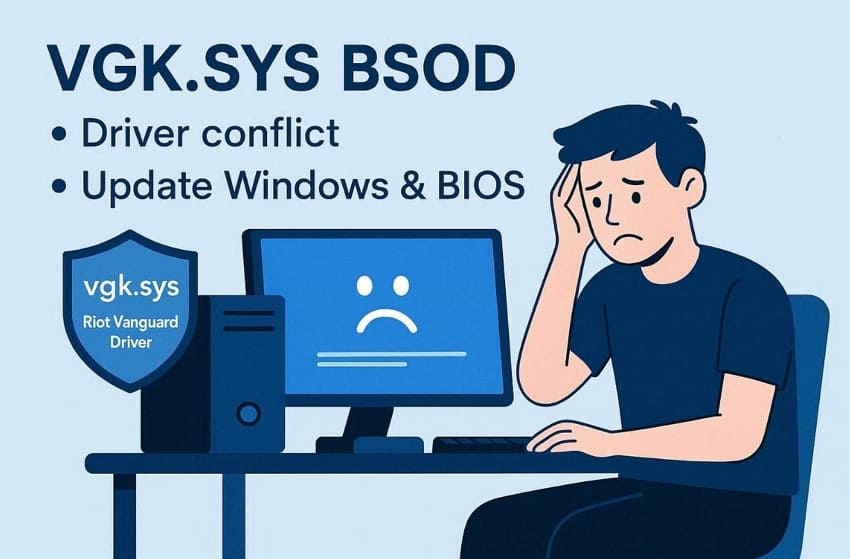
Also, a lot of players search for how to fix vgk.sys BSOD in Valorant & LoL online. Most issues stem from outdated system drivers or restricted permissions within your Windows OS. If the driver hits a serious conflict, it may trigger a blue screen and a forced restart. Yet, keeping your BIOS and operating system updated is crucial for maintaining a stable space.
5 Common Causes of VGK.sys BSOD
Identifying the root of the vgk.sys BSOD is vital for an effortless solution. So, review the following causes to understand why your gaming system keeps crashing:
- Outdated Windows: Missing OS updates create a compatibility gap with the Vanguard driver. This mismatch often leads to a kernel-level error during game loading.
- Driver Mismatch: Old graphics or chipset drivers clash with the modern Riot security. These conflicting instructions lead to a total system collapse during matches.
- Corrupted Files: Damaged game or Vanguard files can stop the anti-cheat from loading correctly. This kind of corruption may contribute to crashes or force the PC to restart unexpectedly.
- Antivirus Conflict: Security software flags the Riot driver as a malicious system threat. These programs block background tasks, which causes a sudden blue screen crash.
- Secure Boot: Having Secure Boot turned off can stop Vanguard from working properly on some systems. This missing security requirement may prevent the game from launching or trigger related errors.
Part 2. Try 7 Quick Fixes for VGK.sys BSOD in Games
Several effortless solutions exist to help you learn how to fix VGK.sys BSOD in Valorant & LoL. You should follow these 7 specific troubleshooting steps to resolve your system errors:
Fix 1. Restart PC & Game
A quick system reboot is often the most effective way to clear memory. This basic step refreshes the kernel and resolves the initial vgk.sys BSOD. It allows the Riot Vanguard driver to reload without any existing software interference. Alongside this, restoring your system state can fix minor glitches that cause game crashes. So, adhere to these specific steps to perform a clean restart of your gaming hardware:
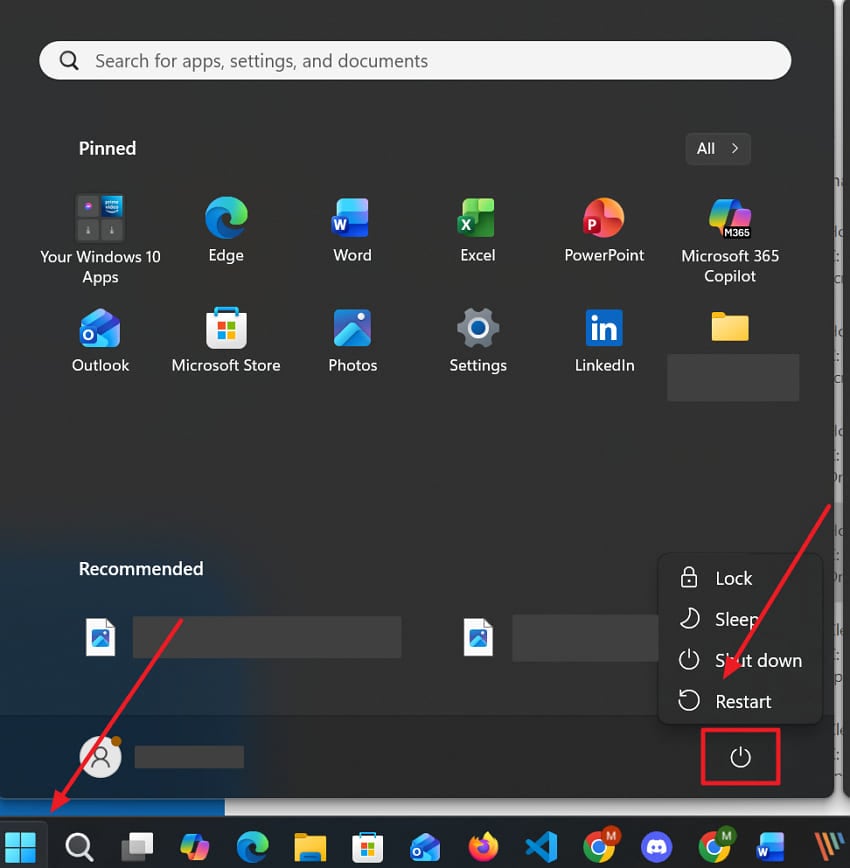
Restart PC: Upon pressing the "Start" menu, click the "Power" icon and select "Restart."
Restart Game: To initiate, you need to close the game if it is still open. After that, click the "Game" icon to run the game again on your system.

Fix 2. Restart Vanguard Services
Restarting the dedicated Vanguard service is another reliable way to fix driver errors. This specific method ensures the background process starts with a fresh system state. It resolves internal conflicts that prevent the anti-cheat from communicating with the game. Manual service resets are effective when the driver becomes unresponsive. By cycling this service, you can bypass persistent blue screen issues. Review the steps to refresh the Riot Vanguard service on your PC:
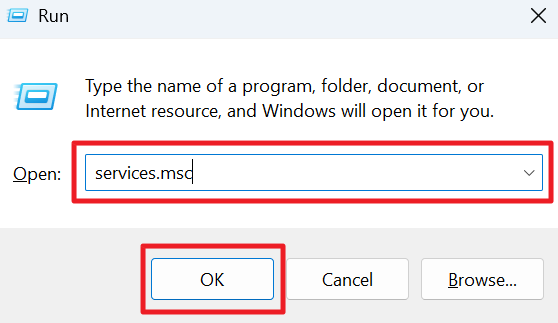
Step 1. Input "services.msc" when you press the "Windows + R" keys together and hit "Enter."
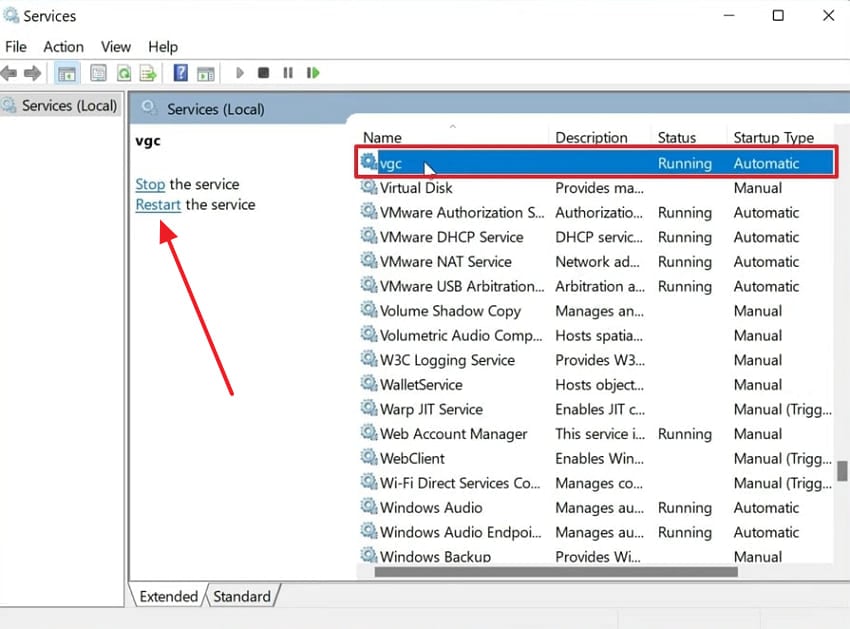
Step 2. Going ahead, locate and click the "vgc" service and press the "Restart This Service" option.
Fix 3. Turn Off Third-Party Antivirus/Overlay Apps
Many external antivirus tools flag the kernel-level Vanguard security driver. Disabling these external programs is a vital way to reduce software interference. Moreover, overlays from Steam can even trigger sudden memory management crashes. Closing these active applications ensures the anti-cheat runs without any restricted access. It provides a much cleaner space for your competitive gaming sessions. Thus, apply the steps to learn how to fix vgk.sys BSOD in Valorant & LoL:
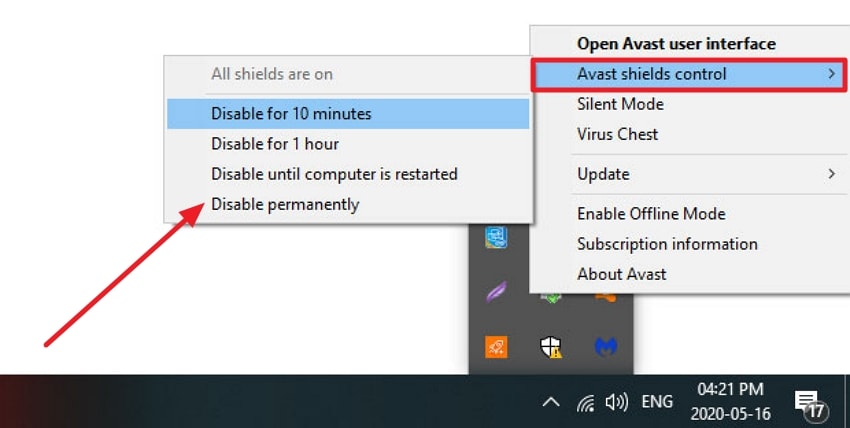
Instructions. Initially, press the external antivirus program like "Avast" in the "Taskbar." Upon seeing a menu, head to the "Avast Shield Control" section and opt for "Disable Permanently."
Fix 4. Repair Your Valorant/LoL Game Files via Repairit
Game file corruption is another cause behind the Vanguard-related crashes. When certain Valorant or LoL files become unreadable or corrupt, Riot’s anti-cheat fails to authenticate. This situation can trigger a vgk.sys BSOD, forcing the computer to restart mid-game. That’s where you need a tool like Repairit to fix these critical errors. This software specializes in restoring broken game files to their original and healthy state.
Moreover, Repairit offers a dedicated file repair mode to handle various types of corruption. It can quickly scan and fix multiple game documents in a single session. This tool scans the selected directories to identify damaged files that prevent a smooth launch. In addition, users enjoy a high success rate when repairing complex kernel-level driver components. You can even preview the repaired files before saving them back to your drive.
Key Features

-
Integrity Check: It ensures repaired files match the original security standards for the Riot client.
-
Kernel Repair: During repair, Repairit targets deep system files like the problematic vgk.sys driver.
-
Safe Processing: Your private data remains secure throughout the entire file restoration operation.
Guide to Repair Your Valorant/LoL Game Files via Repairit
Repairing corrupted Valorant or LoL files ensures smoother gameplay and system stability. So, take guidance from these simple steps to complete the entire repair process:
Step 1. Add the Problematic Valorant/LoL Game Files
Start by opening the "More Types Repair" tab and selecting "Document Repair," then click "Start." Here, use the "+Add" option to import the corrupted Valorant/LoL game files.

Step 2. Start the File Repair Process
Next, press the "Repair" button when the corrupted game files appear in the program. The software will scan the damaged Valorant/LoL game files and attempt to fix any missing data.
Step 3. Save the Repaired Valorant/LoL Game Files
After the repair is completed, click "Preview" to ensure the files are restored. If the results look correct, select "Save" to export the repaired versions to your computer.

Repair Your Valorant/LoL Game Files
 Security Verified. Over 7,302,189 people have downloaded it.
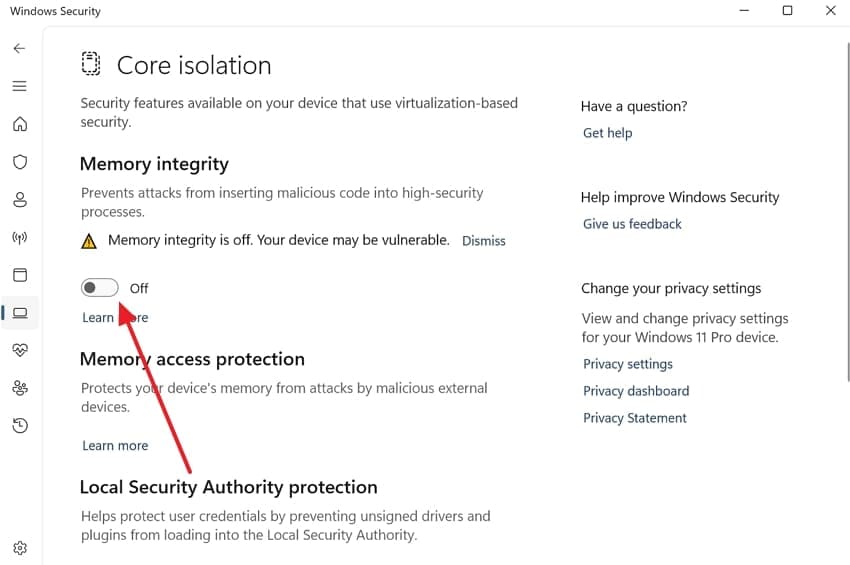
Fix 5. Disable Core Isolation / Memory Integrity
Core Isolation protects your system by blocking untrusted drivers from accessing memory areas. Yet, this security layer might interfere with Riot Vanguard’s kernel-level anti-cheat operations. Such restrictions can prevent the driver from launching correctly during Valorant or LoL startup. Moreover, disabling Memory Integrity removes these restrictions for effortless anti-cheat operation. Thus, review the given steps to find out how to fix VGK.sys BSOD in Valorant & LoL:
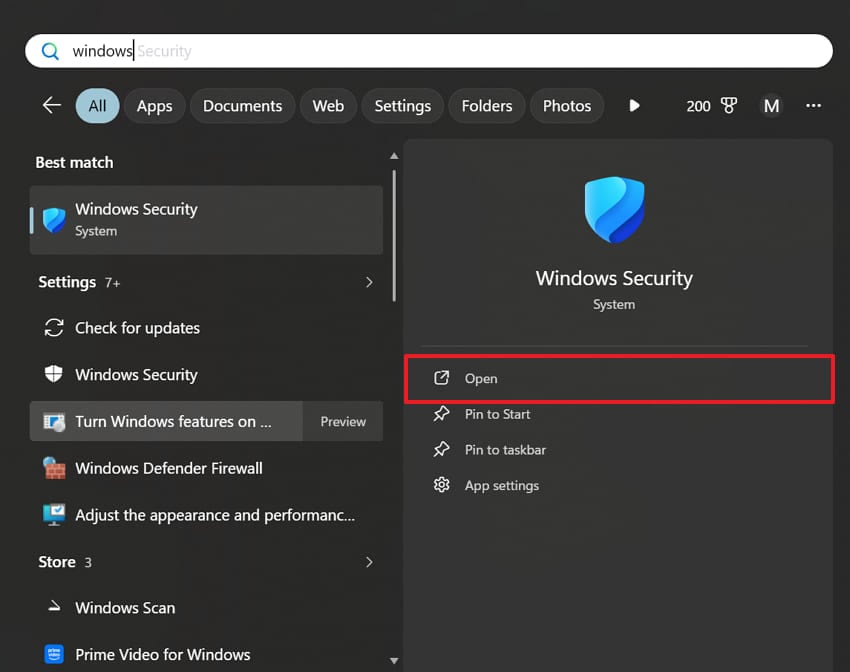
Step 1. Open the "Search" bar and type "Windows Security" to opt for "Open."
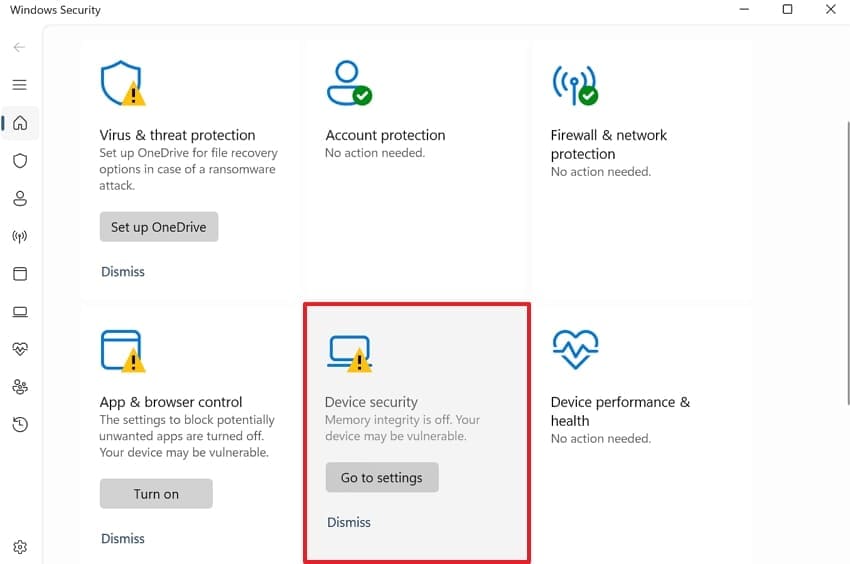
Step 2. Here, select the "Device Security" tab on the upcoming display.
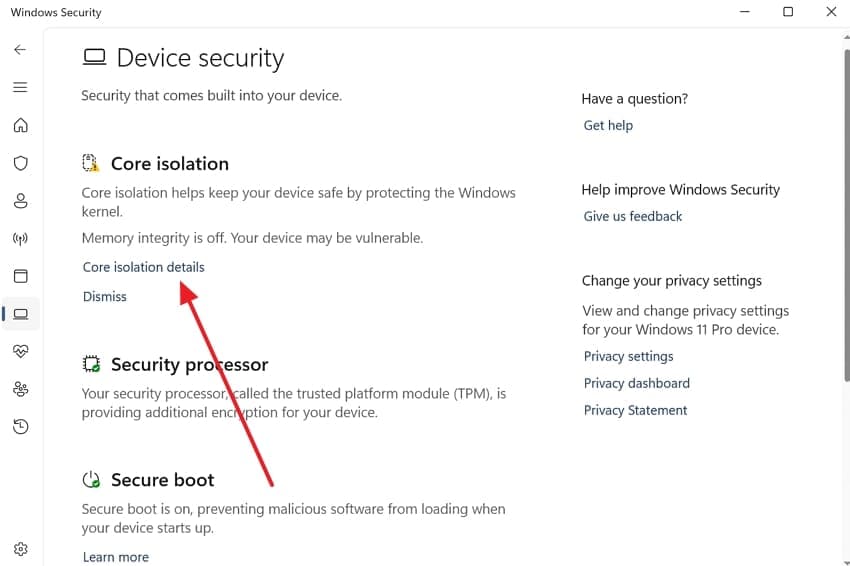
Step 3. Moving forward, click the "Core Isolation Details" link to view the specific security toggles.
Step 4. Afterward, switch the "Memory Integrity" setting to "Off" and restart your computer.
Fix 6. Enable Secure Boot & TPM
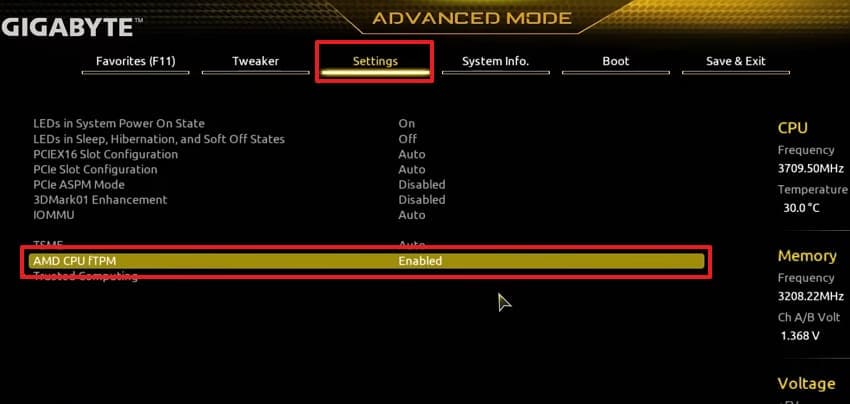
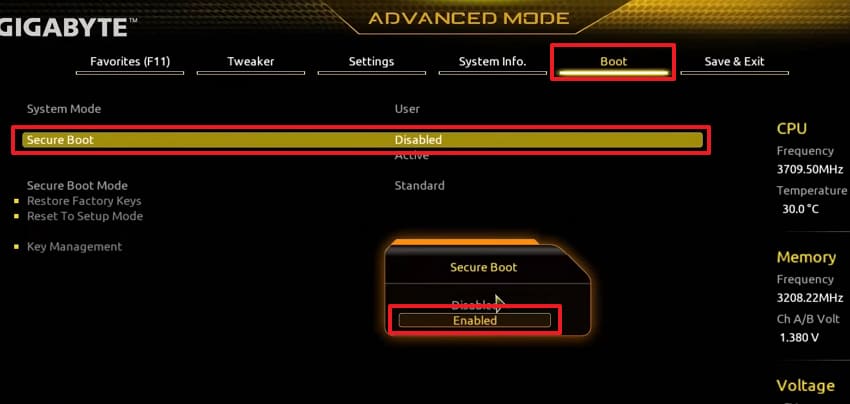
Secure Boot ensures your system loads trusted drivers during the Windows startup process. This security layer helps Riot Vanguard verify the operating system before launching games. On the other hand, TPM further strengthens protection by storing hardware encryption keys. When these features remain disabled, Vanguard may fail and trigger the vgk.sys BSOD. So, enabling them improves driver trust with Riot security requirements. Let’s explore how to activate both features on your gaming PC:
Step 1. To initiate, restart your computer and press the "Delete" or "F2" key to enter BIOS. After entering this specific mode, head to the "Advanced Mode" section.
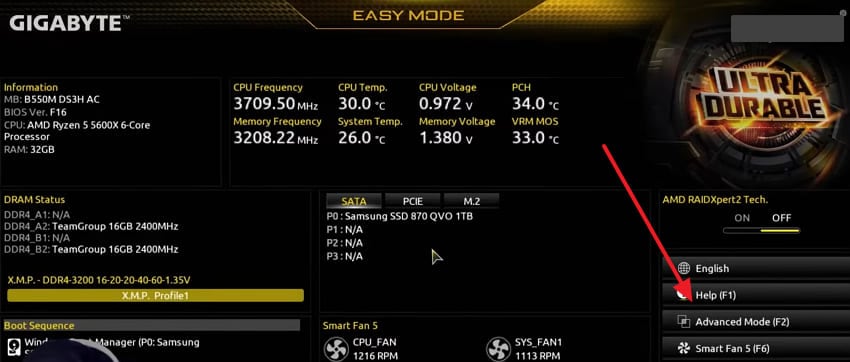
Step 2. Following that, access the "Settings" tab and choose "TPM" and enable it.
Step 3. Afterward, navigate to the "Boot" tab and click "Secure Boot" to choose "Enabled."
Fix 7. Try System Restore or Reset
A system restore helps you revert your computer to a previous healthy state. It rolls back drivers and system settings without deleting your gaming files. If a restore fails, a system reset provides a fresh Windows installation. Both options are powerful tools for fixing deep software issues within your OS. They act as a last resort when other standard troubleshooting steps fail. Follow the steps below to implement this fix:
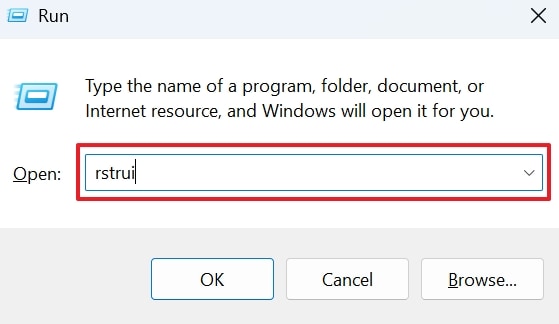
Step 1. Type "rstrui" in the "Run" prompt upon pressing the "Windows + R" keys, then hit "OK."
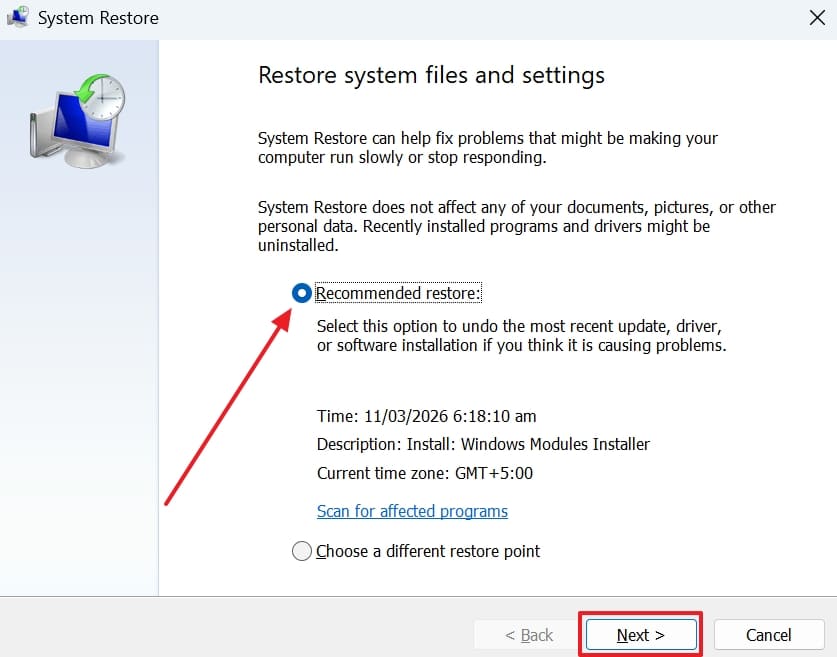
Step 2. As you access the "System Restore" screen, choose "Recommended Restore" and click "Next."
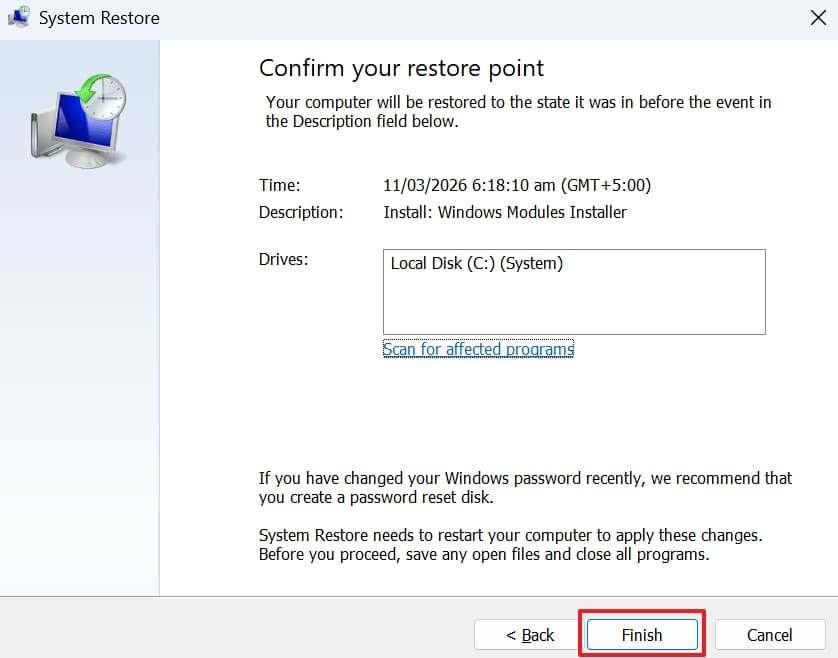
Step 3. On the subsequent display, click the "Finish" button to initiate this task. After that, your PC will reboot and roll back system files and registry settings.
Conclusion
To summarize, dealing with the vgk.sys BSOD is a very stressful experience. Most driver errors happen because of small software bugs. Yet, following these clear steps will help you fix your computer without hassle. Also, always keep your system updated to prevent any future crashes during your games. However, if corrupted game files keep causing errors, using Repairit is recommended. It restores damaged files and saves your system from repeated crashes.
FAQ
-
Q1. Can I play Valorant without installing the Riot Vanguard anti-cheat software?
No, the Vanguard driver is a mandatory requirement for launching the game without effort. The game will simply refuse to open if the security service is missing. Thus, you must keep the driver active to participate in any competitive online matches. -
Q2. Does the vgk.sys file record my personal data while I am offline?
Riot Games states that the driver only monitors your system during active gameplay. It does not collect or upload private files from your personal computer folders. The software focuses entirely on identifying external tools that provide an unfair advantage. -
Q3. Can corrupted system files outside the game cause VGK.sys BSOD?
Yes, damaged Windows files can conflict with kernel-level drivers during core game operations. Even missing DLL or registry entries influence how Vanguard loads its security driver. Yet, Repairit can restore these broken files safely to recover stable gaming sessions.




