
In everyday workflows, it’s common to rely on visual file icons to quickly recognize the file type. When the familiar Microsoft Word symbol disappears, it can immediately create confusion while browsing folders or managing multiple files. Many users face a situation where .docx files are not showing the Word icon, and instead the documents appear with a blank/generic icon.
For those who work with Word documents frequently, this issue can affect productivity and requires immediate action on the root cause. In this context, this ultimate guide is a comprehensive solution with easy, tested fixes and common scenarios where the issue appears.
Table of Contents
Part 1. Understanding the Issue: .Docx Files Are Not Showing Word Icon
It usually happens when Windows forgets which program should open ".docx" files, or when the icon settings get corrupted. The file opens fine in Word, but Windows displays a plain white or generic icon because of a broken file association. For a better command over .docx files that are not showing the Word icon, review the given scenarios of its occurrence:
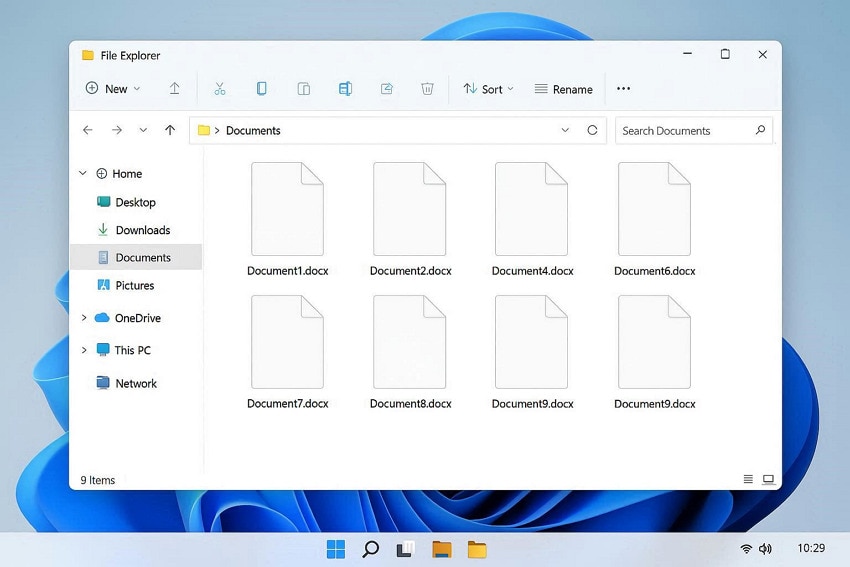
- After Office or Windows Updates: When you install or update Microsoft Office, Word's icon registration and file associations may change. At times, this update doesn’t finish properly, so .docx files still open in Word but display a blank icon.
- Wrong or Broken File Association: If .docx is not properly associated with Word, Windows may treat it as an unknown file and use a generic icon. This can happen after installing another Office version, changing default apps, or using "Open with" incorrectly.
- Icon Cache or Registry Glitches: Windows stores icons in a cache and in the Registry; if these entries are damaged, the icon may appear blank. Often, users might need to rebuild the icon cache or fix the .docx registry keys to restore the Word icon.
- Single File Looks Different: Sometimes, only one or a few Word documents show a white icon while others appear normal. This may be caused by a temporary icon cache glitch or a stale thumbnail in Windows Explorer.
- Due to Older Version of Word: Documents accessed via an older Office version that isn’t installed properly may fail to register their correct icon. In this scenario, the files might open correctly, but Explorer keeps showing a generic or mismatched icon.
Part 2. Quick Fixes for .Docx Files Not Showing Word Icon
To restore the correct appearance of your document, the following fixes address the most common reasons behind .docx files not showing the Word icon:
Fix 1: Use "Open With" and Choose Word
When Windows loses the connection between .docx files and Microsoft Word, the system might stop displaying the correct icon. Here, the "Open With" option allows you to manually reconnect the file type with Microsoft Word. Once the application is set again, Windows will recognize Word as the primary application for .docx files. To bring back the proper icon and open documents in Word, follow the guided tutorial:
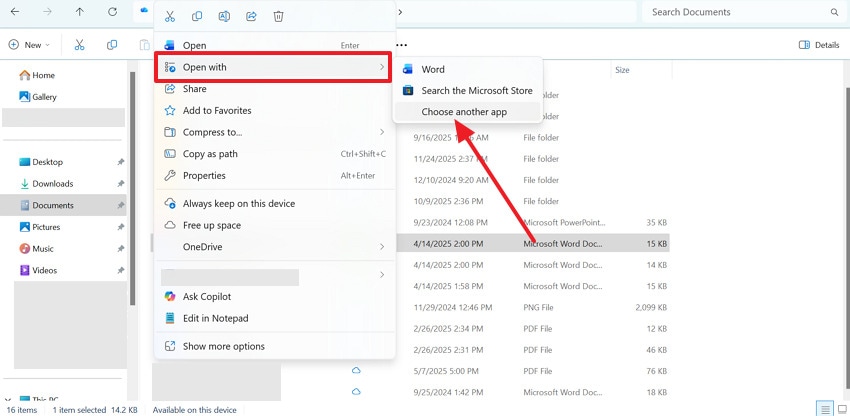
Step 1. Access the File Explorer, locate the .docx file with no Word icon, and right-click it. Now, expand the menu for "Open With" and press the "Choose Another App" option.
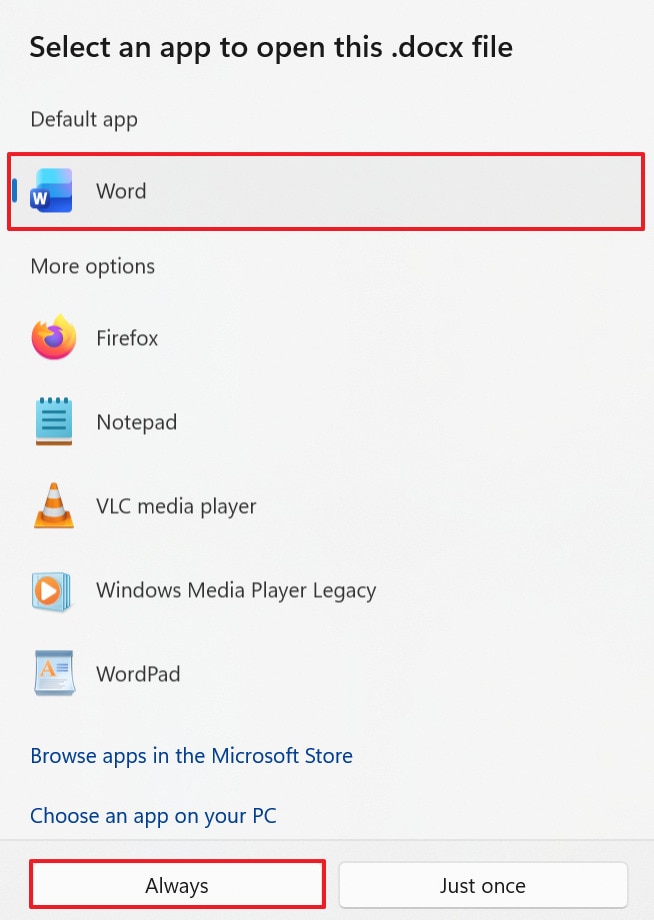
Step 2. After this, select the "Word" option in the Default App and click the "Always" button. Next, press "OK" to confirm, allowing Windows to display the normal Word icon again.
Fix 2: Reset Default Apps in Windows Settings
Often, system settings or third-party applications modify the default programs used to open certain file types. Once you reset the default apps in Windows, it restores the recommended system configurations and overcomes .docx files are not showing Word icon. It further refreshes all file associations at once, which can resolve multiple icon or opening issues without manual adjustments. For how to reset default apps in Windows, follow the provided step-by-step manual:
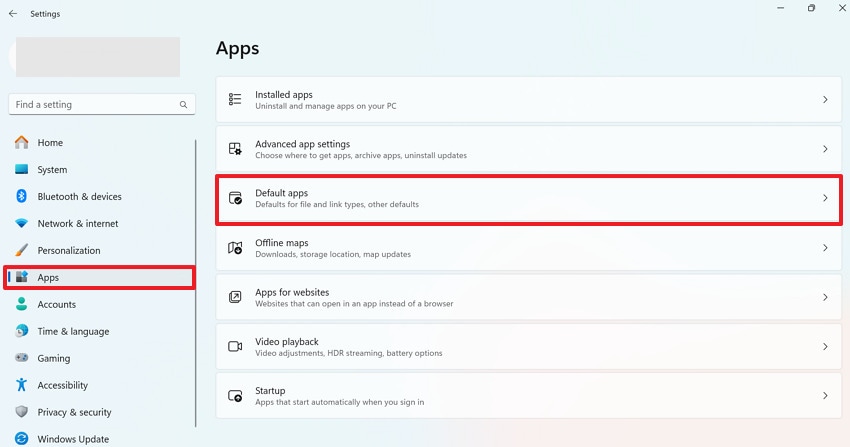
Step 1. Open the Windows Settings, access the "Apps" tab, and click the "Default Apps" option.
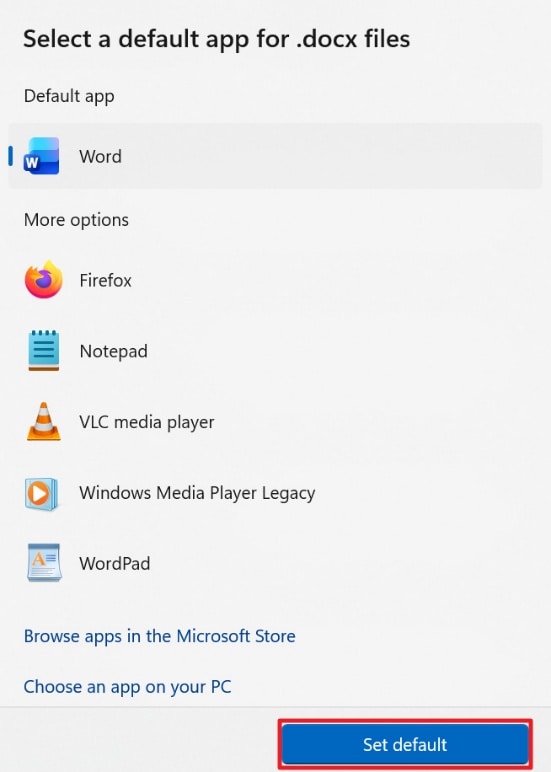
Step 2. Now, scroll to Word, look for the .docx option, and click it once found. Then, press "Set Default" or make sure .docx is set to open with Word.
Fix 3: Repair Microsoft Office Installation
If the Microsoft Office installation becomes partially corrupted or incomplete, file icons and associations might not function properly. Therefore, repairing the Office installation scans the program files and replaces any damaged or missing components. This fix even restores proper functionality of Word and other Office applications without deleting your documents or settings. Review the guidelines and repair the Microsoft Office installation to ensure Word integrates with Windows for file icons:
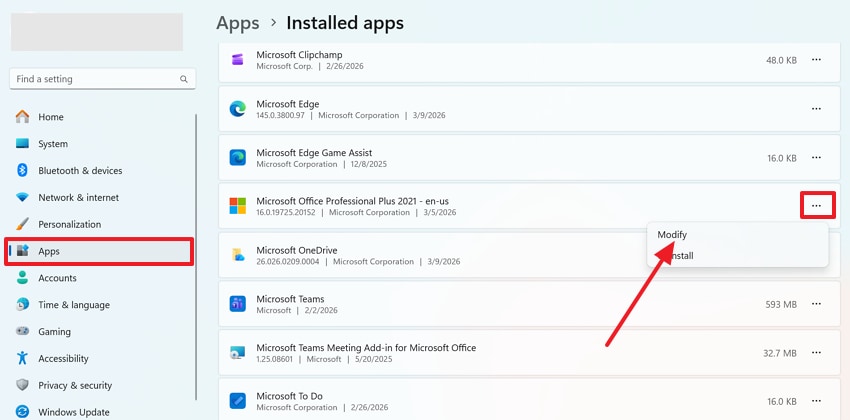
Step 1. From the Windows Settings, choose the "Apps" tab and click the "Installed Apps" option. Find Microsoft Office from the app, press the "Three Dots" icon, and select "Modify."
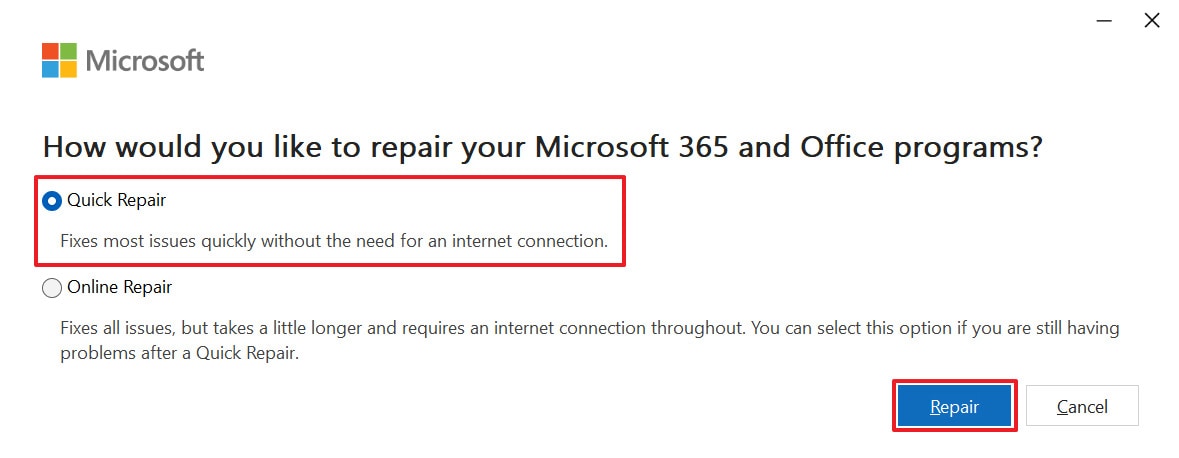
Step 2. Next, check the "Quick Repair" option and press the "Repair" button to proceed. If the problem persists, choose the Online Repair option for a deeper fix of the Microsoft Office applications.
Fix 4: Update Windows System Files
Remember, outdated or missing Windows system files can interfere with file associations, icons, and application behavior. For the .docx files that are not showing the Word icon error, ensure your Windows is updated with the latest patches and system improvements. In fact, this fix improves overall system stability and compatibility, not just the missing Word icons. For more clarity, read the given instructions and update Windows to have up-to-date system files:
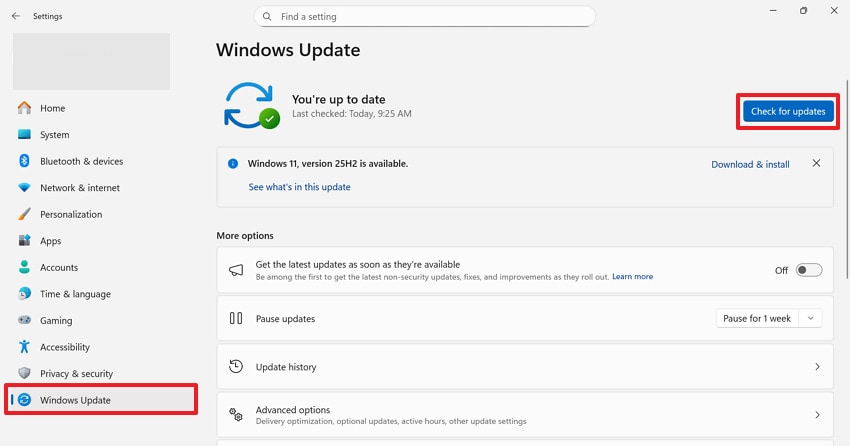
Instructions. Press the "Windows Update" option from the settings and click the "Check for Updates" button. Now, let Windows update all the pending files, then restart your PC and check if the Word icons are back.
Fix 5: Reinstall/Repair Microsoft 365 or Office
When a simple repair doesn’t solve .docx files are not showing the Word icon, reinstalling Microsoft 365 or Office can be effective. This way, you can replace all program files with fresh and fully functional files. Besides, it restores all Word-related components, including file associations and icons, displaying the correct MS Word icon. Follow this stepwise tutorial to reinstall Microsoft Office and open Word files with appropriate icons:
Step 1. Visit the official website for Microsoft Office and press the "Sign In" button. Now, sign in with a Microsoft account that was originally used to activate Office 365.

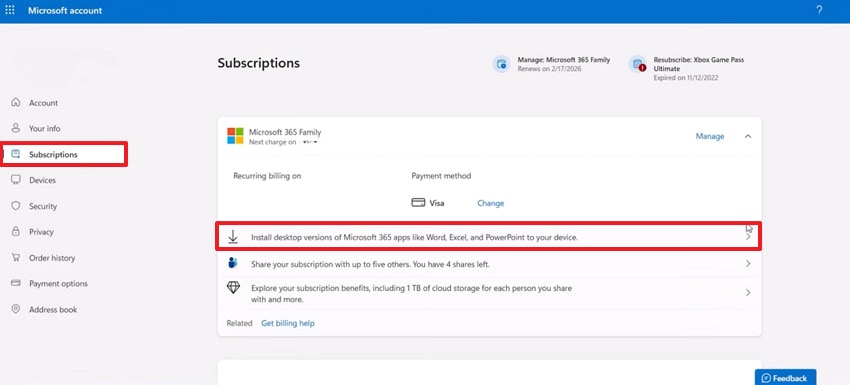
Step 2. Once done, access the "Subscription" tab and press the "Install Desktop Version of Microsoft 365..." option. Here, specify the language and version, then click the "Install" button to reinstall Microsoft Office.
Fix 6: Clear and Rebuild Icon Cache
Windows stores icons in a database called the icon cache, allowing file icons to be quickly accessed when you open folders. Clearing out and rebuilding those caches forces Windows to generate a fresh database of icons, if they display blank or generic icons. Impressively, it refreshes all system icons, often restoring the correct ones without affecting your documents. For a how-to guide, explore the guided tutorial to clear and rebuild the icon cache:
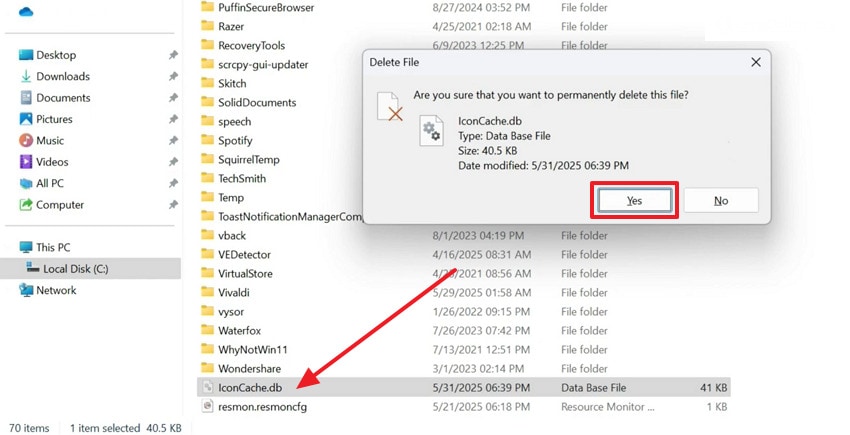
Instructions. Initially, open File Explorer and type "%localappdata%" in the provided search bar, then press Enter. Now, locate the IconCache.db file, select it, and press the "Shift + Delete" keys together. After this, click "Yes" in the confirmation prompt, then restart your PC to rebuild the icon cache automatically.
Fix 7: Rebuild .DOCX Icon via Registry
After trying the above fixes, a persistent error may indicate a problem with incorrect registry entries. When you verify and correct these registry values, you can manually restore the link between .docx files and the Microsoft Word icon. Importantly, this fix addresses the root configuration that controls how Windows identifies Word documents, ensuring correct icons appear consistently. Follow the manual, and rebuild the .docx icon registry for .docx files that are not showing the Word icon:
Step 1. Search and open Registry Editor from the Windows search box, then expand "HKEY_CLASSES_ROOT." Locate and expand ".docx" to view all available keys, then right-click .docx. Now, extend the New option and press the "Key" option to create a new key named "Word. Document.16".
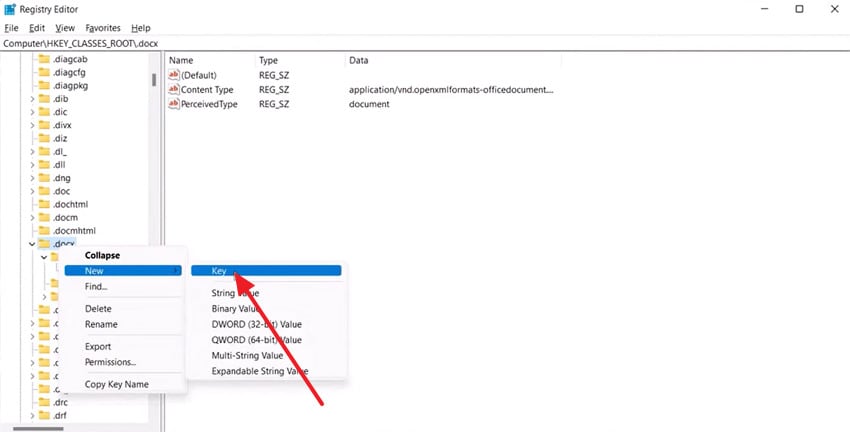
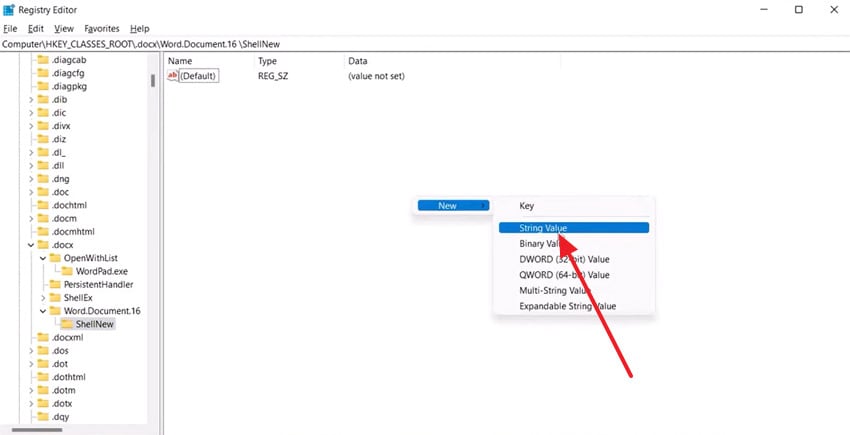
Step 2. Proceed, and create another key inside this newly created key, named "ShellNew." Once done, select ShellNew, make a right-click in the empty space on the right, and choose the "String Value" option. Afterward, rename this String Value as NullFile, then select the .docx key again.
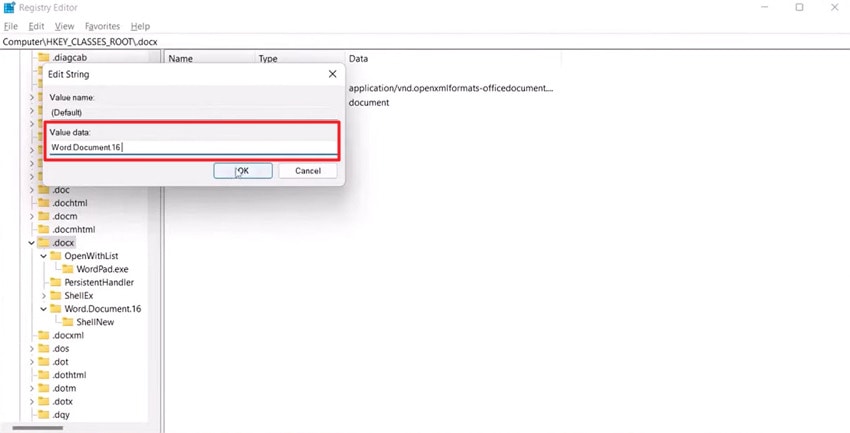
Step 3. Next, locate Default, double-click it, and set its Value Data as "Word Document 16," then OK. One done, refresh Registry Editor and restart your PC to apply the changes for the correct Word icon.
Pro Tip. Repair. Docx Files and Restore Icons with Repairit
Severely damaged Word documents can affect how Windows recognizes the file, leading to problems such as missing icons. Similarly, for the .docx files that are not showing the Word icon issue, refer to Repairit and restore the complete document with normal icon display. The program primarily addresses a file's text and structure, often resolving hidden corruption that causes odd icons. During repair, it keeps the original formatting, fonts, and images in your Word documents.
Besides this, it fixes other .docx issues, such as unreadable files, garbled characters, or blank documents. Its preview feature makes it even more convenient for users to review their repaired versions before downloading.
Key Features

-
Support All Word Versions: The program works with Office 365 and older Word versions, allowing repair of .docx created by any version.
-
Batch Word Document Repair: Easily repair multiple Word files with icon issues, regardless of size or quantity restrictions.
-
Flexible System Support: It fully supports both Windows and Mac with the same features on both systems.
Simple Tutorial to Repair Docx Files for Word Icon Using Repairit
The following guidelines explain how to repair .docx files so they function normally again, with proper icons:
Step 1. Insert All Corrupted Docx Files
After launch, press the "More Types Repair" section and click the "Start" for Document Repair. Press the "+Add" button to insert corrupted .docx files that do not show the proper Word icon.

Step 2. Initiate the Repair Process on .Docx Files
Once done, click the "Repair" button and start fixing each document for any minor or major issues.
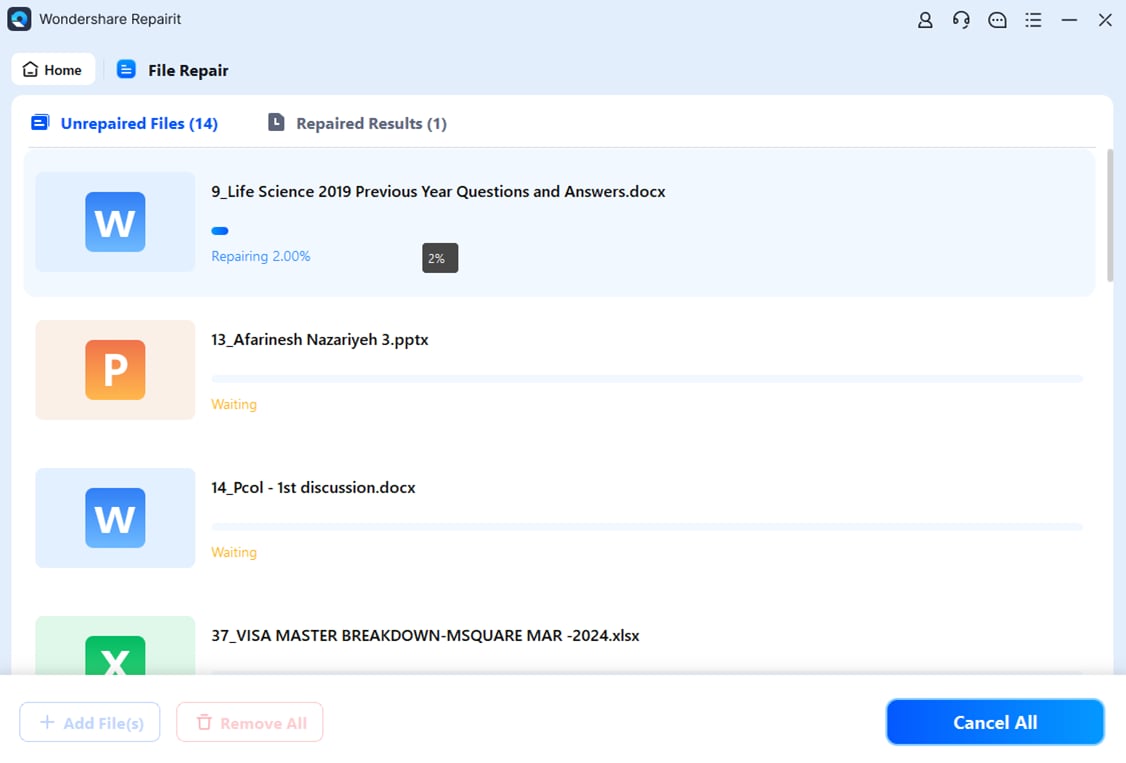
Step 3. Examine the Results & Save the Final Version
When the repair action completes, press the "Preview" button to analyze the repaired .docx files and save them.
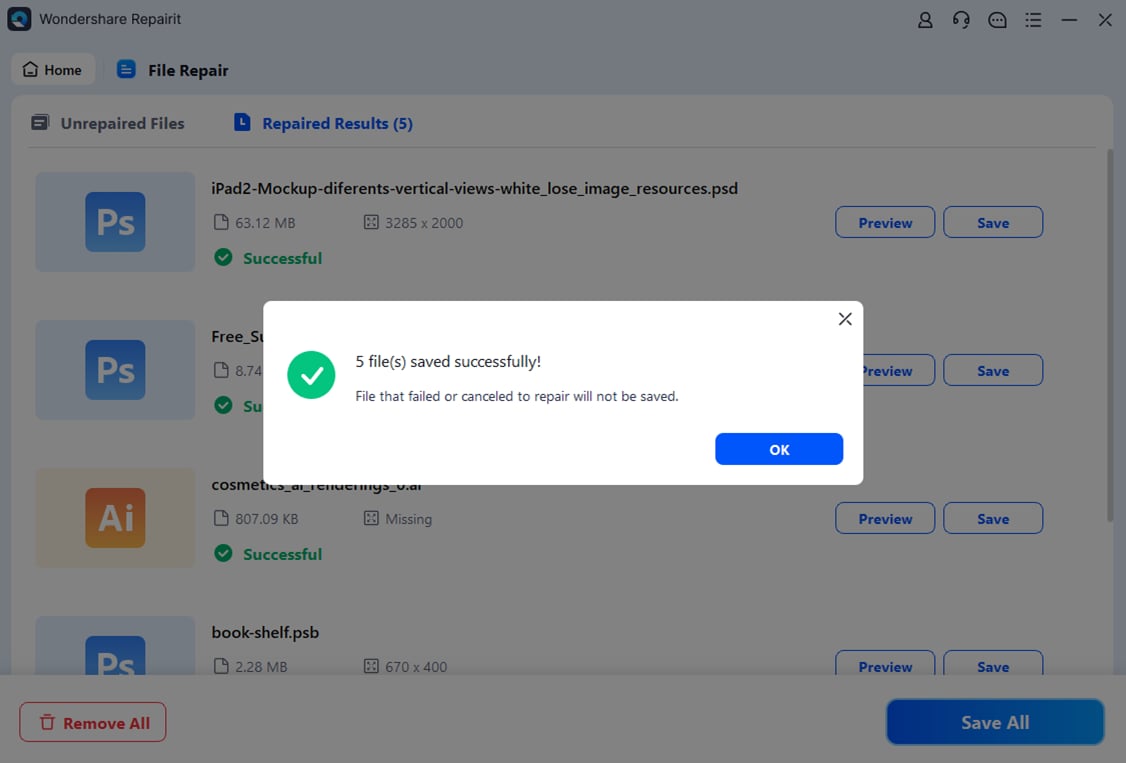
Repair Corrupted DOCX Files
 Security Verified. Over 7,302,189 people have downloaded it.
Conclusion
In conclusion, when .docx files are not showing Word icon happens, users might get confused because they rely on visual icons. Although the files may still open in Microsoft Word, the missing icon makes file management less convenient and more disruptive. To handle such scenarios, you’re guided by proper fixes in the article above, with Repairit recommended for a complete document repair.
Frequently Asked Questions
-
1. Are missing Word icons common across all Windows versions?
Apparently, yes, icon display issues can occur in Windows 10, 11, and earlier versions due to system updates or file associations. While the underlying cause might vary, the result is the same: Windows displays a blank or generic icon. Fortunately, these issues can be addressed through simple fixes such as resetting default apps or repairing Office. -
2. Can external drives or USBs cause missing Word icons?
It happens when .docx files are stored on an external drive or USB drive due to connection issues or corrupted sectors. Windows may fail to display the correct icon unless you copy the files to a local drive or apply the proper repair. -
3. Will changing file extensions fix missing Word icons?
If .docx files are not showing the Word icon, changing the file’s extension from .docx to another format might not solve the issue. However, it can potentially corrupt the file because the correct approach is to fix file associations.




