
![How to Solve the Adobe Acrobat Black Icon Problem [Detailed Guide]](https://images.wondershare.com/repairit/article-trans-image/2652/adobe-acrobat-black-icon-1.jpg)
Black Adobe Acrobat file icon is a minor visual glitch that can be an issue when dealing with PDF files daily. In such cases, Windows automatically replaces the PDF logo with a black logo on display. This issue can affect desktop shortcuts, taskbar pins, or thumbnails, which normally appear after new updates.
Thus, if you are also finding a way to overcome the Adobe Acrobat black icon issue, you are in the right place. This guide will cover some efficient methods that you can use to fix this issue and will be introduced with an efficient file repairing tool.
Table of Contents
-
- Fix 1. Change Desktop Icon Size
- Fix 2. Enable PDF Thumbnail Previews in Adobe Reader
- Fix 3. Rebuild Windows Icon Cache
- Fix 4. Reset PDF File Associations
- Fix 5. Use the Official 64-bit PDF Preview Handler Fix
- Fix 6. Disable “Always Show Icons, Never Thumbnails.”
- Fix 7. Repair or Reinstall Acrobat/Reader
- Fix 8. Update Windows Operating System
Part 1. What Causes the Adobe Acrobat Black Icon?
To understand how this error starts, let’s break down the most common causes of the PDF black icon issue:
- Cache Problems: If the Windows thumbnail cache gets corrupted, the file thumbnail might appear as black squares.
- Display Settings and Software Conflict: The Windows display settings might conflict with the Adobe Acrobat settings, resulting in black or missing previews.
- File Association Issues: If the files are associated with the wrong viewer or stuck between different applications, it will lead to black icon previews.
- System Updates and Glitches: After certain updates by Microsoft Windows or Acrobat, users have reported several errors in displaying icons.
- User Profiles Issues: Sometimes, a problem occurs with the Windows search index in a user's profile, with thumbnail generation, which can cause icon issues.
Part 2. Step-by-Step Solutions: How To Fix the PDF Black Icon on Windows 10/11/8/7
After identifying the reasons, here are some effective methods to know how to fix the PDF black icon on Windows 10/11/8/7:
Fix 1. Change Desktop Icon Size
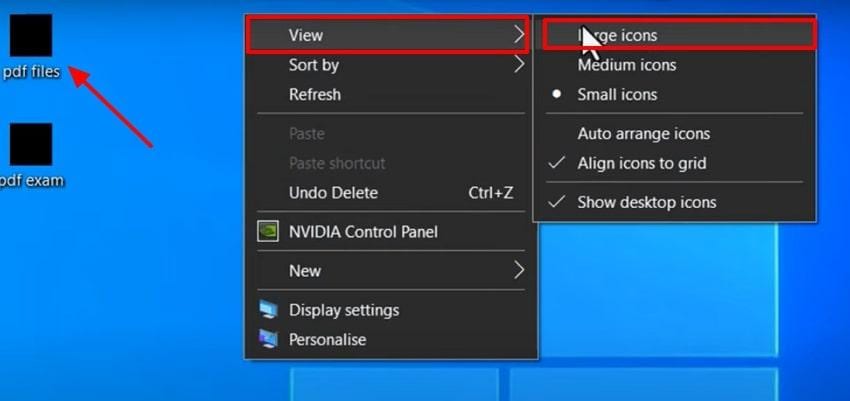
The desktop icon size adjustment is a quick way to force Windows to redraw its file icons and refresh the thumbnail cache automatically. When switching between different sizes, the corrupted data may be bypassed, which leads to thumbnail corruption. Thus, let's explore how to change the desktop icon size to fix the PDF black icon error:
Step 1. Access the file with the black icon and right-click to access a pop-up menu where you need to navigate into the "View” section to select the desired icon size.
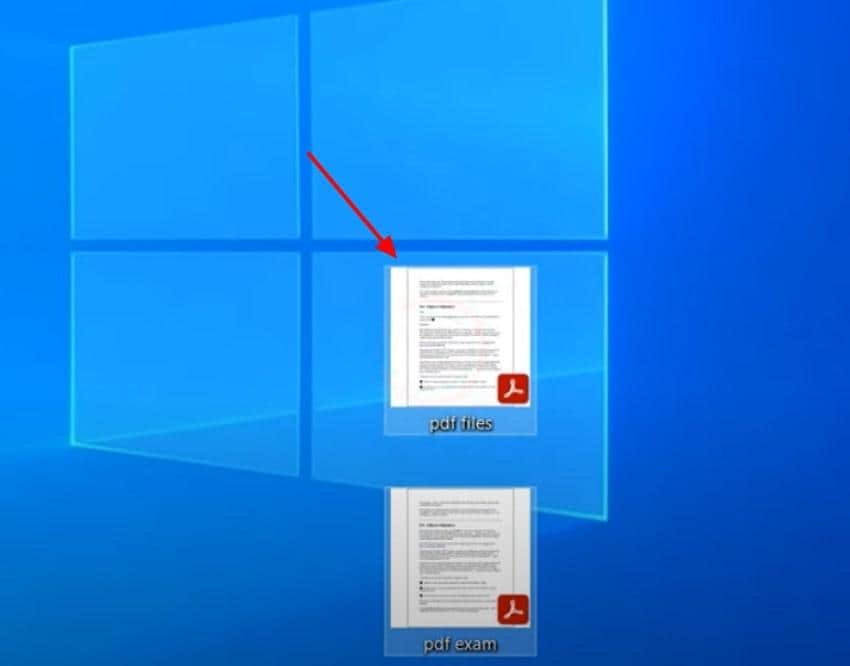
Step 2. After trying different sizes, it will bypass the error and show the actual file icon instantly.
Fix 2. Enable PDF Thumbnail Previews in Adobe Reader
Using this method, you manually enable the thumbnail preview option to display a mini preview for each icon. It also makes it much easier to identify PDFs visually, as you can recognize the document by its content rather than its name. Moreover, by turning this setting on, it will re-register the thumbnail on Windows. Let's explore the detailed guide to use this efficient method of enabling thumbnail previews:
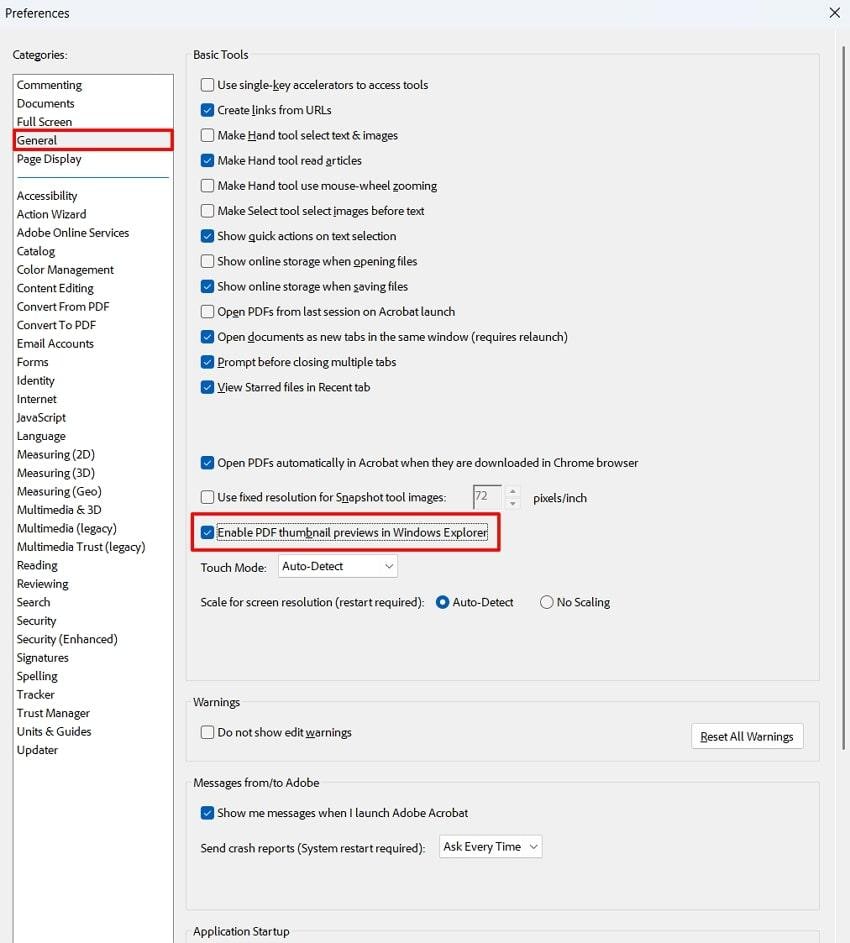
Step 1. Open your Adobe Acrobat software and navigate to the “Menu" button to reach the “Preferences” settings.
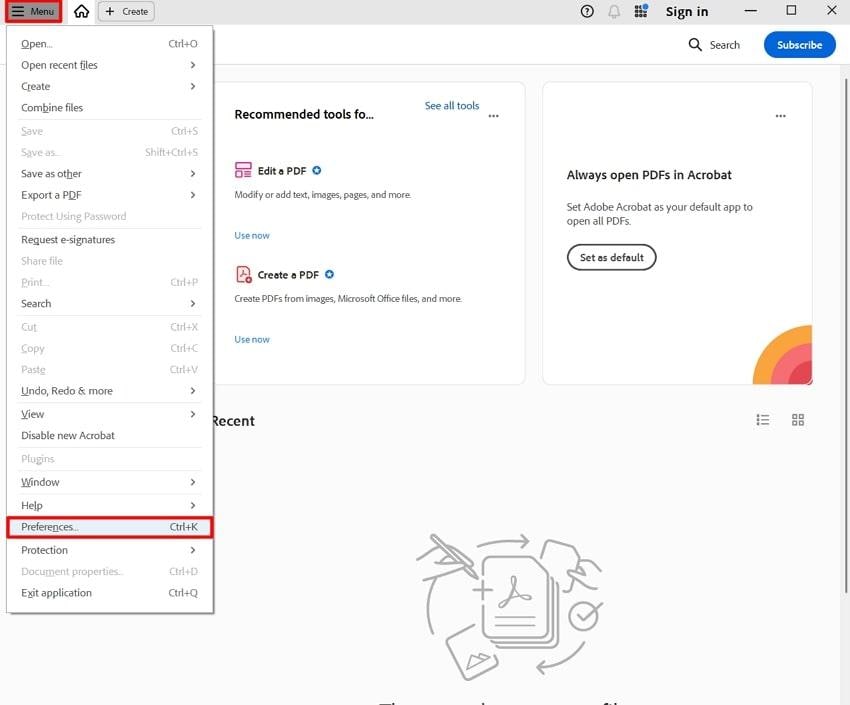
Step 2. Choose the “General” option from the left tab and toggle the “Enable PDF thumbnail previews in Windows Explorer.” Following this, hit the “OK” button and restart your PC to fix the icon display across it.
Fix 3. Rebuild Windows Icon Cache
Instead of fixing each icon separately, this method wipes the broken cache so Windows recreates all icons cleanly in one go. It efficiently fixes persistent black or wrong icons that do not respond to simple refresh or view changes. Most importantly, this targets the real cause of the error and works system‑wide for all icons. So, if you want to deal with these stubborn PDF black icon errors, follow the given guide:
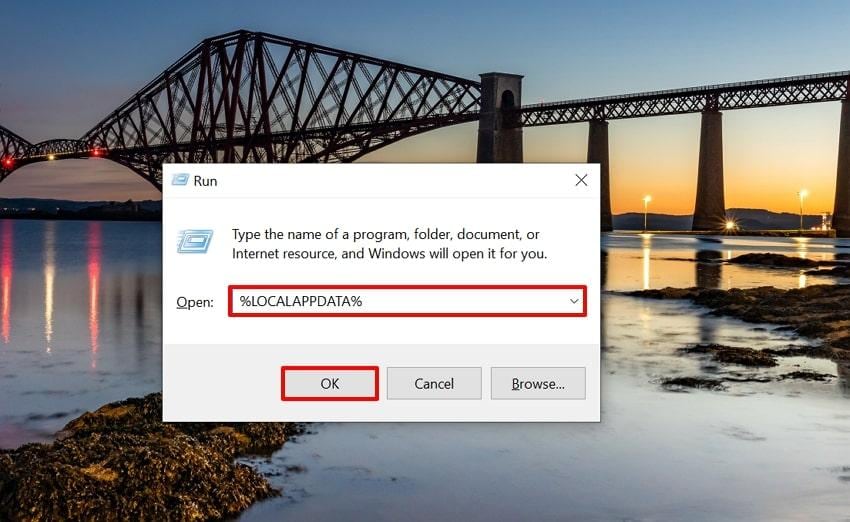
Step 1. Press the “Windows + R” key on your keyboard to access the Run program. Afterwards, type “%LOCALAPPDATA%” in the following window and hit the “OK” button.
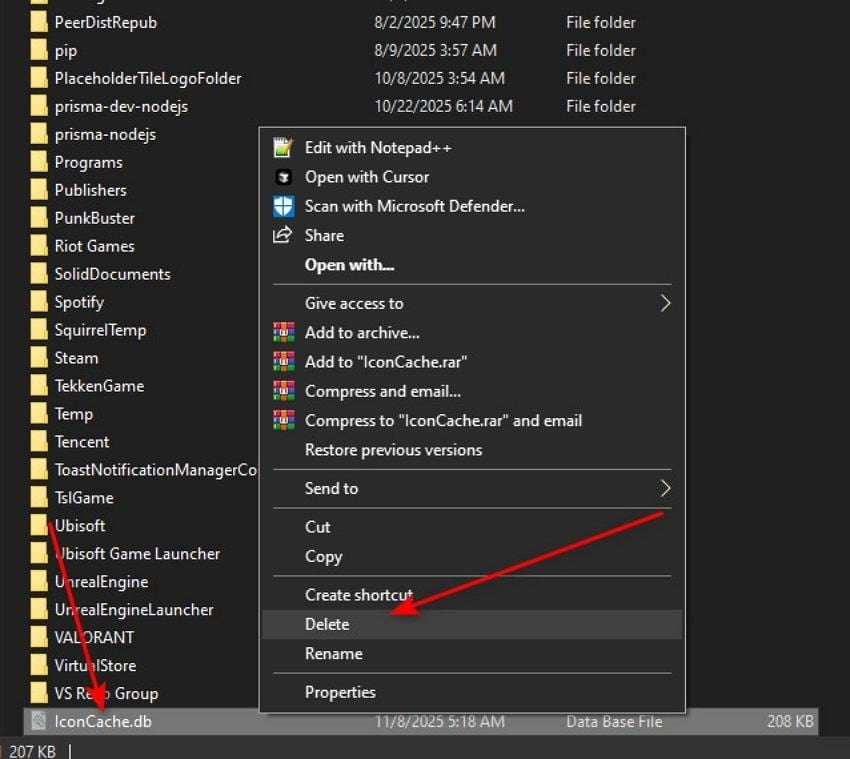
Step 2. Here, navigate to the “IconCache.db” folder, right-click it, and hit the "Delete" button to erase all the cache data.
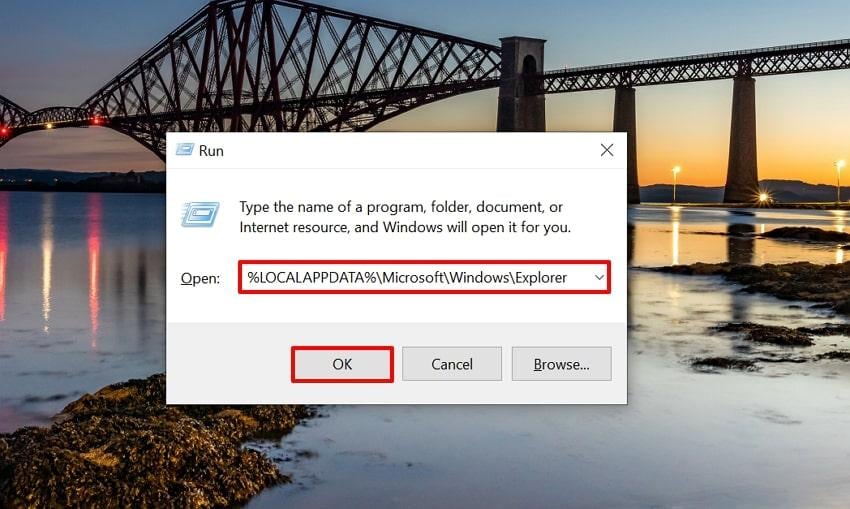
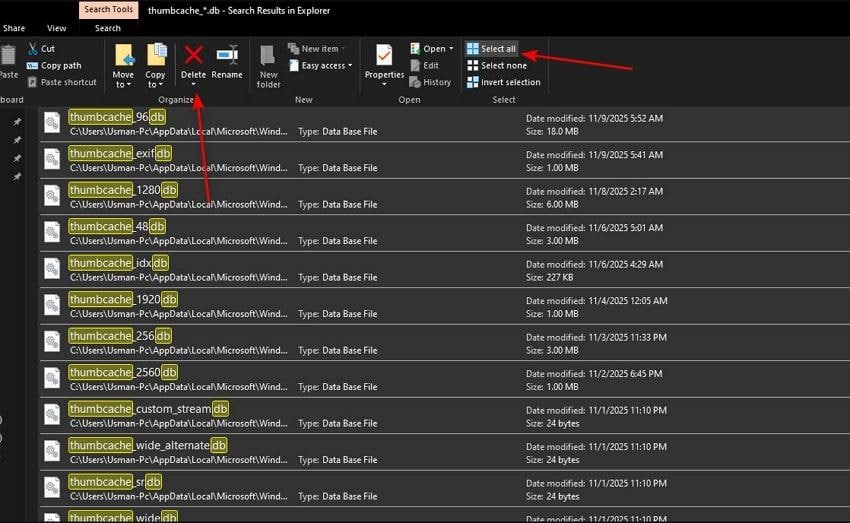
Step 3. Enter "%LOCALAPPDATA%\Microsoft\Windows\Explorer" within the Run program again and hit "OK."
Step 4. Within the File Explorer, choose “Select All” and hit the “Delete” button to remove all the “thumbcache*.db” files.
Fix 4. Reset PDF File Associations
This method is considered the fastest to reset PDF associations for most users. In this method, you simply ask Windows to open all files with Acrobat, and it will automatically start showing the icon. The foremost part is that it immediately applies to all .pdf files for that user account, which can instantly correct inconsistencies. Explore the guide to learn how to fix the PDF black icon on Windows 10/11/8/7:
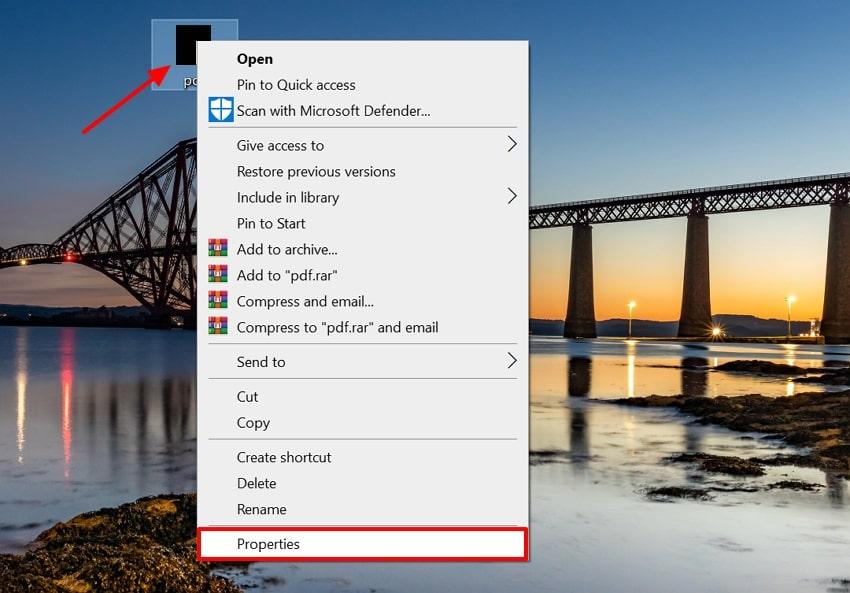
Step 1. Go to the black icon PDF, right-click, and choose the “Properties” option from the pop-up menu.
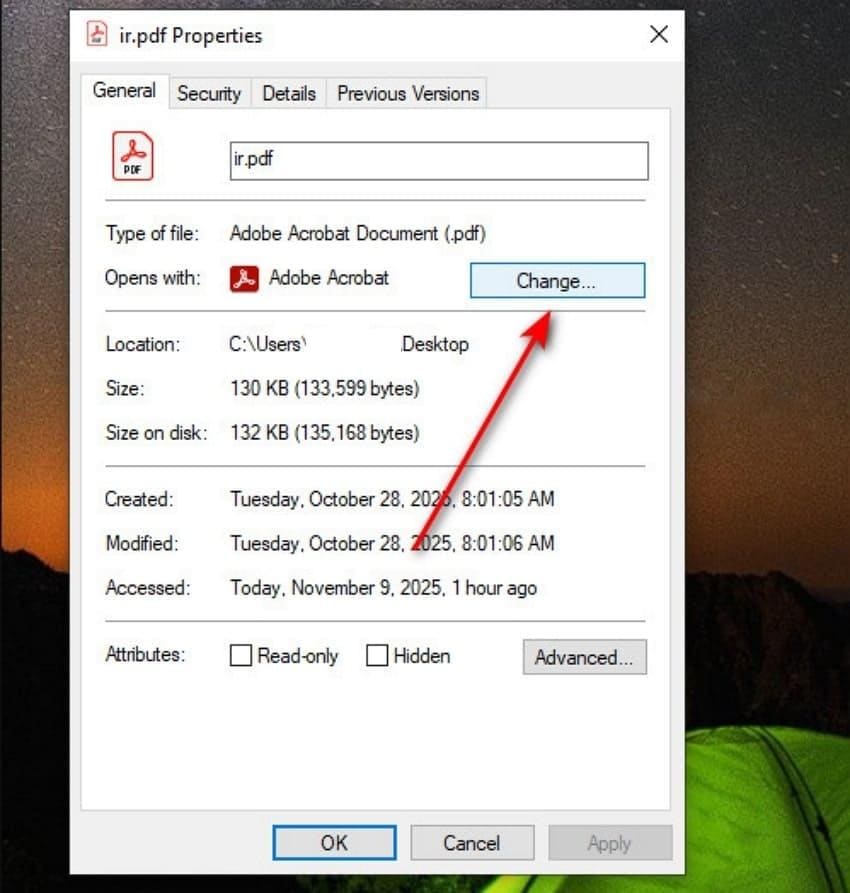
Step 2. Here, tap on the "Change" button adjacent to the "Opens With" option to jump into the next interface.
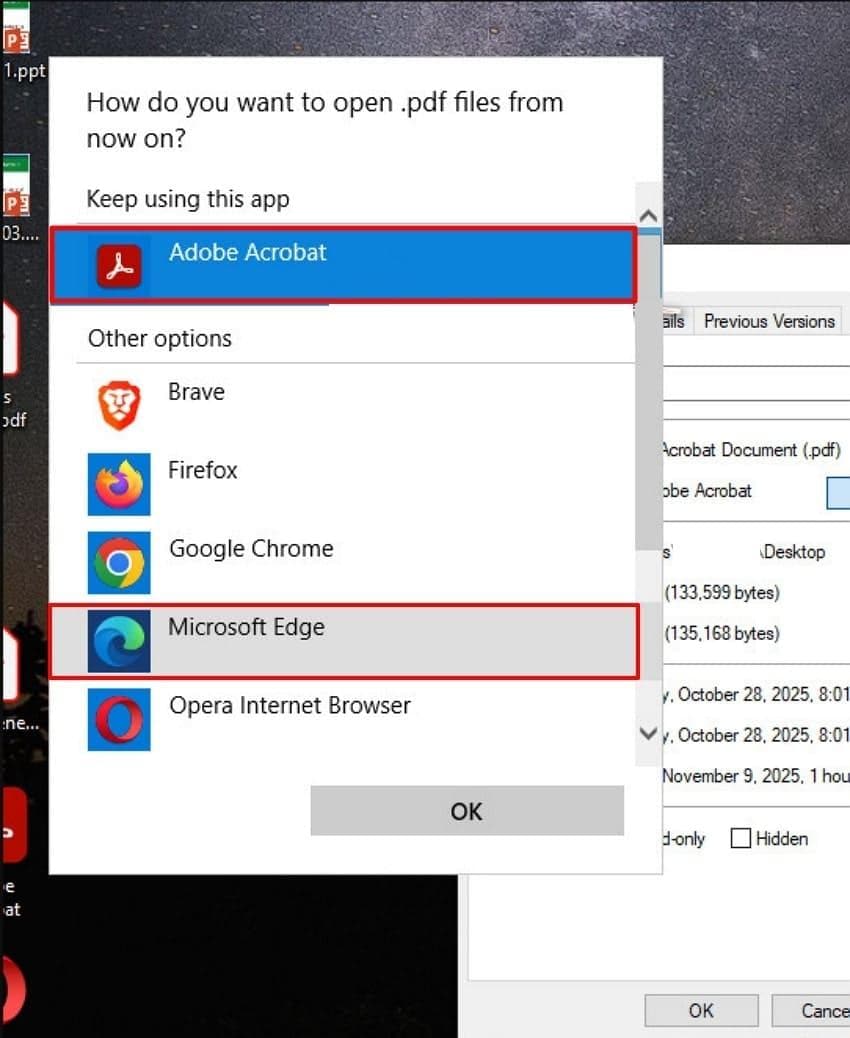
Step 3. Choose the desired viewer for the PDF file out of the provided options to make it the default app for opening PDFs.
Fix 5. Use the Official 64-bit PDF Preview Handler Fix
Users can opt for this method if they are experiencing an error due to incompatibility between 64‑bit Windows and the preview. It directly targets preview errors, such as the Adobe Acrobat black icon or missing thumbnails, on 64‑bit systems. This method restores compatibility from 32‑bit to 64‑bit, making the preview feature accessible. Moreover, it often fixes both File Explorer and Outlook preview issues, so follow the given guide:
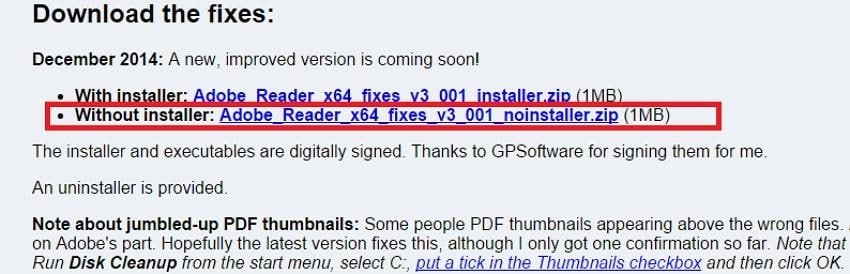
Step 1. Initiate by downloading the “Adobe Reader Preview Handler x64 Fixer.” You can either download it with “Installer” or “Without Installer.”
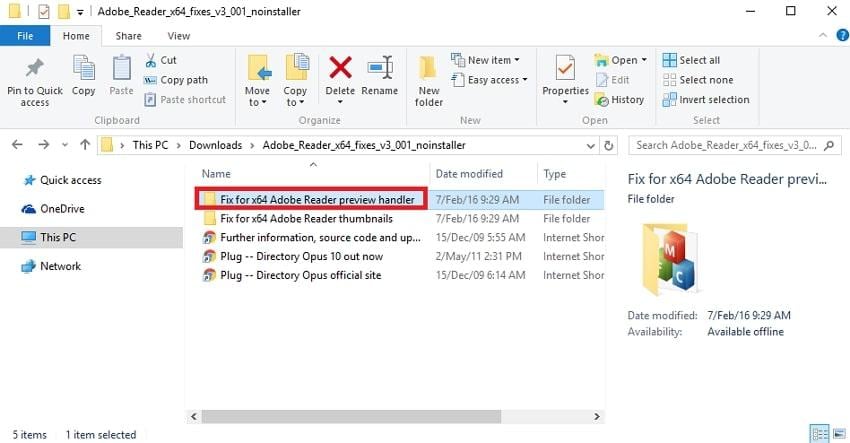
Step 2. Upon downloading the ZIP folder, extract all the files and open the “Fix for x64 Adobe Reader preview handler” folder.
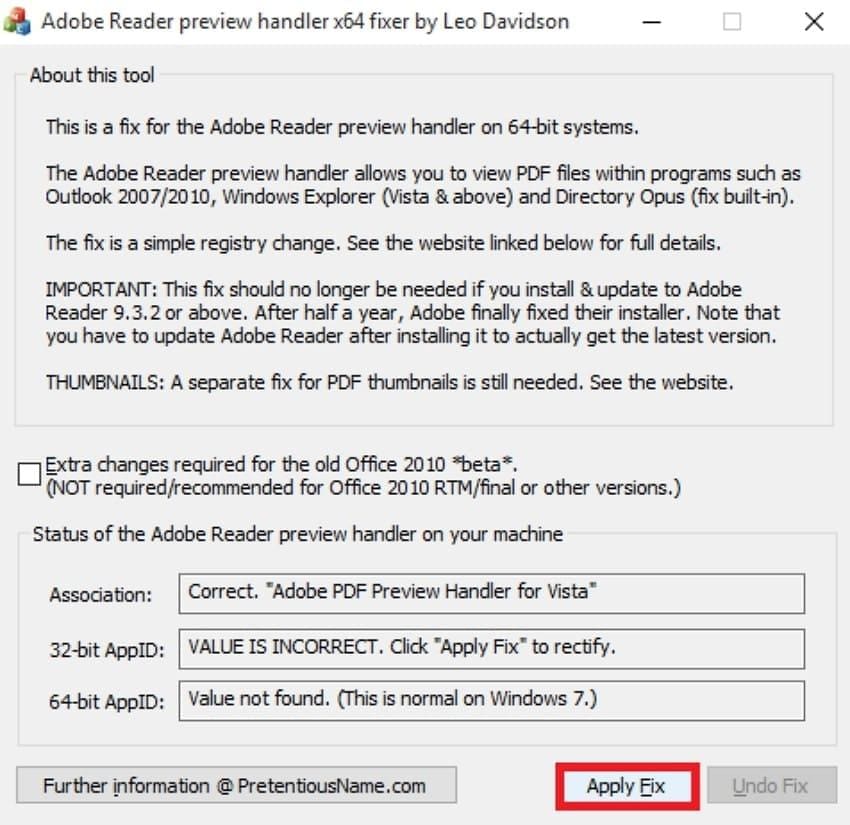
Step 3. While this process will take a while to execute, use the “Apply Fix” button to initiate the black icon error fix.
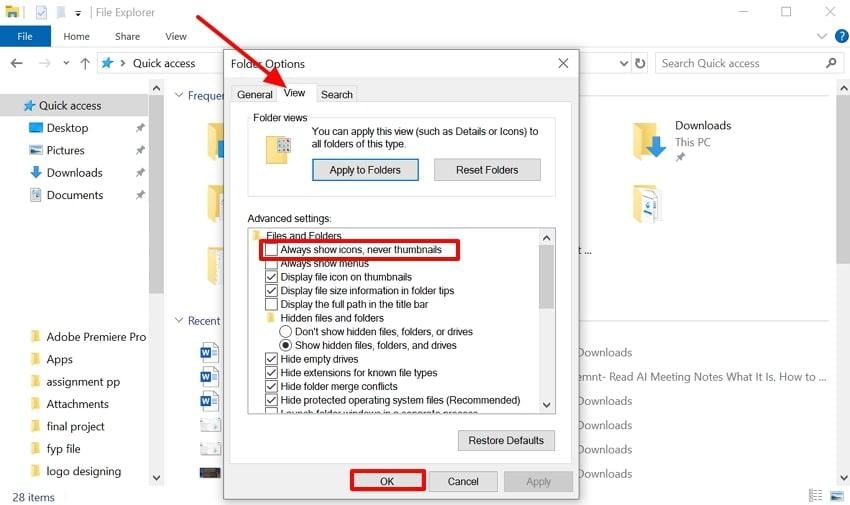
Fix 6. Disable "Always Show Icons, Never Thumbnails."
This setting within the File Explorer settings controls whether the files should be previewed by a thumbnail or a generic icon. When disabled, you can effectively control the PDF black icon problem. This helps in telling Windows to try showing the file previews instead of simple icons, which can be successfully executed as follows:
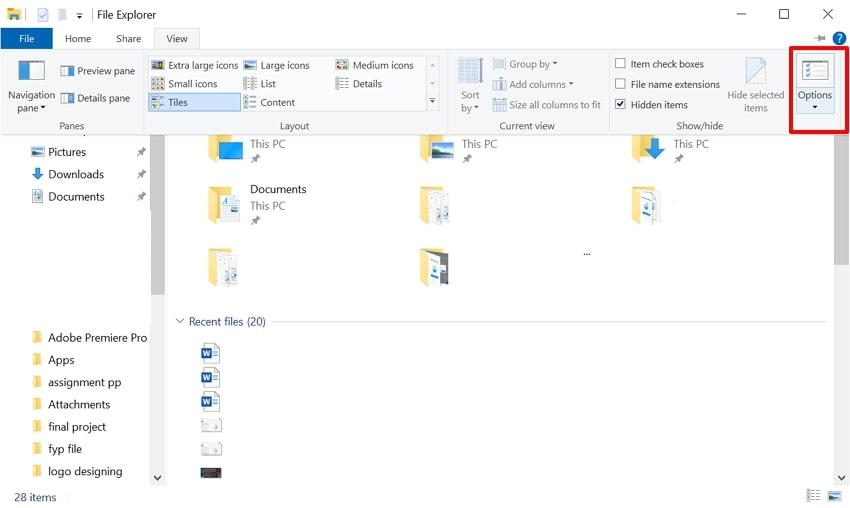
Step 1. Upon accessing the File Explorer, click on the “View” menu at the top. Here, expand the “Options” menu and go for “Change Folder and Search Options” to open its settings interface.
Step 2. Move into the “View” tab to disable "Always Show Icons, Never Thumbnails" within the "Files and Folders" section. Consequently, hit the "OK" button to save the updated settings.
Fix 7. Repair or Reinstall Acrobat/Reader
If you are unable to resolve the Acrobat icon error, the best option is to try uninstalling and reinstalling the app itself. As this method works on Windows, it can efficiently work without accessing the PDF reader. It can easily fix issues related to PDF icons, context-menu items, or preview handlers’ corruption. So, let's explore the following guide to uninstall the Acrobat app to reinstall it later:
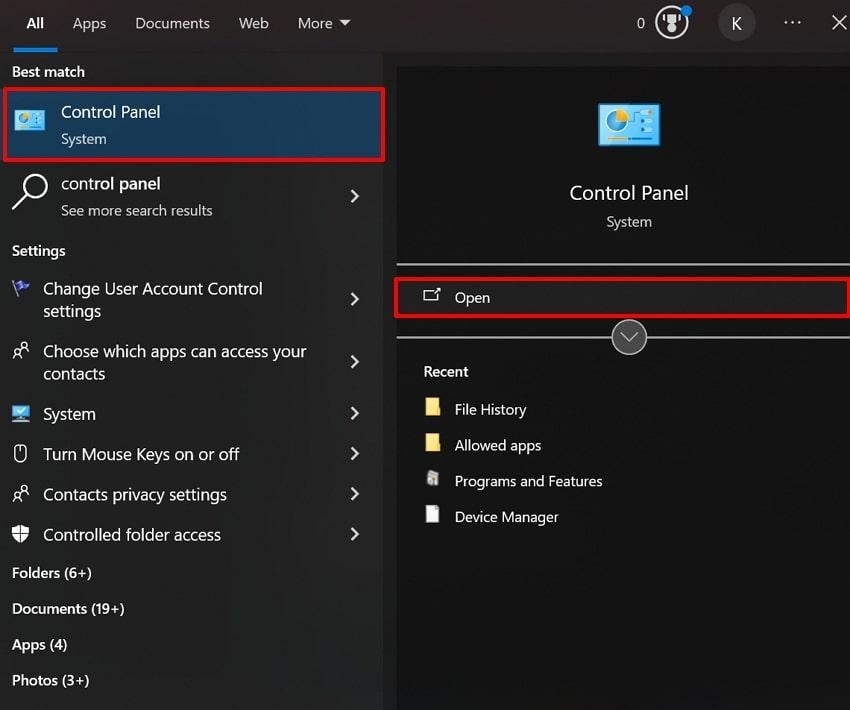
Step 1. After accessing the “Start” menu, search for “Control Panel” and hit “Open.”
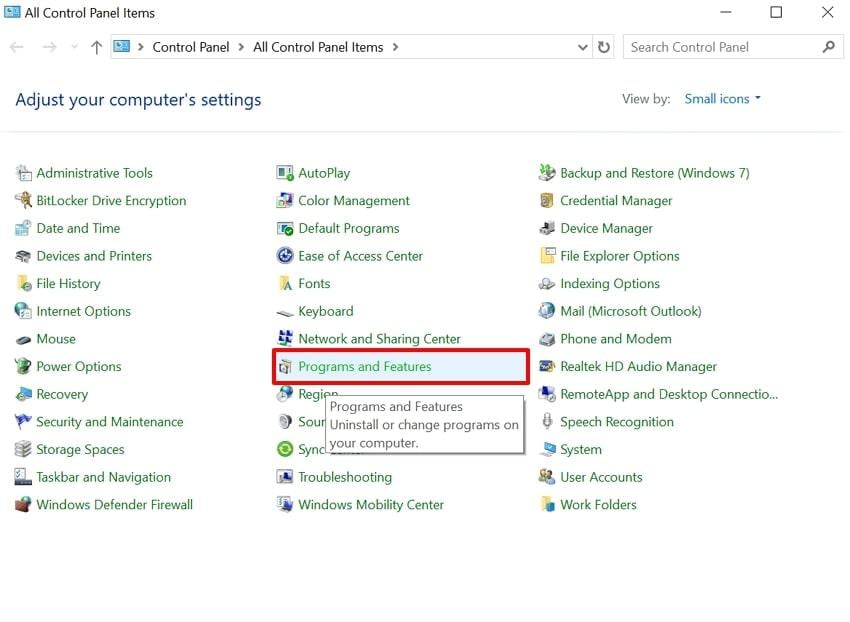
Step 2. As you enter the Control Panel, look for the “Programs and Features" option to jump to the next interface.
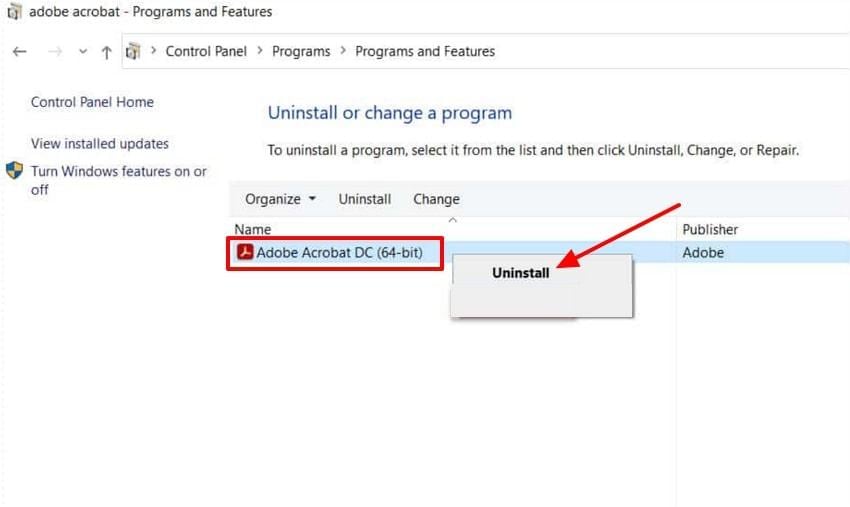
Step 3. Here, right-click the "Adobe Acrobat DC" app and hit the "Uninstall" option. Follow the instructions to reinstall it on your device, which will potentially fix the PDF black icon error.
Fix 8. Update Windows Operating System
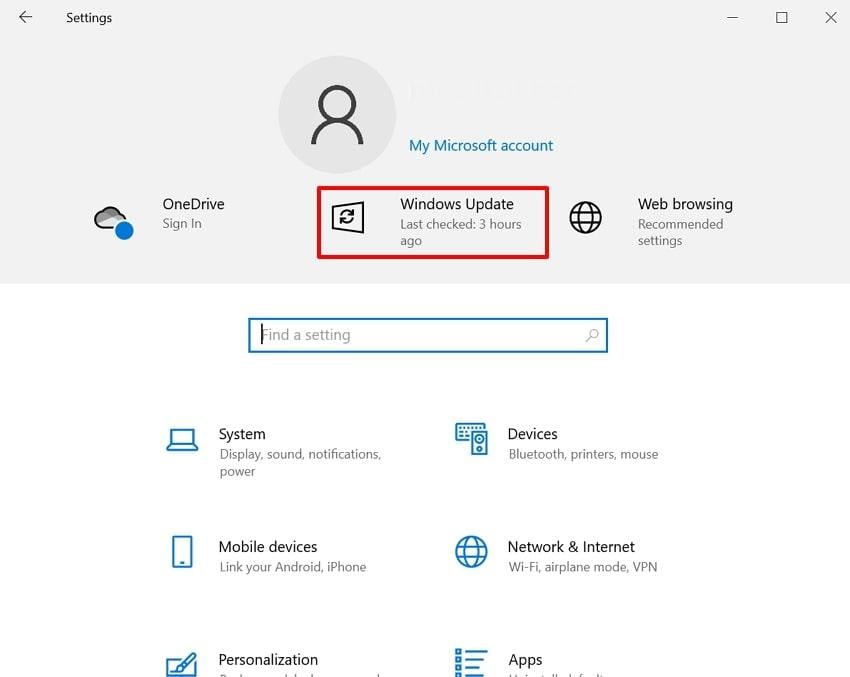
Another critical factor that causes the Adobe Acrobat black icon error is the outdated operating system itself. Mostly, updating your Windows can easily fix these issues by fixing the bugs that are causing this problem in the first place. Follow the simple guide below to update your Windows OS to fix such software-related issues:
Step 1. Upon opening the “Settings” window, choose the “Windows Update" option at the top.
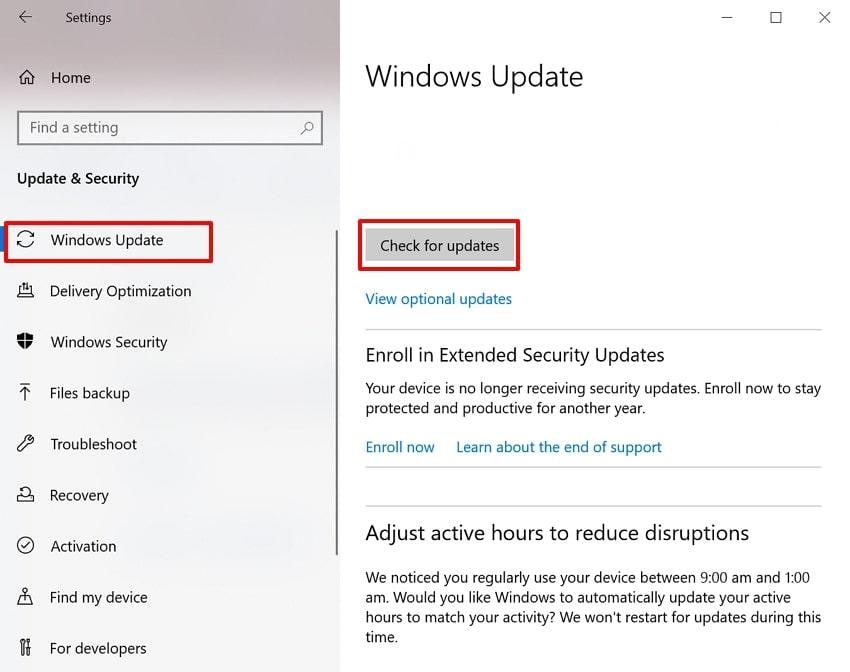
Step 2. As you find yourselves in the “Windows Update” window, hit the "Check for updates" button to confirm if any updates are available. Ensure that you frequently update your Windows system to resolve such bugs.
Pro Tip. Struggling With Corrupted PDF Files? Repair Them Fast with Repairit
Being an office employee, you might work on various PDF files daily. One day, while working as per routine, you discovered a PDF file showing an error that you had to submit today. While you try to access the file through different methods, the best option is to use Repairit, a tool that repairs your files without any loss in quality.
Repairit holds the ability to retrieve all data types, including text, images, archives, and even PDF files. Moreover, it helps enhance the visuals of both photo and video files, allowing you to make them more appealing. The foremost advantage of having Repairit is its ability to preview the generated result to ensure optimal results.
Key Features

-
Repair damaged files with all levels of corruption, including blank PDF, PDF not opening, PDF picture issues, PDF color issue, PDF fonts missing, unreadable pdf, etc.
-
Fix text, hyperlinks, forms, headers, footers, graphs, watermarks in PDF, etc
-
Perfectly repair corrupted files with a very high success rate, without modifying the original file.
-
No limit to the number and size of the repairable files.
-
Support Windows 11/10/8/7/Vista, Windows Server 2003/2008/2012/2016/2019/2022, and macOS 10.10~macOS 13.
-
Except PDF, Repairit also supports all formats of Word, Word, Excel, PowerPoint, ZIP, and Adobe files.
Extensive Guide on How to Use Repairit For Document Repair
While resolving the Adobe Acrobat black icon, if you want to repair a PDF, go ahead and read the following detailed guide:
Step 1. Choose More Types Repair to Insert Corrupted File
Upon entering the Repairit desktop software, click on the “More Types Repair” feature from the left tab. Afterwards, choose the “Document Repair” option and hit the “Start” button to insert the corrupted file.

Step 2. Initiate the Repairing Procedure with Repairit
Upon adding a corrupted PDF file, tap on the "Repair" button to start the repair procedure instantly.

Step 3. Preview the Outcome to Save it to the Device
Once your corrupted PDF is repaired, hit the "Preview" button to examine the results. After previewing the outcome, click on the "Save All" button to get the PDF file saved to the designated device folder.

Repair Corrupted PDF Files
 Security Verified. Over 7,302,189 people have downloaded it.
Conclusion
Summing up, this article covered all major methods to resolve the Adobe Acrobat black icon error. We have discussed all the methods in detail with their guides and key features. Not only this, if your PDF file gets corrupted, Repairit turns out to be the best solution for repairing numerous file formats while providing maximum accuracy.
FAQs
-
Q1. Why are my PDF icons suddenly showing as black squares on the desktop?
This usually happens because the Windows icon or thumbnail cache is corrupted or there is a conflict between apps. These issues lead to Windows drawing a black block instead of the normal icon or preview. -
Q2. Is the black icon problem damaging my actual PDF files?
No, in most cases, it does not damage your original files within the PDF. However, sometimes it can happen only due to a virus attack on your PC, which can be repaired using efficient tools. -
Q3. Will these steps work on both Windows 10 and Windows 11?
Yes, most of the DIY methods are designed to work efficiently on both Windows 10 and 11. You can use any method, as there will be only minor differences in the interference layout, but the features remain the same. -
Q4. Is it possible to repair corrupted PDF files due to the Black icon issue?
It is definitely possible to repair corrupt PDF files using well-reputed software like Repairit. This tool helps you repair various file formats at once while ensuring maximum accuracy.




