
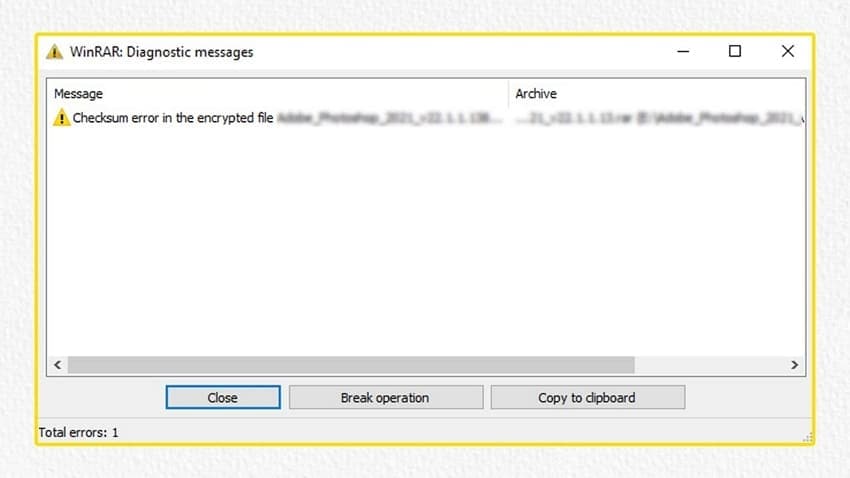
When WinRAR shows a “Checksum Error and File is Corrupt While Extracting By WinRAR” message, it means the archive data is damaged. This often happens when the file is not downloaded properly or when power is lost during transfer between devices. Understanding this message helps you decide whether the archive can be rescued or must be replaced.
The problem can also be triggered by unreliable compression tools interfering with the RAR creation and extraction process. This guide explains what this checksum error means and provides practical ways to protect your data and recover important files.
Table of Contents
Part 1. Why “File Is Corrupt” Appears During Extraction
The “Checksum Error” in WinRAR means that the data inside the archive no longer matches the original information. A checksum value acts like a digital fingerprint, and WinRAR compares current data against it. Any missing portions inside the archive cause this comparison to fail, which triggers the checksum error message.
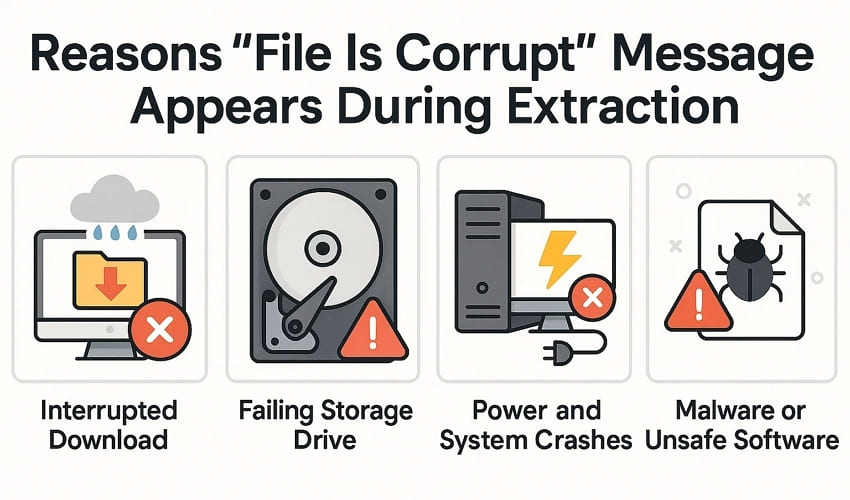
Reasons “File Is Corrupt” Message Appears During Extraction
First off, let’s look at why the “Checksum error and file is corrupt while extracting by WinRAR” occurs:
- Interrupted Download: An incomplete download leaves missing chunks in the archive, which trigger checksum errors during extraction. Repeated timeouts from slow networks corrupt compressed data before WinRAR begins processing.
- Failing Storage Drive: Bad sectors on a hard drive or USB stick damage parts of the RAR file structure. Read errors or strange clicking noises often signal physical drive problems behind corrupt archive messages.
- Power and System Crashes: Sudden shutdowns during save or archive compression interrupt critical write operations. Corrupted metadata and half-written data blocks later cause WinRAR to report files as corrupt.
- Malware or Unsafe Software: Viruses and shady tools may inject code or bytes inside the archive without visible clues. Tampered headers or payload data break integrity checks, so WinRAR displays checksum errors.
- Already Damaged Source Data: Files that were corrupted before compression are included in the archive exactly as WinRAR received them. Hidden damage inside video documents only appears later as checksum failures when extracting.
Part 2. Step-by-Step Solutions for Checksum Error and File is Corrupt While Extracting By WinRAR
Once you know the reasons for “Checksum error and file is corrupt while extracting by WinRAR,” let's explore practical solutions.
Method 1. Use WinRAR’s Built-In Repair Tool
The built-in repair feature in WinRAR handles damaged archives that refuse to extract. It focuses on reconstructing the internal structure so files can become readable again. In many everyday corruption cases, the repair feature provides a safe first option for attempting recovery. Now, follow the steps below to fix this error and make the corrupted archive accessible again:
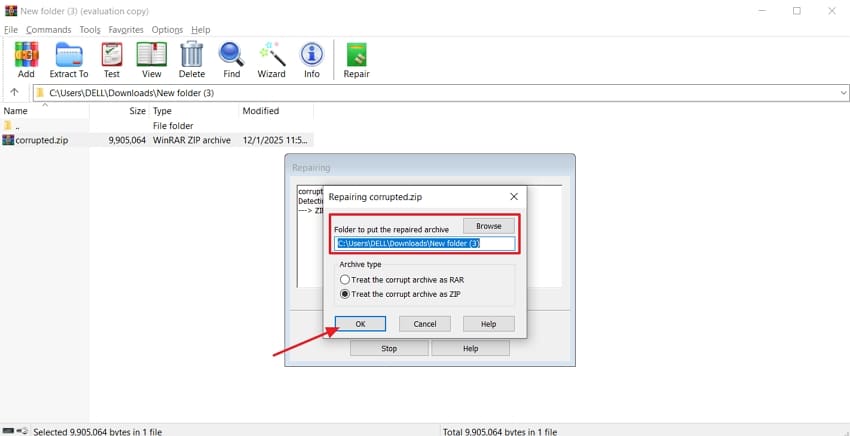
Step 1. Open WinRAR and browse the corrupted archive file. Press the “Tools” option in the upper menu and hit the “Repair Archive” option.
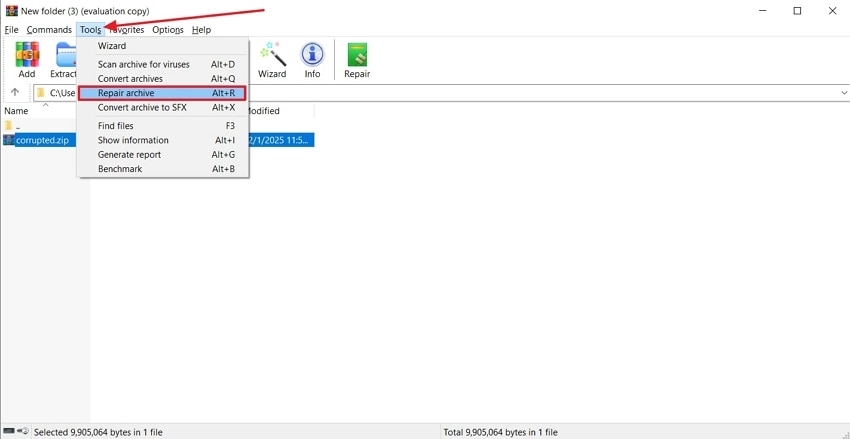
Step 2. Next, choose the location for saving the repaired archive and hit the “OK” button to proceed further. Check if the repaired file extraction issue is fixed or not.
Method 2. Enable "Keep Broken Files" Option
At times, when a “Checksum error and file is corrupt while extracting by WinRAR” occurs, it blocks access to important content. This option allows you to save extracted files even if errors interrupt the normal process. Many users facing repeated archive errors rely on this tool to recover usable files from a damaged RAR archive. Adhere to the guide below as this method helps fix the issue and recover essential data:
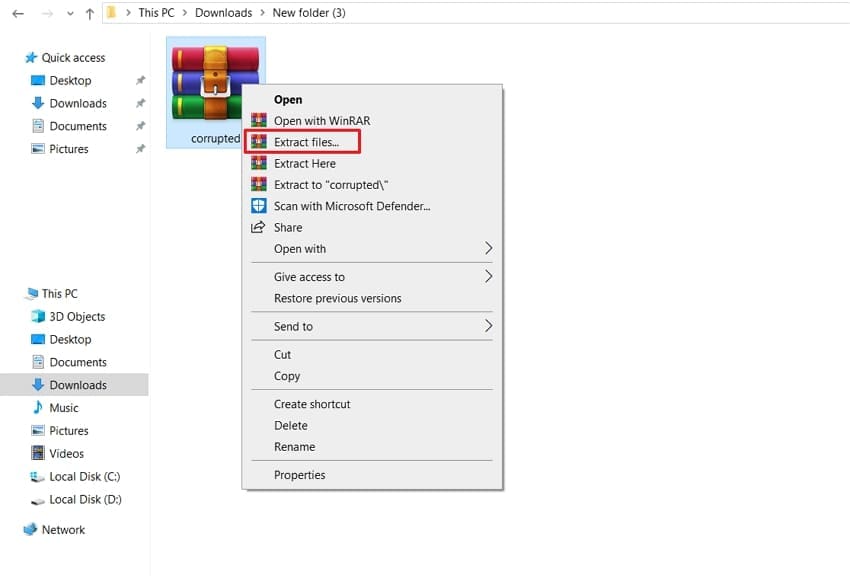
Step 1. Right-click the corrupted RAR file to view the context menu and hit the “Extract Files…” option.
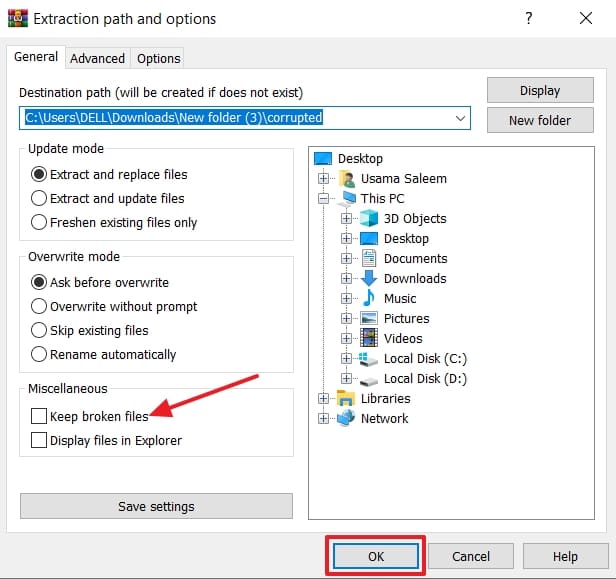
Step 2. In the pop-up window, select the “Keep Broken Files” option under the “Miscellaneous” section and hit the “OK” button. This will extract all recoverable data from the corrupted archive and allow access to files.
Method 3. Redownload The Archive
A fresh download often becomes the most reliable way to clear the stubborn “Checksum error and file is corrupt while extracting by WinRAR” issue. Interrupted downloads leave archives with missing or damaged sections that cause extraction failures. Faulty upload sources can also corrupt data before WinRAR attempts to process the file contents.
Redownloading from a source ensures the archive arrives complete without any hidden corruption. A download manager prevents interruptions by retrying failed chunks during the transfer process. Switching to a different browser helps bypass caching glitches and network-specific problems.
Method 4. Try Alternative Extraction Tools
Some stubborn archives keep showing a “Checksum error and file is corrupt while extracting by WinRAR” after basic fixes. In those cases, alternative extraction tools can read the same compressed data using different engines. Switching tools bypasses WinRAR-specific issues and gives damaged archives another chance to open.
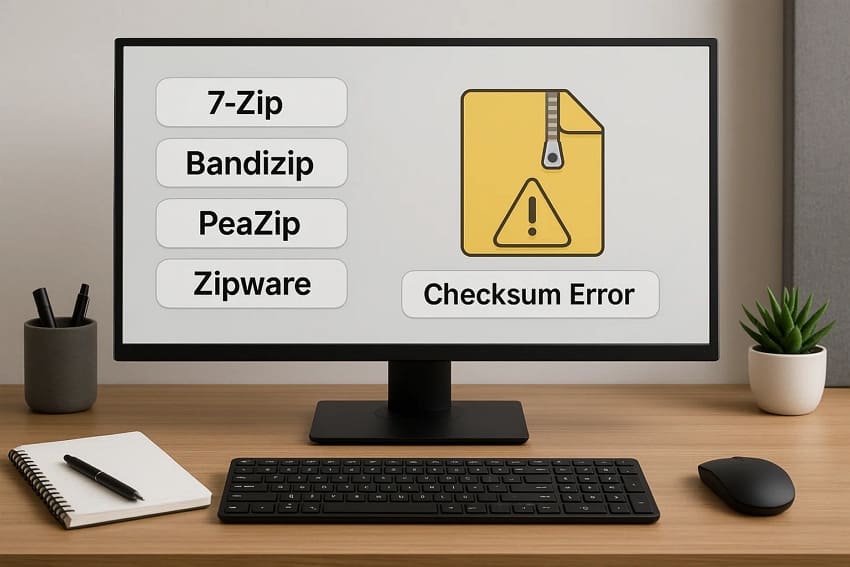
Recommended options include 7-Zip, Bandizip, PeaZip, and Zipware, all known for stronger error tolerance than WinRAR. These tools use different extraction engines and give damaged archives a better chance of opening successfully.
Method 5. Scan Drive for Errors
Bad sectors and hidden drive problems are common causes of a “Checksum error and file is corrupt while extracting by WinRAR.” Routine use may damage parts of a stored archive without causing other system errors. A full-disk scan identifies physical errors to prevent corruption and ensure reliable extractions. Now, go through the steps below to scan your drive for errors and recover the corrupted archive safely:
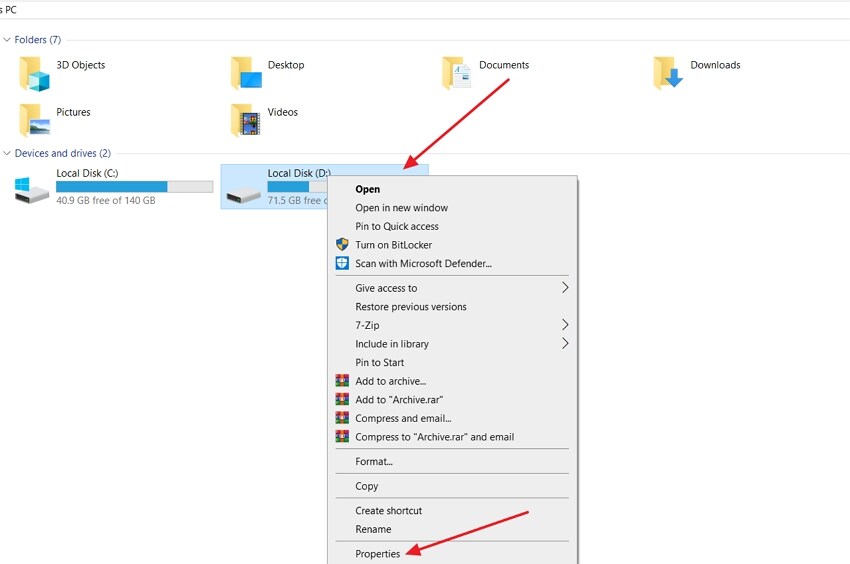
Step 1. Open the Windows File Explorer and right-click the drive containing the corrupted archive file. Hit the “Properties” option in the context menu to continue further.
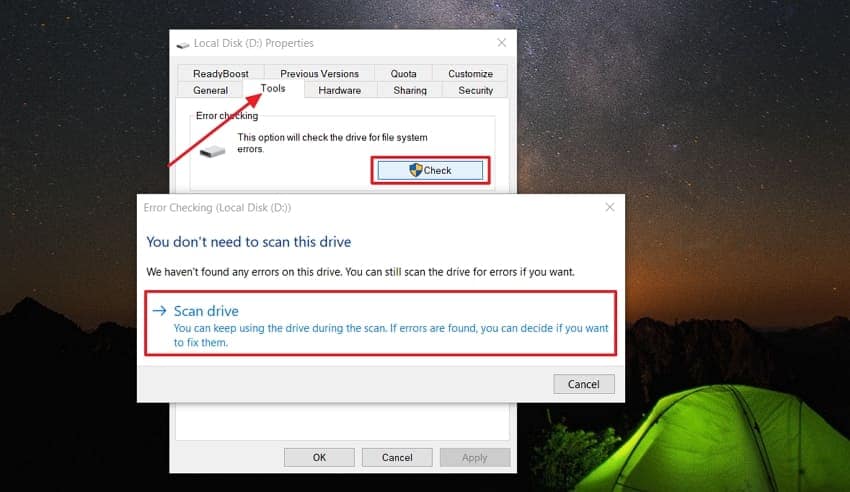
Step 2. Next, hit the “Tools” tab and press the “Check” button under the “Error Checking” section. A pop-up will appear where you need to hit the “Scan Drive” option to start the scanning process.
Method 6. Use Professional File Repair Software - Repairit
After trying all the above methods, a “Checksum error and file is corrupt while extracting by WinRAR” may continue. In such situations, Repairit serves as a tool for addressing severe archive corruption. The software examines damaged data at a deeper technical level than basic extraction programs can achieve. Instead of ignoring faults, it reconstructs broken structures and restores important files from heavily corrupted archives.
Key Features

-
Repair damaged Zip files with all levels of corruption, including Zip files not opening, Zip folder is invalid, CRC error, etc.
-
Repair damaged or corrupted Zip files caused by any reason, such as system crash, file format change, virus attack, etc.
-
Perfectly repair corrupted Zip files with a very high success rate, without modifying the original file.
-
Automatically decompress, extract, and restore repaired files to their original states
-
Enable batch repair for ZIP files and files larger than 1G.
-
Repairit supports repairing damaged or corrupted PDF, Word, Excel, Zip, and PowerPoint files, support all file formats and versions.
Guide to Repair Damaged Archives with Repairit
Follow these steps to fix the “Checksum error and file is corrupt while extracting by WinRAR” efficiently with Repairit:
Step 1. Access Archive File Repair Tool
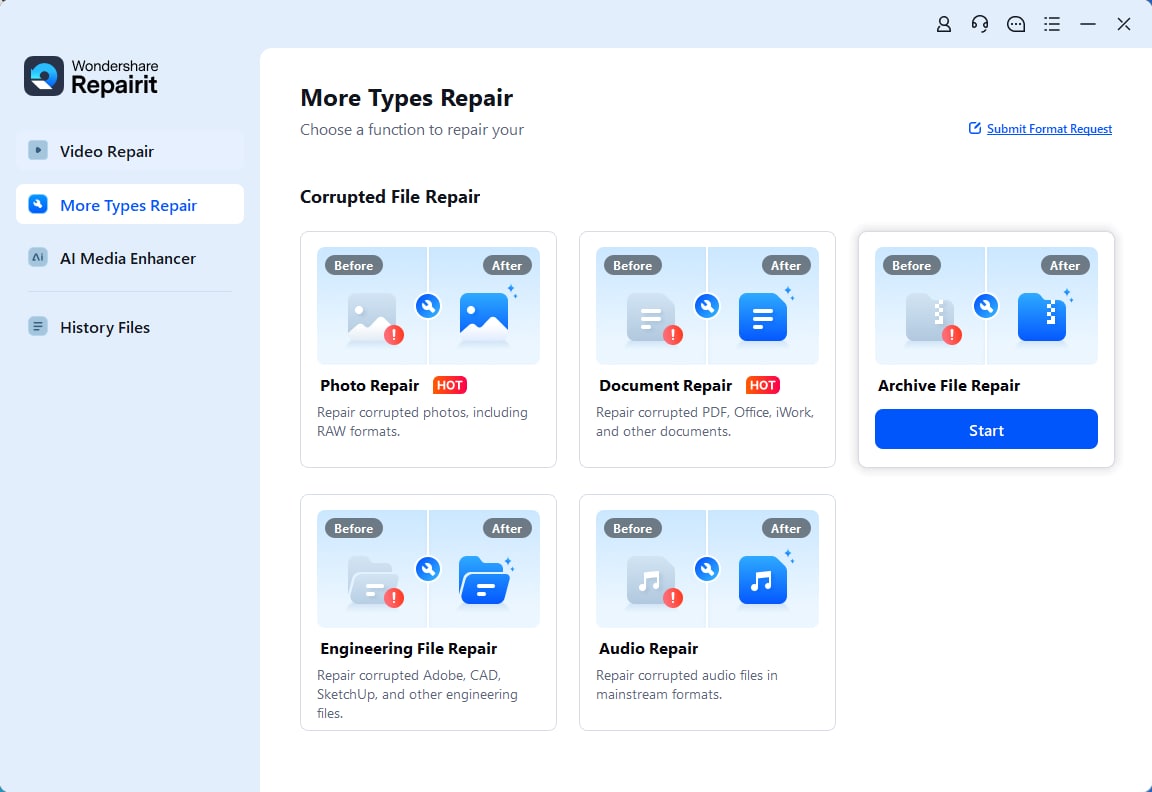
Once you enter the main interface, hit the “More Types Repair” option and press the “Start” button under the “Archive File Repair” section.
Step 2. Import All Corrupted Archive Files
Move forward and press the “+Add” button to import all the corrupted files to the platform.

Step 3. Start The Repairing Process
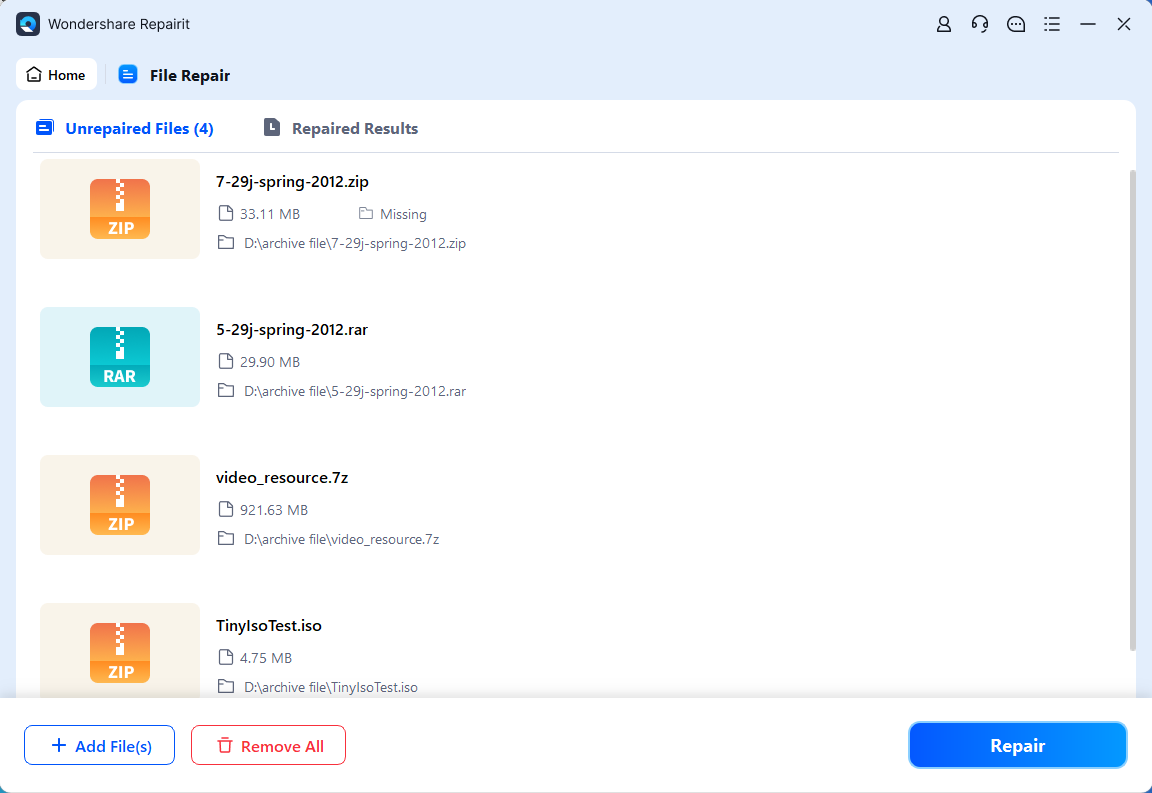
After importing, hit the “Repair” button in the bottom right corner to start the repair process.
Step 4. Preview and Save Repaired Files
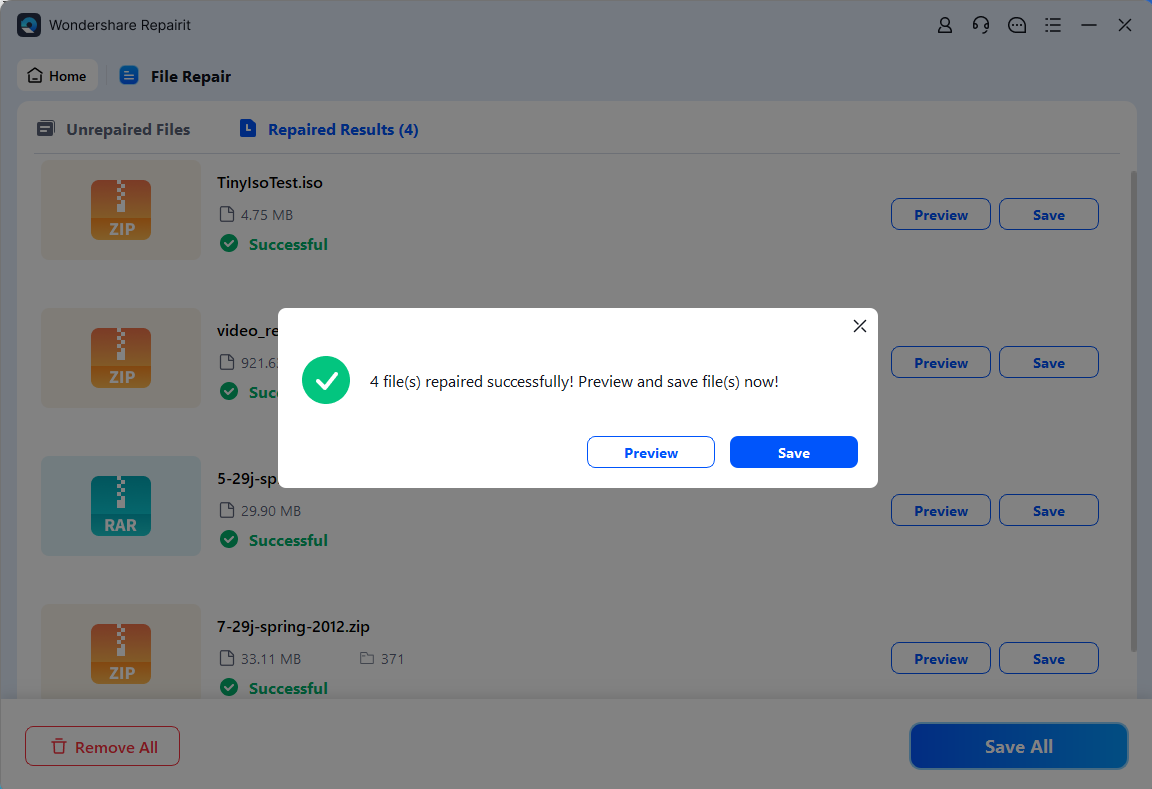
Once the files are repaired, hit the “Preview” option to see them and click the “Save” button to export the repaired files.
Repair Damaged Archives
 Security Verified. Over 7,302,189 people have downloaded it.
Conclusion
In conclusion, a “Checksum error and file is corrupt while extracting by WinRAR” is frustrating but usually solvable with the right approach. Through this guide, you have seen how careful downloading and built-in repair options can often rescue damaged archives. If repeated errors persist or important documents remain unreadable, consider using Repairit to repair corrupted data safely and reduce the risk of permanent loss.
FAQs
-
Q1. Why does this error keep coming back on the same archive?
If the “Checksum error and the file is corrupt while extracting by WinRAR” keeps reappearing, the archive may be too damaged. In this situation, try using a dedicated file repair tool like Repairit to rescue your important documents. -
Q2. Why do some archives work on another computer but fail on mine?
Differences in storage health, antivirus settings, and available disk space can affect how extraction behaves. If the archive opens elsewhere, check your drive for errors, available space, and overly aggressive security tools causing failures. -
Q3. Does deleting temporary files help with extraction problems?
Clearing temporary folders and freeing disk space can prevent extraction from failing when archives unpack many large items. Extra space reduces write errors and gives WinRAR room to create and verify all extracted files safely.




