
The 0xc0000098 error on Windows is a sign that your system’s startup files are out of sync. Essentially, your computer is trying to boot but can’t find the necessary information to load Windows. Seeing 0xc0000098 error pop up can be alarming, but it's actually your system signaling that something needs to be repaired.
Although it isn’t a minor glitch, it can prevent Windows from loading altogether if ignored. Luckily, resolving it is possible and only requires complete attention towards the article below. From understanding the error to tested repair solutions, the guide ensures your workflow isn’t disrupted at all.
Table of Contents
Part 1. Understanding the 0xc0000098 Error
To address the BCD 0xc0000098 error, a basic understanding of its underlying causes and how it affects the system is important:
What Are the Symptoms of the Windows Boot Error 0xc0000098?
- Your PC may fail to boot Windows, leaving you with a 0xc0000098 error on the screen.
- The computer might continuously restart without successfully loading Windows, triggering repeated attempts to start the system.
- Even if Windows loads partially, the system may freeze due to corrupted boot data.
- The system may display "Boot Device Not Found" or "No Operating System Found" due to BCD corruption.
- PC might restart automatically multiple times while attempting to fix the boot error itself.
Major Causes Behind the BCD 0xc0000098 Issue
Once the symptoms are manifested for the 0xc0000098 Windows 11 error, read the possible causes behind it:

- Corrupted Boot Configuration Data (BCD): One of the leading causes of the 0xc0000098 error is a corrupted or missing BCD file. When BCD becomes damaged, Windows loses track of where to find boot files, resulting in startup failures.
- Sudden Power Failures or Improper Shutdowns: Abrupt shutdowns, power outages, or forced restarts can disrupt critical system operations. Even a single improper shutdown during a system update can activate the 0xc0000098 error.
- Failed or Incomplete Windows Updates: An Interrupted Windows update can accidentally overwrite or corrupt the BCD file, leading to this dreaded error. When the update process is incomplete, Windows may fail to locate the boot files, triggering the error ultimately.
- Any Hard Drive or Disk Errors: Physical issues with your hard drive, such as bad sectors, can prevent the system from reading the BCD properly. Disk failures can also corrupt other essential boot files, rendering Windows unable to start.
- Due to Malware or Virus Infection: Viruses can intentionally damage system files, including the BCD, to disrupt normal PC operations. Some malicious programs target boot files to prevent Windows from starting or to hide their presence.
Part 2. How to Fix 0xc0000098 on Windows 10 & 11
For a recurring 0xc0000098 Windows 10 error, you can try the fixes below to improve your Windows stability. Essentially, each method not only helps your system boot again but also reduces the chances of future boot failures:
Fix 1. Rebuild the BCD Manually
Rebuilding the Boot Configuration Data is a direct solution to this issue because it restores the core boot instructions. A manual reconstruction helps you recreate proper boot pathways, allowing Windows to load smoothly again. To prevent this reappearing boot error, follow the guidelines as directed below:
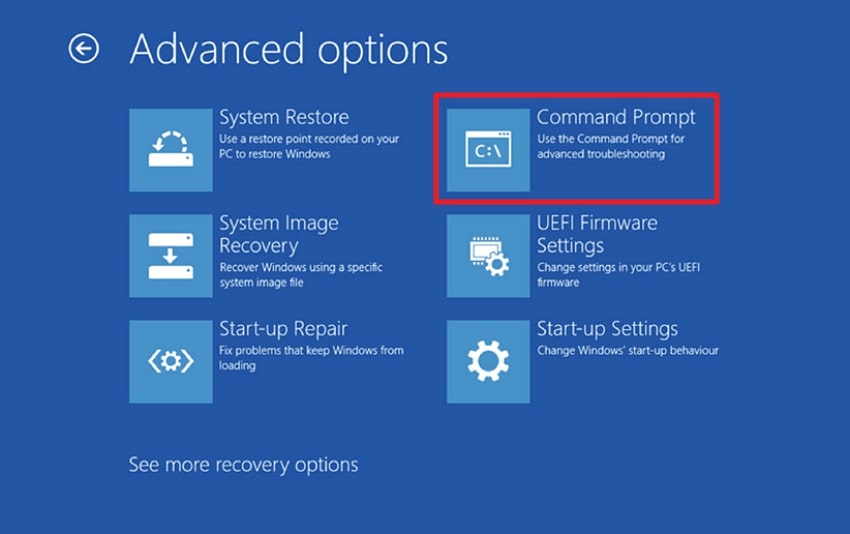
Step 1. Boot your PC from the bootable USB or recovery drive, then select “Repair Your Computer” from the Windows Setup. Here, go to “Troubleshoot,” access the “Advanced Options” screen, and press the “Command Prompt” option.
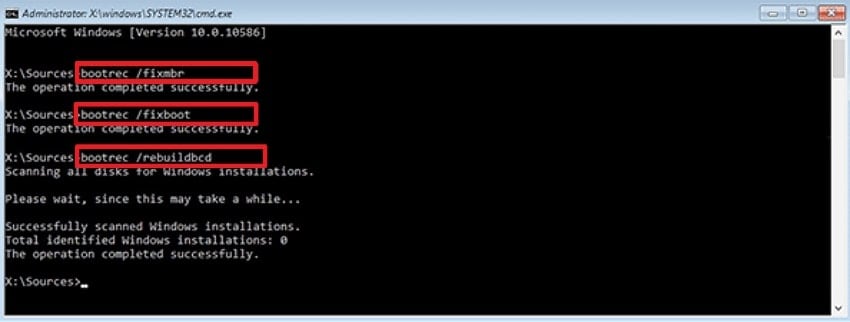
Step 2. Now, in the command prompt, run the provided commands one by one, pressing Enter after each. Following this, if prompted for permission, type “Y” and then press Enter. Once you’ve entered the commands listed, close the Command Prompt window and reboot your PC.
- bootrec /fixmbr
- bootrec /fixboot
- bootrec /scanos
- bootrec /rebuildbcd
Fix 2. Use the Startup Repair Tool
Startup Repair is Windows’ built-in self-healing mechanism and the first-line solution for the 0xc0000098 error. The tool performs an automatic scan of boot sector data, essential startup drivers, and BCD records. If anything is detected as misaligned or corrupted, it automatically applies the correct fix. Follow the provided instructions and understand how to use the Startup Repair tool:
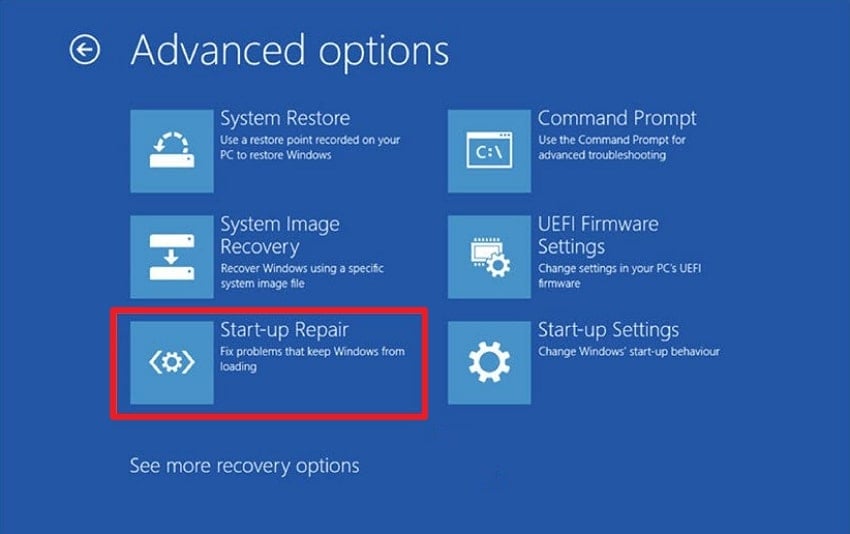
Instructions: First, boot your PC from your setup disk (USB/recovery drive), then choose the “Repair Your Computer” option. Move forward, navigate to “Troubleshoot,” select the “Advanced Options” option, and click on “Startup Repair.” Doing so, the tool will begin scanning your installation for known issues and will attempt to repair them.
Fix 3. Perform a CHKDSK Command
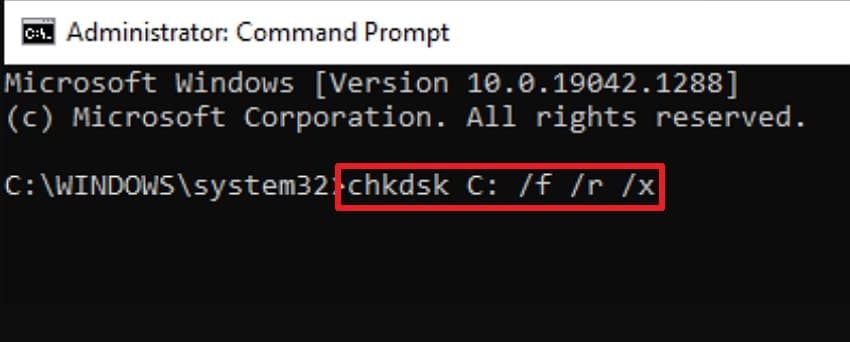
For the BCD 0xc0000098 error, running the CHKDSK command can resolve deeper disk-level issues. It's a quick diagnosis that enhances long-term system stability by identifying areas of the drive that might fail later. Follow the tutorial and ensure your boot files sit on a healthy, readable sector, increasing the chances of error-free setup:
Instructions: At first, boot your drive from your installation media, and access the “Command Prompt.” Once done, type the command line as directed below, then press Enter. After this, simply close the Command Prompt and restart your device to check if the issue is resolved.
Fix 4. Use System File Checker
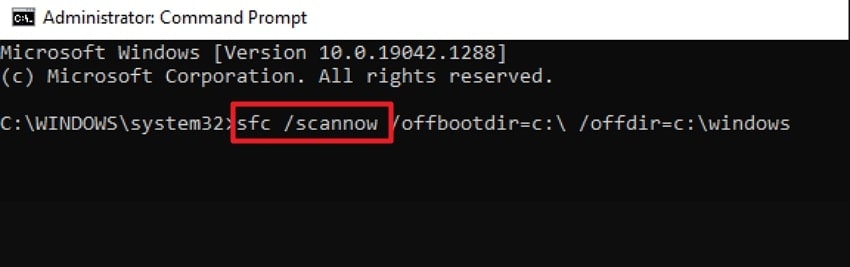
System File Checker not only fixes 0xc0000098 Windows 11 errors, but also improves overall system health. While repairing essential system files, SFC can detect and fix hidden corruption that causes random app crashes and unstable system behavior. To proceed, simply follow the manual to solve the Windows load error if it originates from boot dependencies:
Instructions: Open the Command Prompt window in Windows Recovery Mode and enter the sfc /scannow command. After this, let SFC complete and repair any corrupt files it finds, then restart and test the boot again.
Fix 5. Perform a Clean Install of Windows
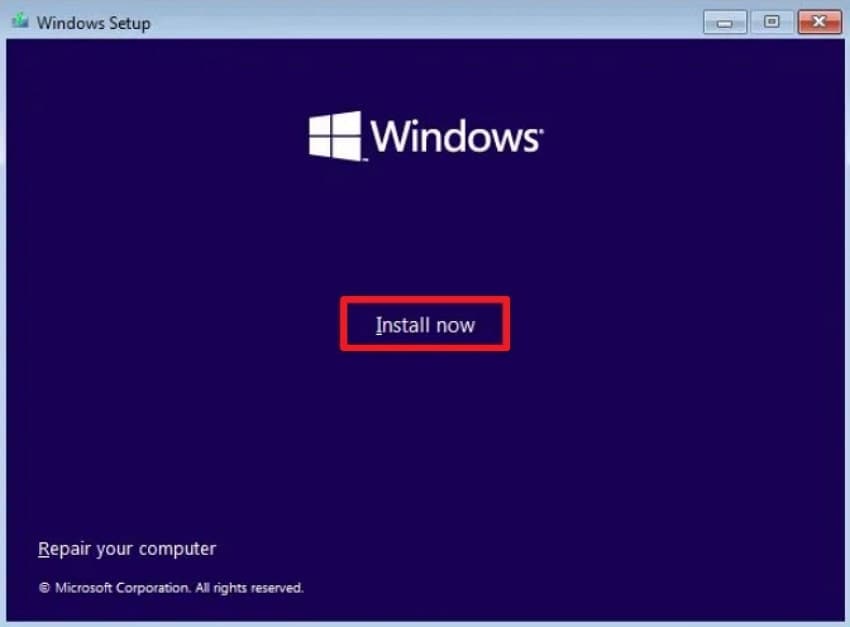
A clean install wipes all the corrupted components and installs a stable version of Windows. This method is an ultimate fix that removes deep-rooted corruption or errors, such as the 0xc0000098 Windows 10 error. For improved performance and a clean environment to boot the system, follow the instructions below:
Instructions: To do so, boot your computer using the installation media (USB or DVD), and click the “Next” button. After this, press the “Install Now” button to begin the installation, then select the main drive to reinstall Windows. Once done, follow the on-screen instructions for the setup and allow the PC to restart automatically.
Fix 6. Update Drivers After Boot
Once your system can finally load Windows again, updating your drivers is an essential preventive measure. Even if you’ve temporarily resolved the 0xc0000098 boot issue, old or faulty drivers can continue to disrupt communication. This update guarantees that your hardware runs with the most compatible and optimized instructions. Adhere to the manual and learn how to update your drivers after a boot:
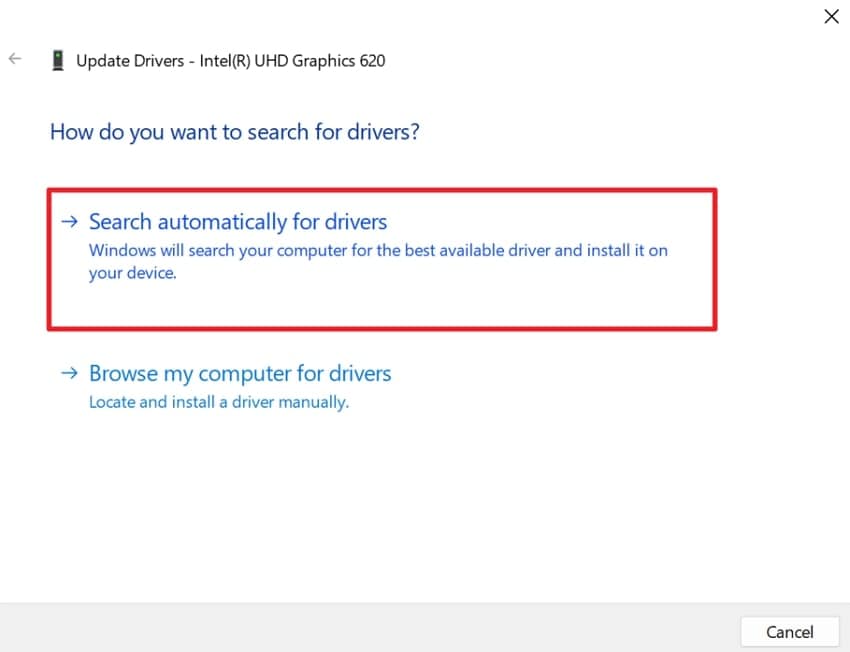
Step 1. Initially, check for Windows updates; if available, update Windows first. Afterward, locate “Device Manager” on your Windows, expand the “Display Adapters” option, and press the “Update Driver" option from the menu.
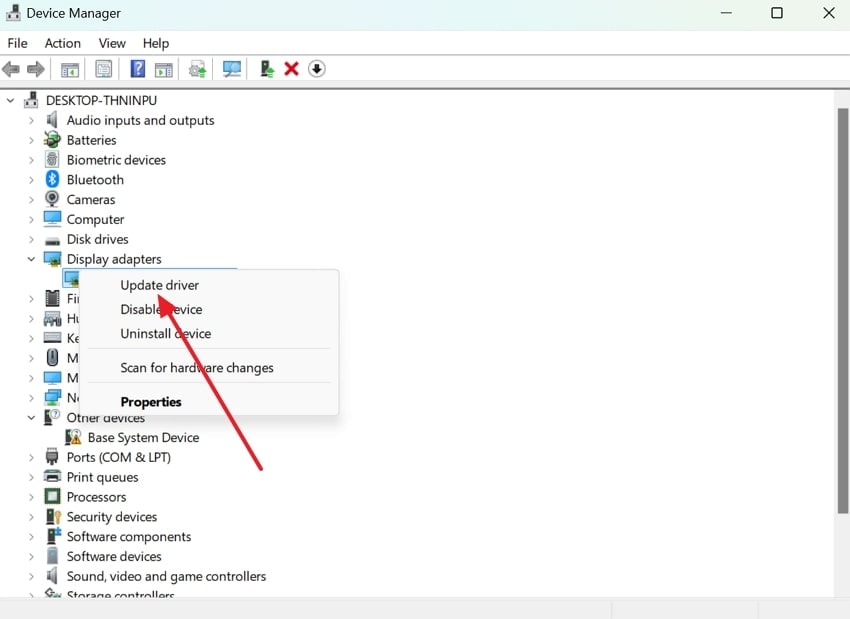
Step 2. Next, click the “Search Automatically for Drivers” option and allow Windows to search and install the latest drivers.
Pro Tip. What If Your Files Get Corrupted While Fixing 0xc0000098? Fix Now with Repairit!
In the process of repairing the BCD 0xc0000098 error, things might go wrong, and your system might crash some personal files. Whenever this happens, you’re left with a bootable PC, but the files won’t open or are simply corrupted. For this, Repairit works as an ultimate file repair program that supports over 30 file formats. The program allows users to fix corrupted files, preserving their original format, quality, and overall content.
Most importantly, it is compatible with all versions of Microsoft Office and Adobe file formats. Plus, it's completely supported on both Windows and macOS with no feature loss across platforms. You can easily add multiple corrupted files to the program, regardless of their format, for instant repair. Soon, when the repair process completes, you’re allowed to review files and save them.
Key Features

-
Repair damaged files with all levels of corruption, including blank files, files not opening, unrecognizable format, unreadable content, files layout changed, etc.
-
Support to repair all formats of PDF, Word, Excel, PowerPoint, Zip, and Adobe files.
-
Perfectly repair corrupted files with a very high success rate, without modifying the original file.
-
No limit to the number and size of the repairable files.
-
Support Windows 11/10/8/7/Vista, Windows Server 2003/2008/2012/2016/2019/2022, and macOS 10.13~macOS 15.
Comprehensive Guide to Get Corrupted Files Fixed via Repairit
For damaged files, instead of guessing what to fix or risking further corruption, simply follow the guidelines and get sorted:
Step 1. Access the Document Repair Tool & Add Broken Files
Launch the program, access the “More Types Repair” tab, and press the “Start” button from Document Repair. Move forward, click the “+Add” button to import all the corrupted files into the software.

Step 2. Begin Repairing the Damaged Files
Once done, proceed to the “Repair” button and start the process of repairing files on the go.

Step 3. Analyze Your Repaired Files & Export Them
When the process finishes, review your repaired documents, then press the “Save” button to save them.

Repair Corrupted Files Due to Error 0xc0000098
 Security Verified. Over 7,302,189 people have downloaded it.
Part 3. How to Prevent 0xc0000098 in Windows Systems | 5 Tips
After dealing with a frustrating boot failure, the last thing you want is for the 0xc0000098 Windows 11 error to return. All this could happen with a few smart habits outlined below, significantly reducing the chances of this error reappearing:

Keep Your Windows Updated: Windows updates include essential security fixes, bug fixes, and stability improvements to keep your system healthy. Enable automatic updates to keep your system up to date without manual effort, reducing the risk of further errors.
Shut Down Your Computer Completely: Try to shut down your PC using the Start menu, and, if possible, use a UPS to protect it during power outages. Proper shutdown routines keep boot files safe and minimize chances of Boot Configuration Data (BCD) corruption.
Run Disk Health Checks Frequently: It is noticed that running CHKDSK or using built-in tools like Windows’ Drive Optimization helps detect early issues. Regular maintenance guarantees your storage device remains reliable and able to read essential system files.
Do Not Install Unverified Software: Cracked apps or unknown installers can modify system files or introduce viruses, leading to 0xc0000098. This is why you should always download software from a trusted source and keep antivirus protection enabled.
Backup Your System and BCD Files: Create routine system restore points and complete backups to protect your machine during unexpected failures. In case of BCD corruption, restore points allow you to revert instantly without needing technical repair methods.
Conclusion
In summary, the 0xc0000098 error may disrupt your workflow and leave your PC unresponsive if it remains an obstacle. All the workarounds discussed in the guide above not only resolve this immediate error but also improve your system reliability moving forward. When the repair process damages personal files, only Repairit offers an effective solution to recover them.
FAQs
-
Q1. Can I fix the 0xc0000098 error without reinstalling Windows?
Yes, most of the time, rebuilding the BCD, running Startup Repair, and SFC/DISM are enough to fix the issue. This means, without reinstalling Windows, you can restore your system’s boot files with complete apps and personal data. -
Q2. Is the 0xc0000098 error common after Windows updates?
Any incomplete or interrupted updates, especially during power outages, can corrupt boot data and activate the BCD 0xc0000098 error. To this end, you can keep your system powered and stable during updates, which greatly reduces the likelihood of this issue occurring. -
Q3. Does this error affect both Windows 10 and 11?
The 0xc0000098 error can occur on both Windows 10 and 11 systems because both rely on the same Boot Configuration Data structure. Keeping your BCD and system files healthy on either version helps prevent unexpected boot failures. Besides this, regular system maintenance, such as updates and proper shutdowns, further reduces the risk of recurrence.




