Choosing between Repairit Photo Repair vs PixRecovery can feel confusing when you just want to fix corrupted photos quickly and safely. Both tools focus on repairing damaged images, but they differ in how they work, how easy they are to use, and who they are best for. In this guide, we compare Repairit Photo Repair with PixRecovery side by side so you can see where each tool stands out and decide which one is the better match for the way you handle broken or low-quality picture files.
Instead of guessing, you will see how their workflows, features, and typical use cases compare, so you can choose a desktop image repair tool that matches your skills and photo problems.
Repair Corrupted Photos with Repairit Photo Repair
 Security Verified. Over 7,302,189 people have downloaded it.
In this article
- Repairit Photo Repair vs PixRecovery: Quick Verdict
- Repairit Photo Repair vs PixRecovery: Key Differences
- Repairit Photo Repair vs PixRecovery: Comparison Table
- What Repairit Photo Repair and PixRecovery Are Best For
- Repairit Photo Repair vs PixRecovery: Features and Capabilities
- Repairit Photo Repair vs PixRecovery: Supported Formats and Compatibility
- Repairit Photo Repair vs PixRecovery: Workflow and Ease of Use
- Repairit Photo Repair vs PixRecovery: Pricing and Trial Options
- Who Should Choose Repairit Photo Repair
- Who Should Choose PixRecovery
- Pros and Cons of Repairit Photo Repair and PixRecovery
- How to Repair Corrupted Photos After Choosing the Right Tool
Repairit Photo Repair vs PixRecovery: Quick Verdict
Both tools aim to fix corrupted or damaged images on your desktop, but they suit slightly different types of users and photo issues.
Repairit Photo Repair is generally a better fit for users who want a guided, modern interface and who often deal with more noticeable photo problems, such as distortions, artifacts, or quality loss. Its workflow emphasizes previews and clear steps, which helps if you are not very technical or you repair multiple images regularly.
PixRecovery, by contrast, tends to suit users who want a straightforward, format-focused desktop tool. Its interface is more basic and utilitarian, which can be fine if your main goal is simply to get corrupted images to open again and you do not need many on-screen hints or extra repair options.
In short, Repairit Photo Repair leans toward feature-rich and guided image repair, while PixRecovery leans toward a simpler, format-oriented experience.
Repairit Photo Repair vs PixRecovery: Key Differences
The key differences between Repairit Photo Repair vs PixRecovery come down to repair depth, usability, and how much guidance you want from the software.
- Best for: Repairit Photo Repair is aimed at users who need guided repair for a wide range of corrupted or damaged photos, while PixRecovery is better for users who just want a straightforward desktop workflow for fixing corrupted images.
- Ease of use: Repairit provides a modern, intuitive interface with clearly labeled steps and previews. PixRecovery keeps things simpler, but its basic UI can feel dated for some users.
- Repair depth: Repairit is designed to handle more severe corruption and visible quality issues in many scenarios, whereas PixRecovery tends to be used for more direct, format-level corruption where you mainly need the file to open.
- Workflow: Repairit offers a step-by-step process with preview options and additional repair capabilities. PixRecovery focuses on loading, analyzing, and saving repaired images with fewer extra decisions to make.
- Strengths and weaknesses: Repairit stands out for its user-friendly design and flexible repair scenarios, while PixRecovery stands out for its multi-format support and simplicity at the cost of fewer guided options.
Repairit Photo Repair vs PixRecovery: Comparison Table
The table below summarizes the most important differences at a glance so you can quickly decide which tool fits your situation.
| Dimension | Repairit Photo Repair | PixRecovery |
|---|---|---|
| Best for | Users needing guided repair for a wide range of corrupted or damaged photos | Users fixing corrupted images in a straightforward, desktop workflow |
| Ease of use | Modern, intuitive interface with clear repair steps | Basic UI that can feel dated but remains functional |
| Repair depth | Designed to handle more severe photo corruption and quality issues in many cases | More focused on straightforward image corruption scenarios |
| Workflow | Step-by-step workflow with previews and additional repair options | Simple workflow built around loading, analyzing, and saving repaired images |
| Strengths | User-friendly design, guided repair process, broader repair scenarios | Supports multiple formats with a simple, desktop-focused approach |
| Weaknesses | Desktop app installation required and may feel more complex for very basic tasks | Basic UI and fewer guided options for complex photo issues |
What Repairit Photo Repair and PixRecovery Are Best For
At a high level, both tools are desktop image repair solutions that help you fix corrupted or damaged photos, but they prioritize different strengths.
Repairit Photo Repair is best for users who want:
- A guided, visually clear workflow for repairing many images in one session.
- Help with a mix of corruption types, including visible problems such as artifacts, noise, or distortion in many cases.
- Preview options before saving, so you can decide which repaired photos are worth keeping.
PixRecovery is best for users who prefer:
- A simple, format-focused tool that concentrates on getting corrupted image files usable again.
- Minimal on-screen options and a straightforward, desktop-only workflow.
- Occasional photo fixes rather than frequent, large repair sessions.
In practice, if you often work with important photo collections and want more on-screen guidance, Repairit Photo Repair can be more comfortable. If you just want to run a small number of corrupted photos through a basic repair process, PixRecovery may feel sufficient.
Repairit Photo Repair vs PixRecovery: Features and Capabilities
Both tools share the same core goal: fix corrupted photos so that you can open and view them again with improved visual quality. However, how they approach this goal is slightly different.
Core capabilities they share include:
- Desktop applications that let you load damaged or corrupted photos from your computer.
- A repair process that analyzes the image data and attempts to correct common issues.
- The option to export repaired images back to a chosen folder after processing.
From there, they diverge somewhat:
Repairit Photo Repair emphasizes a guided, feature-rich experience:
- Desktop app to fix corrupted or damaged photos with clear, guided steps.
- Options designed to address more severe visual issues such as distortions, artifacts, or noticeable quality loss in many scenarios.
- Preview of repaired images before exporting them, so you can quickly compare results and avoid saving unsatisfactory files.
PixRecovery focuses more on format-oriented repair:
- Desktop tool that can handle corrupted picture files in multiple common image formats.
- A more straightforward process that typically suits users whose main goal is to get previously unopenable photos working again.
- A basic interface that keeps the workflow simple but offers fewer advanced or guided options.
In most cases, the choice comes down to whether you prefer a richer, more interactive repair experience (Repairit) or a lighter, format-focused one (PixRecovery).
Repairit Photo Repair vs PixRecovery: Supported Formats and Compatibility
Both tools concentrate on common photo formats usually generated by phones, compact cameras, and many consumer devices. For everyday users, this typically means popular image file types that you would store on your desktop or laptop.
Repairit Photo Repair combines broad format support with a guided interface, so it can fit users who deal with different kinds of corrupted image files on Windows or macOS. This is helpful when your photo library comes from multiple devices and you want to manage everything in a single tool.
PixRecovery is positioned around supporting multiple formats in a straightforward way. Its focus is on helping you open corrupted photos across those supported image types without requiring you to configure many options. This can be suitable if you mainly care that the tool works with your image format and you do not need detailed control beyond that.
Because support details can evolve over time, it is a good idea to check each product page for the latest list of specific formats your camera or phone uses.
Repairit Photo Repair vs PixRecovery: Workflow and Ease of Use
The workflow is one of the clearest differences when comparing Repairit Photo Repair vs PixRecovery.
PixRecovery offers a straightforward, minimal process:
- Select your corrupted images on the desktop.
- Let the software analyze and attempt to fix them.
- Save the repaired version to a chosen location.
This works well if you value simplicity and do not mind a more utilitarian interface, even if it feels a bit dated.
Repairit Photo Repair focuses on a more modern, guided experience:
- Clear steps for adding files, starting the repair, and viewing progress.
- A preview window that lets you inspect repaired photos before saving.
- An interface that helps less technical users stay oriented during more complex or repeated repair tasks.
If you are new to photo repair or often handle a batch of corrupted images, this guided workflow can make the process more comfortable and reduce the risk of saving unsatisfying results.
Repairit Photo Repair vs PixRecovery: Pricing and Trial Options
Both Repairit Photo Repair and PixRecovery are paid desktop applications. Each may offer a trial or demo option, which is useful if you want to confirm that your specific corrupted photos can be processed before you commit.
Pricing can vary based on factors such as:
- License type (for example, personal vs. business use).
- Duration (such as monthly, yearly, or perpetual licenses, depending on the vendor).
- The number of devices or computers you want to install the software on.
Because these details can change, it is best to check the official pages for the latest information. For Repairit Photo Repair, you can review plans and downloads at Repairit Photo Repair. For PixRecovery, refer to its official product page for updated license options and potential demos.
Who Should Choose Repairit Photo Repair
Repairit Photo Repair tends to be a better fit when you want both guidance and flexibility in how you repair damaged photos. It is particularly helpful for users who care about visual quality and need to check results before finalizing them.
- Users dealing with more severe or visually complex photo corruption issues who want the software to guide them through the process.
- People who prefer a modern interface with previews and clear, on-screen instructions.
- Photographers, content creators, and everyday users who repair multiple damaged images on a regular basis.
- Anyone wanting broader repair options for different image scenarios in a desktop environment, whether on Windows or macOS.
If you often fix blurry, pixelated, or distorted photos and want to see exactly how they look after repair, Repairit Photo Repair offers a workflow designed with those needs in mind.
Who Should Choose PixRecovery
PixRecovery is better suited for users who value a minimal, format-focused approach and do not necessarily need extensive guidance or preview options.
- Users fixing corrupted images who want a straightforward desktop process with fewer steps.
- People who prioritize support for multiple common image formats over a more feature-rich interface.
- More technical users who are comfortable navigating a basic UI and do not need many tooltips or hints.
- Anyone who only occasionally repairs a small number of corrupted photos and prefers a lighter, single-purpose tool.
If your main goal is to get unopenable images working again in a simple environment, and you are comfortable with a more traditional interface, PixRecovery can be sufficient.
Pros and Cons of Repairit Photo Repair and PixRecovery
This section summarizes the main benefits and trade-offs of each tool so you can quickly match them with your own repair needs.
Repairit Photo Repair Pros and Cons
PixRecovery Pros and Cons
How to Repair Corrupted Photos After Choosing the Right Tool
Once you have compared Repairit Photo Repair vs PixRecovery and decided which approach fits your needs, the next step is actually repairing your corrupted photos. The goal is to turn broken, blurry, or unopenable images into usable pictures again without making the process stressful.
For users who prefer a guided, desktop-based workflow, Repairit Photo Repair offers a practical way to import damaged images, run automated repairs, and preview results before saving. The following sections walk through how this looks in practice.
Because it runs on your desktop, you can work with local folders, memory cards connected to your computer, and other storage devices while keeping everything in a familiar file-browser environment.
Key Features
Some of the capabilities that make Repairit Photo Repair useful for everyday image issues include:
- Guided photo repair process that walks you through adding, repairing, and saving photos.
- Options to handle various corruption and quality issues such as distortion, artifacts, or visible degradation in many situations.
- Preview of repaired images before exporting them so you can compare and decide what to keep.
- Desktop support for common photo formats from phones and cameras, making it suitable for mixed photo libraries.
Step-by-step guide
Here is how a typical repair session with Repairit Photo Repair works.
- Add damaged photos
Launch Repairit Photo Repair and import the damaged or corrupted photos you want to fix.
- Run the repair
Click the repair button and let the tool scan and fix the selected image files automatically.
- Preview and save
Preview the repaired results and save the fixed photos to your preferred location.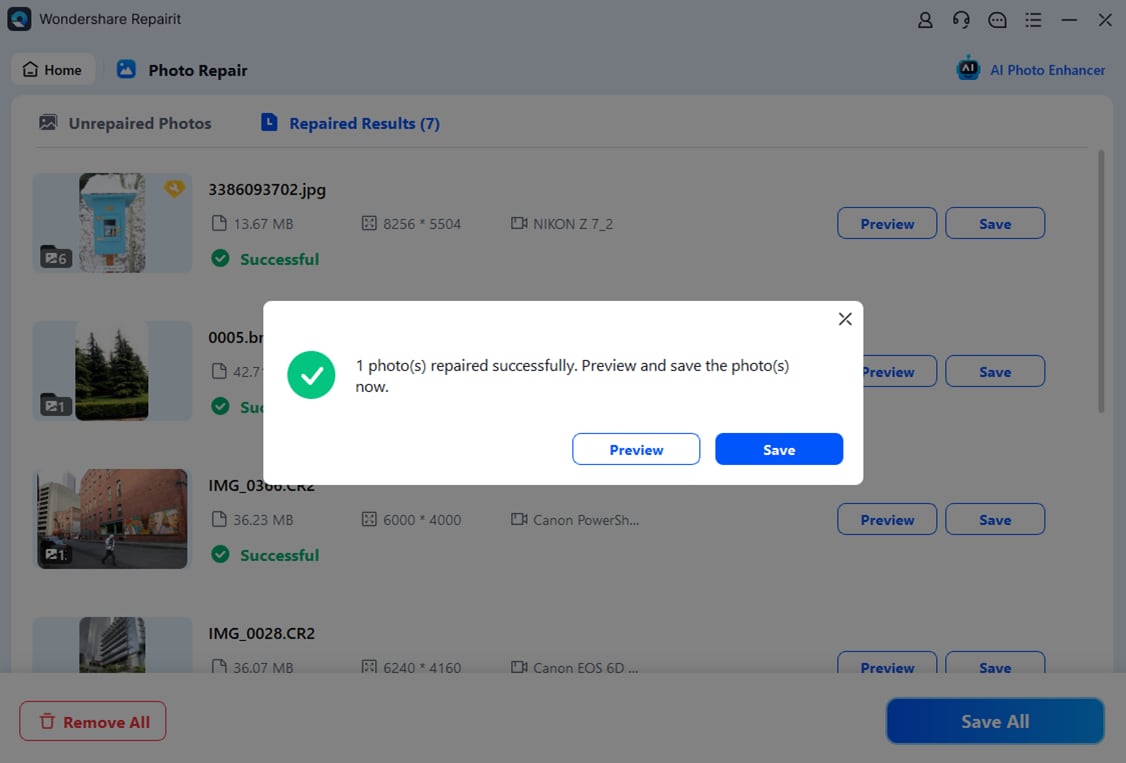
This desktop workflow keeps everything simple while still giving you control over which repaired images you keep.
Final Verdict
Both tools can help you repair damaged images, but they serve slightly different priorities.
Repairit Photo Repair is a stronger choice if you frequently encounter more severe corruption, care about visual quality, or prefer a guided interface with previews and clear steps. It works well for users who manage important photo collections, fix multiple images at once, or simply want more support from the software while working.
PixRecovery may be enough if you mainly want a simple desktop workflow, only repair corrupted photos occasionally, and are comfortable with a basic UI that focuses on getting files usable again without many extra options.
By matching your expectations, technical comfort level, and how often you repair photos with the strengths of each tool, you can choose the option that best supports your day-to-day work with corrupted or low-quality images.
Next: Repairit Photo Repair VS Picture Doctor
FAQ
-
1. Is Repairit Photo Repair better than PixRecovery for heavily corrupted photos?
Repairit Photo Repair is generally a stronger choice for more severe or visually complex corruption because of its guided workflow and preview options, while PixRecovery tends to suit more straightforward corruption cases where you mainly need images to open again. -
2. When should I choose PixRecovery instead of Repairit Photo Repair?
You may prefer PixRecovery if you only repair corrupted photos occasionally, want a simple desktop workflow, and are comfortable with a basic UI that focuses on getting damaged images back into a viewable state. -
3. Do Repairit Photo Repair and PixRecovery support multiple photo formats?
Both tools are designed to work with common image formats used on desktops. PixRecovery emphasizes multi-format support, while Repairit Photo Repair combines broad format coverage with a more guided and preview-focused interface. -
4. Which is easier to use, Repairit Photo Repair or PixRecovery?
PixRecovery offers a minimal, straightforward workflow that some users find simple but basic. Repairit Photo Repair provides a more modern, clearly guided interface that many users find easier when dealing with multiple files or more complex photo issues. -
5. Can I try Repairit Photo Repair before buying?
Yes, Repairit Photo Repair typically offers a downloadable version you can try so you can see how it handles your corrupted photos before choosing a license. Check the official Repairit site for the latest trial details and limitations.