

If a photo suddenly will not open, appears grey or distorted, or shows only part of the image, the first step is to find out whether the file is truly corrupted or simply incompatible with the app you are using. Corrupted photo repair works best when you first preserve the original file, test simple non-destructive fixes, and then use a dedicated photo repair tool if the image data itself is damaged.
This guide walks through practical ways to fix corrupted photos on Windows and Mac, including format conversion, opening the file in another viewer, re-saving readable image data, and repairing severely damaged photos with Wondershare Repairit.
In this article
Part 1. How to Tell If a Photo Is Corrupted
A damaged image can fail in several different ways. Some symptoms point to actual file corruption, while others are caused by an unsupported format, an incomplete transfer, or a problem with the photo viewer.
| Symptom | What it may mean | What to try first |
| The photo will not open in one app but opens elsewhere | Viewer or format compatibility issue | Use another viewer or convert the file |
| The image opens only partially or shows grey blocks | Incomplete or damaged image data | Re-copy the file, then use photo repair if the damage remains |
| The photo shows distorted colors or broken sections | Corrupted image data or decoding problem | Test another viewer and keep the original before repair |
| The file size is 0 KB | No usable image data is stored in the file | Restore another copy from the source, backup, or storage device |
| The extension does not match the actual image format | Incorrect extension or failed conversion | Identify the correct format before converting or renaming the extension |
If your photo is stored on an SD card, USB drive, or external disk, copy the damaged image to another drive before attempting repair. Avoid repeatedly saving changes over the only copy.
Part 2. How to Fix Corrupted Photos With Free Methods
Simple methods can help when the file is only partially affected or the problem is related to transfer, compatibility, or decoding. They will not reconstruct image data that is completely missing, so keep the original file unchanged while testing them.
Method 1. Re-download or Copy the Photo Again
Best for: Photos that became unreadable after a download, phone transfer, cloud sync, SD-card copy, or interrupted file move.
- Keep the damaged copy as a backup.
- Return to the original phone, camera, cloud library, email, or storage card.
- Copy or download the photo again to a different folder.
- Compare the new file size with the damaged copy and try opening the new version.
If the fresh copy opens normally, the earlier file was likely damaged during transfer rather than at capture time.
Method 2. Convert the Image Format
Best for: A photo that can still be decoded by a converter or another app but fails in your normal viewer. Converting does not rebuild missing pixels; it can help when the problem is limited to format compatibility or a mildly damaged container that is still readable.
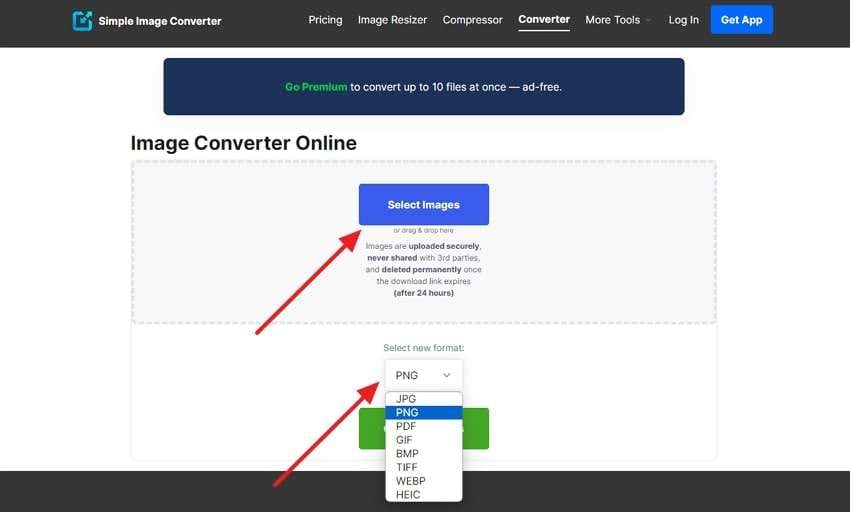
Step 1. Open an image converter and select the output format, such as JPG or PNG. Then upload the affected image.
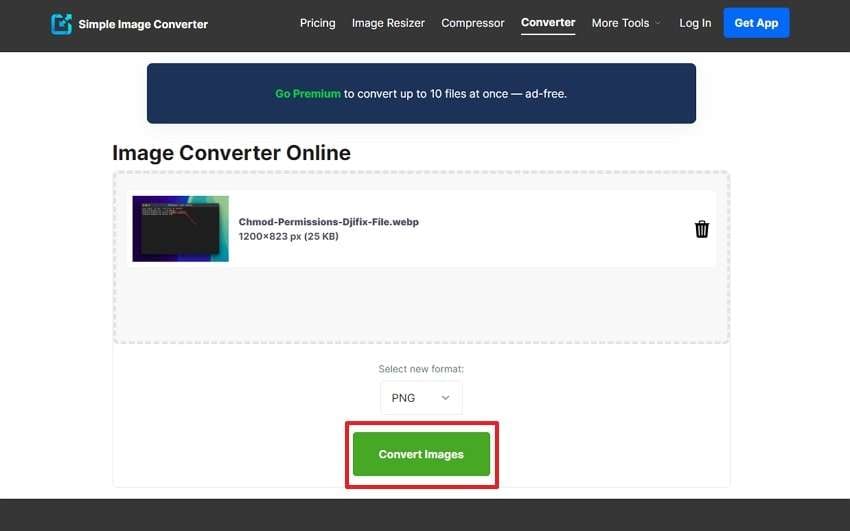
Step 2. Start the conversion and wait for the service to process the image.
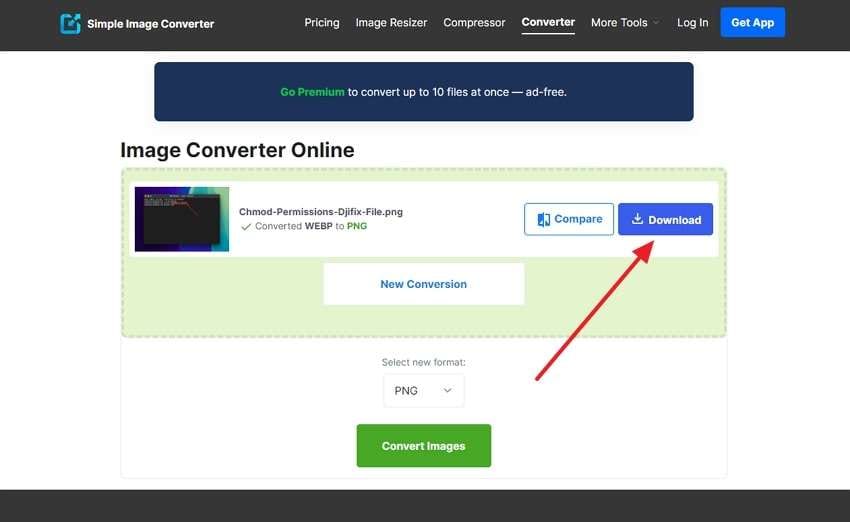
Step 3. Download the converted image and open it in a local viewer to check whether the visible content is intact.

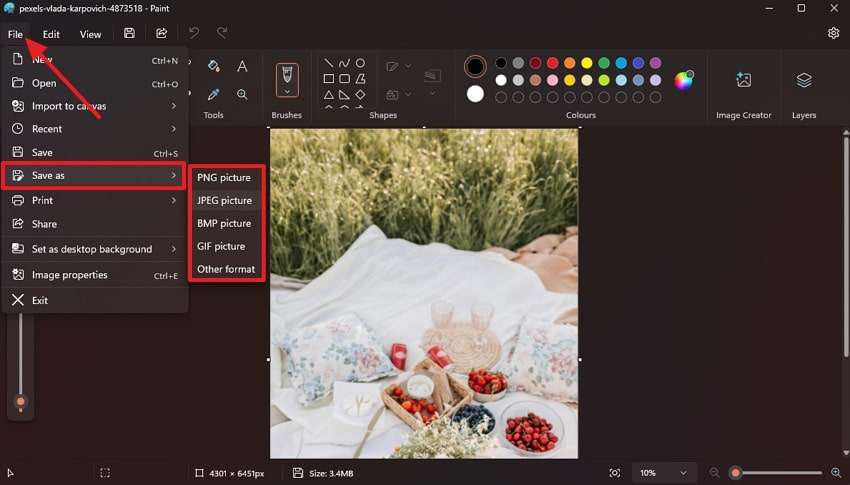
Method 3. Open and Re-save the Photo in Paint
Best for: An image that opens in Paint even though Windows Photos or another viewer has trouble displaying it. Paint can re-encode the readable image data into a new file, but it cannot restore pixels that are already missing from the source.
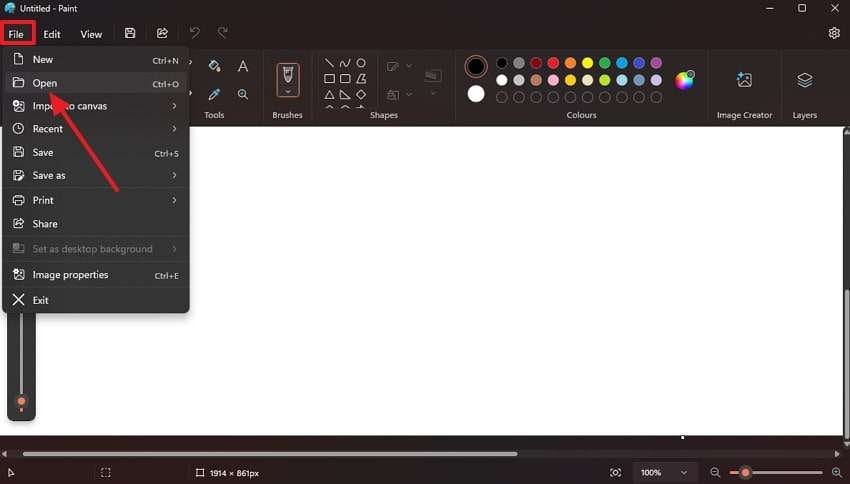
Step 1. Open Paint, select File > Open, and choose the affected image.
Step 2. If the image displays correctly, select File > Save As and save a new copy instead of overwriting the original.
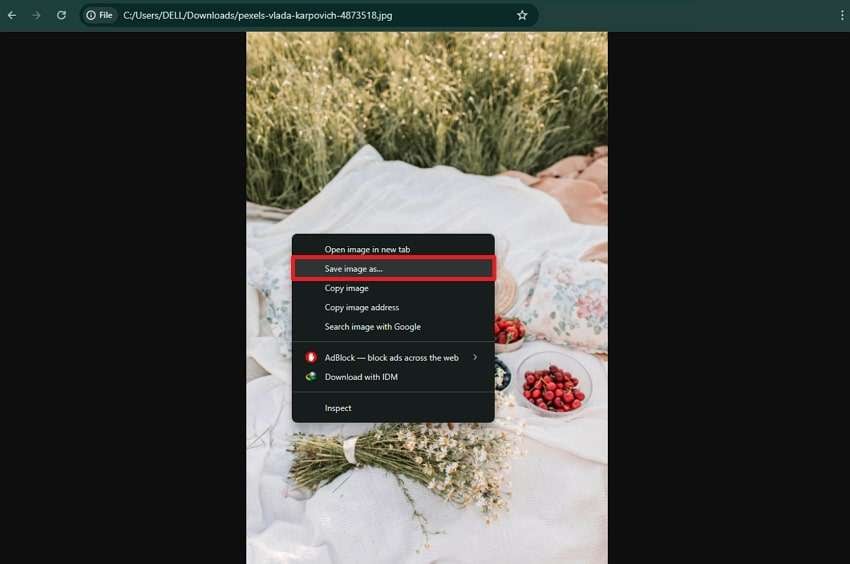
Method 4. Test the Photo in a Web Browser or Another Viewer
Best for: Checking whether the problem belongs to the image file or to one specific photo application.
Drag the image into Chrome, Edge, Firefox, Preview on Mac, or another trusted image viewer. If the photo displays correctly there, save a separate copy only if necessary and troubleshoot the original viewer before treating the file as corrupted.
Part 3. How to Repair a Corrupted Photo Online
If the image itself is damaged and the simple checks above do not solve the problem, an online photo repair workflow can be the fastest next step for a small number of files. Repairit Online Photo Repair is designed for corrupted, unreadable, greyed-out, distorted, or otherwise damaged image files and can be used directly in a browser.
Upload a copy of the damaged photo, let the repair process analyze the file, preview the result, and save the repaired version separately from the original. If the file is severely corrupted or you need to repair many images, the desktop workflow below gives you a more complete repair path.
Part 4. How to Repair Severely Corrupted Photos With Repairit
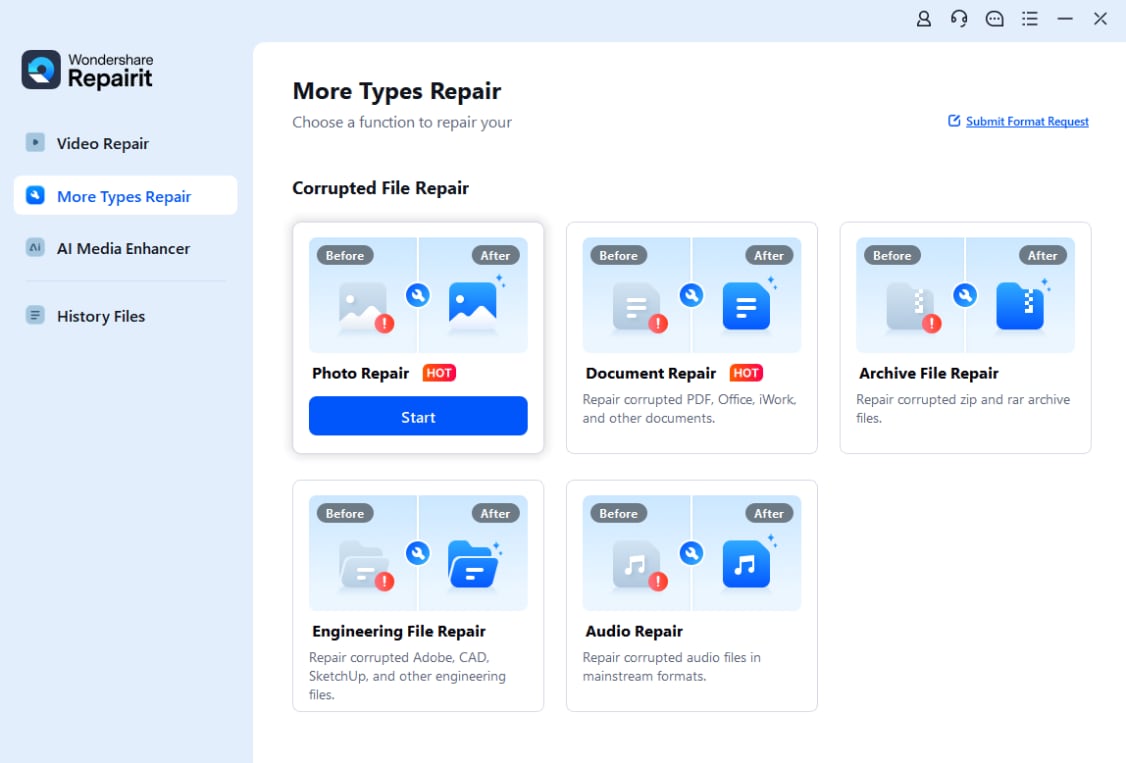
For photos that remain unreadable, partially grey, distorted, or structurally damaged across multiple viewers, Repairit Photo Repair provides a dedicated desktop repair workflow for common and RAW photo formats. You can also explore the broader Wondershare Repairit toolkit for other damaged media and file types.
Keep the original image unchanged and work on a copy. Then use the following workflow:
Step 1. Open Photo Repair. Launch Repairit and choose Photo Repair from the repair options.
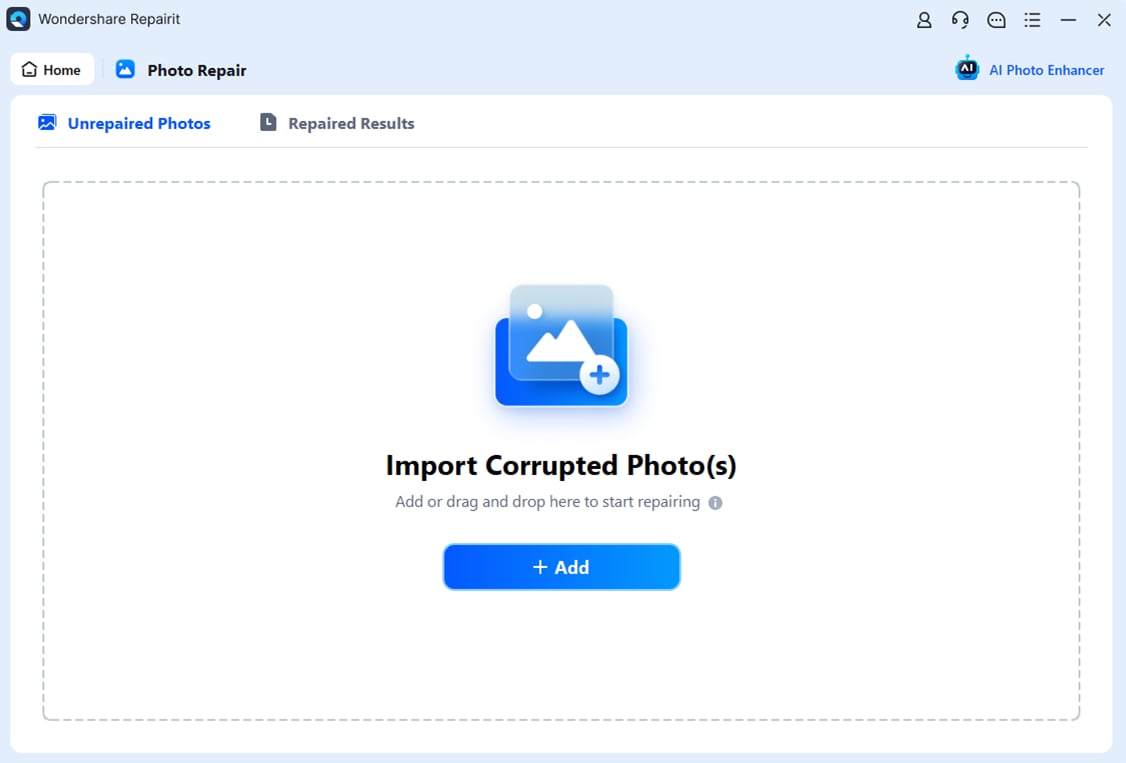
Step 2. Add the corrupted photos. Select +Add and import the damaged images from your computer or connected storage.
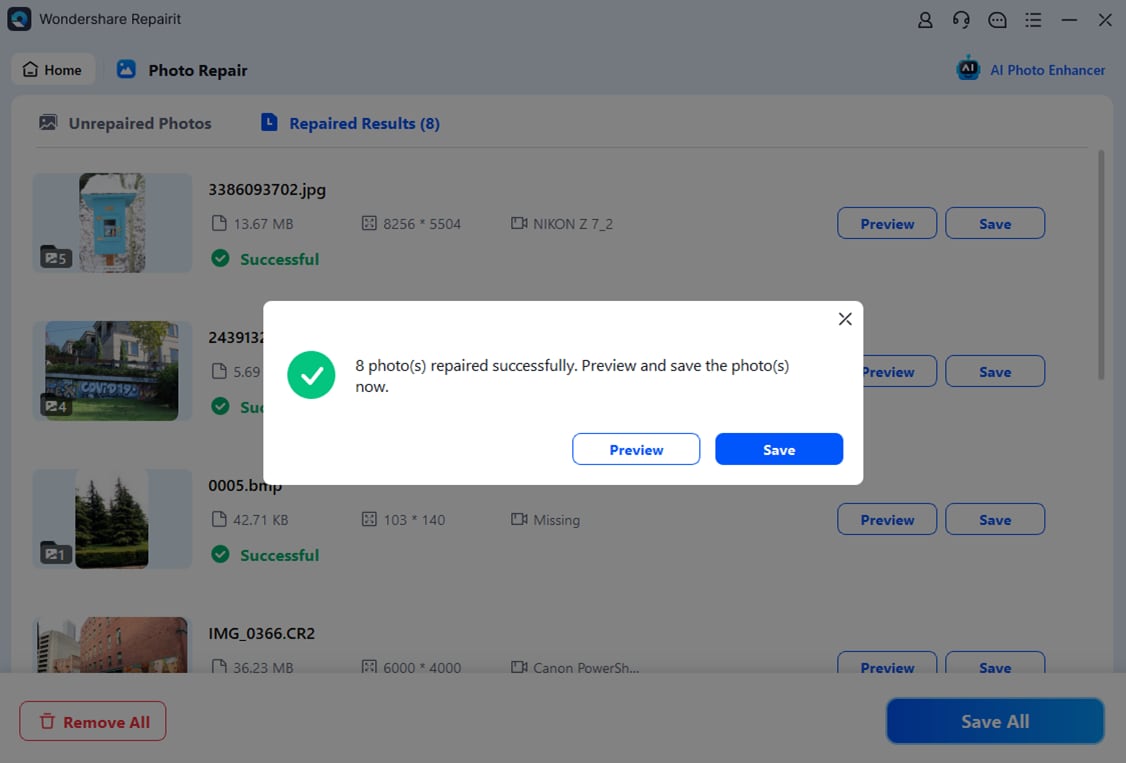
Step 3. Start the repair and review the result. Click Repair. After processing, preview the repaired photos and compare important details with the source image.
Step 4. Save the repaired photos. Export the repaired versions to a different folder so the original damaged files remain available as backups.
Part 5. What to Do If the Photo Is Still Unreadable
If none of the methods work, the next step depends on what remains in the file and where the original image came from.
| Situation | Recommended next step |
| The file is 0 KB | Look for another copy in backups, cloud storage, the camera, phone, or memory card; there may be no image payload to repair |
| The SD card or drive is disconnecting or showing errors | Stop writing new data to the storage device and make a safe copy of the files before more troubleshooting |
| Only thumbnails are visible but full images fail | Keep the source files and try a dedicated repair workflow; a thumbnail alone may not contain the full-resolution image |
| The photo was deleted rather than corrupted | Use a data-recovery workflow instead of photo repair |
| The image was encrypted or overwritten | Photo repair cannot recreate the missing original data; restore from another copy if available |
If the corruption is tied specifically to a memory card, the Repairit guide for corrupted photos on an SD card covers storage-specific checks. For JPG-specific problems, use the dedicated JPG repair workflow.
Part 6. How to Prevent Photo Corruption
- Eject storage safely: Do not remove an SD card, USB drive, or external disk while images are still being written or copied.
- Avoid interrupted transfers: Keep the device powered and connected until the copy finishes.
- Keep more than one copy: Maintain backups on separate storage or in a trusted cloud service.
- Replace failing storage: Repeated read/write errors can indicate a degrading SD card, flash drive, or hard disk.
- Do not edit the only original: Work on copies when converting, retouching, or repairing important photos.
- Verify files after transfer: Open a sample of the copied images before formatting the original card or deleting the source files.
Conclusion
To fix corrupted photos, first preserve the original file and rule out a bad transfer, unsupported viewer, or format issue. If the image is still readable in another app, re-saving or converting it may solve a minor compatibility problem. If the photo remains greyed out, distorted, partially unreadable, or cannot open across multiple viewers, use an online or desktop photo repair workflow and save the repaired result separately from the source.
FAQ
-
Can a corrupted photo be repaired?
Often, yes, if enough image data is still present. The result depends on the type and severity of corruption. A file that is partially readable has a better repair path than a 0 KB file with no stored image data. -
How do I fix a corrupted JPG or PNG that will not open?
First copy or download the image again, then test it in another viewer. If the file still fails across multiple applications, keep the original and use a dedicated photo repair tool rather than repeatedly overwriting the file. -
Does renaming a corrupted photo repair it?
Changing only the filename does not repair damaged image data or a corrupted file header. It may help organize files, but use another viewer, format verification, or photo repair for an image that is genuinely corrupted. -
Can I repair corrupted photos online?
Yes. An online photo repair tool can be convenient for a small number of damaged images. For private photos, large batches, RAW files, or severe corruption, review the service's privacy terms and consider a desktop repair workflow. -
What if my corrupted photo shows 0 KB?
A 0 KB file contains no usable image payload, so ordinary photo repair cannot reconstruct the original picture from that file alone. Check backups, the original device, cloud storage, or data-recovery options for another copy.




