
You're finally ready to unwind a long, exhausting day, all set to dive into your favorite playlist with the perfect mood. However, instead of music, you meet an unexpected message, "Spotify can't play current song," and now you're clueless. What you thought was a relaxing moment turned into confusion as you struggled to figure out why your music won't play.
This scenario is common for many Spotify users and requires guidance to regain the rhythm of the day. For any such Spotify issue, this comprehensive guide is a complete solution, packed with brief fixes for all devices.
Table of Contents
-
- Fix 1: Check the Internet Connection or Turn Off Offline Mode
- Fix 2: Restart Spotify and Your Device
- Fix 3: Log Out of All Devices and Sign in Again
- Fix 4: Remove and Re-add the Problematic Song or Playlist
- Fix 5: Turn Off Crossfade and Normalizing Options
- Fix 6: Check and Change the Audio Output Device in System Settings
- Fix 7: Clear Spotify Cache
- Fix 8: Disable Hardware Acceleration in Spotify Settings
- Fix 9: Update Audio/Sound Drivers on Your Computer
- Fix 10: Check Country/Region and Content Availability on Your Account
Part 1. 5 Common Reasons Spotify Can't Play the Current Song
When your Spotify can't play current song, read the reasons below to match your scenario and act promptly:
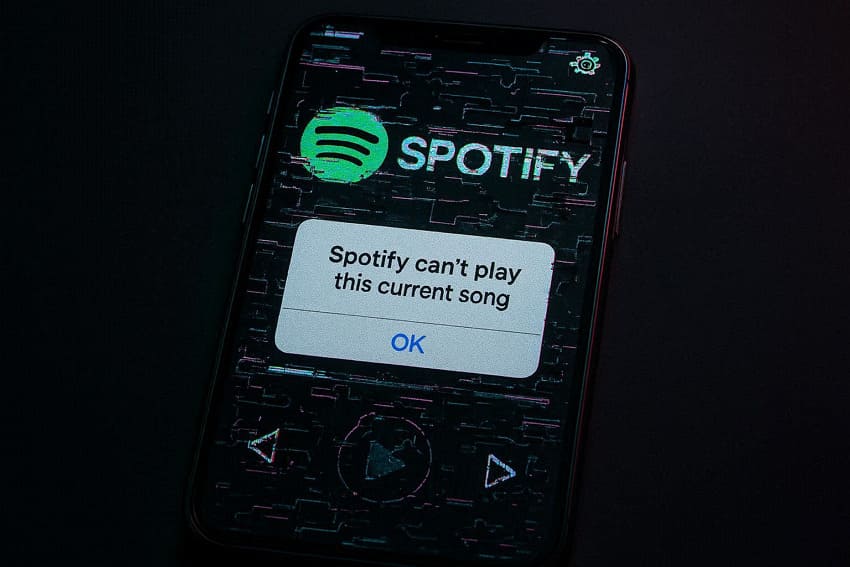
- Weak Internet or Offline Mode: Spotify needs a stable connection to stream, and with weak Wi-Fi or slow data, it may struggle to load. Plus, if you've turned on Offline Mode by mistake, the songs won't play and display an error instead.
- Corrupted or Overloaded Spotify Cache: The app stores temporary data (cache), but when it gets corrupted, it can cause playback errors. This corruption often causes specific songs or albums to fail when the app tries to pull them from a broken cache.
- Audio Output or Format Conflicts: When your system is set to an audio device that isn't available, the app may not be able to start the audio stream. In such cases, the player appears to get stuck on a track and reports "can't play" even if the file is working.
- Song, License, or Region Restrictions: Many tracks are tied to specific labels, albums, or countries, and when those licenses change, the song is no longer playable. This mismatch between what the app shows and what your account is allowed to stream leads to this dreaded error.
- Due to App or Software Faults: Any fault in the Spotify app, either an outdated version or conflicts with recent systems, can break how the player handles certain formats. In these situations, the app itself is in a bad state, so it fails when trying to start playback and shows an error.
Part 2. Try 10 Simple Fixes for "Spotify Can't Play Current Song"
If Spotify can't play the current song keeps popping up, follow the given fixes and get your music playing again:
Fix 1: Check the Internet Connection or Turn Off Offline Mode
Once you ensure a stable internet connection or disable Offline Mode, the app can access its streaming servers without restrictions. This fix resolves playback errors and improves loading speed, reduces buffering, and delivers a smoother, uninterrupted experience. To know how to do, follow the provided guidelines to check Wi-Fi and turn off Offline Mode on all devices:
On Windows
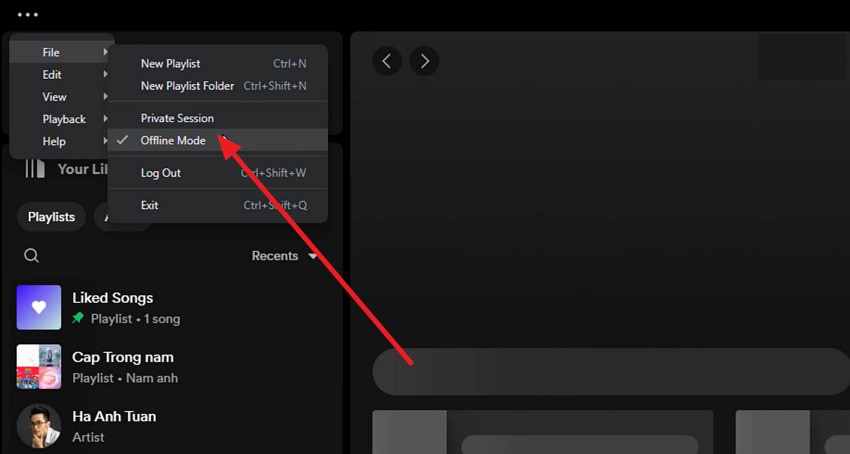
Instructions. Initially, make sure your Wi-Fi or Ethernet is working (run a speed test if required). Then, open Spotify Premium (for Offline Mode) > Tap "Three Dots" icon > Expand "File" option > Press "Offline Mode" option.
On Mac
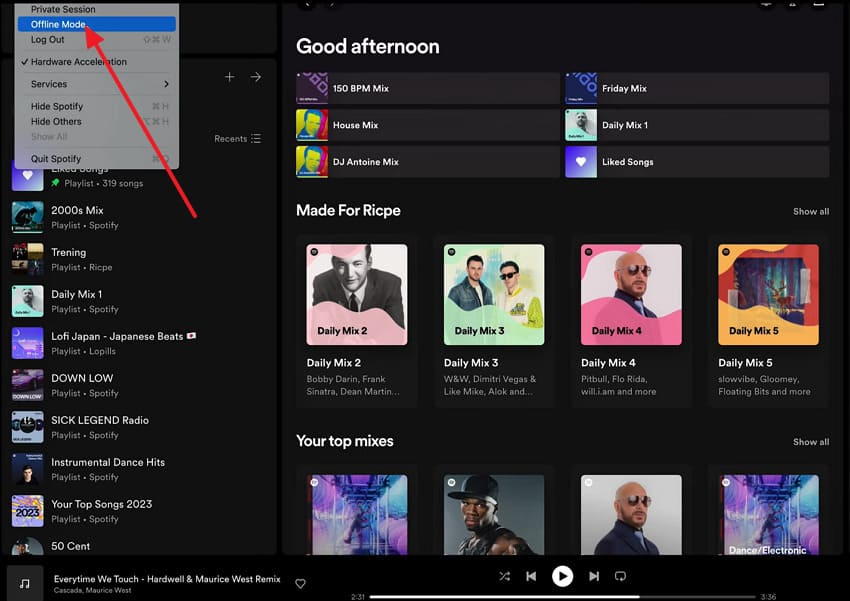
Instructions. On Mac, check your internet connection > Press Spotify on top > Choose "Offline Mode" option from the menu to disable it.
On iPhone
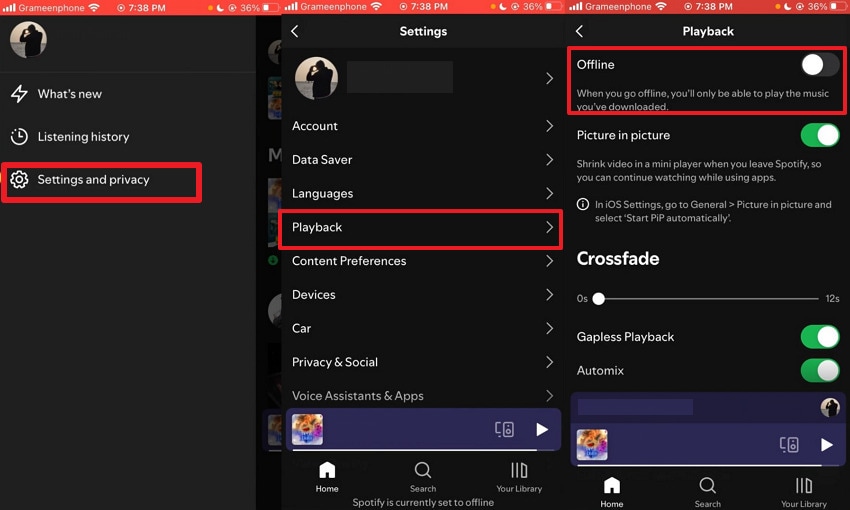
Instructions. Ensure strong Wi-Fi connection > Access Spotify > Tap "Profile" icon > Choose "Settings and Privacy" > Press "Playback" option > Toggle off "Offline Mode."
On Android
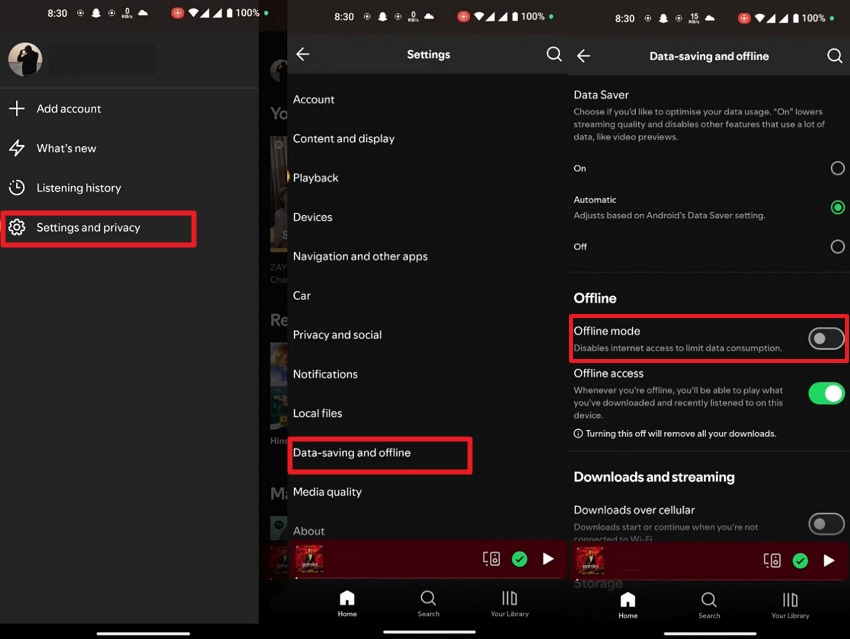
Instructions. Check Wi-Fi > Enter Spotify > Press "Profile" icon > Choose "Settings and Privacy" > Tap "Data-Saving and Offline" > Toggle "Offline Mode."
Fix 2: Restart Spotify and Your Device
The restart of Spotify and the device can clear temporary system errors, refresh app processes, or reset memory usage. This simple action resolves "Spotify can't play current song" without requiring deeper troubleshooting, making it one of the quickest fixes. To proceed, dive into the tutorials and restart Spotify and the device you own:
For Windows
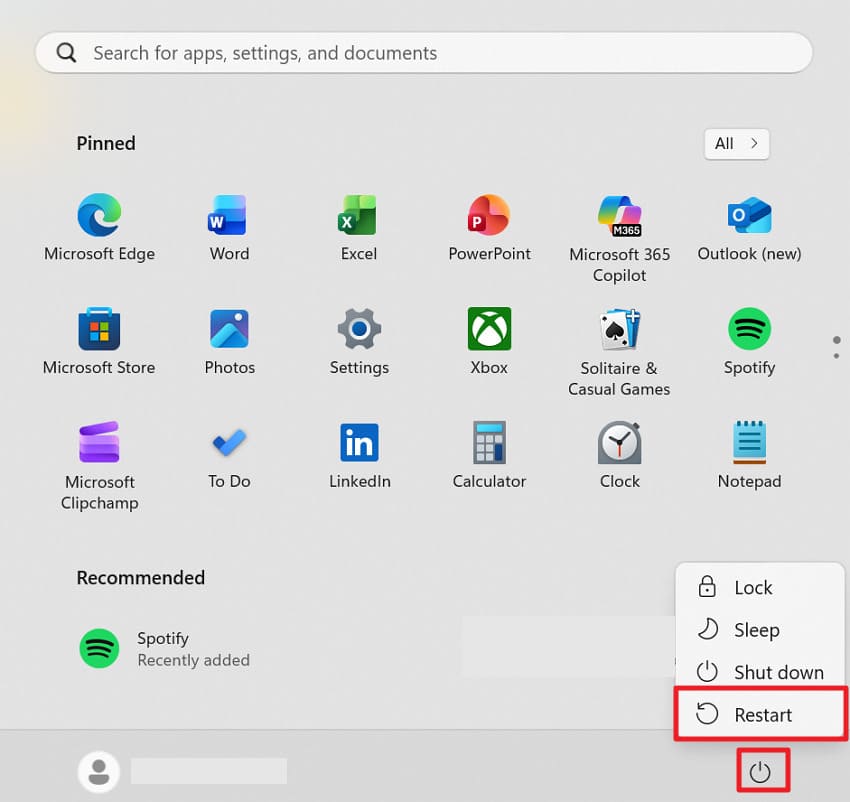
Instructions. Close Spotify completely ("X" icon) > Go to "Start" icon > Press "Power" icon > Choose "Restart" option > Relaunch Spotify to test the song.
For Mac
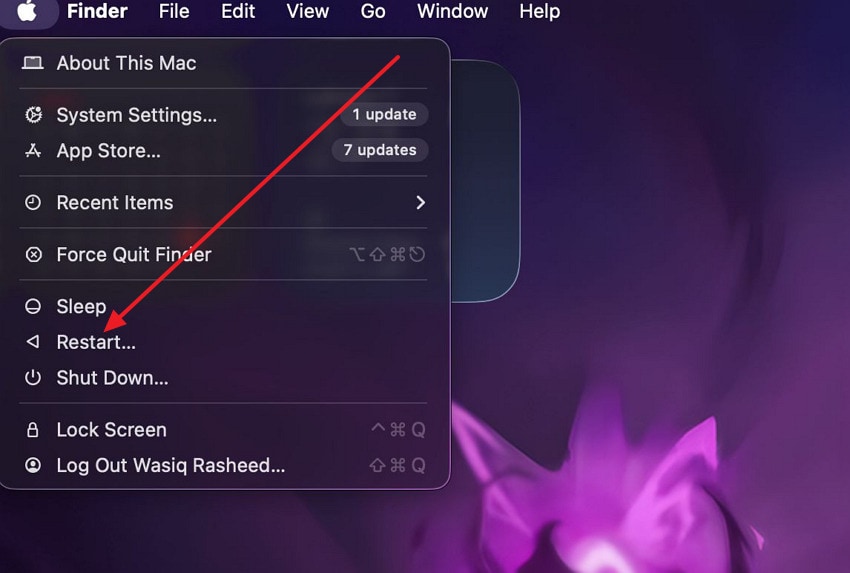
Instructions. Initially, close the Spotify app > Press the "Apple" icon > Click the "Restart" option from the drop-down menu.
For iPhone
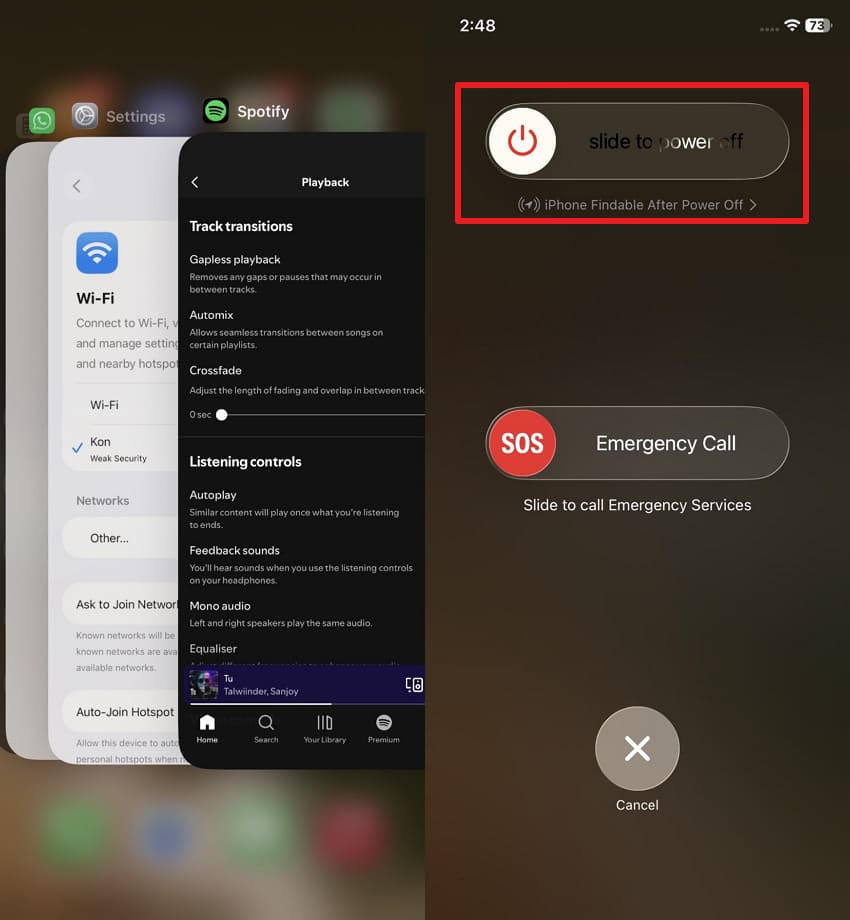
Instructions. Swipe-up Spotify from the app switcher to close it > Long-press "Power and Volume Down" > "Slide to Power Off" > Turn on your iPhone and Spotify.
For Android
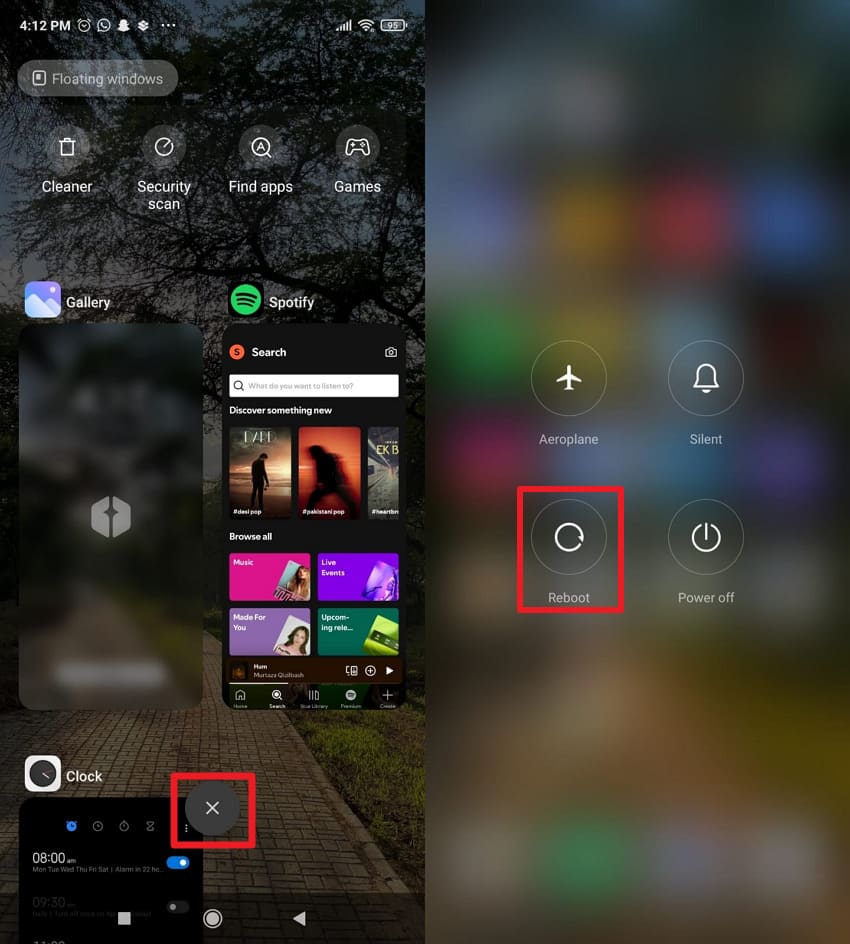
Instructions. Press "X" from the app switcher to close Spotify,> Long-hold "Power" button > "Reboot," > Re-open the Spotify app.
Fix 3: Log Out of All Devices and Sign in Again
Logging out from the device and re-signing in forces Spotify to reset your account session completely. Not only that, it clears hidden glitches, refreshes your account data, and guarantees that the device is properly reconnected. Adhere to the guidelines below and overcome the Spotify can't play current song error through log-out, log-in:
For Web
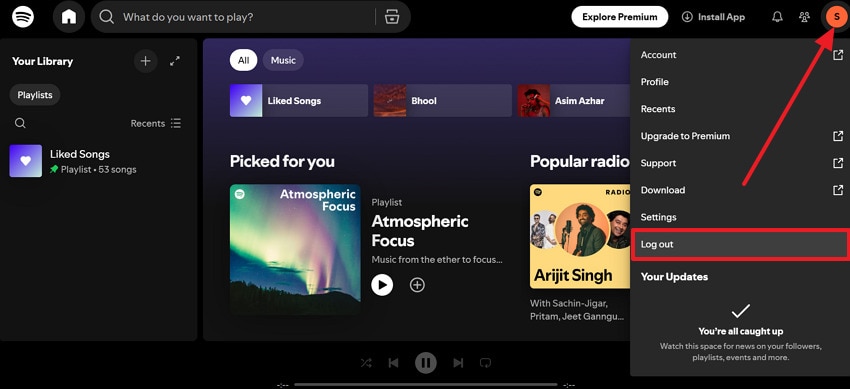
Step 1. On the Web, press the "Profile" icon and click the "Log Out" option to sign out.
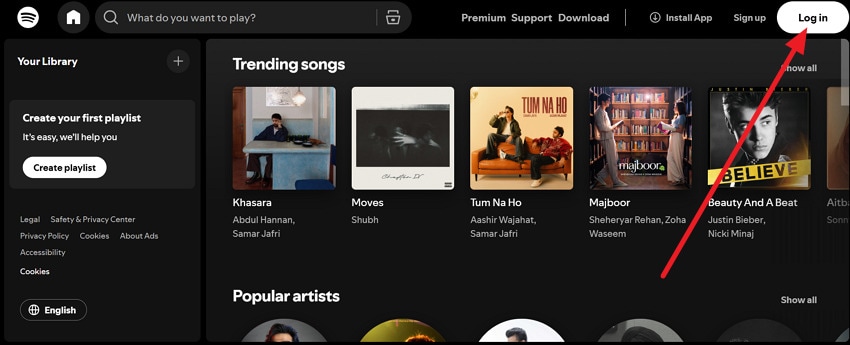
Step 2. Now, press the "Log In" button and enter your credentials to sign back in.
For Windows
Step 1. On Spotify, press the "Profile" icon and choose the "Log Out" option from the menu.
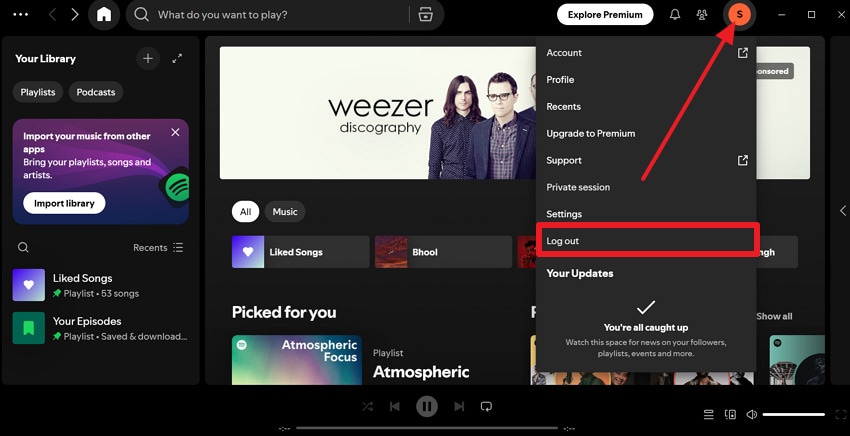
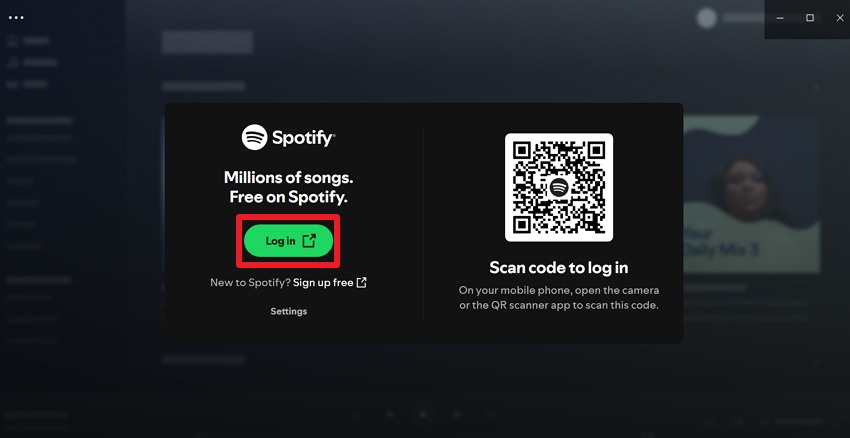
Step 2. After this, click "Log In" or scan the QR to log back into your account.
For Mac
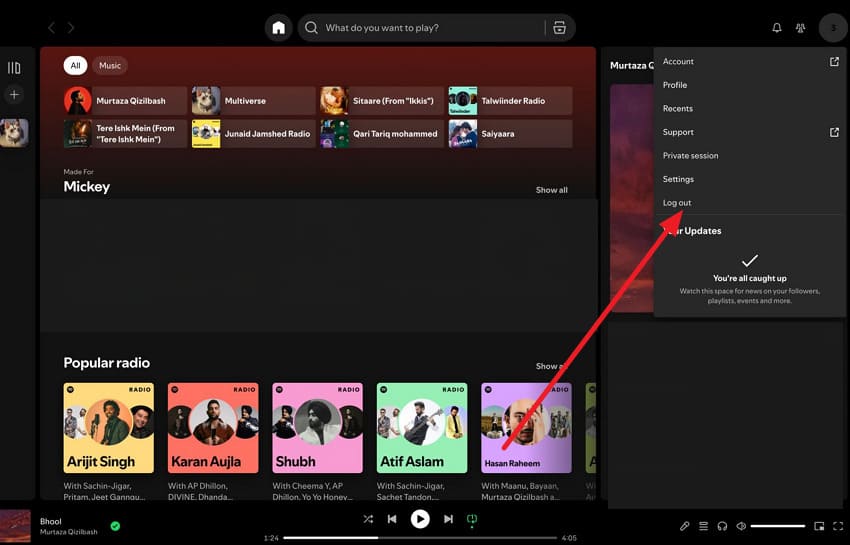
Instructions. Click the Profile icon > Choose "Log Out" > Log In back with the same credentials to check the song.
For iPhone
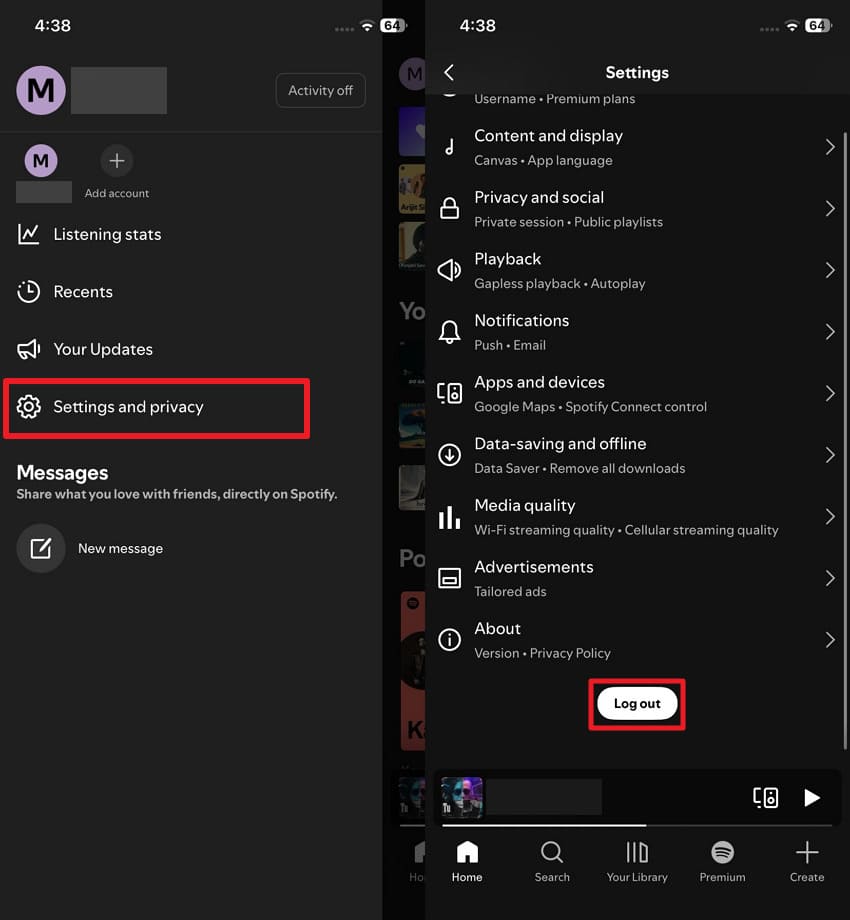
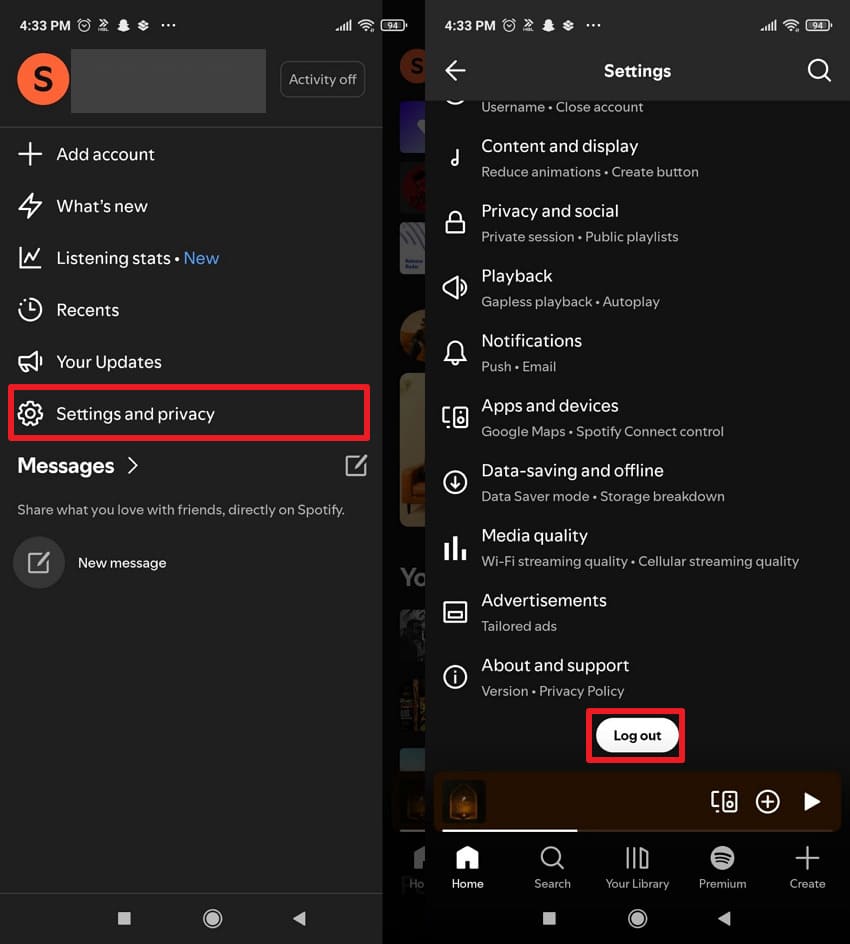
Instructions. Hit the Profile icon > Select the "Settings and Privacy" option > Press the "Log Out" button > Tap "Log In" > Enter credentials.
For Android
Instructions. Tap the "Profile" icon on Spotify > Choose the "Settings and Privacy" option > Press the "Log Out" button > Sign in with your credentials.
Fix 4: Remove and Re-add the Problematic Song or Playlist
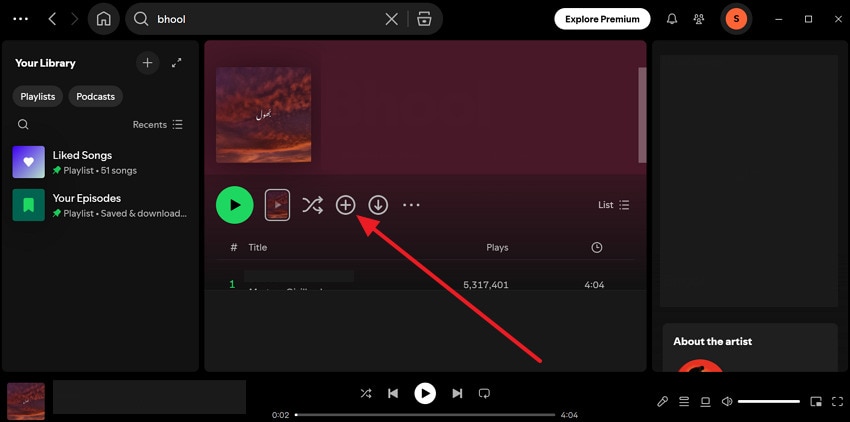
The removal and re-addition of a song forces Spotify to fetch a fresh version from its servers. This further eliminates corrupted data, updates track availability, and ensures the playlists function correctly. To test this quick fix, follow the guidelines and resolve Spotify can't play current song:
On Web
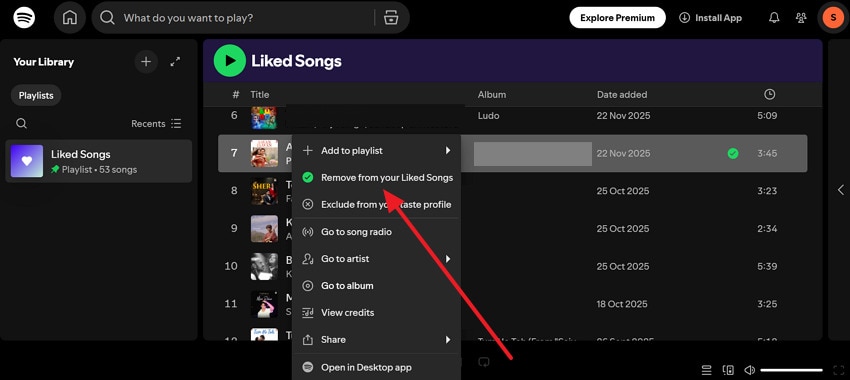
Step 1. Open your Liked Songs section on Spotify Web > Right-click the problematic song > Choose "Remove from your Liked Songs" option.
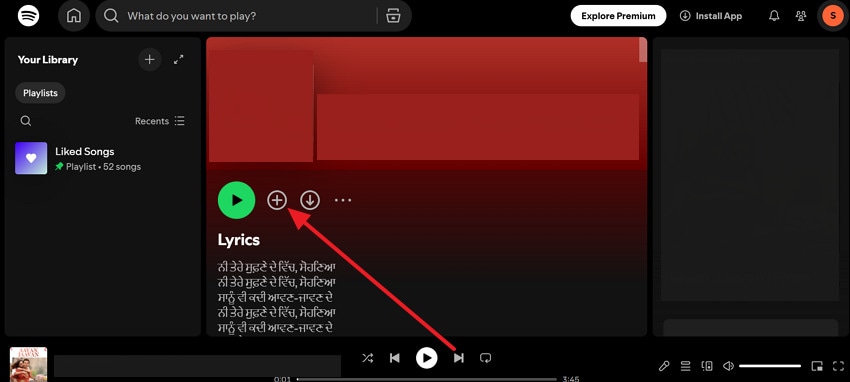
Step 2. Search that song in the search bar > Press the "+" option to re-add the song.
On Windows
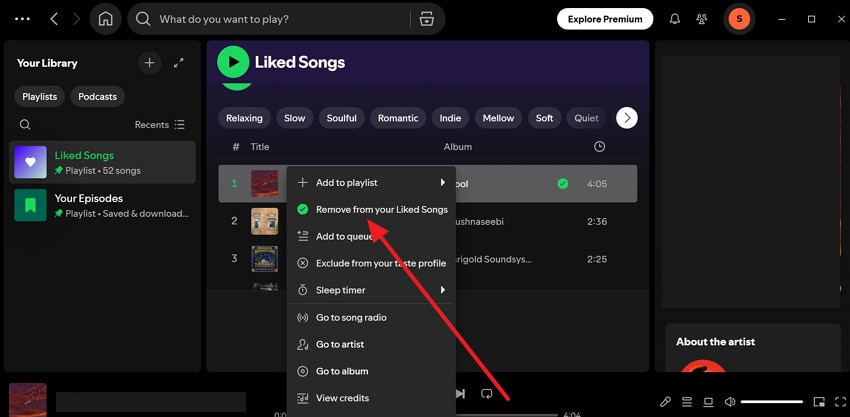
Step 1. Enter your Liked Songs library on Windows Spotify > Right-click the error-displaying song > Click "Remove from Your Liked Songs."
Step 2. Next, find the same song and press the "+" icon to re-add it to playlists.
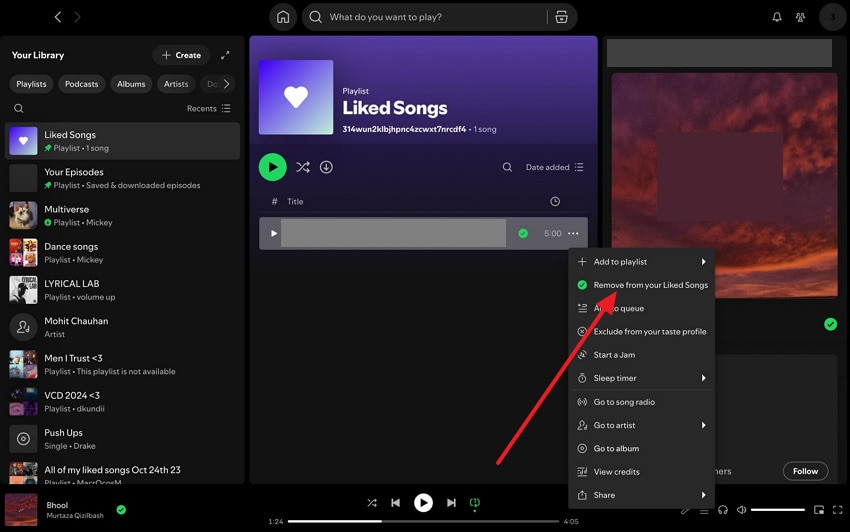
On Mac
Step 1. On Mac, access your Liked Songs > Press the "Three Dots" icon > Select "Remove from Your Liked Songs" option.
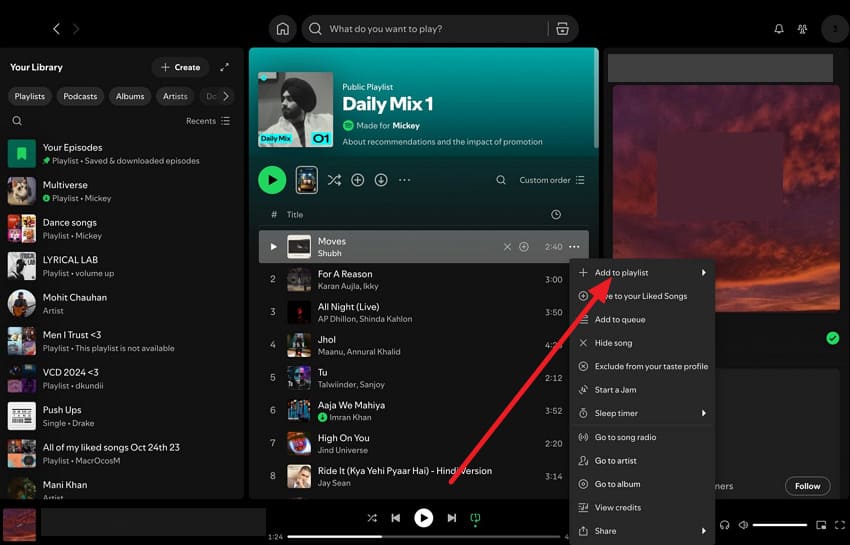
Step 2. Search for your song > Click the "Three Dots" icon > Choose the "Add to Playlists" option.
On iPhone
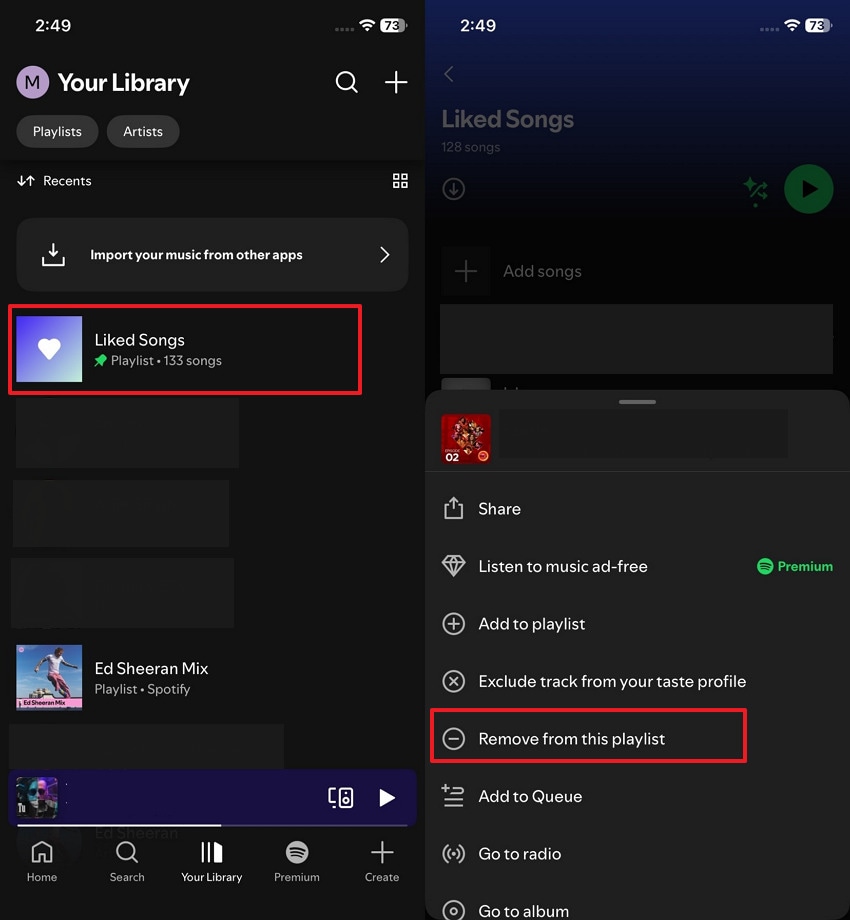
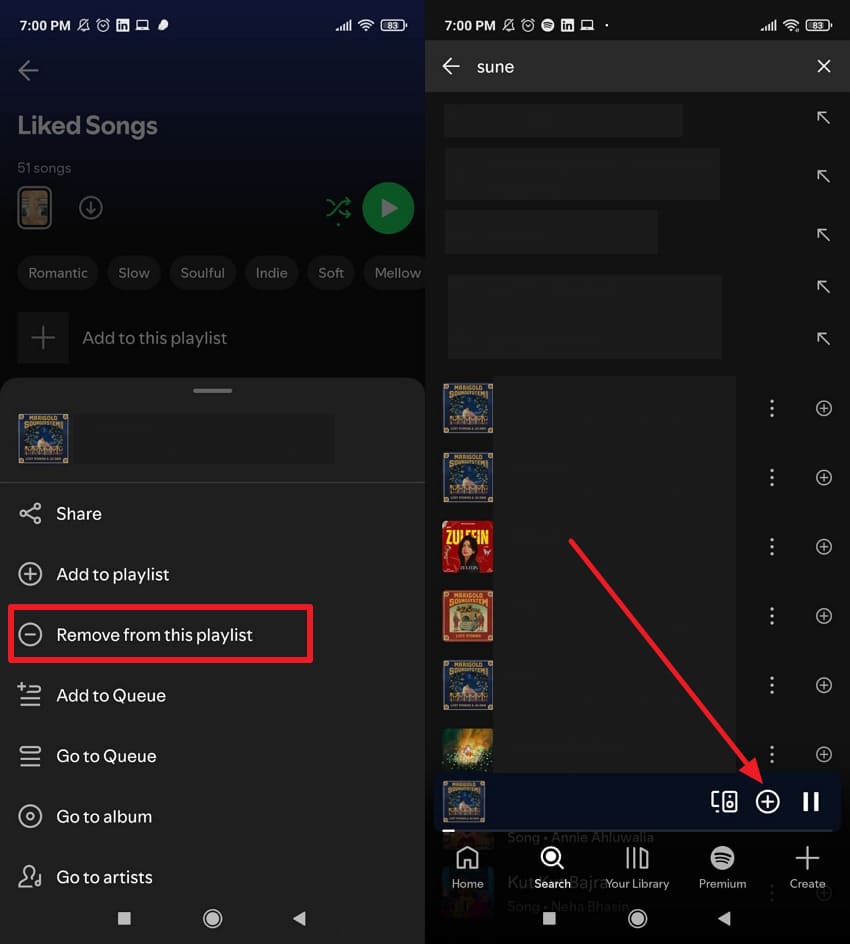
Instructions. Reveal Spotify library > Access "Liked Songs" > Press "Three Dots" beside problematic song > Choose "Remove from This Playlist" > Tap "Add to Playlist" to re-add song.
On Android
Instructions. From Liked Songs folder > Press "Three Dots" against error-showing song > Tap "Remove from This Playlist" > Search for song > Hit "+."
Fix 5: Turn Off Crossfade and Normalizing Options
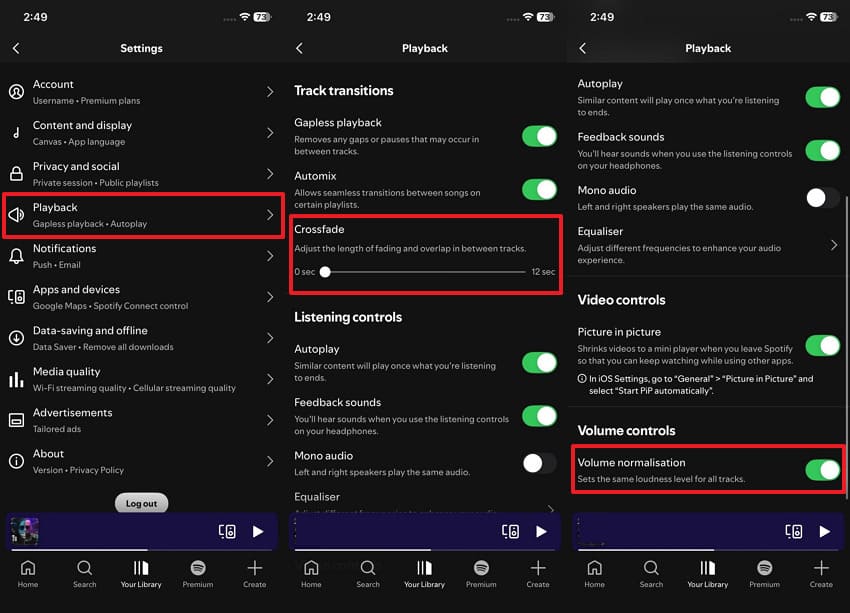
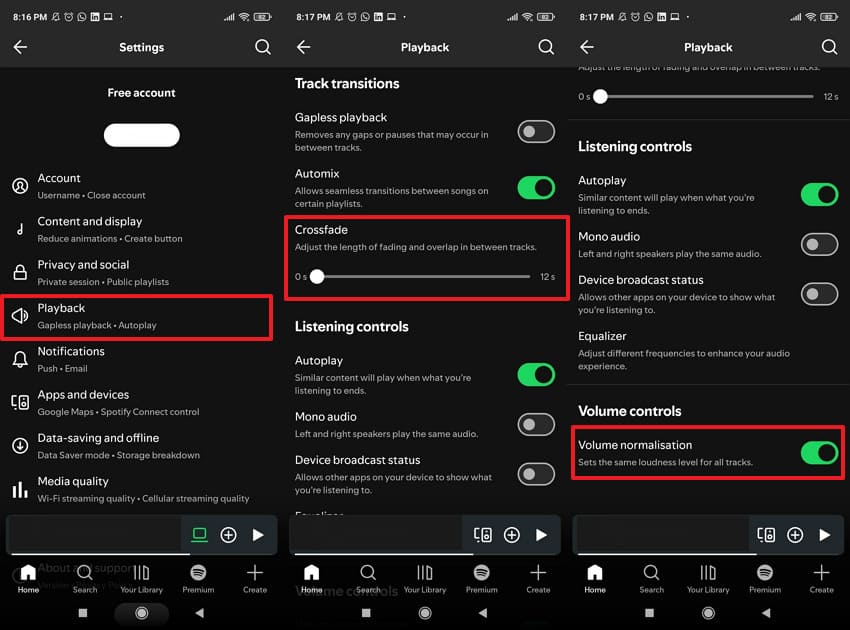
Disabling Crossfade and Normalizing options simplifies how Spotify processes audio, reducing the chances of "Spotify can't play current song." It further ensures consistent performance, smoother transitions between songs, and eradicates unexpected glitches that activate the error. For proper guidance, review the manual below and turn off Crossfade and Normalizing options on Spotify:
For Windows
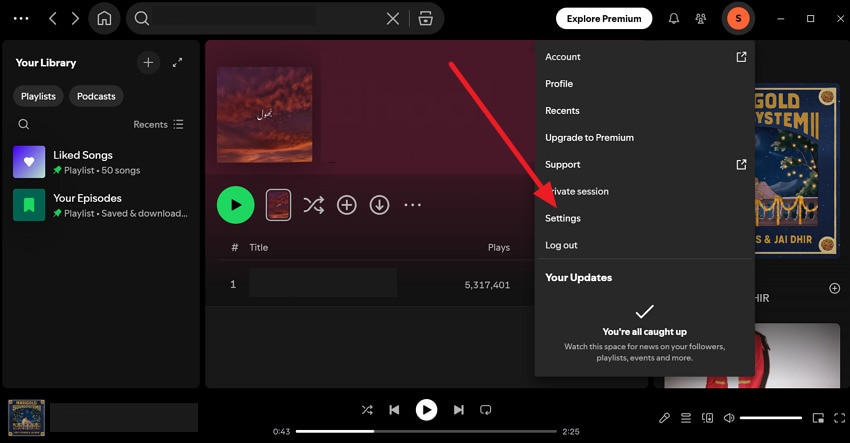
Step 1. On Windows, press the "Profile" icon > Choose the "Settings" option from the menu.
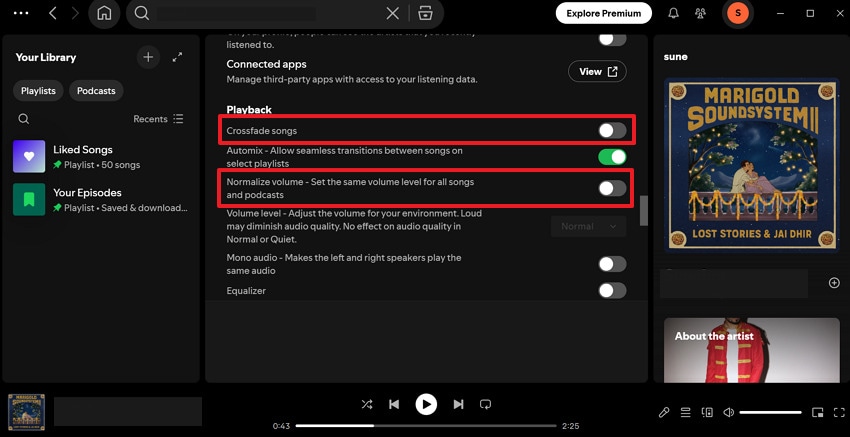
Step 2. Now, scroll down for "Playback" > Turn off both "Crossfade Songs" and "Normalize Volume" options.
For Mac
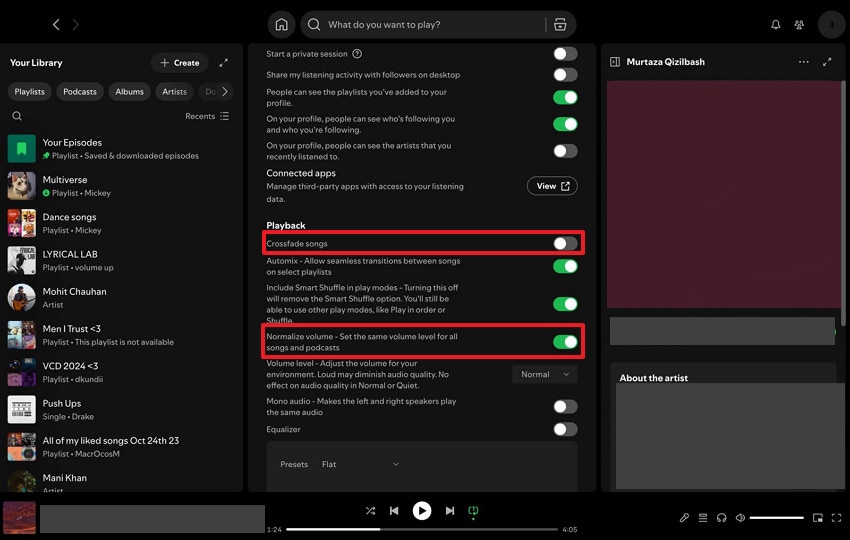
Instructions. Enter Settings on Spotify > Scroll to "Playback" section > Toggle off "Crossfade Songs" and "Normalize Volume" options.
For iPhone
Instructions. Initially, access Spotify Settings > Choose "Playback" > Lower the slider for "Crossfade" > Turn off "Volume Normalization" option.
For Android
Instructions. Enter Spotify Settings on Android > Access "Playback" > Lower slider for "Crossfade" > Toggle off "Volume Normalizer".
Fix 6: Check and Change the Audio Output Device in System Settings
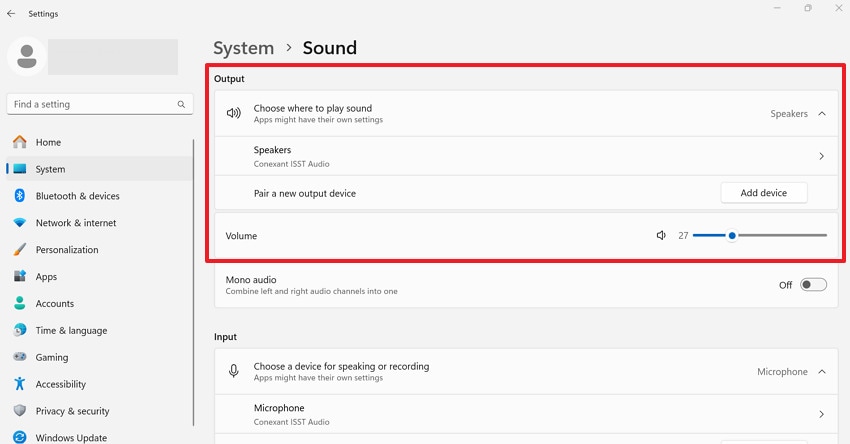
With the correct audio output device, you know that the sound is routed properly, eliminating silent playback issues. This fix is helpful when switching between headphones, speakers, or external audio systems to restore immediate and reliable sound output. Explore the stepwise tutorials to check and adjust the audio output settings for Spotify can't play current song:
On Windows
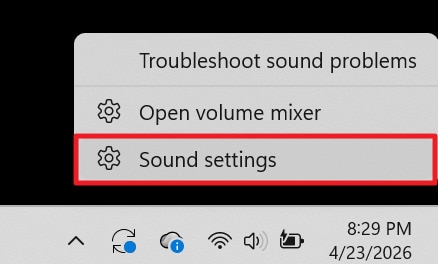
Step 1. Right-click the "Speaker" icon in the taskbar > Choose the "Sound Settings" option.
Step 2. Under the Output section, select the speakers/headphones you use > Adjust the volume slider accordingly.
For Mac
Step 1. Click the "Apple" icon and choose the "System Settings" option.
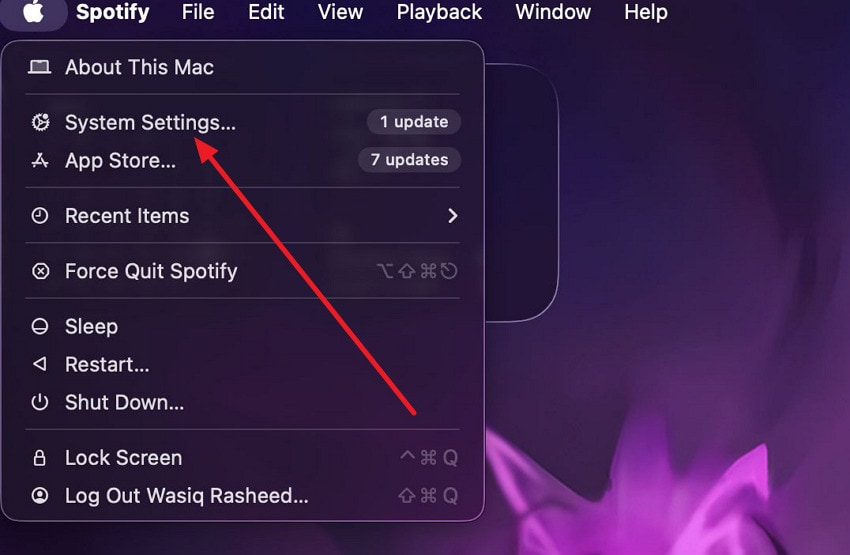
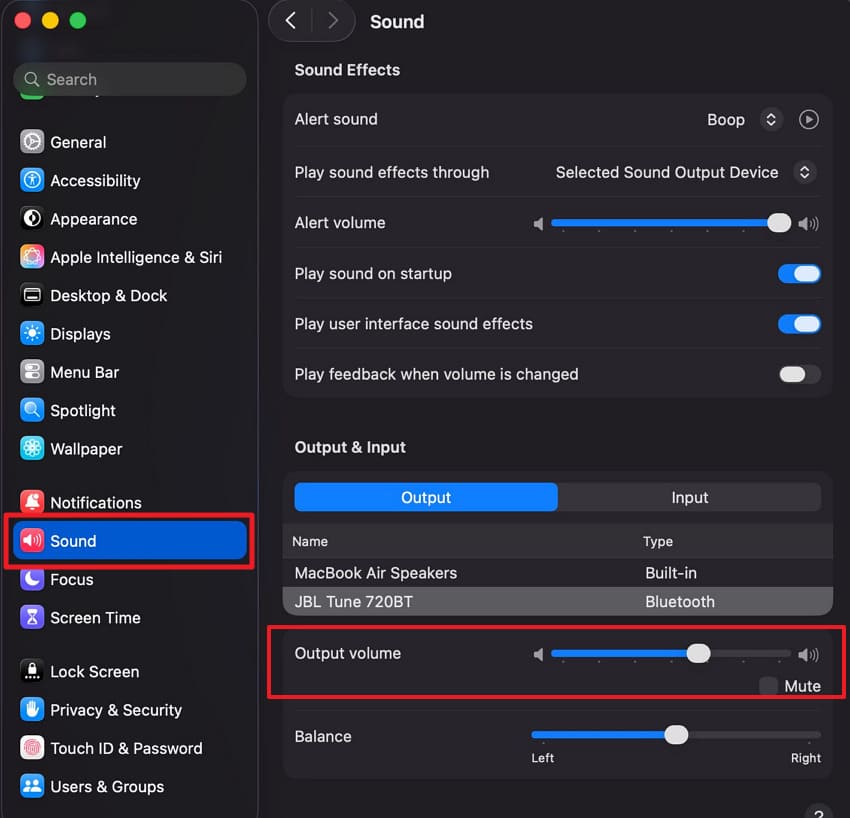
Step 2. Now, access the "Sound" section and adjust the "Output Volume" through the slider.
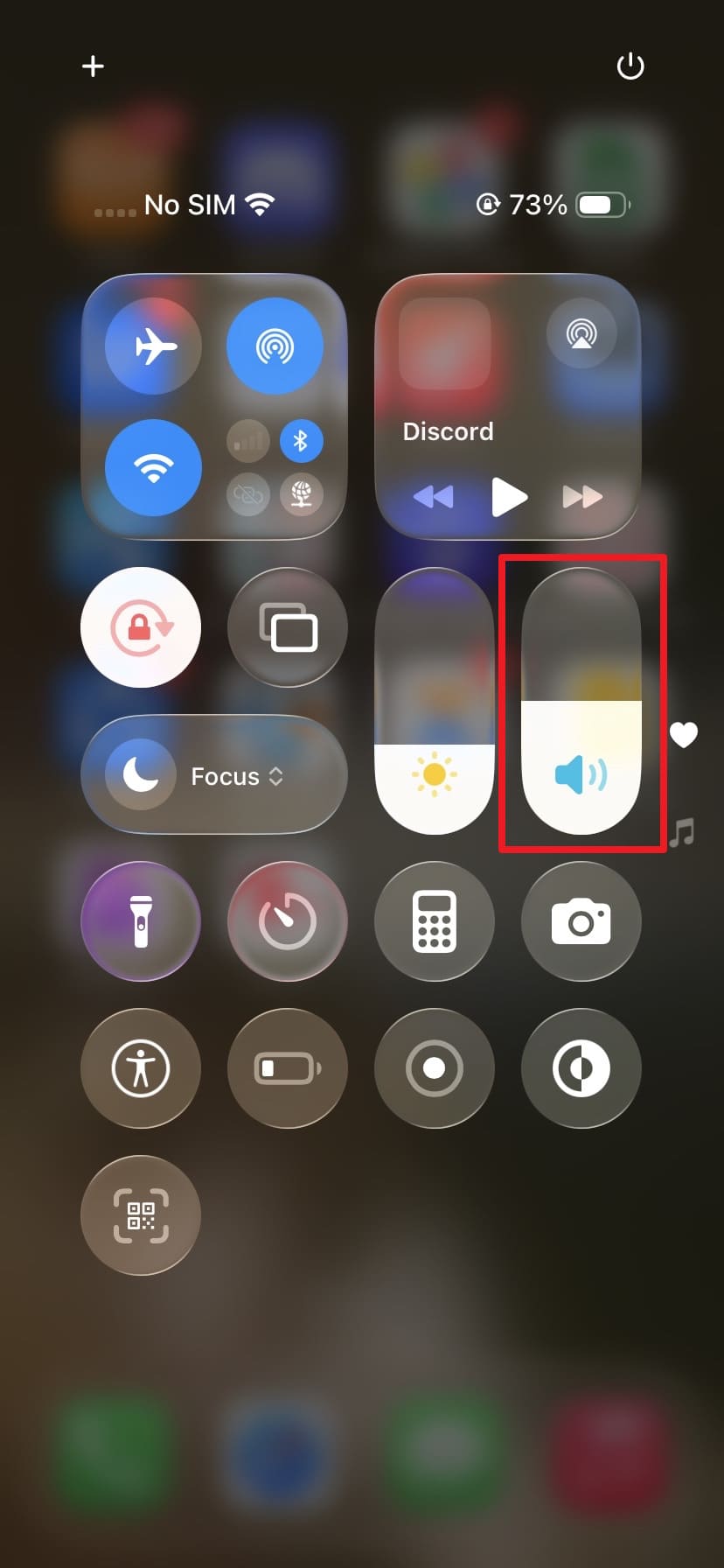
For iPhone
Instructions. While playing the problematic song on Spotify > Access "Control Center" > Adjust or increase the volume.
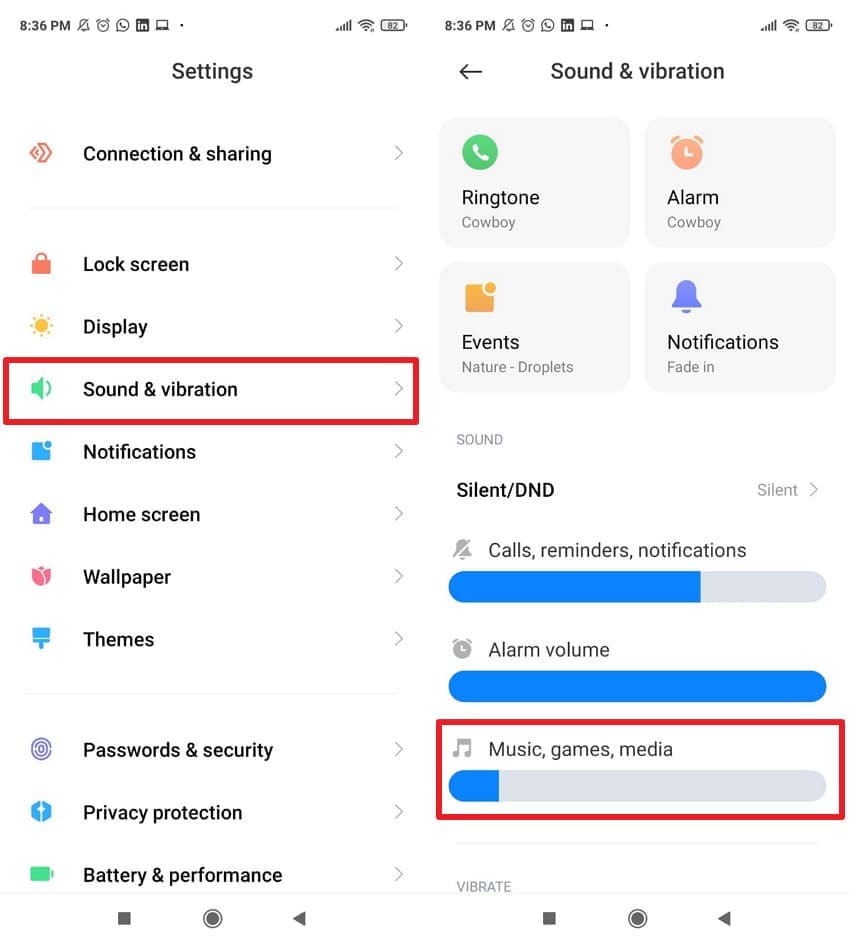
For Android
Instructions: In your Android Settings > Press "Sound & Vibration" option > Increase the slider for "Music, Games, Media."
Fix 7: Clear Spotify Cache
Cache clearance removes corrupted and unnecessary data, allowing Spotify to rebuild fresh files. It not only fixes playback issues but also improves app performance, reduces lag, and ensures smoother streaming across playlists. Explore the guided tutorial to know how to clear Spotify cache from different devices for fixing Spotify can't play current song:
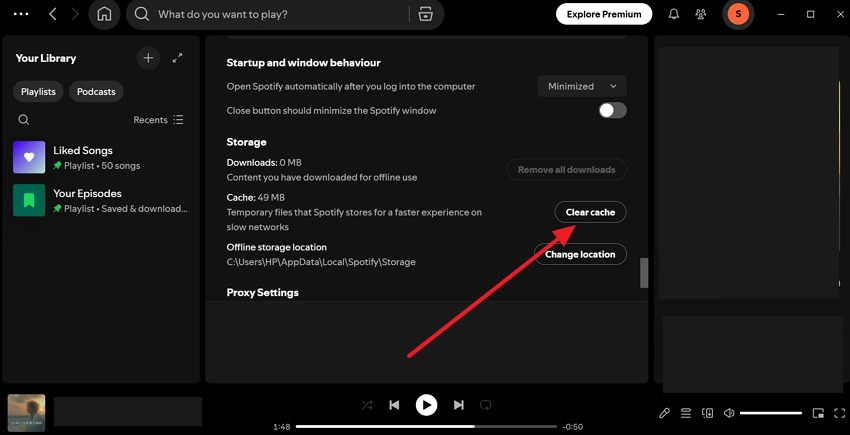
On Windows
Instructions. From Spotify Settings > Scroll and press the "Clear Cache" button > Confirm the action in the prompt window.
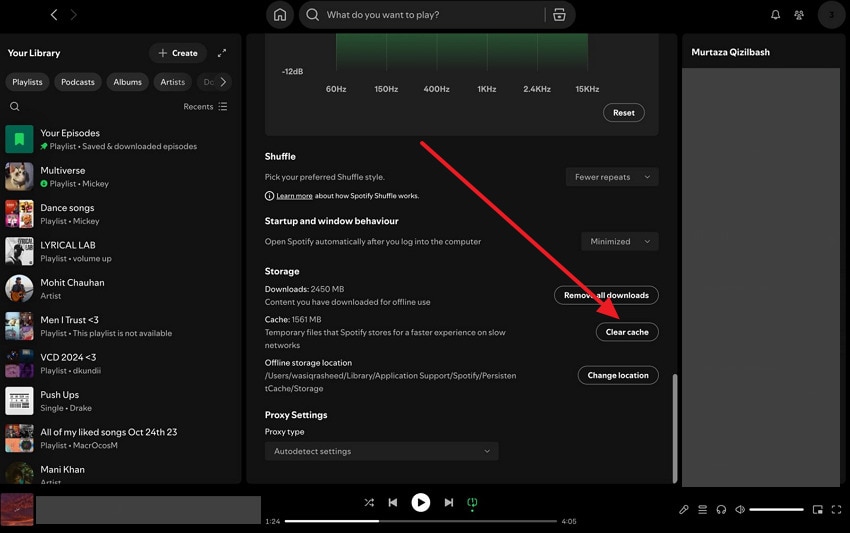
On Mac
Instructions. From Spotify Settings on Mac > Press the "Clear Cache" option > Accept prompt confirmation.
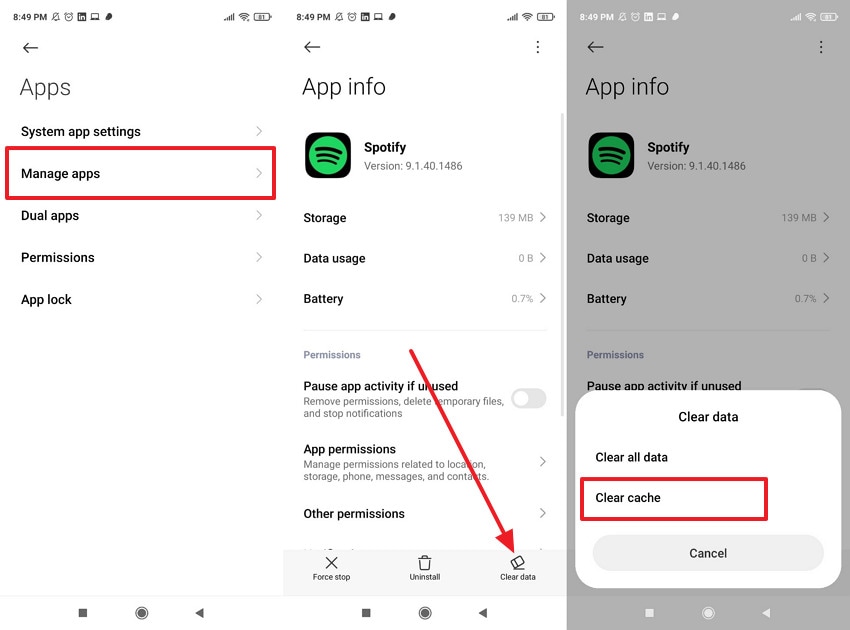
On Android
Instructions. Enter Android Settings > "App" option > "Manage App" > Search for Spotify > "Clear Data" option > Press "Clear Cache."
Fix 8: Disable Hardware Acceleration in Spotify Settings
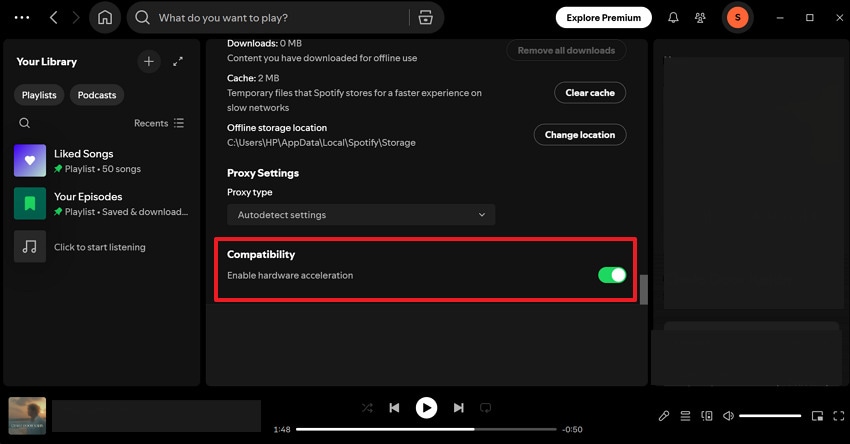
Hardware acceleration shifts processing back to the CPU once you disable it, which is often more stable for audio playback. With this fix, you can reduce crashes, improve compatibility, and guarantee a better listening experience without interruption. For Spotify can't play the current song, disable hardware acceleration from Spotify settings on Windows and Mac:
Instructions. First, go to Spotify Settings > Scroll down and toggle off the "Enable Hardware Acceleration" option under Compatibility.
Fix 9: Update Audio/Sound Drivers on Your Computer
An update of audio or sound drivers ensures complete compatibility with Spotify and your operating system. It can resolve playback errors, improve sound quality, and prevent issues like distorted audio or complete silence. In order to resolve Spotify can't play current song, update your audio drivers through the tutorial below:
For Windows
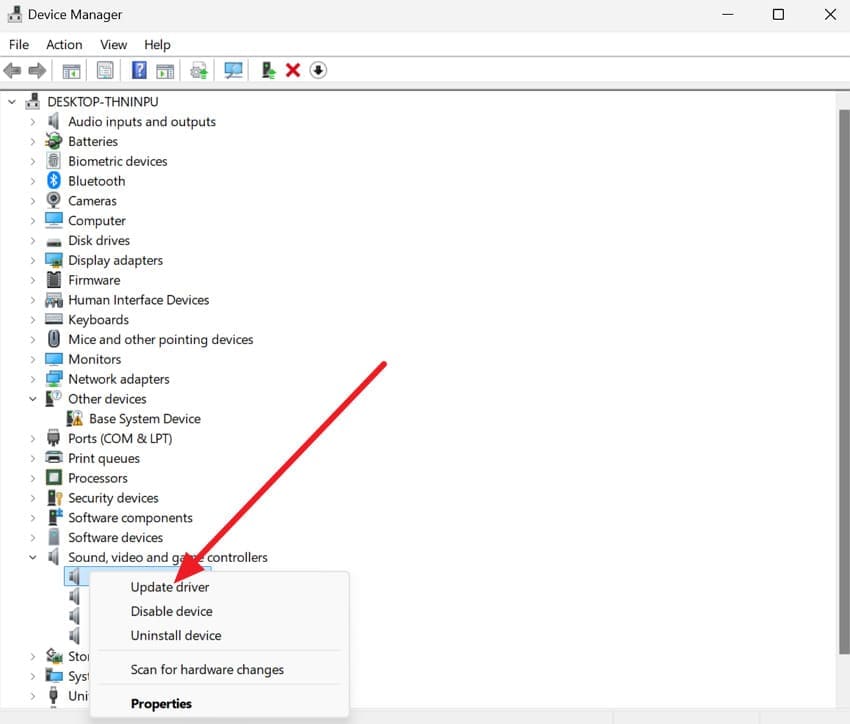
Step 1. Enter Device Manager > Expand "Sound, Video and Game Controllers" > Right-click your audio device > Choose "Update Driver."
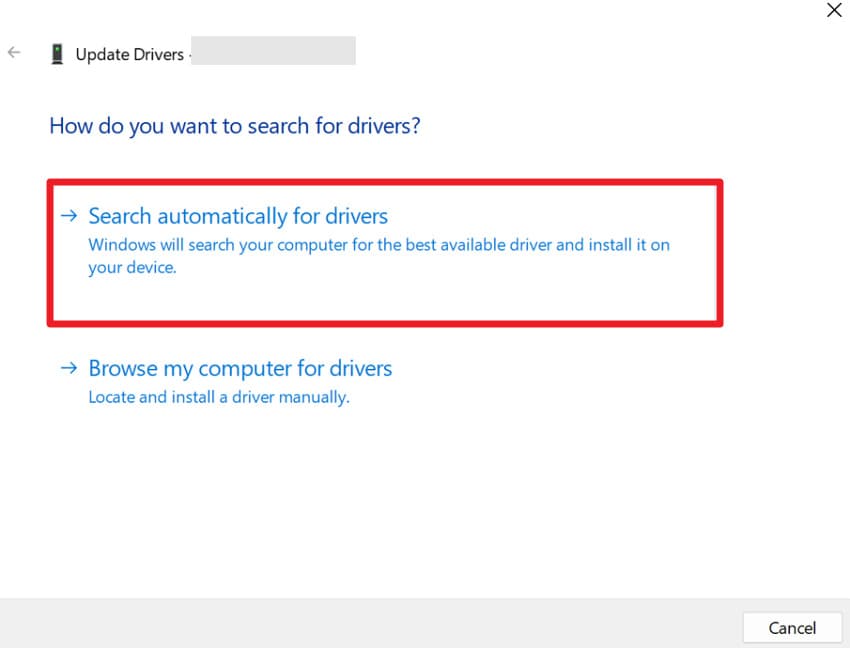
Step 2. Next, press the "Search Automatically for Driver" option to allow Windows to search and update the driver.
For Mac
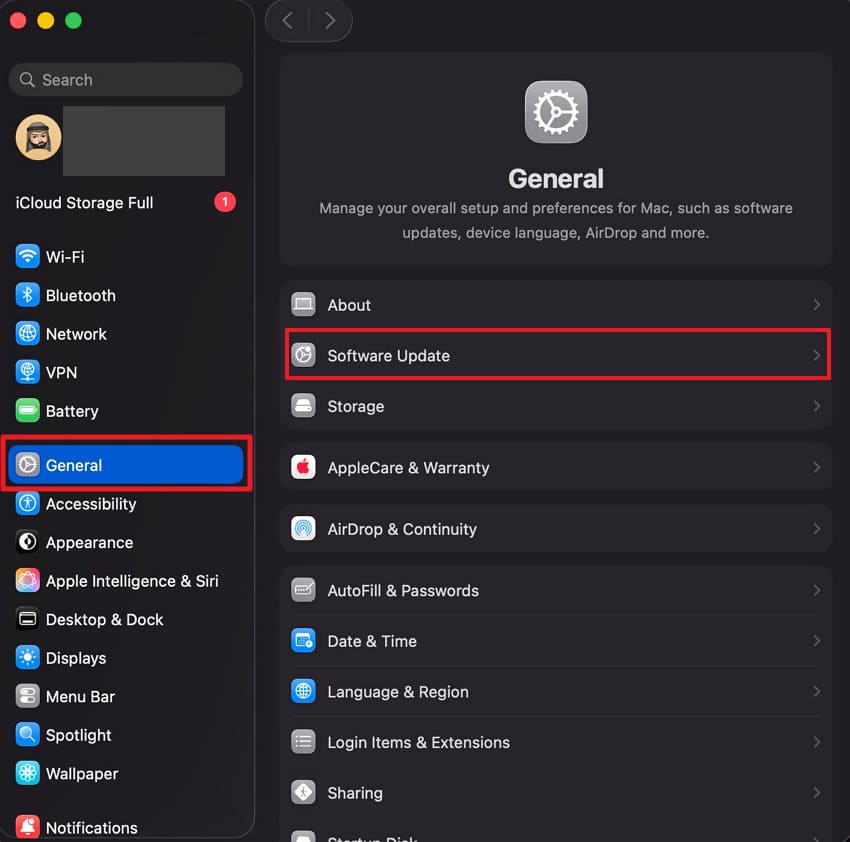
Step 1. To update audio drivers on Mac, go to the "General" tab > Press the "Software Update" option.
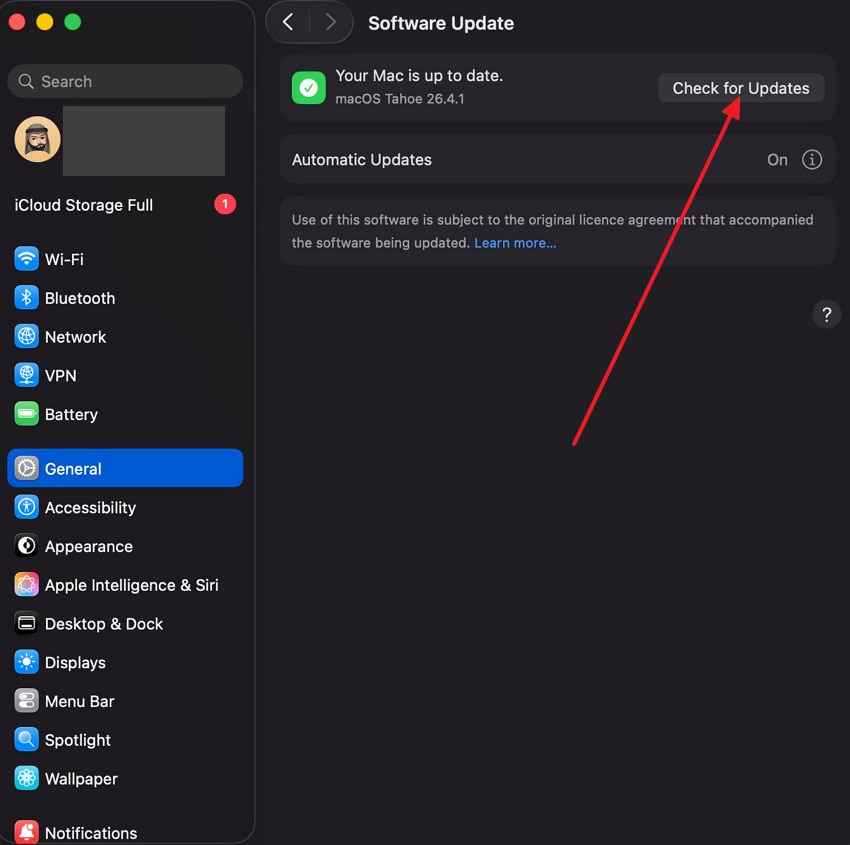
Step 2. Next, click the "Check for Updates" to update macOS and audio drivers automatically.
Fix 10: Check Country/Region and Content Availability on Your Account
Confirmation about your Spotify account region ensures that you have access to the correct music catalog. This step eliminates playback restrictions, reduces skipped tracks, and ensures a more consistent listening experience by location. For this, simply visit the official Spotify account page in a browser on any device and check your Country/Region.
Pro Fix. Repair Broken Local Songs with Repairit
If playback fails for your local songs, the issue may involve a broken local music file instead. It means you'll need a professional audio repair program, like Repairit, to help restore it. The program excels at repairing audio from many sources, including voice recorders, phone mics, and DAWs. This makes it useful whether your broken song is a local Spotify file or a recorded DJ set.
In fact, Repairit can correct multiple common audio defects such as clipping, humming, static, and crackling. It even works on copies of your broken songs instead of overwriting them directly, keeping your original file safe. You can handle multiple songs at once in batch mode, saving time on repairing them one by one. Its audio repair model works on both Windows and macOS, making it easy to repair local songs on the go.
Key Features

-
Address Multiple Audio Formats: The program fixes the most common music file types, such as MP3, MP4, and FLAC.
-
Solve Audio File Errors: You can address multiple file issues, such as your audio not playing, glitching, or being partially incomplete.
-
Supports No Quality Loss Repair: This tool focuses on lossless repair and fixes even severely damaged parts of the file quickly.
Detailed Guide to Repair Broken Local Songs Using Repairit
If you're continuously dealing with broken tracks, simply follow the guidelines given below and get sorted:
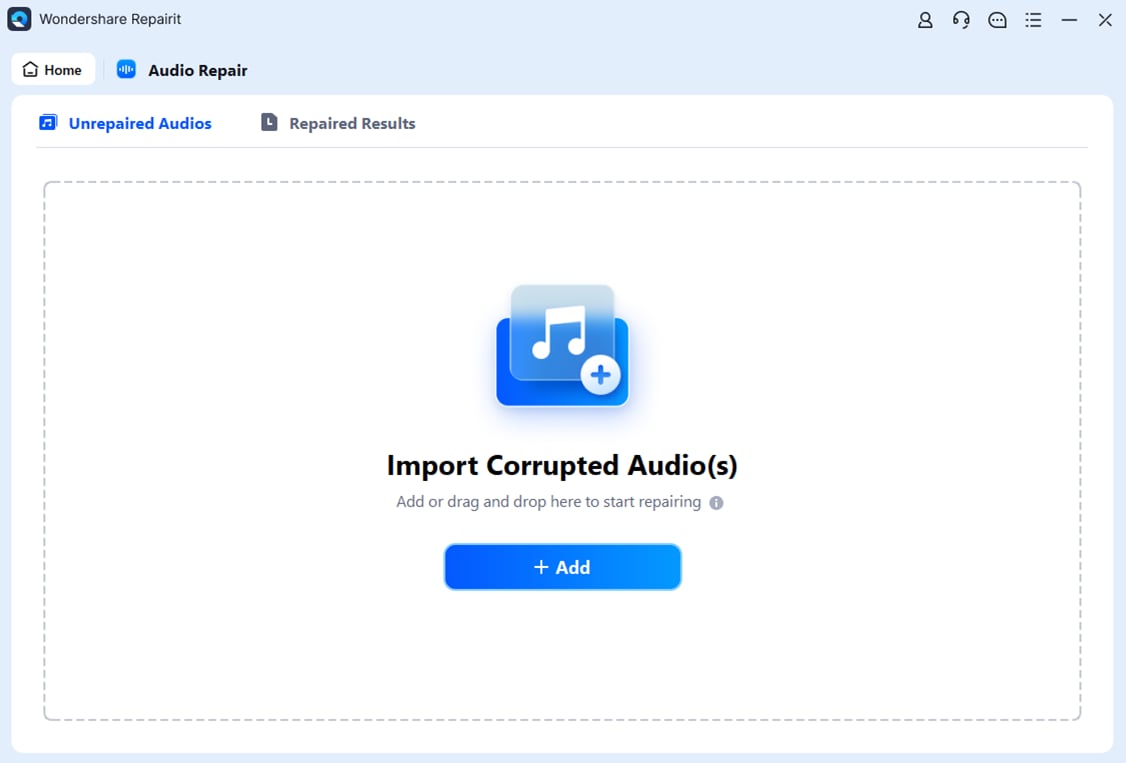
Step 1. Insert Your Broken Audios into the Tool
Access the "More Types Repair" tab and click the "Start" button for Audio Repair. After this, press the "+Add" button to insert all the broken music files.
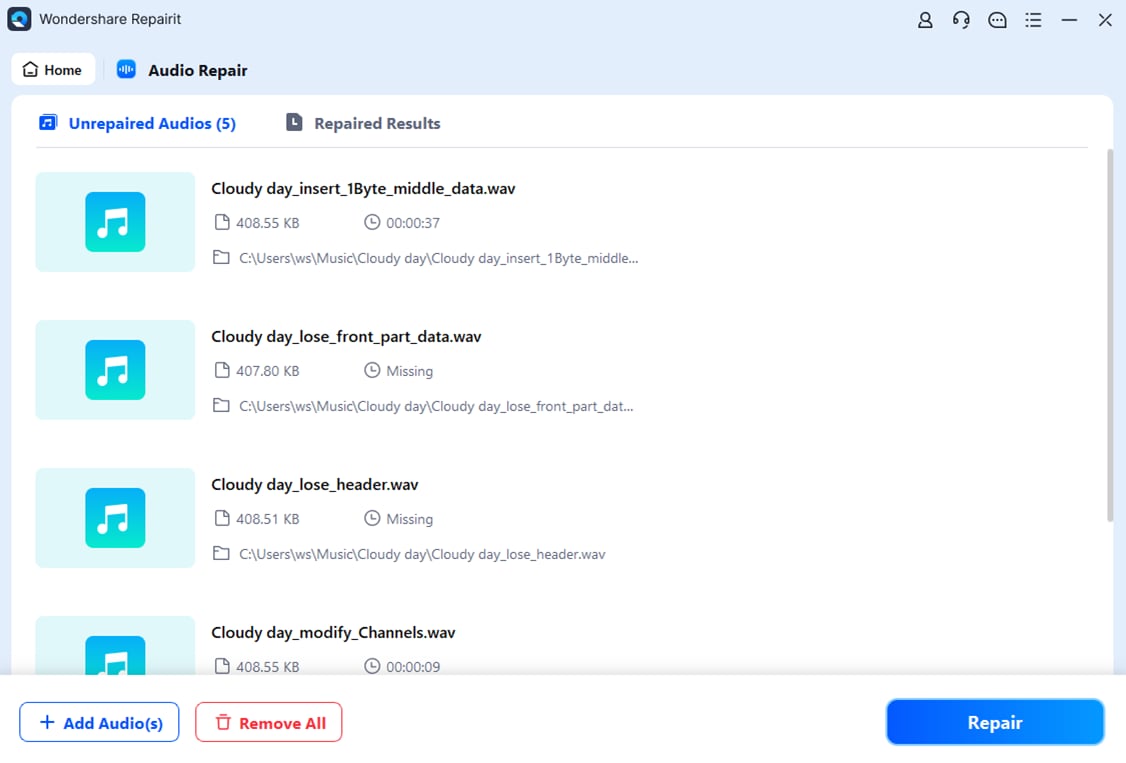
Step 2. Initiate the Audio Repair Process
Press the "Repair" button to start repairing all the locally added songs.
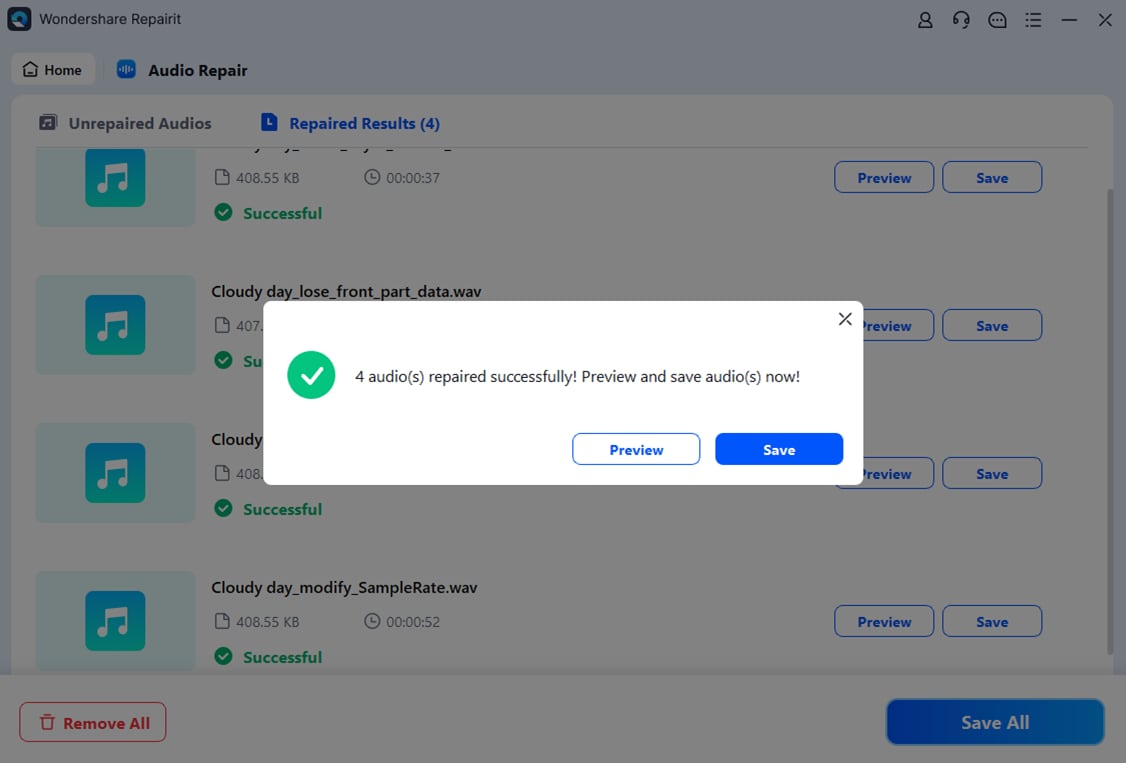
Step 3. Review and Save the Repaired Songs
Finally, preview the repaired songs and click the "Save All" button to secure them.
Repair Corrupted Files
 Security Verified. Over 7,302,189 people have downloaded it.
Conclusion
In conclusion, while Spotify can't play the current song, an error that disturbs your mood, you don't have to stay with it all day. A thorough walk-through of these tested solutions will surely help you restore normal playback, keeping your music flowing. However, if the issue is associated with local songs that don't play, simply download Repairit and get them fixed.
Frequently Asked Questions
-
1. Does VPN affect Spotify playback?
Indeed, a VPN can sometimes cause region mismatches, which lead to uncertain playback errors. In such situations, it's better to disable a VPN or match your account region with your current location to fix the issue. -
2. Why are some songs not available on Spotify?
When only certain songs aren't playing on Spotify, they can be restricted due to licensing agreements or regional limitations. -
3. What should I do if nothing works?
If clearing the cache, re-opening Spotify, or checking country/region availability don't work, try reinstalling the app. Whereas, for locally stored songs, a perfect repair through Repairit can be helpful in case of corruption.




