
At times, many users face the "NVIDIA display settings are not available" error. This annoying issue prevents them from adjusting their graphics configurations. It typically happens after driver updates, hardware changes, or display connection problems. All of this prevents users from accessing important visual controls.
Understanding the root causes and practical solutions to this issue helps restore smooth performance and full display functionality. So, read this guide for easy troubleshooting instructions and fixing this error quickly.
Table of Contents
-
- Fix 1: Check Monitor Is Plugged into GPU
- Fix 2: Check Multiple Monitor and Cable Setup
- Fix 3: Enable NVIDIA GPU in Device Manager
- Fix 4: Set High Performance NVIDIA GPU as Default
- Fix 5: Reinstall NVIDIA Control Panel App
- Fix 6: Update or Reinstall Graphics Driver
- Fix 7: Disable/Enable Integrated Graphics in BIOS
Part 1. Understanding "NVIDIA Display Settings Are Not Available"
This error appears when the control software for your graphics card cannot manage your current display through its usual panel. Put simply, the program that normally allows you to change resolution, refresh rate, and other visual options is blocked from doing so.
Users with dedicated graphics cards in desktops or laptops may see this error. Do not worry, as most users sometimes see this error. Especially those users who open the control panel to tweak visuals for gaming or professional work.
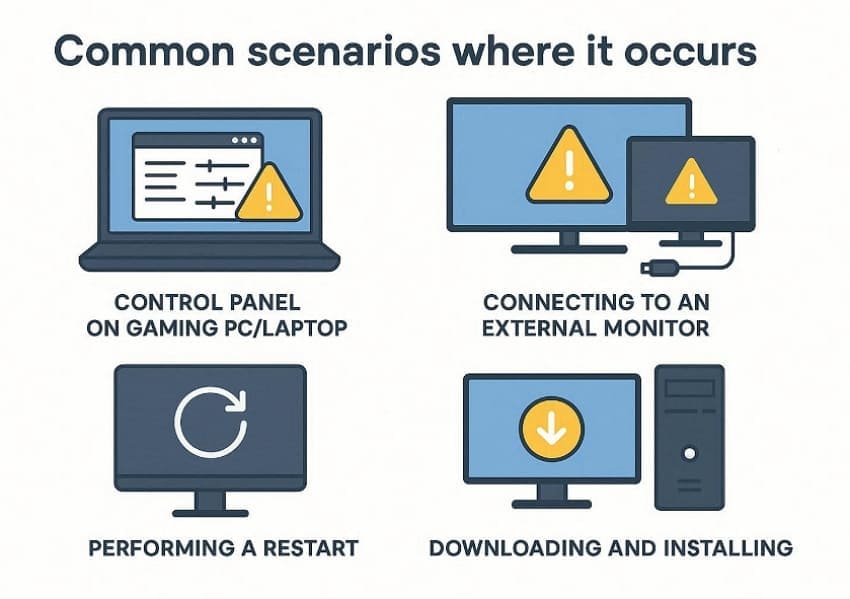
Common Scenarios Where It Occurs
Here, we will explore common scenarios in which the "NVIDIA display settings are not available" error occurs:
- Control Panel on a Gaming PC/Laptop: This error occurs when you launch the graphics control panel to adjust the display, and instead of the usual settings, you see the error.
- Connecting to an External Monitor: It appears when the user opens or switches to a second screen, e.g., TV or projector.
- After Restarting or Waking From Sleep: At times, the NVIDIA display settings are not available after one has restarted or woken up the computer from hibernation.
- Using Multiple Displays: This error appears when a user attempts to change the settings of one of the displays while many displays are running.
Part 2. Common Causes of NVIDIA Display Settings Are Not Available
After discussing possible scenarios where this error might show up, we will now explain the root causes:
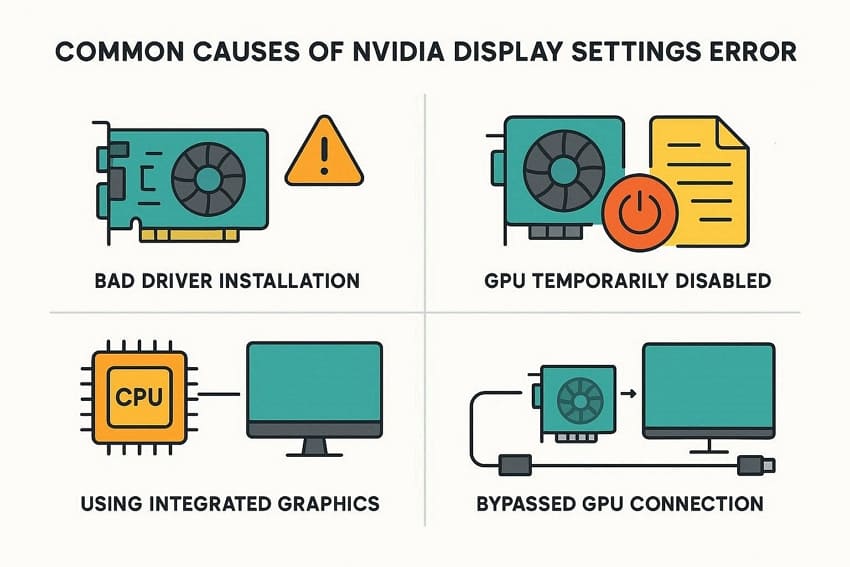
- Bad Driver Installation: At times, the necessary software for the graphics card is either missing or outdated. It could also not be installed properly, which blocks access to display controls.
- Bypassed GPU Connection: If the monitor is connected in a way that bypasses the dedicated graphics card, you’ll face this issue. This is because the control software cannot manage the screen.
- Using Integrated Graphics: The computer is currently running on built-in graphics rather than a dedicated card. If this happens, the dedicated card’s display settings become unavailable.
- GPU Temporarily Disabled: Power settings, device clashes, or system policies may disable the dedicated graphics card. When this occurs, the control panel cannot detect it as an active display.
Part 3. Troubleshoot NVIDIA Display Settings Are Not Available Error
Fixing the "NVIDIA display settings are not available" error is easy by using these 7 quick fixes. We will delve into each one that will aid you in restoring access to your display controls.
Fix 1: Check Monitor is Plugged into GPU
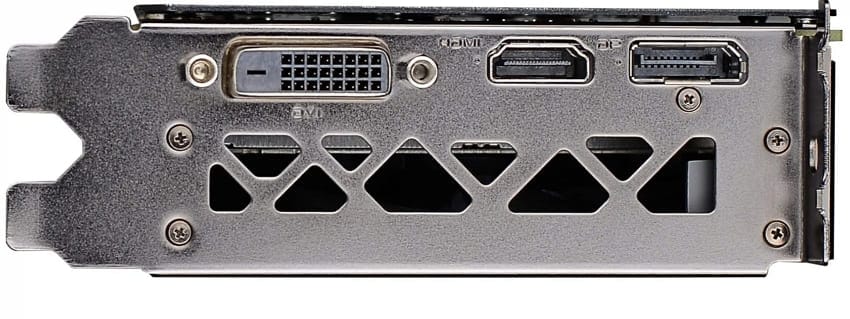
The first method is checking to see if your display is connected to your dedicated graphics card and not the motherboard. When the monitor is plugged into the wrong port, the GPU's control panel is unable to manage that. To perform this fix, follow the instructions carefully:
Instructions. To begin, shut down your PC and see if the monitor cable (HDMI) is plugged into the correct ports. Next, recheck both ends of the cable firmly, and then power back on your PC and check the display settings again.
Fix 2: Check Multiple Monitor and Cable Setup
One other way to fix the error is to make sure that you have a proper setup. If you use more than one display and think that maybe there is a faulty cable or port, this could be the reason why the display settings issue appears.
Here, just confirm each screen is connected to the correct GPU port and also powered on. Then, try exchanging cables and ports, e.g., switch from HDMI to AVI port, and see if the error disappears.
Fix 3: Enable NVIDIA GPU in Device Manager
Another fix for getting rid of the "NVIDIA display settings are not available" error is enabling the NVIDIA GPU in the device manager. Sometimes, the dedicated GPU is disabled at the system level, so its settings are not available. Enabling it allows Windows and the control panel to use that card again. Use the instructions below to try it out:
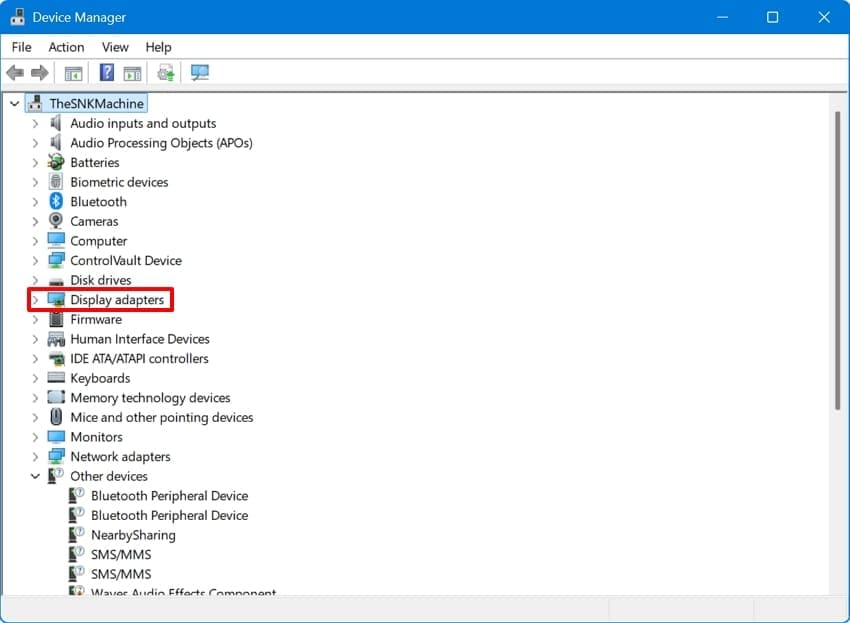
Step 1. To start off, right-click the "Start" button and select "Device Manager" from the options to further select "Display Adapter."
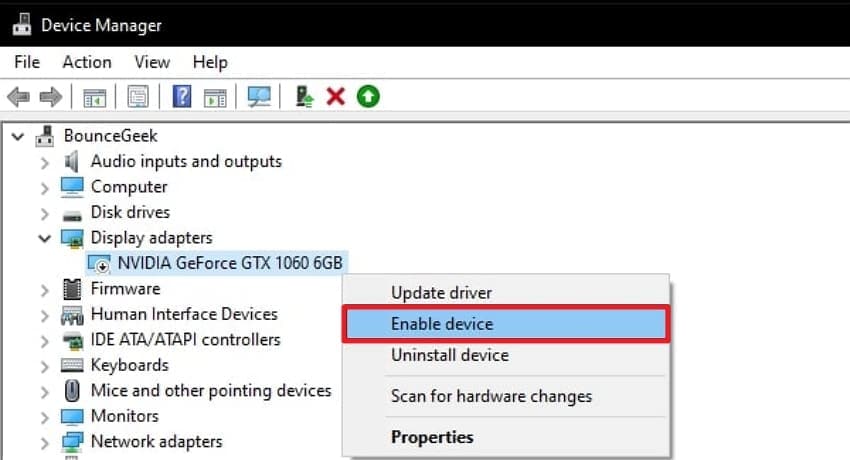
Step 2. Next, expand "Display Adapters," and if the NVIDIA card is disabled, right-click and choose "Enable device." Afterwards, restart your PC and check if the settings are available.
Fix 4: Set High Performance NVIDIA GPU as Default
Display options may not appear if apps are using integrated graphics cards rather than an NVIDIA GPU. Setting the high-performance GPU as the default guarantees that games and heavy apps run on it. In this case, follow the next set of steps below:
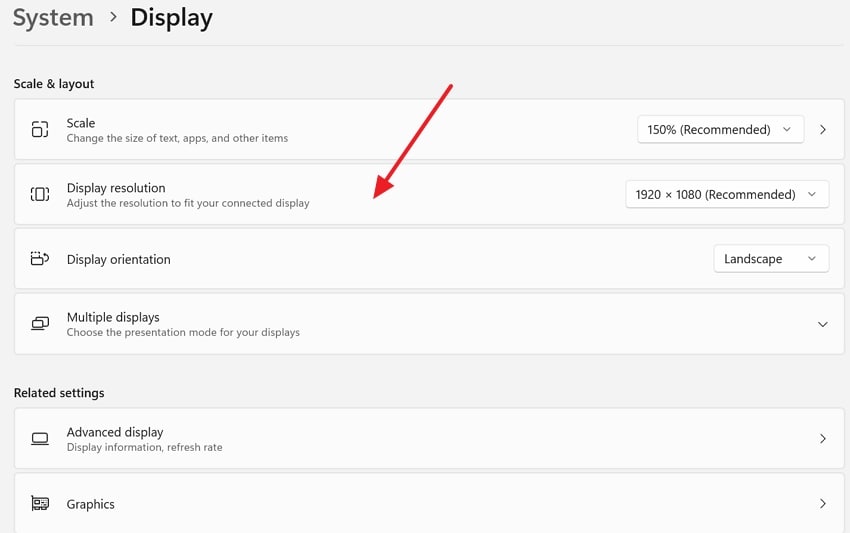
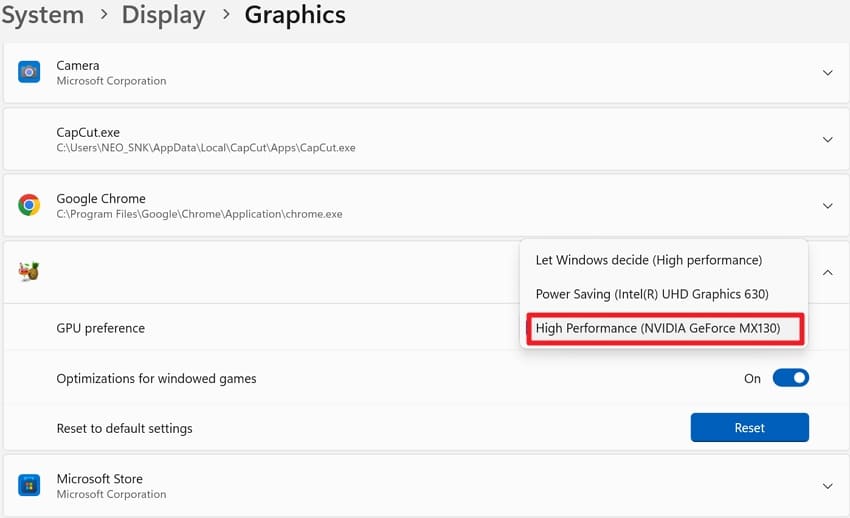
Step 1. Initially, open "Settings" and navigate to the "Display" option and choose "Graphics." Next, select the app or game that needs correction in its display settings.
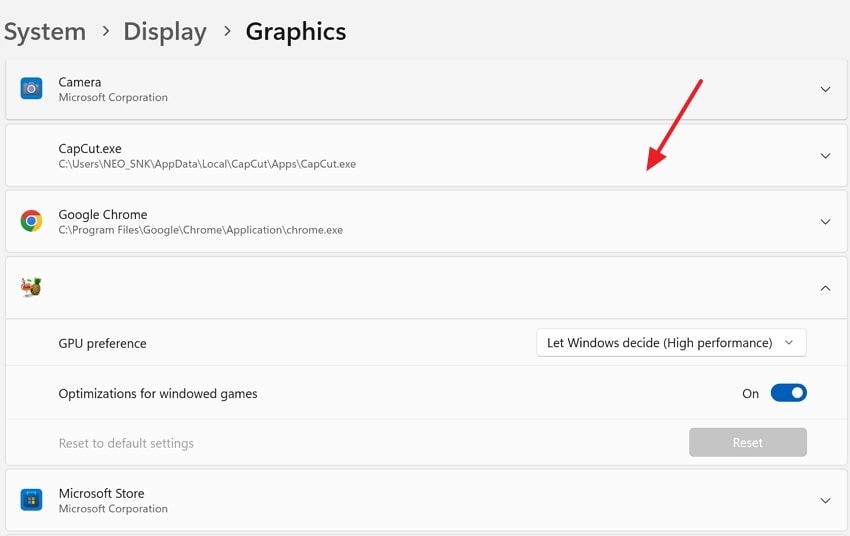
Step 2. Subsequently, click "Options" and choose "High Performance" for the game, and finally save your changes.
Fix 5: Reinstall NVIDIA Control Panel App
If the NVIDIA control panel is broken, behaving oddly, or just missing, you can reinstall it to regain access to display options. Using this fix gives you a fresh control panel with no lingering glitches. Therefore, for your ease, go through the instructions mentioned next:
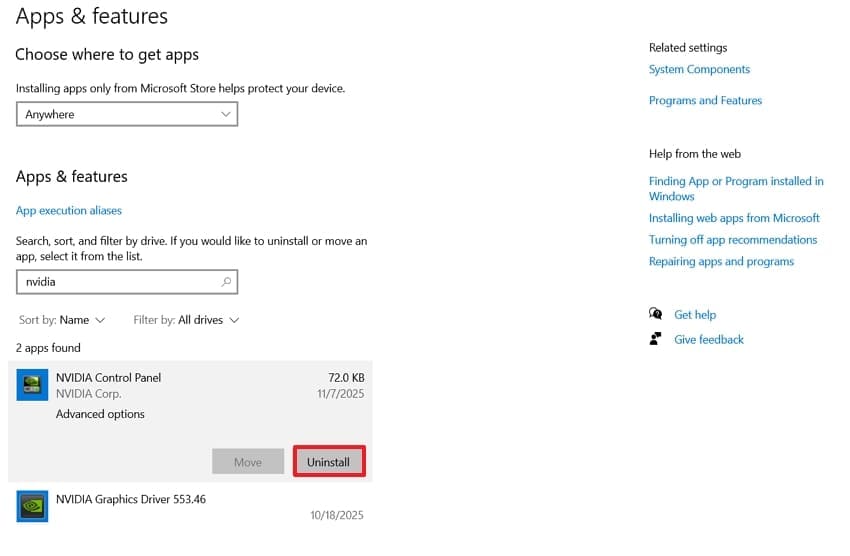
Step 1. First, go to "Settings," enter the "Apps" section, and search for "NVIDIA Control Panel." Then, uninstall the app by clicking on the "Uninstall" button.
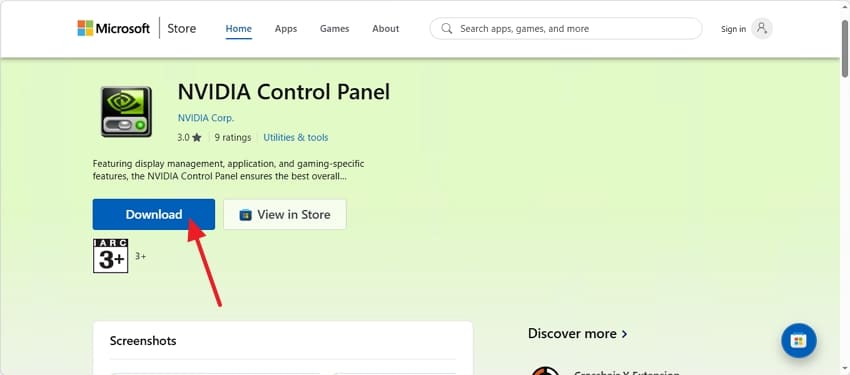
Step 2. Next, go to the Microsoft Store and search for "NVIDIA Control Panel." Now, click on the "Download" button to reinstall it and finally restart your PC.
Fix 6: Update or Reinstall Graphics Driver
Corrupted or outdated drivers are a common reason for "NVIDIA display settings are not available" error. Updating or reinstalling the driver refreshes the link between the GPU and Windows. To help you accomplish this fix, use the given instructions:
Step 1. To begin, go to the "Apps" section in your Windows settings and uninstall the NVIDIA App. Then, visit the official NVIDIA App website and press the "Download Now" button.
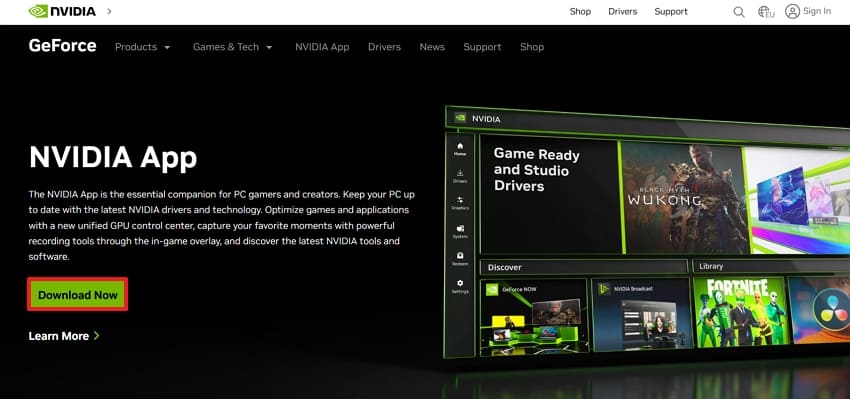
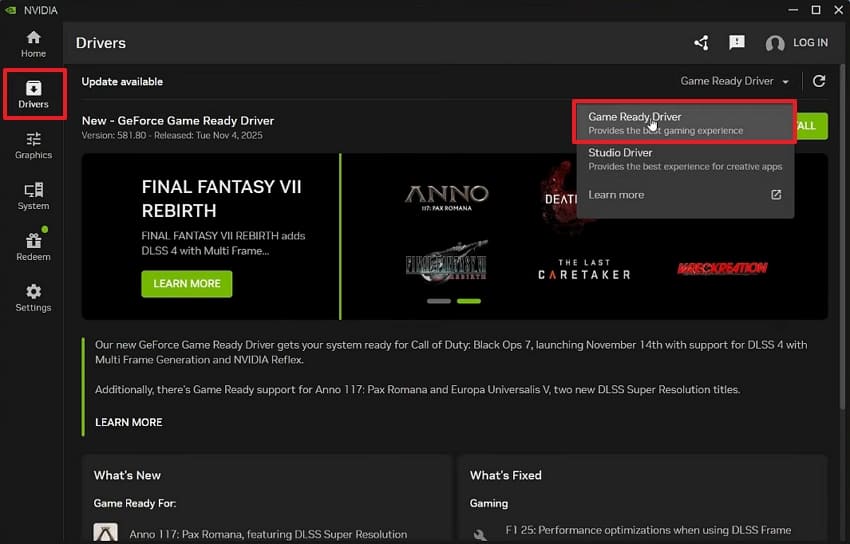
Step 2. After the setup file is downloaded, install the app on your PC. Once installed and launched, click on the "Drivers" tab and select the "Game Ready Driver" option from the drop-down menu.
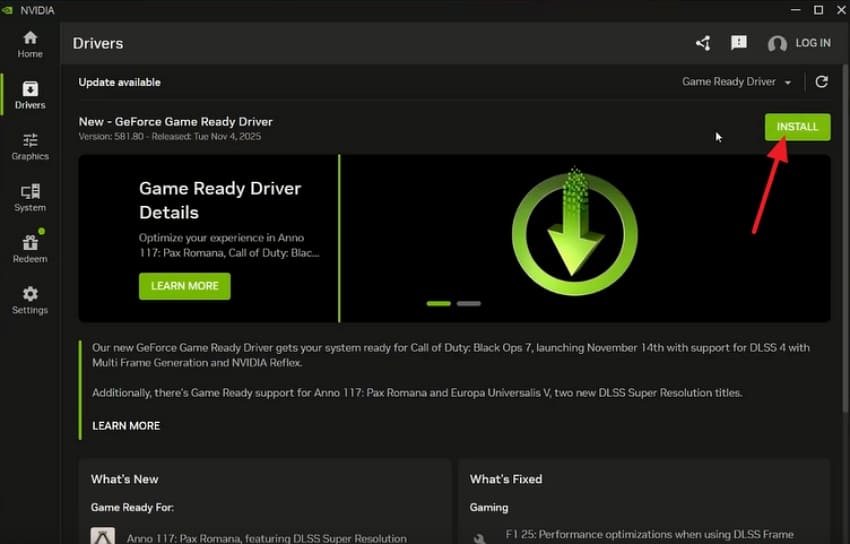
Step 3. Finally, click on the "Install" option and restart your PC to ensure smooth working.
Fix 7: Disable/Enable Integrated Graphics in BIOS
Sometimes the system keeps using integrated graphics instead of the NVIDIA GPU. In that case, changing the integrated graphics setting in BIOS can help the dedicated GPU work properly. Depending on your system, you may need to disable integrated graphics or enable the correct hybrid graphics mode. Use the series of steps given below to tweak the BIOS:
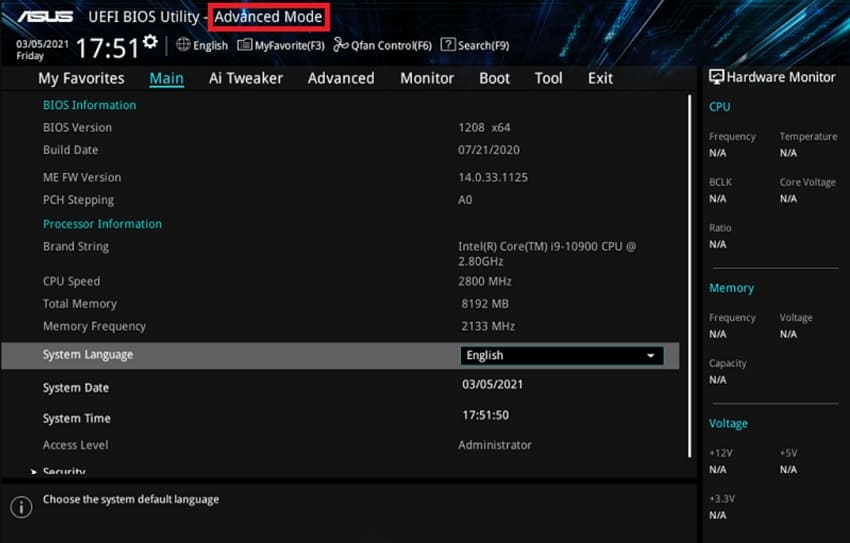
Step 1. Firstly, restart your PC and press the BIOS key (F2) when the manufacturer logo appears to enter BIOS. Next, from "EZ Mode," navigate to "Advanced Mode".
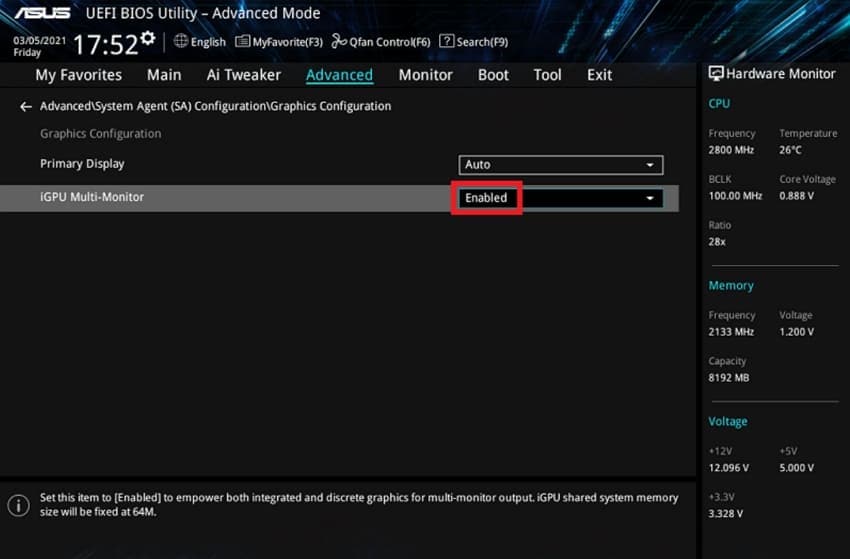
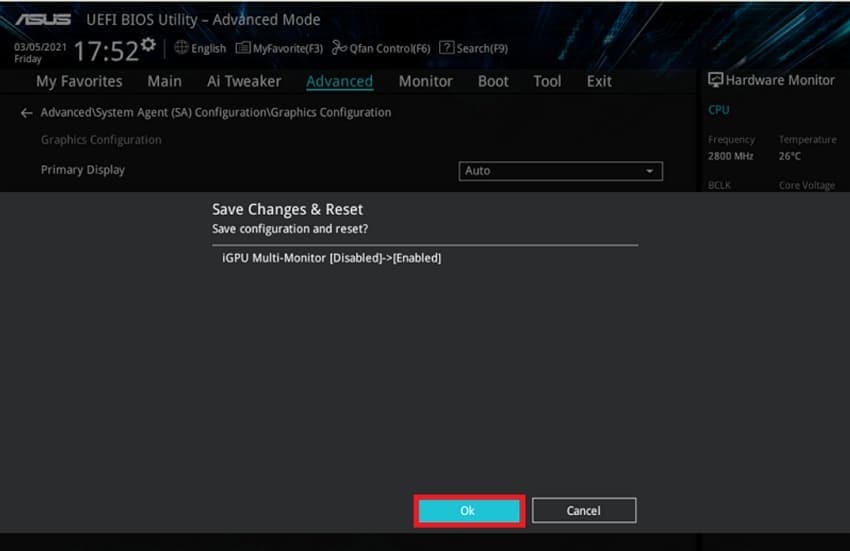
Step 2. Second, within "Advanced Mode," locate "Graphics Configuration" and then enable the "iGPU Multi-Monitor" button if not already enabled.
Step 3. Finally, press the "OK" button when the next window appears. It is asking to save changes and reset; this will allow the PC to enable the correct graphics mode.
Pro Tip: How Repairit Repairs Corrupted NVIDIA Game Recordings
Users looking to fix corrupted or unplayable game video files can use Repairit, a versatile video repair tool. This tool supports 25+ video formats, making it very helpful in assisting gamers who record their gameplay sessions. When a recording becomes choppy, won’t open properly, or shows visual glitches, Repairit can scan and rebuild the damaged data. This helps restore smooth playback without any complex manual work.
Therefore, if you’re troubleshooting issues like the "NVIDIA display settings are not available" error and recorded game sessions get corrupted, use this tool to help you out. In addition, Repairit utilizes AI to scan damaged NVIDIA game recordings, rebuild broken video data, and restore smoother playback in just a few steps.
Key Features

-
Repairs Corrupted ShadowPlay Clips: This tool can fix any game recordings that become damaged due to crashes or power loss.
-
Fixes Black Screen Recordings: If your recording shows a black screen with no audio due to GPU issues, Repairit can restore its original quality.
-
Corrects Dropped Frames and Pixelation: Repairit can fill in missing frames and reduce artifacts and pixelation.
Detailed Guide to Repairing Corrupted Game Recordings with Repairit
Go through the comprehensive guide to find out how you can fix your corrupted game recordings by using this tool:
Step 1. Access Video Repair and Import Corrupted Video
Once you launch the program, go to the "Video Repair" section. From there, click on the "+Add" option to import all of your corrupted game recordings.

Step 2. Initiate the Repairing Process
Next, an interface detailing information about the corrupted videos shows up. At the bottom, there is a "Repair" button, and you only need to click it.

Step 3. Preview and Save Repaired Game Videos
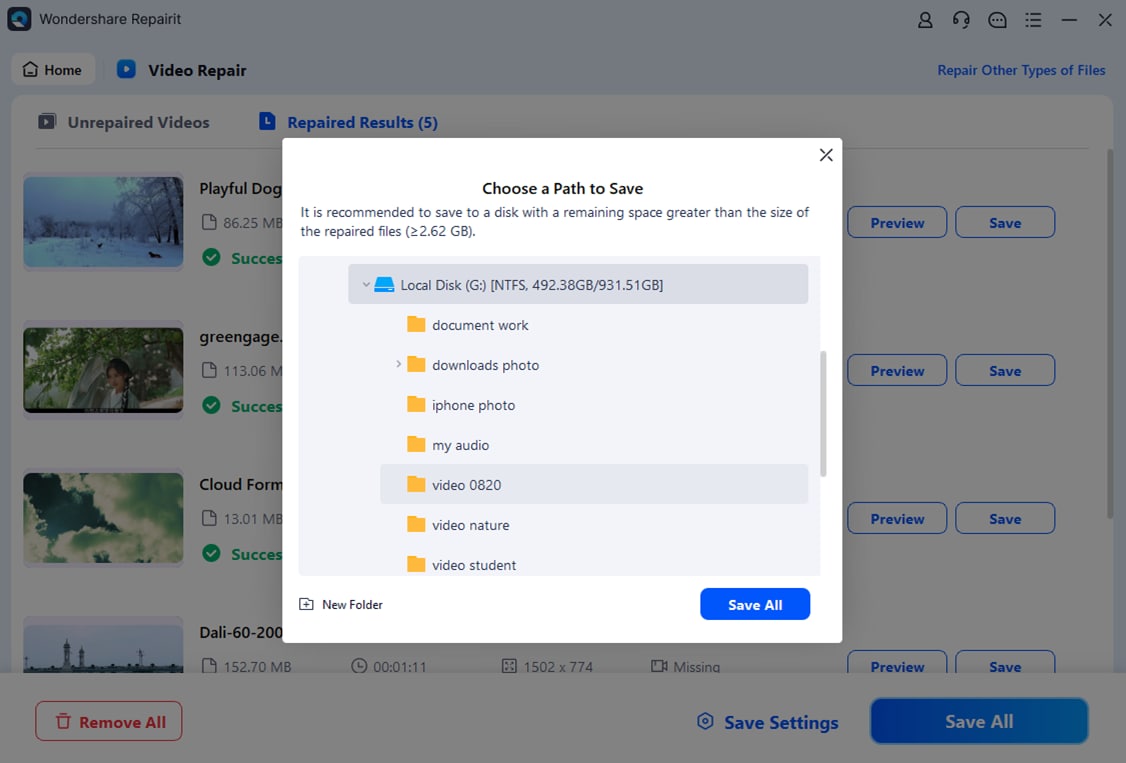
Finally, double-click the repaired video to preview its quality. If you are satisfied, click the "Save all" button and select a location on your PC for them.
Repairing Corrupted Game Recordings with Repairit
 Security Verified. Over 7,302,189 people have downloaded it.
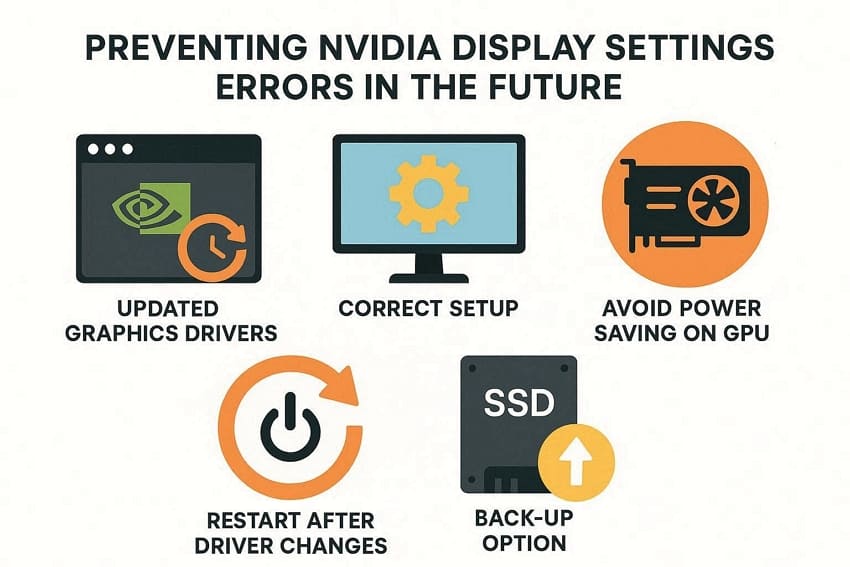
Part 4. Preventing NVIDIA Display Settings Errors in the Future
Prevention is better than a solution, so to prevent seeing NVIDIA display settings errors next time, you can follow the methods prescribed below:
- Updated Graphics Drivers: Keep your graphics drivers up to date and check for updates on the official website. This will allow users to avoid seeing display setting errors in the future.
- Correct Setup: Ensure you connect monitors and ports correctly and recheck to confirm the connections are secure. If they are not, secure them again; otherwise, you'll see the error again.
- Avoid Power-saving on GPU: Always use "Balanced" or "High Performance" options on your PC. Also, in the NVIDIA settings, keep the power management mode set to "Normal" or "Optimal".
- Restart After Driver Changes: After any Windows updates or driver installations, reboot your system. This allows your PC to incorporate all the changes you made before restarting.
- Back-up Options: Keep spare cables/adapters on hand in case of multiple displays, and test that all displays are detected correctly.
Conclusion
By now, you know what the "NVIDIA display settings are not available" error means and why it appears. We walked through easy fixes from checking GPU connections and enabling the graphics card to updating drivers and adjusting BIOS graphics settings. Finally, we demonstrated how Repairit can restore corrupted game recordings caused by display issues or crashes and is a reliable tool for protecting precious moments.
Frequently Asked Questions
-
1. Can Repairit fix corrupted game screenshots?
Users can easily fix any damaged or corrupted game screenshots using Repairit. This software addresses issues such as corruption and pixelation, restoring clarity to your files. -
2. Will reinstalling Windows be necessary to fix the NVIDIA display settings error?
The common approach used by most users to fix this issue is to check the cables or reinstall drivers. This type of error should not be corrected by reinstalling Windows, but it can be the last resort. -
3. Can I still use my PC if this error shows up while I am gaming?
Yes, you will be able to use your PC if the "NVIDIA display settings are not available" error occurs. However, you will not be able to get optimal performance and display settings.




