

What if you try to log in to Telegram, but a message appears saying, “Too many attempts, please try again later.” This can be frustrating, especially when you need to send important messages quickly. Therefore, knowing why it happens helps you avoid mistakes and regain access. In this guide, we will explain how to fix the Telegram too many attempts login error and get back into Telegram safely.
Table of Contents
Part 1. What Does Telegram's "Too Many Attempts, Please Try Again Later" Mean?
Telegram’s “Too Many Attempts, Please Try Again Later” message means your account, phone number, or IP has hit a temporary limit. The system detected too many actions in a short time and asks you to slow down. Thus, this is a short-term safety measure, not a permanent ban.

5 Reasons for Telegram Too Many Attempts Login Error
Before you learn how to fix the Telegram too many attempts login error, review the mentioned reasons and determine why it occurs:
- Wrong Login Codes: When you enter the wrong code or password several times, it triggers a temporary block. Telegram sees repeated mistakes as suspicious and limits further login attempts.
- Too Many Code Requests: If you repeatedly press “Send Code Again,” it often causes a rate limit from Telegram. As a result, this prevents spam and protects the verification system from abuse.
- Frequent Logins and Logouts: In a situation where one logs out and back in repeatedly, it looks unusual to Telegram. Hence, this behavior can trigger a short-term account lock for safety.
- Flagged Numbers or Automation: Using numbers, IPs, or scripts that Telegram flags can trigger the block. Thus, the system treats this as a potential automated or abusive activity for safety reasons.
Part 2. How to Fix Telegram Login “Too Many Attempts” Error
So, to learn how to resolve the “Too Many Attempts, Please Try Again Later” message, try the 7 basic solutions given in this section:
Fix 1. Wait Before Trying Again [24H Wait]
It is suggested to wait for 12-24 hours before you try to log in again because Telegram’s “Too Many Attempts” block is temporary and only time can reset it. The pause lets the security lock expire, so your next login is normal. In addition, it prevents the block from being extended by repeated attempts and lowers the risk of stronger restrictions.
Fix 2. Check Internet Connection
Despite the wait, if you get an error message, you might ask, “How to fix the Telegram too many attempts login error?" One for all. Know that a weak or unstable network can cause partial requests that still count as attempts, even if you think nothing happened. Hence, a strong connection ensures that codes arrive on time and that each login attempt is processed only once.

Fix 3. Restart Device and App
This is another solution you can try to get rid of the “Too Many Attempts, Please Try Again Later” message. So, when you restart the phone and the app, it clears memory errors and resolves network issues like bad routing or VPN problems. Additionally, it reduces failed requests that count on the server side. If the error remains after a restart, it is likely a real cooldown.
Restart App
Here is how you can restart the app on Android and iOS in a few swipes:

Instructions: With the Telegram app opened, press the “Box” icon on the home screen. When you get to the Recent Apps interface, tap the “X” icon to close the app and reopen it.

Instructions: Swipe up in the middle of the screen and in the App Switcher, “Swipe Up” to Telegram to close. After a while, reopen the app and log in again to see if the issue persists.

Restart Device
To know how to fix the Telegram too many attempts login error on iPhone and Android by restarting the device, follow the given ways:
Instructions: Maintain pressure on the “Power” and “Volume Up” buttons, and when the grey interface appears, pick the “Reboot” option.

Step 1. Choose the “Power & Volume Up” buttons at once and wait until you get the “Slide to Power Off” slider.

Step 2. Swipe it, wait a few seconds, then press the “Power” button to restart the iPhone, and try to log in again.

Fix 4. Update Telegram App
For the “Too Many Attempts, Please Try Again Later” message, an update is another effective solution. A new update includes fixes that improve how codes and login requests work with the server. It also ensures better compatibility with your phone’s system and network, reducing random login failures. Furthermore, updates refresh internal security logic, once done on Android and iOS via the mentioned steps:
Instructions: Search for “Telegram” on the Google Play Store and press the “Update” button, if available.

Instructions: Tap the “Search” icon, type “Telegram," and choose the "Update” button if available.

Fix 5. Clear Telegram Cache (Android)
When you get this error message continuously on Android, learning how to fix the Telegram too many attempts login error becomes vital. Corrupted cache files can cause repeated login errors, which add to the attempt count. As a result, clearing the cache forces the app to fetch fresh data from the server and stops error loops. It can also improve app speed, and the instructions for that are given ahead in detail:
Step 1. In Android settings, select “Apps,” then expand the “Manage Apps” menu and choose Telegram from the list.

Step 2. When directed to the “App Info” screen, choose the “Clear Data” option. In the popup, tap on the “Clear Cache” option and tap the “Ok” button to continue.

Fix 6. Login from Another Device
When nothing fixes the “Too Many Attempts, Please Try Again Later” message, try to log in from another device. If login works on a second phone or PC, the issue is likely limited to the first device, not your whole account. However, if the error appears everywhere, it confirms a real cooldown, and you should wait.
Fix 7. Contact Telegram Support
As a last resort on how to fix the Telegram too many attempts login error, contact Telegram support. Support can clarify whether it is a normal temporary cooldown or a deeper restriction on your account. Official support also protects you from risky tricks that could harm your account or cause a permanent ban.
Part 3. How to Troubleshoot Persistent Telegram Login Errors
If you still get the “Too Many Attempts, Please Try Again Later” message, despite trying the above basic fixes, review this section. Get to know about some advanced troubleshooting methods that can help resolve persistent Telegram login errors.
Fix 1. Check Device Time and Date Settings
To know how to fix the Telegram too many attempts login error, check your device time and date because Telegram login and verification depend on accurate time. If your clock is wrong, the server may treat codes as expired or invalid, which leads to failed attempts and cooldown errors. Thus, set the automatic date and time to keep your device aligned with Telegram servers, via the listed ways:
Instructions: Go to “Additional Settings” on your Android smartphone and choose the “Date and Time” option to “Set Time Automatically.”

Instructions: Choose “General” in the settings and press the “Data & Time” option to toggle on the “Set Automatically” option.

Fix 2. Try Using Telegram Web
Instead of mobile phones, log in to the Telegram web to fix the “Too Many Attempts, Please Try Again Later” message error. It avoids mobile app bugs or bad cached data that may cause repeated failed attempts. Additionally, Telegram Web may also show clearer error details or wait times, which prevents guesswork and extra retries.
Fix 3. Reinstall Telegram
As a last solution on how to fix the Telegram too many attempts login error, reinstall the app. It replaces the damaged files, removes bad local data, and clears stuck login sessions that cause repeated failures. After the wait period ends, a fresh app copy gives you one clean login try instead of a broken retry. Furthermore, it updates the app to the latest version, once done thoroughly via the mentioned steps:
Instructions: On the “Apps > Manage Apps > Telegram” interface, choose the “Uninstall” button and press “Ok” to confirm. After a while, search for Telegram on the Play Store and choose to “Install” again.

Instructions: Open the Telegram app in the App Library, then tap the “Delete App” option. After that, press the “Delete” option to uninstall the app. Head to the App Store and tap the “Cloud” icon as you search for the app, and reinstall.

Pro Tip: Repair Corrupted Telegram Media in a Single Click Using Repairit
If you have resolved the “Too Many Attempts, Please Try Again Later” message error, there is a chance that your media files get corrupted when sharing or downloading. In this case, you can use Repairit to repair broken or damaged videos, photos, or audio in batches. While giving you a success rate of 100% and the option to preview the fix files, it supports massive formats.
To explain, users can fix formats such as MP4, MOV, AVI, MKV, MP3, WAV, JPG, PNG, and GIF. Using AI and innovative algorithms, the tool can detect and repair corruption, glitches, missing frames, or playback issues. Unlike other tools, it also claims to preserve original resolution, color, and audio fidelity after repair. Hence, all these aspects make Repairit an ideal media repair tool for all types of users, needing no learning curve.
Key Features

-
Metadata Reconstruction: Rebuilds Telegram media metadata like duration timestamps and thumbnails so chats display files normally again.
-
Partial Download Recovery: Repairs Telegram files that are interrupted during downloading by reconstructing incomplete headers and stream index tables automatically.
-
Handles Severely Corrupted Files: With Advanced Repair mode, it can repair files that fail to play due to download, transfer, or compression errors./p>
Guide to Fix the Corrupted Telegram Video Files with Repairit
Of all media files, if your videos get corrupted, follow the steps mentioned below and learn how Repairit fixes it:
Step 1. Locate the AI-Powered Video Repair Tool
When you open the tool, go to the “Video Repair” section and tap the “Start” button to import corrupted Telegram videos.

Step 2. Add Damaged Telegram Videos & Repair
Here, select the “Repair” button to commence the repair process. You can also tap the “+Add Files(s)” button to batch-process multiple damaged videos.

Step 3. Preview and Save the Fixed Telegram Videos
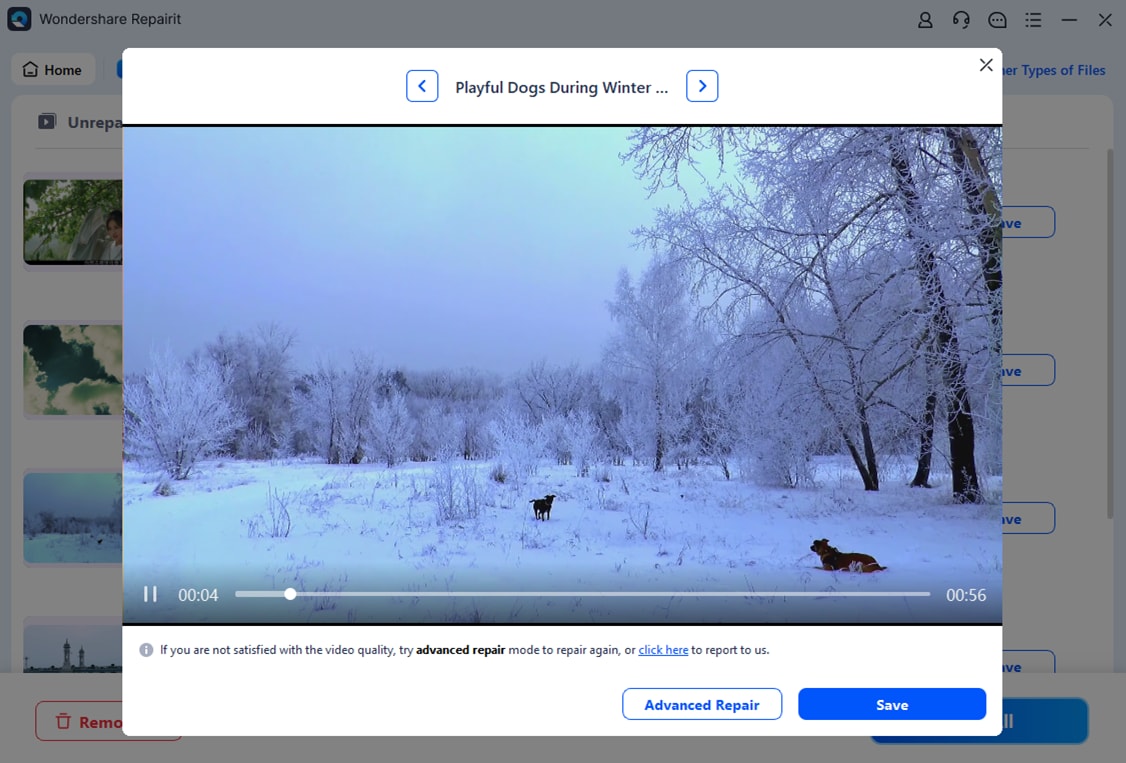
Wait for the tool to display the fixed videos, then choose between “Preview” and “Save.” If you seek to preview and determine the accuracy, open the detailed view, and select the “Save” button to export.
Fix the Corrupted Telegram Video Files
 Security Verified. Over 7,302,189 people have downloaded it.
Conclusion
To wrap up, for those who wonder “how to fix the Telegram too many attempts login error,” this guide has explained this message in detail. In this regard, simple and advanced troubleshooting steps are explained to help users regain access to Telegram. However, while transferring or saving Telegram media, if the media, like videos, gets corrupted, it is recommended to use Repairit.
Frequently Asked Questions
-
1. Does the cooldown affect all my devices?
Sometimes the block is only on one device, so other devices may still work normally. However, if it appears on every device, then the account or IP has a full cooldown. -
2. Will waiting too long cause my account to be banned?
No, waiting does not punish your account, and the temporary limit will naturally expire. Instead, calm patience ensures the block lifts safely without causing permanent restrictions or issues. -
3. Can using a VPN make the error worse?
Yes, switching VPNs or IPs quickly can trigger extra security checks and extend the block. Therefore, it is safer to use a stable network and avoid sudden changes until the cooldown ends.




