
- Windrose stuck on loading usually happens due to corrupted files, outdated GPU drivers, system cache issues, or network instability.
- Start with basic fixes like verifying game files in Steam and updating GPU drivers to ensure proper game launch.
- Clear temporary files and install pending Windows updates to remove hidden system conflicts.
- If the issue persists, reinstall the game for a clean setup without damaged data.
- For network-related problems, switch to a wired connection, flush DNS, or reset network settings.
- Repairit helps fix corrupted game-related archives and files, but it does not repair actual game installation files.
Windrose can get stuck on the loading screen when the game does not finish its launch process. Players may see a frozen bar, a long wait, or a screen that keeps loading before the main menu. Windrose not loading/stuck on loading/infinite loading screen on PC can feel unclear because the game may open first, but still not become playable.
However, the issue becomes easier to handle when players understand where the loading process stops. Thus, this guide explains the common causes, warning signs, and quick checks linked to Windrose loading problems on Windows.
Table of Contents
Part 1. Why Windrose Gets Stuck on the Infinite Loading Screen on PC
Before moving to fixes, players should understand where the loading failure may begin. The causes below explain why Windrose can stay stuck before the main menu:
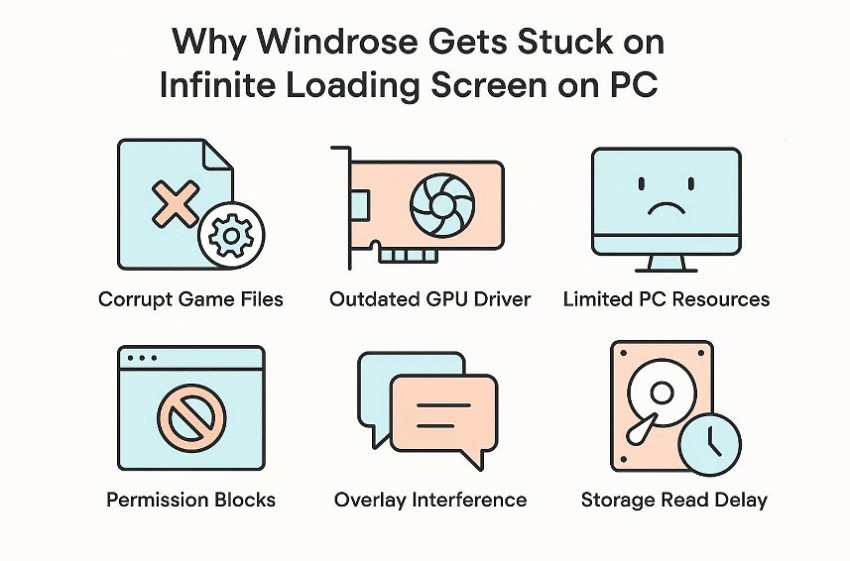
- Corrupt Game Files: Game files can become damaged after failed updates, crashes, or incomplete downloads. Windrose may then wait for missing data during the loading stage.
- Outdated GPU Driver: An old GPU driver can struggle with startup visuals and engine tasks. This issue may freeze the screen before the main menu loads.
- Limited PC Resources: Low memory or heavy background apps can slow the launch process. Meanwhile, Windrose may stay stuck while system resources remain overloaded.
- Permission Blocks: Windows restrictions can block access to folders, saves, or local settings. Blocked access leaves Windrose open on screen without completing launch tasks.
- Overlay Interference: Recording tools, launchers, and FPS overlays can conflict with the startup window. These tools may interrupt early loading signals before the menu appears.
- Storage Read Delay: A slow or weak drive can delay asset loading during startup. Delayed file reading keeps the loading stage active longer than expected.
Part 2. 5 Advanced Fixes for Windrose Infinite Loading Problem
After the main causes are clear, the next step is to test deeper system areas. These advanced methods help fix loading faults and support a cleaner Windrose launch on PC:
Fix 1. Verify and Repair Game Files Via Launcher
A broken install can stop Windrose before the menu even appears. For Windrose not loading/stuck on loading/infinite loading screen on PC, file repair is a good fit. It checks official data and replaces any missing or unreadable information. Therefore, players avoid reinstalling while still testing the core installation. This fix works best after crashes, updates, or interrupted downloads. Follow the steps below to verify and repair game files via launcher:
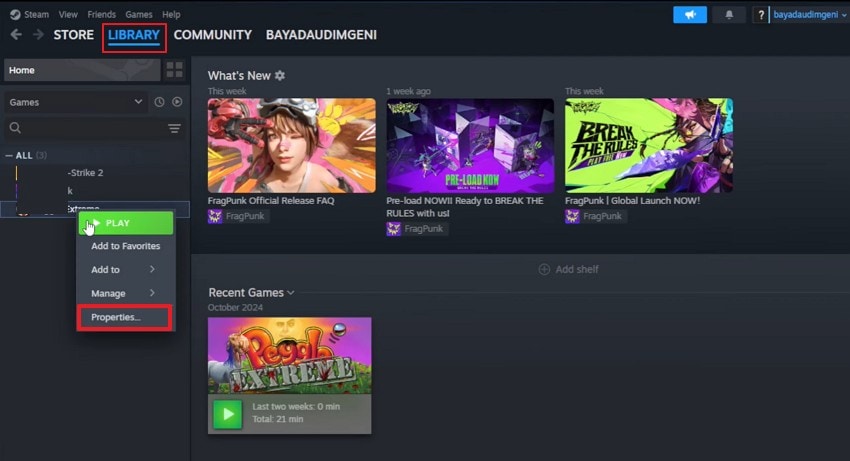
Step 1. Launch Steam, then navigate to the “Library” tab. After that, right-click on the game to further select “Properties” from the list.
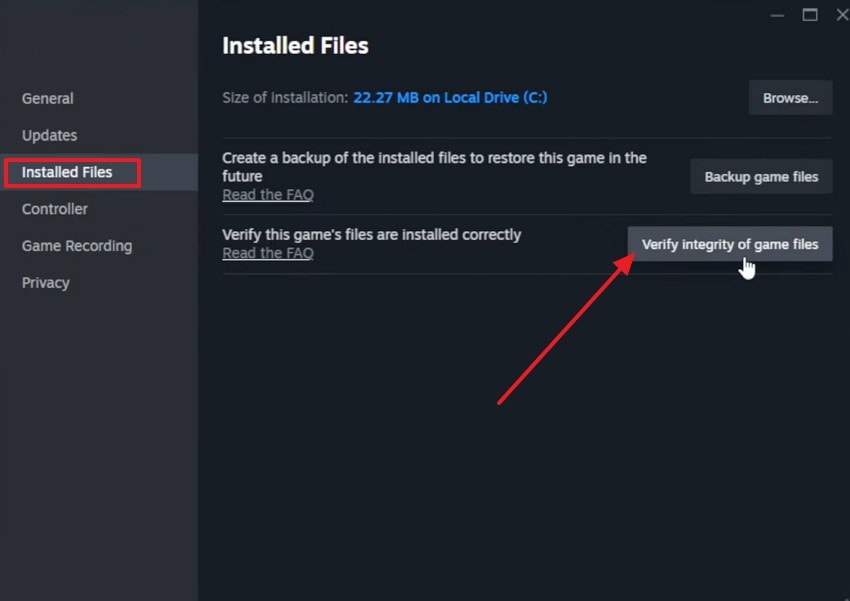
Step 2. In the Properties, select the “Installed Files” tab from the left panel. Afterward, click “Verify Integrity of Game Files” and wait until Steam scans and replaces missing or damaged files.
Fix 2. Update GPU Drivers to the Latest Version
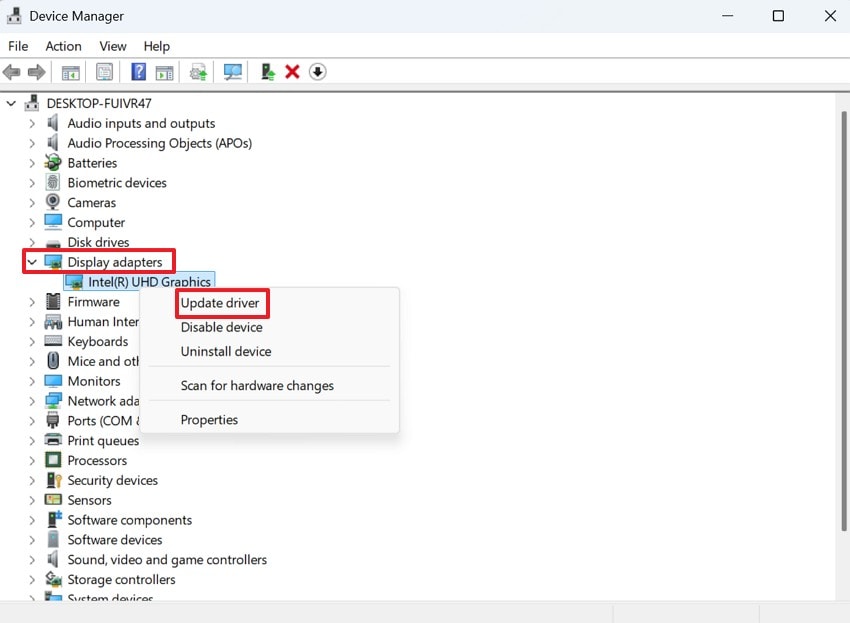
Windrose relies on the graphics driver during its first visual load. When that driver is old, shaders and menus may load unevenly. Newer drivers, meanwhile, improve how Windows speaks with the GPU. This matters more after display changes, crashes, or recent updates. A stable driver reduces early rendering pressure during the loading stage. The following steps guide you on how to update the GPU to the latest version:
Step 1. Start by pressing “Windows + X" and choosing "Device Manager,” then expand “Display Adapters.” Next, right-click your GPU and select “Update Driver.”
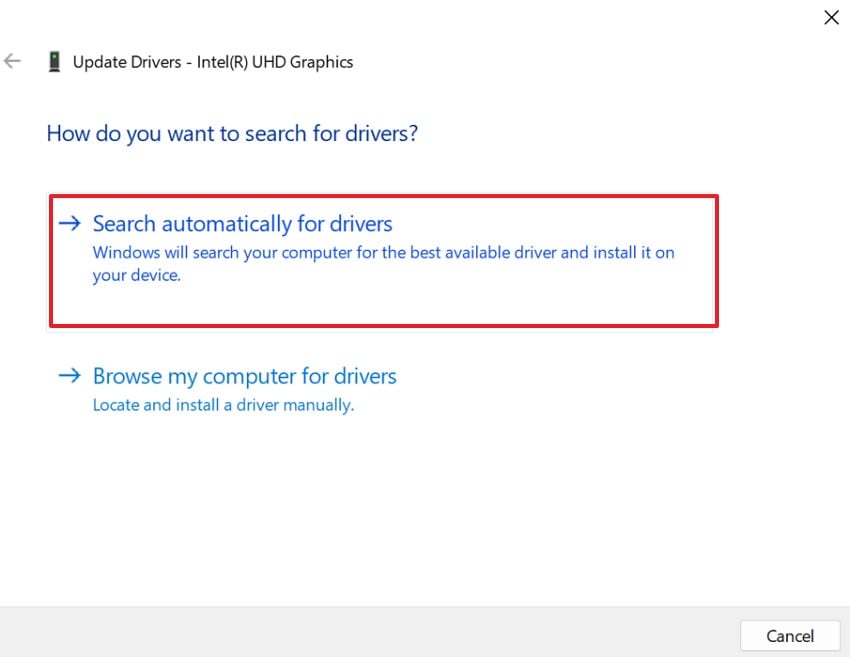
Step 2. After that, select “Search Automatically for Drivers” to check for updates.
Fix 3. Clear Cache and Temporary System Files
Cache problems are harder to notice because they sit outside Windrose. Old launch traces can still affect the next startup attempt. As a result, Windrose not loading/stuck on loading/infinite loading screen on PC may continue. Clearing temporary data removes these leftovers from the local system. The game then starts without carrying over failed session records. Below are the steps to clear the cache and temporary system files:
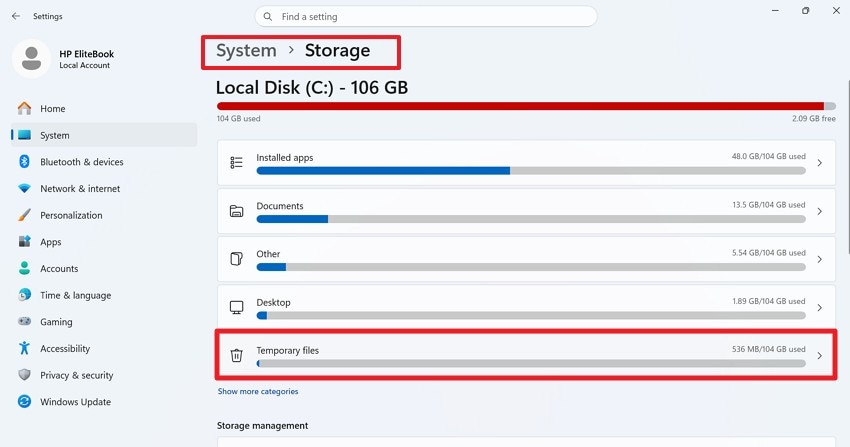
Step 1. Navigate to “Settings,” go to “System,” and choose “Storage.” Then select “Temporary Files” to view cache, thumbnails, update leftovers, and other removable system data.
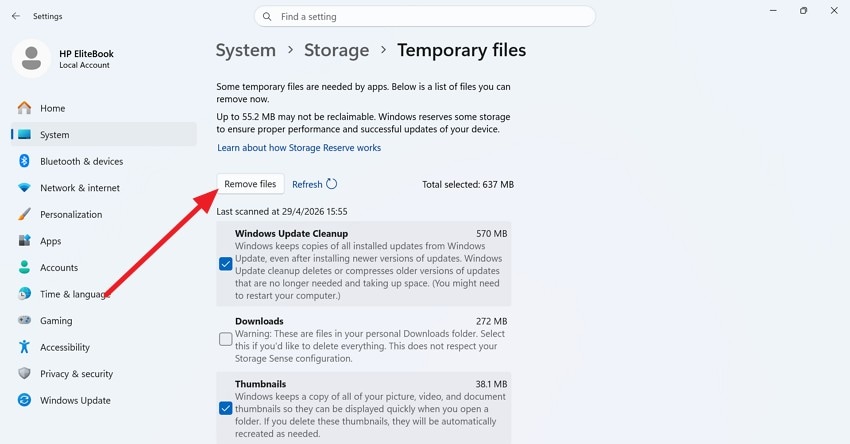
Step 2. After that, pick safe options such as Temporary files, Thumbnails, or DirectX Shader Cache. Avoid Downloads if it contains important files, then choose “Remove Files” to clear the selected data.
Fix 4. Check Windows Updates and Install Missing Patches
Some loading faults begin in Windows, not inside the game folder. Runtime files, services, and system libraries all support Windrose startup. However, missing patches can leave these support layers behind current needs. This creates friction when the game requests newer system behavior. Updating Windows provides a cleaner software base for the loading process. Follow the steps mentioned below to check Windows updates and install missing patches:
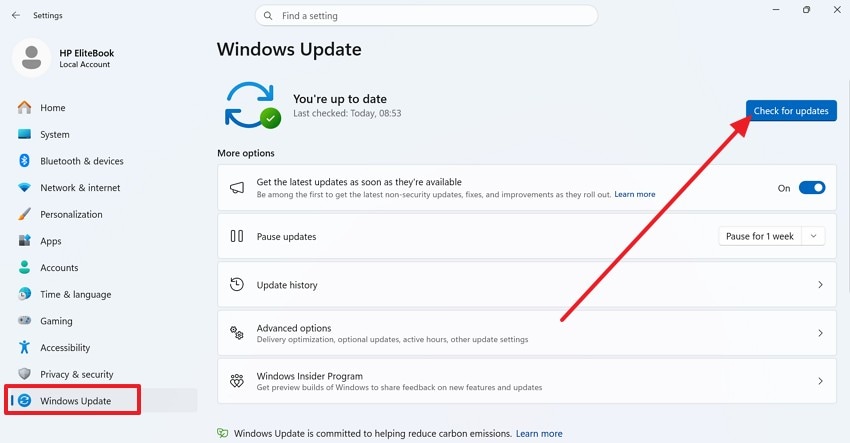
Step 1. From “Settings,” go to “Windows Update,” then click “Check for Updates” to let Windows search for missing system patches.
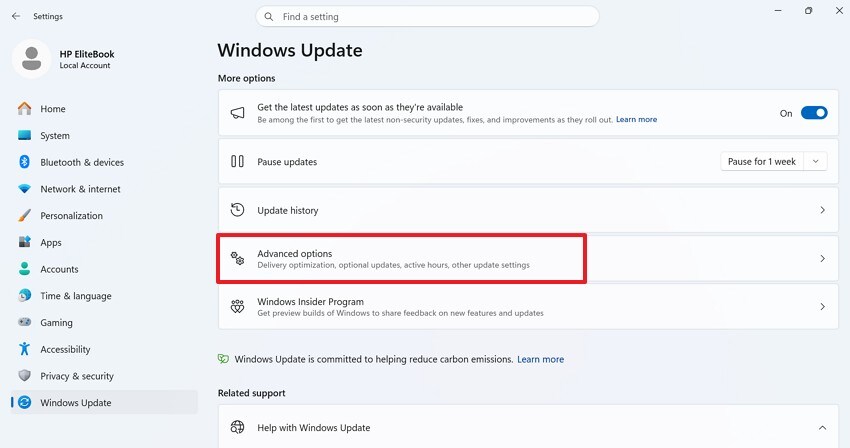
Step 2. If updates are available, install them first, then navigate to “Advanced Options” and select “Optional Updates” to review extra driver or system patches.
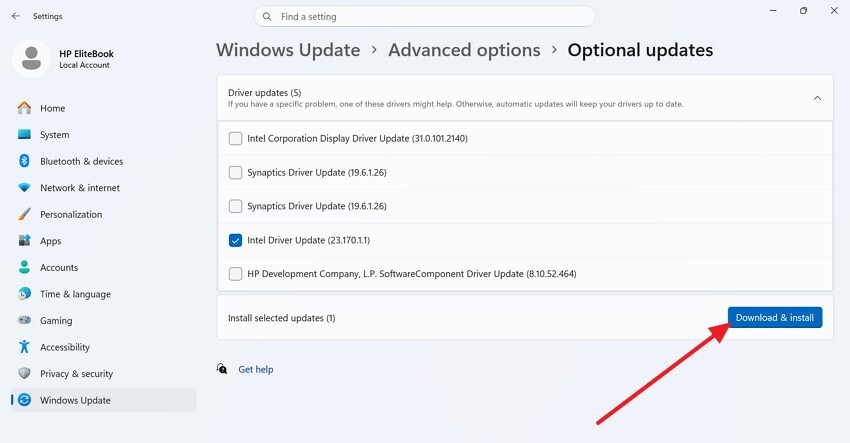
Step 3. Now, choose relevant updates and press the “Download & Install” button. After installation finishes, restart the PC and launch Windrose again to test loading.
Fix 5. Reinstall Windrose If the Issue Continues
Reinstallation should stay last because it replaces the full game setup. Use it when repair, drivers, cache, and Windows checks fail. Finally, Windrose not loading/stuck on loading/infinite loading screen on PC may need rebuilding. A clean install removes damaged folders and old setup conflicts. This gives Windrose a fresh structure for the next launch attempt. Adhere to the steps below to reinstall Windrose if the issues continue:
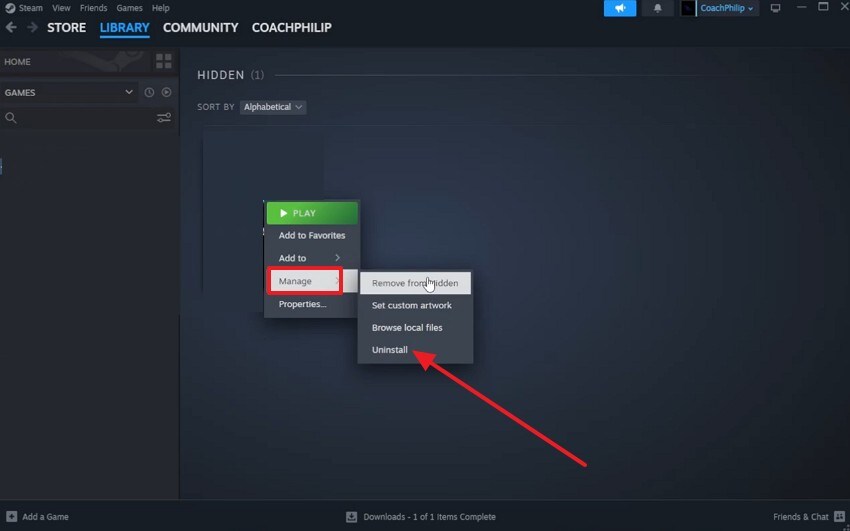
Step 1. Start by opening “Steam,” going to “Library,” and right-clicking “Windrose.” Next, select “Manage > Uninstall,” then confirm the removal and wait until Steam deletes the current installation.
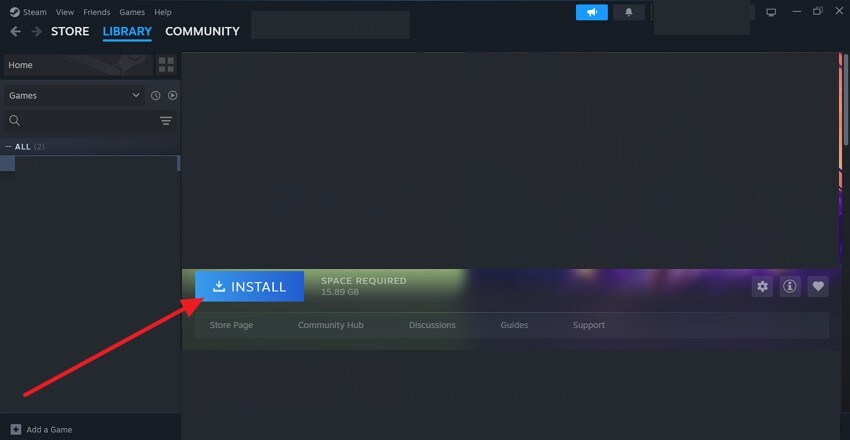
Step 2. After that, restart Steam, then access the “Windrose” again from the “Library,” and choose “Install” to reinstall.
Part 3. Fix Network-Related Windrose Loading Problems
If Windrose still stays on the loading screen, the problem may be linked to the network side. This part covers connection-based fixes that can help the game reach servers and complete loading properly.
Fix 1. Switch From Wi-Fi to Wired Connection
Wi-Fi can become unstable when signals drop or when other devices use bandwidth. A wired connection gives Windrose a steadier path during online loading. As a result, the game has fewer delays while reaching servers or syncing data. This option suits cases where Windrose opens first, then pauses before gameplay.
Fix 2. Flush DNS And Reset Network Settings
Old DNS records can slow the PC's connection to game servers. Wrong network settings may also disturb the connection during online checks. Therefore, this fix helps refresh the route for Windrose not loading/stuck on loading/infinite loading screen on PC. Try this when websites load fine, but Windrose still hangs online. Follow the steps below to flush DNS and reset network settings:
For Flush DNS
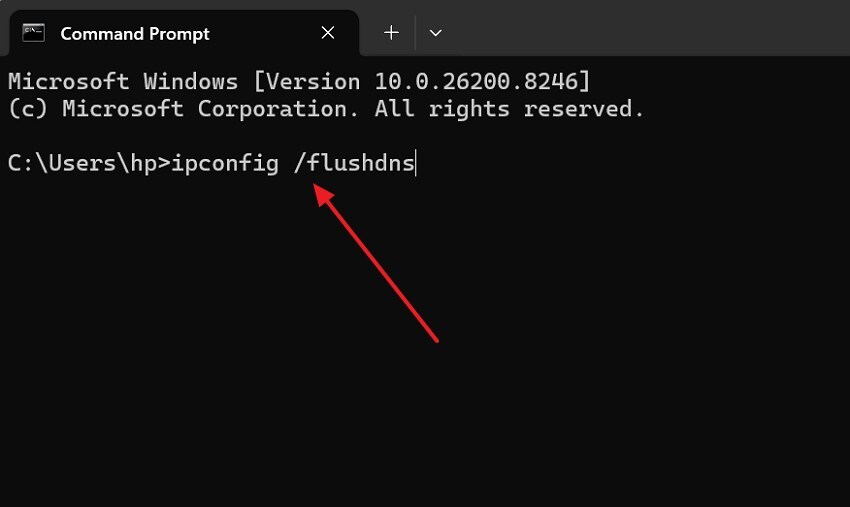
Instructions. Start by accessing Command Prompt as admin, then run “ipconfig /flushdns” and press “Enter” to flush DNS.
For Reset Network Settings
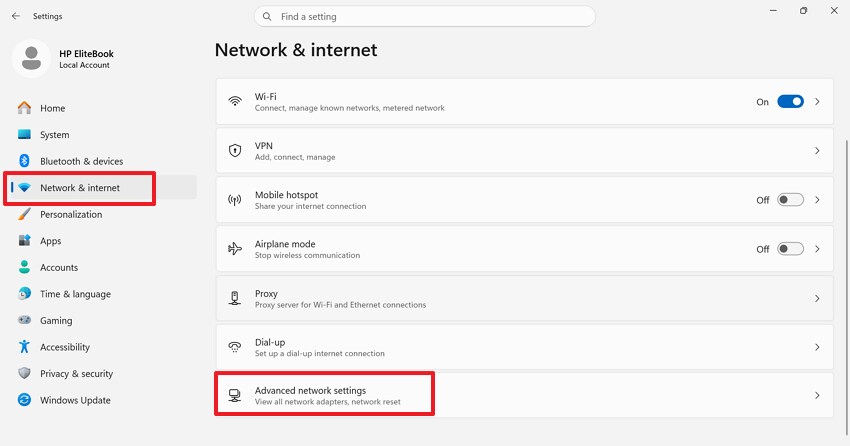
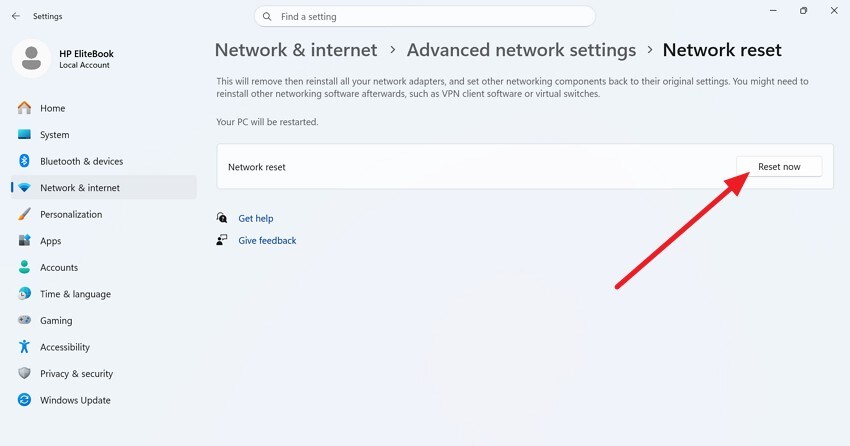
Step 1. Select “Network & internet” from the left panel in “Settings.” After that, scroll down and click on the “Advanced Network Settings” option.
Step 2. On the “Advanced Network Settings” window, scroll to “More Settings.” After that, choose the “Network Reset” to open the reset page.
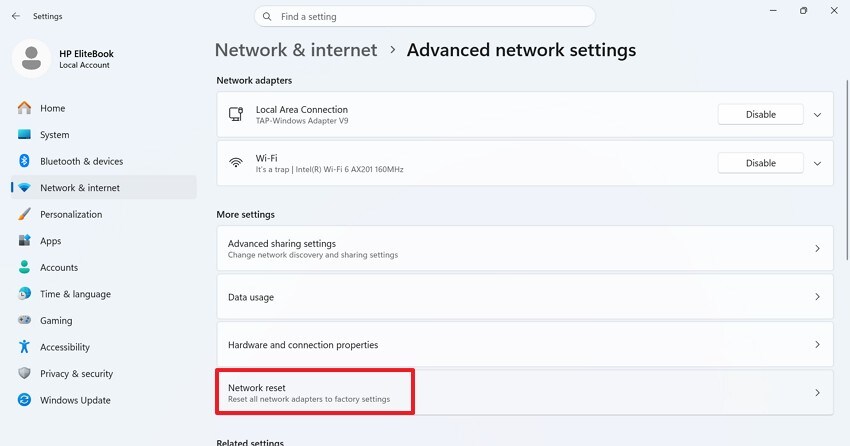
Step 3. Lastly, press the “Reset Now” and confirm the action. Now, Windows will remove and reinstall network adapters, so reconnect to the internet after the restart.
Fix 3. Try VPN If Region Server Issues Occur
Region server delays can stop Windrose from loading smoothly during busy hours. Local routing problems may also block a stable connection to game services. However, a VPN can test whether the current route causes the issue. Use it carefully, since distant servers may create slower speeds or lag.
Pro Tip. Easily Repair Broken Files Causing Loading Issues with Repairit
Sometimes, Windrose loading problems can stem from damaged game-related files stored outside the active Steam installation. These may include corrupted ZIP, RAR, ISO, or 7Z archives used for setup, backup, or transfer. When such files fail to open or extract properly, essential game data may become inaccessible before users can test the game again.
For Windrose not loading/stuck on loading/infinite loading screen on PC, Repairit does not repair protected Steam installation or launcher files. Instead, it helps repair corrupted game-related files that can act as a hidden cause of loading failures during installation, backup recovery, or troubleshooting. This allows users to restore important data safely before deleting folders or performing a full reinstall.
Key Features

-
Compressed Setup Repair: Repairs corrupted installation packages when setup files fail to open, extract, or load properly again.
-
Folder Structure Recovery: Maintains repaired folder structures, helping extracted game resources stay organized and easier to locate later.
-
Large Package Repair: Handles large corrupted packages and multiple files together when normal extraction fails during recovery attempts.
Guide to Repair Broken Files Causing Loading Issues with Repairit
Since repairing broken files becomes easier when the process stays clear. This guide below shows how Repairit handles loading issue repair:
Step 1. Add Files to File Repair to Continue
First, select the “+Add” button to import broken files to File Repair. Moreover, you can drag and drop corrupted files as well to proceed.

Step 2. Confirm Files to Start Repairing
Now, review the added files carefully after they load inside the Repairit workspace. After that, select the correct files, then choose the “Repair” option to rebuild the corrupted structure.
Step 3. Preview Repaired Files and Export Final Output
Lastly, preview the repaired files and choose “Save” or “Save all” to export them to a new, safe folder.

Repair CorruptedFiles
 Security Verified. Over 7,302,189 people have downloaded it.
Conclusion
To summarize, Windrose loading issues can come from damaged files, outdated drivers, system clutter, missing patches, unstable networks, or deeper installation faults. The problem, therefore, becomes easier to handle when each cause is checked in order.
Windrose not loading/stuck on loading/infinite loading screen on PC requires step-by-step checks to isolate the root cause. On the other hand, Repairit can help repair corrupted game-related files causing hidden issues, while Steam verifies protected installed files.
Frequently Asked Questions
-
1. Why does Crimson Desert freeze after the loading screen finishes?
This happens when game files load but fail during the final initialization stage. Background apps or overlays may interrupt resources needed for a smooth game launch. So, disabling overlays and closing extra apps often resolves this freezing problem. -
2. Can an outdated Windows version cause loading issues in Crimson Desert?
Yes, an outdated Windows version may lack updates required for new game compatibility support. Missing patches can create conflicts between system files and game engine processes. Thus, updating Windows ensures better stability and reduces the chances of loading screen problems. -
3. Why are my recorded gameplay videos corrupted after loading issues occur?
Crashes during recording can interrupt the file saving and corrupt video data structures. Furthermore, incomplete encoding may result in unplayable or broken gameplay recordings. In such cases, Repairit can repair these damaged videos and restore them for smooth playback.




