
Unexpected shutdowns are more than just hassle, they can seriously damage your files. When power interruptions corrupt files, it usually happens because your device shuts down while saving, transferring, or updating data, leaving files incomplete or unreadable. Understanding how file corruption after power interruption happens can help you protect your important data and avoid losing valuable work during sudden outages.
In this article
Why Files Get Corrupted During a Power Outage
When power suddenly goes out, your device may shut down before it finishes saving data. Since operating systems temporarily store information before writing it completely to your drive, an unexpected shutdown can leave files incomplete, damaged, or unreadable.
Common Causes of File Corruption
- Interrupted saving process while a file is being written
- File system errors caused by improper shutdown
- Drive damage from sudden power loss or voltage spikes
Problems During File Transfers
- Interrupted file transfer can corrupt files being copied to USBs, SD cards, or external drives
- Sync errors may leave cloud or network files incomplete or locked
How to Tell if a File Was Corrupted
After a power outage, file corruption is not always noticeable right away. Your device may turn on normally, but some files can still be damaged or incomplete in the background.
Common Signs of File Corruption
- Error messages when opening files, such as unsupported or damaged file warnings
- Broken or unreadable content like random symbols, missing text, or blank sections
- Apps crashing or freezing because important files were affected
- Missing folders or files even though storage space is still being used
- Slow performance caused by the system struggling to read damaged data
Ways to Fix Corrupted Files After a Power Outage
Once power is back, the next step is checking your system and repairing damaged files. Most operating systems have built-in tools that can detect and fix file system errors caused by sudden shutdowns.
Fix 1. Run CHKDSK
Use CHKDSK to scan your drive for errors and repair file system issues caused by improper shutdown.
Step 1. Open the Command Prompt as an Administrator and type chkdsk C: /f (replace C with your drive letter).

Step 2. Restart your computer to allow the system to repair corrupted file entries.
Fix 2. Run System File Checker (SFC)
Use SFC to repair damaged or missing Windows system files, especially if the outage happened during updates.
Step 1. Run the sfc /scannow common in the administrative window.
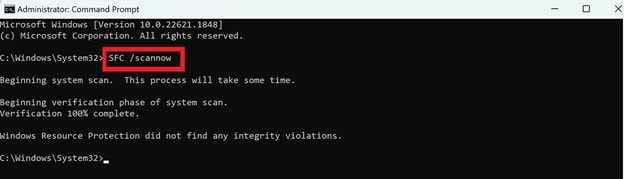
Step 2. Wait for the process to reach 100% and follow the prompts to replace corrupted cached versions with healthy ones.
Fix 3. Use DISM
If SFC cannot fix the issue, DISM can repair Windows system images and restore damaged files.
Step 1. Open command prompt and input DISM /Online /Cleanup-Image /RestoreHealth.
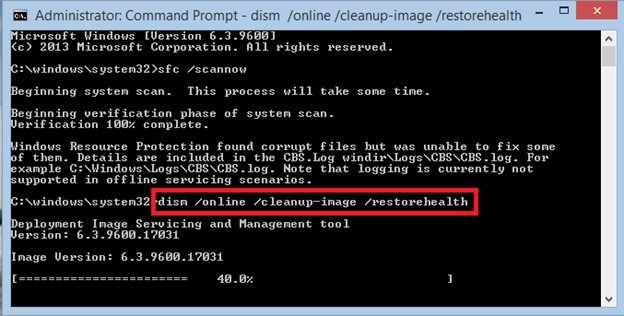
Step 2. Make sure your device is connected to the internet so the system can download and replace damaged files that cannot be repaired locally.
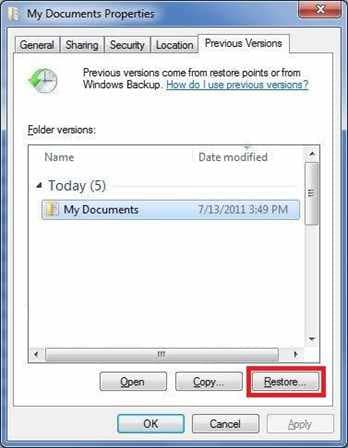
Fix 4. Restore Previous Versions
Check for Previous Versions or backup copies to recover files saved before the power interruption.
Step 1. Right-click the corrupted file or folder and select Properties, then navigate to the Previous Versions tab.
Step 2. Select the most recent timestamp before the power interruption and click Restore to return to its last healthy state.
Advance Fix to Restore Severely File Corrupted
If basic repair tools don't work, the problem is usually deeper inside the file itself. In these cases, the file's internal structure may be damaged, such as missing headers or broken data sections. Advanced repair tools try to rebuild the file so it becomes readable again.
It CAN:
- Rebuild damaged file headers so the file can be recognized again
- Fix sync issues in audio or video that got out of alignment after the interruption
- Repair video metadata like moov data that is often lost when recording is suddenly stopped
- Repair multiple files at once to save time when many files are affected
If you confirm the video is corrupted, a repair tool can safely restore its functionality. One example is Repairit, which works with common file types like PDF, DOCX, XLSX, and PPTX, as well as various image and video formats.
Step-by-Step (Optional)
Step 1. Upload the corrupted file.

Step 2. Start the Repair process.

Step 3. Preview and save the restored file to a new location.

How to Prevent Corrupted Files from Power Interruptions
The best way to deal with corrupted files is to prevent them in the first place. With the right setup, you can protect your data even during sudden power failures.
- Use a UPS (Uninterruptible Power Supply) - Gives your device backup power so you can safely shut down during an outage
- Keep regular backups - Follow the 3-2-1 rule (3 copies, 2 storage types, 1 offsite or cloud backup)
- Enable automatic cloud syncing - Keeps your files saved online in real time
- Use a surge protector - Protects your device from power spikes when electricity returns
- Maintain your system regularly - Helps reduce file errors and keeps storage healthy over time
Conclusion
Protecting your data needs both prevention and the right recovery steps. When power interruptions corrupt files, it is often because the system stopped while saving or updating data, leaving files incomplete. Using built-in repair tools or recovery software can often fix file corruption after power interruption and restore important documents. However, the most effective protection is using a UPS and maintaining regular backups to avoid data loss during sudden blackouts.
FAQs
-
Can a power outage physically damage my hard drive?
Yes. Most issues are software-related, but sudden power loss can sometimes cause mechanical damage in HDDs or electrical damage in SSD components. -
Why does my computer run CHKDSK after a power failure?
Because the system detects an improper shutdown and runs CHKDSK to check and fix errors in the file system. -
Will System Restore recover my personal files?
No. System Restore only fixes system settings and files, not personal documents. -
Is a surge protector enough to prevent file corruption?
No. A surge protector prevents power spikes, but only a UPS can keep your device running long enough for a safe shutdown. -
Why are some files showing 0 KB after a power outage?
This happens when the file was created but not fully saved before the power cut, leaving it empty or incomplete.




