
A sudden blackout is more than just an inconvenience, it is one of the common causes of data loss. When your device shuts down while saving or transferring data, you may end up needing to fix files damaged by an unexpected power cut. This happens because the operating system cannot properly save or close files, which often leads to file corruption after a power cut.
Thankfully, there are effective recovery methods and repair tools available to help restore damaged files and recover important data.
In this article
Why Power Cut Ruin Files
A sudden power outage can interrupt your device while it is saving or transferring data. When this happens, files may not be properly completed, which can make them unreadable or corrupted.
Common Causes of Corruption
- Incomplete Write Cycles - The device shuts down before a file is fully saved.
- File System Metadata Damage - System file information becomes damaged or unsynced.
- Voltage Surges - Power spikes after electricity returns can damage storage devices.
Causes During Data Transfer
- Buffer Flushing Failure - Temporary transfer data is lost before saving is completed.
- Handshake Interruption - File transfers between devices are cut off, sometimes creating 0-byte files.
What are the Signs of File Corruption
A power outage can damage files in ways that may not be obvious at first. In most cases, issues only appear when you try to open or move the affected file.
- Access Denied or Permission Errors - The system may block access to the file after the shutdown.
- Invalid File Headers - Error messages appear because file information is damaged.
- Placeholder Metadata - Files may show the correct name but display 0 KB size.
- System Freezes or Slowdowns - Your device may lag when opening damaged files.
- CRC Errors - This usually means the file contains corrupted or unreadable data.
Basic Fixes for Power-Damaged Data
Before using advanced recovery tools, you can try built-in system features that often fix errors caused by a sudden shutdown. These tools help check and repair damaged files or system issues.
Fix 1. Run the CHKDSK Command
The Check Disk tool scans your drive for errors and fixes problems like corrupted files or bad sectors caused by an unexpected power cut.
Step 1. Type cmd in the Windows search bar, select Run as Administrator.

Step 2. Enter the command chkdsk C: /f (replace "C" with your specific drive letter) and Enter to process.

Fix 2. Use the System File Checker (SFC)
If system files are damaged, SFC can detect and replace them with working copies stored in your system.
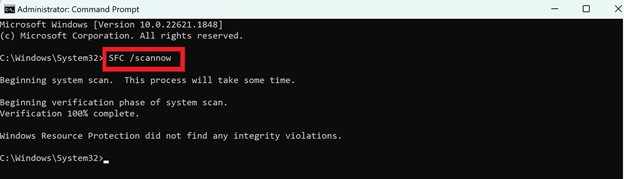
Step 1. Launch the Command Prompt and make it as an administrator.
Step 2. Input sfc /scannow and wait to reach 100%; the system will automatically fix any integrity violations it finds.
Fix 3. Restore via File History or Previous Versions
You may be able to recover an earlier, working version of your file using backup snapshots saved by Windows.
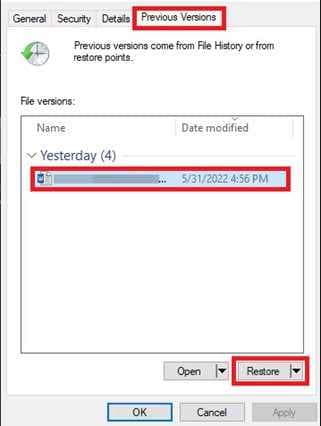
Step 1. Right-click the corrupted file, select Properties, and navigate to the Previous Versions tab.
Step 2. Choose the most recent version saved before the power cut and click Restore.
Fix 4. Use the Open and Repair Option in Microsoft Office
Microsoft Office apps like Word, Excel, and PowerPoint have a repair option that can try to fix corrupted documents.
Step 1. Launch the specific Office app, go to File, Open, then Browse, and select the damaged document.
Step 2. Click the small arrow beside the Open button, then choose Open and Repair from the dropdown menu.

Fix 5. Check the Temporary Files Folder
Some programs save autosave or temporary copies of your work, which may help recover lost data after a crash.
Step 1. Press Win + R, type %temp% in the box, and hit OK to open the local temporary folder.

Step 2. Sort the files by Date Modified and look for files with similar names or .tmp extensions that match the time of the outage.
Advance Fix to Restore Severely Corrupted Files
When basic tools like CHKDSK fail, it usually means the file structure itself is damaged, not just the storage drive. In this case, advanced repair software is needed to rebuild the file so it can be opened again.
These tools analyze the file's internal data and repair missing or broken parts using working data as a reference.
It CAN:
- Restore missing file information so the file can be opened.
- Rebuild broken or scattered video and image parts.
- Help open files that cannot be accessed normally.
- Fix multiple corrupted files at the same time.
If you confirm the file is corrupted, a repair tool can safely restore its functionality. One example is Repairit Video Repair, which works with common file types like MP4, MOV, MKV, and AVI.
Step-by-Step (Optional)
Step 1. Upload the corrupted file.

Step 2. Start the Repair process.

Step 3. Preview and save the restored file to a new location.

How to Prevent File Corruption
The best way to avoid file corruption is to protect your system from sudden power failures and keep your data backed up.
- Use an Uninterruptible Power Supply (UPS) - A UPS gives backup power so you can save your work and safely shut down during a blackout.
- Manage Write Caching Settings - Adjust settings for external drives to reduce the chance of data not being fully saved.
- Use Cloud Syncing - Tools like OneDrive or Google Drive automatically back up files and let you restore clean versions if needed.
- Run Regular Disk Checks - Routine system maintenance helps detect and fix errors early.
- Follow the 3-2-1 Backup Rule - Keep 3 copies of your data, on 2 different storage types, with 1 stored off-site for safety
Conclusion
Recovering from a sudden blackout is often possible and doesn't have to mean permanent data loss. The first step is to fix files damaged by an unexpected power cut using built-in tools like CHKDSK or SFC. If that doesn't work, professional repair software can help restore more seriously damaged files.
By recognizing early signs of file corruption after a power cut and using protection tools like a UPS, you can better safeguard your files in the future.
FAQs
-
Can a power cut physically damage my hard drive?
Yes. Most damage affects file data (software issues), but sudden power surges can also physically damage HDDs or SSDs. -
Why do my files show 0 KB after a power failure?
This happens when a file starts saving but the process is interrupted, so only the empty file entry is created. -
Does Windows 10/11 have a built-in file repair tool?
Yes. Windows includes CHKDSK for disk errors and SFC for system files. Some apps like Microsoft Word also have an "Open and Repair" feature. -
Will a surge protector prevent file corruption?
No. A surge protector only blocks power spikes. A UPS is needed to provide backup power during outages. -
Can I recover a file if I didn't hit "Save"?
Sometimes. Some programs store temporary autosave files that may be recovered from system or temp folders.




