 TL;DR:
You can resolve the PRAGMATA "Sorry Something Went Wrong" startup error by verifying game file integrity on Steam, switching to Google or Cloudflare DNS, and running Pragmata.exe as an administrator.
● High-resolution settings and intensive features like path tracing or DLSS can overload the GPU and trigger this initialization crash if your graphics drivers are outdated.
● Closing background overlay applications like Discord via Task Manager and deleting temporary data from the %temp% and C:\Windows\Temp folders prevents software conflicts during launch.
● If the error persists due to severe file damage, Wondershare Repairit can restore corrupted pre-rendered cutscenes and gameplay video files up to 8K resolution without altering original codecs.
Ask AI for a summary
 ChatGPT
 Perplexity
 Gemini
 Claude
 Grok
Grok
Main Causes: The actual causes of PRAGMATA errors include corrupt or incomplete game files and network or DNS problems. Look for background apps or outdated GPU drivers that might be blocking the game from performing.
Workable Fixes: To fix it, restart/switch network and change DNS, run the game as admin with overlays disabled, or clear cache/temp data.
Pro Tip: Once everything seems to fail and the error still persists, use Repairit to repair corrupted game files.
Digital systems or games are expected to run flawlessly, yet even a brief interruption can create unnecessary stress. The PRAGMATA "Sorry Something Went Wrong" error is a prime example of how vague error messages can leave gamers confused. Instead of offering clarity, such messages raise questions about whether the issue lies in the game, the system, or the network.
For gamers, where timing is everything, resolving this issue becomes even more urgent to keep the game going. Thus, without breaking the competitive flow, go through the article and try to attempt the discussed fixes.
Table of Contents
Part 1. What Is the PRAGMATA "Something Went Wrong" Error?
The PRAGMATA "Sorry Something Went Wrong" error is a general failure message that appears when the game cannot start properly. In simple words, it means the game hit a problem such as broken game files, bad settings, driver, or DirectX issues. Recent YouTube troubleshooting guides from 2026 indicate that this is one of the most common launch problems for PRAGMATA.
5 Causes of PRAGMATA Error: "Sorry Something Went Wrong"
To address PRAGMATA "Sorry Something Went Wrong," review the listed reasons and discover the actual cause in your case:
- Corrupted or Missing Game Files: When PRAGMATA files are damaged or not downloaded properly, the game can show an error and close instead of starting. Thus, multiple sources suggest that verifying the game files in Steam can repair any broken or missing data.
- Due to Problematic GPU Drivers: Any old or obsolete graphics driver can cause crashes as soon as PRAGMATA tries to use features like ray tracing. Simply, when the game tries to use heavy effects at startup, old drivers can’t handle them.
- Interference With Overlays and Background Apps: Overlays from apps such as Steam, Discord, or recording tools can sometimes conflict with the game and display an error. Multiple current YouTube videos often recommend closing these background apps, disabling overlays, or doing a clean boot.
- Wrong Display or Graphics Settings: Some resolutions, full-screen modes, or high-end settings can cause PRAGMATA to crash at startup instantly. High-resolution settings or heavy features like path tracing and DLSS can overload the GPU and trigger bugs during initialization.
- Steam/Launcher Issues or License Problems: The problem could be with Steam or the launcher rather than your PC, causing temporary glitches. Review this guide that shows restarting the Steam, running Steam as an administrator, or clearing the cache is effective.
Part 2. Fix PRAGMATA Connection or Crash Error: Sorry, Something Went Wrong
To fix PRAGMATA "Sorry Something Went Wrong," go through the following section and avoid repeated disruptions:
Fix 1. Restart the Router or Switch Network
Keep in mind that refreshing your network clears temporary connectivity glitches and stabilizes communication between your system and game servers. Routers can accumulate minor faults such as packet loss, IP conflicts, or memory overload, all of which interfere with gameplay. For this, either restart your router or switch to a different network and confirm if the issue is local or network-specific.
Fix 2. Try a Different DNS (Google/Cloudflare)
A reliable DNS improves connection speed and reduces server communication delays, minimizing error occurrences. Your default ISP DNS can sometimes be slow, leading to longer response times when your system tries to connect to game servers.
In this context, switch to faster or more reliable DNS providers, such as Google or Cloudflare, to achieve faster domain resolution. Follow the provided tutorial and try a different DNS for the " PRAGMATA "Sorry Something Went Wrong" error:
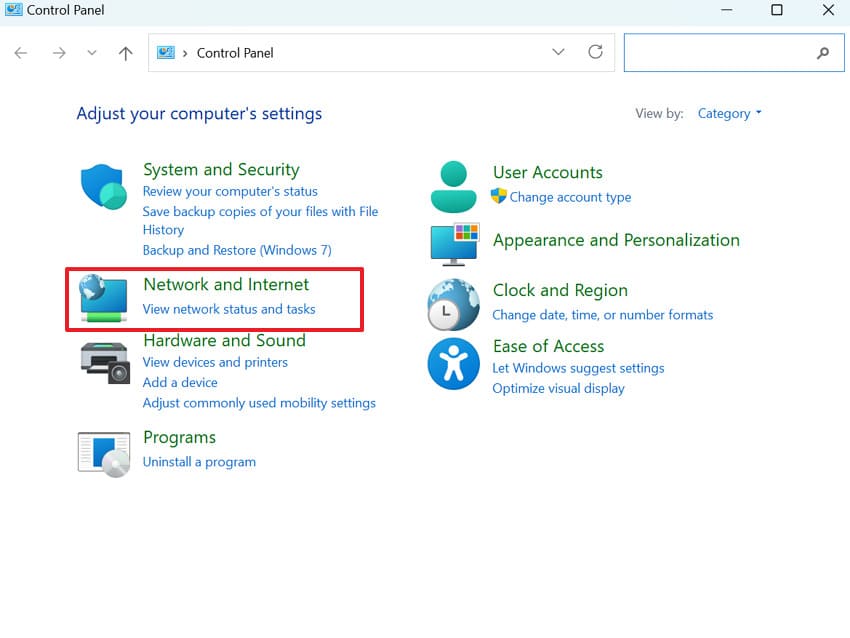
Step 1. Enter the Control Panel on Windows, then press the "Network and Internet" option. After this, click the "Network and Sharing Center" option to proceed with DNS settings.
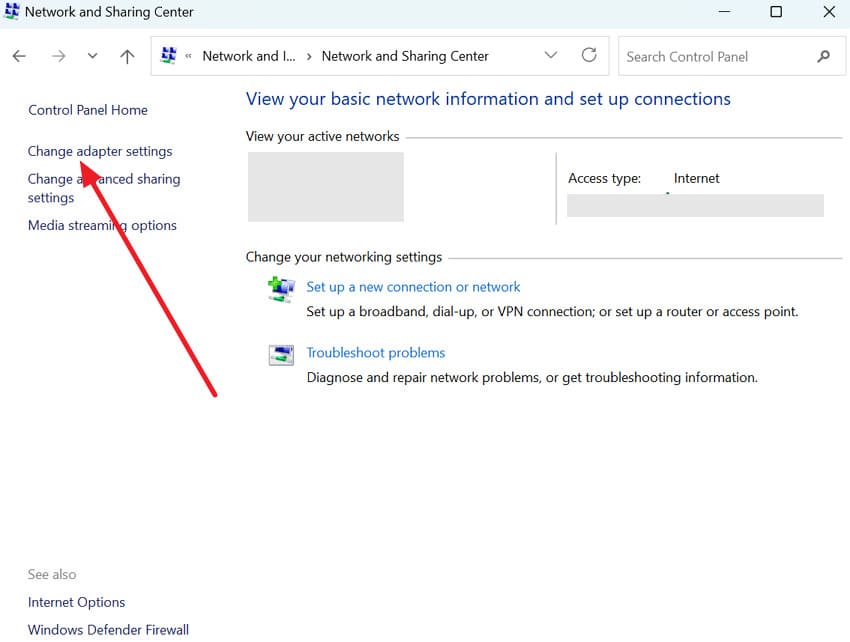
Step 2. From the Network and Sharing Center window, click the "Change Adapter Settings" option. Now, right-click your active connection and choose the "Properties" option from the menu.
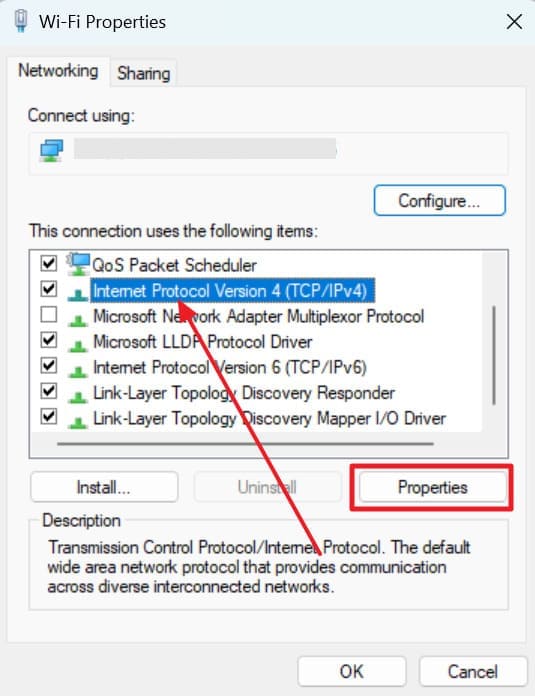
Step 3. Next, select "Internet Protocol Version 4 (TCP/IPv4)" from the list and press the "Properties" button.
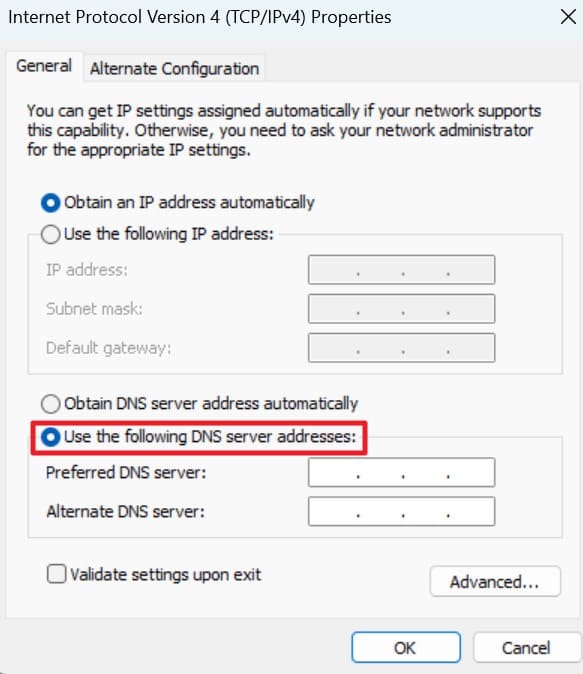
Step 4. Finally, choose the "Use the following DNS Server Addresses" option and enter, for example:
Google DNS: "8.8.8.8 and 8.8.4.4" or
Cloudflare DNS: "1.1.1.1 and 1.0.0.1"
In the end, click "OK," restart your PC, and try launching PRAGMATA again.
Fix 3. Run Game as Administrator
This step grants the game full system permissions, preventing crashes caused by restricted access to files or services. Without administrator privileges, the game may be blocked from executing some operations, activating errors like PRAGMATA "Sorry Something Went Wrong." Thus, run the game as an administrator to ensure it can interact with system resources without interruptions and better performance. Adhere to the guidelines and run PRAGMATA as an administrator for fewer unexpected errors:
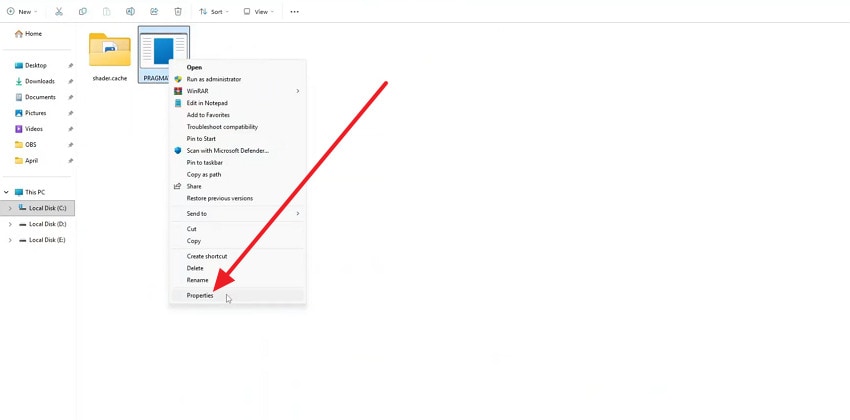
Step 1. Initially, close PRAGMATA and Steam, then navigate to your PRAGMATA install folder, right-click the "Pragmata.exe" folder. Once done, choose the "Properties" option from the drop-down menu of the folder.
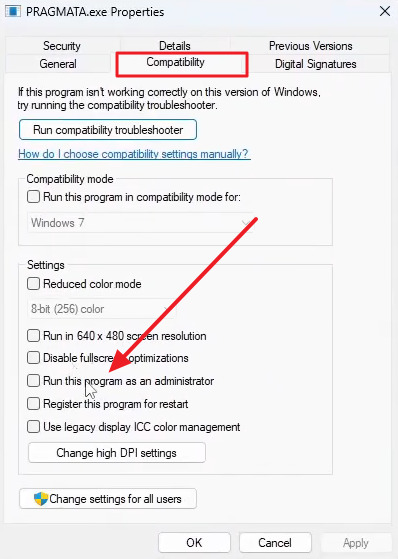
Step 2. Move forward, press the "Compatibility" tab, and tick the "Run this Program as an Administrator" option. Next, click "Apply", then "OK" to reopen Steam and launch the game again.
Fix 4. Disable Background Apps and Overlays
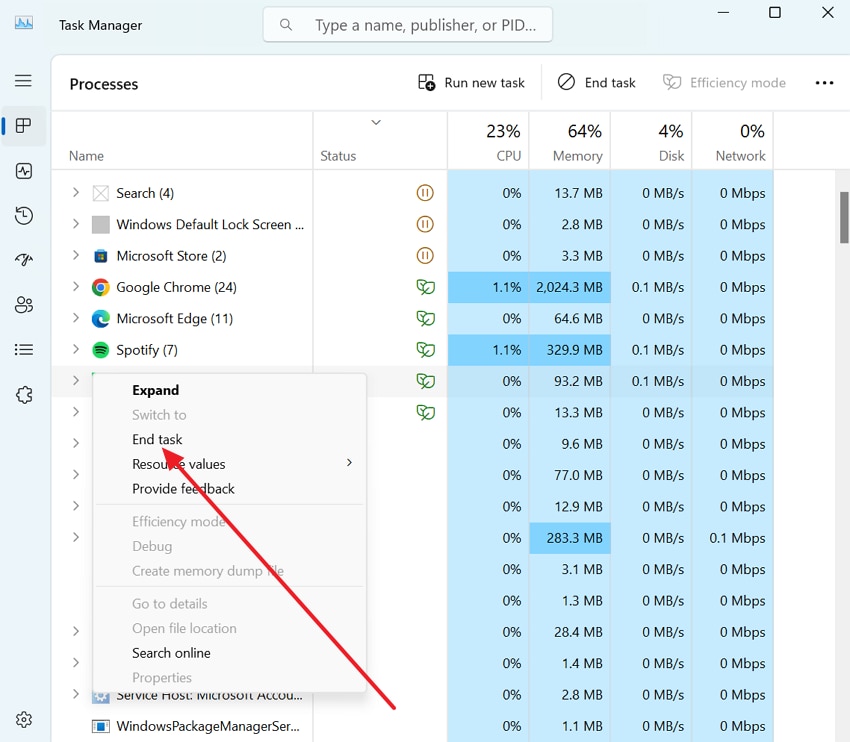
Doing so, you can reduce system load and prevent conflicts caused by overlay tools, improving PRAGMATA game stability. Background applications consume GPU and CPU resources, while overlay features from apps like Discord can interfere with the game’s rendering process. Once you disable these unnecessary processes, it frees up system resources and minimizes conflicts, helping the game run more smoothly. To overcome the "PRAGMATA, sorry, something went wrong" error, close unused apps through the tutorial below:
Instructions. Open Task Manager on your device, then scroll for unnecessary background processes and overlays. Now, right-click all unused apps in the list and choose "End Task" to close them individually.
Fix 5. Clear Game Cache and Temporary Files
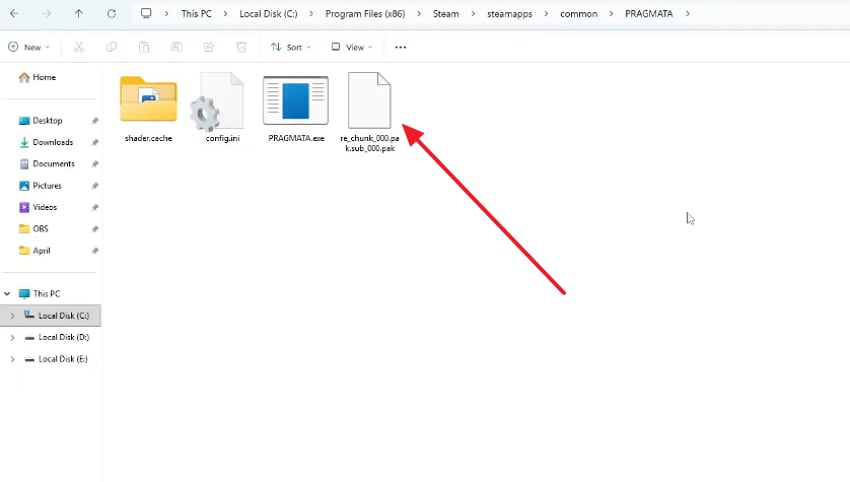
With this fix, you can remove corrupted or outdated data that might interfere with game performance and cause recurring errors. Periodically, games and the operating system store temporary files to speed up loading and improve responsiveness. Once these files get corrupted or outdated, they conflict with newer game updates or system processes. Follow the instructions below to clear the game cache and temporary files for the PRAGMATA "Sorry Something Went Wrong" error:
Instructions. First, close the game completely, then look for PRAGMATA by accessing %temp% and C:\Windows\Temp. Once found, select and press the "Delete" button to clear all temporary or junk files stored on your PC.
Fix 6. Check Official Server Status
For the persistent PRAGMATA "Sorry Something Went Wrong" error, always check the official PRAGMATA Steam discussions. It's important because the problem sometimes isn’t with your system, but game servers may slow down due to maintenance. In such cases, attempting multiple fixes on your device won’t resolve the issue. Plus, this status checking ensures you quickly identify whether the error is external, instead of making unnecessary system changes.
Fix 7. Verify Game Files Integrity
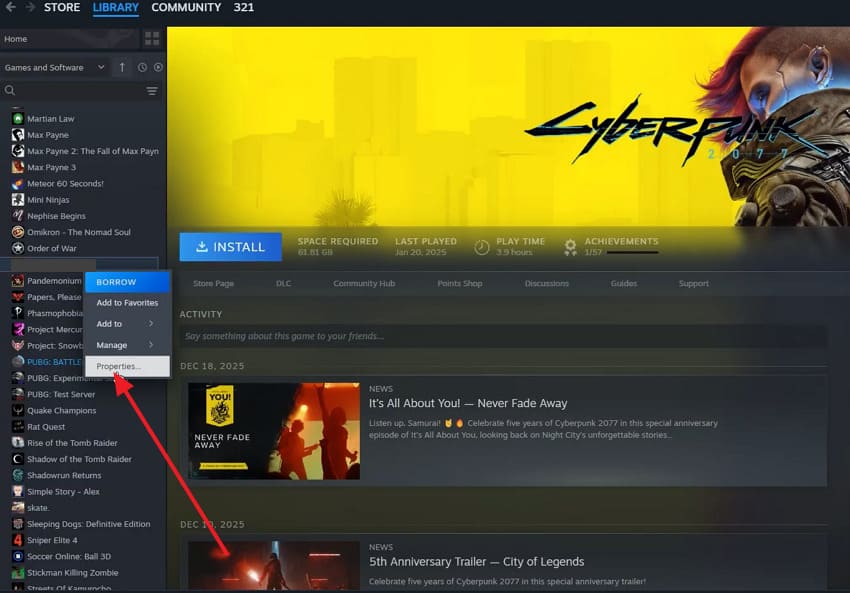
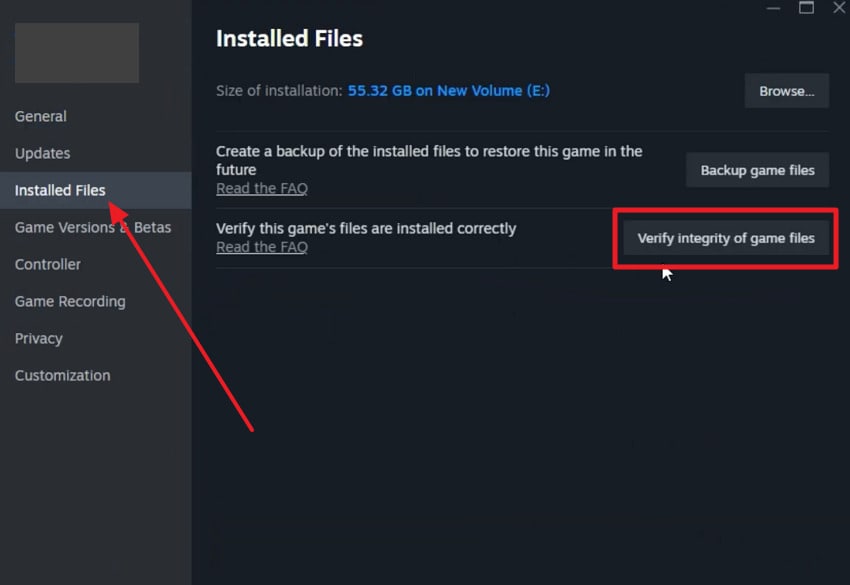
Proper game file verification automatically detects and repairs corrupted or missing files, guaranteeing the game runs as intended. PRAGMATA files can become damaged due to incomplete downloads, sudden shutdowns, or update errors. When you verify file integrity, it scans all installed files and replaces any missing or damaged ones with the correct versions. Dive into the tutorial and solve the PRAGMATA "Sorry Something Went Wrong" error by verifying game file integrity:
Step 1. Access Steam, head to the library section, and locate PRAGMATA from the game’s list. Now, right-click PRAGMATA once located and choose the "Properties" option from the menu.
Step 2. Open the "Installed Files" section and press the "Verify Integrity of Game Files" option. Wait for the scan to be complete; Steam will compare your files with the originals and re‑download any missing files.
Pro Tip. Solve PRAGMATA "Something Went Wrong" Error by Fixing Files with Repairit
If the PRAGMATA "Sorry Something Went Wrong" error simply refuses to go away, file corruption might be the actual reason. At this point, a more targeted approach is needed; one that focuses on repairing the deep-rooted file damages like Repairit. Most importantly, it can handle all high-end formats that are used to record PRAGMATA gameplay. You can fix files that won’t open, freeze, or show "file corrupted" after a crash.
Besides this, the program supports full HD, 2K, 4K, 8K, and HDR-style video files from PC and console capture tools. If pre‑rendered cutscene files or cinematic exports are damaged, Repairit can address them all in 3-steps. With its batch repair capability, it lets you add all broken videos and fix them together in one run. Plus, the files are kept in their original format and codecs without making obvious repair changes.
Key Features

-
Fixes "Unsupported Format" for Game Files: It works specifically on such unplayable files and converts them back into a valid, playable format.
-
Online/Offline Repair Option: The program offers a complete file repair facility, both online and offline, with no feature loss.
-
Helps Analyze Game Files After Repair: Once the repair action is completed, you can easily preview repaired files and save them for later use.
Detailed Guide to Repair PRAGMATA Corrupted Files
Once you know that corrupted files may be the actual cause, simply follow the given tutorial and get sorted:
Step 1. Add Your Corrupted PRAGMATA Files
Press the "Start" button for the "Document Repair" tool after you access the "More Types Repair" section. Now, click the "+Add" button to insert all the broken PRAGMATA files.

Step 2. Start the Repair Process for PRAGMATA Files
After this, go to the "Repair" button and fix all corrupted PRAGMATA files at once.

Step 3. Download the Repaired PRAGMATA Files
In the end, examine your PRAGMATA files after the repair process is completed to save them on your device.

Repair Corrupted Files
 Security Verified. Over 7,302,189 people have downloaded it.
Conclusion
In summary, you may now know that the PRAGMATA "Sorry Something Went Wrong" error can be caused by multiple factors. However, the solutions discussed in this guide, such as network resets, DNS changes, and file verification, can address the most common triggers. In such situations, turning to a specialized solution like Repairit can be more helpful when file corruption is the actual cause.
Frequently Asked Questions
-
1. Why does the PRAGMATA error appear during loading or startup?
This happens when essential game files fail to load or when there is a delay in connecting to servers during startup. Other reasons could be system resource overload or background processes interfering with the game’s initialization. -
2. Can VPN usage cause the PRAGMATA "Sorry Something Went Wrong" error?
Indeed, unstable or poorly configured VPNs can interfere with server connections, resulting in similar errors. In some cases, VPN routing can increase latency or trigger region-based restrictions that disrupt normal game access. -
3. Is this PRAGMATA "Sorry Something Went Wrong" error related to game updates?
Absolutely, the PRAGMATA "Sorry Something Went Wrong" error could be caused by incomplete game updates. An interrupted or improperly installed update can cause a mismatch or missing files, preventing the game from running.