 TL;DR:
You can recover a file that corrupted immediately after saving by utilizing built-in application recovery features, restoring previous Windows or macOS versions, or running administrative command tools to fix underlying drive errors.
● Use the Open and Repair function within your application's File menu to bypass minor binary errors, or attempt importing the broken file into a different compatible program and saving it to a new directory.
● Run chkdsk /f or sfc /scannow via an Administrator Command Prompt if the write failure was caused by disk indexing errors or damaged Windows Resource Protection files.
● Files reduced to 0 KB generally cannot be recovered directly, requiring a fallback to AutoRecover backups or structural repair tools like Repairit for Word, Excel, PDF, and PowerPoint files on Windows Vista or macOS X 10.12 and newer.
Ask AI for a summary
 ChatGPT
 Perplexity
 Gemini
 Claude
 Grok
Grok
Few things are more frustrating than when a file breaks right after save, turning an important document into an unreadable file. This usually happens when something interrupts or damages the saving process, causing incomplete or incorrect file writing. By understanding why file corrupted after save issues happen, such as software crashes, storage errors, or system interruptions, you can apply safer saving practices and use the right recovery methods to protect your files.
In this article
What Happens When a Save Fails
When you click Save, your device writes file data to storage. If something interrupts this process, a file breaks right after save and may become unreadable.
Common Causes
- Low system memory can interrupt saving.
- Software crashes or freezes may stop the file from saving properly.
- Outdated apps or compatibility issues can trigger a file corrupted after saving a problem.
- Power loss or sudden shutdowns may interrupt the write process.
- Cloud sync or external drive issues can damage files during saving.
Signs Your File Was Corrupted After Saving
When a file breaks right after save, the damage usually becomes noticeable as soon as you try to open or use the file again.
Common Signs of File Corruption
- Error messages appear, such as File format not recognized or Cannot open file.
- Missing or damaged content, including broken images, missing pages, or unreadable text.
- The file cannot be copied or moved because the system marks it as unreadable.
- Strange symbols or blank content may replace your original data.
Other Warning Signs
- The file icon changes to a generic blank icon or loses its preview.
- The program crashes whenever you try to open the file.
- The file causes lag or freezing when accessed.
Quick Ways to Recover a Broken File Save
When a file breaks right after save, quick action can sometimes help recover the file before the damage becomes permanent.
Fix 1. Use App Recovery Tools
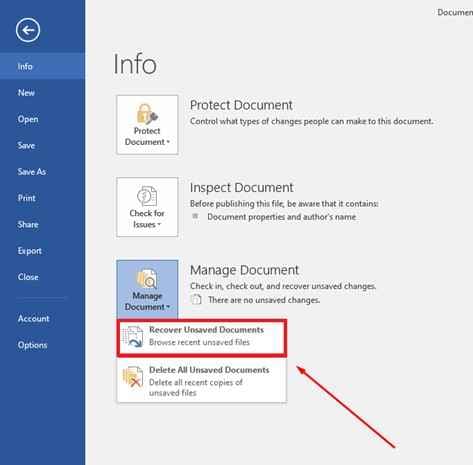
Many programs keep temporary backups of your work. Check for AutoRecover, Recent Files, or Recover Unsaved Documents inside the app.
Step 1. Reopen the application and look for a Recover Unsaved Documents pane that often triggers after a crash.
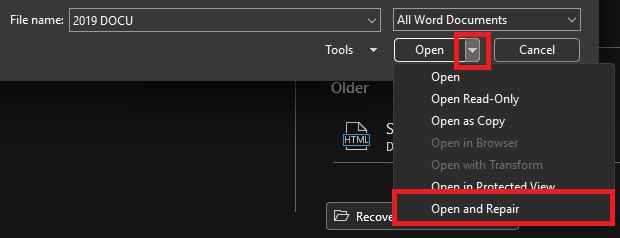
Step 2. Use the Open and Repair feature located within the File menu to force the software to ignore minor binary errors.
Fix 2. Restore an Earlier Version
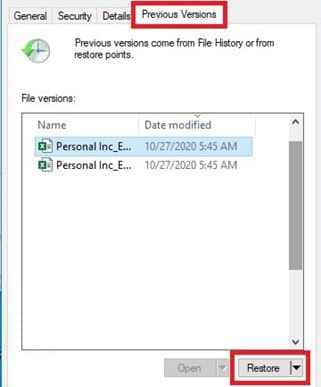
Your system may have saved older copies of the file. Use Previous Versions (Windows/macOS backups) to return to a point before the file corrupted after save issue.
Step 1. Right-click the damaged file, select Properties, and navigate to the Previous Versions tab.
Step 2. Identify a version with a timestamp prior to the save error and select Restore to overwrite the broken file.
Fix 3. Repair the Storage Drive
File errors can come from disk problems. Running a disk check tool helps fix errors that may cause a file breaks right after save situation.
Step 1. Open the Command Prompt as an Administrator and type chkdsk /f followed by your drive letter.

Step 2. Allow the utility to scan for cross-linked files and repair the indexing errors that prevent the file from opening.
Fix 4. Open the File in Another Program
Sometimes only one app cannot read the file. Try opening it in a different compatible program, then save it again as a new file.
Step 1. Open a similar application (e.g., using a text editor for a broken script) and use the Import or Place command.
Step 2. If the data appears, perform a Save As to a new directory to create a fresh, uncorrupted file.
Fix 5. Check System File Health
System issues can also affect saving. Running system repair tools helps fix damaged components that may lead to file corruption during save.
Step 1. Input sfc /scannow into your Command Prompt Admin.
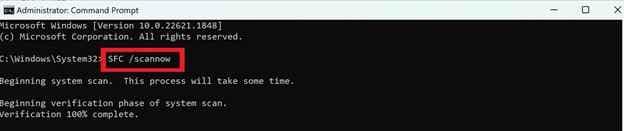
Step 2. Wait for the system to replace any detected corrupt Windows Resource Protection files that handle data I/O.
Advanced Fix to Restore Severely Corrupted Files
When basic fixes and built-in recovery tools don’t work, the damage is usually deeper inside the file structure. In these cases, advanced repair tools scan the file at a low level to find usable data and rebuild the broken parts so the file can open again.
It CAN:
- Rebuild damaged file structure so the file becomes readable again.
- Remove broken or corrupted data that causes crashes when opening the file.
- Fix embedded content like images, tables, or formulas inside documents.
- Repair multiple files at once in one process.
For severe cases, tools like Repairit File Repair can help restore common file types such as Word, Excel, PDF, and PowerPoint. They work by analyzing the file’s structure and comparing it with a healthy format to recover missing or damaged parts.
Step-by-Step (Optional)
Step 1. Upload the corrupted file.
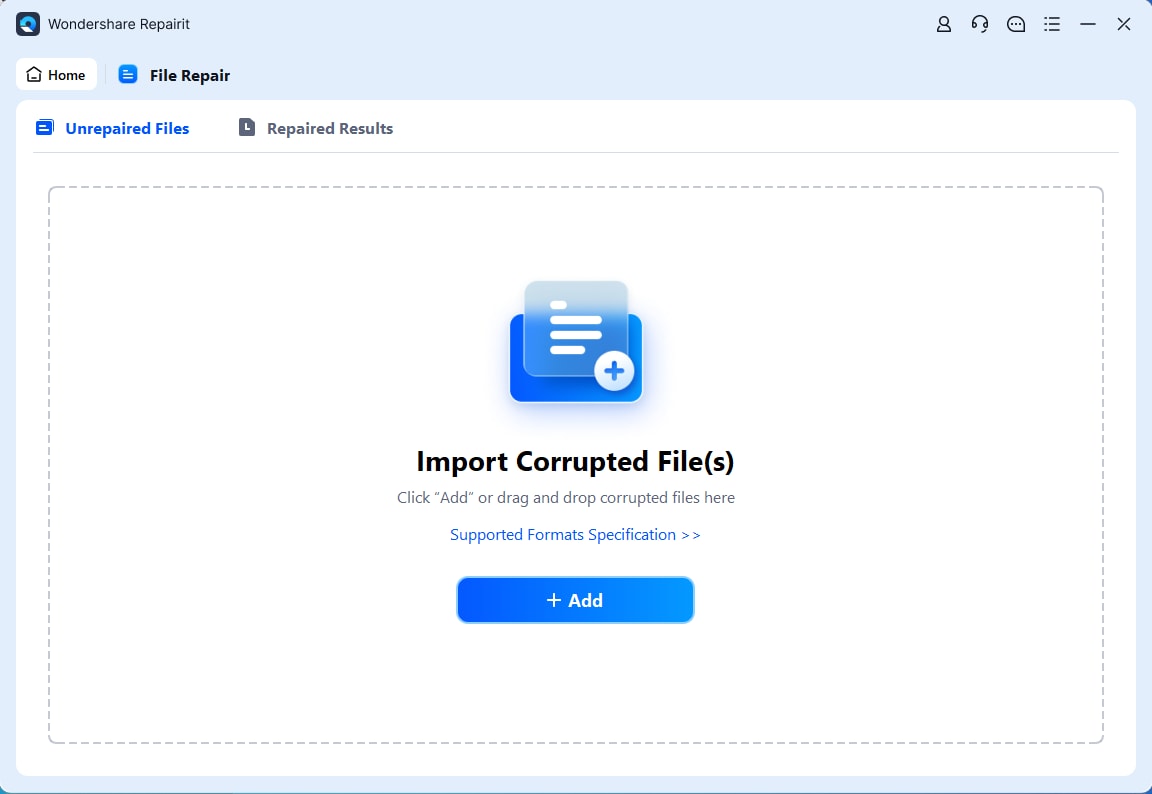
Step 2. Start the Repair process.
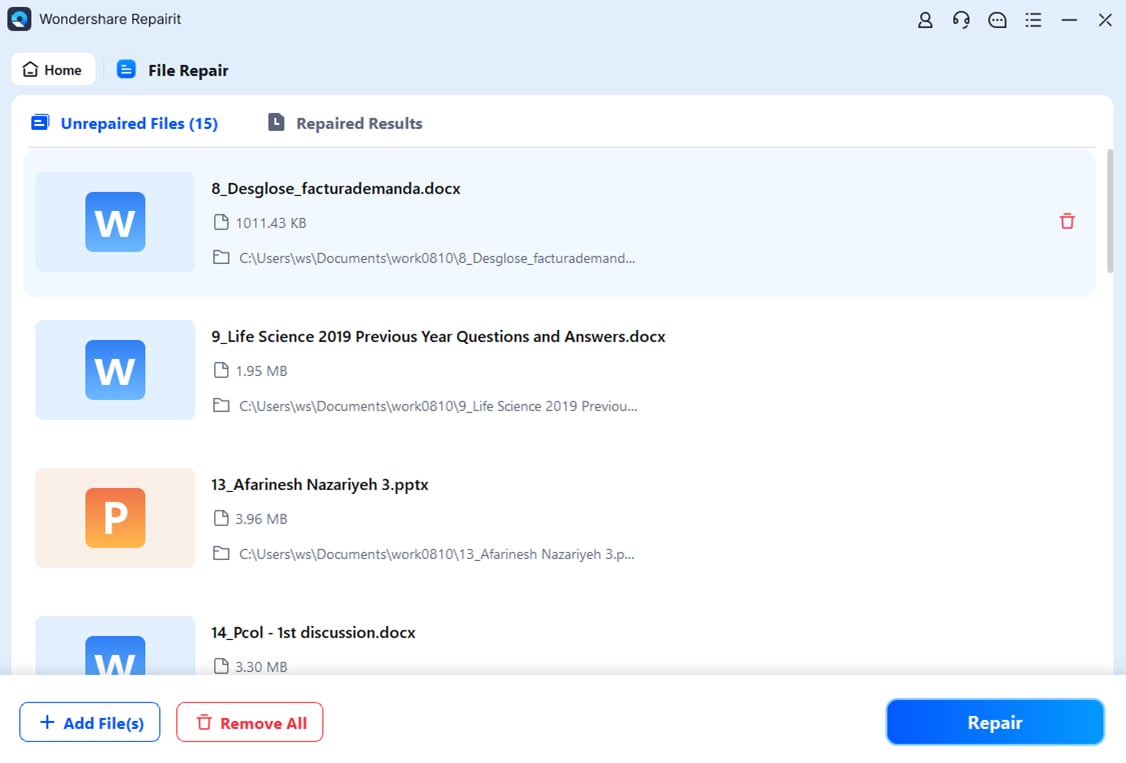
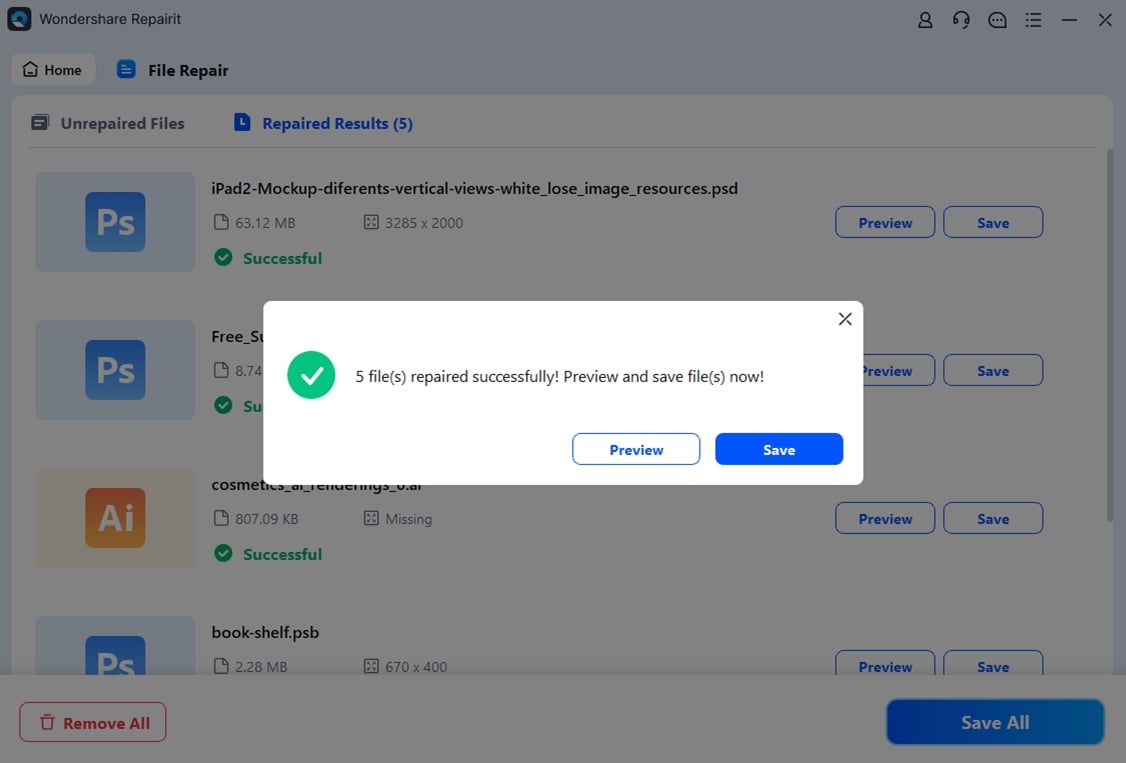
Step 3. Preview and save the restored file to a new location.
How To Avoid Save-Related File Corruption
To avoid a file break right after save issue, the key is making sure your system can safely complete the saving process without interruptions or errors.
Prevention Tips
- Use local storage when editing - Work directly on your computer’s SSD or hard drive instead of USB drives or unstable network folders.
- Let saves finish properly - After saving, wait a few seconds before closing the app or shutting down to avoid an incomplete write that can lead to a file corrupted after save problem.
- Check your drive health - Regularly scan your storage for errors or failing sectors to prevent unexpected file damage.
- Keep power stable - Use a backup power source or avoid sudden shutdowns to prevent interruptions during saving.
- Save versions of your work - Use Save As or versioning so you always have a backup copy if the latest save becomes corrupted.
Conclusion
Seeing a file breaks right after save can be frustrating, but understanding why it happens makes it easier to fix and prevent. These issues usually come from sudden system interruptions, software problems, or hardware errors. Knowing why file corrupted after save errors occur helps you choose the right solution, whether it’s restoring a backup, using built-in recovery tools, or trying advanced repair software. With proper saving habits and regular backups, you can keep your files safe and reduce the risk of future damage.
FAQs
-
Why does a file break right after saving without any error?
This can happen due to write caching, where the system hasn’t fully finished saving the file before the program closes or the device is turned off. -
Can a 0 KB file still be recovered?
Usually not. A 0 KB file means no data was saved. However, you may still find a backup or AutoRecover version elsewhere. -
Why does cloud syncing sometimes cause file corruption?
If syncing gets interrupted or there’s a mismatch between the local and cloud versions, the file can end up incomplete or corrupted. -
Can old software cause save-related file issues?
Yes. Outdated programs may not correctly save modern file formats, which can lead to corruption. -
How do repair tools fix unreadable files?
They scan the file’s raw data and rebuild readable parts using internal patterns, helping recover content even when the file cannot normally open.