 TL;DR:
Resolve autosave and sync file corruption by first utilizing built-in application recovery options and cloud version histories, then escalating to structural rebuild software for severe damage.
● Locate temporary backup copies with .tmp or .asd extensions in hidden AutoRecover folders, or utilize the native Open and Repair feature within applications like Microsoft Office.
● Deploy Repairit File Repair on Windows Vista through 11 or macOS 10.12 and later to rebuild heavily corrupted Word, Excel, PDF, or PowerPoint files without altering original content.
● Changing a file extension will not fix serious internal file damage, and users should avoid editing on multiple devices simultaneously to prevent unmergeable sync conflicts.
Ask AI for a summary
 ChatGPT
 Perplexity
 Gemini
 Claude
 Grok
Grok
When a cloud sync or background save is interrupted, it can cause autosave sync file corruption, leaving you with a file that won’t open properly. If you need to repair files broken by autosave or sync errors, acting quickly is important to avoid permanent data loss. This guide explains easy and effective ways to fix the issue and restore your work using built-in recovery tools and repair software.
In this article
Why Autosave and Sync Errors Corrupt Files
When a file becomes inaccessible after autosave or cloud syncing, it usually means the saving process was interrupted. Since autosave and sync run in the background, even small disruptions can cause autosave sync file corruption and leave the file incomplete or unreadable.
Common Causes of File Damage
- Network instability - Weak or lost connection during syncing can interrupt file updates
- Software conflicts - Other apps or antivirus tools may interfere during saving
- Power issues - Sudden shutdowns or crashes can stop the save process
- Incomplete autosave - The file may not finish writing properly before closing
Specific Transfer-Related Triggers
- Large file sync errors - Slow connections can cause missing or broken data during upload
- Multiple device edits - Conflicting versions from different devices may fail to merge properly
What Are The Signs of Sync and Autosave Failures
Detecting file damage early is important to improve your chances of recovery. When autosave or syncing is interrupted, the file may become partially corrupted, leading to clear warning signs.
Typical Indicators of a Broken File
- File won’t open or freezes - The app may stop responding or stay stuck on loading
- Format error messages - You may see alerts saying the file type is invalid or unsupported
- Missing or broken content - Parts of your work may be gone or look distorted
- CRC or data errors - The system may report errors when copying or moving the file
Visual and Functional Issues
- Blank or default icon - The file may show a generic or empty icon instead of a preview
- Unreadable text - Content may turn into random symbols or garbled characters
- Access denied errors - The system may incorrectly block access due to sync conflicts
Basic Fixes and Manual File Recovery Methods
Before using advanced repair tools, you can often fix autosave sync file corruption using built-in recovery options from your device or cloud storage. These methods help restore previous versions or recover temporary files.
Fix 1. Restore from Cloud Version History
Cloud services like OneDrive, Dropbox, and Google Drive often save older versions of your file.
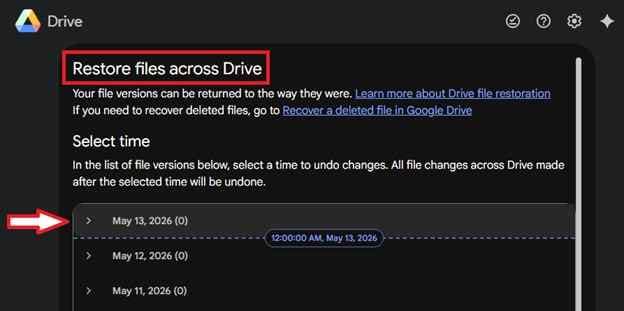
Step 1. Right-click the file in your cloud folder then select Previous Versions or Restore files across Drive in Google Drive.
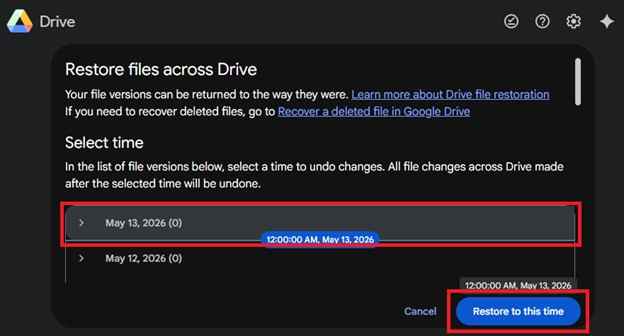
Step 2. Choose a working version and click Restore.
Fix 2. Check Temporary or AutoRecover Files
Many apps store backup copies in hidden folders.
Step 1. Go to the app’s AutoRecover or temporary files location (often in AppData or settings).
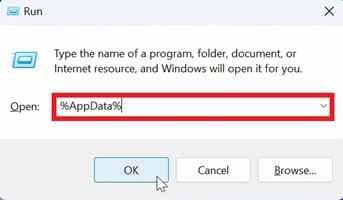
Step 2. Find files with extensions like .tmp or .asd. Try opening them in the original program.
Fix 3. Use Open and Repair Feature
Some programs like Microsoft Office have a built-in repair tool.
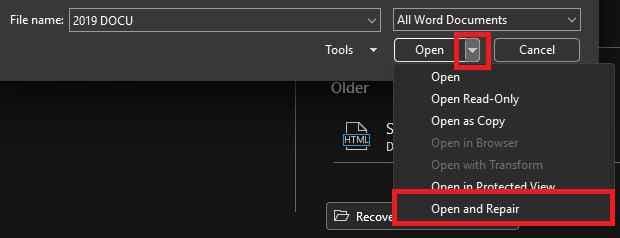
Step 1. Open the app and go to File then Open. Select the corrupted file.
Step 2. Choose the arrow beside the Open button and click Open and Repair.
Fix 4. Clear Sync Cache and Re-sync
Sometimes the cloud app is the issue, not the file itself.
Step 1. Pause or sign out of your sync service. Clear the local cache.
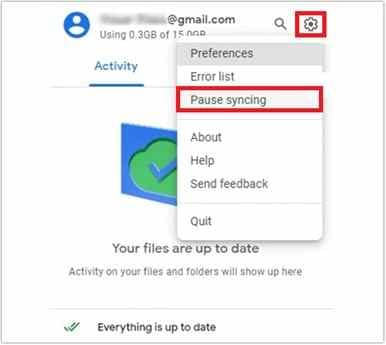
Step 2. Restart the app and let it sync again.
Fix 5. Try Changing the File Extension
If the file is not recognized properly:
Step 1. Enable file extensions in settings. Rename the file and change its extension (e.g., .docx to .txt).
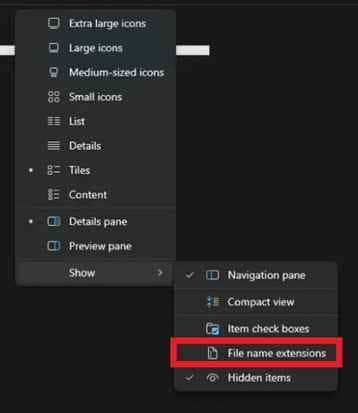
Step 2. Try opening it again to recover readable data.
Advanced Tools to Repair Severely Corrupted Files
When basic recovery methods don’t work, it usually means the file is seriously damaged and built-in tools can’t read it anymore. In this case, advanced repair tools are used to scan the corrupted file, detect missing or broken parts, and rebuild it based on its original structure.
It CAN:
- Fix the part of the file that lets programs recognize and open it again
- Restore text, images, and formatting that may seem lost due to corruption
- Repair multiple corrupted files at once, especially after sync issues affect a whole folder
- Correct internal file issues caused by interrupted autosave or sync processes
If the file is confirmed corrupted, a repair tool can help restore it safely. One example is Repairit File Repair, which supports common file types like Word, Excel, PDF, and PowerPoint. It scans the damaged file at a deep level and rebuilds the readable data without changing the original content.
Step-by-Step (Optional)
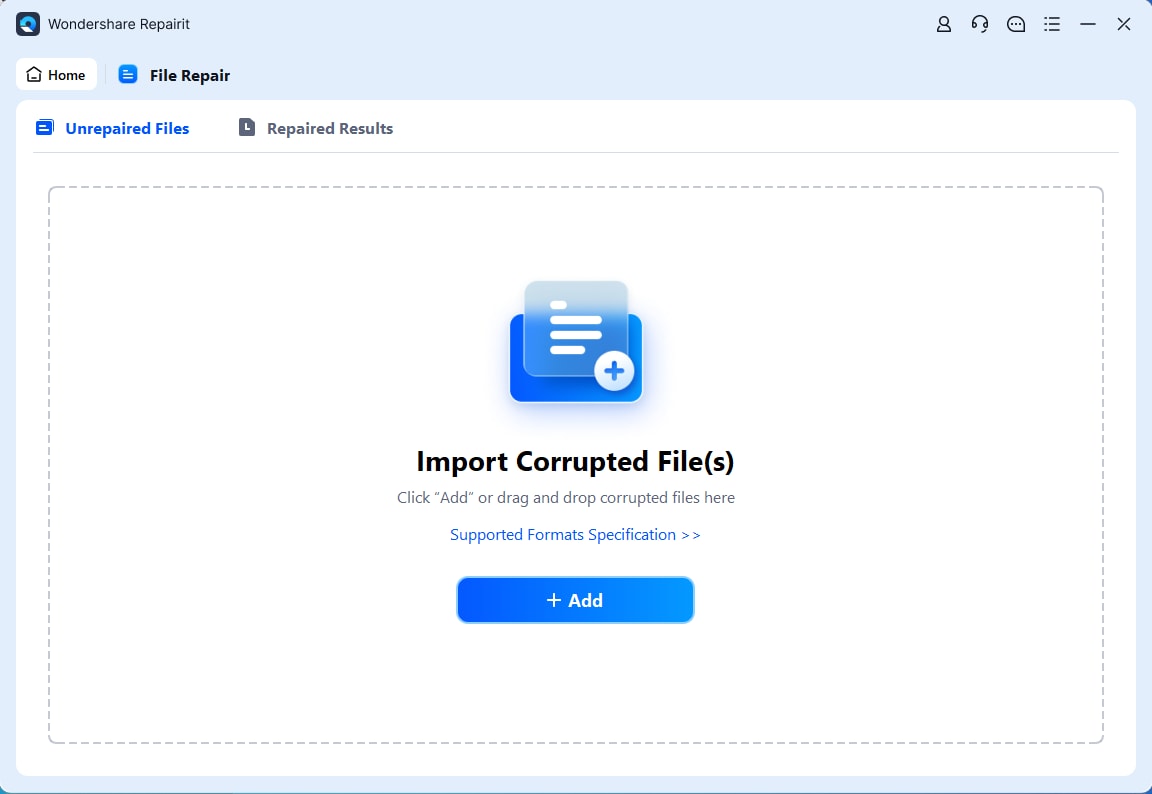
Step 1. Upload the corrupted file.
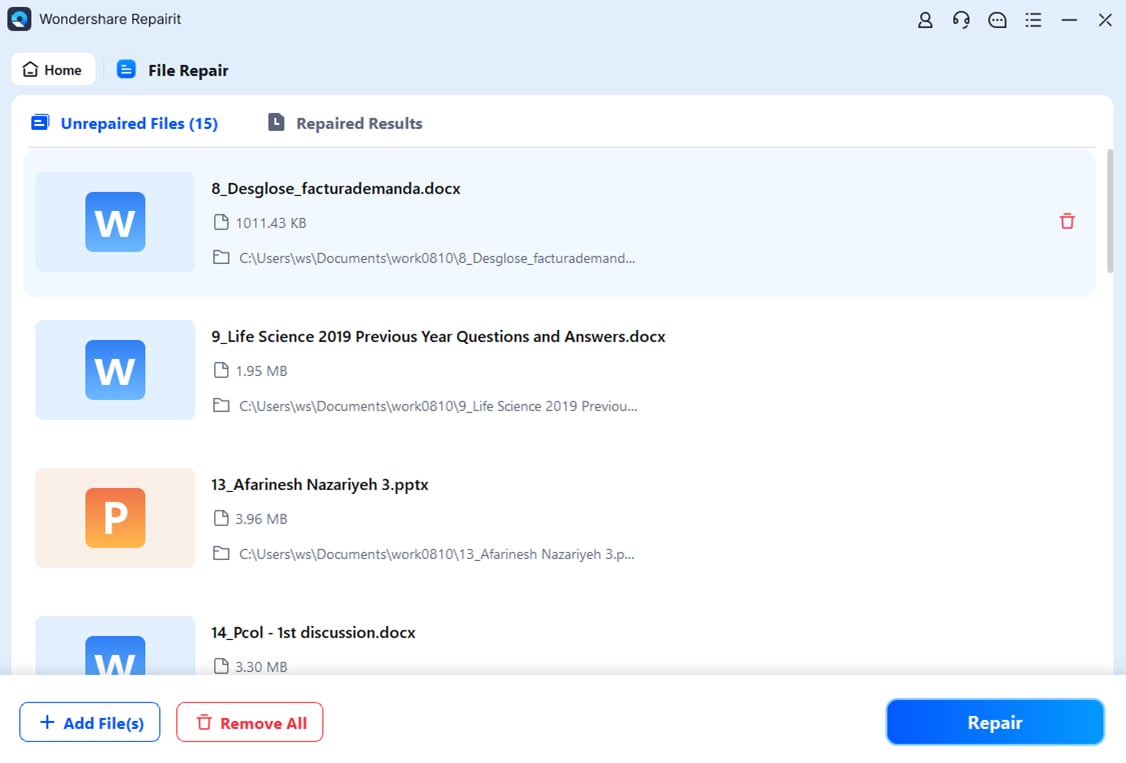
Step 2. Start the Repair process.
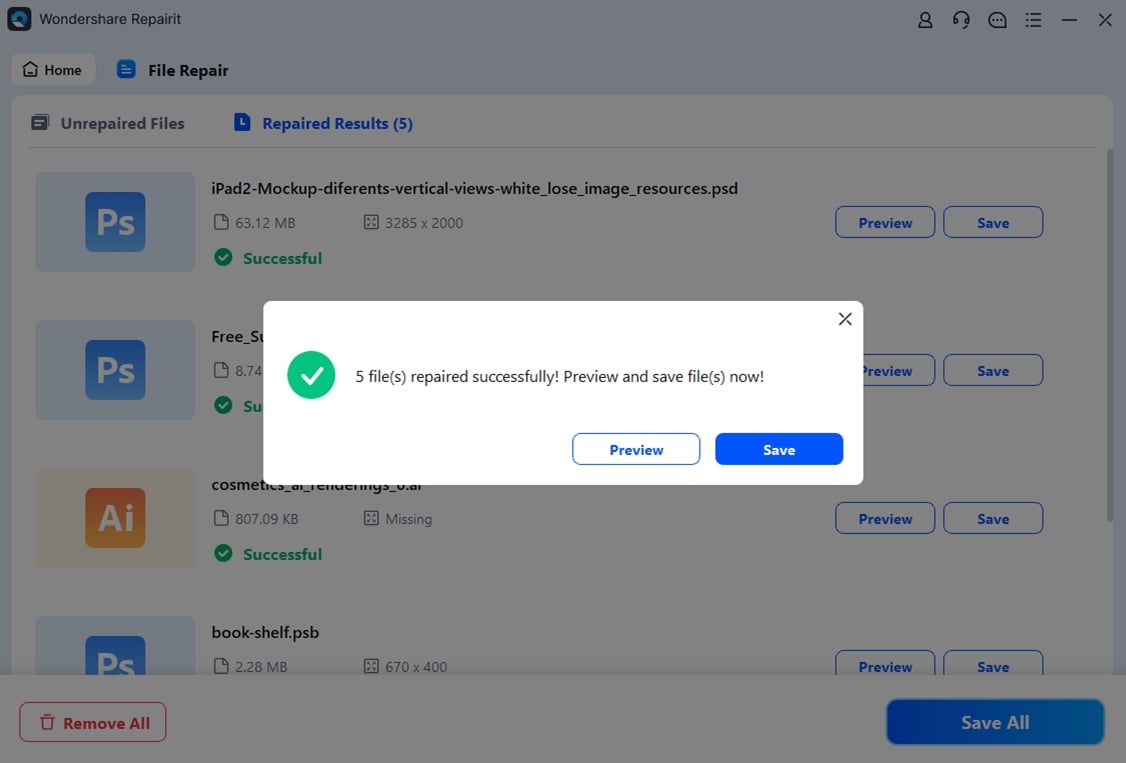
Step 3. Preview and save the restored file to a new location.
How to Prevent Autosave and Sync File Corruption
Preventing autosave sync file corruption is easier than repairing it, and it starts with building safe saving and syncing habits.
Best Practices for Data Safety
- Always save before closing or syncing to ensure changes are fully written
- Set autosave to 5-10 minutes to reduce the risk of incomplete saves
- Keep backup copies using external drives or a second cloud service (3-2-1 rule)
- Use stable internet when working with large synced files
Technical Safety Tips
- Enable version history tools like File History (Windows) or Time Machine (Mac)
- Avoid editing on multiple devices at the same time to prevent sync conflicts
- Clear sync cache regularly to avoid corrupted temporary data
Conclusion
Fixing autosave sync file corruption requires both quick recovery steps and good prevention habits. You can often repair files broken by autosave or sync errors using built-in recovery tools or trusted repair software, as long as you act early before the damage becomes permanent. Keeping stable internet connections and using version history can also help protect your files in the future.
FAQs
-
Why does autosave sometimes cause file corruption?
It usually happens when a crash or power loss interrupts the saving process, leaving the file incomplete. -
Can a file be recovered when the sync client shows a conflict error?
Yes. Sync tools often create a duplicate version, which you can compare and restore manually. -
How do I know if the issue is a sync error or a virus?
Sync errors often happen after connection or device issues, while viruses may encrypt or delete files. -
Will changing the file extension fix the problem?
Not always. It may help in minor cases, but it cannot fix serious internal file damage. -
Is it safe to use third-party repair tools?
Yes, if they are trusted tools like Repairit, which typically work without altering the original file.