 TL;DR:
To restore access to external drive files after a Windows update, run the chkdsk X: /f /r command in an administrator Command Prompt, assign a new drive letter via Disk Management, or install dedicated disk drivers from the manufacturer.
● If the system prompts you to format the drive due to file system corruption, or if you use formatting as a last resort (selecting NTFS for Windows or exFAT for Windows and Mac), all data will be erased, so attempt file recovery before proceeding.
● When built-in fixes fail to open corrupted documents or archives, Repairit File Repair can restore specific formats like Word, PDF, ZIP, and PSD without altering original layouts on Windows Vista/7/8/10/11 and macOS X 10.12 or later.
● An "Access Denied" error or a drive that appears empty indicates that the update has reset file permissions, corrupted the file index, or triggered antivirus restrictions, rather than a physical hardware failure.
Ask AI for a summary
 ChatGPT
 Perplexity
 Gemini
 Claude
 Grok
Grok
After a Windows update, your external drive may suddenly stop opening or become hard to access. This can be stressful, especially if it contains important files like photos, documents, or backups.
You might see error messages, missing folders, or a drive that shows up but looks empty or won’t open. Sometimes, it may also run slowly or disconnect on its own. This occurs because of update conflicts, driver issues, or file system errors caused by the Windows update. In this guide, you’ll learn how to repair external drive files after updates, recover your data, and prevent it from happening again.
In this article
Why External Drive Files Are Not Opening After Windows Update
Windows updates can change how your system interacts with external storage devices. While these updates improve security and performance, they can also trigger issues that prevent your external drive files from opening properly.
Common causes include:
- Driver incompatibility after update - Updated drivers may not work properly with your external drive.
- Changed permissions or access settings - System updates can restrict access to files or folders.
- File system errors or corruption - Errors may occur during the update process, making data unreadable.
- USB/controller recognition issues - The system may fail to properly detect or communicate with the external drive.
These issues affect how your computer reads the external drive. These can result in missing, inaccessible, or corrupted files even when the device itself is still functioning.
Quick Checks Before Repairing Files
Before commencing with different repair methods, check for simple issues first. These quick steps can immediately fix the problem.
- Reconnect the external drive - Unplug and plug your drive back in to reset the connection.
- Try another USB port or computer - Check if the issue is with the port or the drive.
- Restart your PC - This refreshes system detection after a Windows update.
- Check File Explorer and Disk Management - Make sure the drive is visible in Windows.
How to Repair External Drive Files After Update
If your external drive still won’t open after a Windows update, don’t worry. Most issues can be fixed using built-in Windows tools and simple recovery steps. These methods help repair errors, restore access, and recover your files without advanced skills.
Fix 1. Run CHKDSK to Fix Drive Errors
CHKDSK scans and fixes file system errors and bad sectors on your external drive after the Windows update. This is one of the most effective first fixes.
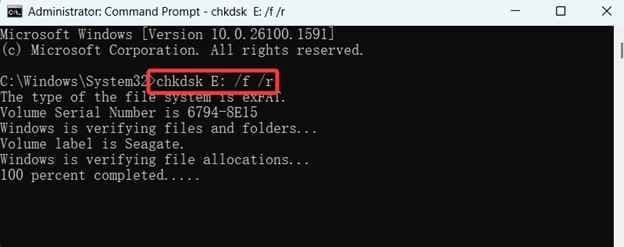
Step 1. Open Command Prompt (Admin).
Step 2. Enter chkdsk X: /f /r (replace X with your external drive letter, e.g., E:) and press Enter. Wait for the scan to complete while it detects and repairs errors automatically
Fix 2. Update or Reinstall Disk Drivers
Keeping your drivers updated can help fix external drive issues after a Windows update. Always check the manufacturer’s website first, as they may offer a dedicated update tool.
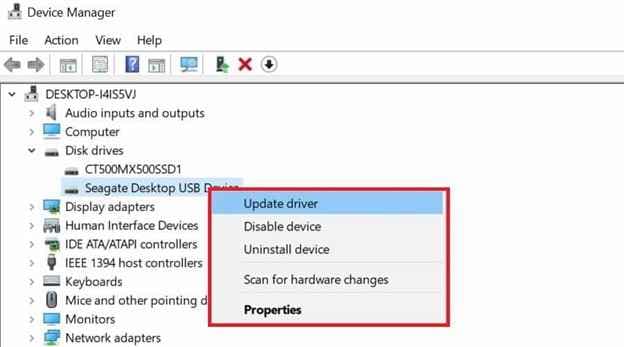
Step 1. Navigate to your Device Manager. Expand Disk drives and right-click your external drive.
Step 2. Click the Update driver and use the downloaded files from the manufacturer (if available). If the device is disabled, right-click it and choose Enable.
Fix 3. Update or Reassign USB/External Drive Settings
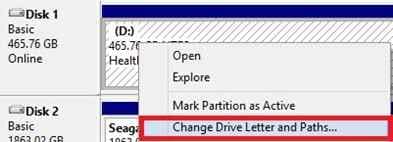
If your drive is detected but files won’t open, the issue may be a wrong or missing drive letter after the update. Reassigning it can restore the right access.
Step 1. Go to Disk Management. Right-click your selected external drive and select Change Drive Letter and Paths.
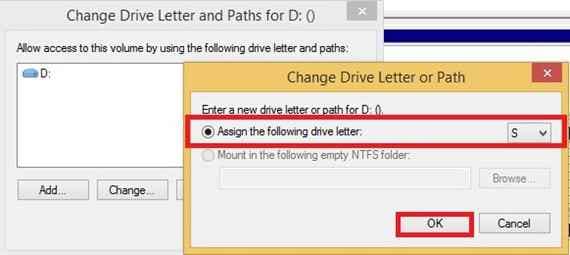
Step 2. Assign a new drive letter and confirm. Once done, check if files open normally.
Fix 4. Format the External Drive (Last Resort)
If nothing else works, formatting may be the final option. This will erase all data, so try data recovery first if possible.
Remember: Formatting will reset the drive and make it usable again, but all files will be deleted.
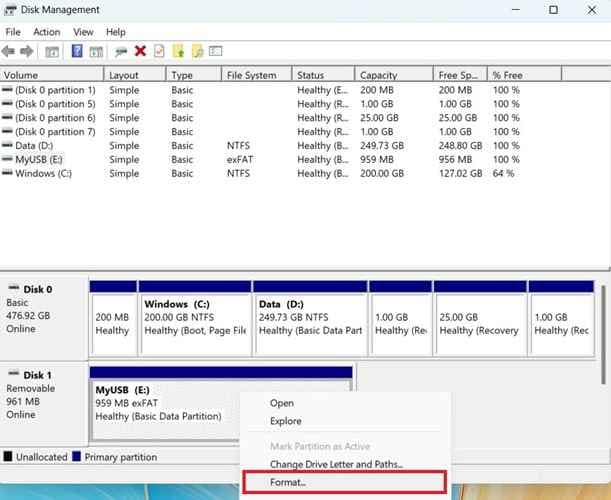
Step 1. Right-click the external drive in your Disk Management. Select Format. Choose a file system:
- NTFS (Windows only)
- exFAT (Windows and Mac)
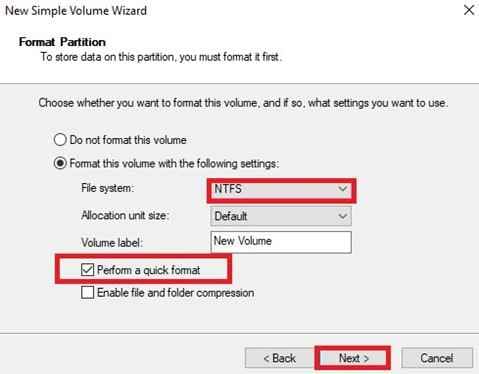
Step 2. Enable Quick Format for faster processing. Click Next to start.
Advanced Solution for External Drive Files Not Opening After Windows Update
If your external drive files still won’t open after basic fixes, the problem may be more serious. In this case, Windows tools may not be enough. You’ll need a dedicated file repair tool to recover damaged or unreadable files.
Repairit File Repair is a dependable tool that fixes corrupted files caused by a Windows update, system crashes, malware, or sudden shutdowns. It repairs unreadable or damaged files while maintaining the original content and structure intact. When built-in fixes fail, it helps restore important data quickly and safely.
It CAN:
- Repair multiple affected files at once for faster recovery after update-related issues.
- Fix files stored on external drives, including documents, archives, and design files (Word, Excel, PDF, ZIP, PSD, AI, and more).
- Restore files that won’t open, show errors, or appear blank after a Windows update.
- Keep original formatting, layout, and content unchanged during repair.
- Support major Microsoft Office and Adobe file types.
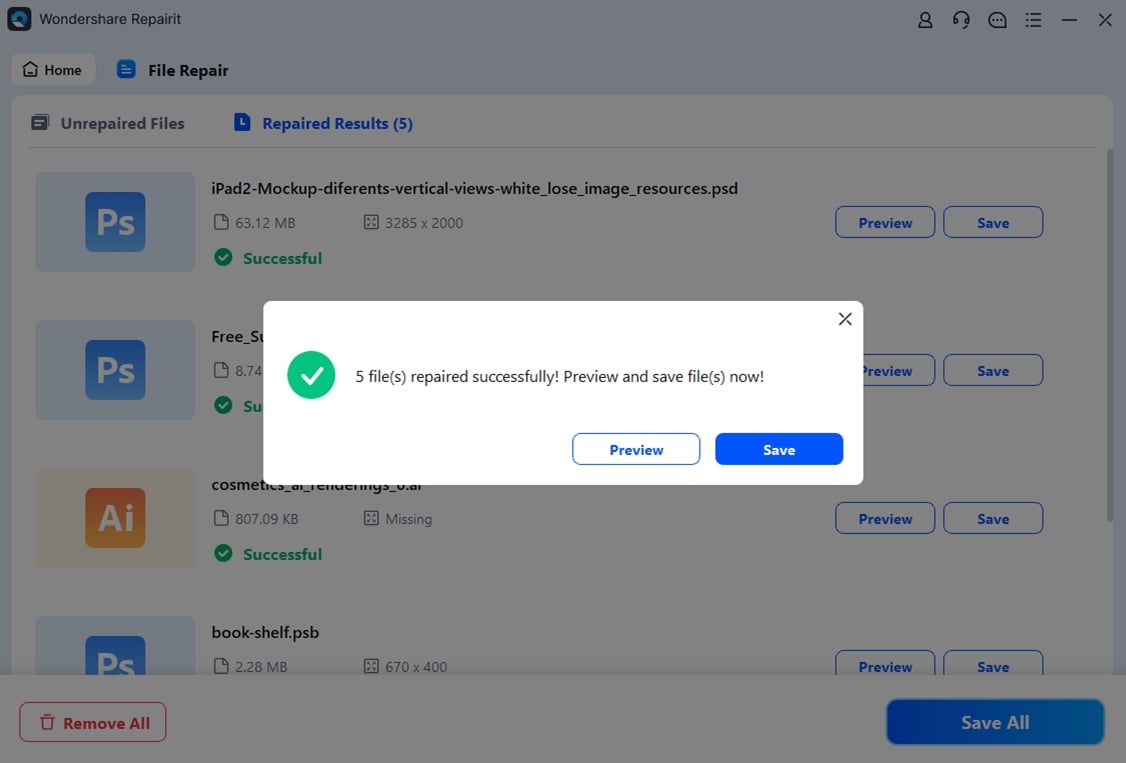
- Allow preview of repaired files before saving to confirm recovery success.
- Work on both Windows and macOS systems for flexible use.
Step-by-Step (Optional)
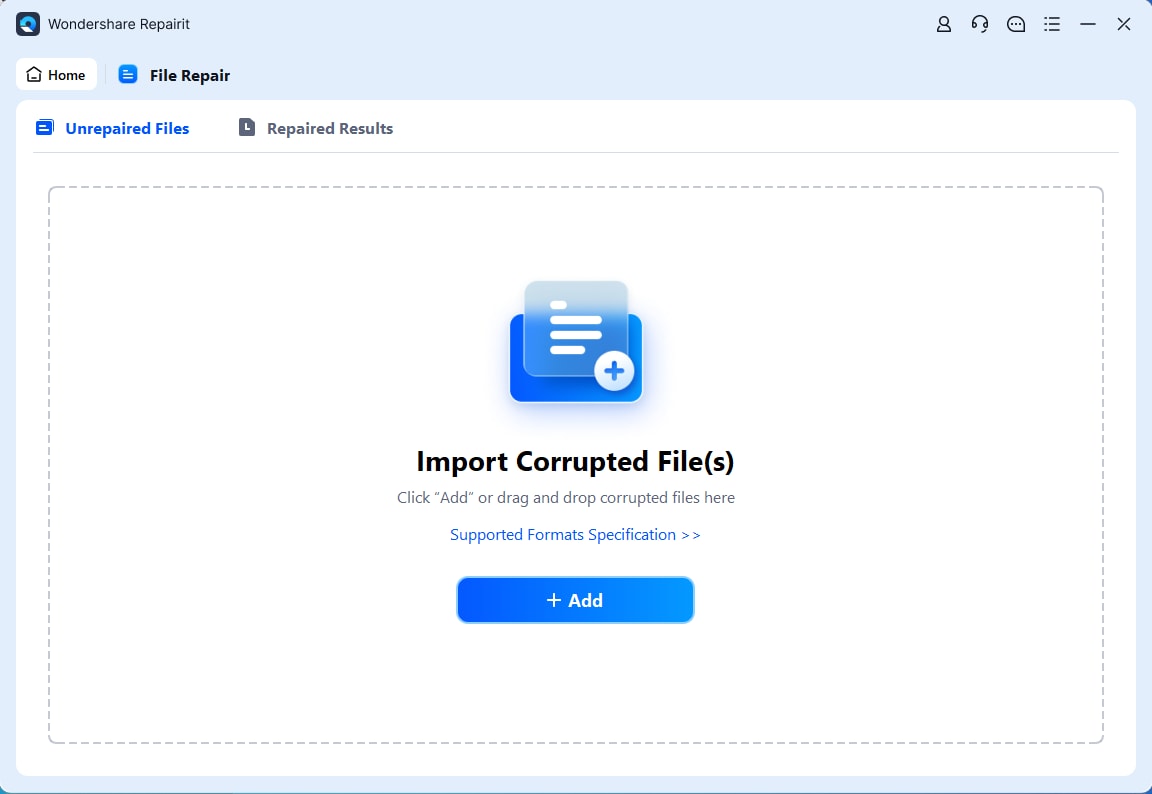
Step 1: Upload the unopenable files.
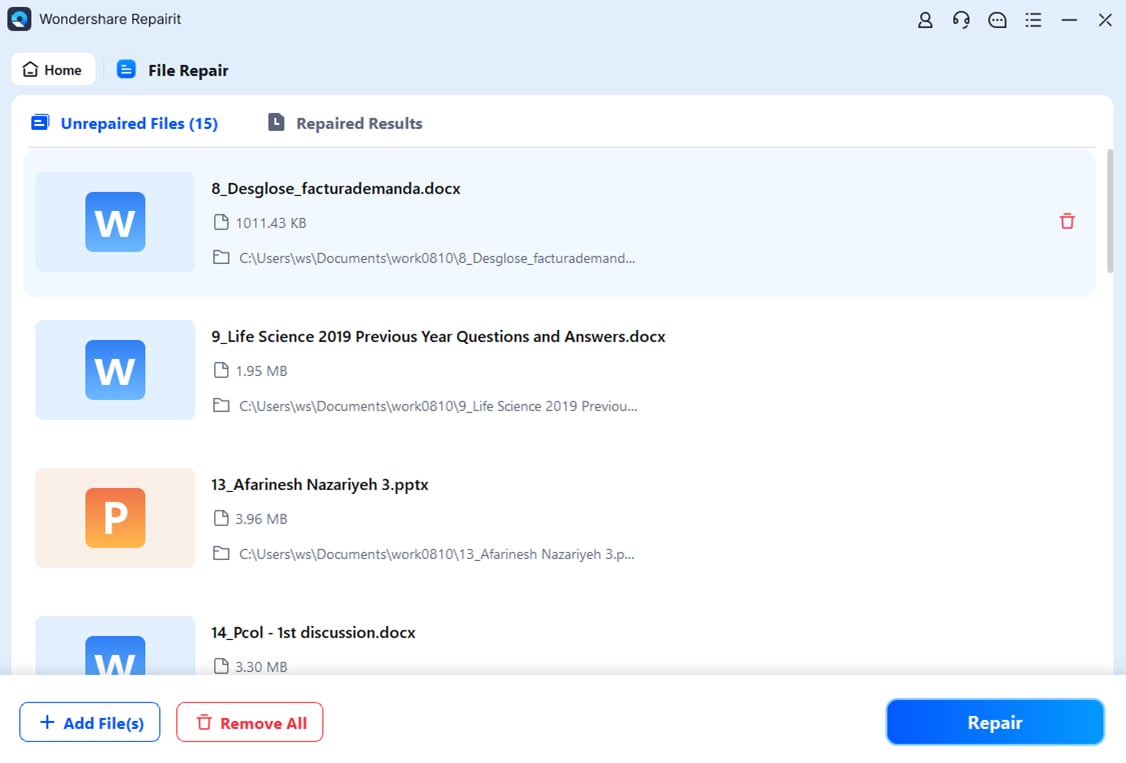
Step 2: Commence the Repair process.
Step 3: Preview and save the fixed file to a new location.
How to Prevent External Drive Issues After Future Updates
External drive issues after a Windows update are preventable with a few simple tips. Here are some:
1. Safely eject external drives before updates - This prevents file system errors by removing drives properly.
2. Keep USB/storage drivers updated - Ensure seamless communication between your system and external drives.
3. Avoid interrupting Windows updates - Let updates finish to prevent corruption issues.
4. Maintain regular backups - Store copies in the cloud or another drive for easy recovery.
5. Use reliable external storage devices - Reduce the risk of failures after system updates.
Conclusion
External drive files not opening after a Windows update are caused by system changes, driver issues, or file system errors. In most cases, it can be fixed with simple steps like CHKDSK, updating drivers, or changing the drive letter. If needed, file repair tools can help restore access to your files. To prevent future issues, update carefully, use trusted devices, and keep regular backups.
FAQs
-
Why does my external drive show “Access Denied” after a Windows update?
Windows updates may reset file permissions or ownership. This leads to restricted access even if the drive is detected. -
Can antivirus software prevent external drive files from opening after an update?
Yes. Security policy changes after updates can cause antivirus programs to block or restrict external drives. -
Why does my external drive appear empty after a Windows update?
This may be due to a corrupted file index, hidden files, or a changed drive letter assignment. -
Can a Windows update affect USB ports?
Yes. Updates can modify USB drivers, temporarily affecting how external drives are detected or read. -
Why does my external drive ask to be formatted after a Windows update?
This indicates a file system corruption. Avoid formatting if you still need the data, as recovery may still be possible.