

The OneDrive access denied error can be disturbing, especially when you need essential files. It usually means your device or account cannot open or sync certain files. Many users face this issue when trying to reach shared folders or access OneDrive from different devices. So, this guide connects the problem to real causes using steps anyone can follow. You will learn why access fails and how small actions can restore control.
Table of Contents
-
- Way 1. Verify Your OneDrive Account Permissions
- Way 2. Reset OneDrive App Authentication on Your Device
- Way 3. Adjust Folder and File Sharing Settings
- Way 4. Update OneDrive to the Latest Version
- Way 5. Clear OneDrive Cache and Temporary Files
- Way 6. Sign Out and Sign Back Into OneDrive
- Way 7. Access Files via OneDrive Web Version
- Way 8. Check for File Locks & Sync Conflicts
- Way 9. Fix OneDrive Access Denied Caused by Corrupted Files
- Way 10. Contact Microsoft OneDrive Support
Part 1. What Does “OneDrive Access Denied” Mean?
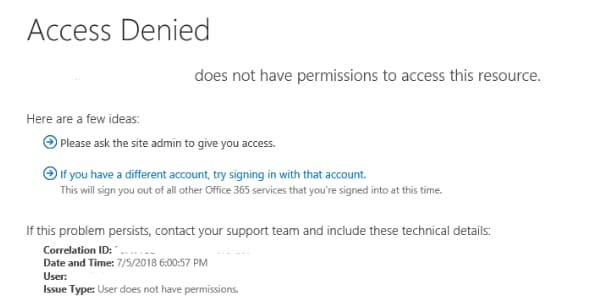
This error means OneDrive blocks opening, viewing, or editing files due to access rules. The message OneDrive access denied appears when your account lacks valid permission rights. It also happens after the sharing links expire, or you sign into the wrong accounts mistakenly. Sometimes files belong to work or school owners, and outside access limits apply. In other cases, login details expire, passwords change, or security checks fail.
Common Scenarios Where Access Is Denied
These situations usually occur when OneDrive cannot confirm allowed usage:
- You might open a shared folder using a different Microsoft account than intended.
- The file owner could have changed sharing settings or withdrawn your access.
- Your work or school organization may restrict sharing based on device or network rules.
- Local Windows folder permissions may break, preventing OneDrive from reading specific directories.
- Admin actions can disable your account or remove permissions tied to certain groups.
Main Causes Behind OneDrive Access Denied Errors
The OneDrive access denied issue appears due to various reasons. Below, you will explore a few key causes behind this file access denied error:
- Sharing Limits: Expired sharing links or “specific people” settings block access, even for invited users. Sometimes, updates in organizational groups can limit your existing content visibility.
- Local Issues: Broken NTFS permissions restrict folder entry even with correct online authentication. Corrupt installation files also interfere with normal local OneDrive access control.
- Security Interference: Firewalls or proxy servers stop OneDrive from authenticating its connection. So, it interrupts permission validation, producing denied access to cloud-stored data.
- Account Mismatch: Using multiple Microsoft accounts confuses authentication, causing denied requests. Old tokens stored in the system prevent renewed validation for correct access.
- Software Interference: Newly installed software may treat OneDrive activity as suspicious system behavior. This interference stops file operations even when permissions remain correct.
Part 2. How to Fix OneDrive Access Denied (Step-by-Step Solutions)
Fixing access problems requires clear steps to regain control of your OneDrive files. Thus, this part shows 10 methods to solve common OneDrive access denied errors:
Way 1. Verify Your OneDrive Account Permissions
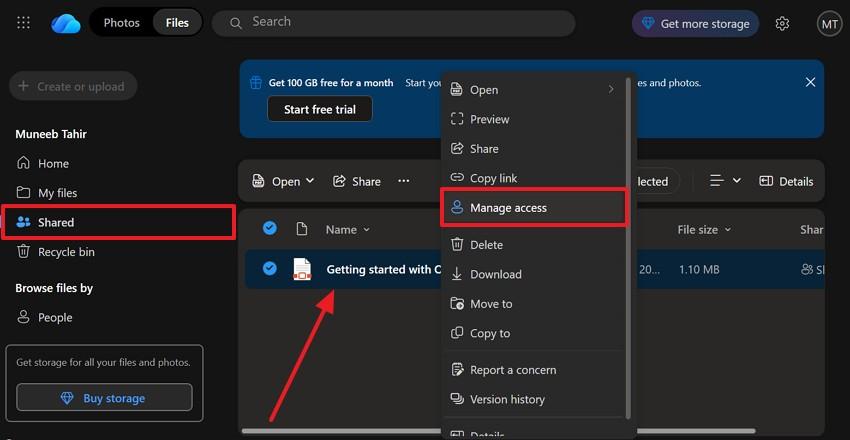
This method checks whether your account has the right to open, edit, or share files. It helps detect issues caused by removed access or incorrect account usage. Plus, this step fixes OneDrive access denied problems without reinstalling apps or changing files. Review account roles and folder ownership directly from the web portal to spot missing access rights. So, you can follow the steps below to verify your account permissions:
Step 1. As you sign in to your account, access the “Shared” tab to locate your desired file. Then, right-click the file name and opt for the “Manage Access” option.
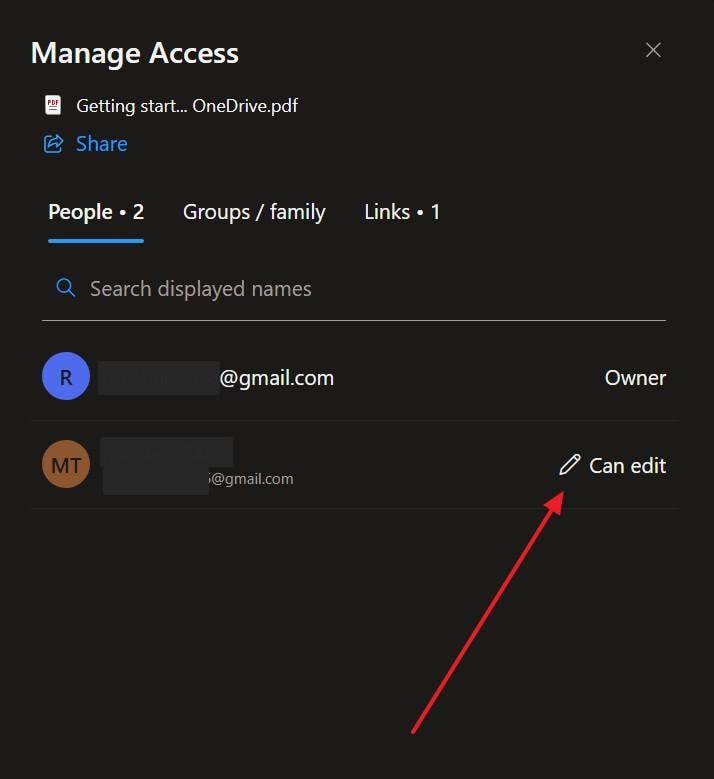
Step 2. You will then confirm your account appears with view or edit rights listed.
Way 2. Reset OneDrive App Authentication on Your Device
OneDrive app authentication reset clears old login data on your device. This solution fixes expired tokens that cause access blocks during file sync. Moreover, the method refreshes your connection to Microsoft servers without data loss. Thus, go through the given guide to perform this procedure:
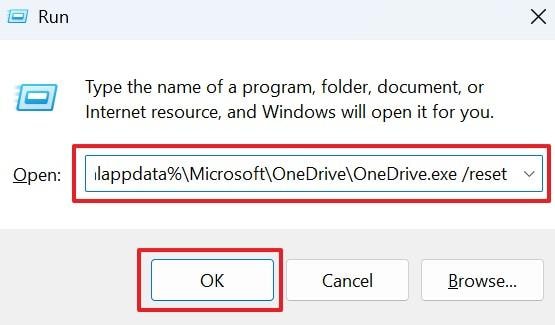
Instructions. Press the “Windows + R” keys together to access the “Run” dialogue box. Afterward, type “%localappdata%\Microsoft\OneDrive\OneDrive.exe /reset” and hit “Enter.”
Way 3. Adjust Folder and File Sharing Settings
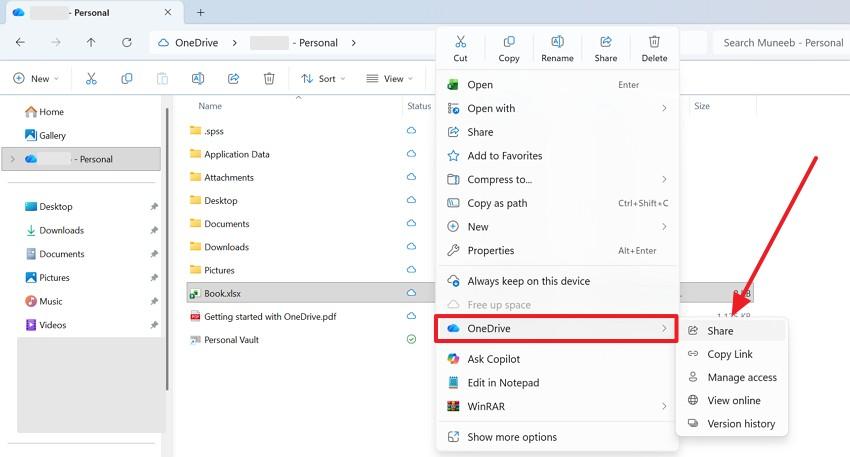
You can also adjust folder and file sharing settings to resolve OneDrive access denied blocks. This method updates permission levels for specific files or entire directories. The owner can modify viewer or editor roles without affecting other users' access. Besides, it lets you handle expired links and group restrictions across personal or work accounts. Hence, review the steps below to adjust your file and folder’s sharing settings:
Step 1. Upon accessing the “OneDrive” folder, right-click your preferred file or folder. After that, head to the “OneDrive” section and click the “Share” option.
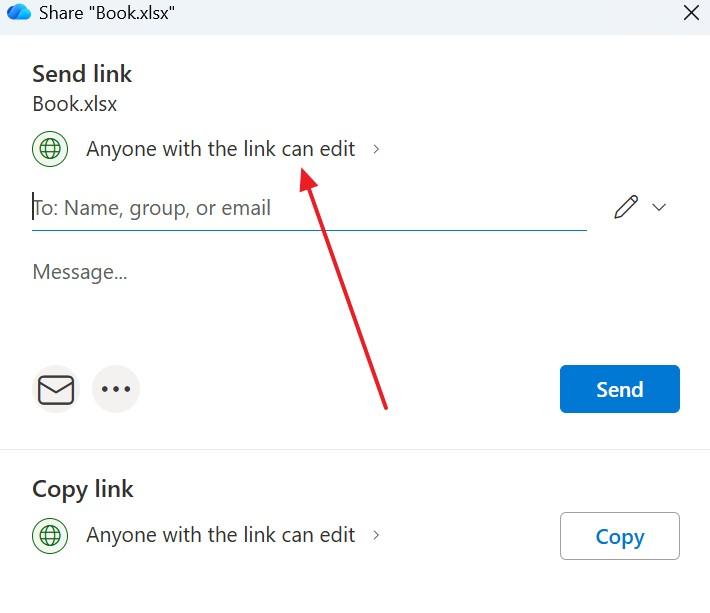
Step 2. Following that, set permission to “Anyone With the Link Can Edit” to update the access.
Way 4. Update OneDrive to the Latest Version
It improves stability by installing the newest OneDrive application updates available. The process delivers security fixes that prevent permission conflicts during file operations. Furthermore, it ensures compatibility with new Microsoft account policies and features. You also achieve smoother access to folders and documents without repeated login. Anyhow, take guidance from the steps below to check and update OneDrive:
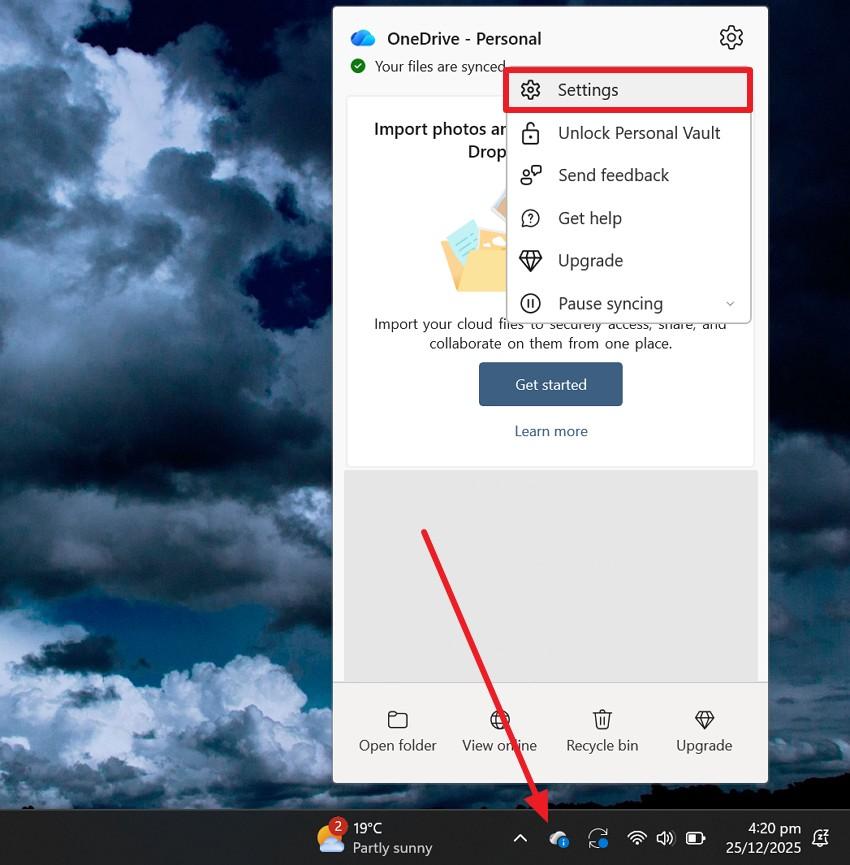
Step 1. As you click the “OneDrive” icon in the “Taskbar,” click the “Gear” icon to select “Settings.”
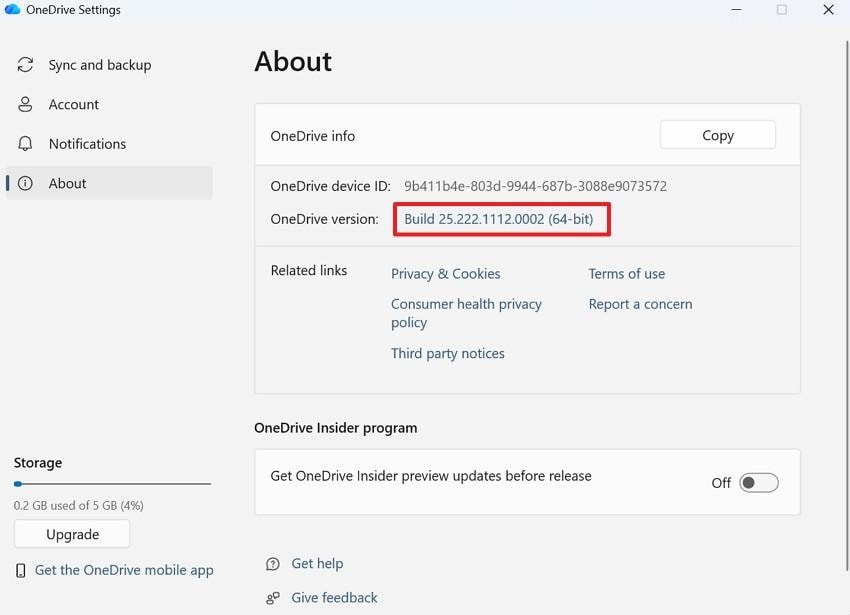
Step 2. Later, navigate to the “About” tab and click the “Build Number” next to “OneDrive Version.”
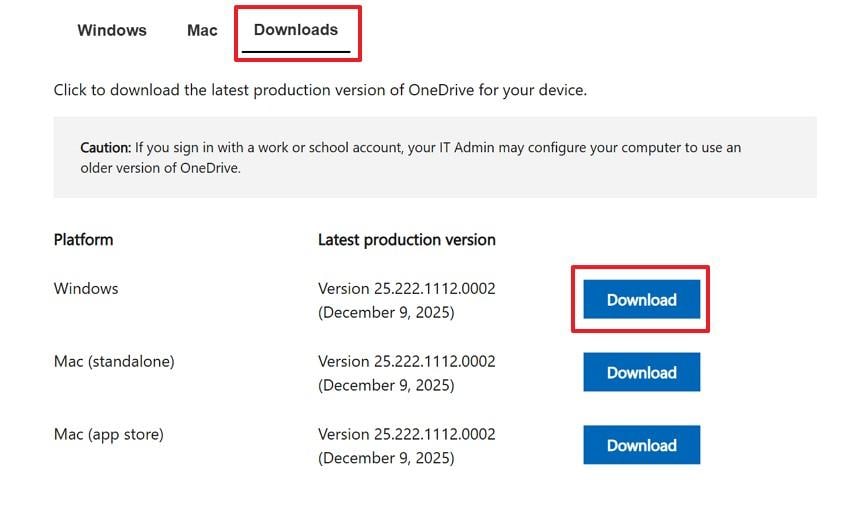
Step 3. Upon heading to the specific web page, access the “Downloads” tab and press “Download.”
Way 5. Clear OneDrive Cache and Temporary Files
Old cache files sometimes block proper sign-in and syncing between devices. Therefore, clearing temporary files resolves OneDrive access denied errors without deleting content. This process refreshes app behavior and forces OneDrive to rebuild healthy connection data. Plus, it supports faster syncing and smoother access after system updates or interruptions. Thus, adhere to the following steps to clear cache and temporary files:
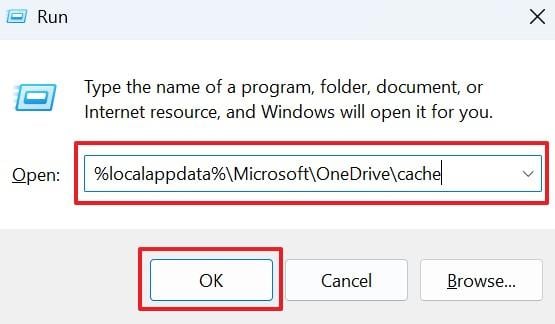
Step 1. When you press the “Windows + R” keys, type “%localappdata%\Microsoft\OneDrive\cache” and click “OK.”
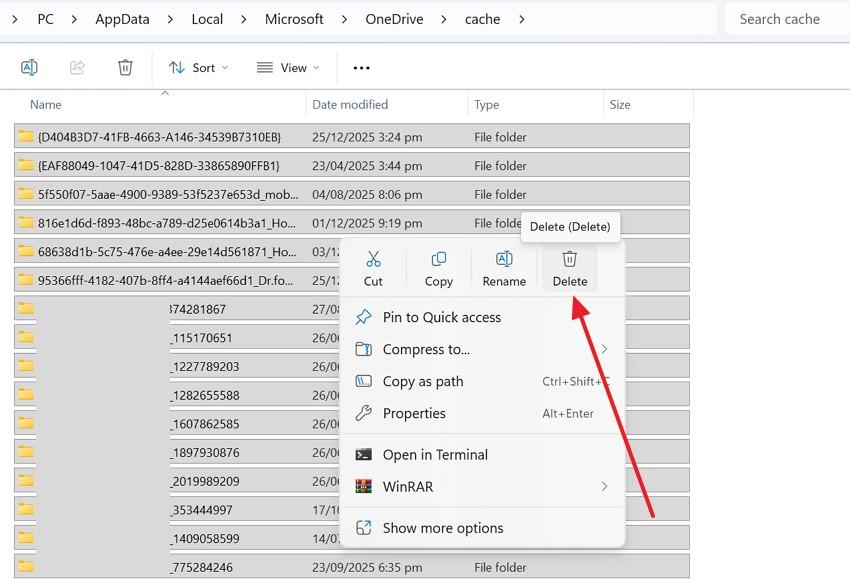
Step 2. Once you access the cache folder, select all the content and choose the “Delete” option.
Way 6. Sign Out and Sign Back Into OneDrive
This solution refreshes your OneDrive session by restarting the account connection process. It also clears outdated login data without deleting your stored files or folders. You regain seamless control over shared content and personal documents. Besides, it even resolves account conflicts between personal and work Microsoft profiles. You can explore how to sign out and sign in to your OneDrive account:
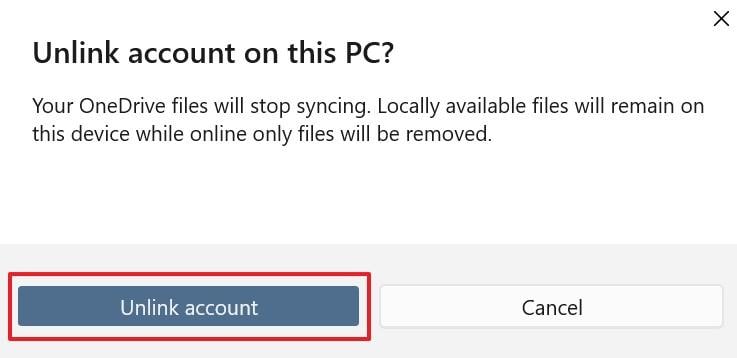
Step 1. Upon accessing your OneDrive account’s settings, click the “Unlink This PC” option.
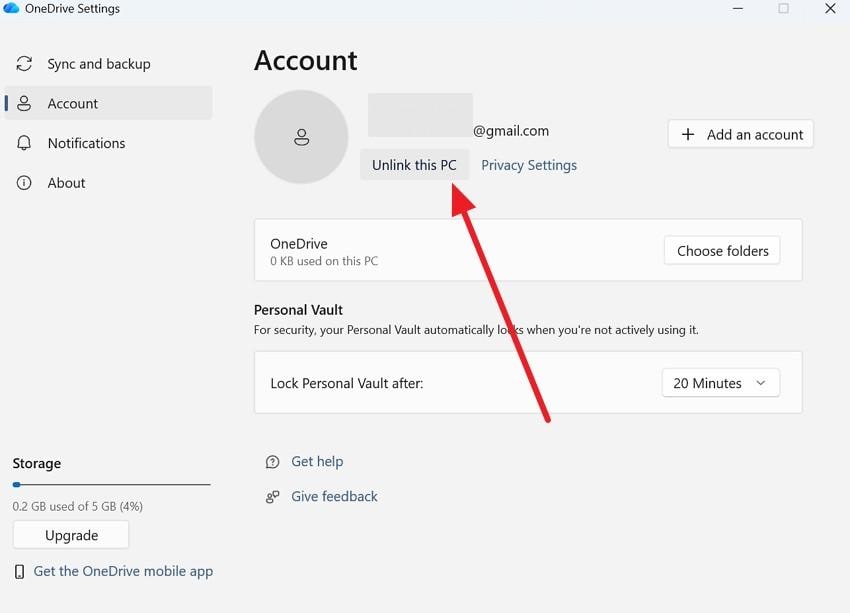
Step 2. When you see a prompt, press “Unlink Account” to sign out. Afterward, you can sign in again to your OneDrive account.
Way 7. Access Files via OneDrive Web Version
Accessing files through the web version bypasses local app issues, causing OneDrive access denied blocks. It lets you view, edit, or download content directly from any browser without desktop restrictions. The method also avoids corrupted cache or sync conflicts on your device. It also confirms that permissions work online before troubleshooting other platforms reliably. So, let’s explore how you can access your file through the web version:
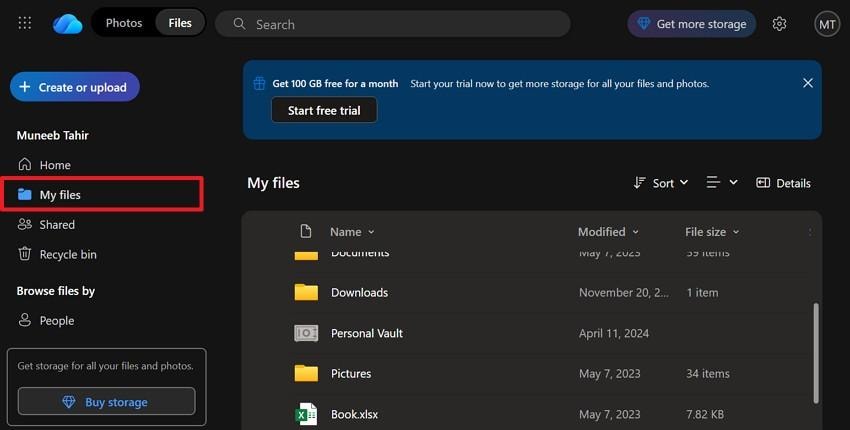
Instructions. When you sign in to “OneDrive” on your browser, head to the “My Files” tab to access all the available documents.
Way 8. Check for File Locks & Sync Conflicts
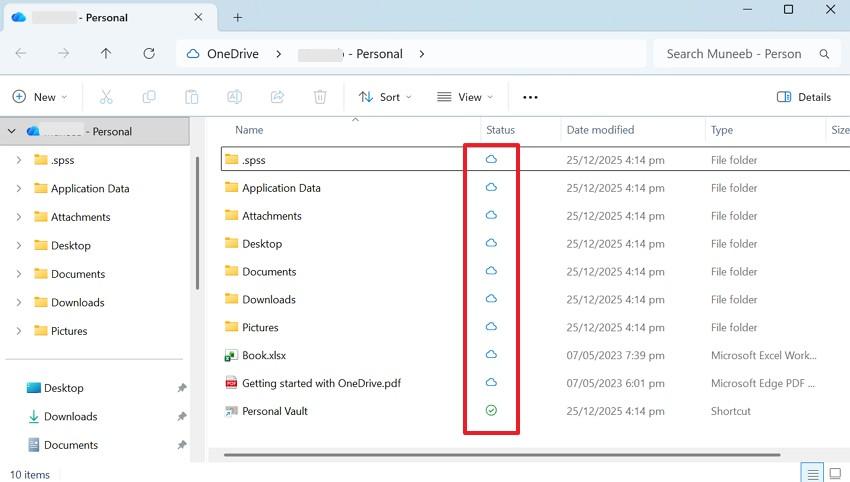
This solution focuses on identifying file conflicts or locks that block proper syncing. You can check the status icons like cloud, tick, red X, or padlock for issues. The method identifies conflicts from unfinished syncing or policy restrictions. A persistent red X, padlock, or endless syncing usually causes OneDrive access denied errors. So, go through the guide below to check for file locks or syncing errors:
Instruction. Access your “OneDrive” from “File Explorer” and check each file’s “Status” icon. If your files show either a cloud or a checkbox icon, it means your files are synced.
Way 9. Fix OneDrive Access Denied Caused by Corrupted Files
Sometimes, corrupted files also trigger OneDrive access denied errors during sync or access attempts. At this point, you need a reliable tool like Repairit File Repair to restore damaged documents. This dedicated tool supports repairing over 30 file formats, including Word and iWork files. Plus, it repairs documents while preserving original formatting, text, and attached media files.
Moreover, all repairs are fully compatible with Windows, Mac, and major Microsoft Office versions. Repairit also supports batch repair to process multiple large files without size restrictions. You can also preview repaired files before saving them to ensure accurate recovery results. Besides, Repairit supports both desktop and online access for flexible repair wherever needed.

-
Repair damaged files with all levels of corruption, including blank files, files not opening, unrecognizable format, unreadable content, files layout changed, etc.
-
Support to repair all formats of PDF, Word, Excel, PowerPoint, Zip, and Adobe files.
-
Perfectly repair corrupted files with a very high success rate, without modifying the original file.
-
No limit to the number and size of the repairable files.
-
Support Windows 11/10/8/7/Vista, Windows Server 2003/2008/2012/2016/2019/2022, and macOS 10.12~macOS 14.
You can adhere to the given guide to repair corrupted files before syncing them with OneDrive using Repairit:
Step 1. Upon accessing the program’s “More Type Repair” tab, opt for “Document Repair” by pressing the “Start” button.

Step 2. Afterward, click the “+Add” button to import your damaged document files. As they are imported into the “Unrepaired Files” tab, press the “Repair” button.

Step 3. When Repairit fixes your essential files, click both the “Save All” and “Save” buttons to export them.

Fix OneDrive Access Denied Caused by Corrupted Files
 Security Verified. Over 7,302,189 people have downloaded it.
Way 10. Contact Microsoft OneDrive Support
Despite the advanced Repairit tool, you can also contact the Microsoft OneDrive Support team when the above methods can’t help. This solution connects you to trained specialists who diagnose permission or account problems. Agents access your account details to verify ownership and restore blocked files. The service offers live chat, phone, or ticket options for immediate or detailed assistance.
Part 3. How to Prevent OneDrive Access Denied Errors in the Future
Preventing future OneDrive access issues ensures your files remain safe and accessible. By following simple habits, you can reduce the chances of OneDrive access denied errors:
- Regular Updates: Keep the OneDrive app current to fix bugs causing access blocks. New versions prevent old software from blocking your file connections.
- Backup Files: Save copies outside OneDrive to protect against sync failures. Moreover, extra storage ensures quick recovery if cloud access stops working.
- Stable Network: Use reliable internet without VPNs blocking OneDrive servers. As we know, network changes often trigger permission checks that fail.
- Avoid Edits: Close files before switching devices during active sync sessions. Alongside, open files create locks preventing access on other computers.
- Single Account: Use one Microsoft account for all OneDrive folders and shares. Multiple logins create confusion that stops smooth file access.
Conclusion
In conclusion, resolving OneDrive access denied errors ensures smooth access to your files. You have explored several quick and easy ways to address this issue. Also, prevention steps ensure shared folders stay open for work or personal use. Apart from that, if corrupted files cause persistent errors, a reliable tool like Repairit is essential. It repairs damaged documents and restores your workflow without losing any original content.
Frequently Asked Questions
-
Q1. Why does OneDrive say “Access Denied” even though I’m the owner?
It shows "Access Denied" to owners when local folder permissions break on Windows. NTFS rights on your OneDrive directory sometimes block even admin accounts. Yet, resetting these permissions or re-syncing the folder restores your full owner control. -
Q2. Can corrupted files cause OneDrive access issues?
Yes, corrupted files can cause OneDrive access issues even if you are the owner. Damaged documents may prevent proper syncing and show errors like OneDrive access denied. Here, tools like Repairit restore these files to enable normal cloud access again. -
Q3. Why can I access OneDrive online but not on my PC?
You can access this cloud storage online, but not on a PC due to local sync issues. Corrupted cache or broken folder permissions prevent the desktop app from reading files. Still, reset OneDrive or clear local cache to match web version access. -
Q4. How do I fix OneDrive permission errors permanently?
Always keep your app updated to fix OneDrive permission errors. Ensure correct account usage and consistent folder sharing settings across all devices. In addition, clear the cache and temporary files to prevent sync or access issues.




