
“My laptop uses an NVIDIA 1660ti, so I am not wanting for graphics performance, I was simply wondering what settings in the Control Panel there were that I could turn on/off or change that would accomplish this. I do know to change the power management to “prefer maximum performance”. - Mean-Falcon-6204
- Understand FPS Drops: Frames sometimes drop because of hidden software settings or many busy background tasks.
- Check Common Causes: Driver issues, power modes, apps, overlays, and overheating can all slow your GPU and ruin gaming.
- Boost Performance: Enable high-performance mode, update drivers, disable V-Sync, and reduce graphics settings.
- Clean system When Needed: If lag stays, repair corrupted files with tools like Repairit to restore smooth NVIDIA-based gameplay and fix performance.
- Quick Answer: NVIDIA FPS drops can be fixed by updating drivers, adjusting settings, turning off overlays, and improving cooling for stable gaming performance instantly.
Stuttering screens and sudden lag can ruin your favorite PC games. Many players feel disturbed when their powerful hardware fails to deliver smooth motion. This performance gap often happens because of hidden settings or outdated system files. You might wonder how to fix the NVIDIA FPS drop without buying new parts.
However, a few software tweaks can help you boost your frame rate. A BCG report reveals that around 55% of gamers in the world played more games in the last 6 months. Therefore, this guide provides fast steps to restore speed and eliminate annoying visual glitches.
In this article
Part 1. What FPS Drops Mean in NVIDIA Graphics Systems
FPS drops mean your graphics card fails to deliver a steady frame rate. Your GPU may perform well but still struggle with sudden performance slowdowns. These drops often appear as stuttering or brief freezing during intense scenes. Even a high average FPS cannot prevent noticeable disruptions caused by unstable frames.
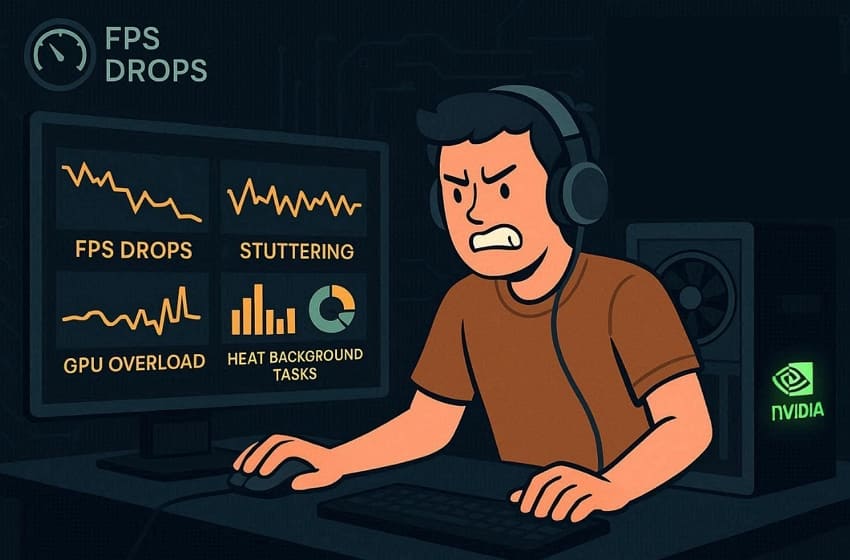
Your system might struggle with heat, power, or even slow background data tasks. The GPU cannot finish its work on time because the pipeline is stuck. An NVIDIA Research claim that player performance improves sharply up to 90 FPS, but continues benefiting up to 500 FPS. Thus, finding a good NVIDIA FPS drop fix helps you maintain a consistent visual flow.
5 Common Causes of NVIDIA FPS Drops
Many technical factors could be dragging down your overall gaming stability. Here are a few reasons before applying a specific FRP drop after the NVIDIA driver update fix:
- Driver Issues: There may be errors introduced by new updates that result in sudden drops in FPS. According to AliExpress, recent NVIDIA drivers reportedly triggered stuttering issues on high-refresh monitors.
- Power Modes: Balanced or power-saving modes can limit GPU and CPU performance. This often reduces frame output, especially when gaming on laptops without charging.
- Background Apps: Many open programs fight for system memory while you try to play. These extra tasks distract your processor and cause your frame rates to plummet.
- Overlay Features: Game overlays like NVIDIA filters can impact rendering performance. They add extra load, which leads to lag spikes and inconsistent frame delivery.
- Overclocking: The GPU slows down to protect itself when temperatures become too high during gaming. This results in a progressive decrease in FPS in long sessions of gaming.
Part 2. How to Solve NVIDIA FPS Drops and Stuttering Problems
Fixing a sudden FRP drop on an NVIDIA graphics card requires some quick software adjustments. So, explore these 6 methods below to restore your gaming speed and visual smoothness:
Way 1. Set Game to High Performance Mode
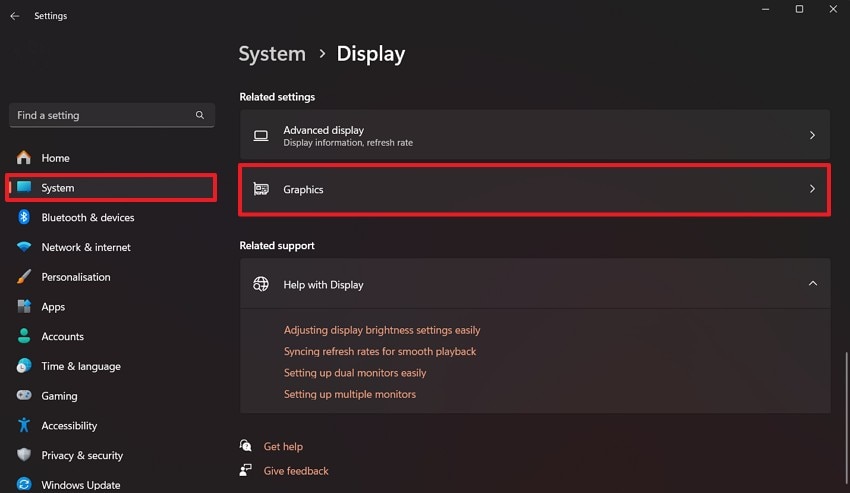
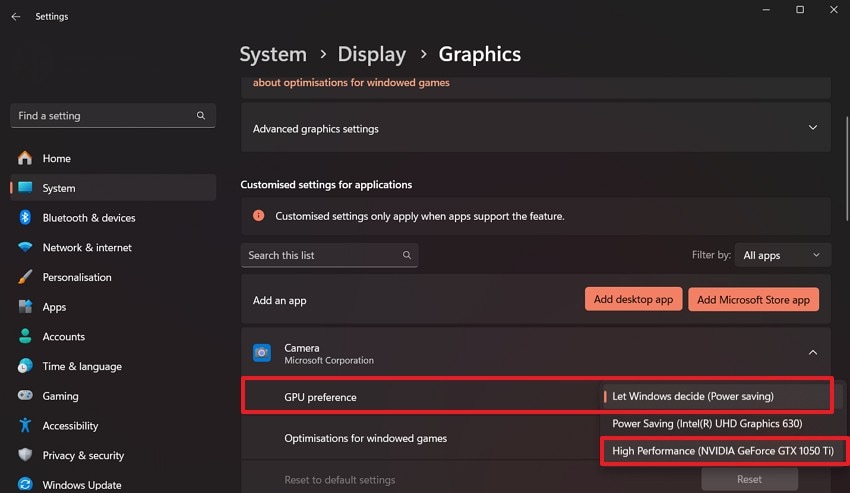
Windows settings allow you to give your favorite games more processing power. This specific NVIDIA GPU FPS drop fix for Windows 11 makes your hardware work faster. Therefore, you should select your game to high-performance mode to improve power usage. It allows your system to prioritize gaming over background tasks and apps. Adhere to these steps to adjust your system settings for much better results:
Step 1. Open your device settings and access the “System” section from the options. After that, select the “Graphics” feature to manage your GPU-related performance settings.
Step 2. Locate your game from the listed apps and click it to reveal more options. Now, adjust the “GPU Performance” setting and choose the “High Performance” mode.
Way 2. Update NVIDIA Graphics Drivers
New driver updates ensure your graphics card stays compatible with the latest games. These free updates often include vital performance boosts for many gaming titles. They also repair small bugs that might cause your system to crash. Some 2026 NVIDIA driver releases led to up to 40% drops in FPS in recent AAA titles, according to Tech Sportskeeda. Use these steps to update drivers and learn how to fix NVIDIA FPS drop:
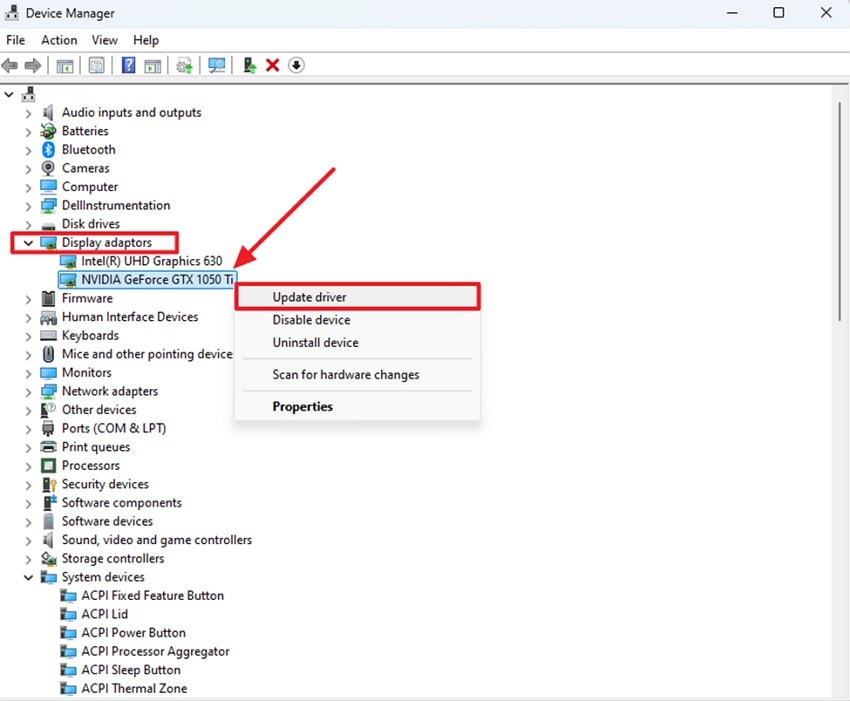
Step 1. You need to expand the “Display Adapters” category upon launching “Device Manager.” Subsequently, right-click the driver's name and opt for “Update Driver” from the drop-down.
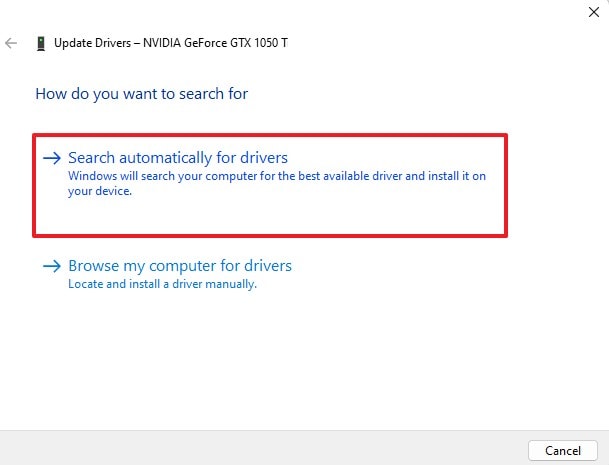
Step 2. Select the “Search Automatically for Drivers” option from the following display. Then, restart your computer after you install the newest driver to make the changes.
Way 3. Disable V-Sync and Overlays
Active game overlays often cause input lag, slowing your visual speed. Turning off these features acts as a quick and reliable NVIDIA FPS drop fix. Vertical sync can also limit your frame rate to match your monitor's speed. This limitation sometimes creates a heavy feeling when you move your gaming mouse. Thus, the following simple steps help you turn off these settings and boost your performance:
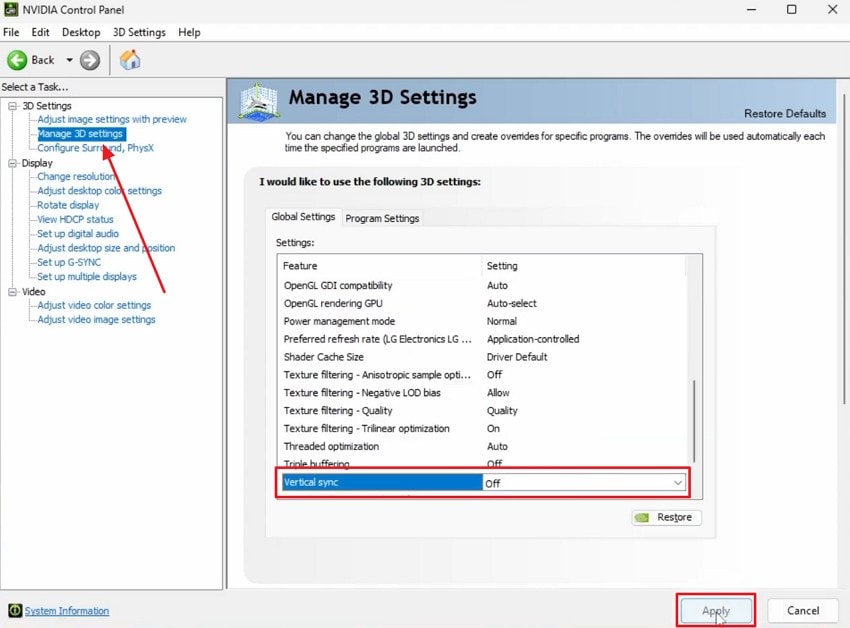
Disable V-Sync: Upon navigating to “NVIDIA Control Panel,” click “Manage 3D Settings.” Finally, select “Off” next to “Vertical Sync” and press the “Apply” button.
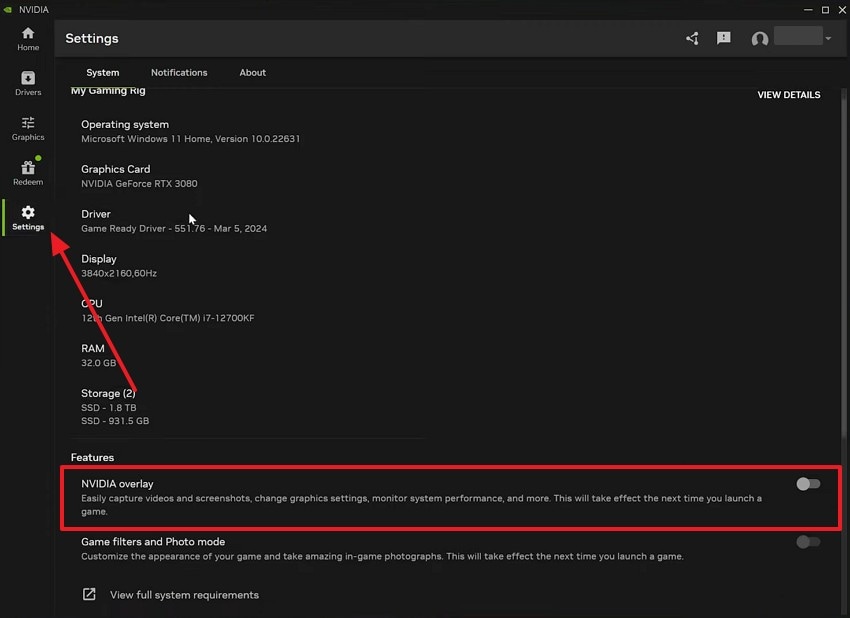
Disable Overlay: Access “Settings” after opening the “NVIDIA" app. Moving forward, scroll down and turn off the "NVIDIA Overlay” toggle.
Way 4. Adjust In-Game Graphics Settings
Apart from the above, lowering graphics settings can improve your game’s smoothness. This simple adjustment is a practical FRP drop after the NVIDIA driver update fix for many users. Effects like shadows and textures use the most processing power. By doing so, you will release resources available to your GPU, which can help it produce more stable frames. Go through these steps to choose the right in‑game settings for your hardware:
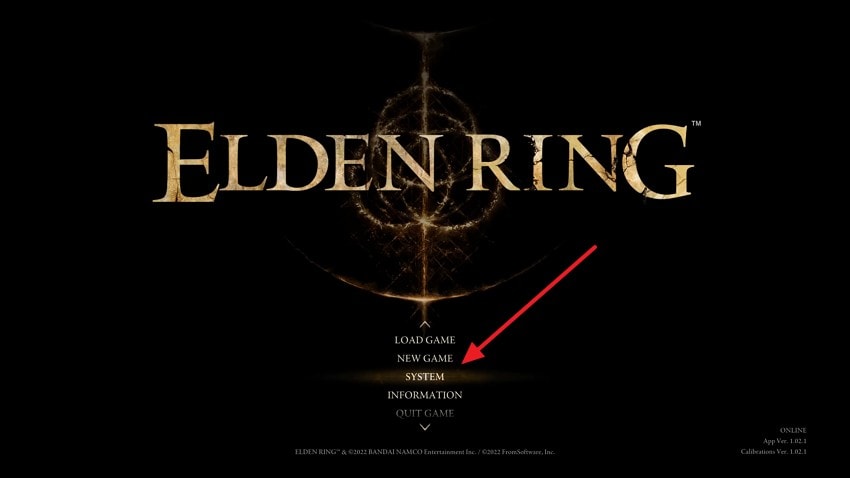
Step 1. Launch the game like “Elden Ring” and access “System” from the main menu screen. This section allows you to manage various in-game settings and performance options.
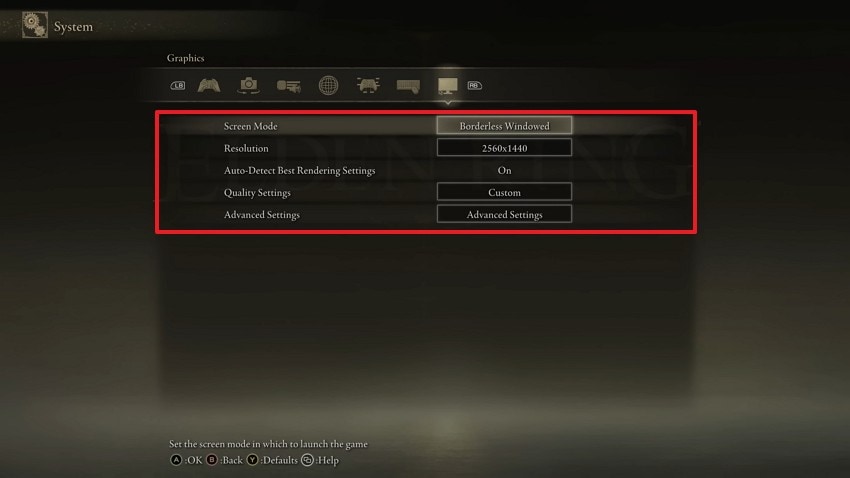
Step 2. After entering the “Graphics” settings, modify the “Screen Mode,” “Resolution,” and “Quality Settings” accordingly. Adjusting these options can help improve performance and fix the issue.
Way 5. Check GPU Temperature and Cooling
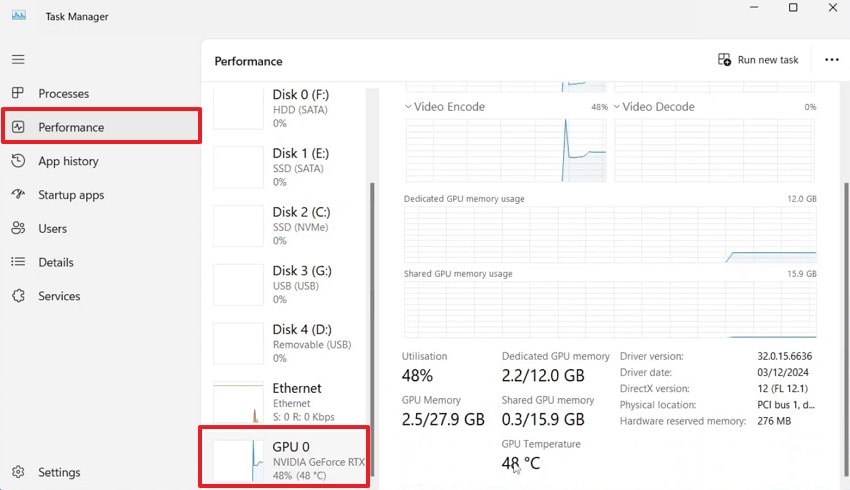
Many times, overheating can also cause your GPU to slow down. This slowdown often leads to sudden FPS drops due to NVIDIA graphics card problems. Good cooling helps your card stay fast during long gaming sessions. Research from Chaos shows NVIDIA Ampere GPUs often begin thermal throttling once they reach roughly 81°C. You should monitor your heat levels while playing games. Thus, follow the steps below to monitor heat on your device:
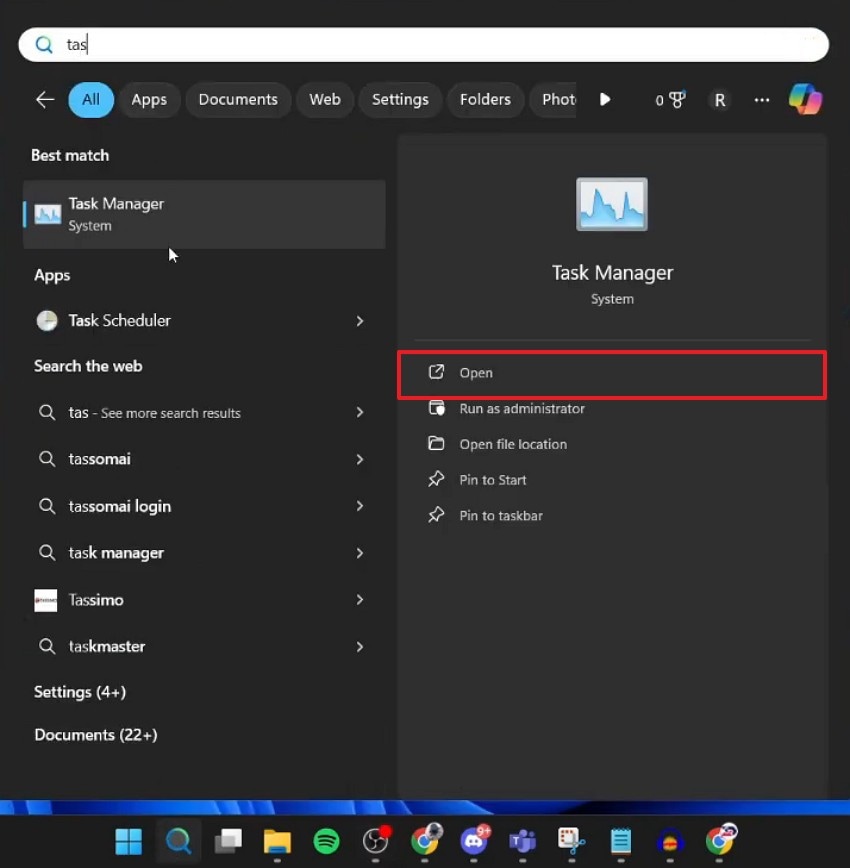
Step 1. You need to search for “Task Manager” and launch it via the “Open” option.
Step 2. Going ahead, access the “Performance” tab and click on your “GPU” section. Now, you will be able to check the current temperature in the GPU section.
Way 6. Set NVIDIA Control Panel Settings
The official control panel offers advanced ways to manage how your hardware behaves. It is a strong NVIDIA GPU FPS drop fix for Windows 11 for many local users. You can change power management, image quality, and refresh rate in one place. These options help balance performance and smoothness for weaker systems. Utilize these simple instructions below to optimize your control panel for the best speed:
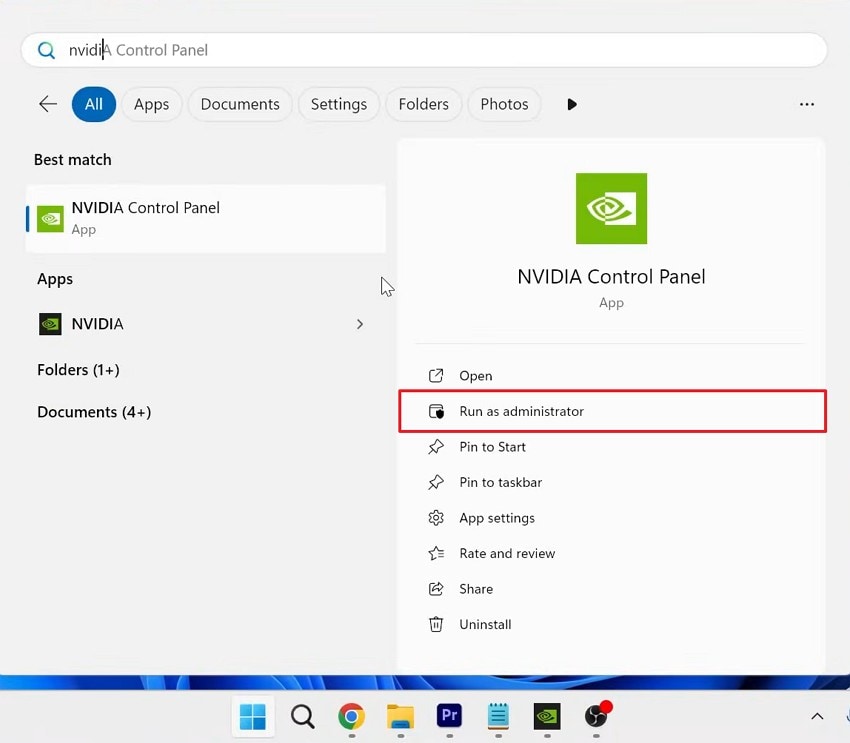
Step 1. To initiate, use the “Run as Administrator” option upon searching for “NVIDIA Control Panel.”
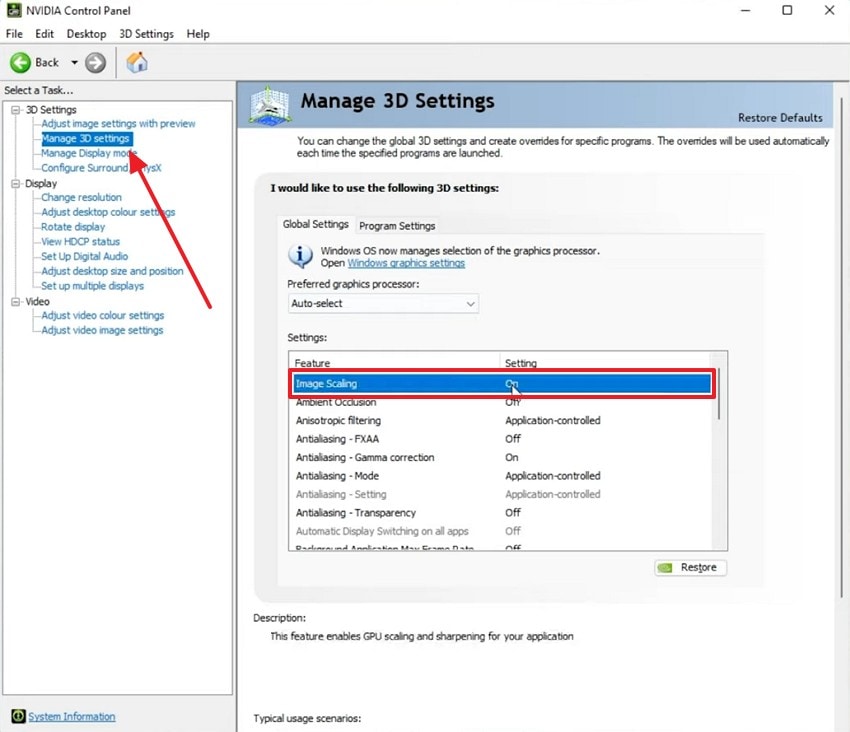
Step 2. Once the panel opens, head to the “Manage 3D Settings” section. Here, locate the “Image Scaling” option and enable it for improved graphics performance.
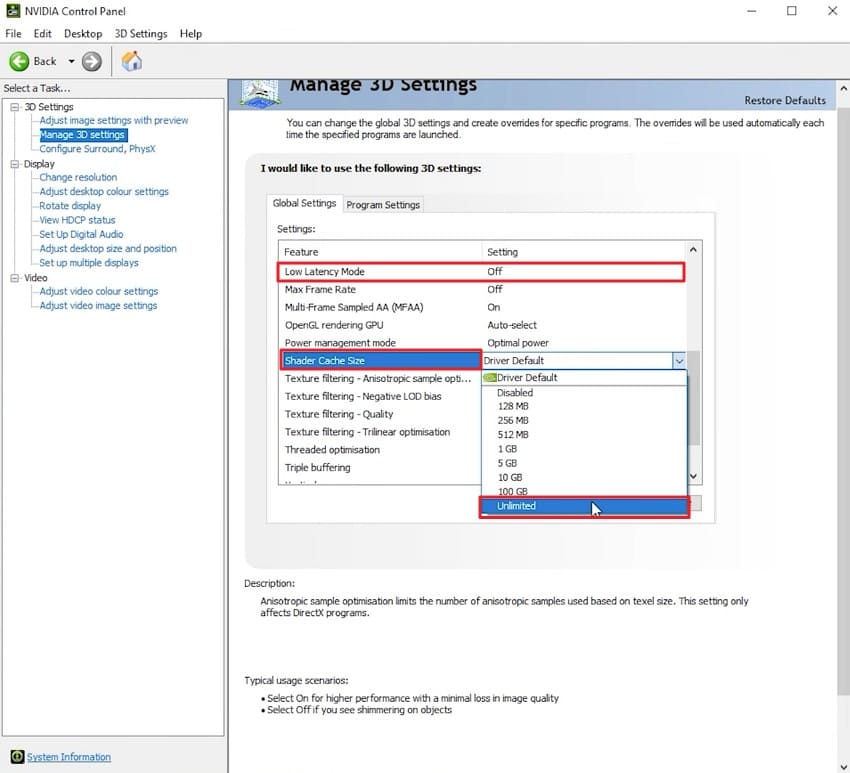
Step 3. Moving forward, find the “Low Latency Mode" setting and turn off this feature. Then, open the "Shader Cache Size" drop-down menu and set it to "Unlimited."
Pro Tip. Use Repairit If Corrupt System Files Affect NVIDIA Performance
Sometimes, system file corruption occurs due to unexpected power cuts or bad updates. These broken files can prevent your graphics card from working at its best. You might experience heavy lag even when your hardware is brand new. In these situations, using tools like Repairit becomes a practical solution beyond the NVIDIA FRP drop fix.
The tool helps users repair corrupted system files affecting overall computer stability and gaming responsiveness. It checks your Windows core files for errors, which can cause unexpected performance interruptions. Along with that, Repairit supports a wide variety of formats to cover all your digital needs. Upon repairing, users can preview their repaired files before saving them to a local drive.
Key Features

-
Corrupted File Repair: Fixes damaged files that may interfere with system processes and affect NVIDIA performance during gameplay.
-
Automatic File Detection: The software scans and identifies corrupted files that may be impacting system stability and GPU responsiveness.
-
System Performance Support: Repairing affected files helps restore smoother system operation, which can improve overall NVIDIA gaming performance.
Guide to Use Repairit If System Corruption Affects NVIDIA Performance
Cleaning up your corrupted files can act as a permanent solution to any issue. Therefore, use these easy steps below to restore your system and improve gaming speed:
Step 1. Import Corrupted System Files
As you reach the “More Types Repair” tab, press “Start” on the “Document Repair” feature. Upon seeing the following screen, use the “+Add” option to import the damaged files.

Step 2. Start Repairing the System Files
Once the files are added, press the “Repair” button to launch the restoration process. The tool will scan the imported files and recover corrupted and damaged content.
Step 3. Save the Repaired System Files
After the repair process finishes, click the “Save” button to download and store the repaired files.

Repair Corrupted Files
 Security Verified. Over 7,302,189 people have downloaded it.
Conclusion
To sum up, achieving a smooth gaming performance requires a mix of proper settings. You now have several effective ways to learn how to fix the NVIDIA FRP drop. Regular system maintenance ensures your computer stays fast for many years to come. If hidden system corruption continues to slow you down, tools like Repairit are essential. Use this tool to fix broken files and restore your gaming speed.
FAQs
-
Can background downloads cause sudden frame rate drops?
Active downloads consume your local network bandwidth and put pressure on your processor. These background tasks often lead to stuttering while your computer struggles to synchronize. Closing all your active download managers will ensure a much smoother gaming experience. -
Does running my computer in windowed mode affect the graphics card speed?
Playing in full-screen mode allows your system to prioritize the game's resources. Windowed mode often forces your GPU to render the desktop and game together. Thus, switching to a dedicated full-screen setting can help you gain more frames. -
What should I do if my game still lags after fixing all settings?
Deep system file errors might be the hidden cause of your persistent lag. You should use programs such as Repairit to fix any corrupted data within your computer. This tool repairs your system files and restores your system health to ensure perfect gaming.




