 TL;DR:
To resolve file corruption caused by an interrupted save, prioritize restoring intact data from local temporary files, native system backups, or cloud version history before attempting to repair the damaged file itself.
● Retrieve temporary autosaves by searching the %AppData% directory on Windows for .tmp or .bak extensions, or restore pre-crash copies using Windows Previous Versions or macOS Time Machine.
● Bypass application-specific reading errors by force-opening the corrupted document in alternative software like Notepad++ or LibreOffice to salvage raw text, as simply changing the file extension will not repair internal damage.
● Direct repair is impossible for files displaying exactly 0 KB because they contain no data, but structurally broken PDF, Word, Excel, PowerPoint, and ZIP files with retained file sizes can be reconstructed using tools like Repairit File Repair.
Ask AI for a summary
 ChatGPT
 Perplexity
 Gemini
 Claude
 Grok
Grok
Few things are more frustrating than experiencing a power outage or system crash right when saving a file. If an interrupted save caused file corruption, your document may suddenly become unreadable or display an error when opened. This usually happens because the program was unable to finish writing data completely, leaving the file incomplete or damaged. Fortunately, file corruption after interrupted save issues can often be resolved by checking recovery files and built-in backup options.
In this article
Why Files Become Corrupted
When an interrupted save caused file corruption, the file was usually not saved completely. A crash, power loss, or frozen app can stop the saving process before it finishes, leaving the file damaged or unreadable.
Common Causes of Save Errors
- Application Freeze or Crash - The program stops responding before saving is complete.
- Storage Drive Problems - Drive errors can interrupt the writing process.
- Low Disk Space - Not enough storage can result in incomplete files.
- System Crash or Forced Restart - Sudden shutdowns can instantly stop file operations.
Issues When Saving to External or Network Drives
- Unstable Network Connection - Connection drops can interrupt cloud or network saves.
- External Drive Disconnection - Loose cables or accidental removal can damage files during saving.
What are the Signs of File Corruption
When an interrupted save caused file corruption, the file may show different warning signs depending on how badly it was damaged. Recognizing these issues early can help you avoid overwriting backup or recovery files.
Common Signs of Corruption
- File Won’t Open - The file is visible but shows errors like Access Denied or File Not Found.
- Unreadable Content - The file opens with random symbols, broken text, or blank pages.
- Program Freezes - The app hangs or stops responding while opening the file.
- Incorrect File Details - The file may show 0 KB, an unusual size, or an outdated modified date.
Other Possible Issues
- Missing File Type - The file icon changes to a generic icon because its format is no longer recognized.
- Partial File Loading - Only part of the file opens, while the rest is blank or missing.
Quick Steps to Recover Corrupted Files After a Failed Save
Before using advanced repair tools, try built-in recovery options first. These methods help restore earlier versions of the file or recover temporary copies created by your system or apps.
Fix 1. Utilize Native Previous Versions
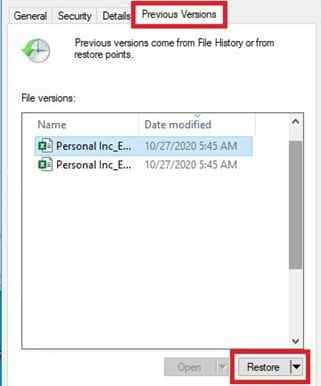
Windows and macOS can store earlier versions of files that may still be intact before the corruption happened.
Step 1. Right-click the file and select Properties (Windows) or use Browse Time Machine (macOS).
Step 2. Go to Previous Versions and restore a version saved before the interruption.
Fix 2. Scour Local Temp and Autosave Directories-99
Many apps automatically save temporary or backup copies while you work. These may still be recoverable.
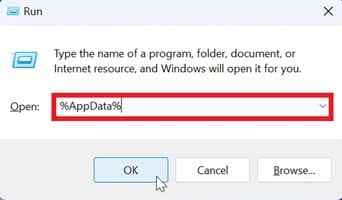
Step 1. Press Win + R, type %AppData%, and check Temp folders or your app’s directory.
Step 2. Look for files with .tmp, .bak, or autosave extensions and try opening or renaming them to the correct format.
Fix 3. Run the Native Check Disk (chkdsk) Utility
Sometimes the file itself is fine, but the storage system has errors that prevent it from opening properly.
Step 1. Open Command Prompt (Admin) and run chkdsk /f followed by your drive letter (e.g., chkdsk C: /f).

Step 2. Let the system scan and repair disk errors, then try opening the file again.
Fix 4. Force-Open with Alternative Software
Different programs may still read damaged files even if the original app cannot.
Step 1. Right-click the file and choose Open With, then try a different program like Notepad++ or LibreOffice.
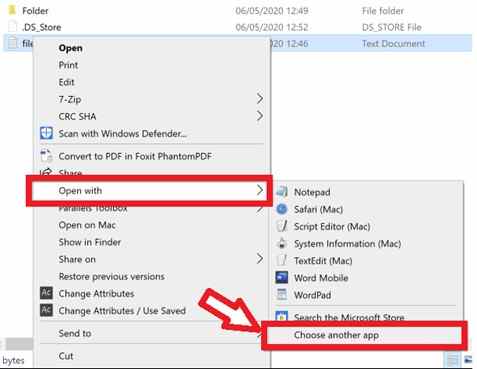
Step 2. If it opens, use Save As to create a fresh, repaired copy of the file.
Fix 5. Extract Data via Cloud Versioning
Cloud storage services often keep earlier, uncorrupted versions of your file.
Step 1. Go to your cloud storage website (OneDrive, Google Drive, Dropbox).
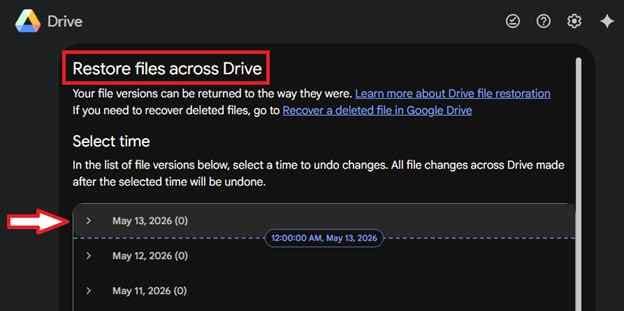
Step 2. Open Version History or Restore files across Drive and download a version saved before the save interruption occurred.
Advanced File Repair Using Recovery Tools
When basic fixes and system recovery options no longer work, the damage is usually inside the file’s internal structure. At this stage, advanced repair tools are needed to rebuild the file using the remaining readable data. These tools scan the broken file, detect usable parts, and reconstruct it based on the file’s original format.
It CAN:
- Restore the file’s structure so it can be recognized and opened again
- Skip damaged parts and salvage the usable data
- Bring back details like file name info, timestamps, and properties
- Fix multiple corrupted files caused by the same crash or save error
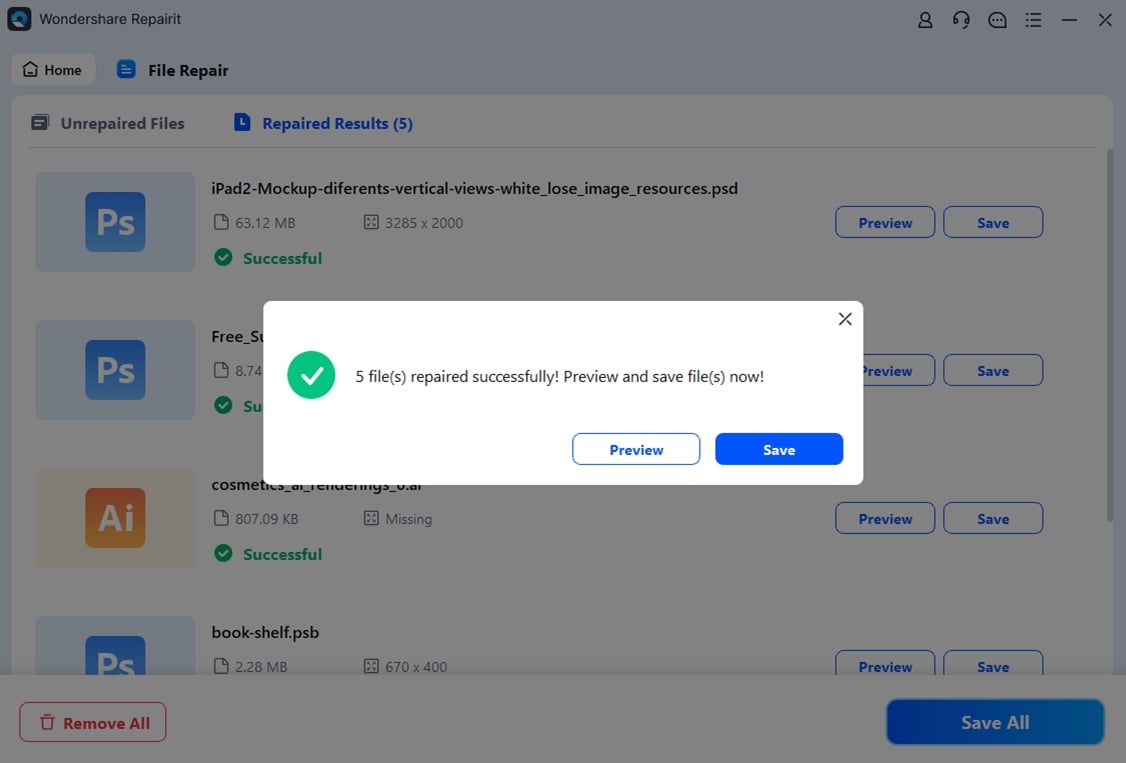
If the file is confirmed corrupted, a repair tool can help restore it safely. One example is Repairit File Repair, which supports formats like PDF, Word, Excel, PowerPoint, and ZIP files. These tools work in a controlled environment, so the original damaged file is not further affected during the repair process.
Step-by-Step (Optional)
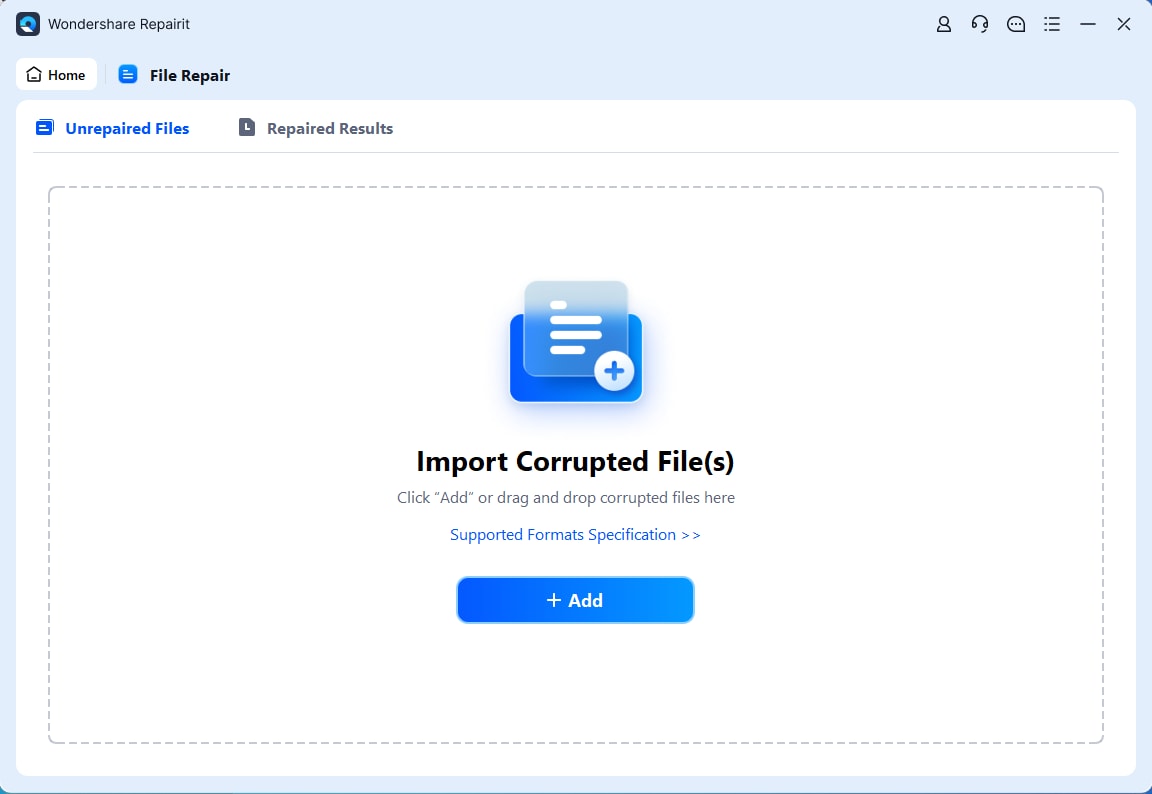
Step 1. Upload the corrupted file.
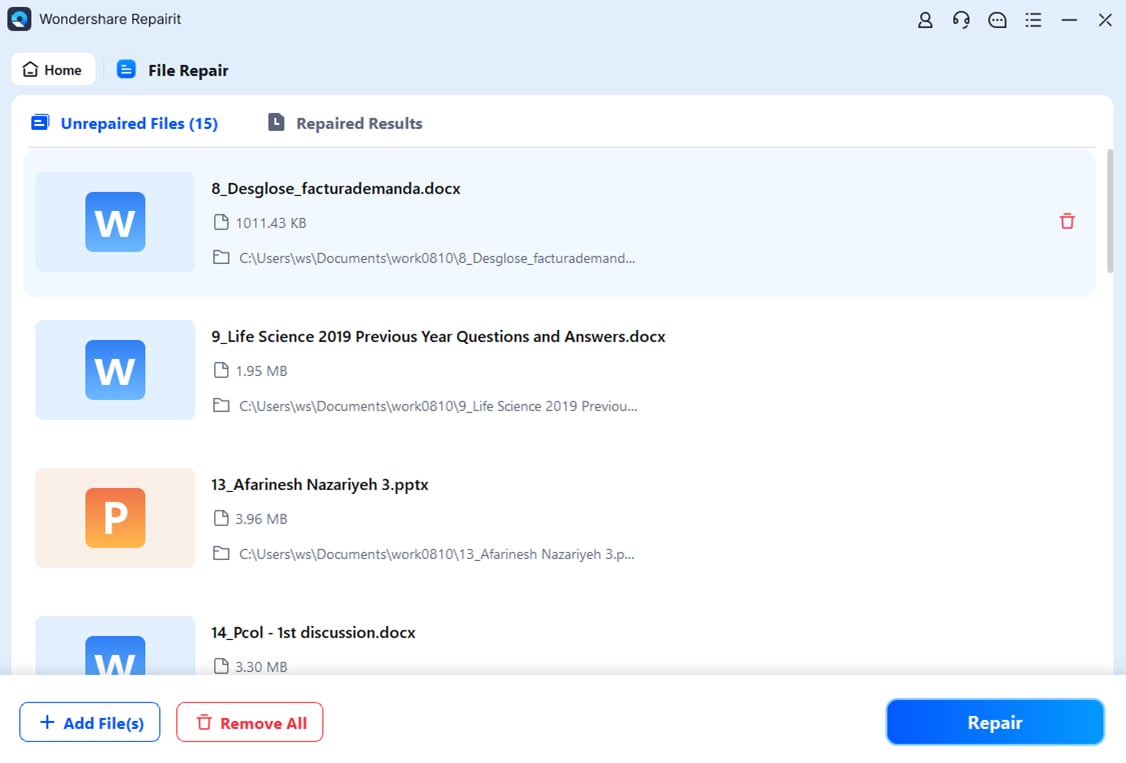
Step 2. Start the Repair process.
Step 3. Preview and save the restored file to a new location.
How to Prevent File Corruption and Data Loss in the Future
Preventing corruption is better than repairing it. A stable system and good saving habits can reduce file corruption after interrupted save issues.
Best Practices
- Use a UPS - Keep your PC running during power outages so you can save safely.
- Enable Cloud Auto-Save - Stores versions online so you can recover previous copies anytime.
- Use Save As - Create file versions instead of constantly overwriting one file.
- Keep Storage Healthy - Maintain free disk space and monitor drive health.
Safe Transfer Tips
- Use reliable cables and devices - Prevents sudden disconnections during saving.
- Eject drives properly - Always use Safely Remove before unplugging external storage.
Conclusion
When an interrupted save caused file corruption, it can feel like your work is lost, but in many cases, recovery is still possible. By checking temporary files, using built-in backups, or trying repair tools, you can often restore damaged data affected by file corruption after interrupted save issues. To avoid this in the future, use stable power sources and cloud saving with version history to keep your files protected.
FAQs
-
Can a 0 KB file be recovered after an interrupted save?
Usually no, since it contains no data. However, you can still check temp folders or cloud backups for earlier versions. -
Why does my computer say "File Not Found" even if I see the file?
This happens when the file entry exists, but the actual data inside is missing or corrupted. -
Will running chkdsk delete my corrupted file?
No, it mainly repairs disk errors. Still, it’s best to back up the file before running it as a precaution. -
Can I fix a corrupted file by changing its extension?
Not usually. Changing the extension doesn’t repair the file, but opening it in another program may help recover some data. -
How do I know if hardware is causing file corruption?
If file corruption after interrupted save happens in multiple apps, it may indicate failing hardware like a hard drive or RAM.