
A sudden power outage is more than just an interruption, it can also damage your files and slow down your work. When you face file corruption after a blackout, the first step is to use the right tools to avoid losing more data.
This guide shows the best repair methods after blackout, including built-in system tools and professional repair software, to help you safely recover your important files and documents.
In this article
Why Power Failures Can Corrupt Files
When a computer suddenly loses power, it stops working immediately, even if it is still saving or processing data. This interruption can stop files from saving correctly, causing file corruption after a blackout.
Common Causes of Corruption
- Interrupted Saving Process - If power cuts while a file is being saved, only part of the data is written, making the file unreadable.
- Damaged File System Data - A blackout can also affect the system's file map, causing missing folders or lost file locations.
- Power Surges - When electricity returns, a sudden spike can sometimes damage storage hardware.
Transfer-Related Issues
- Incomplete Transfers - Data stored temporarily in memory may not fully save to the drive, resulting in empty or broken files.
- Connection Breaks - If files are being moved between devices, the sudden shutdown can interrupt communication and leave files stuck or inaccessible.
How File Corruption Shows After a Blackout
After a power outage, damaged files don't always become unusable right away. In many cases, the signs appear when you try to open or use them. These symptoms show that the file structure has been affected.
Common Signs of Corruption
- Access or Missing File Errors - You may see Access Denied or File Not Found, even if the file is still visible.
- Program Crashes - Apps may open normally but crash when loading a specific file.
- Repeated Repair Scans - Your computer may keep running disk repair tools like Chkdsk after restart.
Visual and File Issues
- Incomplete Display - Images or videos may load only partially or appear broken.
- Wrong File Details - Files may show incorrect dates or even a size of 0 KB.
- CRC Errors - During copying or moving files, you may get errors showing the data is damaged or cannot be verified.
Basic Steps to Repair Files After a Blackout
Before using advanced recovery tools, you can try built-in Windows utilities. These tools help fix system errors and file issues caused by a sudden blackout by repairing corrupted data and file system problems.
Fix 1. System File Checker (SFC)
This tool scans Windows system files and replaces any damaged ones with healthy copies. It helps fix system instability after a blackout.
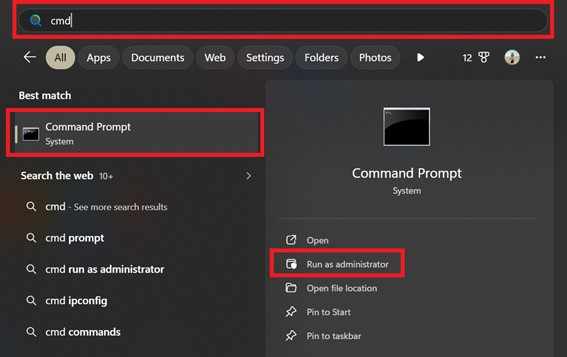
Step 1. Open the Command Prompt as an Administrator, type cmd in the search bar.
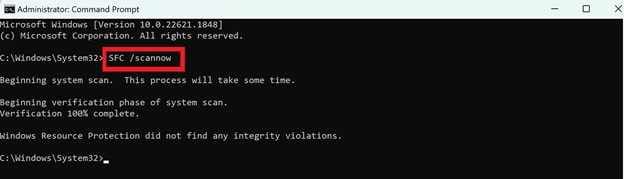
Step 2. Run the command sfc /scannow and allow it to process before restarting your computer.
Fix 2. Check Disk (Chkdsk)
This command checks your storage drive for errors, repairs corrupted directories, and fixes issues caused by interrupted saving processes.
Step 1. Run the command chkdsk C: /f /r (replacing C: with the letter of the affected drive).

Step 2. Confirm the prompt to scan on the next reboot, as the drive must be removed to perform a deep repair.
Fix 3. Previous Versions and File History
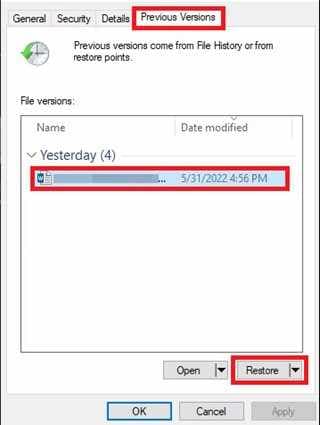
Windows may save earlier versions of your files automatically. You can restore a working version if File History or shadow copies are enabled.
Step 1. Right-click the corrupted file or its containing folder and select Restore previous versions.
Step 2. Choose the most recent version from the list and click Restore.
Fix 4. Built-in App Repair Tools
Some programs like Microsoft Office or Adobe apps have repair features that can fix or recover damaged files that won't open normally.
Step 1. Open the application, go to File and Open, select the damaged document, and click the arrow next to the Open button to select Open and Repair.
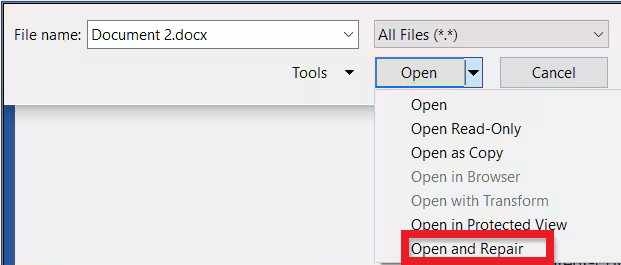
Step 2. If prompted, select Extract Data to save the raw text or files when the original formatting is too damaged to recover.
Advance Fix to Restore Severely Corrupted Files
If built-in system tools don't fix the problem, advanced file repair software may be needed. These tools go deeper by scanning the file itself to find missing or damaged parts, then rebuilding the file structure so it becomes readable again.
It CAN:
- Repair important file information that tells programs how to open the file.
- Help restore files marked as invalid, unsupported, or damaged.
- Allow you to fix several corrupted files at the same time.
If you confirm the file is corrupted, a repair tool can safely restore its functionality. One example is the Repairit File Repair, which works with common file types like PDF, Word (DOCX), Excel (XLSX), and PowerPoint (PPTX).
Step-by-Step (Optional)
Step 1. Upload the corrupted file.

Step 2. Start the Repair process.

Step 3. Preview and save the restored file to a new location.

How To Protect Your Files From Future Power Outages
Using a few simple tools and habits can lower the risk of losing important data during future blackouts.
Best Ways to Protect Your Data
- Use a UPS (Uninterruptible Power Supply) - A UPS gives temporary backup power during outages, allowing you to save files and shut down properly.
- Turn On Auto-Save - Set your apps to save automatically every few minutes to reduce data loss.
- Use Surge Protectors - These help protect your devices from power spikes when electricity comes back.
Good File Safety Habits
- Follow the 3-2-1 Backup Rule - Keep 3 copies of your files, on 2 storage types, with 1 copy stored in the cloud or another location.
- Safely Remove External Drives - Always use the Eject option before unplugging USBs or external drives.
- Check Disk Health Regularly - Run maintenance checks to detect storage problems before they cause file corruption.
Conclusion
Dealing with file corruption after a blackout can be frustrating, but in many cases, your files can still be recovered. By using built-in system tools or professional repair software, you can apply the best repair methods after blackout to restore damaged files and reduce data loss. To avoid similar problems in the future, use regular backups and power protection tools like a UPS.
FAQs
-
Why does a blackout cause file corruption?
A blackout shuts down your computer suddenly while files may still be saving, which can leave them incomplete or damaged. -
Can all corrupted files be fixed after a power outage?
Not always. Recovery depends on how badly the file was damaged and whether the missing data can still be restored. -
Is it safe to use Chkdsk after a blackout?
Yes. Chkdsk is a common tool used to scan and repair file system errors caused by sudden shutdowns. -
Will a surge protector stop file corruption?
A surge protector helps protect hardware from power spikes, but it does not keep your computer running during an outage. A UPS is better for that. -
How is repair software different from system tools?
System tools fix drive and system errors, while advanced repair software focuses on repairing specific damaged files like documents, photos, or videos.




