
- Common Causes: Wrong or non-native display resolution, problematic scaling, ClearType turned off, or outdated graphic drivers.
- Simple Fixes: Apply fixes like enabling ClearType Text, scaling Display Settings, updating graphic drivers, and running the ClearType Text Tuner tool. Besides this, check multiple monitor settings, or reset the display settings to the default if they have been changed.
- Pro Tip: If system corruption affects the display clarity, consider using Repairit to restore sharp, readable content.
- Quick Answer: Windows 11 blurry text usually comes from wrong resolution/scale, untuned ClearType, outdated graphics drivers, or DPI‑unaware apps. Use your monitor’s native resolution, 100–125% scale, run ClearType, update drivers, and tweak per‑app DPI. If individual system files are corrupted and appear unclear, repair them with a program like Repairit.
- Blurry text in Windows 11 is a major concern for users who depend on their systems for clear readability and seamless performance. Since modern workflows involve prolonged screen usage for tasks such as document editing, web search, and designing. All of this becomes unclear or distorted when the text isn’t clear, which affects your overall concentration.
There could be many reasons for this issue, including system updates, display scaling adjustments, or monitor configuration changes. Therefore, this guide will address many users' confusion with well-guided tutorials for each fix. Besides this, you’ll get to know what blurry text looks like and what its common causes are.
In this article
Part 1. Understanding Blurry Text and Font Issues in Windows 11
The blurry text in Windows 11 actually looks soft, fuzzy, or slightly out of focus. It seems like someone has gently smeared the letters with a brush, which people describe as blurry font in Windows 11. The character edges appear blurred rather than crisp, certain applications render noticeably poorer than others, and smaller text becomes difficult to interpret. Most critically, the text often seems faint and low in contrast, particularly on high-resolution displays.
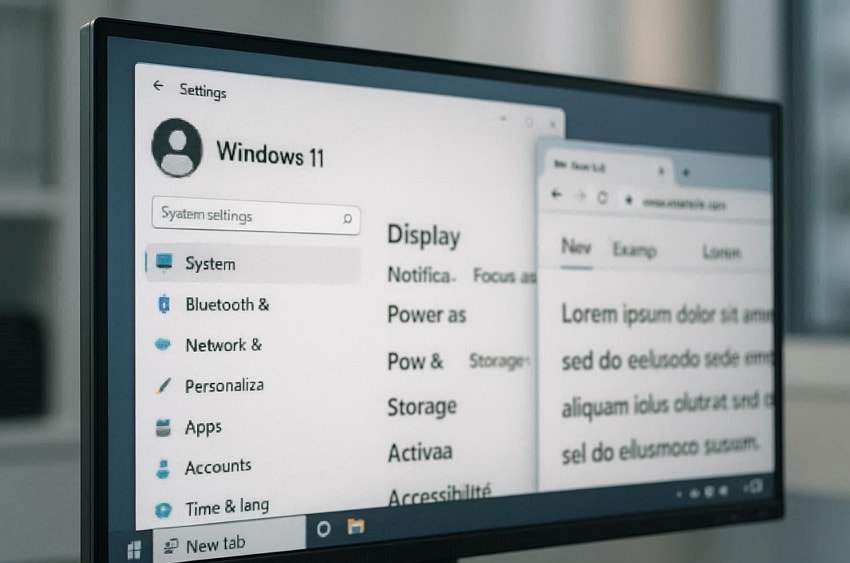
Common Causes of Font Charity Issues
To fix blurry text font in Windows 11, first examine the listed factors that might be affecting text sharpness:
- Wrong Display Resolution: According to Monitor vendor’s report, using a non-native resolution is one of the most frequently reported reasons for blurry text. When your Windows isn’t set to your monitor’s native (recommended) resolution, everything, including text, is scaled up or down.
- Problematic Scaling Settings: Display scaling values that are not recommended, or using custom scaling often causes fuzzy text in apps. Plus, fractional scaling such as 125% or 150% can make older or non-DPI-aware apps appear out of focus.
- ClearType or Font Smoothing Not Tuned: Once ClearType or "smooth edges of screen fonts" is turned off or misconfigured, text can look blurred. Microsoft’s own usability studies found that users read about 5% faster and complete office tasks about 8% faster when ClearType is enabled.
- App DPI Compatibility Issues: Older programs on Windows do not fully support modern DPI scaling; thus, Windows stretches their UI, making fonts fuzzy. As per Microsoft’s guidance, when an app is marked "DPI Unaware", Windows bitmap‑scales its UI on displays above 100% scaling.
- Due to Graphics Driver or Monitor Settings: Incompatible graphics driver or incorrect scaling options in GPU control panels can blur text and UI elements. Whereas incorrect refresh rates or monitor settings can add to the problem, making the whole screen appear soft.
Part 2. Windows 11 Display Issue: Fix Blurry Text and Fonts
For persistent readability and font clarity issues, Windows 11 offers numerous built-in adjustments to improve visual output. To understand how to fix blurry text in Windows 11, all you need is a thorough review of this section:
Way 1. Enable ClearType Text
You can enable ClearType within Windows settings to enhance font smoothing and render text with improved sharpness on your display. This further elevates readability by optimizing pixel rendering, resulting in a more visually comfortable text presentation. In order to enable ClearType Text on Windows for blurry text, follow the tutorial as guided:
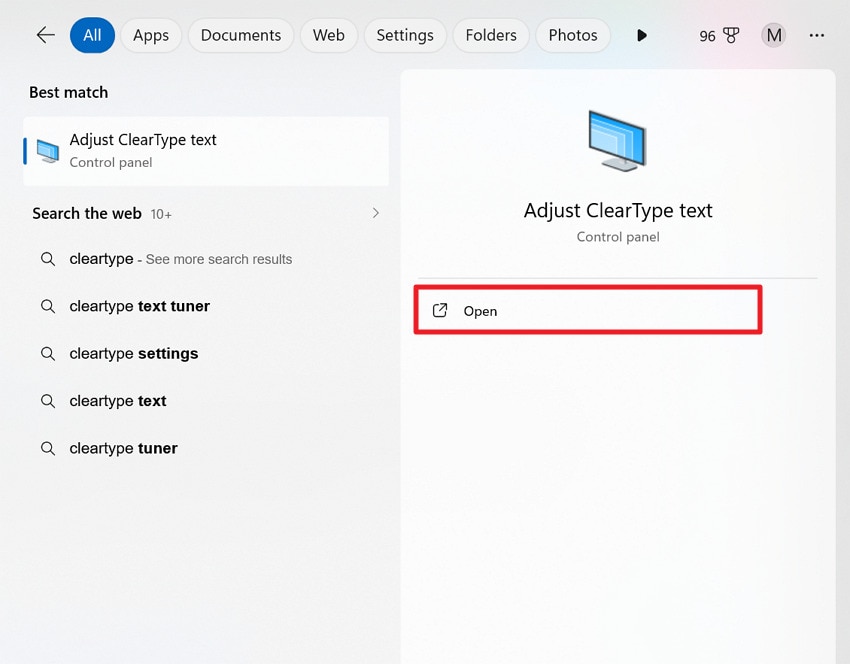
Step 1. Click the "Start" button from the toolbar and type "ClearType" in the search box. After this, press the "Adjust ClearType" text from the results to move forward.
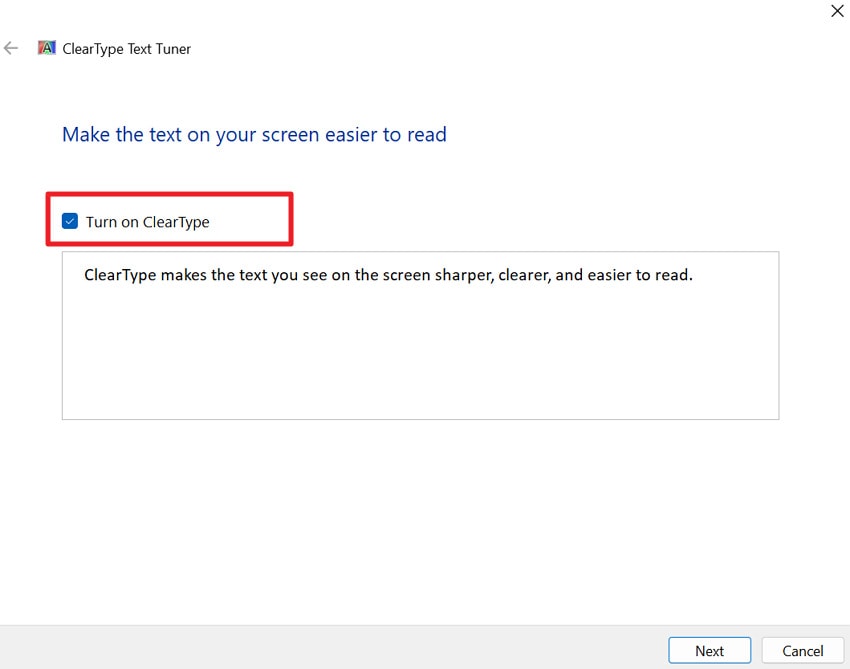
Step 2. Once accessed, simply tick the "Turn on ClearType" option and make your text appear sharper on the screen.
Way 2. Scale Display Settings (100%–125%)
Consider modifying the scaling configuration within Display Settings to optimized percentages, including 100% or 125%, for improved textual clarity. Furthermore, accurate scaling guarantees that typography and interface components remain aligned with your display dimensions, minimizing inconsistencies and distortion. For blurry text after the Windows 11 update, go through the guidelines and scale the display Settings as suggested:
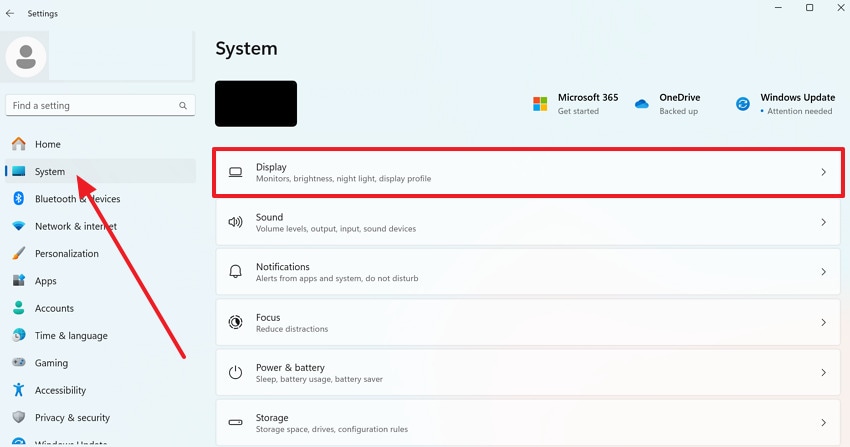
Step 1. From Windows Settings, access the "Systems" section and press the "Display" option to proceed.
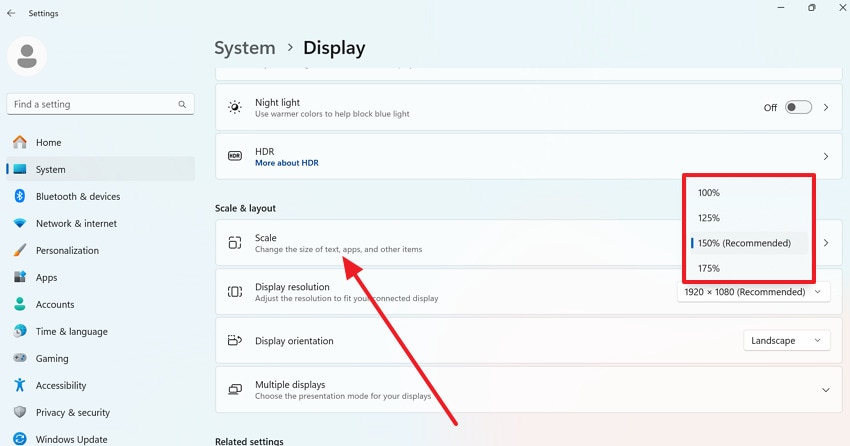
Step 2. Expand the menu for "Scale" and choose "100% or 125%" (try 100% first; if text is too small, try 125%).
Way 3. Update Graphics Drivers
Get the newest graphics drivers to maintain accurate font rendering and prevent compatibility-associated visual irregularities. Additionally, updated drivers enhance coordination between your operating system and display hardware, producing clearer visuals and significantly refined text. To address blurry text in Windows 11, follow the provided manual and update your Windows graphics drivers:
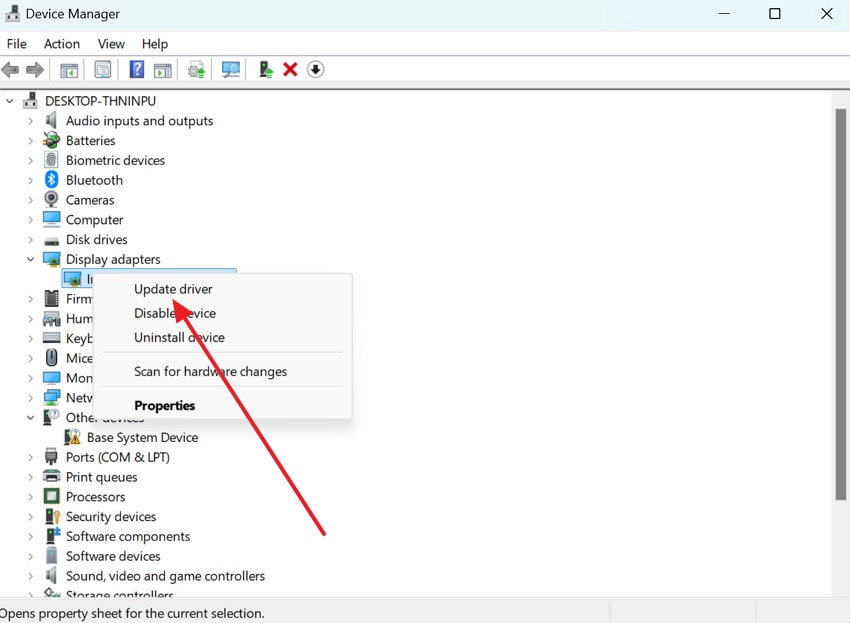
Step 1. Search for Device Manager, then locate and expand the Display Adapter menu to right-click your graphics card. Once done, choose the "Update Driver" option from the menu to install the updated version.
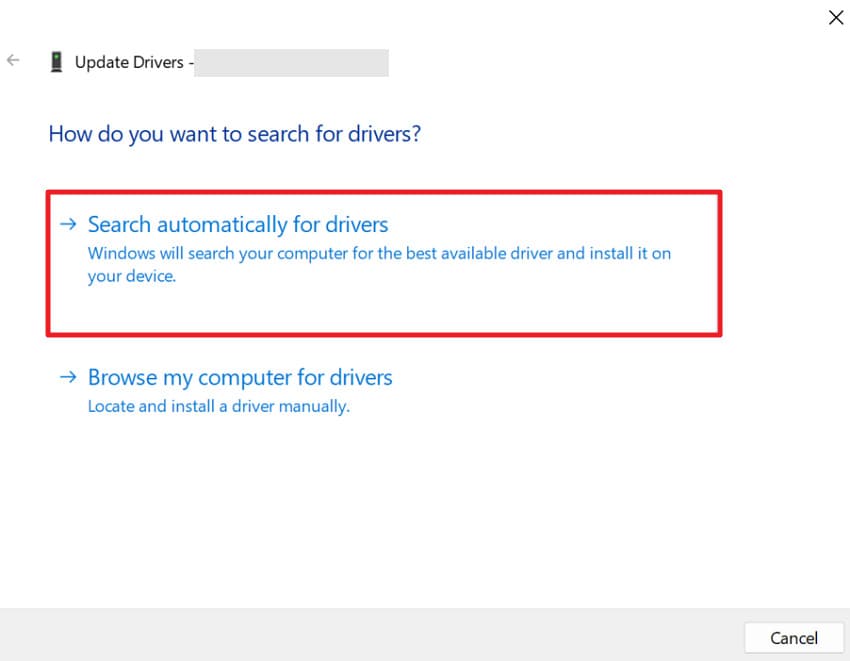
Step 2. Move forward and press the "Search Automatically for Drivers" option and let Windows find and install the update.
Way 4. Run ClearType Text Tuner
Make use of the ClearType Tuner tool to modify font appearance based on your visual preference and monitor type. This customization improves text sharpness by adjusting contrast and pixel alignment to match your display characteristics. For better understanding, explore and run the ClearType Text Tuner tool through the tutorial to resolve blurry font in Windows 11:
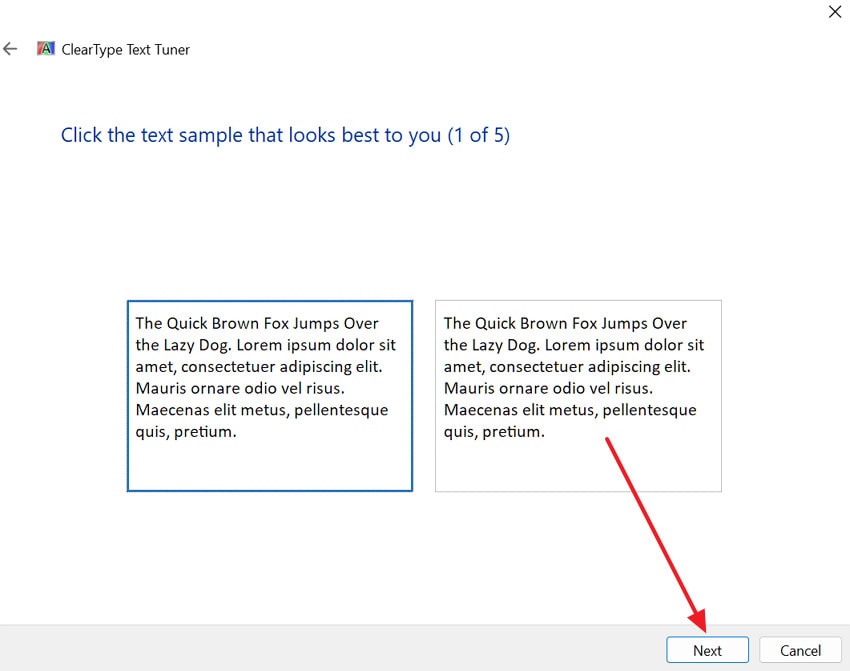
Step 1. Open the ClearType Text Tuner tool on Windows, then confirm your monitor is set to its native (Recommended) resolution. In the net screen, you’ll see several text samples; select the ones that seem clearest to you. Once done, keep pressing the "Next" button until you reach the final step.
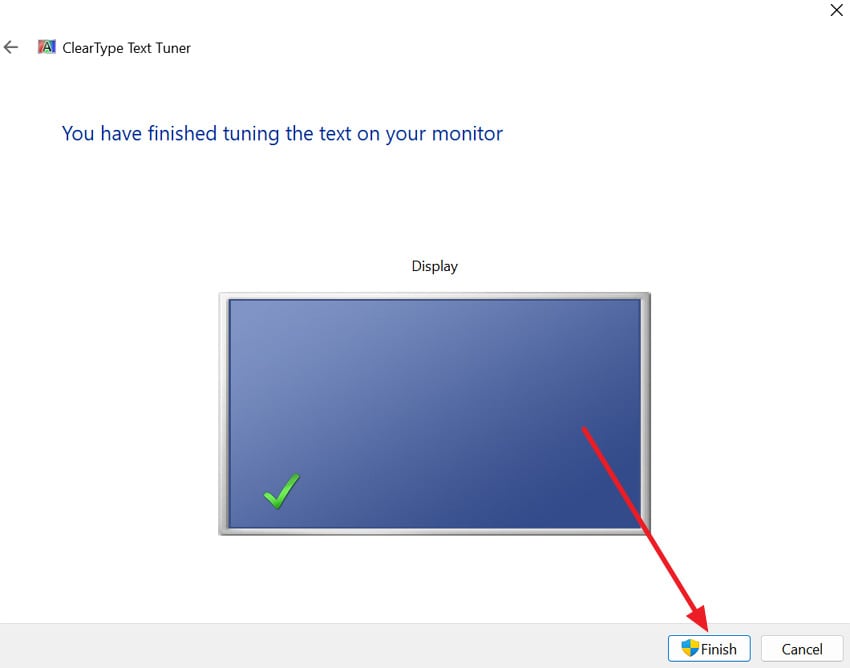
Step 2. At the last screen, click the "Finish" button and tune your text rendering for the monitor.
Way 5. Disable Display Scaling for Specific Apps
The apps that show blurry text disable their compatibility settings to override high-DPI scaling and improve sharpness. This step ensures that individual applications render text correctly, especially when they are not fully optimized for Windows 11 scaling. For recurrent blurry text after the Windows 11 update, turn off Display Scaling for certain apps through the tutorial below:
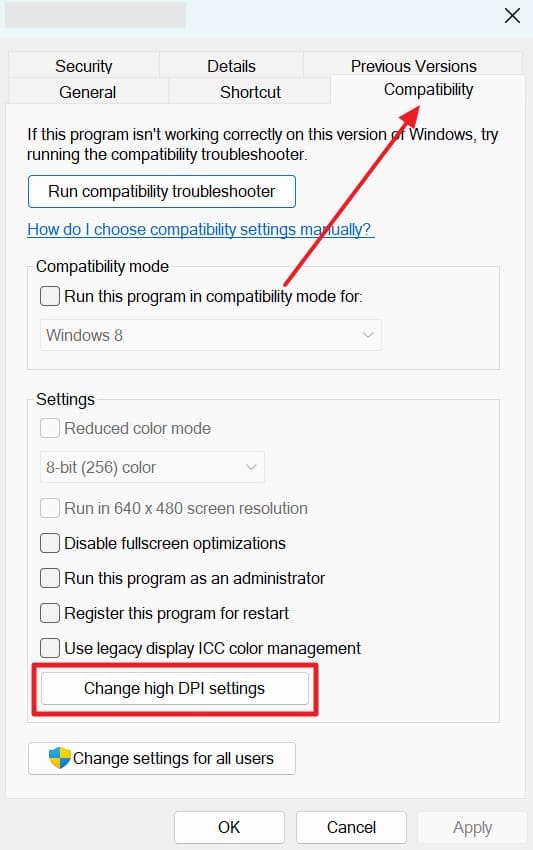
Step 1. Right-click the app shortcut that shows blurry text and choose the "Properties" option from the menu. After this, access the "Compatibility" section and click the "Change High DPI Settings" button from the settings.
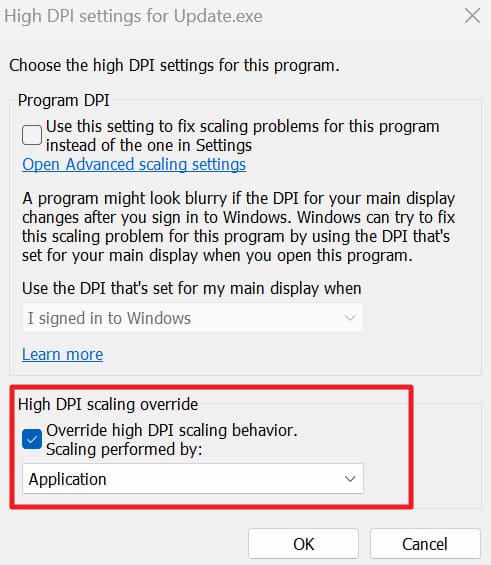
Step 2. From the new window, tick the "Override High DPI Scaling Behavior" option and choose "Application" for Scaling Performed By. Then click "OK" and "OK" again to confirm, and reopen the app to see if the text is sharper.
Way 6. Check Multiple Monitor Settings
Make sure all connected monitors use correct resolution and scaling settings to avoid inconsistent text rendering. Thus, proper configuration across multiple displays helps maintain consistent clarity and prevents one screen from appearing blurrier than another. To check multiple monitor display settings, dive into the tutorial and fix blurry text font in Windows 11:
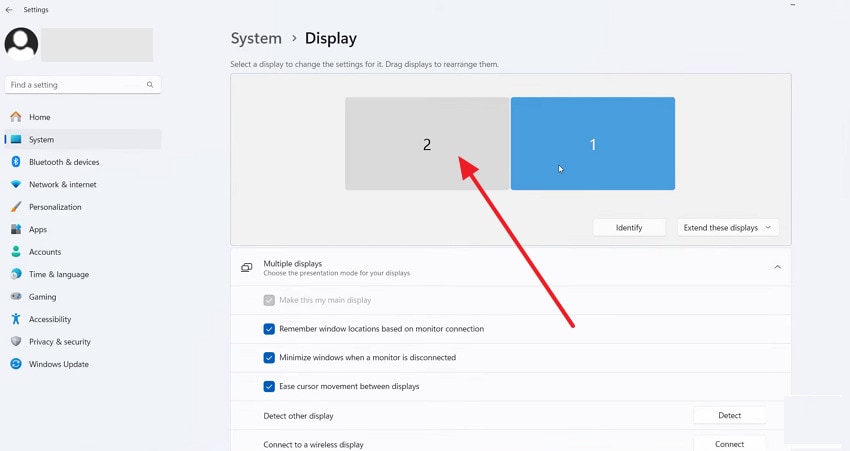
Step 1. On your Display System settings screen, click the second monitor in the diagram at the top to select it.
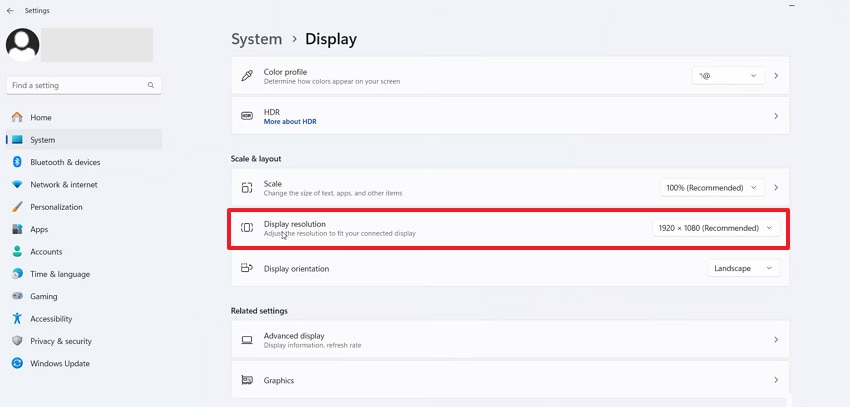
Step 2. Now, scroll to "Display Resolution" and check whether it's set to "Recommended" settings. Later on, under "Scale", use the "Recommended" value or a clean value like 100% or 125%.
Way 7. Reset Display Settings to Default
Now, return to the default Display settings if changes cause persistent issues, helping to resolve misconfigurations affecting text clarity. This fix provides a clean baseline configuration, often resolving hidden errors that cause ongoing blurry text issues. Adhere to the instructions given to reset the Display Settings to the default for blurry text Windows 11 problem:
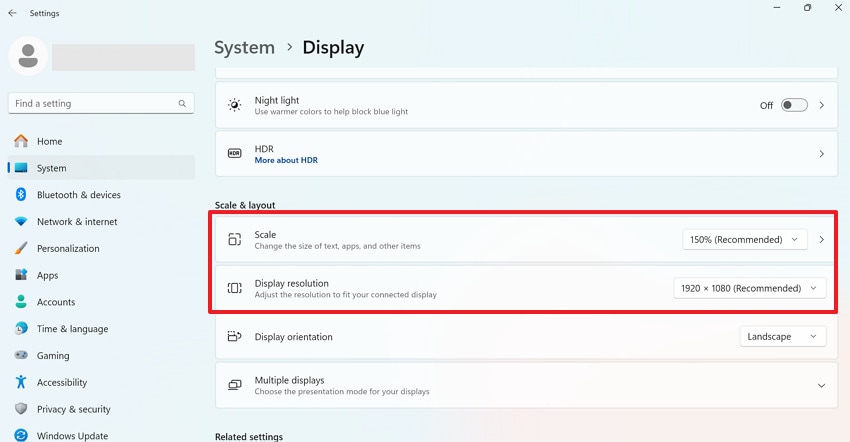
Instructions. Regain access to Display Settings and locate the "Scale & Layout" section for a reset. If you have changed the Scale or Display Resolution settings, choose the one marked as "Recommended" from the menu. Now, restart your PC, so all display changes are set properly.
Pro Tip. Use Repairit if System Corruption Affects Display Clarity
A constant display issue, such as text blurry after sleep in Windows 11, might alarm you about system corruption. Factually, this system file corruption or unstable Windows update can disturb how fonts and graphics are rendered. At this point, only a trustworthy solution like Repairit can be a savior, properly restoring damaged system components. You can even address broken charts, screenshots, or embedded images in these files for better clarity.
The program includes AI tools like image debanding and recoloring that smooth harsh color or strange artifacts. Surprisingly, Excel, PowerPoint, or iWork files with scrambled text, missing pages, or layout glitches can be restored. This is helpful when text looks broken or full of symbols inside a document, even if other apps appear normal. Repairit can handle loading errors, corrupted pages, and unreadable content affected for any reason.
Key Features

-
Restores Layout, Fonts, and Formatting: The software is made to rebuild the original layout and keep fonts, headers, and other visual elements intact.
-
Handles Archives that Hold UI or Asset Files: If an archive contains corrupted fonts or UI images, Repairit can restore it to its original state.
-
Lossless, Batch Repair for Multiple Files: It focuses on lossless repair and fixes multiple corrupted files, keeping the original font and quality.
Detailed Manual to Repair the Damaged System Files
Since corrupted system components lead to blurry text in Windows 11, simply follow the guided tutorial for Repairit:
Step 1. Load Your Corrupted System Files
Enter the "More Types Repair" section and press the "Start" button for the Document Repair. Move forward, click the "+Add" button to import all system files with the blurry text.

Step 2. Inaugurate the Repair Process Immediately
Soon after this, press the "Repair" button to retrieve all the corrupted files added into the program.

Step 3. Examine the Files and Download the Repaired Version
In the end, click the "Preview" button to review, then save the file that has been successfully repaired.

Repair Corrupted Files
 Security Verified. Over 7,302,189 people have downloaded it.
Conclusion
Finally, you know that blurry text in Windows 11 can massively impact readability, productivity, and even your working performance. If the issue is due to display scaling, resolution mismatch, or outdated drivers, this article is the key to unlocking the confusion. However, you think the problem isn’t as simple as a standard fix; download Repairit to address deeper system-level corruption easily.
FAQs
-
Why is text blurry only in certain apps?
This is possible because some applications might not be completely optimized for Windows 11 display scaling settings. Consequently, apps struggle to render fonts correctly on high-resolution displays, and adjustment of the compatibility settings is the only solution. -
Is blurry text a hardware problem or a software issue?
It can be either, but in most cases, it's caused by software configuration issues. Moreover, defective monitors, improperly connected display cables, or inherent hardware constraints may likewise play a contributing role. -
How do I prevent blurry text issues in Windows 11 in the future?
To do so, keep your graphics driver updated as it ensures proper display rendering and reduces the chances of blurriness. Plus, set your display to the recommended resolution and adjust scaling carefully based on your screen size. After applying the fixes for how to fix blurry text in Windows 11, recheck ClearType and display settings.




