
 TL;DR:
To resolve a TikTok camera that fails to open or displays a black screen, manually grant camera permissions in your device settings, force close other camera-reliant background apps, and ensure sufficient storage space by deleting unused drafts.
● Verify there are no ongoing TikTok server outages before attempting device fixes, as camera features will remain inaccessible during downtime regardless of your hardware or software version.
● Android users should clear the TikTok cache via App Management or reset app preferences, whereas iPhone users must reset Location & Privacy settings and ensure Screen Time restrictions are not blocking camera access.
● If downloaded TikTok videos in MOV, 3GP, MKV, AVI, or FLV formats are corrupted and fail to play, you can restore them using the Repairit tool on Windows or Mac.
Ask AI for a summary
 ChatGPT
 Perplexity
 Gemini
 Claude
 Grok
Grok
You open the TikTok app and press the “+” icon to record the video, but the camera won’t open or shows a black screen. This can happen due to an app glitch and other reasons, which this will explore. Go through the checks and advanced solutions and learn how to resolve the issue of my TikTok camera not working in a few taps.
In this article
Part 1. Why Your TikTok Camera Suddenly Stopped Working?
Review the 5 mentioned reasons and learn why you are facing the "my TikTok camera not working" issue:
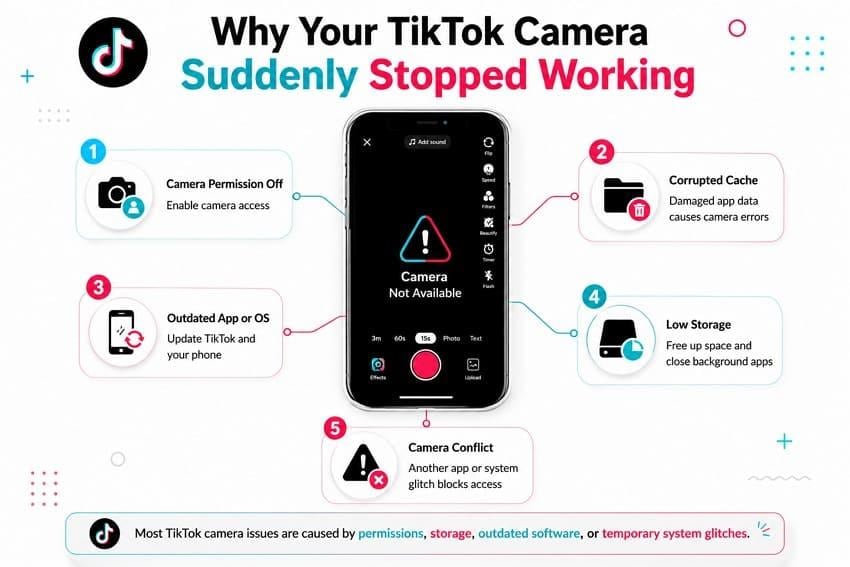
- Camera Permission is Disabled: If TikTok doesn't have permission to use your camera, it won’t be able to record videos, as stated by Hollyland Store. This happens if camera access was denied or turned off in the phone’s settings.
- Corrupted Cache or App Data: Corrupted cache and app data can interfere with the TikTok camera feature. Hence, this can cause a black screen, camera freezes, and recording failures.
- Outdated TikTok or Phone Software: An older version of TikTok or the Phone’s operating system may not work properly with the camera. Due to this reason, the TikTok camera will fail to open or show the back screen when accessed to record videos.
- Low Storage or Too Many Background Apps: Low storage or too many background apps can limit system resources, causing TikTok’s camera to freeze or fail to open. This issue affects multiple users because limited storage can make the camera freeze.
- Camera Conflicts or System Glitches: Another app may already be using the camera, or a temporary glitch blocks TikTok from accessing it. Hence, the camera will show a black screen, or it will fail to open while recording.
Part 2. Quick Troubleshoot Checks of TikTok Camera
Once you know the root cause of the TikTok camera not working issue, let’s see if the mentioned checks can be helpful:
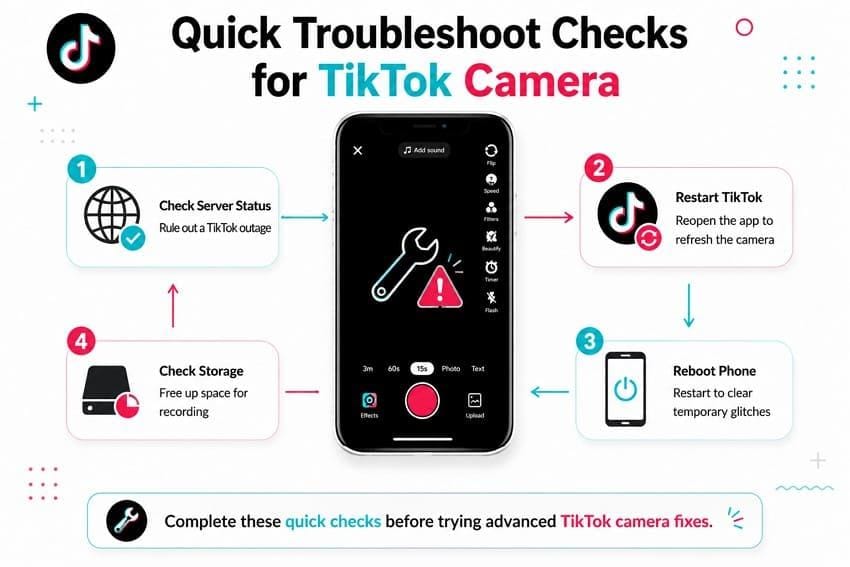
- TikTok Server Status: Check the TikTok server status before you take any action because there may be a server outage. If there is any, the camera and other features will not work, even if the phone or camera is fine.
- Restart the App: Close the TikTok app completely from the Recent Apps list or the App Switcher, then reopen it. This will refresh the app, reload the camera, and fix other temporary issues.
- Reboot Your Phone: If the problem continues, restart the phone to refresh the operating system and camera service. This also closes the background apps that may be using the camera and fixes other glitches.
- Check Storage Space: TikTok needs enough free storage to record videos or create temporary files. If the storage is full, delete unnecessary files or offload apps on the iPhone to improve the camera performance.
Part 3. Advanced Options: How to Fix TikTok Camera Not Working
If the TikTok camera issue is not resolved, perform these 7 innovative fixes provided in this section:
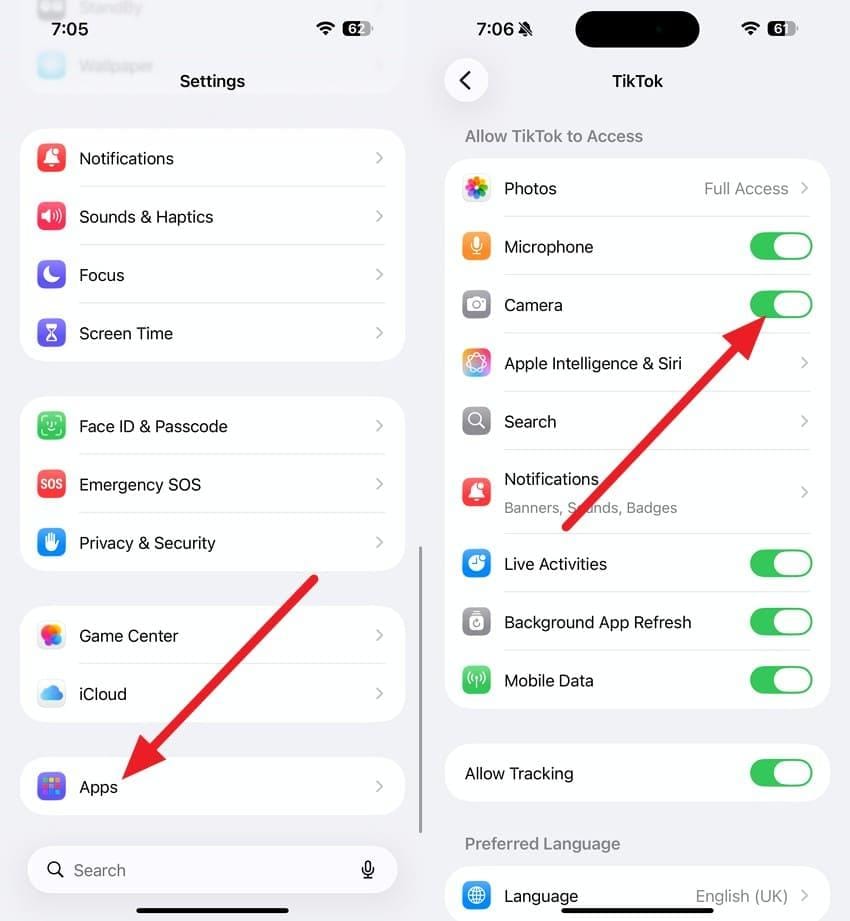
Fix 1. Grant Camera Permissions to TikTok Manually
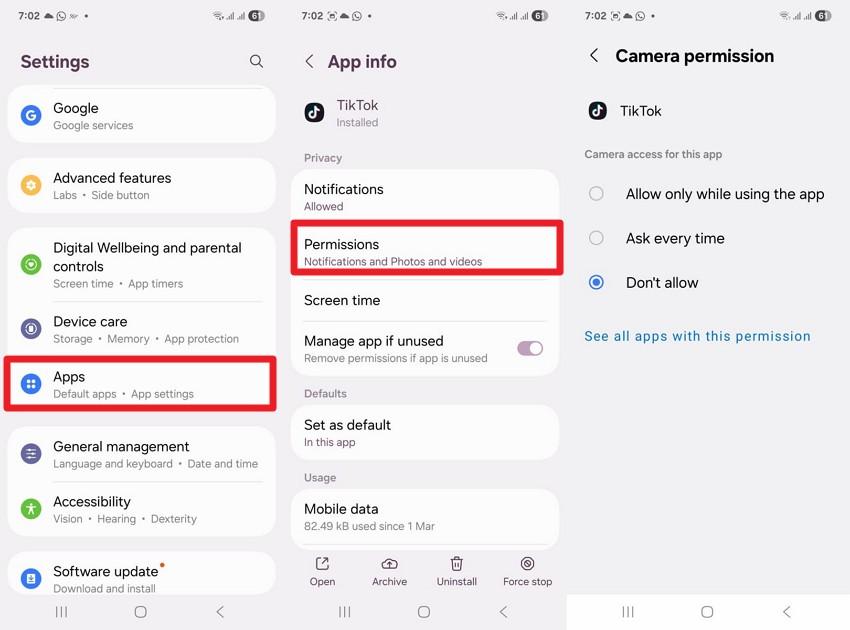
If TikTok lacks permission to access the camera, you will not be able to open it or record videos. As you allow the Camera and other relevant permissions, it will resolve the camera issue immediately, as shown:
For Android
Instructions. Go to “Apps” settings, choose TikTok > Permissions, and check the options for “Camera” and others.
For iPhone
Instructions. Locate “TikTok” in the “Apps” list in the settings, then enable the “Camera” and other options.
Fix 2. Update TikTok to the Latest Version
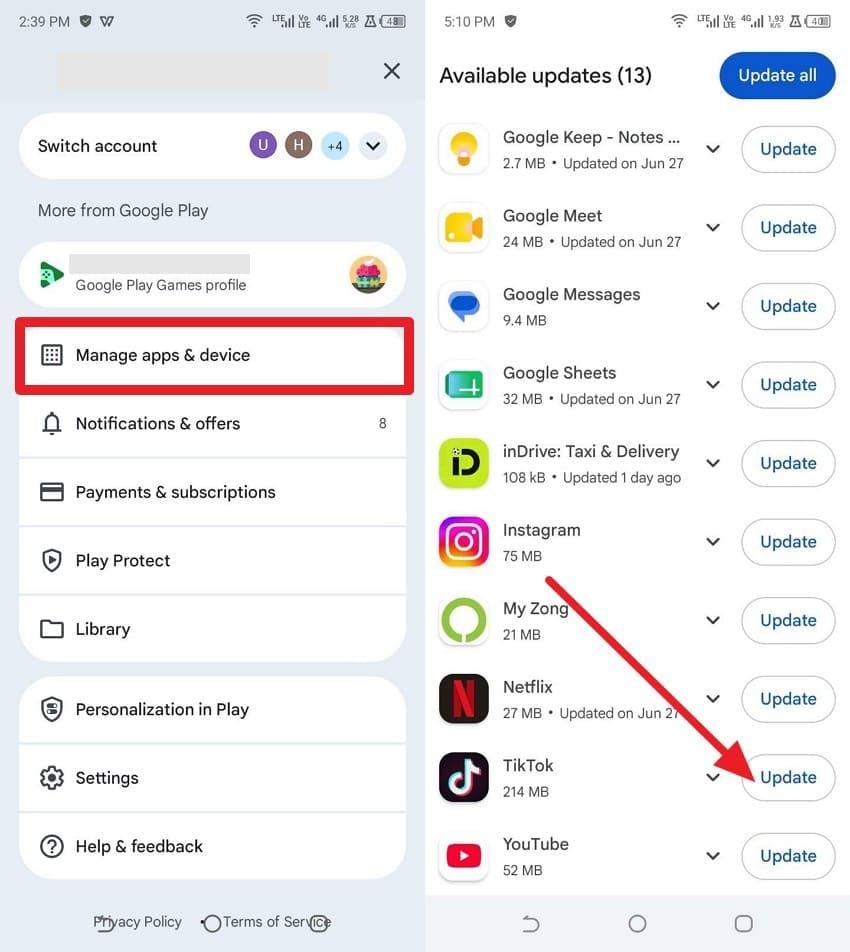
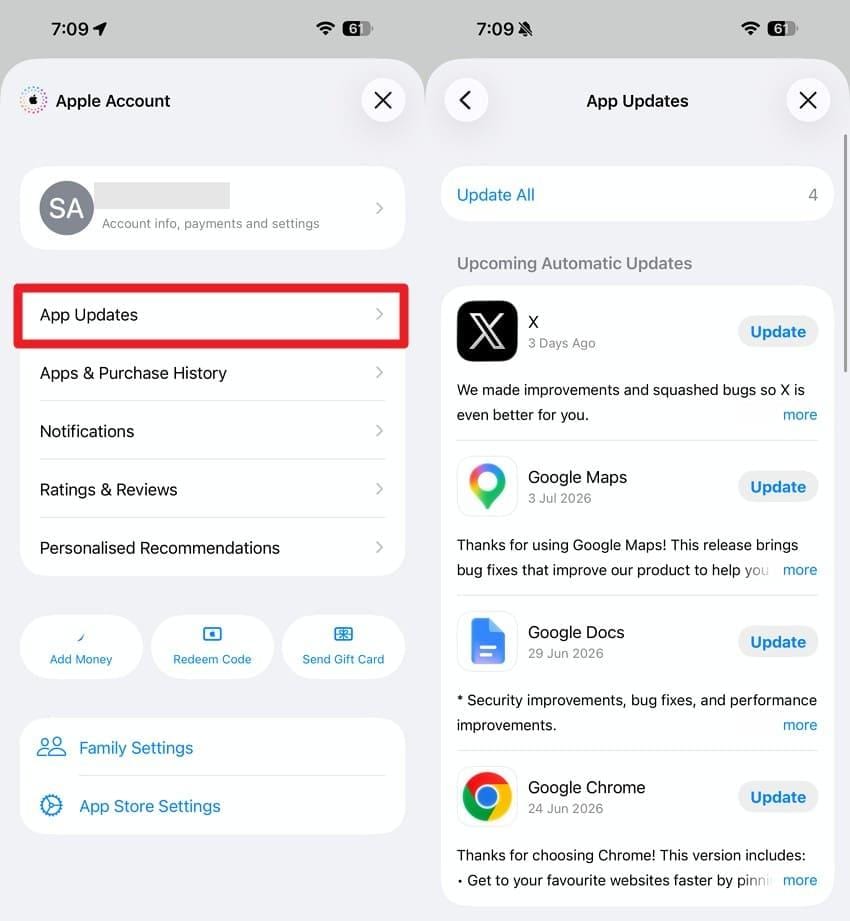
Since the outdated TikTok app can cause camera issues or recording failures, update the app from the Play Store or the App Store. This will fix the known bugs and improve overall camera performance. Therefore, learn how to fix the TikTok camera via the mentioned steps:
For Android
Instructions. Tap the “Profile” icon on the Google Play Store and choose “Manage App & Device > Update Available > See Details > TikTok” and press “Update.”
For iPhone
Instructions. On the App Store, press the “Profile” icon, then go to “App Updates” to find TikTok and tap “Update” if it's on the list.
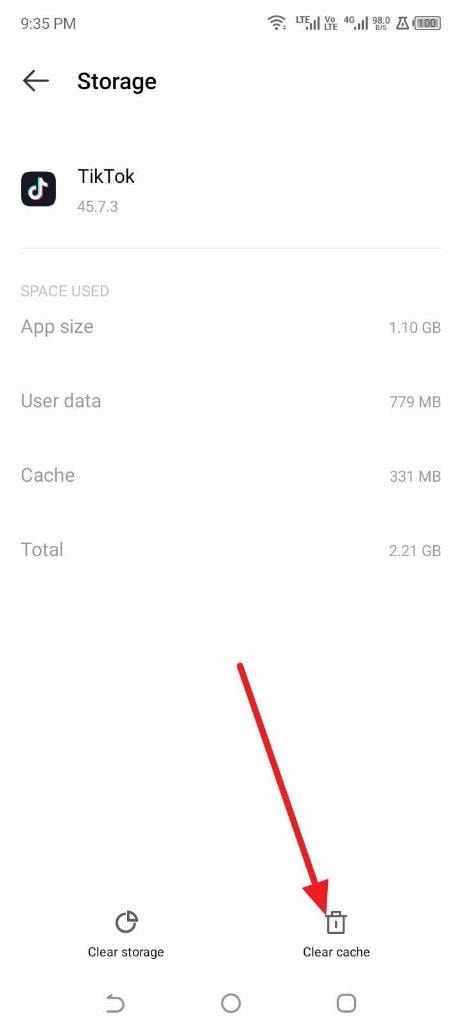
Fix 3. Clear TikTok's Cache and Data (For Android)
As another solution for the TikTok camera not working after the update on Android, try to clear the app cache. This fix will remove temporary files, refresh TikTok, and fix camera glitches once the given steps are followed:
Step 1. Go to “App Management” and “App List” in the settings, choose TikTok, and press on “Storage &Cache”
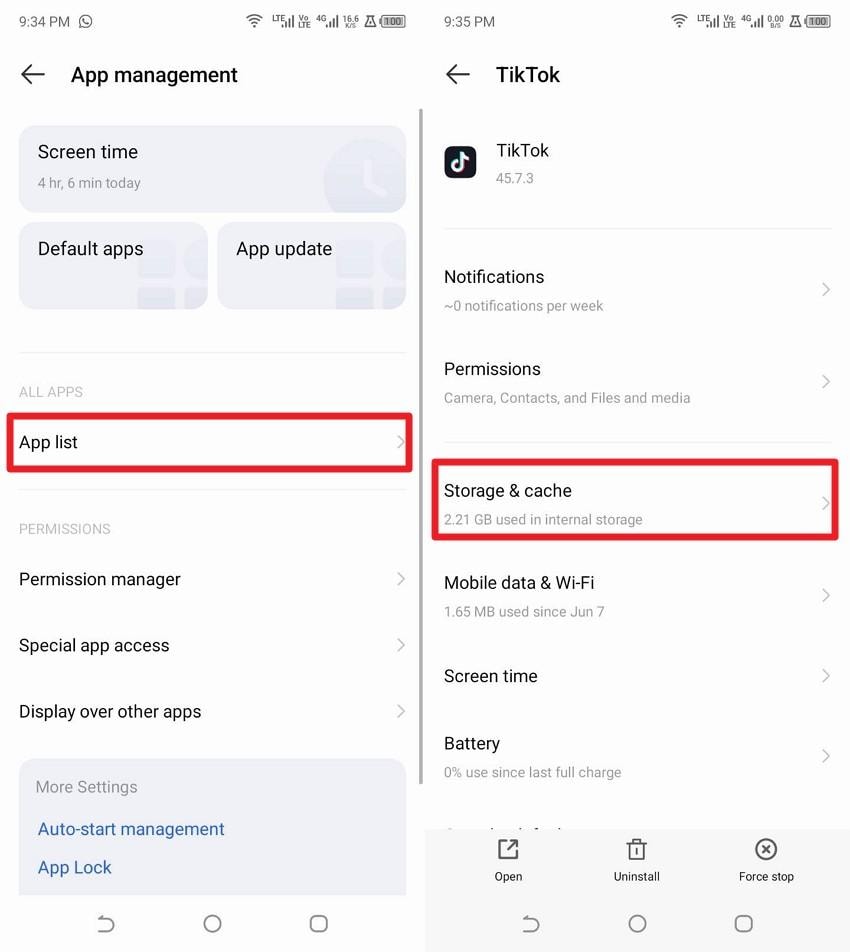
Step 2. At the bottom, select “Clear Cache,” then press “OK” in the pop-up menu to confirm.
Fix 4. Close Background Apps Hogging the Camera
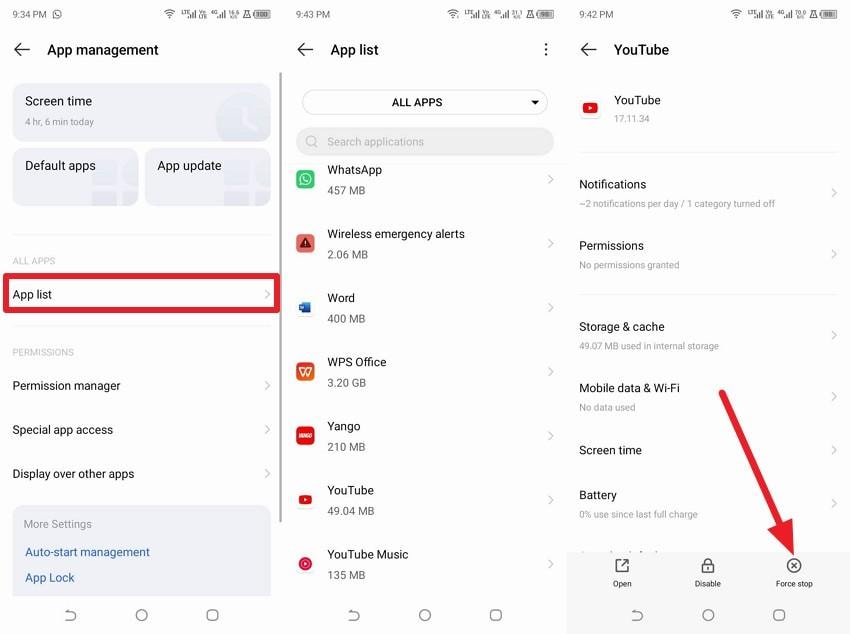
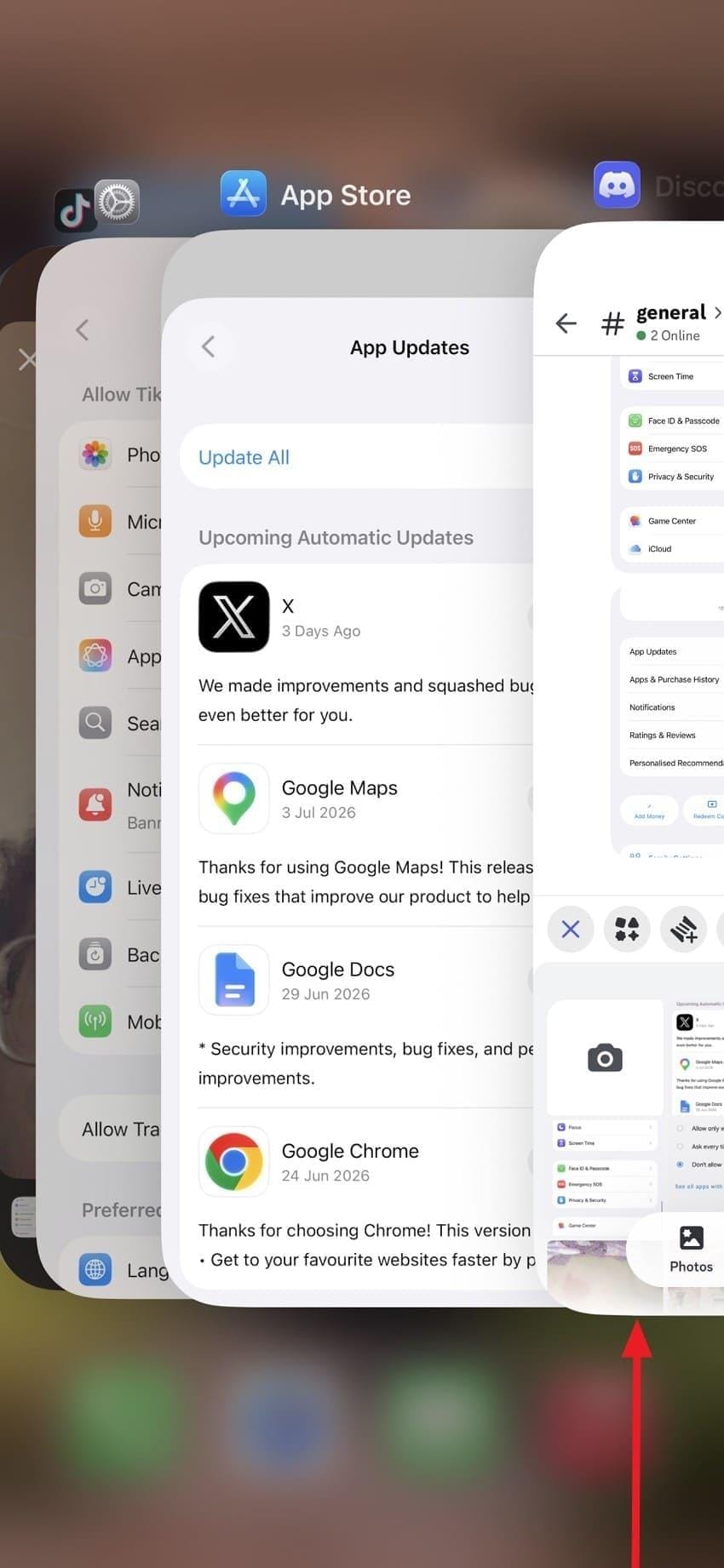
If another app is using the camera, there is a chance that the TikTok app might not be able to access it. So, close the camera-related apps because this will release the camera for TikTok and free up system resources, as demonstrated for TikTok camera issues:
For Android
Instructions. Choose “App List” in the settings, pick the app that heavily utilizes the camera, and choose "Force Stop.”
For iPhone
Instructions. For iPhones with Face ID, swipe up and pause in the middle of the screen, locate the problematic app, and “Swipe Up” to force close it.
Fix 5. Reset App Preferences (Android) or Reset Settings (iOS)
This fix can restore the default app and system settings, including permissions and network configurations. Since this does not delete the personal files or installed apps, it can also resolve hidden settings and configuration issues, and is guided below:
Reset App Preferences (Android)
Step 1. In the Settings, choose “Apps Management,” tap “App List,” and tap “Three Dots” to select “Reset App Preferences.”
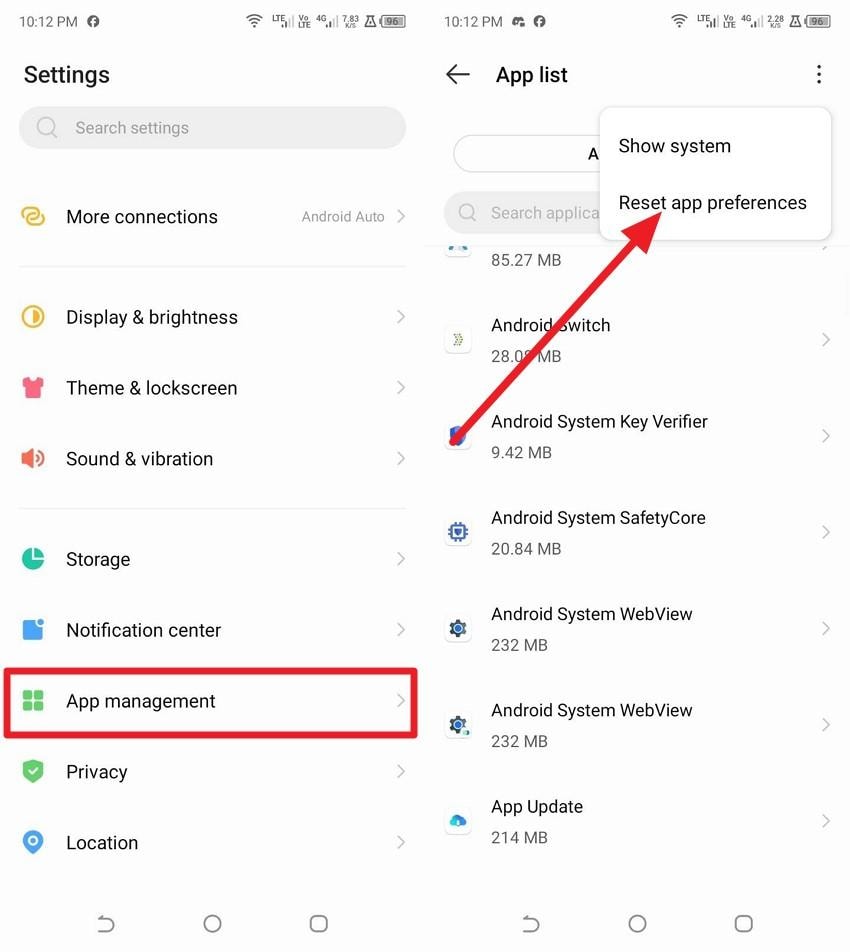
Step 2. Confirm the action, restart the phone, and when you open the TikTok app, re-allow access to the camera and microphone.
Reset Settings (iPhone)
Step 1. Go to General and pick “Transfer or Reset iPhone > Reset” options to fix the issue where my TikTok camera is not working.
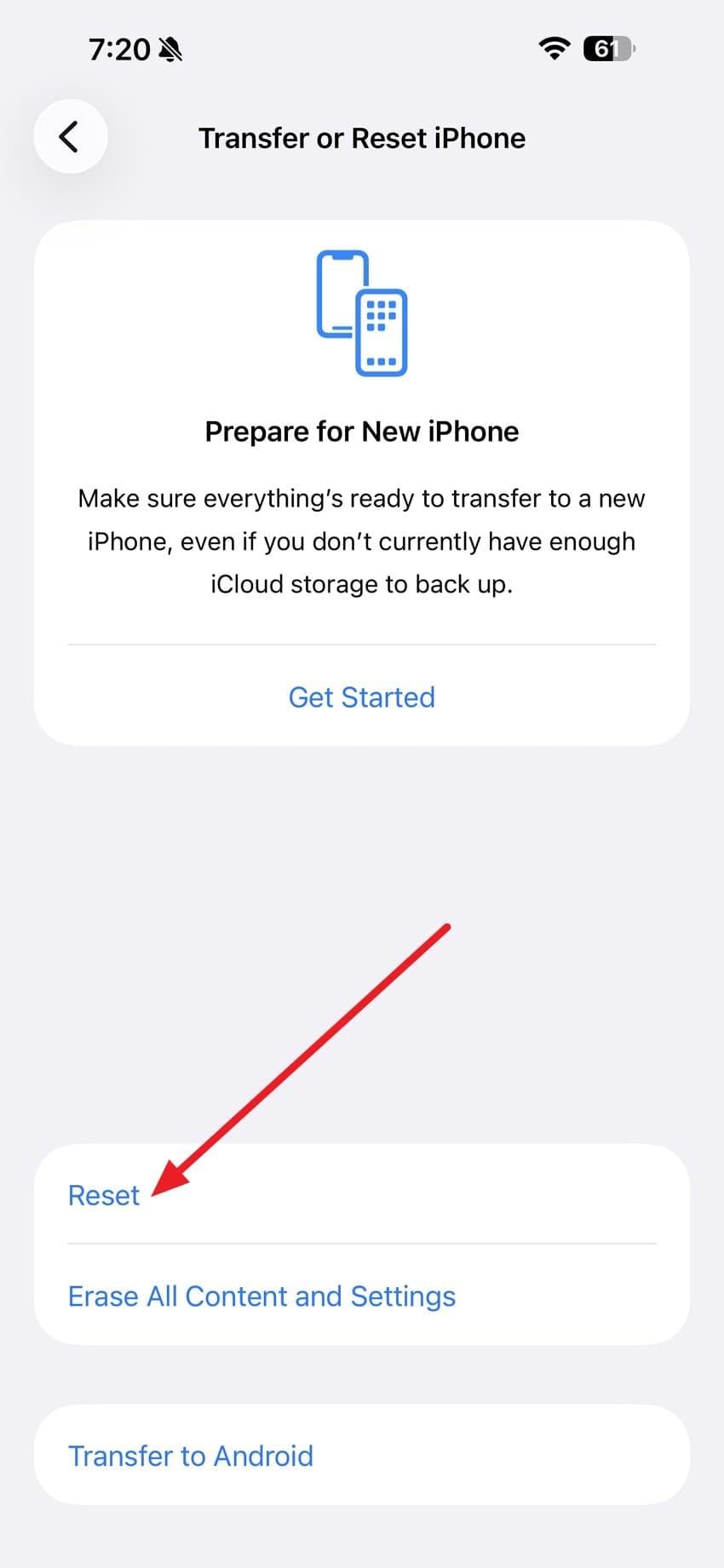
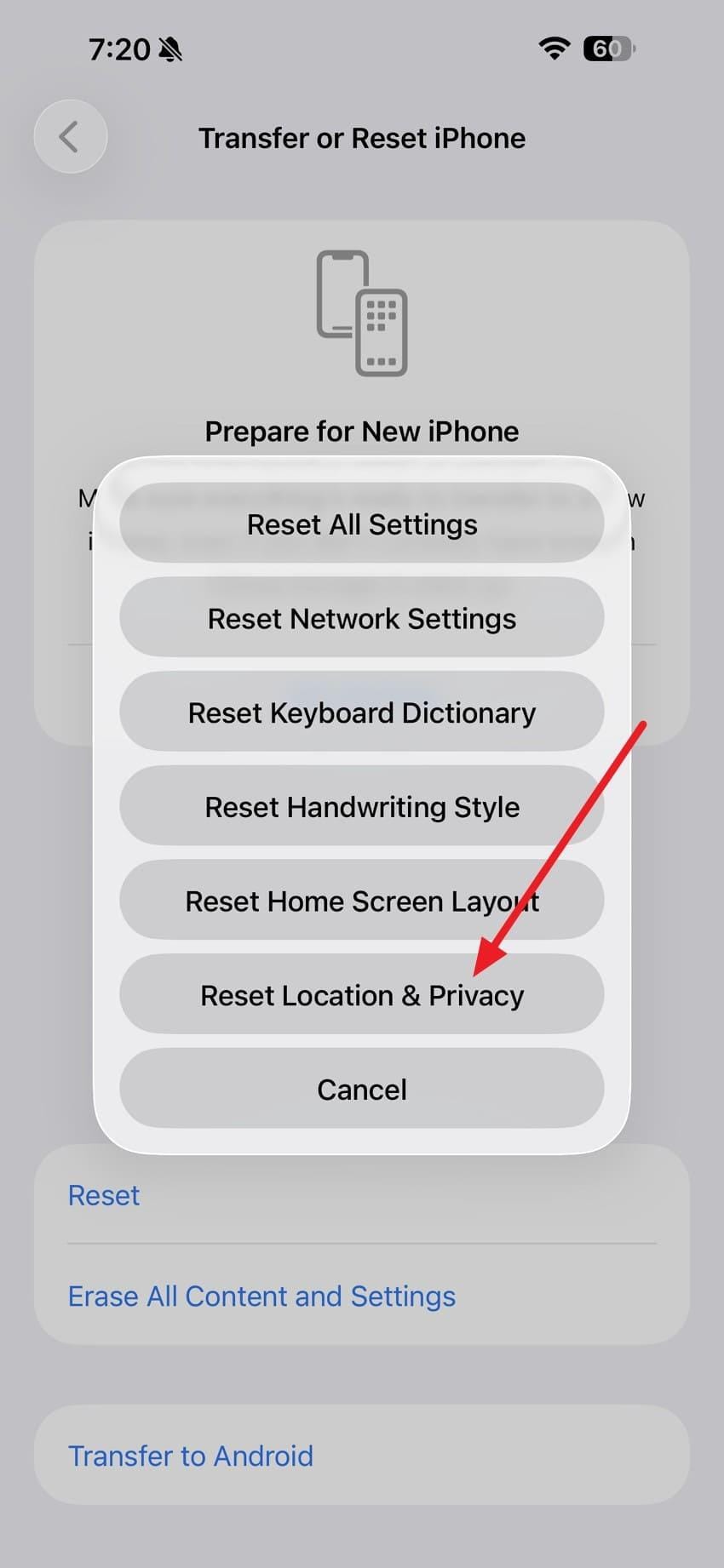
Step 3. From the pop-up, select "Reset Location & Privacy” to restore permission settings and allow apps to request access again.
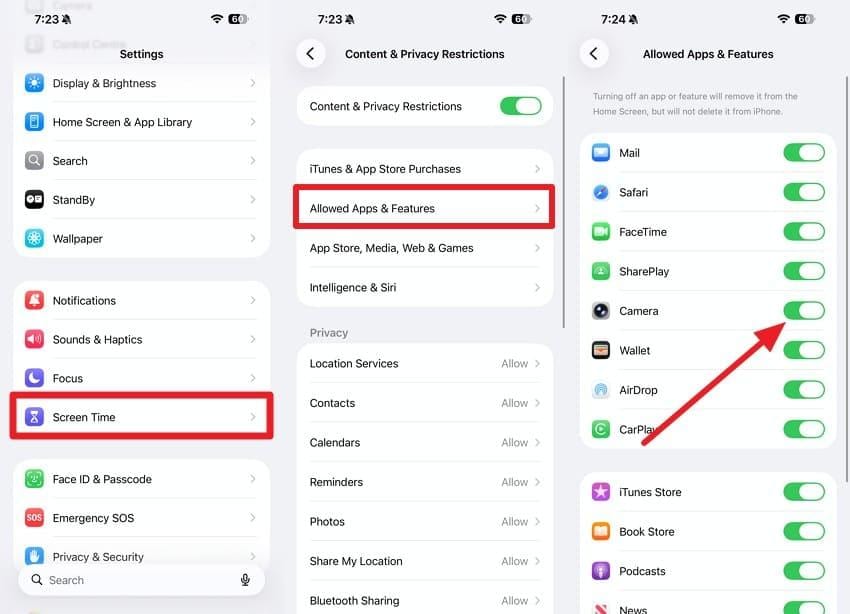
Note: If Screen Time is enabled, check that it isn't blocking the Camera. Go to Settings > Screen Time > Content & Privacy Restrictions > Allowed Apps & Features, and make sure Camera is enabled.
Fix 6. Reinstall TikTok App
If the TikTok camera not working issue persists, try this solution because it will remove corrupted app files and clear hidden settings. Once reinstalled via the mentioned steps, it will install a fresh copy, and you can sign back into your account and allow the required camera permissions:
For Android
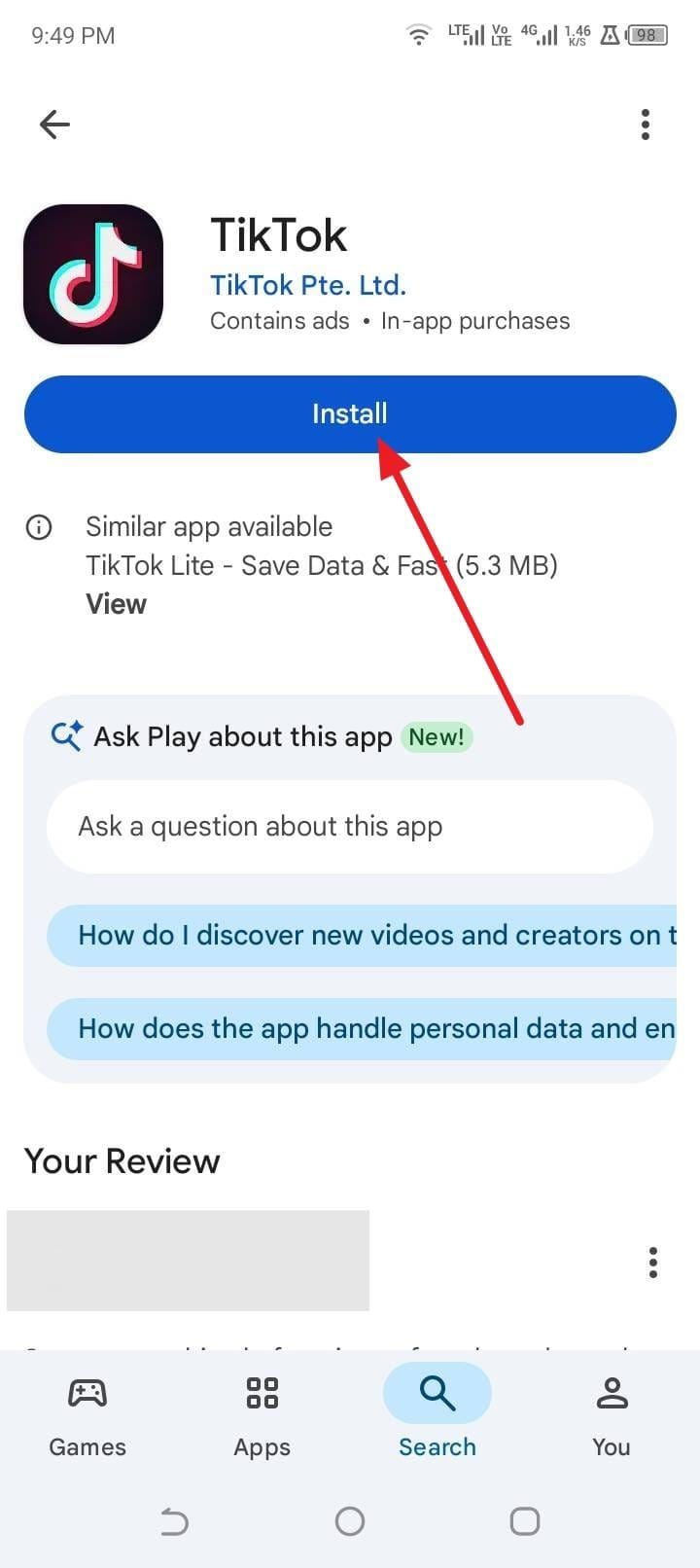
Step 1. Long-press the TikTok app, choose the “Uninstall” option, then press “OK” to confirm.
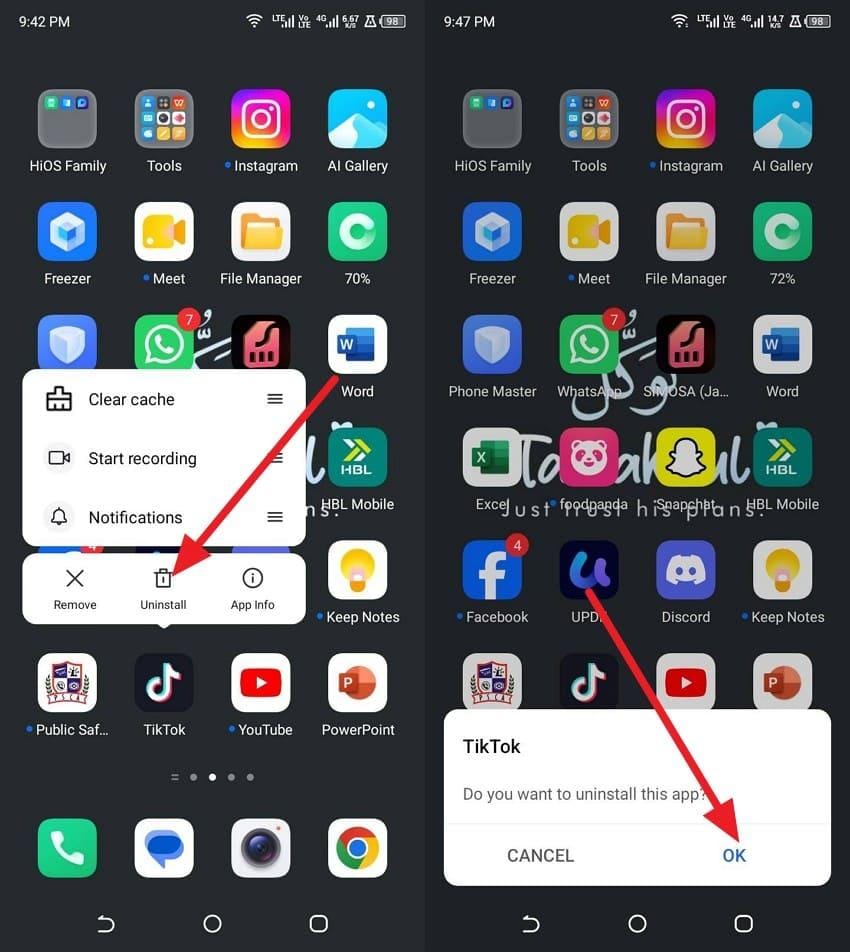
Step 2. Go to the Play Store, search for TikTok, and continue to “Install” the app to re-enable camera permissions.
For iPhone
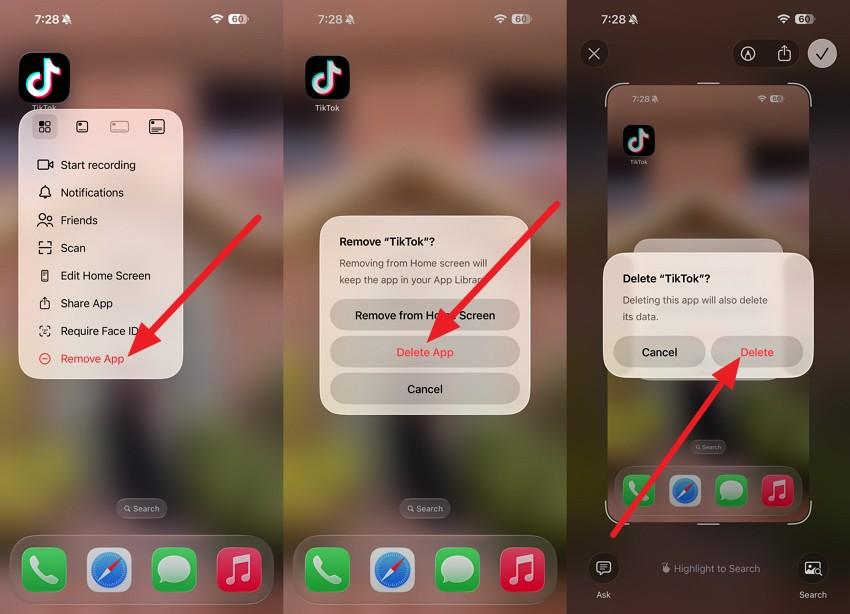
Step 1. Maintain hold on the TikTok app to select the “Remove App > Delete App > Delete” options in the pop-ups.
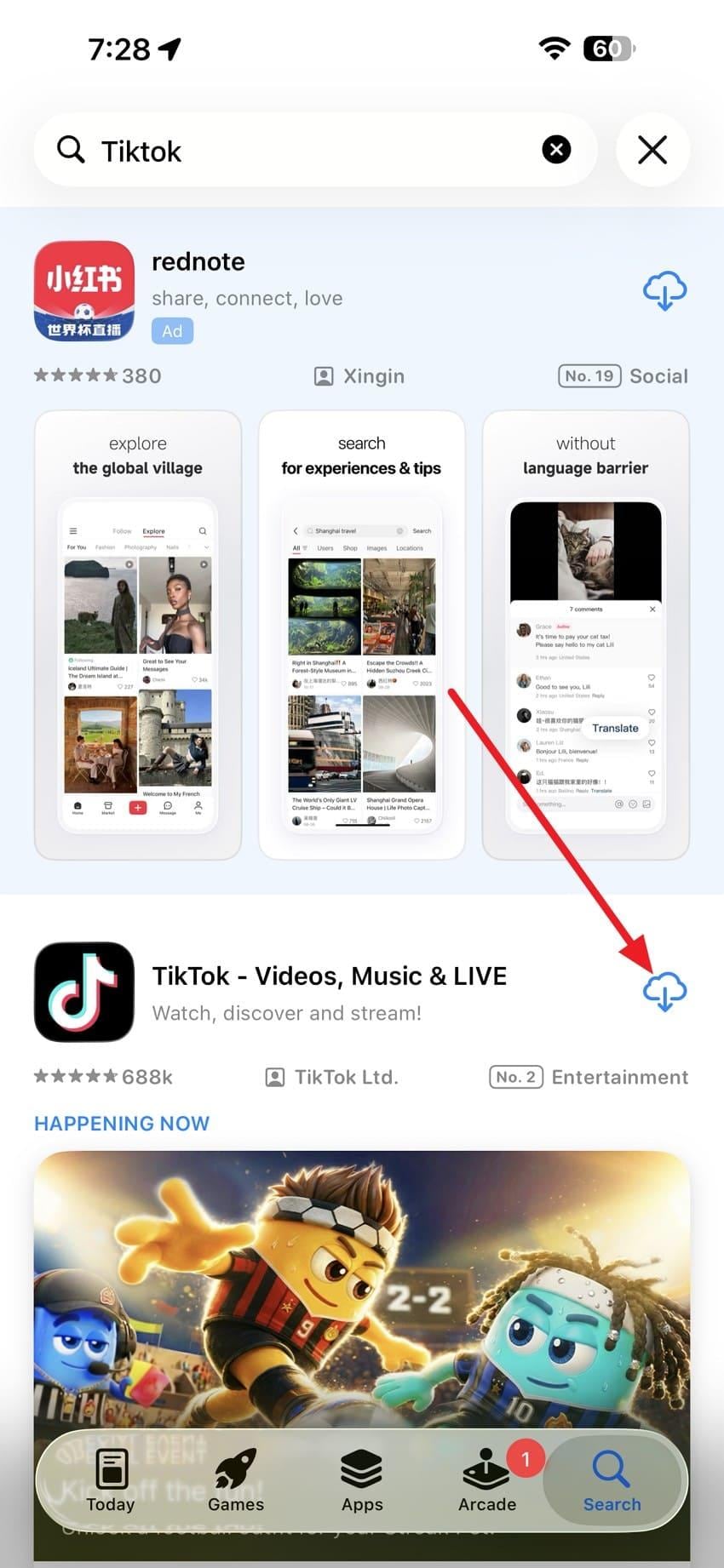
Step 2. Go to the App Store, search for TikTok, and press the “Cloud” icon to reinstall and provide camera permissions.
Fix 7. Contact TikTok Support if Nothing Works
As the final solution for the issue with my TikTok Camera is not working, contact TikTok Support. Explain the issue and include your device model, so that TikTok can check relevant issues, as shown in the following:
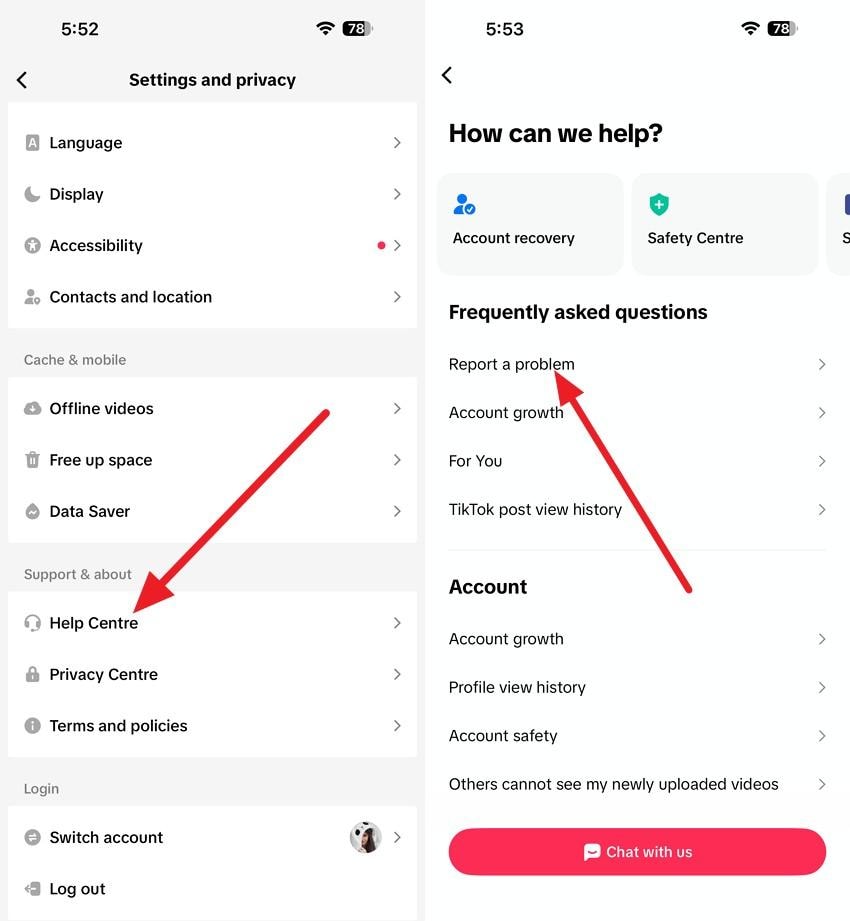
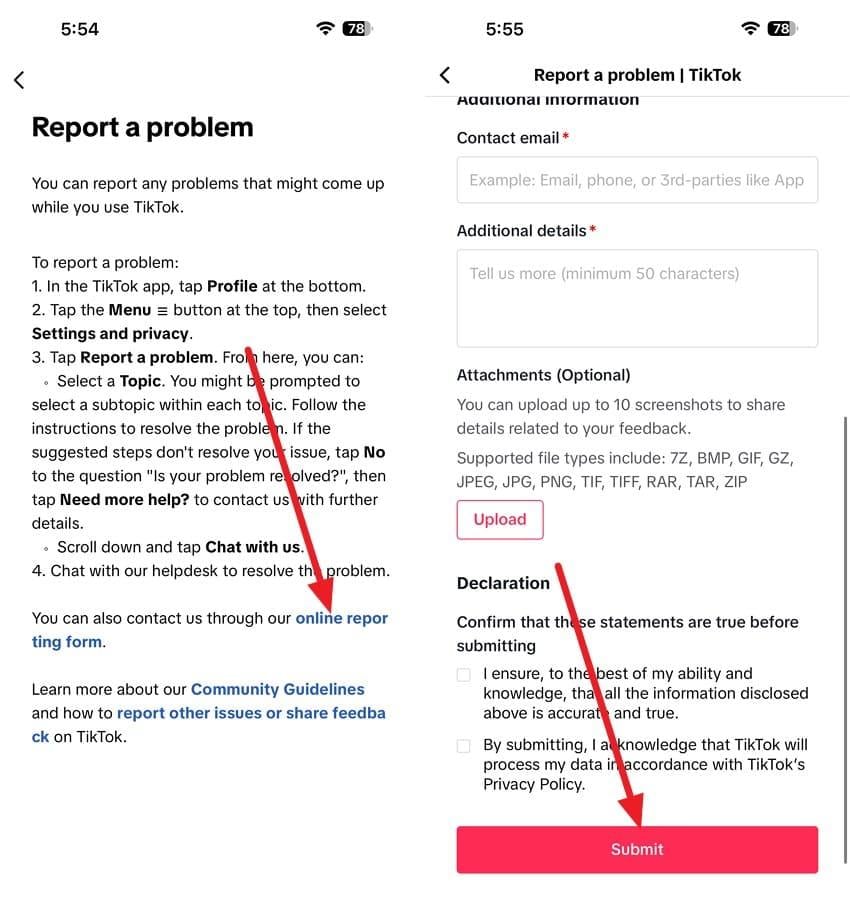
Step 1. Go to the “Settings and Privacy” option in the TikTok app, then select “Help Center” and choose “Report a Problem.”
Step 2. Tap on “Online Reporting Form” at the link, then choose the Topic, Category, and other details, and press “Submit.” You can also attach screenshots or screen recordings to help explain the issue.
Pro Tip. Repair Downloaded TikTok Videos Easily on Desktop with Repairit
So far, you know how to fix the TikTok camera not working issue on Android and iPhone. What if you have downloaded TikToks on your device and they won’t play because they are damaged or corrupted? In this case, you can use Repairit to fix downloaded TikToks in multiple formats, such as MOV, 3GP, MKV, AVI, FLV, etc.
Other than TikTok videos, users can import other locally saved videos from phones, cameras, drones, and other devices. Since these aspects make this tool versatile, it is accessible on Windows and Mac, as well as online. Regardless of the tool you use, the interface is intuitive, and steps are guided, which makes it ideal for novices and professionals.
Key Features
AI‑Powered Repair: Repairit uses AI algorithms to fix the video and perform a quick scan in the Standard and Advanced modes.
Advanced Video Repair: The tool claims to outperform other tools with its highest success rate and ability to maintain data integrity.
Gyroscope Data Repair: To fix the corrupted motion sensor data, this tool is also compatible with GyroFlow and GoPro Player.
Guide on How to Repair Damaged or Corrupt TikTok Downloads with Repairit
Once you fix the TikTok camera issues, this section will help you repair corrupted TikTok videos. So, follow this simplified guide, and test all the claims of this video repair tool to perform a real test:
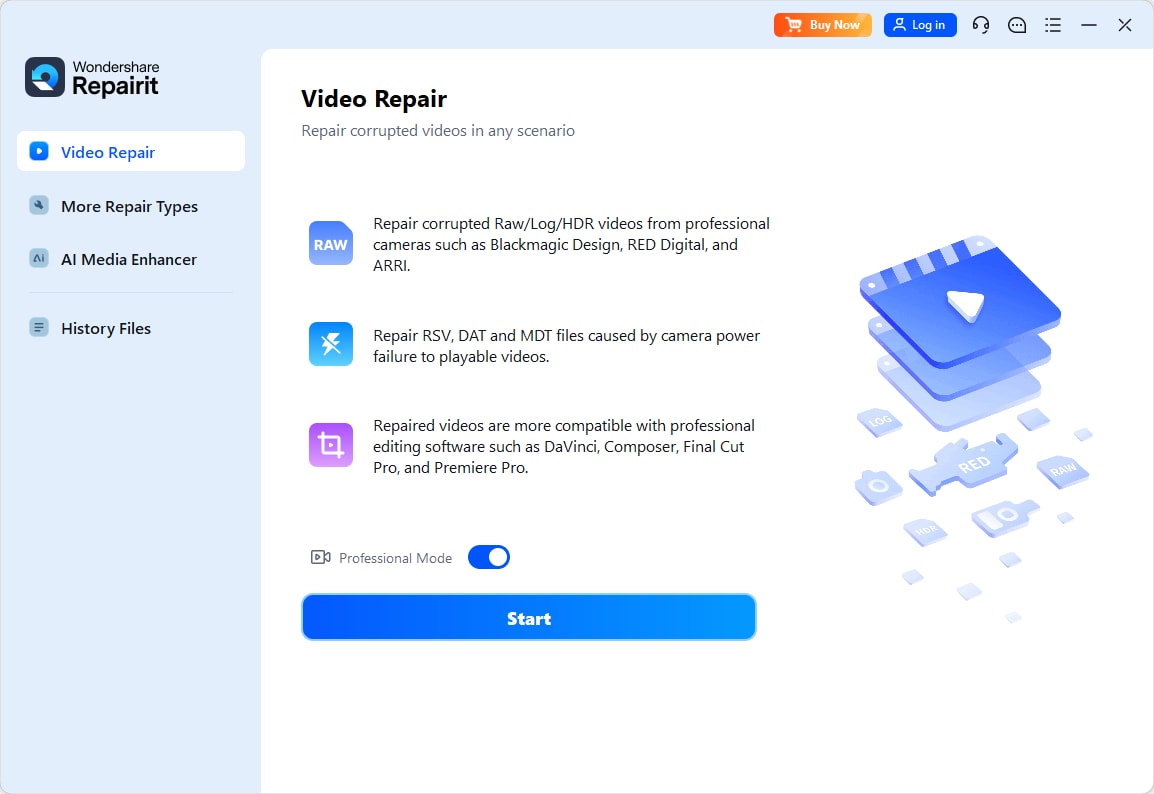
Step 1. Start the TikTok Video Repair in Repairit
Go to the Repairit “Video Repair” tab and press the “Start” button to import the corrupted TikTok downloads.
Step 2. Add the Files to Start Video Repair
Add files in bulk via the “+Add Files(s)” button, then click “Repair” to start the AI scan in real time.

Step 3. Preview and Save the Repaired TikToks
Once the tool repairs the TikTok videos, choose between the “Preview” and “Save” options to determine accuracy and export.

Resolve Your Tiktok Videos Issues Now
 Security Verified. Over 7,302,189 people have downloaded it.
Conclusion
To sum up, content creators wonder what causes the issue of the TikTok camera not working and how to fix it. Hence, this guide has shared 7 fixes and basic checks for Android and iPhone to record TikToks without any camera issues. However, if your downloaded TikTok videos get corrupted, experts suggest you use Repairit to repair them in batches.
FAQ
-
Does using TikTok on Wi-Fi vs mobile data affect the camera?
No, the internet connection does not affect the camera itself; it is a hardware or permission issue. A poor connection will only affect the recording and uploading features in the TikTok app. -
Will logging out and back into TikTok fix the camera?
This can sometimes work, as it can refresh account sessions and clear minor glitches. Hence, you can try this quick action before you consider other ways to address the issue of the TikTok camera not working after the update. -
Is this camera issue more common on older OS?
Yes, older phones may struggle with outdated software or limited processing power. This is why updating the phone's OS can help fix the TikTok camera issues in real time. -
Can too many TikTok drafts cause camera problems?
Yes, because a large number of saved drafts can use up storage and slow down the app. It is recommended to delete unused drafts to free up space and improve TikTok camera performance.




