
“I have pretty fast internet, I think it’s AT&T fiber. But sometimes downloading games I get these insanely slow speeds, usually I can download 20GB fairly quickly. But 50 minutes.. why??/- Tight-Dance7721”
Steam is a popular platform for buying and playing PC games online. At times, downloads can become frustratingly slow, wasting time and preventing you from enjoying new games. This problem occurs because of many reasons, including internet issues, flawed settings, or background processes.
As a result, many people search online for how to boost download speed on Steam. Luckily, several methods can help improve the download speed. This guide presents the top methods to help you fix your download speed and enjoy games without any interruptions.
In this article
-
- Way 1. Remove Steam Bandwidth Limits
- Way 2. Restart Steam and Your Router
- Way 3. Check Your Internet Connection Stability
- Way 4. Close Background Apps Using Bandwidth
- Way 5. Change the Steam Download Region
- Way 6. Disable VPN or Firewall Interference
- Way 7. Prioritize Steam Traffic via QoS Router Settings
- Way 8. Switch to a Faster DNS Server (e.g., Google or Cloudflare)
Part 1. Why is Steam Download Speed Slow on Some PC
Before learning how to boost Steam download speed for fixing any lag, go through the most common reasons that lead to this issue below:
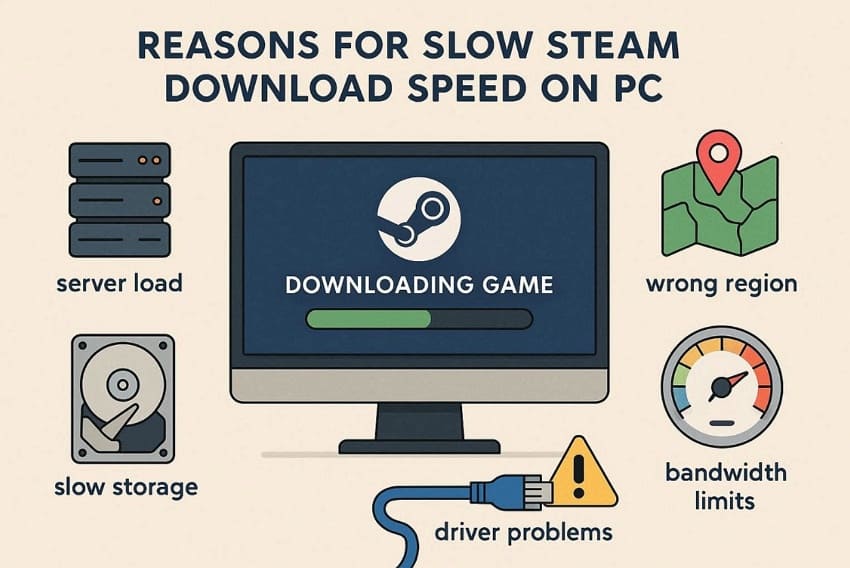
- Server Load: Steam servers become busy during major game releases or seasonal sales. Heavy traffic reduces speed, so downloads slow even when your internet connection is fast.
- Slow Storage:Older hard drives read and write data more slowly during large gamedownloads. Steam downloads compressed files, so slow disks delay unpacking and reduce visible download speeds.
- Wrong Region: Steam may connect to a download server located far from your country. Long-distance connections increase delay and reduce download performance on many computers.
- Bandwidth Limits: Steam settings may include bandwidth limits that control how fast downloads can run. If limits stay enabled, Steam will not use the full internet speed during downloads.
- Driver Problems: Outdated network drivers may cause unstable connections during long game downloads. Driver issues sometimes reduce network efficiency and lower Steam download performance.
Part 2. 8 Practical Ways to Speed Up Steam Downloads
Slow Steam downloads are not something you have to live with. Below are some practical ways that will help you figure out how to speed up Steam downloads easily:
Way 1. Remove Steam Bandwidth Limits
Removing Steam’s bandwidth limit allows your PC to use full internet speed for faster downloads. When limits are active, Steam cannot exceed the set rate, slowing large game downloads. Without limits, Steam requests data as fast as your PC, ISP, and server allow. So, follow the steps below to learn how to make Steam download faster using this method:
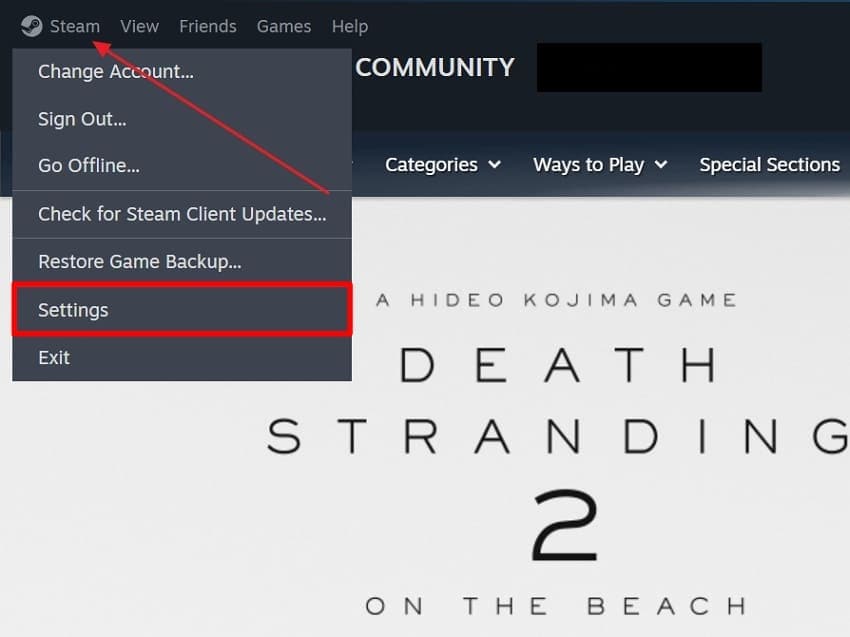
Step 1. Launch the “Steam” client on your PC and select “Settings.”
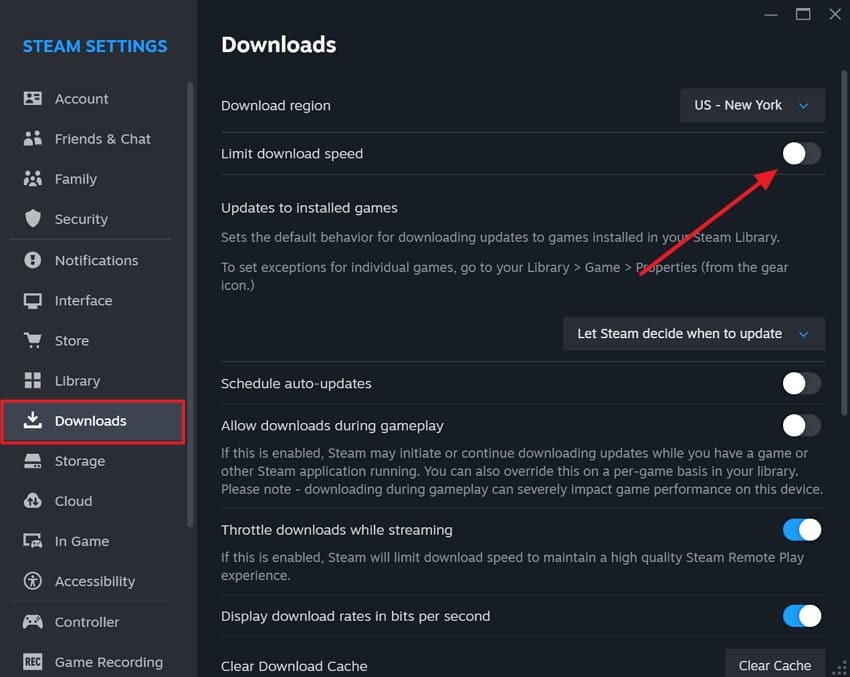
Step 2. Now, go to the “Downloads” section and turn off the “Limit Download Speed” toggle.
Way 2. Restart Steam and Your Router
You should restart Steam and your router to fix temporary app or network issues. Steam sometimes keeps corrupted temp files, blocking full download speed and causing stalling. Routers store sessions and small bugs that cause packet loss or slower speeds. Rebooting the router resets memory, Wi-Fi radios, and ISP tables for smooth downloads. Adhere to the guide to understand how to boost Steam download speed by restarting Steam:
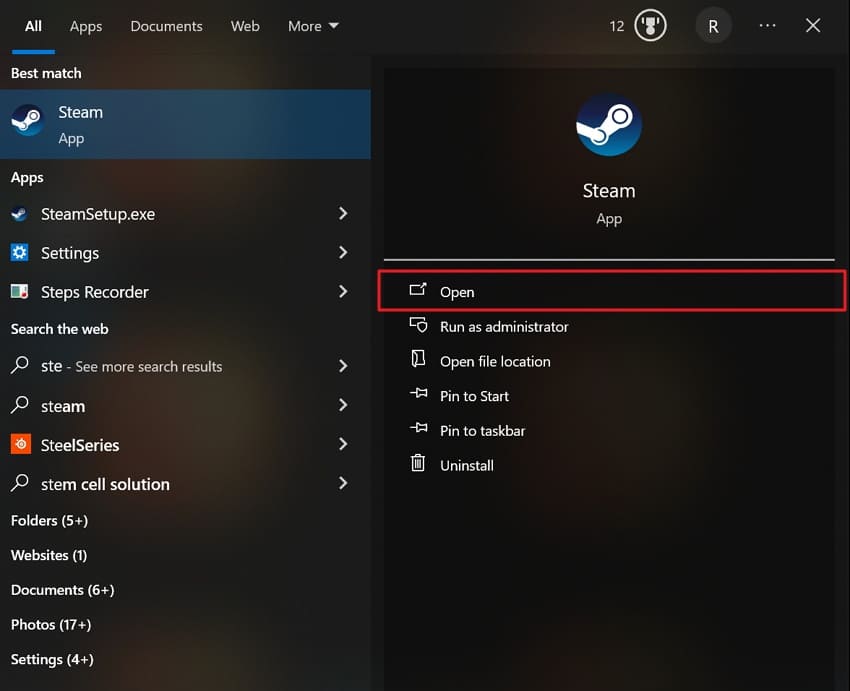
Instructions. Close all the games and search “Steam” in the “Start” menu and choose “Open.” Meanwhile, restart your router as well to ensure a smooth internet connection.
Way 3. Check Your Internet Connection Stability
Sometimes, internet connections seem fast but have hidden problems that slow Steam downloads. Packet loss or brief disconnects also force Steam to retry data and lower the speed. Learning how to boost download speed on Steam starts with checking for internet instability. You can use speed test services like Ookla to verify your internet connection stability.
Way 4. Close Background Apps Using Bandwidth
Another way to improve Steam downloads is by closing apps in the background. Cloud-synced tools, streaming apps, and other launchers use the internet, reducing Steam’s speed. Closing heavy apps is an important step in making Steam downloads faster for large game files. Also, shutting down high-data apps lets Steam use your ISP’s connection capacity. Thus, review the steps below to close unnecessary background apps:
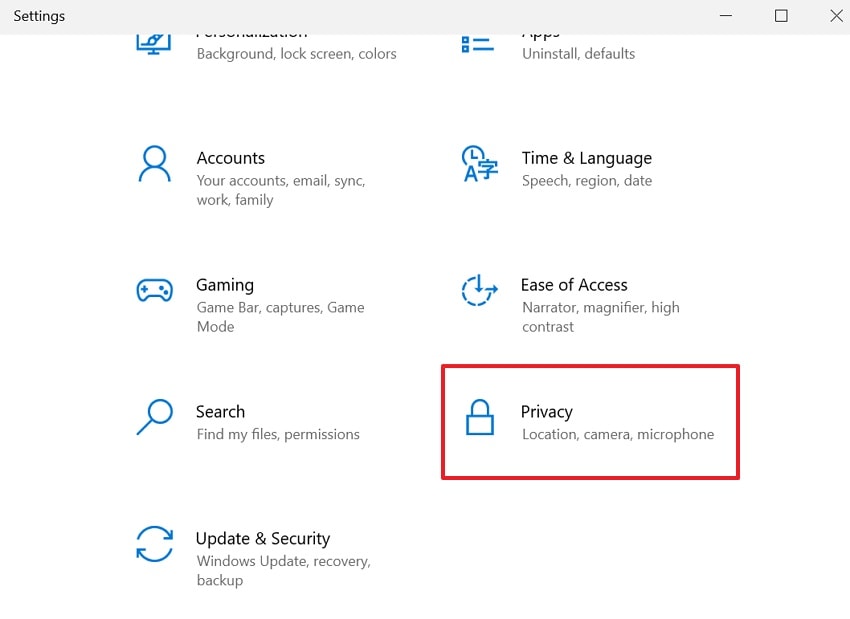
Step 1. To initiate, press “Windows + I” at once to open “Settings” and choose “Privacy.”
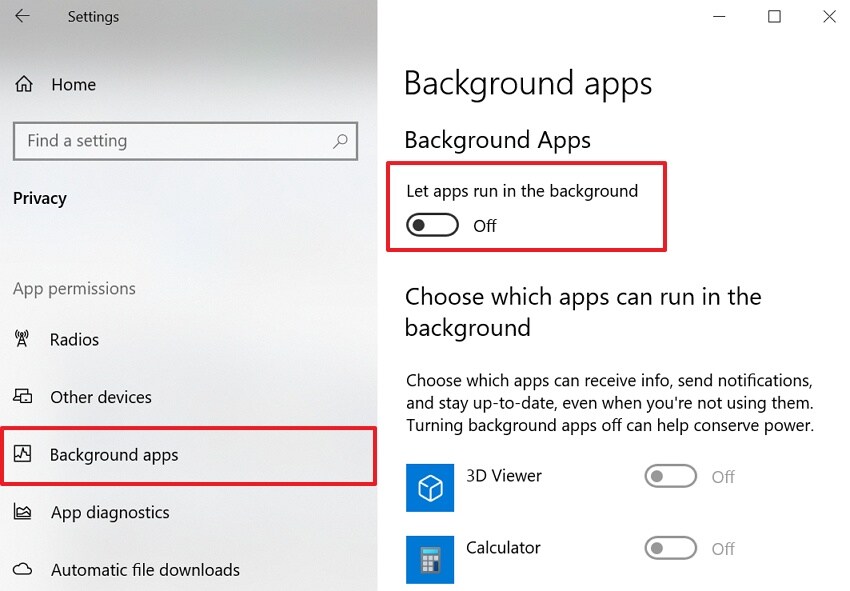
Step 2. After accessing it, navigate to the “Background Apps” section and disable the toggle.
Way 5. Change the Steam Download Region
Changing your Steam download region can connect you to a faster, less busy server. Overloaded or distant servers cause higher latency and slower downloads, even on the internet. Therefore, switching to another region improves routes, reduces congestion, and increases download consistency. So, go through the given instructions to find out how to boost download speed on Steam:
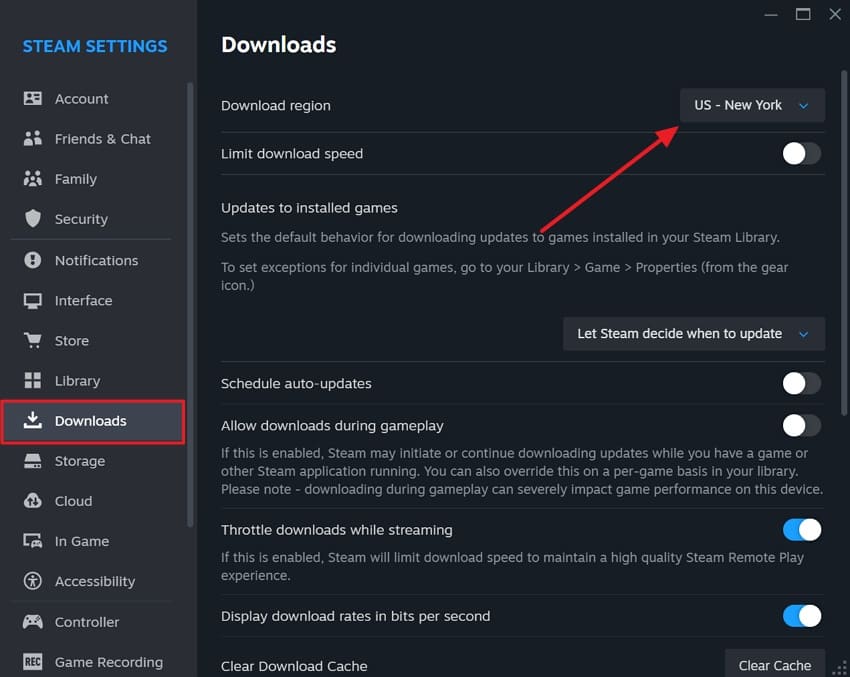
Instructions. At first, open the “Steam” app and head to “Settings.” Next, go to the “Download” section and opt for “Download Region” to change the location from the drop-down menu.
Way 6. Disable VPN or Firewall Interference
You should disable VPNs and check firewall settings to improve Steam download speed. A VPN often increases distance and latency, reducing effective download speed significantly. However, firewalls can inspect or limit Steam’s data, causing stalls or slow transfers. Figuring out how to make Steam download faster requires removing extra blocks so Steam can access servers. Let's explore the steps below to disable VPN and Firewall for faster downloads:
Turning Off the VPN
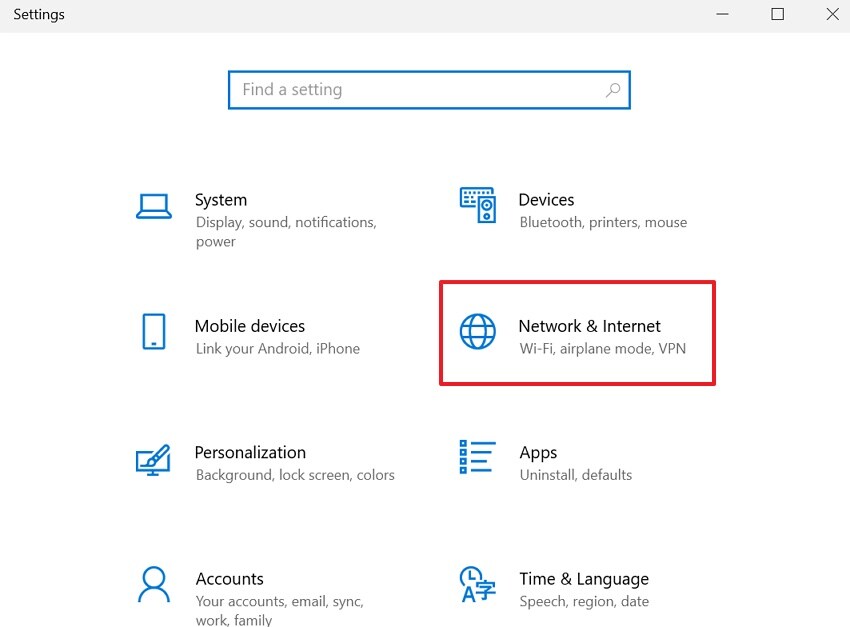
Step 1. Open the “Settings” app and opt for the “Network & Internet” section.
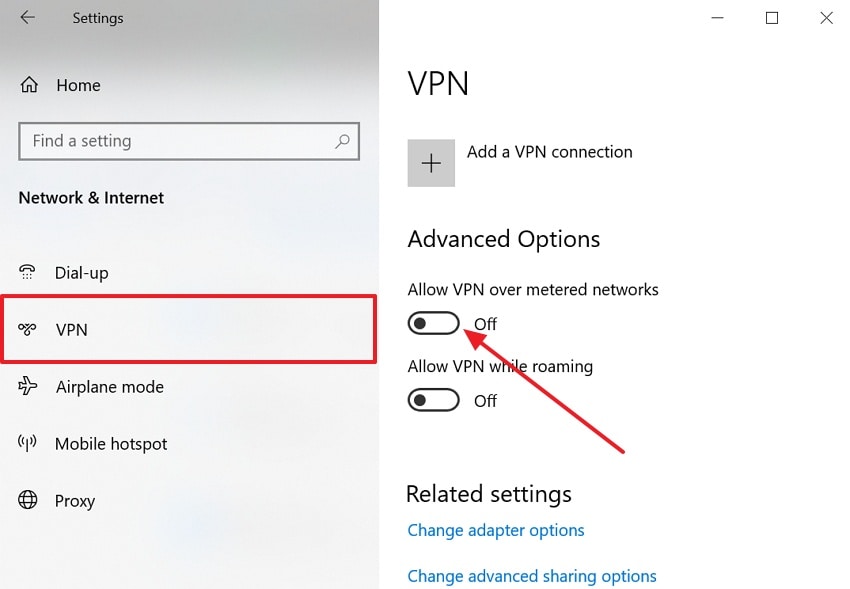
Step 2. Now, choose the “VPN” option and switch off the “Allow VPN over metered networks” toggle.
Disable the Windows Firewall
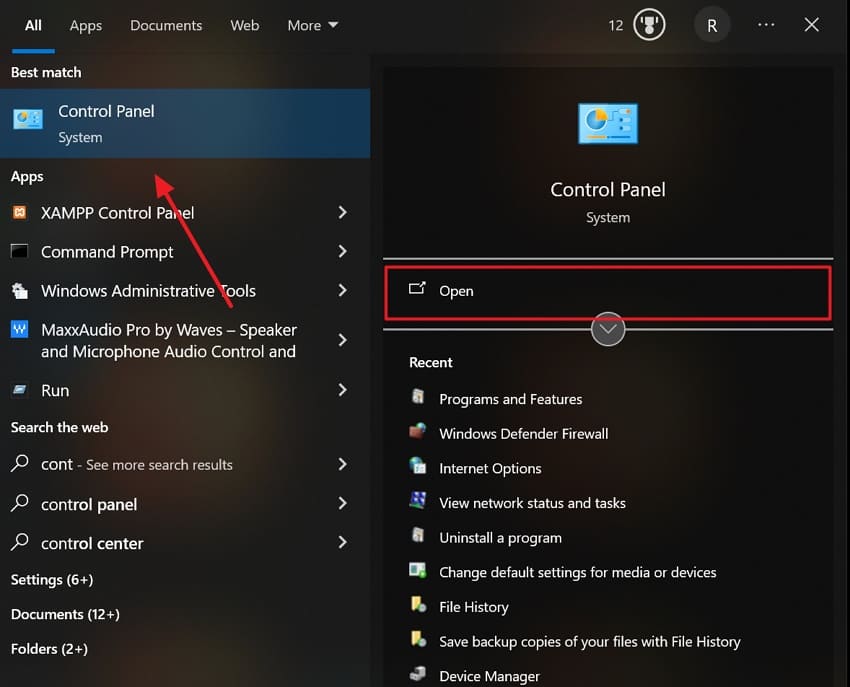
Step 1. From the “Start” menu, look for “Control Panel” and select “Open.”
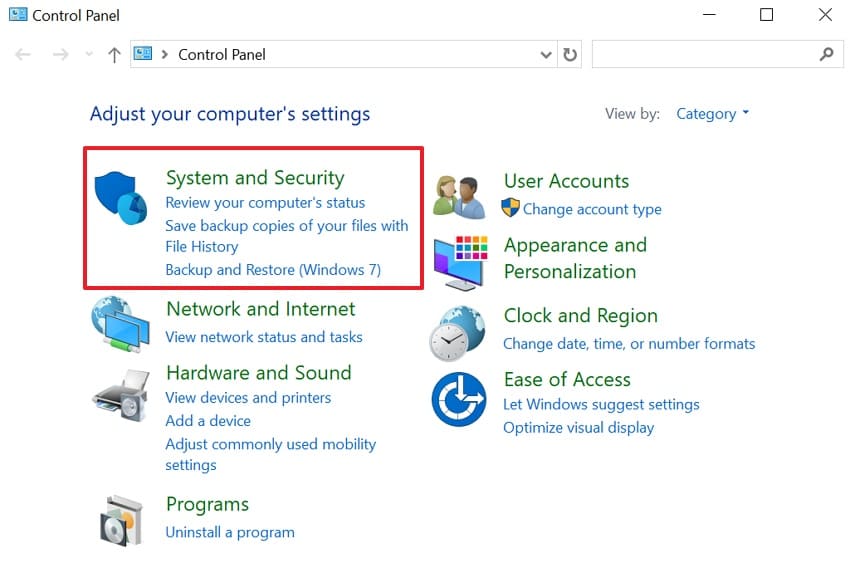
Step 2. Upon assessing it, opt for the “System and Security” option.
Step 3. When a new interface appears, select the “Windows Defender Firewall” option to proceed.
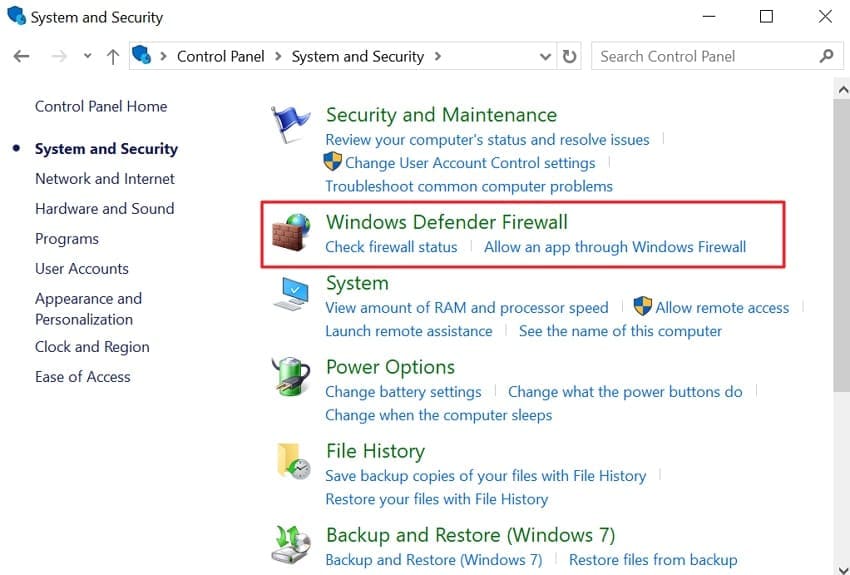
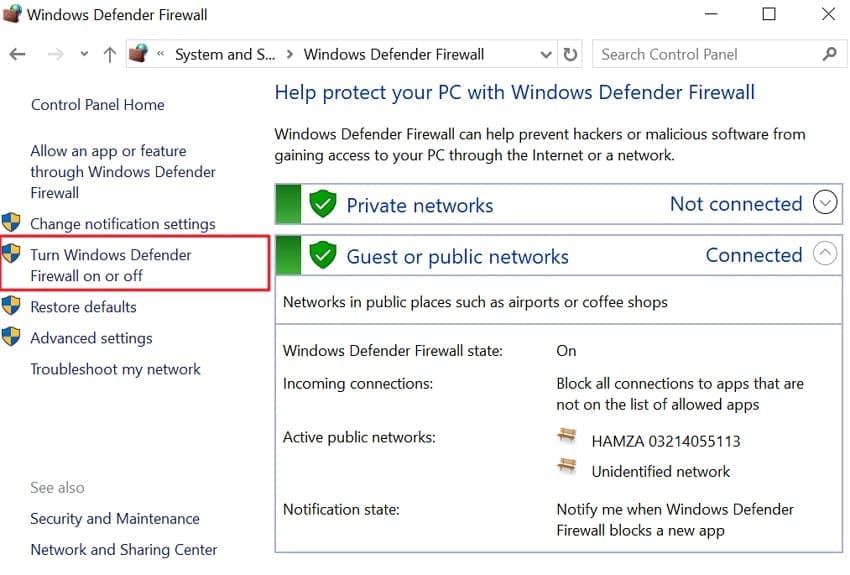
Step 4. Navigate to the left section and select “Turn Windows Defender Firewall” on or off.
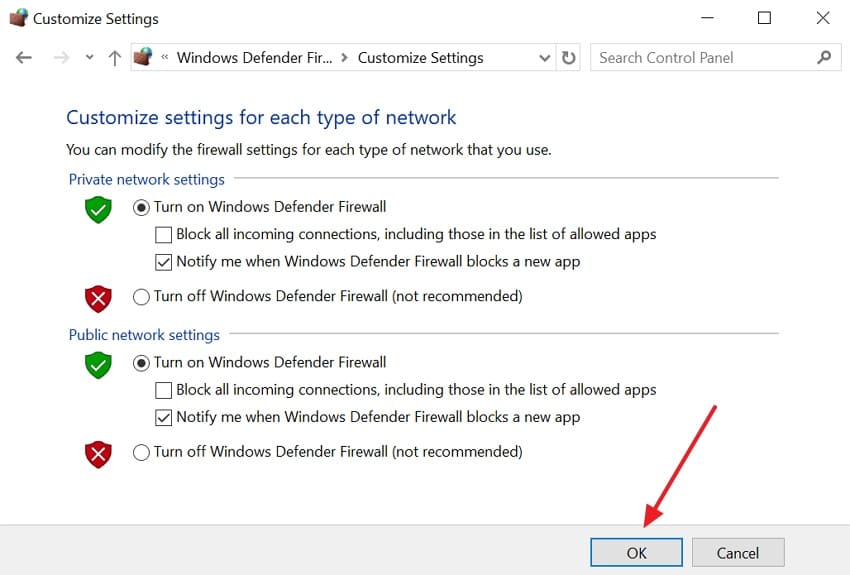
Step 5. At last, click the “OK” button to disable the Windows Defender firewall.
Way 7. Prioritize Steam Traffic via QoS Router Settings
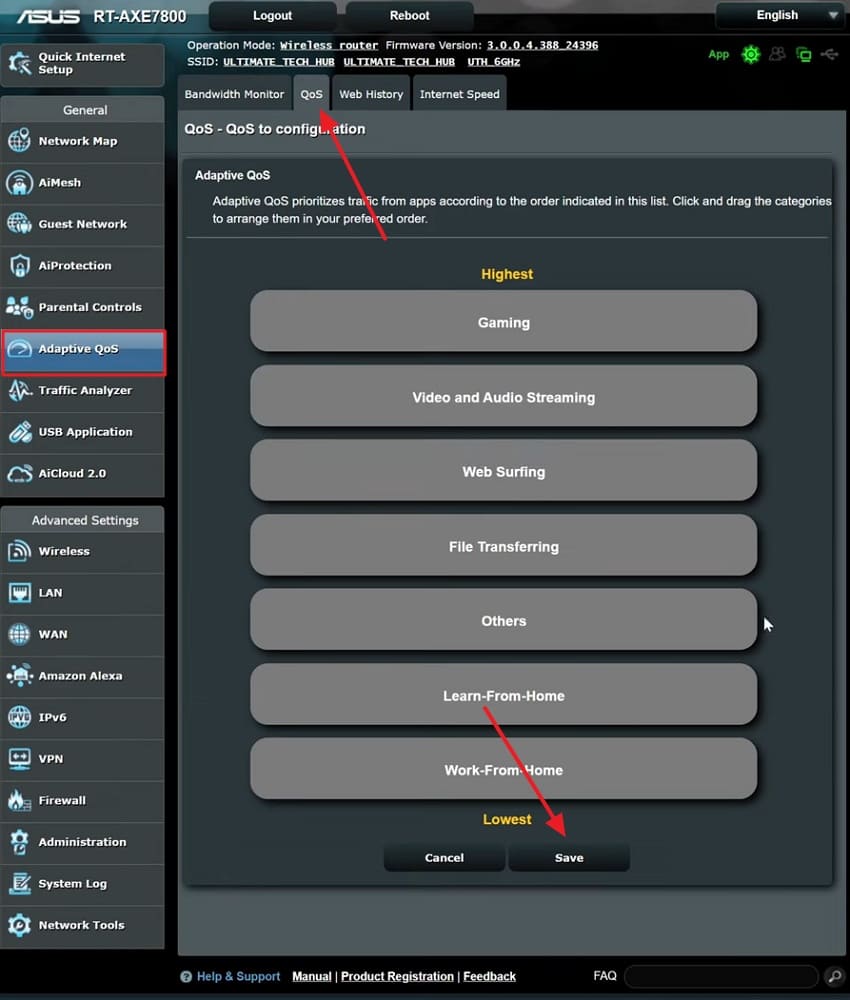
Prioritizing Steam traffic through QoS router settings helps manage bandwidth on busy networks. QoS lets the router send Steam data first when many devices share the internet. Priority routing keeps Steam downloads stable and faster during heavy network usage. So, let’s learn how to make Steam downloads faster by prioritizing Steam traffic via QoS router settings:
Instructions. Open your browser and type your router IP, then log in. Next, go to the “Adaptive QoS” section to opt for the “QoS” tab, then drag-and-drop “Gaming” first, and press “Save.”
Way 8. Switch to a Faster DNS Server (e.g., Google or Cloudflare)
When the above fixes fail, using a faster DNS can improve Steam downloads. Google or Cloudflare DNS resolves server addresses faster. This results in lower waiting times and picks better servers. Steam downloads then run smoother and more stably overall. So, follow the steps below to switch to a faster DNS server and find out how to boost download speed on Steam:
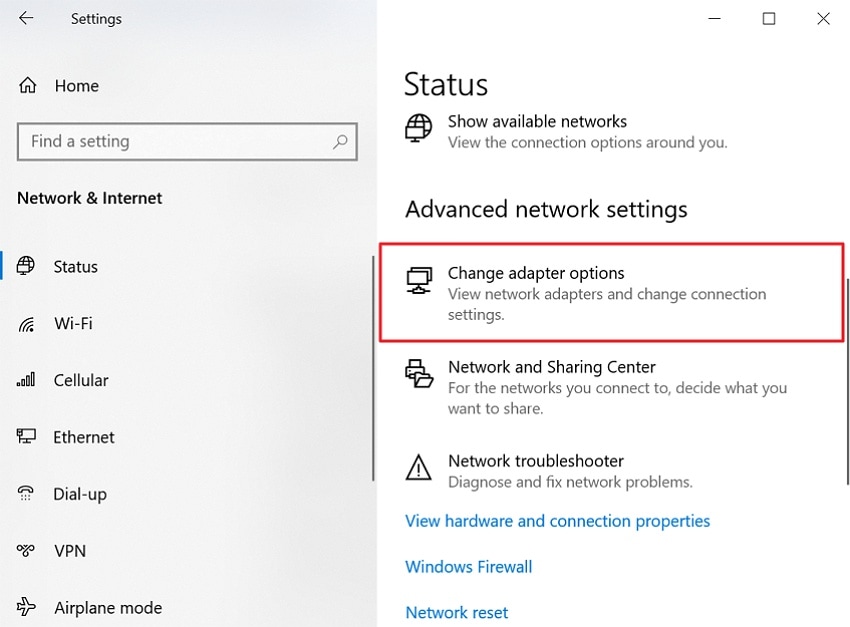
Step 1. Access the “Settings” window and opt for the “Network & Internet” section. After accessing it, select “Change Adapter Options.”
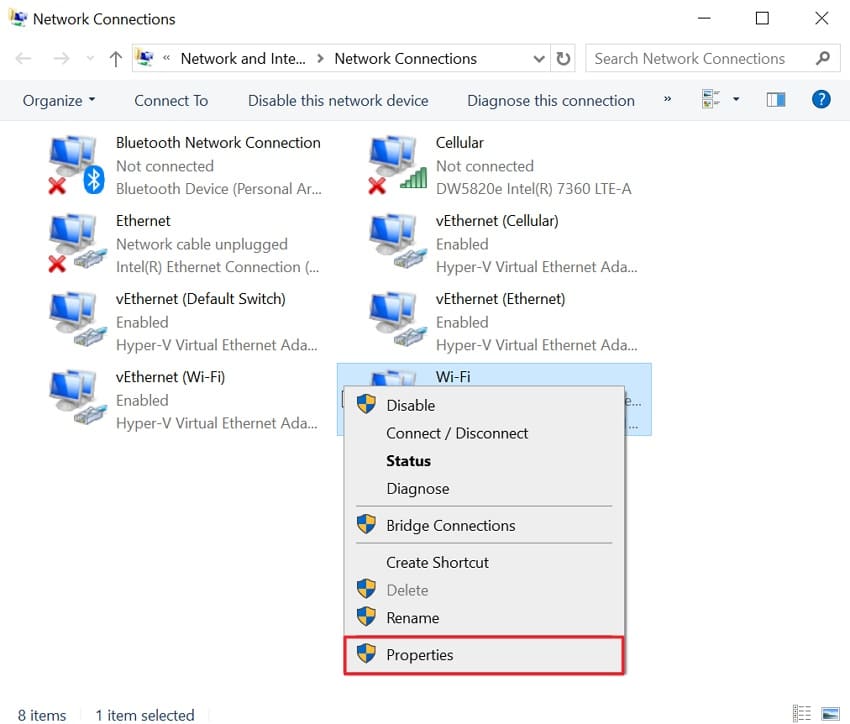
Step 2. Now, right-click on your internet connection and choose “Properties.”
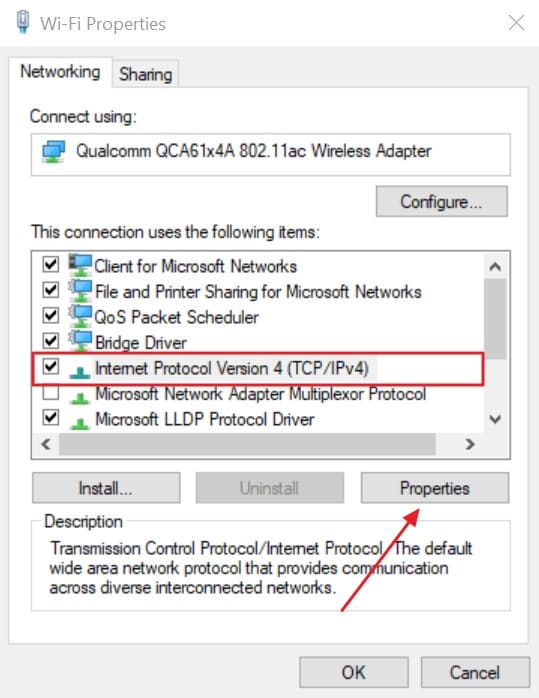
Step 3. When a new interface appears, select “Internet Protocol Version 4 (TCP/IPv4)” and click “Properties.”
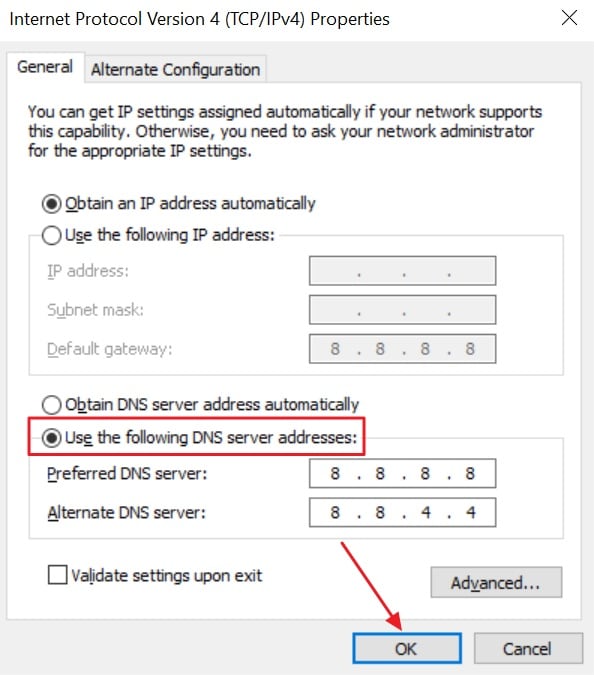
Step 4. Now, select “Use the Following DNS Server Addresses.” At last, set the “Preferred DNS Server” value, then set “Alternate DNS Server,” and click “OK.”
Pro Tip. Restore Damaged Steam Games Video Recording Efficiently via Repairit
While you learn how to speed up Steam downloads to make your gaming experience better, the speed issues can also have a direct effect on game video recordings. While the situations vary, corrupted game video recordings can lead to unnecessary data loss. This is where Repairit helps in repairing such damaged files with its intelligent algorithm.
Repairit can easily fix damaged file structures to make videos playable again. With no file size limitations, it repairs multiple video game recordings with ease. Its advanced format analysis ability helps fix exclusive video formats to ensure accuracy in correction. Along with repairing files, you can also upscale your recordings up to 4K.
Key Features

-
Smart Game Clip Recovery: Restores Steam game recordings showing black screens, freezes, or format errors by rebuilding its file structure.
-
Smooth Frame & Visual Enhancements: Repairit fixes stuttering Steam recordings with dropped frames or heavy pixelation by filling in missing frames.
-
Recorder-aware Compatibility Repair: Automatically repairs recordings captured using OBS, Nvidia ShadowPlay, or other recorders, resolving their codec and compatibility issues.
Detailed Guide to Repair Damaged Video Recording Using Repairit
To know how Repairit helps in repairing damaged Steam game video recording, follow the instructions below:
Step 1. Add Your Damaged Recorded Steam Videos
Open the tool and select the “Video Repair” feature, then opt for “Start.”

Step 2. Begin the Repair Process
After adding your damaged or corrupted videos, press “Repair” to fix them.

Step 3. Preview and Save Videos
Once the repair process completes, use “Save” to download your restored videos.

Repair Corrupted Files
 Security Verified. Over 7,302,189 people have downloaded it.
Part 4. 5 Best Practices for Faster Game Downloads on Steam
You now know how to boost Steam download speed if you encounter any issues. However, this part brings up some best practices to optimize your Steam and PC experience for faster downloads:
- Ethernet Cable: Use a wired Ethernet cable for faster, steadier Steam download speeds every time. Wired connection avoids Wi-Fi drops and gives good results for uninterrupted game downloads.
- 5GHz Wi-Fi: If wired is unavailable, using 5 GHz Wi-Fi improves signal strength and download stability. A shorter distance to the router reduces interference and allows Steam to reach full speed.
- Close Apps: Close other apps using the internet to give Steam full bandwidth for downloading. Download speeds improve as Steam does not compete with video, cloud, or torrent apps.
- Download Timing: Start downloads when few people are online to get faster Steam game speeds. Off-peak hours overcome server congestion and make downloads finish sooner without interruptions.
- SSD Storage: Install games on an SSD with free space to speed up file writing and loading. Steam downloads move faster because SSDs process game files more quickly than slow drives.
Conclusion
In conclusion, improving your network and app settings can help Steam games download faster. By following this guide, you now know how to boost download speed on Steam. Apart from that, sudden internet drops can also damage game recordings or video files. To fix these issues, you should use Repairit to restore your corrupted media quickly.
FAQ
-
1. Can I play other games while Steam is downloading new game files?
Downloading while playing will usually slow down both your active game and the download speed. You should pause gameplay to let the files finish more quickly. Alternatively, adjusting background download settings may help balance performance. -
2. What happens if my computer loses power during a very large download?
If your computer suddenly loses power, some files may become corrupted. However, Steam usually resumes the download after restart. If any files are damaged, you may need to repair them using a tool like Repairit. -
3. Why does my download speed suddenly drop to zero for many minutes?
This often happens when Steam is unpacking downloaded files onto your disk. It is normal behavior during large downloads. Wait until the process completes and the download will resume. -
4. Can I move my Steam files to a faster drive after downloading?
Yes, you can move your Steam games to a faster SSD to reduce loading times. Steam provides a built-in feature that allows you to transfer installed games between drives without reinstalling them.




