
 TL;DR:
Stabilize low FPS and stuttering in Halloween The Game on PC by meeting the Windows 11 64-bit hardware requirements (including an SSD and a GTX 1660, RX 590, or Arc A770 class GPU), disabling background overlays, and capping your frame rate, while strictly using Repairit to fix damaged video recordings rather than game performance.
● Lower demanding graphics settings like shadows, volumetric effects, and render scale to reduce GPU load, but expect temporary stuttering during the initial launch after clearing the DirectX Shader Cache as the game recompiles assets.
● Isolate hardware bottlenecks from network latency by testing an offline section; symptoms like delayed actions and rubber-banding indicate server or connection conditions rather than frame pacing issues.
● Use Repairit on Windows Vista through 11 or macOS 10.13 and later exclusively to restore existing video captures corrupted by game crashes, as the tool cannot recover unsaved frames, restore deleted clips, or repair the Steam installation.
Ask AI for a summary
 ChatGPT
 Perplexity
 Gemini
 Claude
 Grok
Grok
If Halloween The Game has low FPS or stutters on PC, first determine whether the problem is low frame rate, uneven frame pacing, shader compilation, thermal throttling, or network lag. Check the requirements, drivers, Steam files, graphics settings, overlays, shader cache, storage, and temperatures before reinstalling.
Halloween The Game: Fix Low FPS/Stuttering On PC by following a troubleshooting order that starts with reversible performance checks. Low FPS makes gameplay consistently slow, while stuttering creates brief freezes or uneven movement even when the FPS counter looks high. Delayed actions and rubber-banding usually indicate network latency instead.
The current Steam listing includes Windows 11 64-bit, 16 GB of RAM, DirectX 12, an SSD or NVMe drive, and a GTX 1660+, RX 590+, or Arc A770+ class GPU among the minimum requirements. Meeting the minimum does not guarantee stable high-refresh gameplay because resolution, background recording, overlays, driver state, storage speed, and heat also affect frame pacing.
In this article
-
- Fix 1. Check the PC Requirements and Set a Realistic Target
- Fix 2. Restart the PC and Use the Correct GPU Mode
- Fix 3. Update the GPU Driver and Windows
- Fix 4. Verify the Game Files in Steam
- Fix 5. Lower the Settings That Affect GPU Load Most
- Fix 6. Cap FPS and Match the Display Refresh Rate
- Fix 7. Disable Overlays and Background Recording
- Fix 8. Rebuild the DirectX Shader Cache Carefully
- Fix 9. Check Storage, Free Space, and Temperatures
- Fix 10. Separate FPS Problems From Network Lag
Part 1. Why Is Halloween The Game Running at Low FPS or Stuttering?
The right fix depends on whether the bottleneck is the GPU, CPU, memory, storage, display settings, or network. Check the symptom before changing several settings at once.
| Symptom | More likely cause | First check |
|---|---|---|
| FPS stays low in every area | GPU, CPU, resolution, or settings exceed the PC's capacity | Compare hardware with the requirements and lower resolution |
| FPS is high but movement feels uneven | Frame pacing, refresh rate, shader compilation, or overlays | Cap FPS and disable overlays |
| Short freezes happen when entering new areas | Shader compilation, asset streaming, or slow storage | Use an SSD and allow the first run to finish |
| Stutter begins after a driver update | Driver profile, shader cache, or background utility | Restart, update, or roll back through the GPU vendor |
| Performance drops after several minutes | Heat, power limits, or thermal throttling | Check temperatures and ventilation |
| Actions are delayed or players jump backward | Network latency or server conditions | Test the connection separately from FPS |
Use an FPS and frame-time overlay only while diagnosing. A stable 30 FPS may feel smoother than a fluctuating 60 FPS. Record the average FPS and the moments when stutters occur, then change one setting at a time.
Part 2. How to Fix Halloween The Game Low FPS and Stuttering on PC
Follow these fixes in order. They move from requirements and system checks to Steam verification, graphics tuning, cache management, storage, and network diagnosis.
Fix 1. Check the PC Requirements and Set a Realistic Target
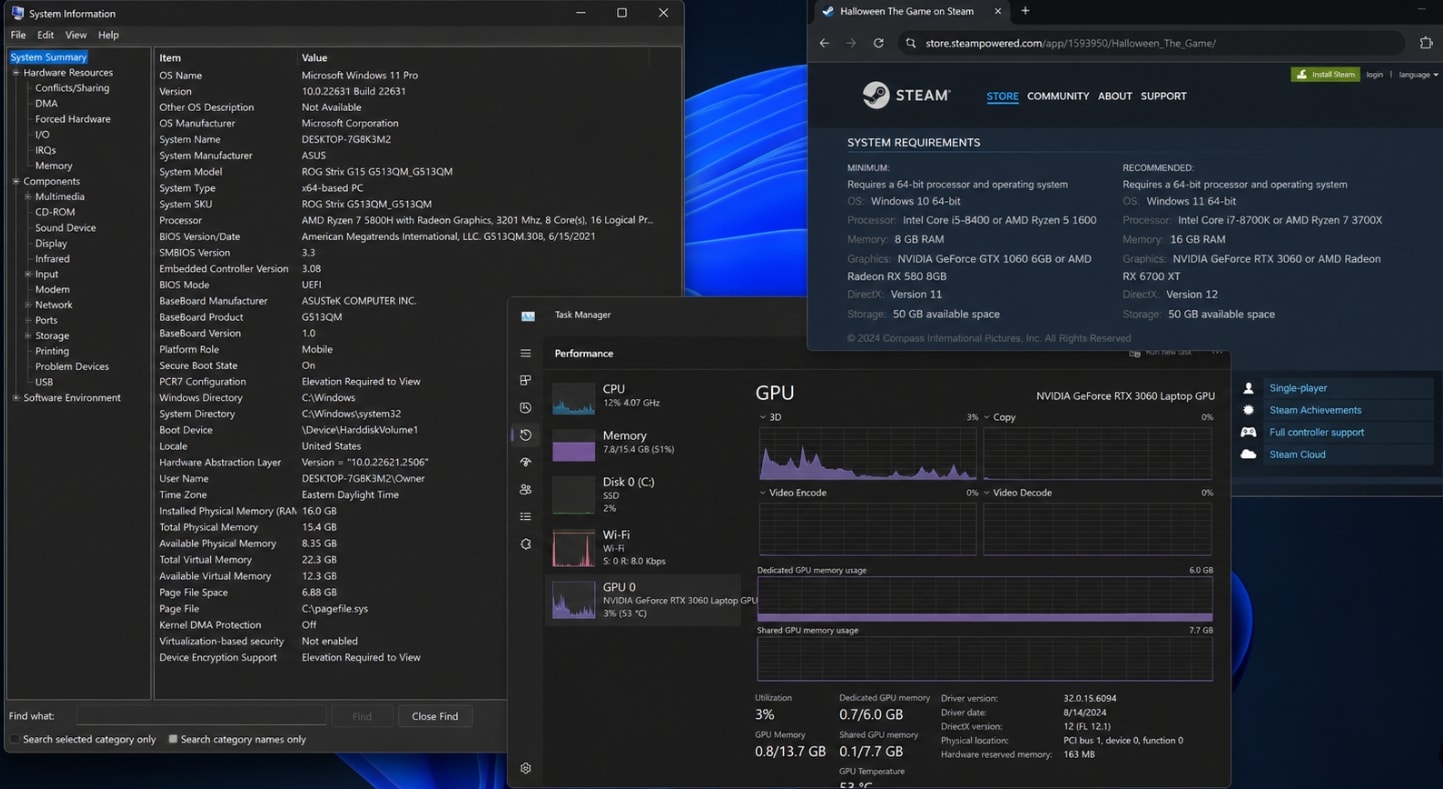
Open the current Steam listing and compare the processor, memory, graphics adapter, operating system, and storage with the PC. Minimum requirements are a starting point, not a promise of stable 60 FPS.
- Press the Windows key, type System Information, and review the processor and installed memory.
- Open Task Manager > Performance > GPU to identify the graphics adapter.
- Confirm that the required 64-bit Windows version is installed.
- Set an initial target of 30 or 60 FPS based on the hardware and display.
- Test the game at 1080p before trying a higher resolution.
If the GPU is close to the minimum class, lower settings are usually more useful than registry tweaks or overclocking.
Fix 2. Restart the PC and Use the Correct GPU Mode
A laptop may run the game on an integrated GPU or reduced power profile even when a dedicated GPU is available.
- Connect the laptop to its normal power adapter.
- Close launchers, browsers, virtual machines, and other demanding applications.
- Restart Windows.
- Open Settings > System > Display > Graphics.
- Add the game's executable if it is not listed and choose the high-performance GPU option when available.
- In the GPU vendor control panel, use a performance-oriented profile for the game.
Do not force a power mode that creates excessive heat or fan noise if the actual problem is thermal throttling.
Fix 3. Update the GPU Driver and Windows
A new PC game can expose a driver issue that older games do not. Download drivers from the official NVIDIA, AMD, or Intel support page instead of using an unknown driver updater.
- Check Windows Update for pending updates.
- Download the current driver for the installed GPU from the vendor's official site.
- Install the driver and restart the PC.
- Test the game before adding third-party graphics utilities.
- If stuttering began immediately after a driver update, use the vendor-supported rollback option or install a known stable driver.
Do not interrupt a driver or Windows update. If a failed update later makes local recordings inaccessible, protect those files before reinstalling Windows.
Fix 4. Verify the Game Files in Steam
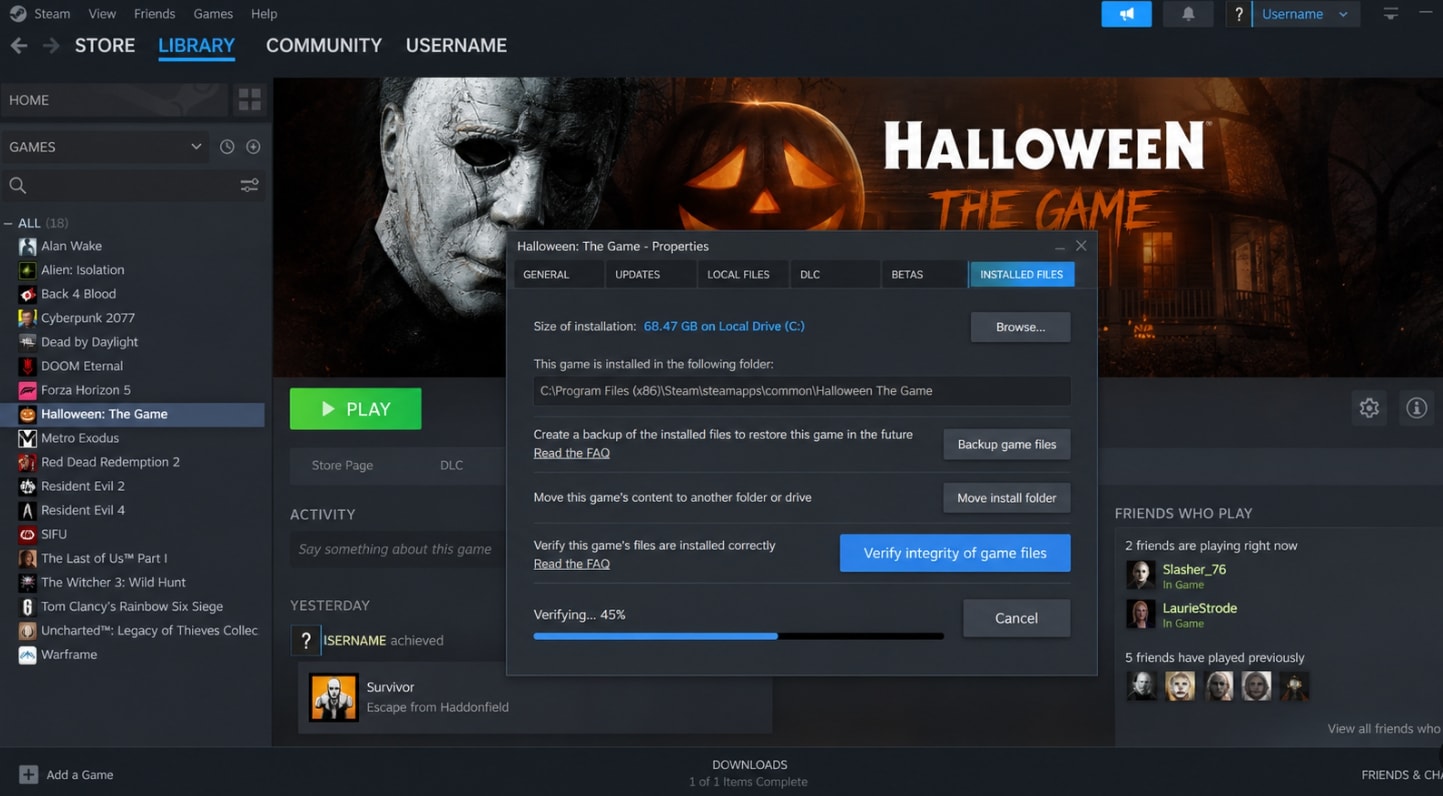
Corrupted or incomplete installation files can cause crashes, missing assets, loading pauses, or inconsistent performance. Steam file verification checks the local installation and redownloads missing or damaged files.
- Open Steam and go to Library.
- Right-click Halloween: The Game and choose Properties.
- Open Installed Files.
- Select Verify integrity of game files.
- Wait for the process to finish, then restart Steam.
Verification can replace modified files. Back up local saves and note mod or configuration changes before using it. It does not repair a failing SSD or repair a damaged recording.
Fix 5. Lower the Settings That Affect GPU Load Most
Start with settings that render many objects, shadows, or post-processing effects. Avoid lowering everything at once so the source of the improvement remains clear.
- Use the game's default or recommended preset as a baseline.
- Lower shadows, effects, volumetric effects, reflections, foliage, and view distance first.
- Reduce resolution or render scale if GPU usage stays near 100%.
- Keep textures higher when VRAM is sufficient; lower them if the game reports memory pressure.
- Restart the game after applying changes if a restart is requested.
If GPU usage is low while FPS is also low, lowering graphics quality may not help. Check CPU usage, power mode, background applications, and frame caps instead.
Fix 6. Cap FPS and Match the Display Refresh Rate
An uncapped frame rate can create large frame-time swings when the PC alternates between high and low workloads.
- Choose a frame cap in the game if the option exists.
- Set the cap below the display's refresh rate, such as 60 FPS for a 60 Hz display.
- Test V-Sync if tearing or uneven pacing is visible.
- If V-Sync adds too much input delay, test a driver-level frame cap instead.
- Avoid changing the cap, V-Sync, and variable refresh options at the same time.
For a variable-refresh display, test a fixed refresh rate and stable cap before enabling adaptive features again.
Fix 7. Disable Overlays and Background Recording
Steam Overlay, Discord Overlay, Xbox Game Bar, GPU overlays, RGB utilities, and recording software can add hooks to a new game or compete for encoding resources.
- Disable the Steam overlay for the game temporarily.
- Turn off Discord, Xbox Game Bar, and GPU overlay features.
- Stop OBS or other recording software for one test session.
- Close hardware-monitoring and RGB utilities one at a time.
- Restart the game after changing overlay settings.
If performance improves, re-enable features individually to identify the conflict. Keep a copy of any recording that became corrupted after a crash.
Fix 8. Rebuild the DirectX Shader Cache Carefully
Shader compilation can cause temporary stutters while the game prepares effects for a new driver or hardware configuration. Clearing the cache may help after a driver change, but the first run can stutter again while shaders rebuild.
- Close the game and Steam.
- Open Windows Settings > System > Storage > Temporary files.
- Select DirectX Shader Cache if it is listed.
- Remove only the selected temporary cache.
- Restart Windows and launch the game.
- Allow the first loading process to finish before judging performance.
Do not repeatedly clear the cache after every short stutter because shader compilation will need to happen again.
Fix 9. Check Storage, Free Space, and Temperatures
Asset streaming can become uneven when the game is installed on a slow or nearly full drive. Heat can also reduce CPU or GPU clock speeds after several minutes.
- Install the game on an SSD when possible.
- Keep free space available on the game drive and Windows system drive.
- Check whether Task Manager shows disk usage near 100% during a stutter.
- Use a trusted monitoring tool to check CPU and GPU temperatures.
- Keep a laptop on a hard, flat surface and do not block its vents.
- Stop testing if the PC shuts down, shows artifacts, or has an unusual burning smell.
If the drive reports errors or files disappear, stop writing new data and address data protection before formatting or replacing the drive.
Fix 10. Separate FPS Problems From Network Lag
Network issues can look like stuttering in an online match. Test local performance separately before changing graphics settings repeatedly.
- Test a single-player or offline section if the game supports it.
- Compare the FPS counter with the in-game network indicator.
- Restart the router only when other network symptoms are present.
- Test a wired connection or a different network when possible.
- Keep the graphics settings unchanged while testing latency.
Stable FPS with delayed actions or rubber-banding points more strongly to connection or server conditions than to the GPU.
Part 3. Repair Corrupted Gameplay Recordings with Repairit
Repairit is relevant after a game crash damages a gameplay video, screen recording, or exported clip. It is not a performance optimizer and cannot fix low FPS, stuttering, graphics drivers, Steam files, Windows settings, or network lag.
When Repairit May Help
- A gameplay recording becomes unplayable after Halloween: The Game crashes.
- A screen capture has a broken header or incomplete playback.
- A video opens but contains visual corruption after an interrupted recording.
- A recording freezes on one frame, shows a black screen, or loses audio.
- A transfer, edit, upload, or export leaves the footage damaged.
Repair results depend on the file condition and format. Repairit cannot guarantee a result, restore frames that were never written, recover a deleted clip, or repair the game itself.
How to Repair a Corrupted Gameplay Recording
Step 1. Import Damaged Gameplay Recordings
Head over to the "Video Repair" tab within the tool and press the "Start" button.

Step 2. Repair Your Added Clips
Next, click the "Repair" button once all the damaged video files are imported.

Step 3. Check the Gameplay Recordings
After a few moments, press the "Preview" button to review the quality of each restored game clip.
Keep the original recording unchanged until the repaired copy has been checked. If the storage itself is unstable, stop using it and protect important files before continuing.
What Repairit Cannot Do
| Repairit may help with | Repairit cannot do |
|---|---|
| Corrupted gameplay recordings that still exist | Increase FPS or stabilize frame pacing |
| Supported videos with playback errors, freezes, glitches, or missing audio | Repair the game engine, Steam files, drivers, or Windows |
| Media damaged by interrupted recording, transfer, or export | Recover deleted clips or restore footage that was never saved |
Conclusion
To Fix Halloween The Game: Fix Low FPS/Stuttering On PC, first distinguish low FPS from uneven frame pacing, shader compilation, thermal throttling, and network lag. Check the requirements, select the correct GPU and power mode, update drivers, verify Steam files, lower demanding settings, cap FPS, disable overlays, allow shader compilation, and check storage and temperatures.
If a crash damages a gameplay recording, Repairit may help repair a supported video file that still exists but will not play correctly. It does not increase FPS or repair the game installation. Keep the original recording and save any repaired copy separately.
FAQ
-
Why does Halloween The Game have low FPS on PC?
Common causes include hardware below the required performance level, high resolution or graphics settings, the game running on an integrated GPU, outdated drivers, background overlays, slow storage, or thermal throttling. Check GPU usage, resolution, power mode, and temperatures first. -
How do I stop Halloween The Game from stuttering?
Verify the Steam files, cap FPS at a stable value, disable overlays and recording tools, update the GPU driver, and allow shader compilation to finish. If stuttering happens only online, compare it with the network indicator to rule out latency. -
Can lowering graphics settings fix Halloween The Game FPS drops?
It can help when the GPU is the bottleneck. Lower shadows, effects, reflections, volumetric effects, and render scale first. If GPU usage is low, check CPU load, background processes, storage, and power settings instead. -
Does Repairit fix Halloween The Game low FPS or stuttering?
No. Repairit is designed for supported corrupted or unplayable files, such as gameplay recordings. It does not repair the game engine, graphics drivers, Windows, Steam installation, network connection, or FPS performance. -
Can Repairit repair a corrupted Halloween The Game recording?
Repairit may help repair a supported video file that becomes damaged after a crash or interrupted recording. Results depend on the file condition and format, so keep the original file and save the repaired copy separately. -
Should a damaged gameplay recording be overwritten?
No. Keep the original unchanged and save any repaired output to another folder or drive. This preserves the source if another repair attempt or professional recovery option is needed.




