
 TL;DR:
WARDOGS launch errors WD-L004 and WD-L006 stem from Elytra launcher, anti-cheat, or ISP routing failures, which can typically be resolved by repairing local game files or switching networks rather than reinstalling the game.
● To fix the WD-L006 component corruption, navigate directly to the local WARDOGS folder and manually run the repair function on both the Elytra setup and Easy Anti-Cheat executables.
● Connecting your PC to a mobile hotspot is the most reliable workaround for WD-L004, as it bypasses the home broadband router and ISP compatibility blocks preventing the game from connecting.
● You must close and completely uninstall conflicting third-party programs like Riot Vanguard or Faceit before attempting a last-resort Windows reset, as they actively block the Elytra launcher from initializing.
Ask AI for a summary
 ChatGPT
 Perplexity
 Gemini
 Claude
 Grok
Grok
Getting WARDOGS error code WD-L004 or WD-L006 at launch is almost never a server outage or a broken game install. These errors come from the game's Elytra launcher or anti-cheat failing to start on your machine, often combined with a network or ISP compatibility issue. This guide explains what each code means, walks you through the fixes that actually work in 2026 in the right order, and ends with how to protect your data and repair corrupted recordings before you ever reach the last resort - resetting your system.
In this article
-
- Way 1: Repair the Elytra Launcher and Anti-Cheat
- Way 2: Run the Game as Administrator and Restart
- Way 3: Switch Your Network
- Way 4: Reset the Network Stack and Change DNS
- Way 5: Clean Up Conflicting Software
- Way 6: Add WARDOGS to Antivirus and Firewall Exceptions
- Way 7: Sync Time, Region and Restart the Router
- Way 8: Reset Windows - After Backing Up Your Data
Part 1. What WD-L004 and WD-L006 Mean
WARDOGS uses its own Elytra launcher and a third-party anti-cheat (such as Easy Anti-Cheat) to verify and start the game. Both WD-L004 and WD-L006 appear during the launcher stage, before you reach the lobby.
WD-L004 - Launcher and Network Compatibility
Players report that error code WD-L004 is usually a routing or ISP compatibility issue with the Elytra launcher, rather than a fault on your machine - one of the most effective community fixes is connecting through a mobile hotspot instead of the home broadband connection. It can also appear when the launcher or anti-cheat fails to initialize properly.
WD-L006 - Corrupted Launcher or Anti-Cheat Component
WD-L006 is most often tied to a damaged Elytra launcher or anti-cheat installation. The fix that works for most players is running the Elytra setup from the game folder and clicking Repair. The launcher shows a message like "Wardogs Launcher: Unable to launch WARDOGS. Error code: WD-L006."
As community guides to WARDOGS WD-L errors point out, there is no single official cause for these codes and no fix that works for everyone - repairing the anti-cheat from the game folder is the most consistently useful first step. Work through the methods in order and stop when the game launches.
Part 2. Diagnose Your Error First
Match what you see to the most likely direction before you change anything. This table saves you from reinstalling the game unnecessarily.
| Symptom | Most likely direction | Try first |
|---|---|---|
| Error appears instantly at launch, retry sometimes works | Launcher or anti-cheat handshake failure | Way 1 (repair Elytra) |
| Switching to a mobile hotspot lets the game start | WD-L004 ISP or router compatibility | Way 3 (switch network) |
| Error persists after reinstalling the game | Network stack residue or DNS issues | Way 4 (network commands and DNS) |
| Antivirus or firewall is blocking the launcher | Game executable being flagged | Way 6 (exceptions) |
| Everything above fails | System level conflict | Way 8 (reset, after backup) |
Part 3. 8 Ways to Fix WD-L004 and WD-L006
Work through these in order and restart the game after each one. Stop as soon as WARDOGS launches normally.
Way 1: Repair the Elytra Launcher and Anti-Cheat
This is the fix to try first for both codes:
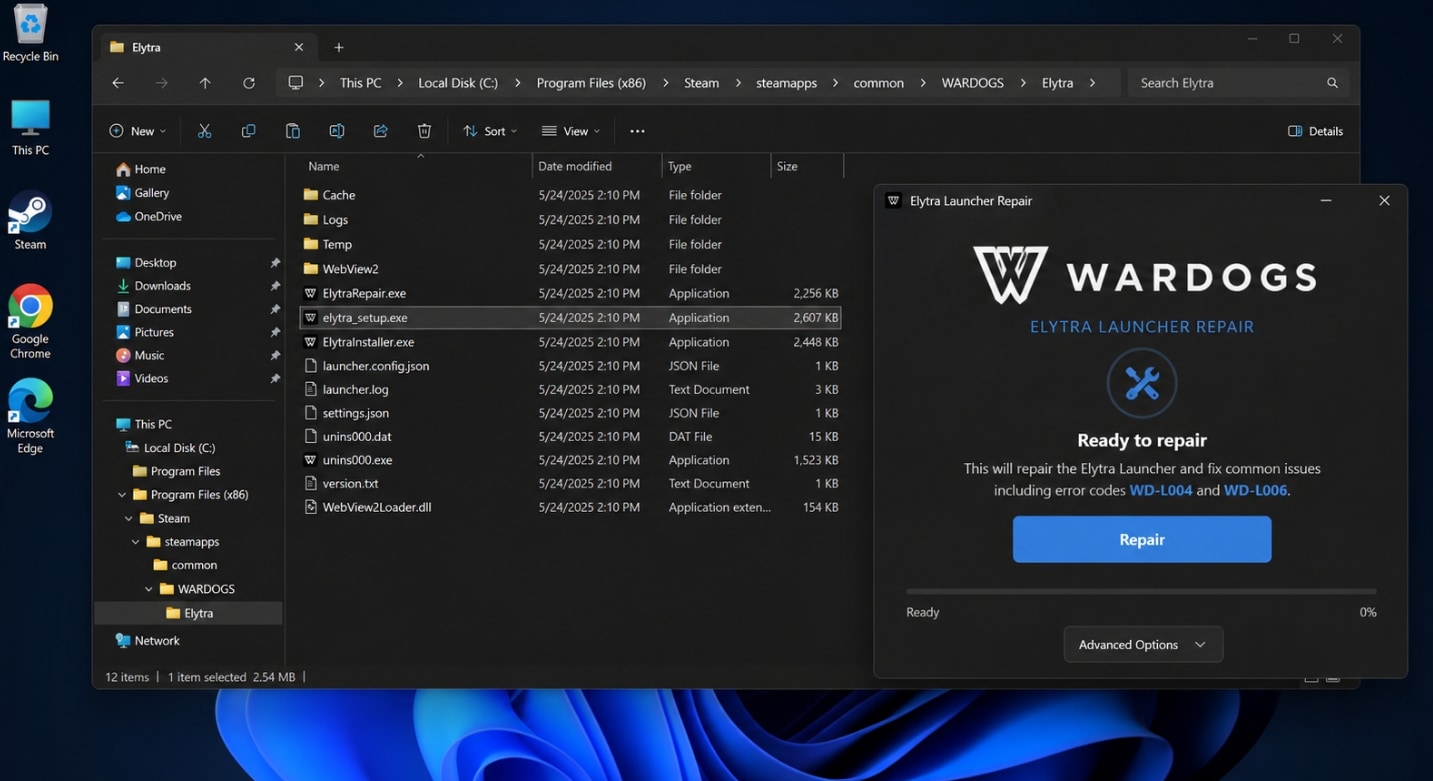
- In Steam, right-click WARDOGS > Manage > Browse local files to open the game folder.
- Open the Elytra folder (a typical path is
steamlibrary\steamapps\common\wardogs\elytra). - Run the elytra setup (or Repair) executable and click Repair.
- If your game uses Easy Anti-Cheat, run its installer from the game root and click Repair as well.
- Restart your PC, then launch WARDOGS and check.
This is the exact fix WARDOGS players confirmed for WD-L006, and it often clears WD-L004 too.
Way 2: Run the Game as Administrator and Restart
- Right-click the WARDOGS executable in the install folder and choose Properties > Compatibility.
- Check Run this program as an administrator, then Apply and OK.
- Restart your PC once, then launch the game from Steam.
Way 3: Switch Your Network
The community's most effective WD-L004 workaround is connecting your PC to a mobile hotspot instead of home broadband. The game runs over a different network path and often starts fine, which also confirms the issue is with your router or ISP rather than the game. You can also try switching between Wi-Fi and a wired Ethernet connection.
Way 4: Reset the Network Stack and Change DNS
Open Command Prompt as administrator and run these commands one by one, pressing Enter after each:
ipconfig /flushdns
ipconfig /release
ipconfig /renew
netsh winsock reset
netsh int ip reset
Restart your PC after running these commands - the reset only takes effect after a reboot.
If the error persists, change your DNS server:
- Open Control Panel > Network and Internet > Network and Sharing Center.
- Click your connection, then Properties.
- Select Internet Protocol Version 4 (TCP/IPv4) and click Properties.
- Choose Use the following DNS server addresses and enter Google DNS: preferred 8.8.8.8, alternate 8.8.4.4 - or Cloudflare DNS: preferred 1.1.1.1, alternate 1.0.0.1.
- Click OK and relaunch the game. If you already use manual DNS, try switching back to automatic.
You can also uncheck Internet Protocol Version 6 (TCP/IPv6) in the same window and test; remember to re-enable it after playing. These steps follow the Fix WARDOGS Error Code WD-L004/WD-L006 video.
Way 5: Clean Up Conflicting Software
Other anti-cheat software can conflict with WARDOGS' launcher:
- Open Task Manager and end any running Riot Client, Vanguard, or other anti-cheat processes.
- If the conflict persists, uninstall Riot Vanguard and delete the leftover Riot Client and Riot Vanguard folders under
C:\Program FilesandC:\ProgramData(enable View > Show > Hidden items to see ProgramData). - Uninstall any third-party anti-cheat such as Faceit, restart, and check.
- If you have the WARDOGS Playtest build installed, uninstall it too and restart.
Way 6: Add WARDOGS to Antivirus and Firewall Exceptions
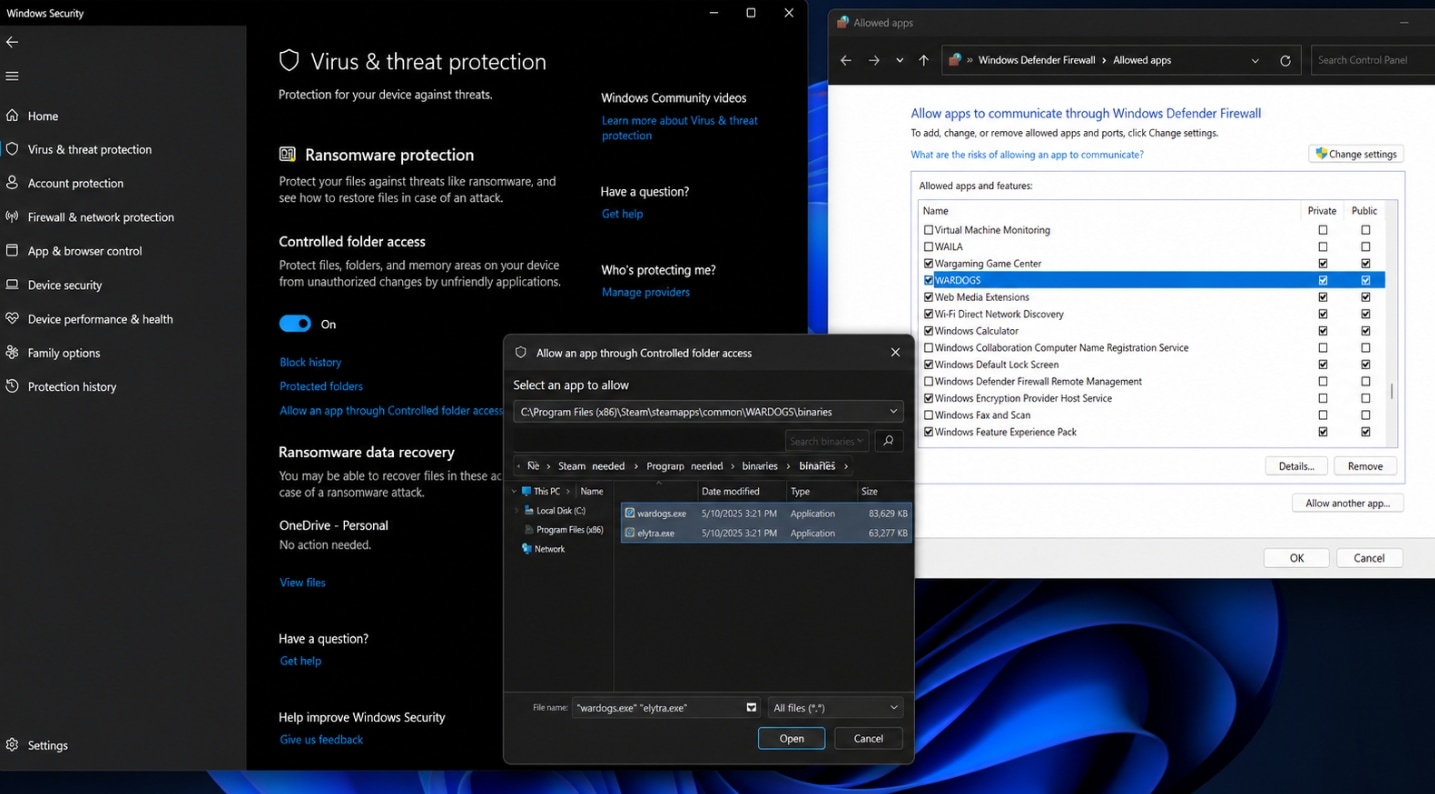
- Open Windows Security > Virus & threat protection > scroll to Ransomware protection > Manage ransomware protection.
- Under Controlled folder access, click Allow an app and add the WARDOGS executable from the game folder (for example the launcher exe and the game exe under the binaries folder).
- Open Control Panel > System and Security > Windows Defender Firewall > Allow an app or feature through Windows Defender Firewall.
- Click Change settings > Allow another app and add the WARDOGS and Elytra executables, checking both Private and Public.
- If you use a third-party antivirus (Avast, Norton, Bitdefender, McAfee), add the same executables to its exception list.
Way 7: Sync Time, Region and Restart the Router
- Right-click the clock > Adjust date and time and make sure Set time automatically and Set time zone automatically are on, then click Sync now.
- Open Settings > Time & Language > Language & region and confirm the correct country or region is selected.
- Power off your router, wait a few seconds, power it back on, reconnect, then relaunch the game.
Way 8: Reset Windows - After Backing Up Your Data
Reset is the last resort, only after every method above has failed. Go to Settings > Windows Update > Advanced options > Recovery > Reset this PC. Note what each option does: Keep my files removes apps and settings but keeps personal files; Remove everything deletes all personal files.
Before you reset, back up or recover your important files. A reset removes apps and settings, and the full wipe deletes everything on the drive. Move documents, screenshots, and recordings to another drive or a cloud service first - and see Part 4 for repairing any recordings that are already corrupted.
Part 4. Repair Corrupted Recordings with Repairit
While you are troubleshooting WD-L004 and WD-L006 - restarting, switching networks, or worst case resetting Windows - the clips you recorded of the error screen, or your match footage, can end up black, unplayable, flickering, or out of sync. That is a corrupted video file, not a game error, and it is exactly what Repairit is built for.
Repairit is professional video repair software that explicitly supports fixing videos that will not play or open, black screen clips, flickering and choppy playback, audio-video out of sync, and missing sound. It covers the corruption causes seen during troubleshooting: recording interruption, sudden power failure, file transfer errors, and rendering or encoding failures.
Key Features
- Broad format support: repairs MP4, MOV, AVI, MKV, M2TS, TS, MXF and 20+ other mainstream and pro formats.
- Covers common damage scenarios: recording interruption, power failure, file transfer errors, rendering crashes, and encoding failures.
- Advanced Repair mode: for badly damaged clips, add a sample file recorded with the same device or software so the tool can rebuild the lost structure more completely.
- Preview before saving: check the repaired clip first so you never save a useless file.
How to Repair a Corrupted Recording in 3 Steps
Step 1. Import Corrupted Video Files

Step 2. Repair the Game Recording

Step 3. Preview and Save Repaired Videos

Repair Your Video Now
 Security Verified. Over 7,302,189 people have downloaded it.
Part 5. Best Practices to Avoid WD-L Errors
- Keep the launcher and anti-cheat updated: run the Elytra or Easy Anti-Cheat repair after big WARDOGS updates.
- Prefer a stable network: use wired Ethernet or a reliable hotspot for WARDOGS to avoid ISP routing issues that trigger WD-L004.
- Configure antivirus and firewall exceptions early: add the game executables once so updates do not get blocked later.
- Record with enough free space: full disks are the top cause of corrupted game clips - free up space before recording and verify playback after.
- Do not reset blindly: treat a Windows reset as the very last step, and always back up important files first.
Conclusion
WARDOGS WD-L004 and WD-L006 are launcher, anti-cheat and network issues, not server outages. Repair the Elytra launcher and anti-cheat first, switch networks, reset the network stack and DNS, clear conflicting anti-cheat software, and add the game to antivirus exceptions. Only if everything fails should you reset Windows - and never before backing up your data. If your recordings came out black or unplayable during troubleshooting, use Repairit to repair those video files before they are lost.
FAQ
-
1. Do WD-L004 and WD-L006 mean my game is broken and needs reinstalling?
Not necessarily. These errors usually come from the Elytra launcher, the anti-cheat, or a network compatibility issue. Repair the launcher and anti-cheat first and verify the files before reinstalling the whole game. -
2. Why does switching to a mobile hotspot fix WD-L004?
WD-L004 is often tied to an ISP or router compatibility issue on the route to the WARDOGS servers. A mobile hotspot uses a different network path, bypassing the problematic route, so the launcher can connect properly. -
3. Do I have to reinstall the game to fix WD-L006?
No. The most common working fix is opening the game folder, running the Elytra setup and clicking Repair, then verifying the game files. Most players recover without a reinstall. -
4. Is it safe to reset Windows without backing up?
No. "Keep my files" still removes apps and settings, and "Remove everything" deletes all personal files. Always back up documents, screenshots, and recordings to another drive or the cloud before resetting. -
5. Can Repairit fix the WD-L004 or WD-L006 errors?
No. Repairit is a video file repair tool that fixes corrupted recordings such as black or unplayable clips. The error codes are launcher, network and system issues, so follow Part 3 to fix them.




