
 TL;DR:
To fix the greyed-out DLSS Frame Generation setting in WARDOGS, you must use a supported Nvidia GeForce RTX 40-series or RTX 50-series GPU and explicitly turn on Hardware-Accelerated GPU Scheduling in your Windows graphics settings.
● The feature is hardware-locked and physically impossible to enable on older graphics cards like the RTX 3060, AMD, or Intel GPUs, meaning no troubleshooting steps will bypass this restriction.
● You must completely turn off both the in-game Frame Limit and V-Sync inside the WARDOGS video settings, as these active frame-pacing features conflict with the rendering process and will keep the generation option unselectable.
● If the setting becomes selectable but shows no visual effect, you must fully restart the game to re-initialize the frame pipeline, or reset the DLSS override to the global default within the Nvidia App.
Ask AI for a summary
 ChatGPT
 Perplexity
 Gemini
 Claude
 Grok
Grok
Opening WARDOGS and finding the DLSS Frame Generation option greyed out - or enabled but doing nothing - is a common PC issue that has little to do with your GPU being "too old". In most cases the culprit is one of a handful of settings: hardware-accelerated GPU scheduling switched off, an active in-game frame limit, V-Sync, or a stale graphics driver. This guide explains why the option greys out, walks you through the 7 fixes that actually work in 2026 in the right order, and ends with how to repair the game recordings that often come out corrupted while you troubleshoot.
In this article
Part 1. Why WARDOGS DLSS Frame Generation Is Greyed Out
DLSS Frame Generation in WARDOGS is greyed out for a handful of very specific reasons. Almost all of them are settings you can change yourself, so let us look at the real culprits before you start fixing.
Your GPU Does Not Support DLSS Frame Generation
DLSS Frame Generation relies on the dedicated hardware found in Nvidia GeForce RTX 40-series and RTX 50-series GPUs. On older Nvidia cards, or on AMD and Intel GPUs, the option is simply unavailable - exactly what WARDOGS players with an RTX 3060 reported when they could not find the setting at all. If your GPU is not RTX 40/50 series, this is the answer: the option is not greyed out because of a bug, it is greyed out because the hardware cannot do it.
Hardware-Accelerated GPU Scheduling Is Off
DLSS Frame Generation has a hard system requirement: Hardware-Accelerated GPU Scheduling (HAGS) must be enabled in Windows. On Windows 10 this toggle is disabled by default, which is one of the most common reasons the option stays greyed out even on a supported RTX card.
An In-Game Frame Limit Blocks Frame Generation
When a frame limit is active, WARDOGS refuses to enable Frame Generation because the two features fight over how many frames are rendered. The most upvoted fix in the WARDOGS community thread for an RTX 4080 owner was simply "Disable FPS limit". The same pattern shows up on the game's Steam discussions, where players confirmed that the frame limit must be set to Off before Frame Generation becomes selectable.
V-Sync Is Enabled
Vertical sync caps and paces frame delivery, which conflicts with the frame pacing Frame Generation requires. Turning V-Sync off is one of the first things players try - and it often unlocks the option immediately.
Stale Driver or Driver-Overriding Settings
Frame Generation requires recent drivers; an outdated driver can leave the option greyed out even when everything else is correct. In addition, settings in the Nvidia App can override what the game tries to use. Setting the Frame Generation mode back to the game's own choice, or to the Nvidia default, fixes many of these cases.
The Game Session Needs a Restart
WARDOGS may not pick up Frame Generation until the game is fully restarted after you change any of the settings above. A quick relaunch after each change is always worth one test.
Part 2. Diagnose Your Symptom First
Match what you see to the most likely cause before changing anything. This table saves you several unnecessary driver reinstalls.
| Symptom | Most likely cause |
|---|---|
| GPU is not RTX 40/50 series | Hardware does not support DLSS Frame Generation - no fix will enable it |
| RTX 40/50 card, option greyed out on Windows 10 | Hardware-Accelerated GPU Scheduling is off (Way 1) |
| Option greyed out, frame limit is on | In-game frame limit or V-Sync (Way 2 and Way 3) |
| Option can be toggled but shows no effect | Game session not restarted, or Nvidia App override (Way 4 and Way 5) |
| Option greyed out after a recent driver or game update | Stale driver or beta driver issue (Way 7) |
Part 3. 7 Ways to Fix DLSS Frame Generation Greyed Out in WARDOGS
Work through these in order and restart the game to test after each one. Stop as soon as Frame Generation becomes selectable and works.
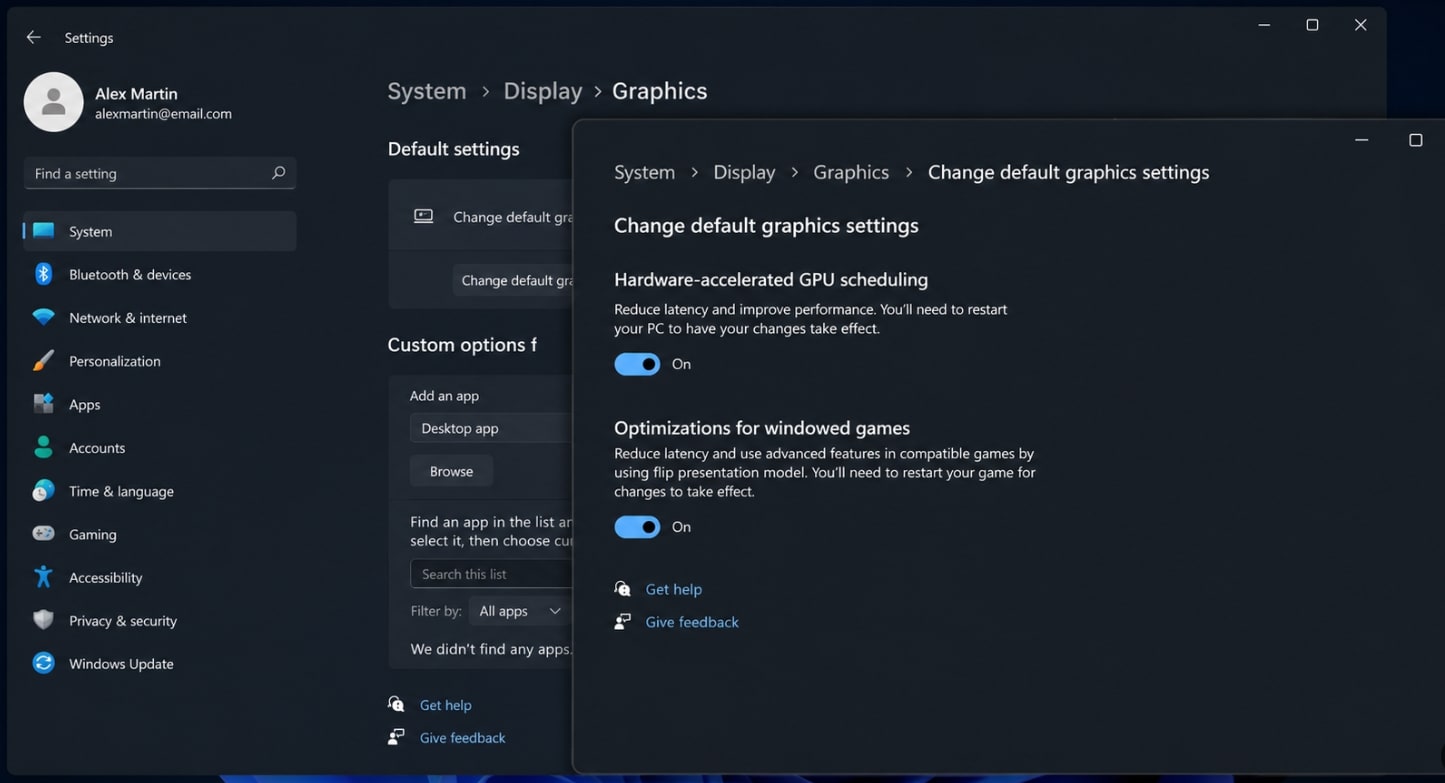
Way 1: Enable Hardware-Accelerated GPU Scheduling
This is the most common fix and the one officially documented for this exact problem:
- Open Windows Settings > System > Display.
- Click Graphics and then Change default graphics settings (the naming varies slightly by Windows version).
- Turn on Hardware-accelerated GPU scheduling (HAGS).
- Restart your PC, then relaunch WARDOGS and check the Frame Generation option.
Way 2: Turn Off the In-Game Frame Limit
- Launch WARDOGS and open Settings > Video.
- Find the Frame Limit option and set it to Off.
- Check whether the DLSS Frame Generation option is now selectable.
This mirrors the fix confirmed by WARDOGS players on an RTX 4080 and on the game's Steam discussions: with the frame limit off, Frame Generation becomes available. NVIDIA Reflex can also cap frames in some setups, so disabling it is a reasonable second try if the frame limit alone does not help.
Way 3: Turn Off V-Sync
In the same Settings > Video menu, turn V-Sync off. V-Sync paces frame delivery and can keep Frame Generation greyed out even when everything else looks correct. Test after each change - many players report that disabling V-Sync alone unlocks the option.
Way 4: Restart the Game After Enabling Frame Generation
Once you toggle DLSS Frame Generation on, fully close and relaunch WARDOGS. The game needs a fresh session to re-initialize the frame pipeline. This step is easy to miss, and it resolves the "its enabled but nothing changes" cases.
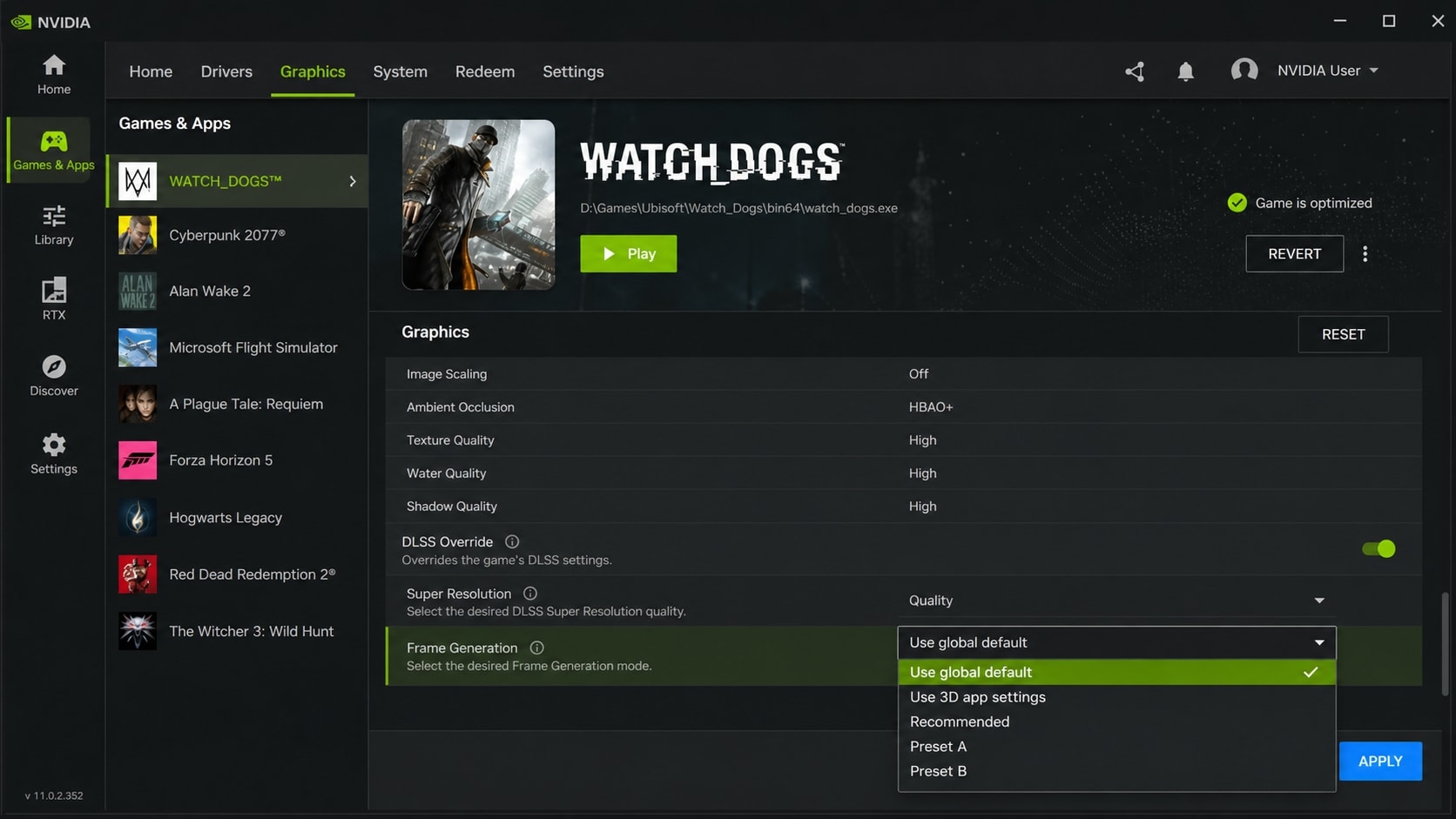
Way 5: Set the DLSS Override in the Nvidia App
- Open the Nvidia App and select WARDOGS under Graphics or the games list.
- Open its settings - you should see the DLSS override section with a Frame Generation mode.
- If the edit option is available, set Frame Generation to Use global default, click Apply, relaunch the game, and check.
- If it still fails, try Use 3D app settings, then Recommended, and finally a custom preset (Preset A or B), applying and testing after each change.
Way 6: Enable Nvidia Smooth Motion
If the option is still unavailable, open the Nvidia App, select WARDOGS, and turn on Smooth Motion if it is off, then relaunch the game. Smooth Motion is a driver-level frame generation fallback that can fill in when the in-game Frame Generation toggle stays disabled.
Way 7: Clean Install the Latest GeForce Driver
- Open the official Nvidia driver download page and select your GPU, your Windows version, and click Search.
- Download the latest GeForce Game Ready driver.
- Run the installer, choose Custom, and check Perform a clean installation.
- Restart your PC and relaunch WARDOGS.
Driver updates and clean installs do not touch your game saves or recordings, so you do not need to back up before this step in most cases. If you used a display driver uninstaller (DDU) or an older driver had any unusual issues, keeping a copy of your important files elsewhere is still the safer habit.
Part 4. Repair Corrupted Game Recordings with Wondershare Repairit
While you are troubleshooting DLSS Frame Generation - toggling settings, reinstalling drivers, restarting the game - the clips you record with ShadowPlay, Xbox Game Bar, or OBS sometimes come out black, flickering, choppy, or completely unplayable. That is a corrupted video file, not a game setting problem, and it is exactly what Repairit is built for.
Repairit is professional video repair software that explicitly supports fixing videos that will not play or open, black screen clips, flickering and choppy playback, audio-video out of sync, and missing sound. It works on recordings from ShadowPlay and other tools because video corruption has the same causes everywhere - interrupted recording, driver issues during capture, or a crash mid-encode.
Key Features
- Broad format support: repairs MP4, MOV, AVI, MKV, M2TS, TS, MXF and 20+ other mainstream and pro formats.
- Covers common damage scenarios: recording interruption, power failure, file transfer errors, rendering crashes, and encoding failures.
- Advanced Repair mode: for badly damaged clips, add a sample file recorded with the same device or software so the tool can rebuild the lost structure more completely.
- Preview before saving: check the repaired clip first so you never save a useless file.
How to Repair a Corrupted Game Recording in 3 Steps
Step 1. Import Corrupted Video Files

Step 2. Repair the Game Recording

Step 3. Preview and Save Repaired Videos

Repair Your Gameplay Recordings Now
 Security Verified. Over 7,302,189 people have downloaded it.
Part 5. Best Practices to Keep DLSS Frame Generation Working
- Keep HAGS on: once you enable Hardware-Accelerated GPU Scheduling, leave it on - Frame Generation depends on it.
- Run game-ready drivers: update your GeForce driver before major WARDOGS patches and when the Nvidia App flags a new Game Ready driver.
- Know your hardware: FRAME Generation works only on RTX 40/50 series cards. Do not spend time on driver reinstalls if your GPU does not support it - use DLSS Super Resolution instead, or check for a future DLSS version that supports your card.
- Record with enough free space: interrupted recordings from full disks are the top cause of corrupted game clips - free up space before recording and verify playback after.
- Back up important clips: keep a copy of match highlights on a second drive and repair corrupted footage early with Repairit while it can still be fixed well.
Conclusion
WARDOGS DLSS Frame Generation greyed out or not working is almost always a settings problem, not broken hardware. Confirm your GPU is RTX 40/50 series, enable Hardware-Accelerated GPU Scheduling, turn off the in-game frame limit and V-Sync, restart the game, check the DLSS override in the Nvidia App, and clean install the latest GeForce driver as the last step. If your recordings came out black or unplayable while you fixed the settings, use Repairit to repair those video files before you lose them.
FAQ
-
1. Why is DLSS Frame Generation greyed out in WARDOGS on my RTX 40/50 GPU?
The three most common causes are: Hardware-Accelerated GPU Scheduling is off in Windows, the in-game frame limit is active, or V-Sync is on. Check Way 1 to Way 3 in that order, restarting the game after each change. -
2. Can I enable DLSS Frame Generation on an RTX 3060 or other older GPU?
No. DLSS Frame Generation requires the dedicated hardware in RTX 40/50 series cards. On older cards the option is unavailable by design; use DLSS Super Resolution instead and check whether a future DLSS version supports your card. -
3. Does turning off the frame limit reduce my performance?
Only during idle moments. With the frame limit off and Frame Generation enabled, WARDOGS renders more frames using GPU-generated frames, so the visible smoothness usually improves. If you are sensitive to input latency in competitive play, compare both modes and pick what feels right. -
4. Can Repairit fix the DLSS Frame Generation greyed out problem?
No. Repairit is a video file repair tool that fixes corrupted recordings such as black or unplayable clips. The greyed-out DLSS setting is a game and system configuration issue, so follow Part 3 to fix it. -
5. Do I need to reinstall my driver to fix DLSS Frame Generation?
Only after the other fixes fail. A clean installation of the latest Game Ready driver resolves driver-related cases, especially after a Windows or game update. Try Way 1 to Way 6 first because they take less time.




