
Some gamers panic when their games stop without warning or unexpected errors occur. This issue often breaks focus and ruins the fun during important competitive sessions. Players see the screen freeze, lose connection, and feel unsure about the problem. That’s why understanding errors like Valorant VAN 79 and its possible solutions becomes essential for players. In this guide, you will learn easy fixes that anyone can follow confidently.
Table of Contents
-
- Fix 1. Run Valorant as Administrator
- Fix 2. Verify That Riot Vanguard Service Operates
- Fix 3. Reset and Flush Your Winsock and DNS
- Fix 4. Use Gaming VPN and Network Optimization Tool
- Fix 5. Update Windows OS to Fix Game Halts
- Fix 6. Perform a Network Reset
- Fix 7. Reinstall Valorant and Riot Vanguard
Part 1. What Valorant VAN 79 Error Means for Players
Valorant’s VAN 79 error appears when Vanguard fails to create a secure connection. This usually appears because Riot Vanguard or anti-cheat software is not working correctly. Furthermore, it blocks proper game loading and prevents stable access to matchmaking servers. The error stops players from joining matches or logging in, even if other internet apps work fine.
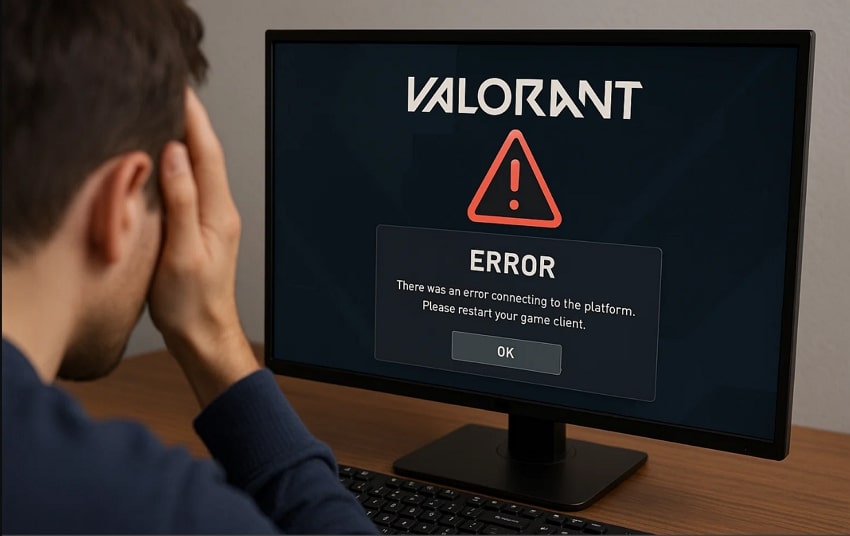
The problem usually comes from damaged Vanguard files or misconfigured network components. Players also encounter it after network changes or conflicts affecting essential security services. Therefore, understanding these triggers helps players fix the Valorant error code VAN 79 without confusion.
Common Triggers and Symptoms Involving Valorant VAN 79 Error
- Winsock Issues: A corrupted Winsock or TCP-IP stack disrupts Valorant’s secure server connection.
- DNS Errors: Incorrect DNS settings block proper connection to Valorant’s match servers.
- Firewall Blocks: Security software may block Vanguard or Valorant from accessing the internet.
- Interfering Windows Updates: New Windows versions might interfere with Vanguard and network functions.
- Game Updates: Moving or partial updates of Valorant can break Vanguard communication.
Part 2. Fix Valorant VAN 79: 7 Unique Fixes to Stop the Error
If Valorant shows VAN 79 error repeatedly, your game may face connection or system issues. Below are various methods to fix Valorant VAN 79 and continue gaming without interruptions:
Fix 1. Run Valorant as Administrator
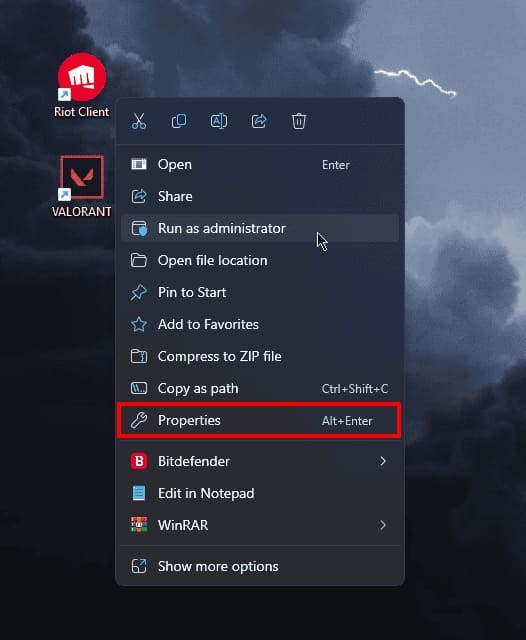
Running Valorant as an administrator helps fix the Valorant error code VAN 79 by granting Vanguard full system permissions. This access helps services start and communicate with Windows networking without being blocked. Consequently, VAN 79 errors caused by restricted rights or blocked operations can be prevented. Take guidance from the steps below to run Valorant as an administrator:
Step 1. First, right-click the "Valorant" icon and select "Properties" from the context menu.
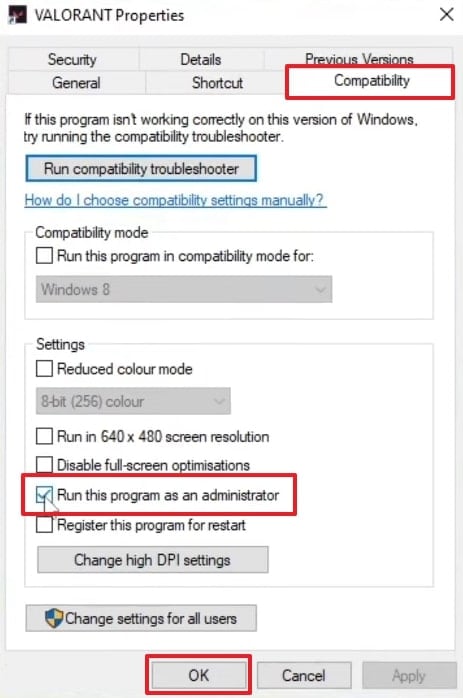
Step 2. Inside the "Properties" screen, open the "Compatibility" section, turn on "Run this program as an administrator," and then select "OK."
Fix 2. Verify That Riot Vanguard Service Operates
Users can verify that the Riot Vanguard service operates properly, as it is crucial for resolving Valorant VAN 79 errors. When Vanguard is inactive, Valorant detects an insecure system and blocks the server connection. Ensuring the service runs automatically helps Vanguard load its anti-cheat components. Furthermore, this restores secure authentication, prevents connection interruptions, and addresses VAN-79 issues. Thus, go through the steps below to verify Riot Vanguard service:
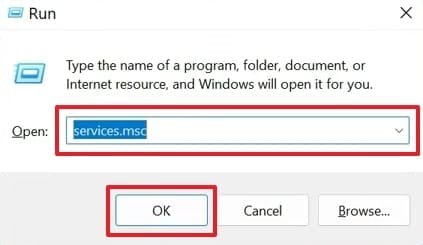
Step 1. Press "Windows + R" key combination, type "services.msc" in the Run program, and press "Enter."
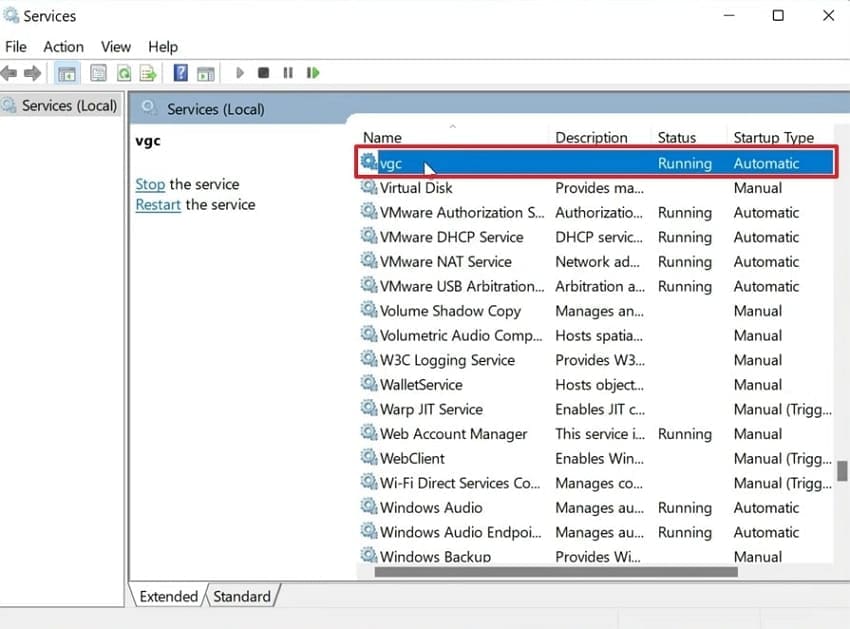
Step 2. Upon accessing it, select and click the "vgc" service to move forward.
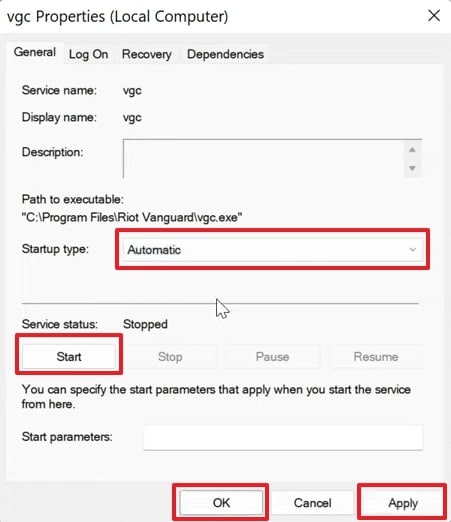
Step 3. Afterward, set the "Startup Type" to "Automatic" and hit the "Start" button. Next, hit both the "Apply" and the "OK" buttons in order to save the changes.
Fix 3. Reset and Flush Your Winsock and DNS
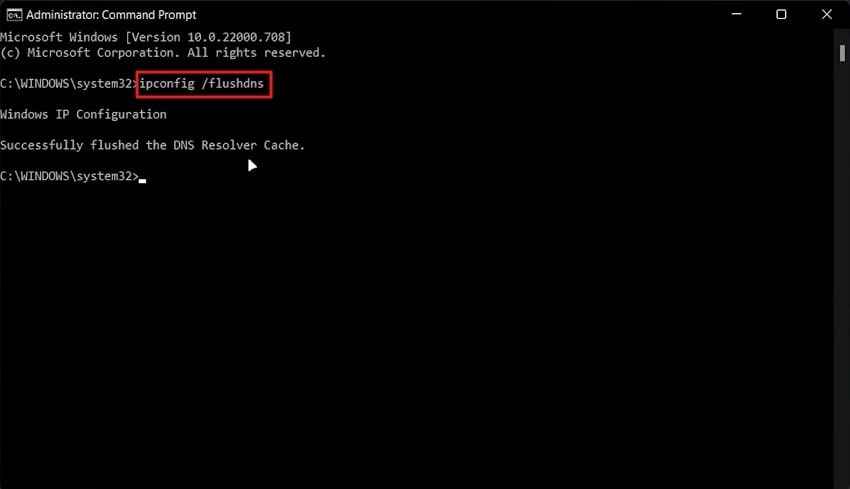
Resetting Winsock and flushing DNS also helps fix Valorant error code VAN 79, repairing corrupted network settings. Winsock reset repairs damaged connection rules added by old apps, VPNs, or proxies. Clearing the DNS cache removes outdated entries, letting your PC find Riot’s services. Let’s explore the steps below to reset and flush your DNS:
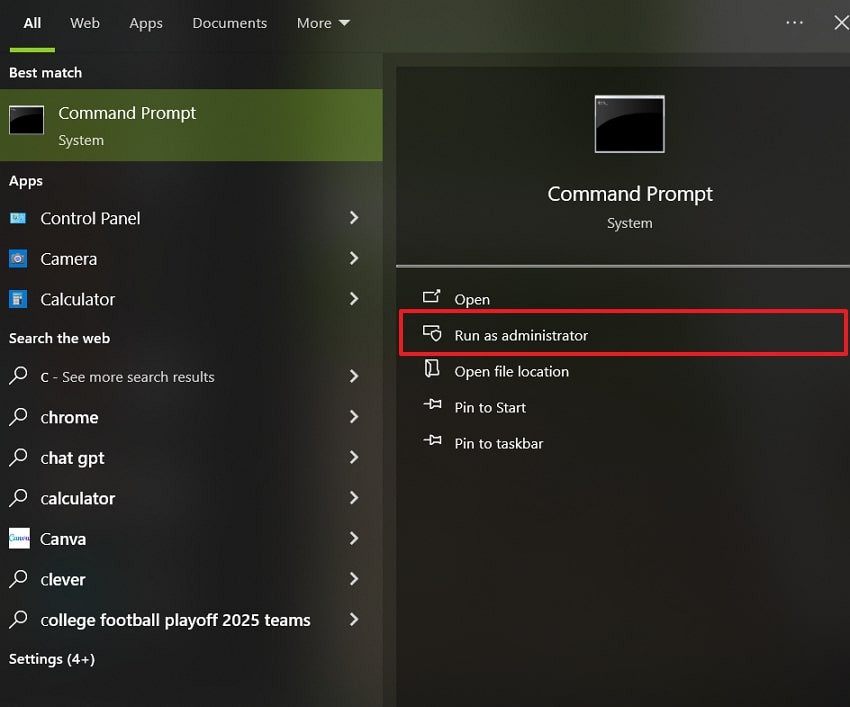
Step 1. To initiate, search for "Command Prompt" and select "Run as Administrator" to open it.
Step 2. Finally, enter the command "ipconfig /flushdns" and press "Enter." Once done, restart your device to complete the process and resolve the issue.
Fix 4. Use Gaming VPN and Network Optimization Tool
You can also use a gaming VPN and a network optimization tool to fix Valorant VAN 79 connection issues. A VPN reroutes traffic through more direct paths, reducing packet loss and disconnections. It bypasses congested regions, strict NAT, and throttling, improving secure connections.
Network optimizers like ExitLag select the lowest-latency path to Riot servers, quickly switching routes if one fails. However, they cannot fix corrupted Vanguard, disabled services, or firewall blocks alone.
Fix 5. Update Windows OS To Fix Game Halts
Updating Windows OS can also fix the Valorant error code VAN 79 by refreshing core system files and drivers. Many times, outdated updates cause conflicts that block Riot Vanguard from connecting. New updates improve drivers and security components, reducing game halts. However, this can’t repair corrupted Vanguard, misconfigured firewall, or network issues. It works alongside other fixes to stabilize Valorant and prevent errors, which can be reviewed using the steps below:
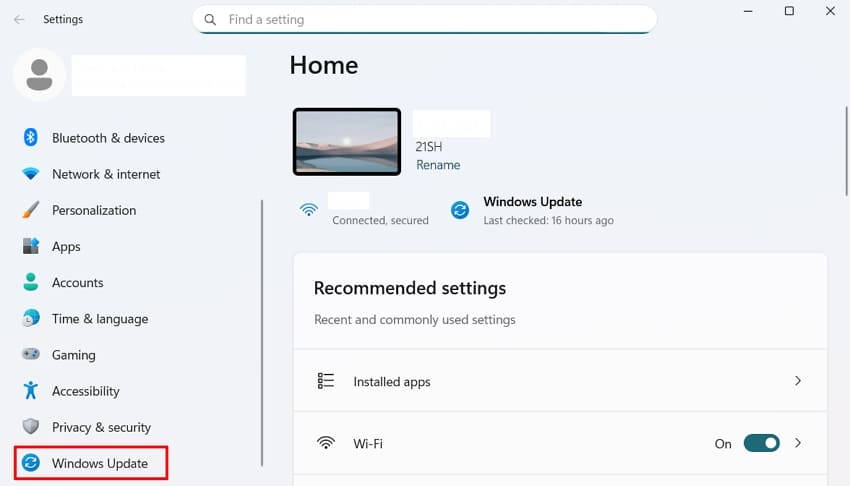
Step 1. Open the "Settings" window from the "Start" menu and select the "Windows Update" section.
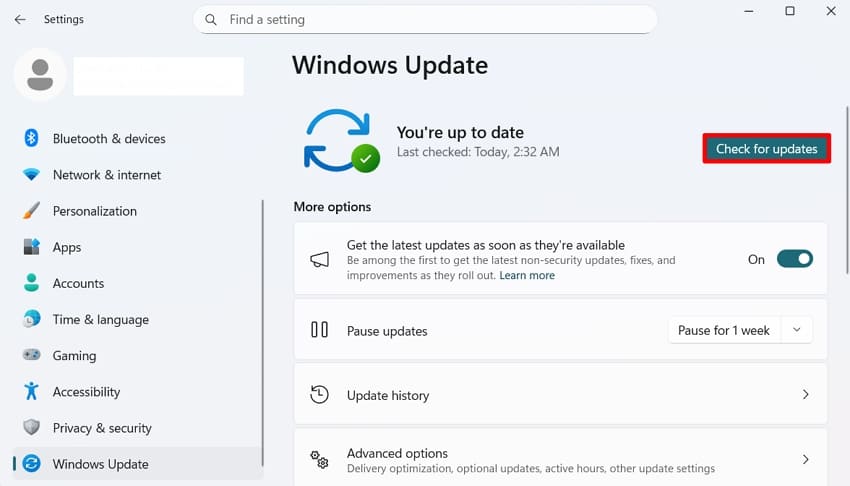
Step 2. Once you navigate to the next screen, click "Check for updates" to look for existing Windows updates. Next, if updates are available, click "Download and Install" to successfully update your device.
Fix 6. Perform a Network Reset
A network reset can help fix the Valorant error code VAN-79 by reinstalling network adapters. This clears misconfigured settings, broken DNS entries, and hidden stuck IP rules. Additionally, saved Wi-Fi, VPN, and custom settings will be lost, so consider this a last-resort step after simple network fixes. Once understood, follow the steps below to perform a network reset:
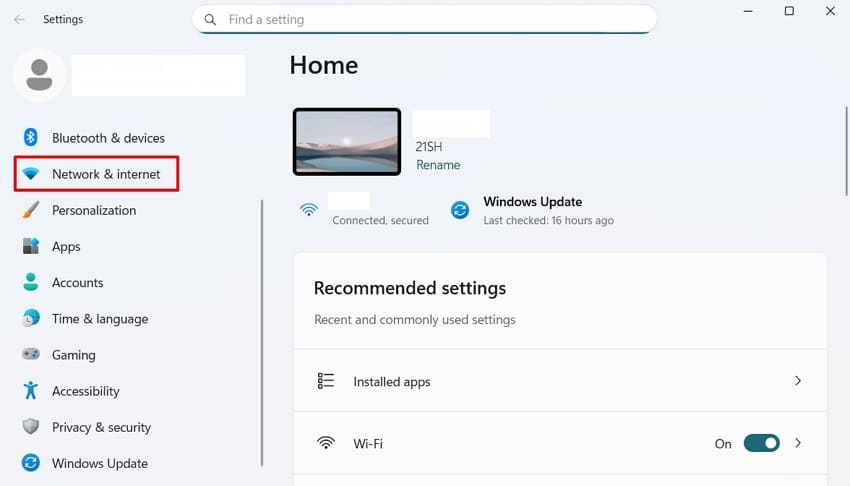
Step 1. To initiate, navigate to the "Settings" window and choose "Network & Internet."
Step 2. Moving ahead, find and click the "Network Reset" option in the "Advanced Network Settings" section.
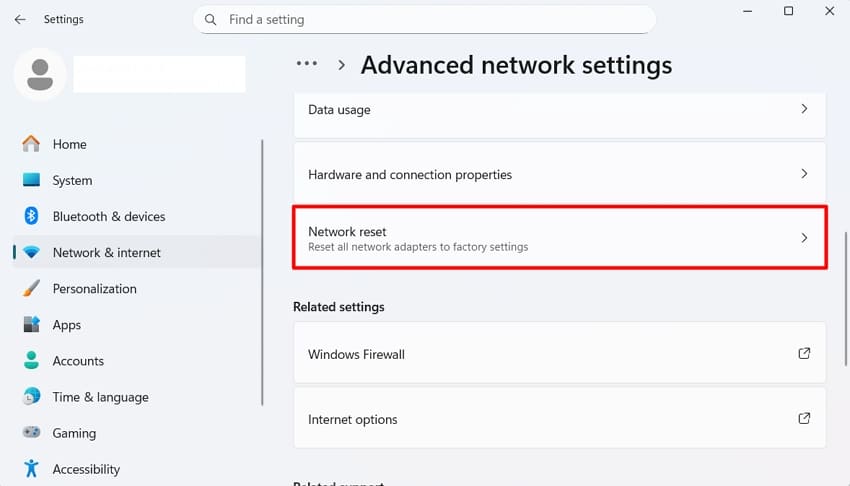
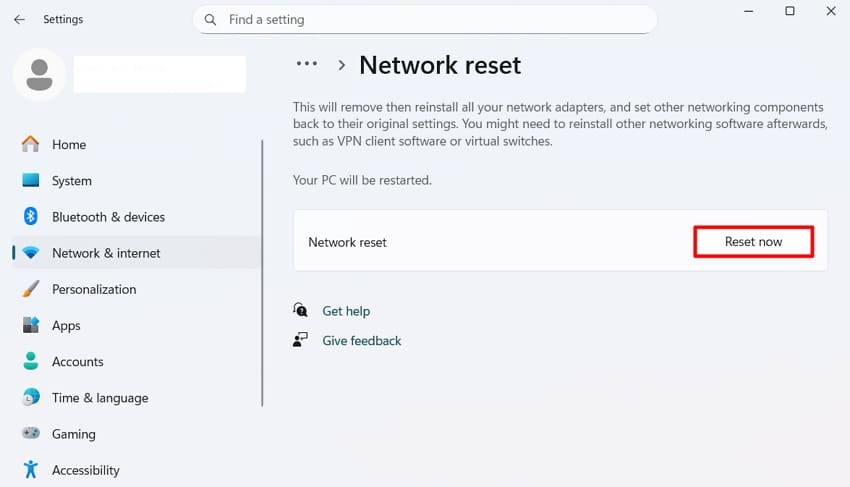
Step 3. Finally, press "Reset Now," and confirm the network reset action when prompted.
Fix 7. Reinstall Valorant and Riot Vanguard
When the above fixes are not working, reinstalling Valorant and Riot Vanguard usually resolves Valorant VAN 79 by replacing damaged game files. Additionally, a fresh Vanguard install restores corrupted anti-cheat drivers and necessary permissions. This process ensures proper communication between Valorant and Riot servers. Thus, take guidance to reinstall Valorant and Riot Vanguard:
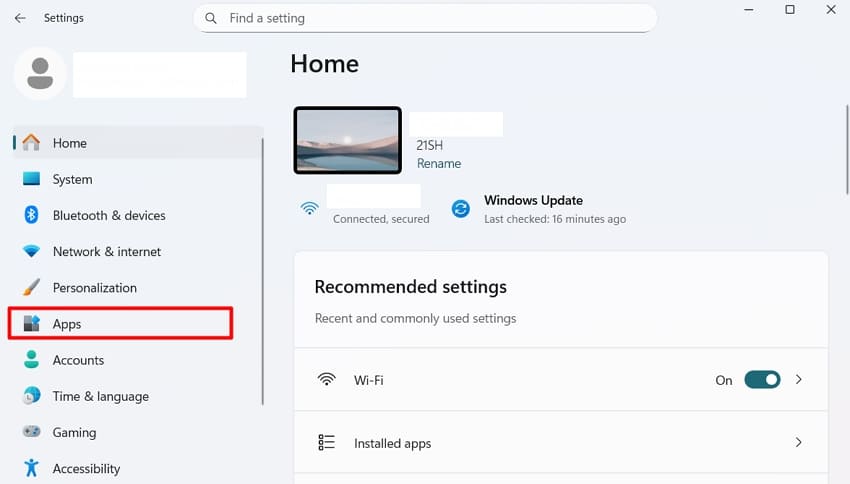
Step 1. Initially, press the "Windows + I" keys together to open the Settings app and navigate to "Apps."
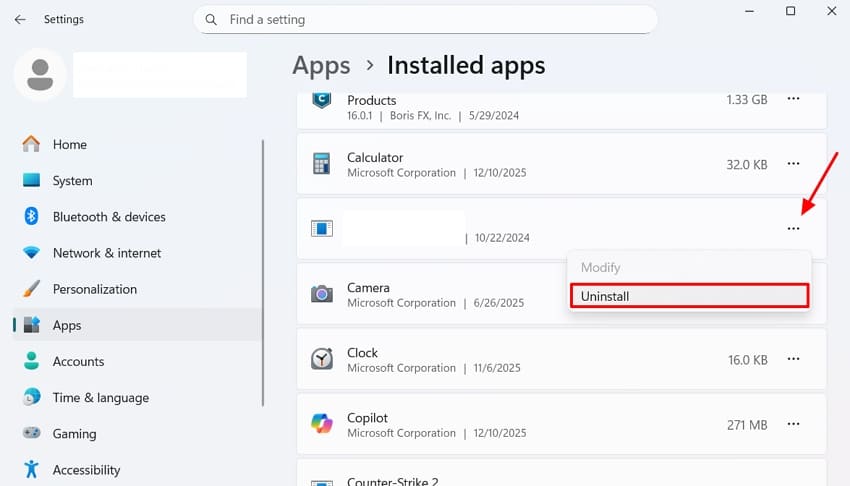
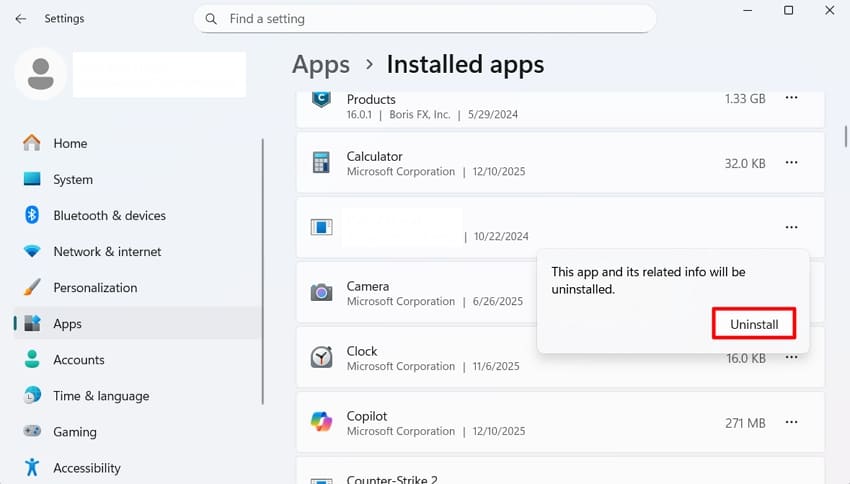
Step 2. Upon accessing the "Installed apps" section, find "Valorant" in the list, then click "Uninstall."
Step 3. At last, a pop-up will appear, where you need to press the "Uninstall" button to delete the game.
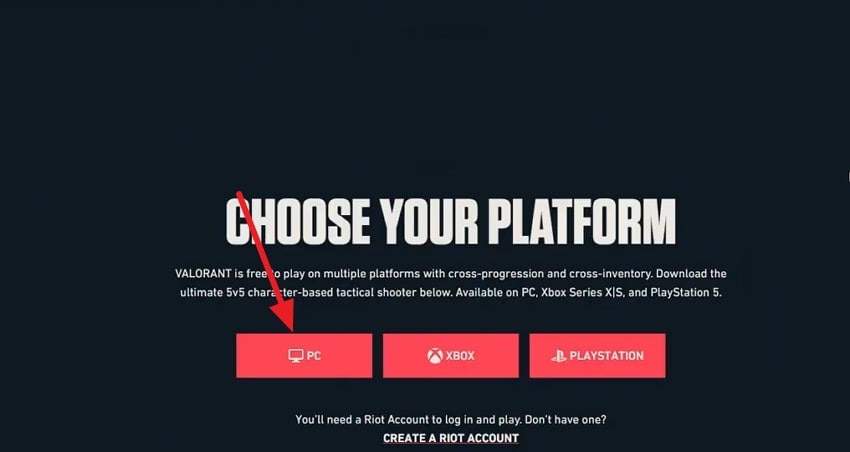
Step 4. Now, visit the official website of "Valorant" and click the "PC" option. Next, if you have an account, sign in; if not, then create a new one.
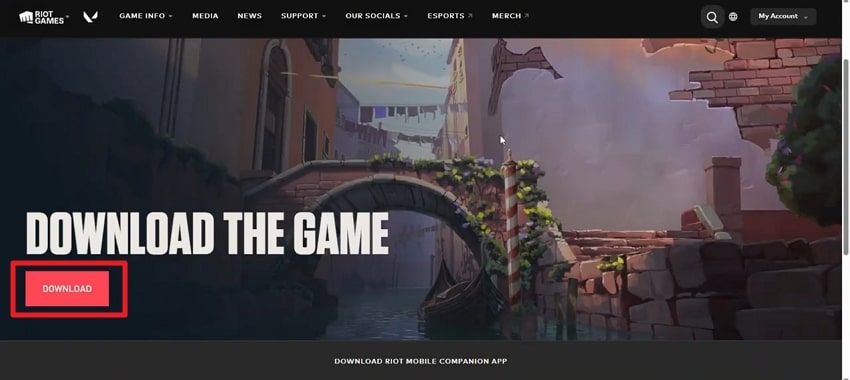
Step 5. Upon accessing it, hit the "Download" button to successfully download the game.
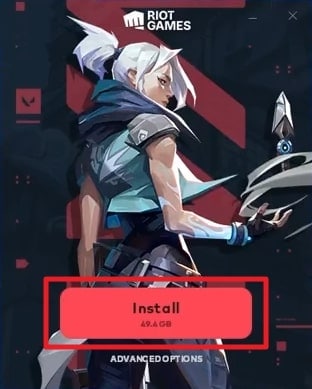
Step 6. Afterward, open the downloaded Valorant file, then press the "Install" button,
Pro Tip. Corrupted Your Valorant Game Recording? Use Repairit for Fixing!
Gamers play games and commonly record them to share their online experience and increase followers. At times, they sometimes notice that their recorded video files get corrupted or damaged. To fix this issue, try Repairit Game Video Repair to restore the corrupted video file. This tool supports repairing 25+ video formats, including MOV and MKV. Moreover, it supports WEBM file repair for seamless playback across media players.
You can also fix the recording that shows only a black screen to make your video more engaging. Plus, it repairs 3GP mobile videos, ensuring proper playback without distortions. Repairit uses AI to detect visual flaws and correct them right in videos. Moreover, it reassembles several video files simultaneously to save time and effort.
Key Features

-
Audio Sync: Fills in audio gaps in the audio track of videos that are out of sync with the video.
-
Frame Drop: Resolves frame drops within game recordings caused by the lack of video codecs or incompatible video codecs.
-
Blurry Restoration: Recovers lost or blurred fine details in the video frames of the game recording.
Detailed Guide to Repair Corrupted Game Recorded Files with Repairit
This section helps you to repair damaged recorded game files via Repairit:
Step 1. Open Repairit’s Video Repair Tool
Launch Repairit and navigate to the "Video Repair" section to press "Start." Click the "+Add" button to import all corrupted recorded video files.

Step 2. Repair Your Damaged Recorded Videos
After the files appear under "Unrepaired Files," click "Repair" to begin restoring the damaged recordings.

Step 3. Save Repaired 4K Videos
When the repair is complete, use "Preview" to review the results. Finally, select "Save All" and "Save" to export the repaired videos.

Repair Corrupted Game Recording Files Now
 Security Verified. Over 7,302,189 people have downloaded it.
Conclusion
Fixing the connection problem becomes easier when players understand the triggers behind VAN 79. Applying the methods in this guide helps you resolve Valorant VAN 79 issues and restore smooth gameplay. Furthermore, keeping your system updated and avoiding conflicting tools reduces future interruptions. Besides, if your recorded clips become corrupted due to errors, you may need a reliable repair tool. Thus, Repairit is recommended for the quick repair of damaged videos.
FAQs
-
1. Does changing my router solve VAN-79 for some players?
Router issues sometimes create unstable routing paths that stop Vanguard from authenticating securely. A quick router restart often refreshes its internal tables and removes hidden routing conflicts. However, faulty router firmware requires updating to maintain stable Valorant connections always. -
2. Is VAN-79 related to Windows user account permissions?
Limited permissions prevent Vanguard from accessing protected locations required for secure validation. Running Valorant with administrator rights usually resolves these permission-based restrictions right away. Persistent permission issues may require creating a new Windows profile for a cleaner across. -
3. Should I repair corrupted replay clips prior to posting online?
Damaged clips often appear choppy and ruin presentation quality across major social platforms. Repairing them improves clarity and reduces viewer distraction during important recorded demonstrations. Thus, Repairit helps restore broken frames and resolve playback issues without manual intervention.




