
 TL;DR:
To fix the VALORANT black screen at launch in 2026, immediately disable the Nahimic audio service in Windows or set the Riot Vanguard vgc service to Automatic to resolve the most frequent system conflicts preventing the game from loading.
● Press Alt+Enter if the game runs in the background but fails to render visually, which forces windowed mode and instantly bypasses fullscreen resolution switching failures.
● Rename the VALORANT and Riot Games folders in your %LocalAppData% directory to .bak instead of deleting them to safely force the Riot Client to rebuild uncorrupted configuration files.
● Use Wondershare Repairit to restore any match recordings that resulted in black screens with playing audio, as these are corrupted media files requiring dedicated video repair rather than game troubleshooting.
Ask AI for a summary
 ChatGPT
 Perplexity
 Gemini
 Claude
 Grok
Grok
Launching VALORANT and landing on a black screen with a spinning blue cursor - instead of the game - is one of the most common startup failures this season. In most cases the game and your GPU are fine: a system service, an old config folder, or a sound component is fighting with the game or with Riot Vanguard. This guide walks you through the 7 fixes that actually work in 2026 in the right order, starting with the Nahimic issue that has been causing black screens since mid-September, and ending with how to repair the corrupted game recordings you may have captured along the way.
In this article
-
- Way 1: Disable or Uninstall Nahimic
- Way 2: Set the Riot Vanguard vgc Service to Automatic
- Way 3: Run Riot Client as Administrator
- Way 4: Press Alt+Enter to Switch to Windowed Mode
- Way 5: Rename the VALORANT Config Folder
- Way 6: Disable Fullscreen Optimizations
- Way 7: Update or Roll Back Your Graphics Driver
Part 1. Why VALORANT Black Screen at Launch Happens
VALORANT black screen at launch usually falls into one of four causes. Understanding which one you are facing saves a lot of time, so let us look at the common culprits first.
The System Service Conflicts (Most Common)
If the Riot Vanguard anti-cheat service vgc is not set to start automatically, VALORANT can stall on a black screen while trying to reach it. Third-party sound enhancement tools - most notably Nahimic - can also crash the game process during startup.
A Broken Config or Client Cache
The %LocalAppData% folder holds VALORANT and Riot Games config files. If these become corrupted or out of sync with the current patch, the startup flow stops at a black screen instead of loading the lobby.
Display Mode Switching Fails
In fullscreen mode, a failed resolution or refresh rate switch can leave the screen black while the game is actually running in the background. Pressing Alt+Enter usually brings it back immediately.
Graphics Driver or Fullscreen Optimization Issues
An outdated driver can clash with a recent game patch, and Windows "Fullscreen Optimizations" can at times interfere with how VALORANT renders. Both are easy to rule out with the fixes below.
A wave of VALORANT black screen cases started around mid-September 2026 on PCs with Nahimic installed. Community analysis shows the game crashing while interacting with A-Volute/Nahimic's ProductInfo.dll component on two separate test PCs, with the problem persisting through VALORANT, Vanguard, and GPU driver reinstalls. In other words, the root cause is often outside the game itself.
Part 2. Diagnose Your Symptom First
Before you start fixing, match your symptom to the most likely cause. This table saves you from trying methods that will not help your situation.
| Symptom | Most likely cause |
|---|---|
| Black screen with a blue spinning cursor, PC is not frozen | System service conflict or the Nahimic issue (try Way 1 and Way 2 first) |
| Black screen but Alt+Enter brings the game back | Fullscreen mode switching failure (Way 4) |
| Black screen starts right after a VALORANT update | Config cache conflict or driver issue (Way 5, Way 6 or Way 7) |
| Black screen for a few seconds, then normal | Slow first load after an update - wait before troubleshooting |
| Black screen together with an error or an instant crash | Graphics driver problem (Way 7) |
Part 3. 7 Ways to Fix VALORANT Black Screen at Launch
Work through these methods in order and restart VALORANT to test after each one. Stop as soon as the game launches normally.
Way 1: Disable or Uninstall Nahimic
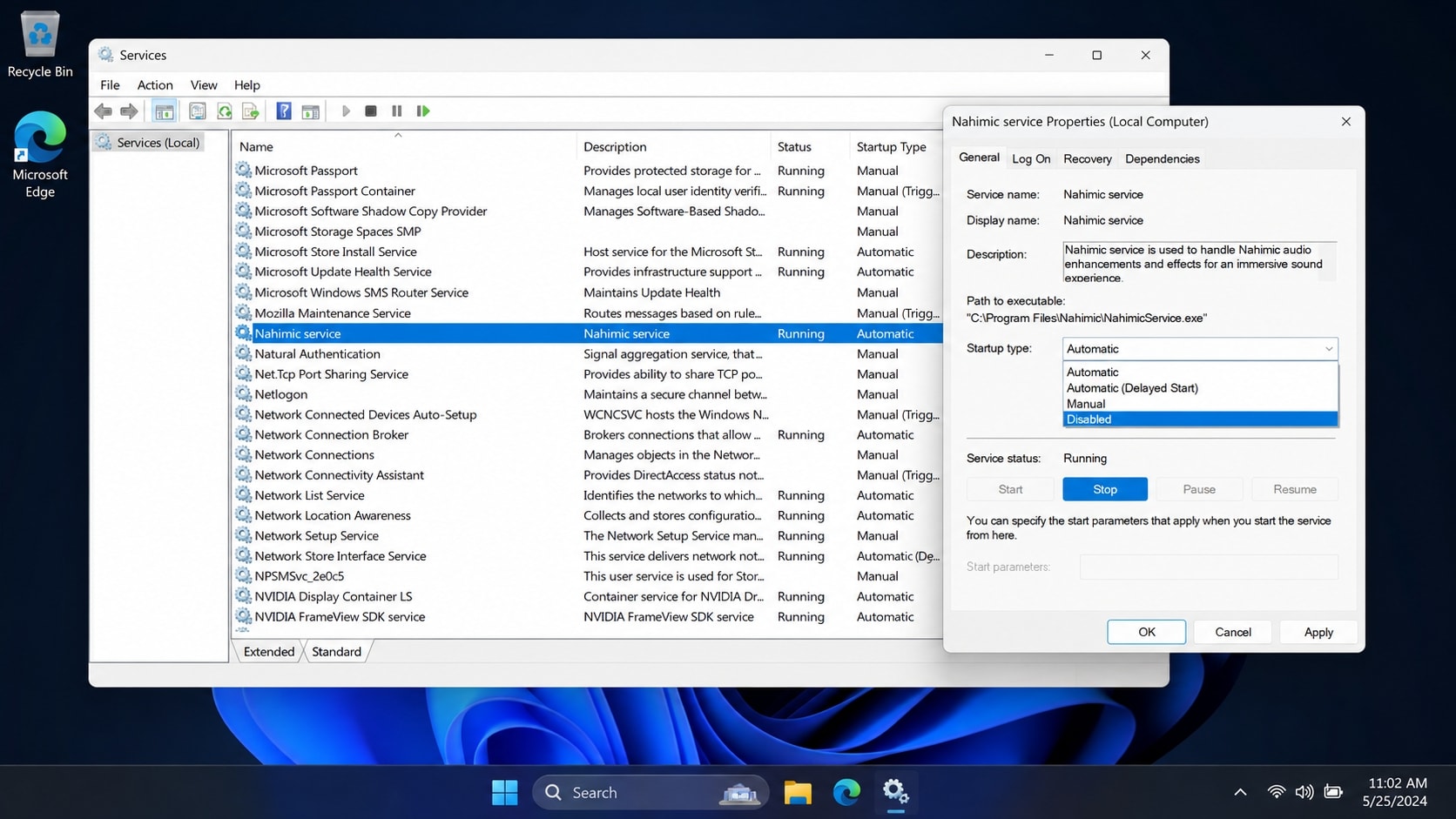
This is the fix to try first in 2026, because it addresses the widely reported Nahimic compatibility issue. Press Win + R, type services.msc, and press Enter. Find the Nahimic service, double-click it, click Stop, change the startup type to Disabled, then click Apply and OK. Relaunch VALORANT. If the black screen returns, uninstall Nahimic from Settings > Apps and restart your PC before testing again. You can re-enable it later once the audio vendor releases a fixed version.
Way 2: Set the Riot Vanguard vgc Service to Automatic
- Open the Services window again with
Win + R>services.msc. - Find vgc (Riot Vanguard anti-cheat service).
- Double-click it, set the startup type to Automatic, click Apply.
- If the service is stopped, click Start, then OK.
- Restart your PC and launch VALORANT to check.
This follows the same steps shown in the Fix VALORANT Black Screen At Launch video.
Way 3: Run Riot Client as Administrator
- Right-click the Riot Client tray icon and exit both Riot Client and Vanguard completely.
- Type "Riot Client" in the Windows search box.
- Right-click it and choose Run as administrator.
- Launch the game and check whether the black screen is gone.
Way 4: Press Alt+Enter to Switch to Windowed Mode
When the game is running but the screen stays black, press Alt + Enter to force it into windowed mode. The screen usually reappears instantly. After that, open the in-game Video settings and set the display mode back to Fullscreen with the correct resolution. This shortcut has been confirmed many times by players who fixed VALORANT black screen on launch this way.
Way 5: Rename the VALORANT Config Folder
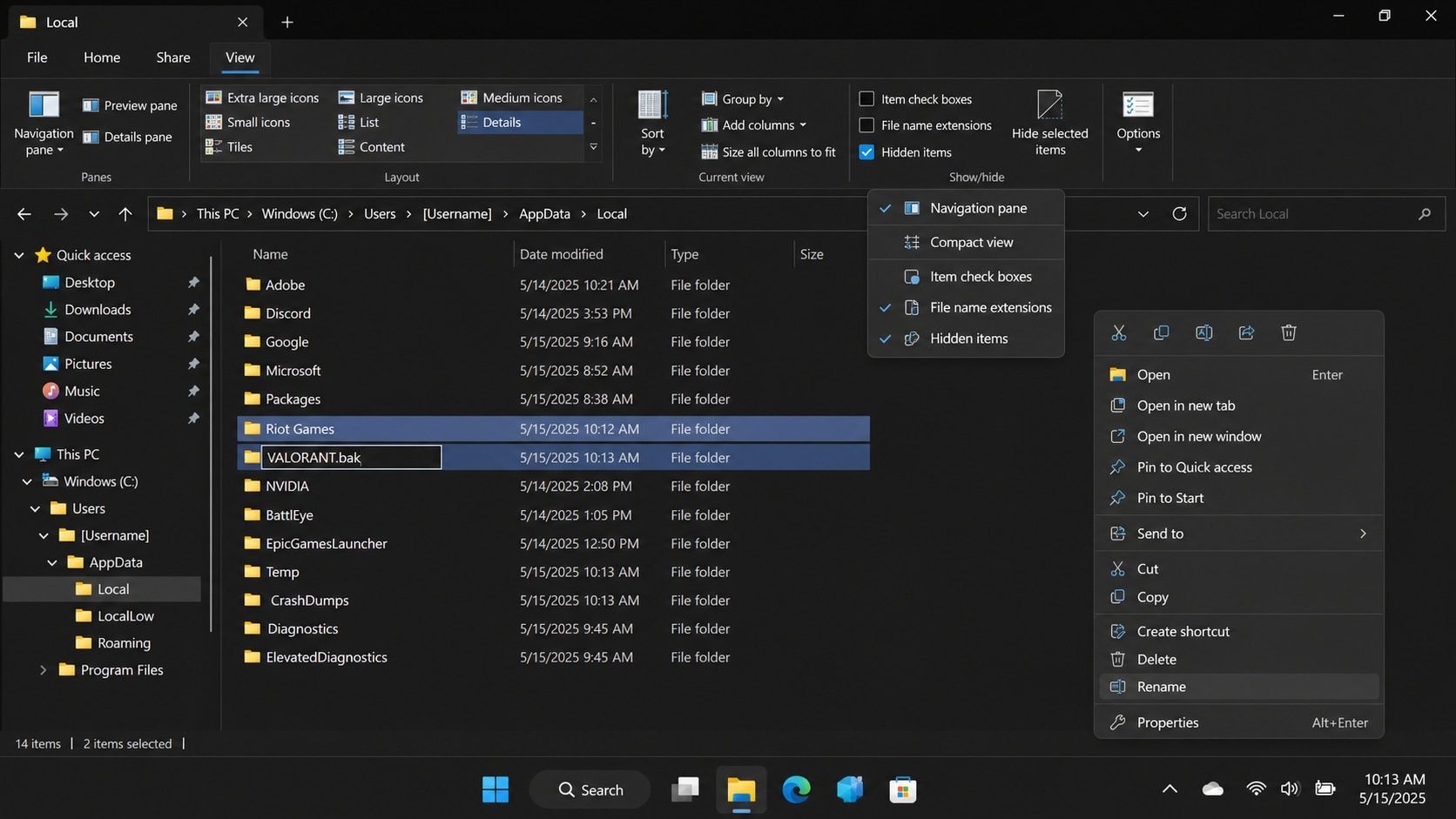
A corrupted config can stop the game from leaving the black screen. Renaming - never deleting - the folder forces the client to rebuild a fresh configuration.
- Open File Explorer and go to
C:\Users\[your username]\AppData\Local. If you cannot see AppData, enable View > Show > Hidden items. - Find the VALORANT and Riot Games folders.
- Copy both folders to another location as a backup first.
- Make sure Riot Client is fully closed, then rename them to
VALORANT.bakandRiot Games.bak. - Relaunch Riot Client; it will generate clean config files, then launch the game and check.
Way 6: Disable Fullscreen Optimizations
- Open the game installation folder and right-click
VALORANT.exe. - Choose Properties and open the Compatibility tab.
- Check Disable fullscreen optimizations, then click Apply and OK.
- Launch the game to see if VALORANT black screen after update cases are resolved.
Way 7: Update or Roll Back Your Graphics Driver
Download the latest driver from your GPU vendor's official site and install it with a clean installation option. If the black screen started only after you updated the driver, roll back to the previous stable version instead. A driver that matches the current VALORANT patch prevents most rendering-side startup failures.
If none of the methods above work, do not format or reinstall Windows yet. Back up or recover any important files on the drive first (see Part 4), then consider a clean reinstall of Vanguard or the game - not the whole system.
Part 4. Repair Black Screen Game Recordings with Wondershare Repairit
The black screen problem does not only affect the game itself. The clips you captured during troubleshooting, or your match highlights, often come out black with audio, unplayable, or flickering. That is a corrupted video file - a different problem from the VALORANT startup black screen - and it needs a dedicated video repair tool. Repairit is exactly the tool for that job.
Repairit is professional video repair software that explicitly supports fixing black screen videos (video stays black while audio plays), videos that will not play or open, flickering or choppy playback, audio-video out of sync, and missing sound.
Key Features
- Broad format support: repairs MP4, MOV, AVI, MKV, M2TS, TS, MXF and 20+ other mainstream and pro formats.
- Covers common damage scenarios: recording interruption, power failure, file transfer errors, editing or rendering crashes, and encoding failures.
- Advanced Repair mode: for severely damaged clips, add a sample file shot with the same device so the tool can match the lost structure and repair more completely.
- Preview before saving: check the repaired clip first so you never save a useless file.
How to Repair a Black Screen Recording in 3 Steps
Step 1. Import Corrupted Video Files

Step 2. Repair the Game Recording

Step 3. Preview and Save Repaired Videos

Repair Your Black Screen Recordings Now
 Security Verified. Over 7,302,189 people have downloaded it.
Part 5. Best Practices to Prevent the Black Screen
- Keep the vgc service on Automatic: stop toggling services manually so the anti-cheat starts reliably before the game.
- Have a fast fallback plan ready: after driver or game updates, use "Disable fullscreen optimizations" and Alt+Enter as your first counters.
- Record carefully: interrupted recordings, sudden power loss, and low disk space are the top causes of black or corrupted clips - free up space before recording and verify playback after.
- Back up important match footage: keep a copy on a second drive and repair corrupted clips early with Repairit; the sooner you repair, the better the result.
Conclusion
VALORANT black screen at launch is rarely a hardware failure. Start by disabling or uninstalling Nahimic (the main 2026 trigger), set the vgc service to automatic, run Riot Client as administrator, press Alt+Enter to switch to windowed mode, and rename the config folder - these five steps resolve the vast majority of cases. If your captured highlights came out black or unplayable while you were troubleshooting, use Repairit to repair those video files. And never format or reinstall your system before you have secured your data.
FAQ
-
1. What is Nahimic and why does it cause VALORANT black screen on launch?
Nahimic is a sound enhancement tool preinstalled on many laptops and motherboards. Since mid-September 2026, specific versions crash when interacting with VALORANT and its Vanguard anti-cheat, leaving the game stuck on a black screen. The common temporary fix is to disable its service and wait for the vendor update. -
2. What if I disabled Nahimic and lost my audio?
Restart your PC and confirm the game launches normally first. Then restore sound through the Windows speaker properties or your sound card control panel. If you rely on Nahimic effects, try updating only the driver instead of disabling the whole app. -
3. Does Alt+Enter really fix the VALORANT black screen?
It reliably fixes black screens caused by a fullscreen mode switching failure, because it forces the game back into windowed mode and triggers a re-render. If the black screen comes from Nahimic or a stopped vgc service, use Way 1 and Way 2 instead. -
4. Can Repairit fix the VALORANT game black screen?
No. Repairit is a video file repair tool that fixes corrupted recordings such as black screen clips. The VALORANT startup black screen is a game or system level issue, so follow Part 3 to fix the game itself. -
5. Is the game black screen the same as a black screen video recording?
No. The first is a startup failure in the game or system, the second is a corrupted video file. The symptoms look similar but the fixes are completely different.




