
 TL;DR:
Resolving Aniimo launch crashes and black screens rarely requires a full reinstall and is most effectively fixed by performing a clean graphics driver update or adjusting specific rendering settings.
● Switch the Graphics API from DirectX 12 to DirectX 11 if you are playing on older or lower-end hardware, as the DX12 mode is highly CPU-demanding and causes frequent crashing.
● Disable DLSS and Frame Generation directly on the login screen, or manually delete your GPU vendor's shader cache folders, to fix issues where the game launches to a black screen but the UI remains visible.
● Install the latest x86 and x64 Microsoft Visual C++ Redistributables if nothing happens when you press Play, and use Wondershare Repairit strictly to rescue corrupted gameplay recordings rather than to fix the game itself.
Ask AI for a summary
 ChatGPT
 Perplexity
 Gemini
 Claude
 Grok
Grok
Aniimo crashing to desktop, freezing on the loading screen or showing a black screen at launch is rarely a sign that your PC cannot run it. Since the September 2026 launch, the failures reported by most players trace back to a handful of very fixable things: an outdated graphics driver, DirectX 12 on older hardware, a corrupt shader cache, or DLSS and frame generation running on the login screen. This guide explains why Aniimo fails to launch, walks through the 8 fixes that actually work, and ends with how to repair the game recordings that often come out corrupted while you troubleshoot.
In this article
-
- Way 1: Verify Aniimo's Game Files on Steam
- Way 2: Switch Between DirectX 11 and DirectX 12
- Way 3: Update or Clean Install Your Graphics Driver
- Way 4: Turn Off DLSS and Frame Generation
- Way 5: Clear the Shader Cache
- Way 6: Install the Visual C++ Redistributables and Run as Administrator
- Way 7: Close Overlays and Background Apps
- Way 8: Send Your Logs and Wait for the Patch
Part 1. Why Aniimo Crashes or Fails to Launch
Aniimo is a Unity-based online game, and most of its startup failures come from the graphics pipeline rather than the game files themselves. Understanding the common causes makes the fixes below much faster to apply.
An Outdated Graphics Driver
Aniimo needs a recent driver to initialize its renderer. An outdated GPU driver is one of the most frequent causes of crashing, and it is also the first fix the developers themselves recommend for black screens and launch crashes. Unity titles commonly crash inside the graphics driver when the installed version is too old.
DirectX 12 on Older or Lower-End Hardware
Aniimo supports both DirectX 11 and DirectX 12, but DX12 is far more CPU-demanding. On an older GPU or a slower processor it can cause crashes and stuttering rather than better performance, which is why switching to DirectX 11 resolves the crash for many players.
A Corrupted Shader Cache
Modern games compile shaders at runtime and cache them on disk. If that cache becomes corrupt or incomplete, Aniimo can fail to render - often as a black screen where the UI loads but the world does not - or crash outright. Clearing the cache forces a clean rebuild.
DLSS and Frame Generation Active at Login
Upscaling and frame generation can interact badly with Aniimo's login and character-creation screens. The official guidance is to turn DLSS and Frame Generation off, or change the anti-aliasing setting, if the game opens to a black screen.
Missing Runtime Libraries
A Unity build depends on the Microsoft Visual C++ redistributables. If they are missing or damaged, the executable can close instantly with no error message - the classic "nothing happens when I click Play" symptom.
Launch-Day Server and Patch Instability
Aniimo launched in mid-September 2026, and the developers acknowledged that network conditions were unstable on launch day and that patches were still rolling out. Some disconnects and freezes are server-side, not your machine.
Part 2. Diagnose Your Symptom First
Match what you see to the most likely cause before you change anything. This saves you from reinstalling a game that is not actually broken.
| Symptom | Most likely cause | Try first |
|---|---|---|
| Nothing happens when you press Play | Missing Visual C++ runtime or blocked executable | Way 6 |
| Crashes to desktop a few seconds after launch | Outdated or faulty graphics driver | Way 3 |
| Black screen where only the UI is visible | Corrupt shader cache or DLSS and frame generation | Way 4 and Way 5 |
| Frequent crashes on an older GPU or CPU | DirectX 12 demands | Way 2 |
| Freezes, stutters or disconnects mid-session | Server-side instability after launch | Way 8 |
| Crash with a missing-file or corruption error | Damaged game install | Way 1 |
Part 3. 8 Ways to Fix Aniimo Not Launching, Crashing or Freezing
Work through these in order and test the game after each change. Stop as soon as Aniimo launches and runs normally.
Way 1: Verify Aniimo's Game Files on Steam
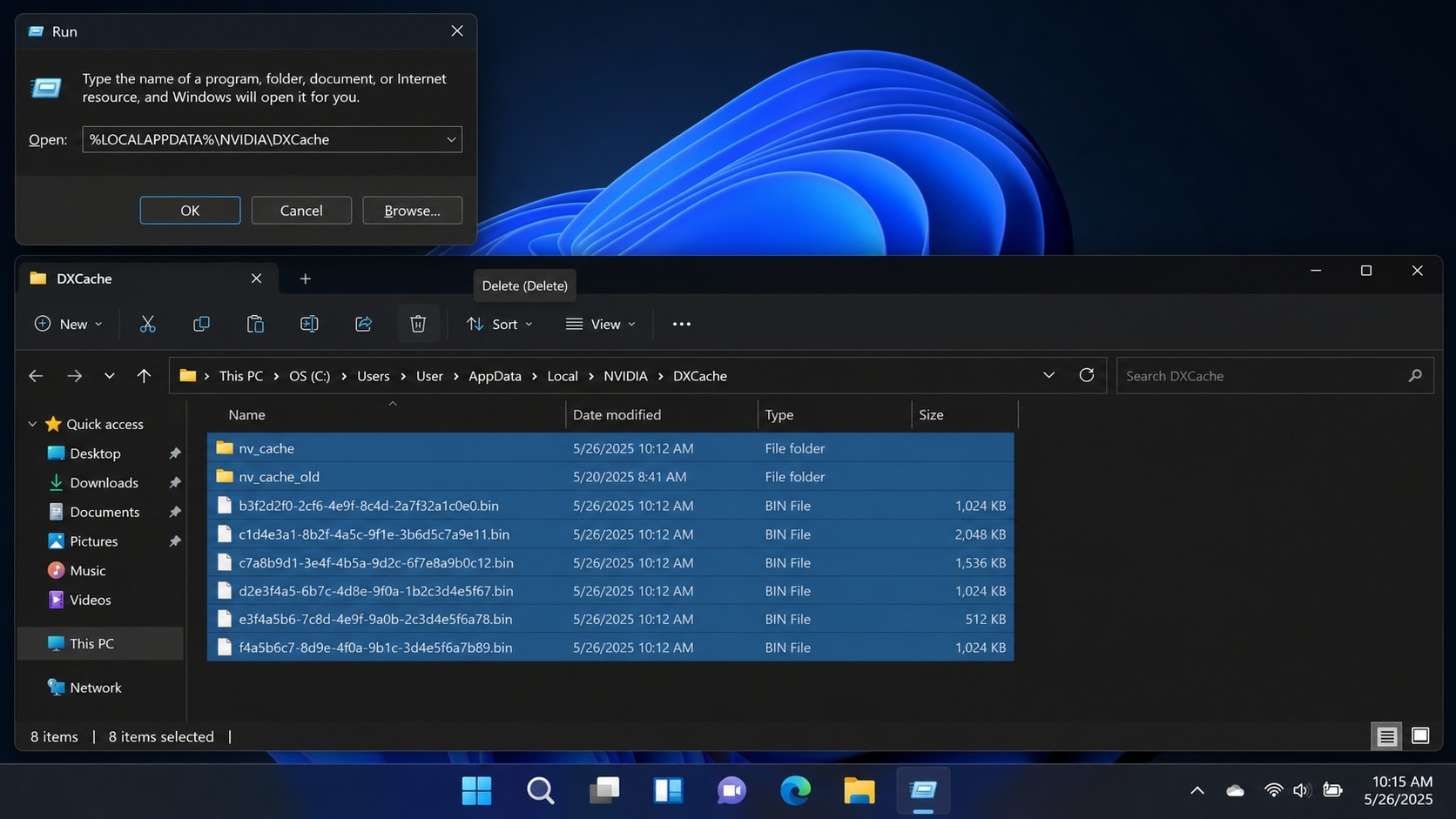
Game files can become corrupted or go missing during an update. Steam can check and replace them automatically:
- Open your Steam Library and find Aniimo.
- Click the gear icon on the game page, then choose Properties.
- Switch to the Installed Files tab.
- Click Verify integrity of game files and wait for it to finish.
- Launch Aniimo again once the process completes.
Way 2: Switch Between DirectX 11 and DirectX 12
- Press
Win + R, type the game's launch options path if available, or open the in-game settings menu. - Look for the Graphics API or DirectX option.
- If you are on DirectX 12, switch to DirectX 11, restart the game, and test. If you are already on DirectX 11 and the game still crashes, try DirectX 12 - the developers recommend testing both directions.
Switching to DirectX 11 alone has fixed the crash for many players on older hardware.
Way 3: Update or Clean Install Your Graphics Driver
- Download the latest game-ready driver for your GPU from NVIDIA, AMD Radeon, or Intel Arc.
- Run the installer and, if the crash persists, choose Custom and check Perform a clean installation to remove leftover driver files.
- Restart your PC and launch Aniimo.
A clean installation is worth doing when a simple update changes nothing. Leftover files from an older driver are a common reason Unity games keep crashing after a normal update.
Way 4: Turn Off DLSS and Frame Generation
- Launch Aniimo and stop at the login screen.
- Open the graphics options and switch DLSS and Frame Generation to Off.
- If the black screen persists, change the anti-aliasing setting to a different mode and restart the game.
This is the developers' own recommendation for black screens and launch crashes, and it also helps if the world renders black while the UI is visible.
Way 5: Clear the Shader Cache
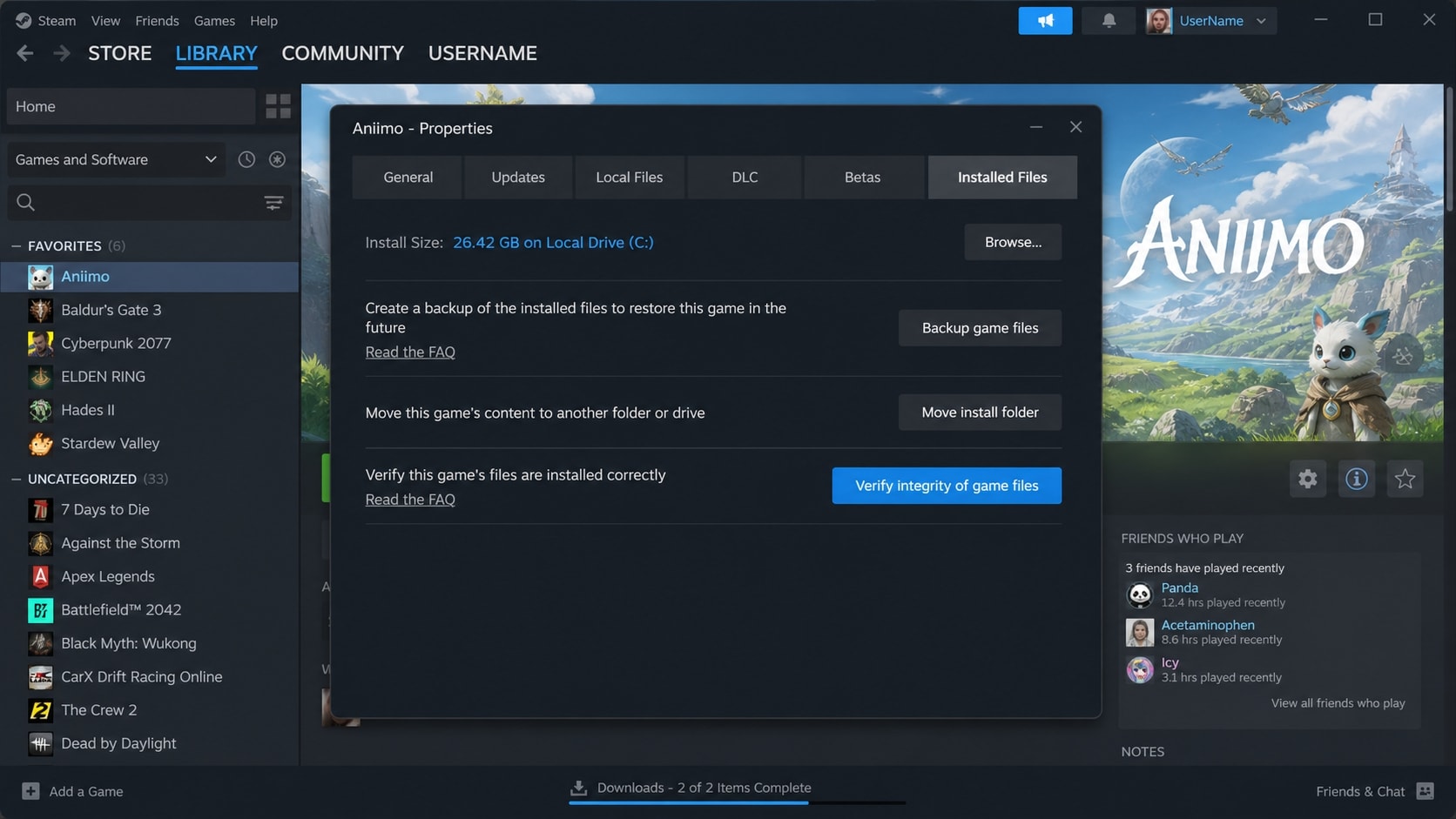
A corrupt shader cache can stop Aniimo from rendering. Delete the cache folders for your GPU vendor, then relaunch the game so it rebuilds them.
NVIDIA users:
%LOCALAPPDATA%\NVIDIA\DXCache
%LOCALAPPDATA%\NVIDIA\GLCache
%LOCALAPPDATA%\NVIDIA Corporation\NV_Cache
AMD Radeon users:
%LOCALAPPDATA%\AMD\DxCache
%LOCALAPPDATA%\AMD\DX9Cache
%LOCALAPPDATA%\AMD\DxcCache
Intel Arc users: delete the contents of %LOCALAPPDATA%\Intel\ShaderCache. Paste each path into the Run dialog (press Win + R) and delete the folder contents, then restart Aniimo.
Way 6: Install the Visual C++ Redistributables and Run as Administrator
- Download and install the latest Microsoft Visual C++ Redistributable packages (both x86 and x64) from Microsoft's official site.
- Right-click the Aniimo executable in your Steam install folder and choose Properties > Compatibility.
- Check Run this program as an administrator, then Apply and OK.
- Restart your PC and launch the game.
Way 7: Close Overlays and Background Apps
Third-party overlays and capture tools hook into the same rendering pipeline Aniimo uses:
- Disable the Steam overlay, Discord overlay, GeForce Experience overlay, and any RGB or tuning utilities.
- Close background recorders such as OBS, Xbox Game Bar capture, or any clipping tool.
- Right-click the game executable and enable Disable fullscreen optimizations under Compatibility.
- Relaunch the game and test.
Way 8: Send Your Logs and Wait for the Patch
If the game still freezes, stutters, or disconnects, the issue may be on the server side rather than your PC - Aniimo's team confirmed unstable network conditions around launch and has been releasing patches since. Send your log files so the developers can identify your specific crash:
- Open the folder
C:\Users\[your username]\AppData\LocalLow\Aniimo\Aniimo(enable View > Show hidden items if you cannot see AppData). - Attach
Player.logandPlayer-prev.log. - Email them to
aniimo_support@aniimo.com, or report in game via Menu > Support or theF10shortcut.
Part 4. Repair Corrupted Game Recordings with Wondershare Repairit
Crashing is not only hard on the game. The clips you capture of Aniimo - boss fights, exploration runs, or the crash itself while you were filming it - often come out black, unplayable, flickering, or out of sync. That is a corrupted video file, a different problem from the game crash, and it is exactly what Repairit is built for.
Repairit is professional video repair software that explicitly supports fixing videos that will not play or open, black screen clips, flickering and choppy playback, audio-video out of sync, and missing sound. It covers the causes you meet while troubleshooting: recording interruption, a crash mid-encode, sudden power failure, and file transfer errors.
Key Features
- Broad format support: repairs MP4, MOV, AVI, MKV, M2TS, TS, MXF and 20+ other mainstream and pro formats.
- Covers common damage scenarios: recording interruption, power failure, file transfer errors, rendering crashes, and encoding failures.
- Advanced Repair mode: for badly damaged clips, add a sample file recorded with the same device or software so the tool can rebuild the lost structure more completely.
- Preview before saving: check the repaired clip first so you never save a useless file.
How to Repair a Corrupted Aniimo Recording in 3 Steps
Step 1. Import Corrupted Video Files

Step 2. Repair the Game Recording

Step 3. Preview and Save Repaired Videos

Repair Your Gameplay Recordings Now
 Security Verified. Over 7,302,189 people have downloaded it.
Repairit repairs the video file - it does not fix Aniimo's launch crash or black screen, which are graphics and system issues. Use Part 3 to fix the game, then use Repairit to rescue any footage that came out corrupted while you were troubleshooting.
Part 5. Best Practices to Keep Aniimo Running Smoothly
- Stay on the latest game-ready driver: check for a new GPU driver before every Aniimo patch.
- Keep DirectX 11 as your fallback: if crashes return after an update, switch back and test before reinstalling anything.
- Clear the shader cache after driver updates: a stale cache is a common cause of black screens and stutter.
- Record with enough free space: interrupted recordings from a full disk are the top cause of corrupted game clips - free up space first and verify playback after.
- Back up important footage: keep a copy on a second drive and repair corrupted clips early with Repairit while the data can still be recovered well.
Conclusion
Aniimo not launching, crashing or freezing on PC is almost always fixable without a reinstall. Verify the game files, switch to DirectX 11, update or clean install your graphics driver, turn off DLSS and Frame Generation on the login screen, clear the shader cache, and make sure the Visual C++ redistributables are installed. If the stutter or disconnect persists, send your logs and wait for the next patch. And if your recordings came out black or unplayable along the way, use Repairit to repair those video files before they are lost.
FAQ
-
1. Why does nothing happen when I press Play in Aniimo?
The executable is usually closing instantly because a runtime library is missing or the file is being blocked. Install the latest Microsoft Visual C++ Redistributable packages, then run the game as administrator (Way 6). -
2. Should I use DirectX 11 or DirectX 12 in Aniimo?
DirectX 11 is the safer choice on older GPUs and CPUs, because DX12 is much more CPU-demanding and can cause crashes. Try both directions - switching between DX11 and DX12 is the developers' own suggestion for launch crashes. -
3. Why is Aniimo showing a black screen with only the UI visible?
That pattern usually points to a corrupt shader cache or to DLSS and frame generation interfering with rendering. Turn DLSS and Frame Generation off at the login screen and clear your GPU shader cache, then restart the game. -
4. Does reinstalling Aniimo fix the crash?
Only rarely. Most crashes come from the graphics driver, the DirectX mode or a corrupt shader cache, so try the fixes in Part 3 first. Verify the game files before reinstalling, since that repairs corruption without a full download. -
5. Can Repairit fix the Aniimo crash or black screen?
No. Repairit is a video file repair tool that fixes corrupted recordings such as black or unplayable clips. The game crash is a graphics and system issue, so follow Part 3 to fix Aniimo itself.




