
Gaming is a popular means of entertainment for all age groups in today’s world. Escape From Tarkov is among the player-favorite games. If players encounter failed launches or crashes, it can prevent a proper gaming experience. However, there are various ways you can repair this game issue to ensure uninterrupted gaming. The following article is a detailed guide to fixing the “Escape From Tarkov not launching”issue effectively.
Table of Contents
Part 1. Why Escape From Tarkov May Not Launch on Your PC
Before we explore fixes for the issue, we must recognize the causes of the launch issues. The following section explains the factors of an unsuccessful EFT launch:
- Corrupted or Missing Game Files: Damaged or incomplete game files can prevent Escape From Tarkov from starting properly. File corruption often occurs after interrupted updates, crashes, or improper game shutdowns.
- BattlEye Anti-Cheat Initialization Failure: BattlEye must load correctly before the game can launch successfully. Conflicts with antivirus software or blocked permissions often stop BattlEye from initializing properly.
- Outdated or Incompatible Graphics Drivers: Old graphics drivers may lack support for recent game updates or rendering requirements. This incompatibility can cause the game to crash silently during the startup process.
- Conflicts With Background Applications: Overlay tools, recording software, or performance monitoring apps may interfere with the game launch. These programs can block required resources or inject conflicting processes at startup.
- Insufficient System Permissions or Security Restrictions: Running the launcher without administrator rights may prevent required files from loading. Windows security settings or antivirus rules can also block essential game components during launch.
Part 2. Escape From Tarkov Not Loading: 7 Steps to Resolve the Issue
Now that we have enough information on the causes of launch issues, let’s see how they can be resolved. The following article explores the 7 effective methods of fixing the Escape from Tarkov crashing error:
Method 1. Run the Game as Administrator
Running Escape From Tarkov as an administrator ensures it has permission to access required system files. Without elevated rights, Windows may block essential processes during launch. Administrator access prevents permission-related crashes and silent failures. Follow the guide below and learn how to run the game as an administrator to fix the launching issue:
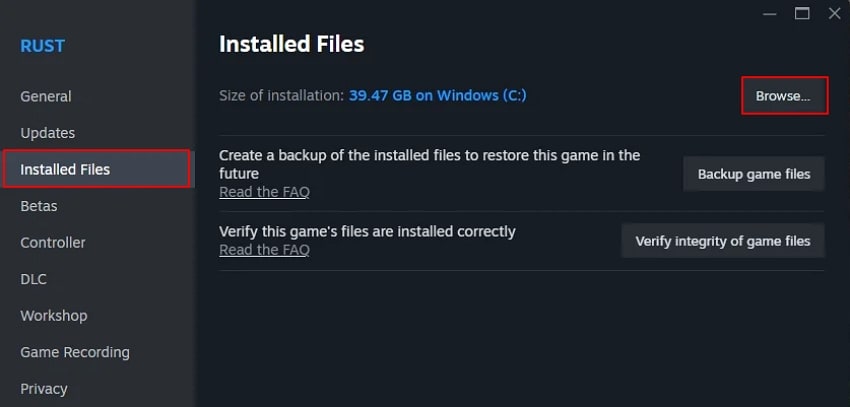
Step 1. In Steam’s “Library,” locate EFT and right-click on it to open the “Properties” window. In this window, enter the “Installed Files” tab and select the “Browse” button to locate EFT on your computer.
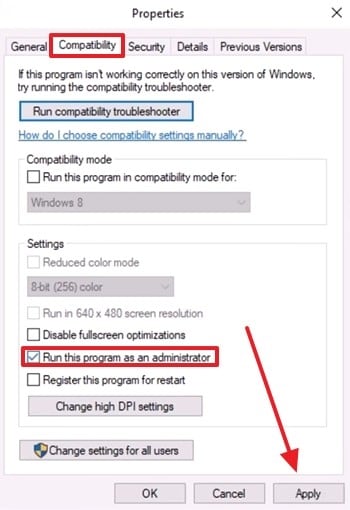
Step 2. Once located, right-click on the game and select the “Properties” option. Here, expand the “Compatibility” section and check the “Run this Program As an Administrator” box to “Apply” changes.
Method 2. Check Integrity of the Game Files
Verifying game files through Steam is essential because it automatically detects and replaces corrupted components. This process ensures your installation matches the latest official version without errors. It also restores missing or altered files that may interrupt gameplay. Follow the steps below to learn how to verify game files in Steam to resolve the “Escape From Tarkov not loading” issue:
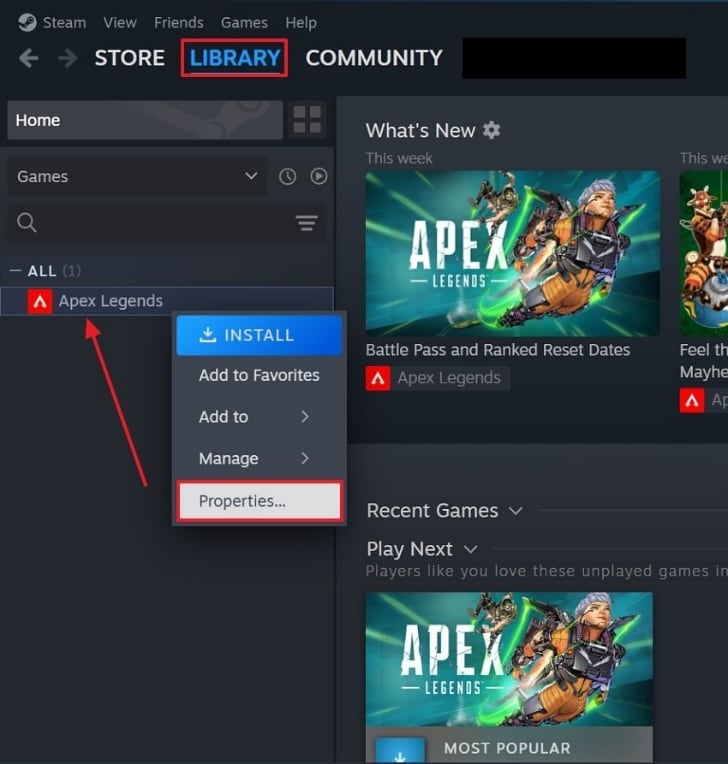
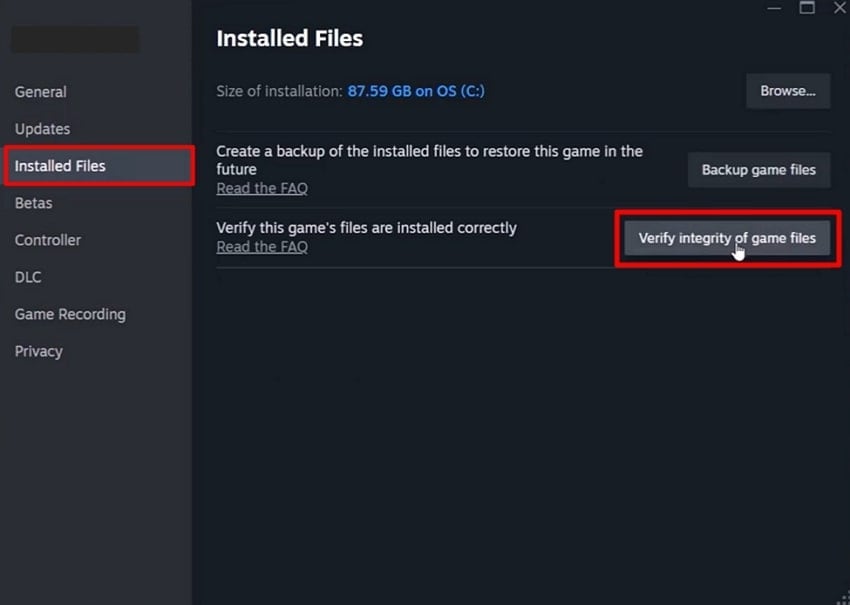
Step 1. To start, open Steam and enter the “Library” tab and look for Escape From Tarkov in the left panel. Right-click on it and select the “Properties” option from the extended menu.
Step 2. When the next window opens, enter the “Installed Files” and click the “Verify Integrity of Game Files” option. Now, Steam will scan and automatically replace corrupted or missing files. Once done, restart the PC and relaunch the game.
Method 3. Disable Overlays
Steam overlays can interfere with the game process. Sometimes, they conflict with game code or anti-cheat systems, causing fatal errors. Disabling overlays reduces one potential source of interference and helps diagnose if they are responsible for the error. Read into the guide below and see how to disable the overlays during gameplay to fix the “Escape From Tarkov freezing” issue:
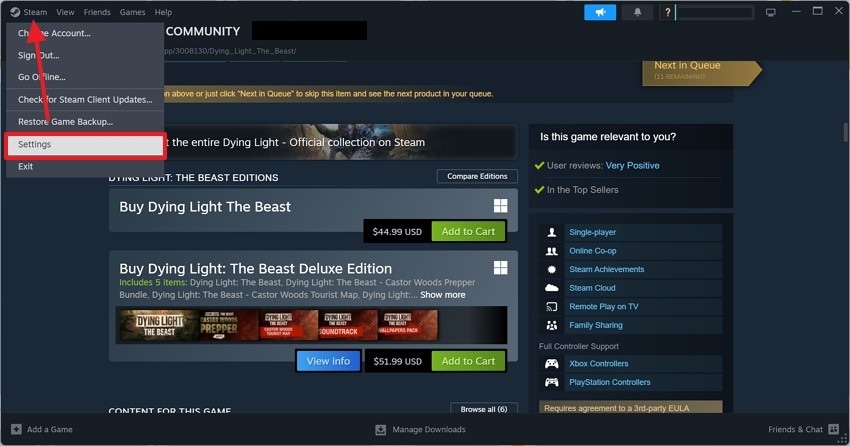
Step 1. First, open the “Steam” menu and enter the “Settings” to trigger a new window.
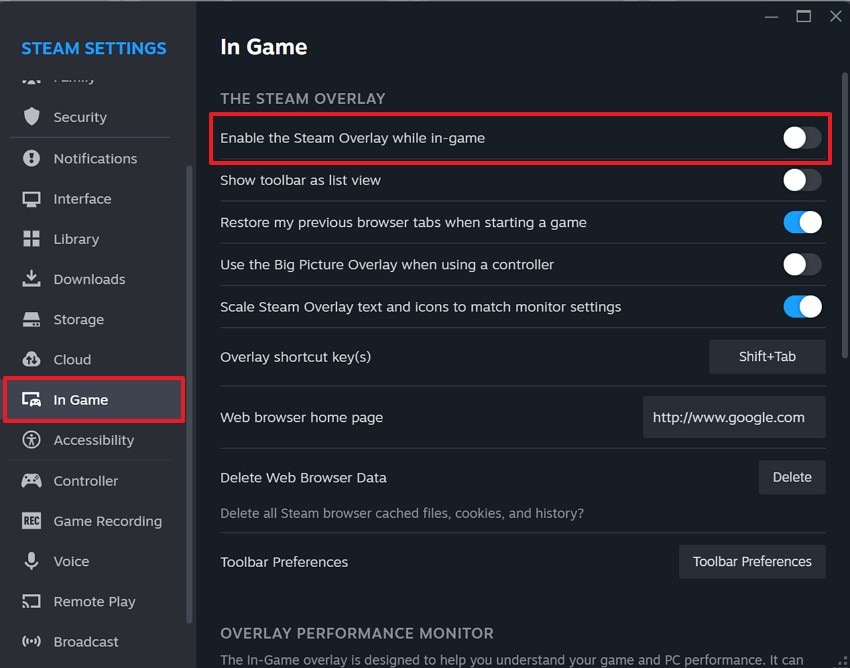
Step 2. In the “In-Game” tab on the left, disable the “Enable the Steam Overlay While In-Game” option to remove the overlay.
Method 4. Clear Cache and Temp Files
Temporary and cached files can become corrupted and disrupt the game’s loading process. Clearing them forces the launcher to rebuild fresh configuration data. This fix resolves startup freezes caused by outdated cache entries and is helpful after multiple failed launch attempts. The steps below are a detailed guide to this method for resolving the “Escape From Tarkov not launching” error:
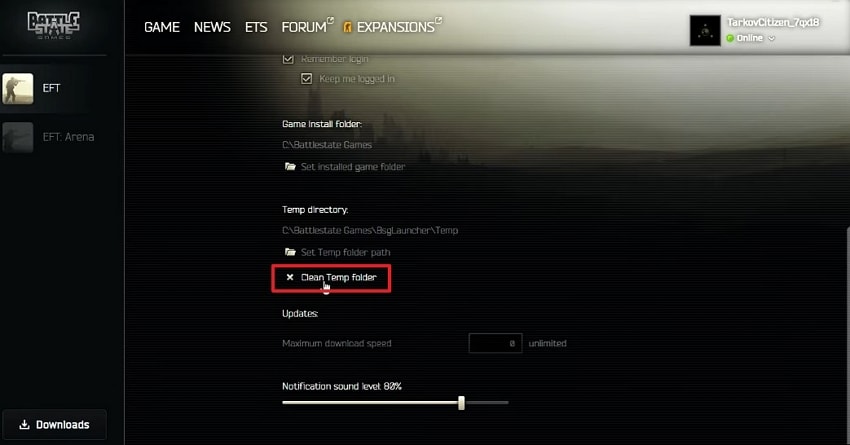
Step 1. Open Battle State Games and access the EFT interface. Now, expand the “Menu” icon on the top right to enter “Launch Settings” and proceed.
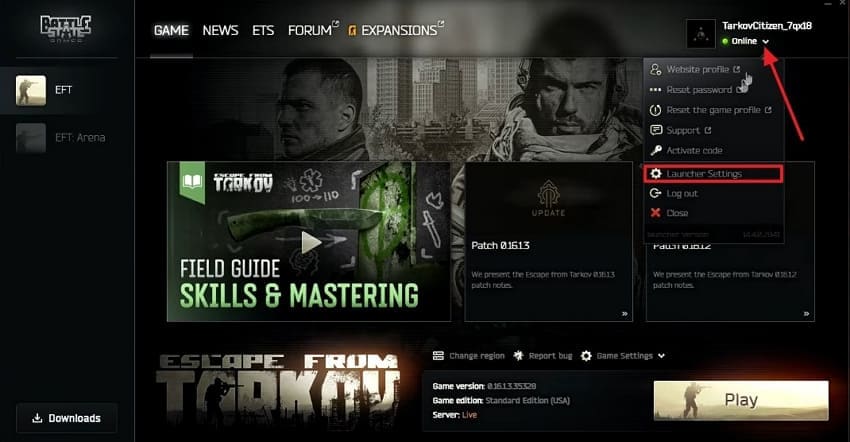
Step 2. In the next interface, select the “Clean Temp Folder” and clear the “temp” folder manually. This will clear the cache for Escape From Tarkov. Unlike Steam, Battle State Games does not have a dedicated game integrity verification feature. You can just relaunch it to repair the corrupt game files.
Method 5. Update Your GPU Drivers From NVIDIA/AMD/Intel
Updated GPU drivers ensure compatibility with the game’s current rendering requirements. Older drivers may lack fixes needed for recent patches, which help improve stability and performance. This method prevents crashes from occurring before the main menu appears. Follow the guide below and learn how to update GPU drivers to fix the Escape From Tarkov crashing error:
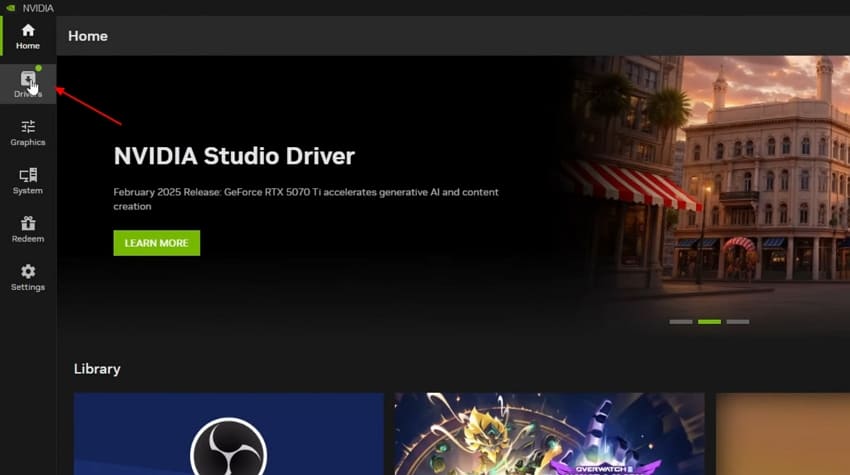
Step 1. Considering you might be having an NVIDIA graphics card within your device, access the dedicated platform for checking the details. After launching the NVIDIA App, look for the "Drivers” section on the left.
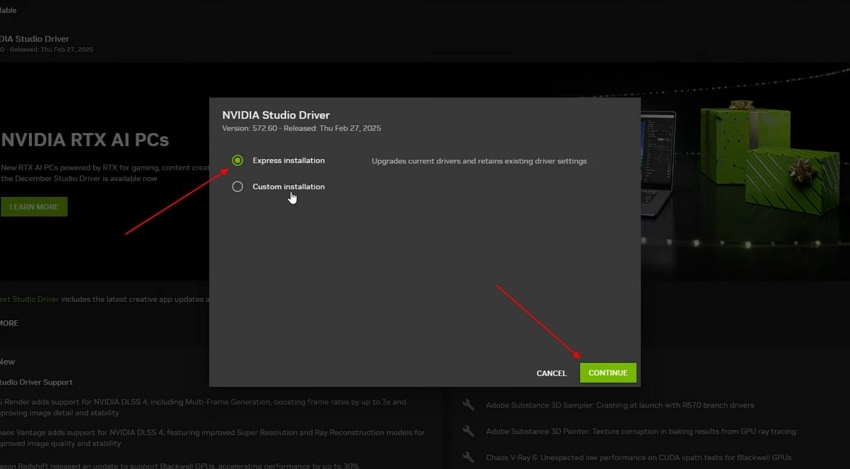
Step 2. After selecting the choice of your drivers on the top-right, click “Download” to initiate the process. Once downloaded, tap “Install” to open another window, where you need to choose “Express Installation” and click “Continue” to successfully update your GPU drivers.
Method 6. Temporarily Turn Off Antivirus Settings
Antivirus software may falsely block Escape From Tarkov files or BattlEye components. Temporarily disabling protection helps confirm whether security software causes the launch failure. Once confirmed, you can add proper exclusions that prevent future conflicts without sacrificing long-term system security. Follow the guide below and see how to turn off antivirus settings to resolve the Escape From Tarkov not loading error:
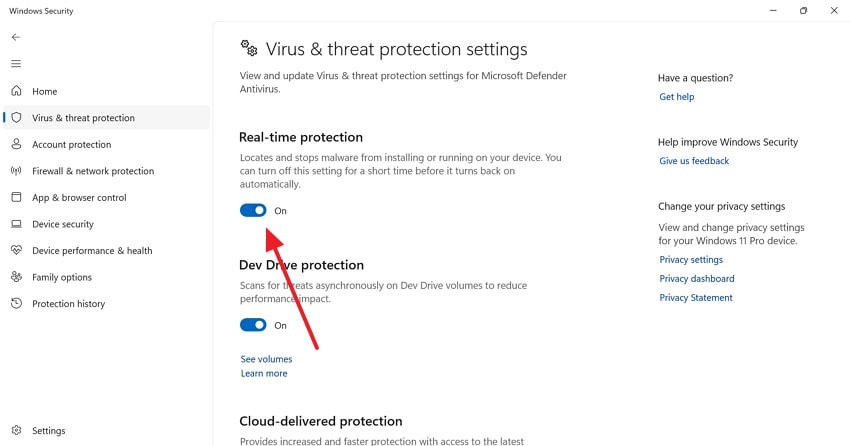
Step 1. In the “Windows Security” window, enter the “Virus & Threat Protection” section on the left. Using the “Manage Settings” option, proceed to the next window.
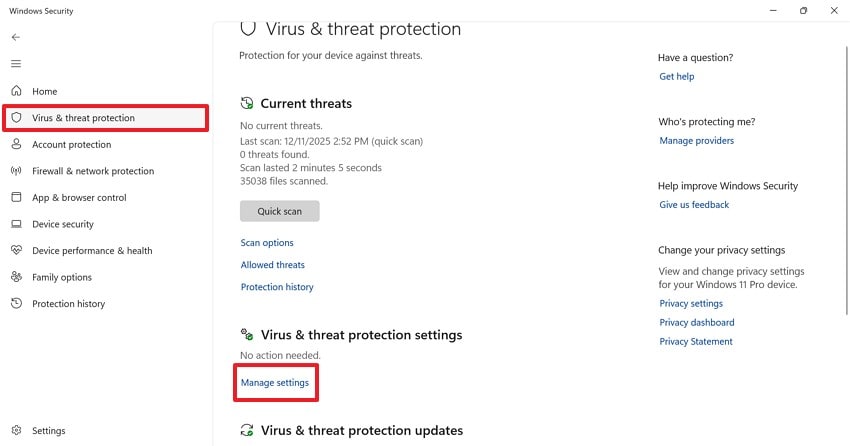
Step 2. Now, locate the “Real-Time Protection” feature and disable its toggle.
Method 7. Perform a Clean Boot
A clean boot starts Windows with minimal background services and startup programs. This helps identify conflicts caused by third-party applications. If the game launches successfully after disabling unnecessary background services, another program is responsible. Clean booting is effective for diagnosing persistent, unexplained launch issues. To learn how to resolve the Escape From Tarkov not loading error by performing a clean boot, follow the guide below:
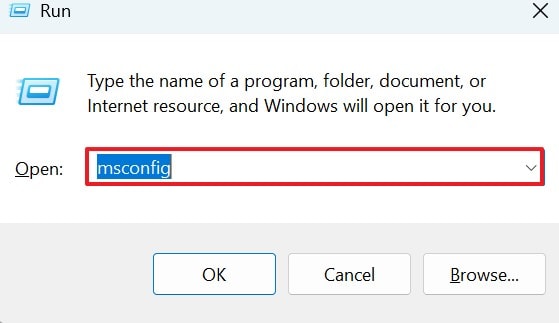
Step 1. Using the “Win + R” keys, open the Run Window and enter the “msconfig” command to open a new window.
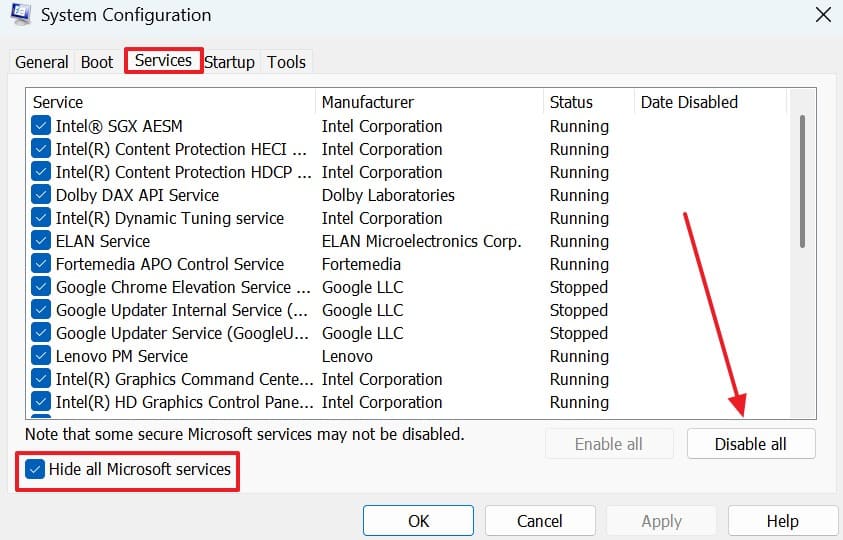
Step 2. In the new window, enter the “Services” tab and check the “Hide All Microsoft Services” box. Next, click the “Disable All” feature to disable all unnecessary startup services running.
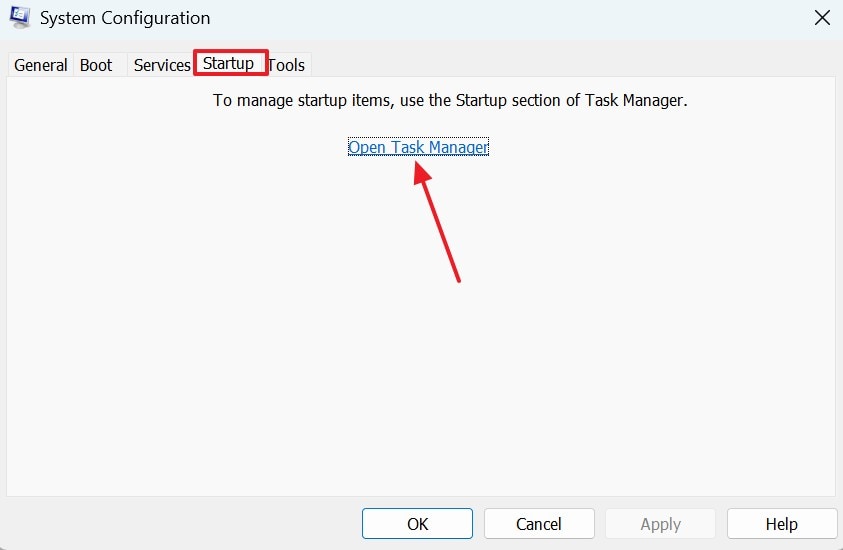
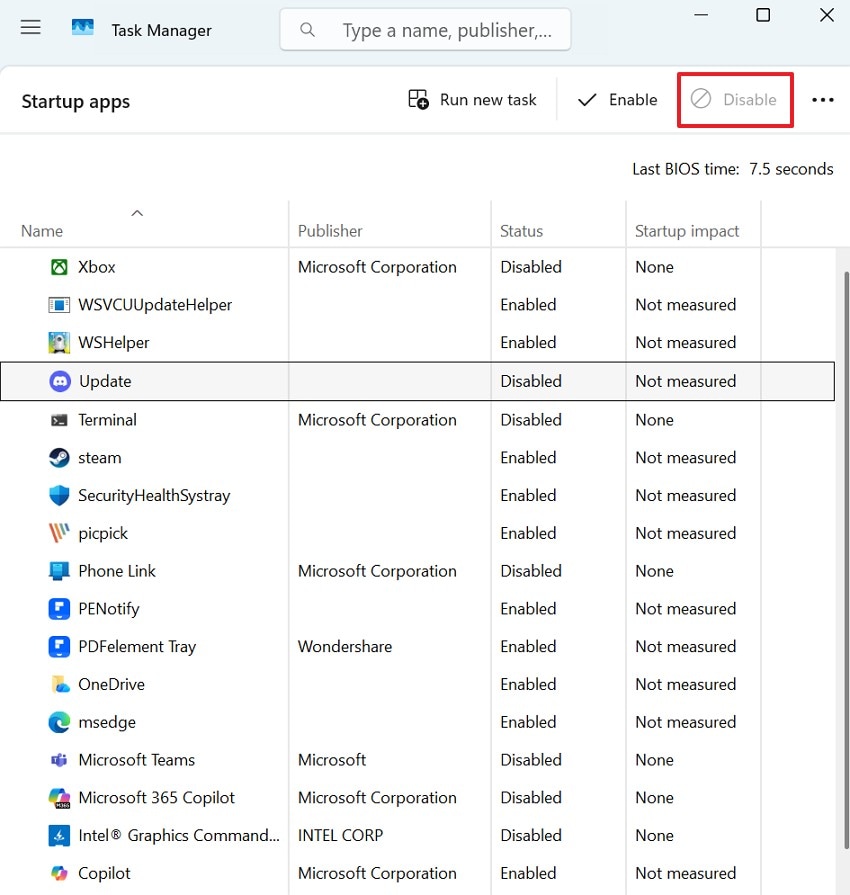
Step 3. In the “Startup” tab, select the “Open Task Manager” option to trigger a new window.
Step 4. In Task Manager, “Disable” all startup apps and close the window. Restart your PC and try launching Escape From Tarkov again. Finally, re-enable all services gradually to identify the conflicting program and remove it accordingly.
Pro Tip. Have Corrupted Game Video Recordings? Get It Fixed via Repairit!
After resolving the “Escape From Tarkov not launching” issue, many players start recording their gameplay to capture achievements. However, corrupted recordings can result in lost progress and valuable proof. Repairit provides a reliable video repair solution to restore damaged gameplay videos. It fixes issues like choppy playback, freezing, and playback errors. Regardless of the corruption cause, including recording glitches or storage failures, Repairit helps recover your recordings effectively.
Professional videographers can use the “Professional Video Repair Mode” to fix RAW, HDR, and LOG footage. If the regular file repair tool does not work, you can enable the Advanced Repair Mode to fix extensive damage. The batch processing feature allows you to repair multiple gameplay files in a single go. Once the files are fixed, they are stored in the cloud storage for easy access in the future.
Key Features

-
High-Quality Video Repair: If your gameplay is high fidelity, use Repairit to fix 4K and 8K videos without deteriorating the original quality.
-
Video Format Support: This tool supports more than 25 video formats to cater to a broad range of files.
-
Recording Device Support: Repairit caters to a variety of recording equipment, including mainstream cameras, screen recording software, and mobile phones.
A Guide to Using Repairit for Fixing Escape From Tarkov Game Files
Repairing video files on Repairit after fixing the “Escape From Tarkov crashing” error takes just a few steps. The following guide explains how to fix your EFT video gameplay using this tool:
Step 1. Enter the Video Repair Mode
To begin with, enter the “Video Repair” mode from the left panel and select the “Start” button from the right.

Step 2. Pick the Videos You Want to Repair
Using the next interface, enter the “Unrepaired Videos” section and select the videos you need to repair. Once done, select the “Repair” button to start the process.

Step 3. Use the Advanced Repair Mode or Save the File
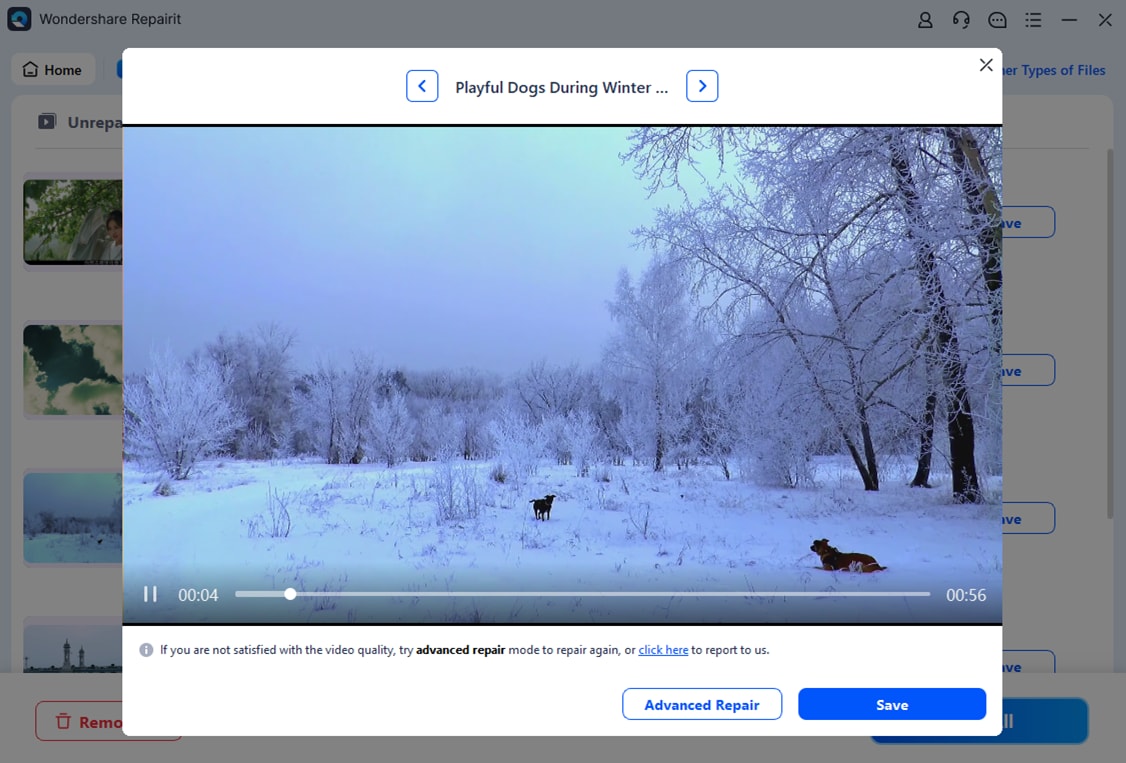
When your files are repaired, select the “Preview” button next to them to have a peek at the results. If your video is fixed perfectly, select the “Save” button to download it to your desired folder.
Repair Your Game Video Files Now
 Security Verified. Over 7,302,189 people have downloaded it.
Conslusion
When you get an “Escape From Tarkov Not Launching” error, you could lose access to your in-game progress. This article presented a detailed guide on resolving this error for a better gaming experience. While the solutions offered above help you fix the launch error, you might also face video gameplay corruption issues when recording. For such cases, you should consider using Repairit as a dedicated video repair facility.
Frequently Asked Questions
-
1. Why does Escape From Tarkov fail to launch on my PC?
The game often fails to launch due to corrupted files, permission issues, or blocked BattlEye components. Background software conflicts and outdated drivers can also silently prevent proper startup. -
2. Why does Escape From Tarkov crash immediately after clicking Play?
Immediate crashes usually indicate driver incompatibilities or missing game dependencies. Antivirus interference or overlay conflicts can also trigger crashes during the initial loading phase. -
3. What could be the fix for a corrupted EFT gameplay video?
To fix a corrupted Escape From Tarkov gameplay video, use Repairit. From a failed playback to severe corruption, this tool caters to all issues with a 99.5% success rate.




