
"Was trying to run Minecraft legends from FitGirl and I needed steam to open the game but when i do this error pops up. Im on Win11 and is this fixable or not?/- solardab1"
"An Error Occurred While Launching This Game: No Licenses" is a frustrating message that appears out of nowhere, even if the game is bought legitimately. Instead of defining the exact problem, it leaves you confused about its cause. However, in reality, the error has no single reason and can be fixed with various solutions.
Even with a purchased license, this issue is commonly reported among gamers, which is a highlight of this error. This article walks you through the causes of this error and what can be done to resolve it to make the game playable.
In this article
-
- Fix 1. Restart the Game Platform (Steam, Epic, etc.)
- Fix 2. Check Internet Connection and Firewalls
- Fix 3. Log Out and Log Back Into Your Account
- Fix 4. Verify Game File Integrity
- Fix 5. Clear the Cache of the Game Platform
- Fix 6. Reinstall the Game if Necessary
- Fix 7. Contact Support if the License Still Isn’t Detected
Part 1. Why "No Licenses" Error Appears When Launching Games
To fix the "An Error Occurred While Launching This Game: No Licenses" error, it is important to know what happened in the first place. The section provides the causes to why the computer cannot launch the game properly:
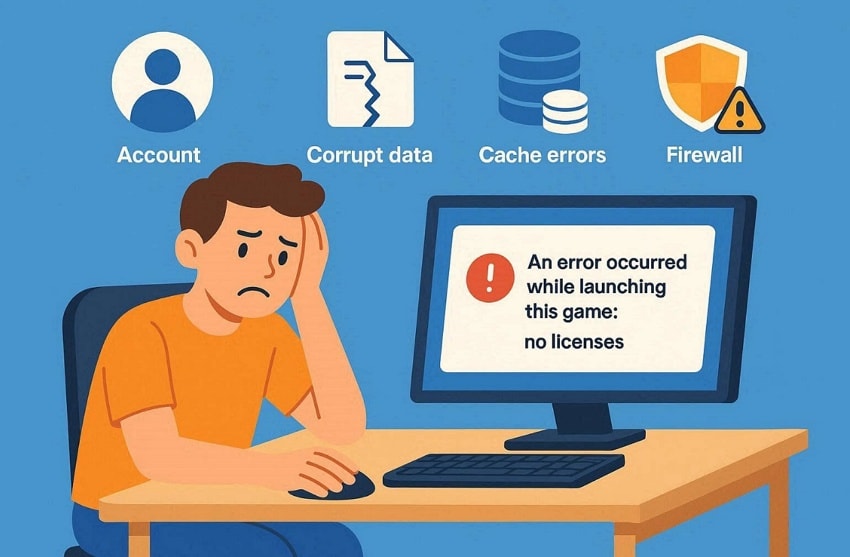
- Wrong Account: You may be signed into an account that does not own the game license. The platform checks ownership and blocks access when the account does not match.
- Corrupted Data: Platform data may become broken or outdated after updates or unexpected system issues. This damaged data stops the system from verifying your game license during launch.
- Cache Errors: Stored cache files may become outdated, causing conflicts during license verification. These old files can cause errors when the platform tries to read license data.
- Internet Problem: An unstable internet connection may interrupt license verification during game startup. The platform cannot confirm ownership when the connection drops or becomes very slow.
- Security Blocks: Firewall or VPN tools may block the platform connection with license servers. This interruption prevents proper checking and stops the game from launching normally.
Part 2. Step-by-Step Fixes for No Licenses Game Launch Error
Once you’ve figured out why you’ve been facing this error while launching the game, you now need to get some practical fixes. This section offers unique fixes to resolve the "No Licenses" launching error:
Fix 1: Restart the Game Platform (Steam, Epic, etc.)
A quick restart of the game platform refreshes your login session and verifies your game ownership. It clears temporary glitches that may block the game from starting on the device. Restarting reloads cached license information, helping the system read the correct data again. So, follow the instructions below to restart the game platform, like Steam:
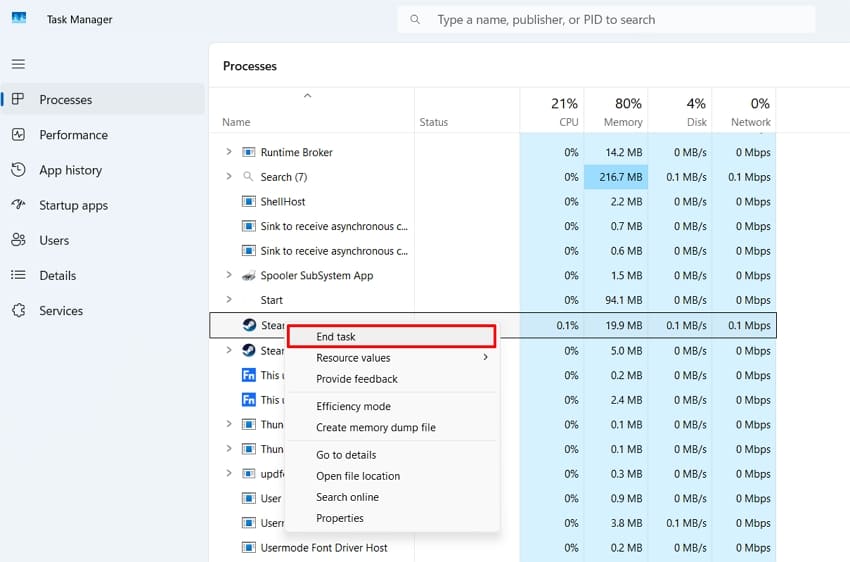
Step 1. Access "Task Manager" using the "CTRL + ALT + DELETE" shortcut key. Look for the platform, such as Steam, and right-click to select "End Task."
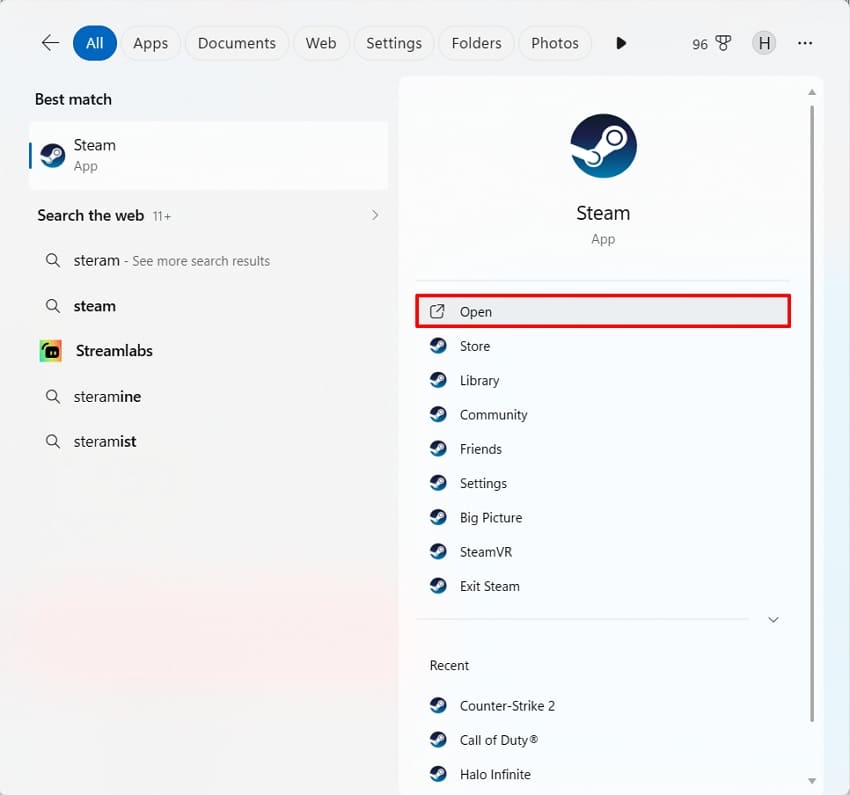
Step 2. Simply search for Steam across the search bar and select "Open" to relaunch it.
Fix 2: Check Internet Connection and Firewalls
Sometimes, an unstable internet connection stops the platform from checking your game license. As a result, this block causes the "An Error Occurred While Launching This Game: No Licenses" issue. Apart from that, safety tools like firewalls or VPNs also block the platform from reaching license servers. Thus, you should know how to switch to a stable internet and temporarily turn off firewalls.
Checking Internet Connection
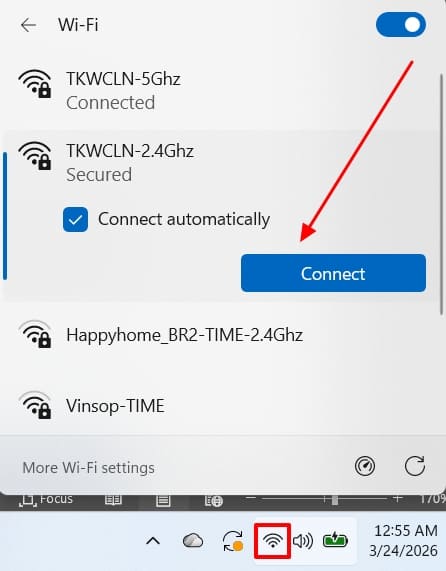
Instructions. Tap the "Wi-Fi" icon on the bottom and choose the arrowhead for accessing the available connections. Select any other stable connection and tap the "Connect" switch successfully.
Disable Firewall Connection
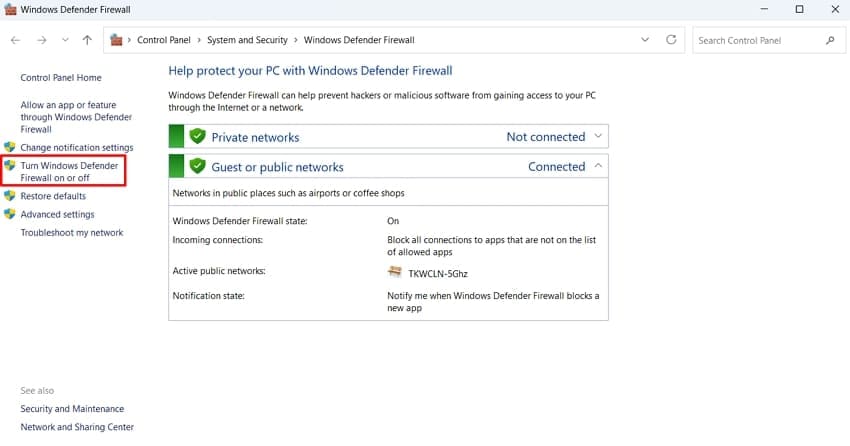
Step 1. Search for and open Windows Defender Firewall in the search bar. On the new window, go for the "Turn Windows Defender Firewall on or off" option on the left.
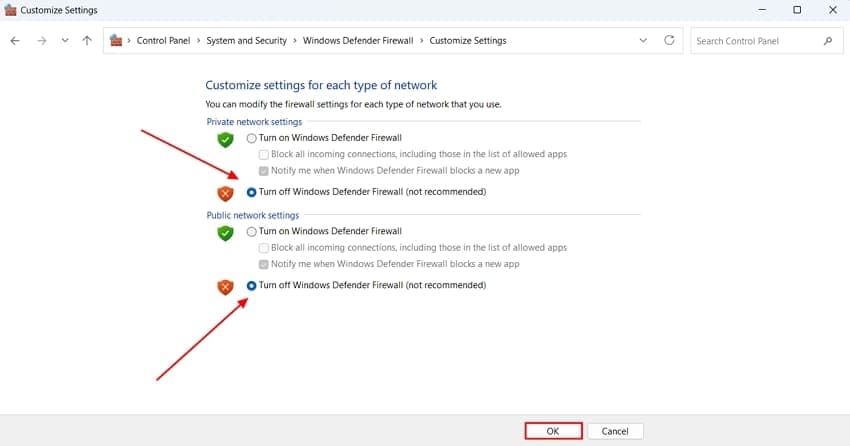
Step 2. As you navigate into a new window, disable both options across "Private network settings" and "Public network settings" and click "OK" to confirm.
Fix 3: Log Out and Log Back Into Your Account
Long login sessions usually stop the launcher from seeing who owns the game, even if it is purchased with the same account. The right way is to sign out and sign back into the platform to refresh the session, reload the account data, and validate all your licenses. The steps below offer a simple approach to how you can resolve this "No Licenses" hiccup:
Step 1. Launch "Steam" and click on your "Account Name" in the top-right corner, then choose "Sign Out of Account."
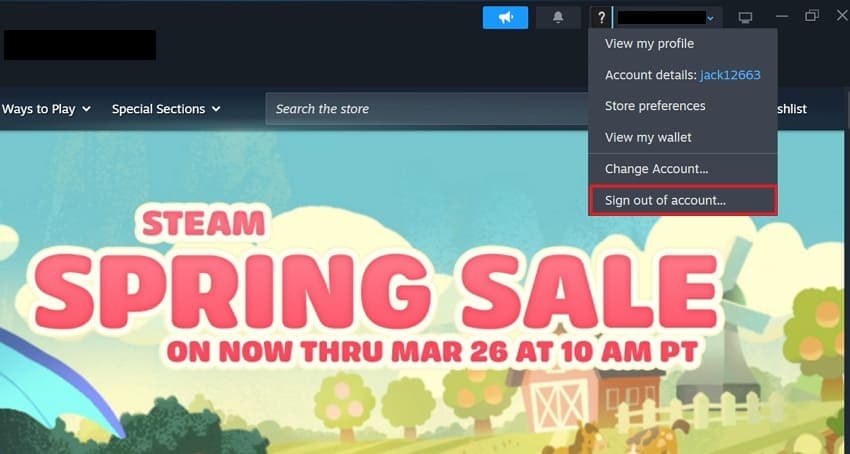
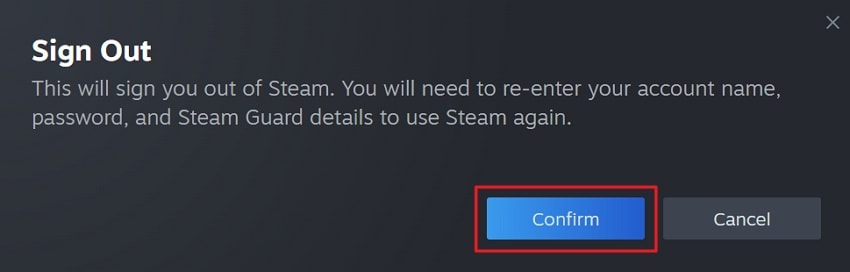
Step 2. A pop-up appears as a confirmation, which successfully signs you out of Steam after clicking "Confirm."
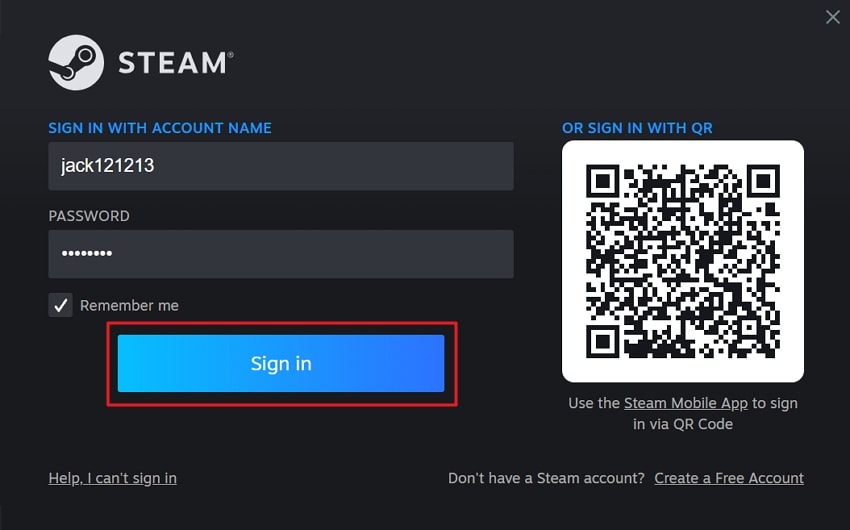
Step 3. When the sign-in window opens up, add your username and password across the designated fields and tap "Sign In."
Fix 4: Verify Game File Integrity
Another way to fix "An Error Occurred While Launching This Game: No Licenses" is to verify the game files across Steam. This process checks for missing or damaged files and restores them with the correct versions. Along with that, it ensures the platform can read all required DLLs or API files and confirm ownership. Thus, go through the given steps to verify game file integrity in Steam:
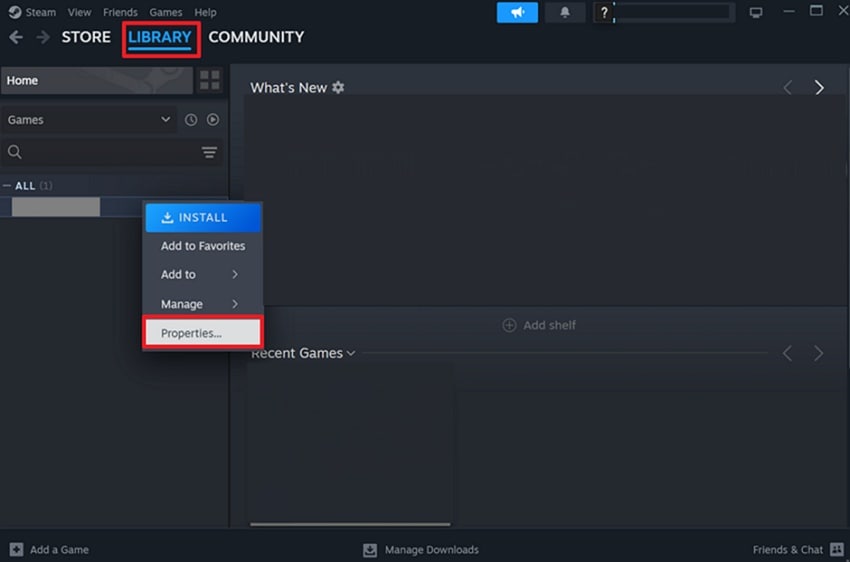
Step 1. After launching Steam, look for the "Library" section, right-click the specific game, and choose "Properties."
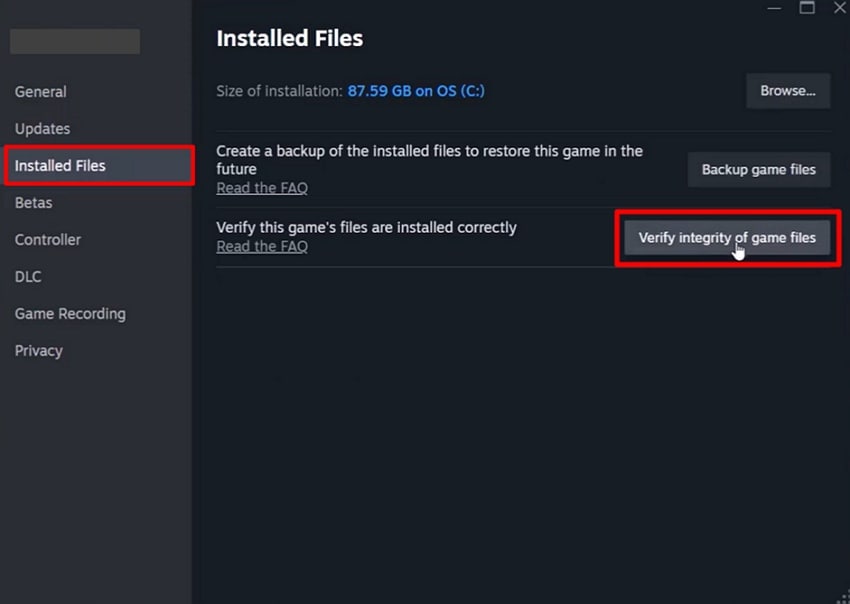
Step 2. On the next window, navigate to the "Installed Files" tab and opt for "Verify Integrity of Game Files" option.
Fix 5: Clear the Cache of the Game Platform
A bad cache also prevents the platform from verifying ownership or syncing game data. Thus, clearing the game platform cache removes old temporary files that may be corrupted or outdated. Temporary download and session files may preserve incorrect information, causing launch problems. Review the steps below to clear the cache of the game platforms, like Steam:
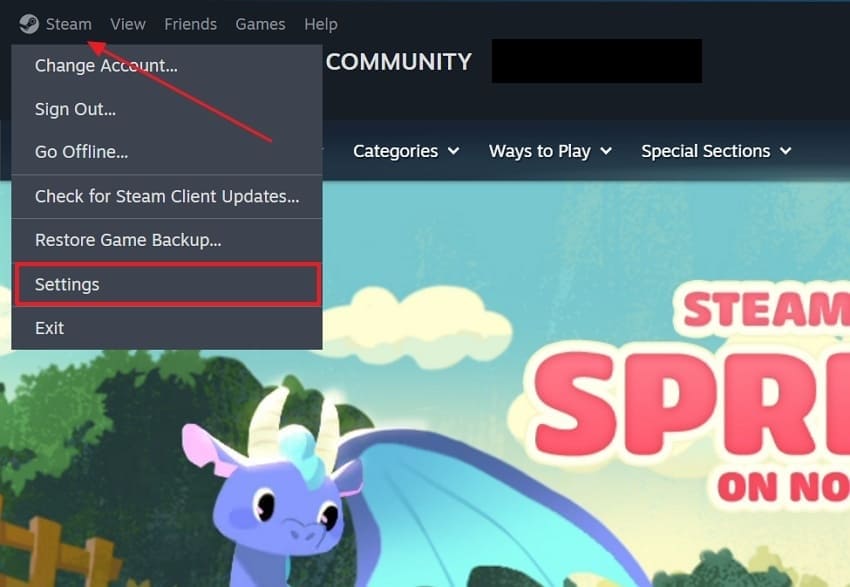
Step 1. Upon launching Steam, access the "Steam" tab on the top-left and choose "Settings" from the drop-down.
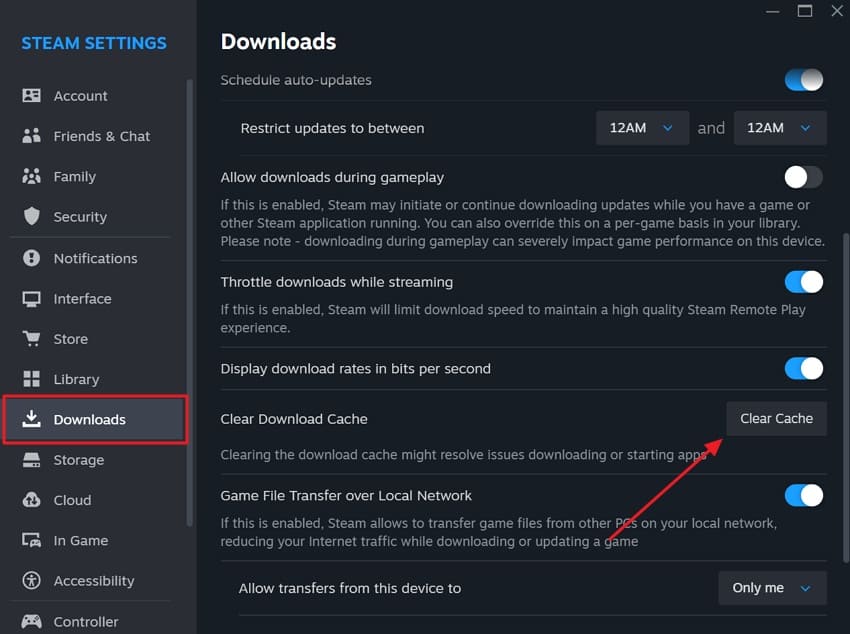
Step 2. In the next window, look for the "Downloads" section and select "Clear Cache" to remove all download cache.
Fix 6: Reinstall the Game if Necessary
If the game files are badly corrupted, it may keep failing to launch the game on the platform. A clear reinstall is the solution to the "An Error Occurred While Launching This Game: No Licenses" error. It replaces the damaged or missing files and restores key components for verifying the licenses while launching. The steps below guide you to reinstall the game in Steam with ease:
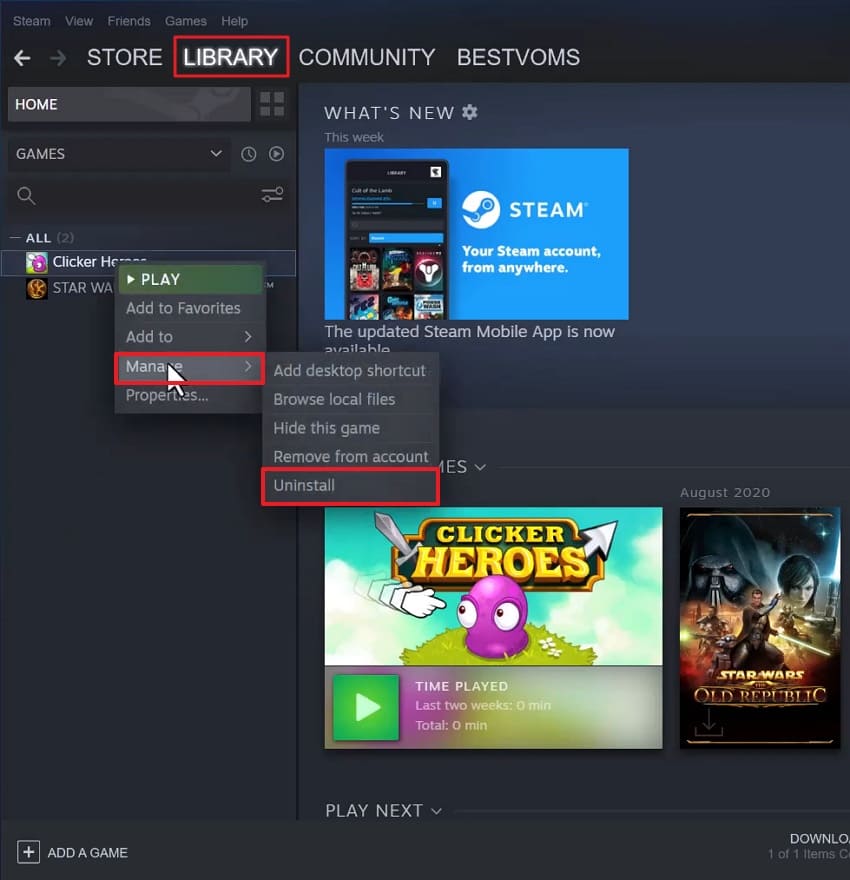
Step 1. Navigate to the "Library" section of Steam to access the game. Right-click the game, access "Manage" and click "Uninstall."
Step 2. After successfully uninstalling the game, access the "Library" section again and look for the required game in the left panel.
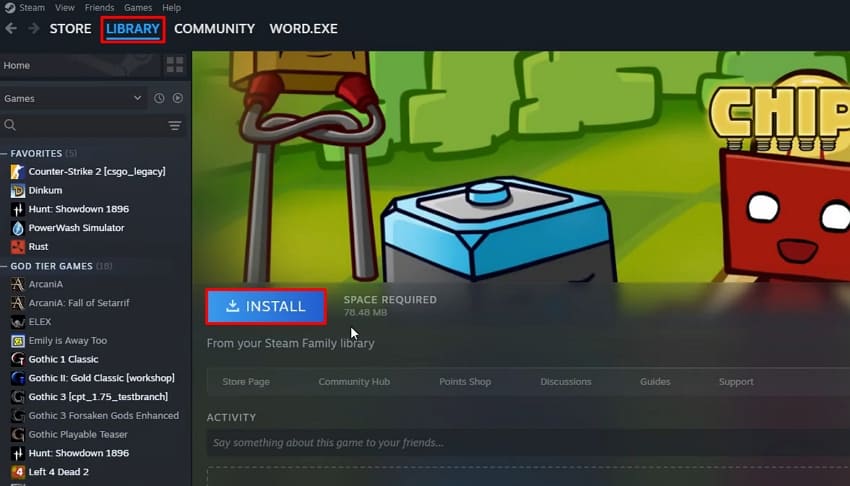
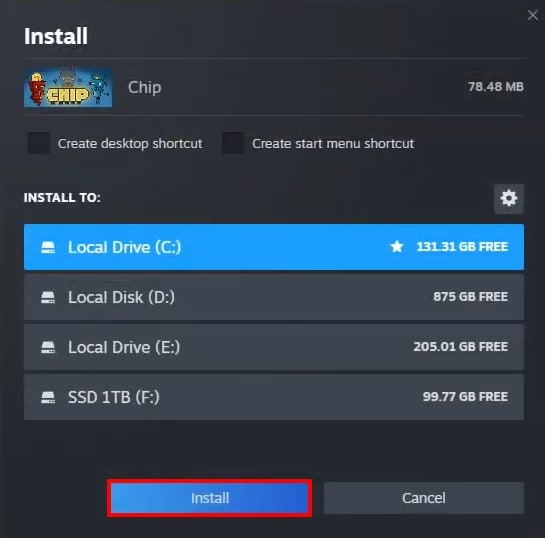
Step 3. Choose an appropriate disk for installation and select "Install" to execute the process.
Fix 7: Contact Support if the License Still Isn't Detected
When the license remains undetected after trying all fixes, it is best to look for the platform’s official support. The team helps you in checking the game license and verifying if it is attached to the right account. Furthermore, they can also help fix the permission or sync problems that are a cause of this error.
Pro Tip: Repair Your Corrupted Game Recordings or Screenshots
The "An Error Occurred While Launching This Game: No Licenses" error turns out to be a hurdle to playing games smoothly. At times, gamers record their gameplay, only to find out that it gets corrupted when uploading to social media. To avoid re-recording, users can save their time by using Repairit as the best option to repair corrupted recording files.
Its advanced AI algorithm easily tracks and repairs encoding errors that prevent video playback. Furthermore, its "Quick Repair" mode helps you fix minor video corruption issues and offers an "Advanced Repair" mode for severe cases. The tool also aligns with repairing the audio to restore the commentary against the gameplay.
Key Features

-
Maintain Video Resolution: Repairit preserves the original resolution and visual quality of your game video so that you can get high-definition outputs after fixing.
-
Repair Video Metadata: It updates critical metadata of the video, including video timestamps and encoding information.
-
Restore Dropped Frames: Repairit helps in restoring missing or dropped frames across gameplay recordings, thus delivering smooth and continuous playback.
Guide to Fix Damaged or Corrupted Video Game Recordings via Repairit
If you intend to repair your damaged video gameplay recordings with Repairit, go through the guide provided below:
Step 1. Add Damaged Videos Across Repairit
To initiate, open the tool and choose the "Video Repair" feature. Next, opt for "Start" to add your damaged gameplay recordings.

Step 2. Start Repairing the Corrupted Video
After selecting your corrupted or damaged videos, click "Repair" to begin restoring them.

Step 3. Preview and Save the Gameplay Video
Once the repair finishes, preview the restored gameplay videos and click "Save" to download them to your device.

Repair Corrupted Recording Files
 Security Verified. Over 7,302,189 people have downloaded it.
Part 3. How to Prevent "No Licenses" Errors in the Future - 5 Tips
Instead of tackling the above fixes, preventing this error saves you from a lot of hassle. The following tips help you reduce the chance of "An Error Occurred While Launching This Game: No Licenses" error:
Update Platform: Always keep your gaming platform up to date to fix hidden bugs and minor errors. New software versions ensure that your account stays synced with the main server.
Stable Internet: Use a strong Wi-Fi signal to help the app check your ownership. A solid connection prevents the store from losing your important digital license data.
Complete Downloads: Never stop a game download midway through the installation process. Finishing every file update stops the system from becoming confused during the launch.
Account Sync: Switching accounts without refreshing sessions confuses the platform license verification system. Logging properly ensures the platform loads the correct ownership data for your games.
Avoid Blocks: Firewall or VPN tools should not block communication between the platform server and its clients. Blocked connections can prevent ownership checks and lead to license-related launch errors.
Conclusion
The "An Error Occurred While Launching This Game: No Licenses" error completely blocks you from starting your games. With the provided fixes above, you can fix your game and play without any further interruptions. For users who face issues with playing their game recordings or opening their screenshots, Repairit offers an on-spot solution with its file restoration abilities.
FAQ
-
1. What should I do if my game license disappears after a computer update?
You must restart your computer to refresh the system and the store app. A full reboot helps your PC recognize the new digital permissions and ownership data. This simple action often fixes small bugs that happen after installing a Windows update. -
2. Can a full hard drive cause errors while the app checks my license?
Yes, a full disk prevents the app from saving new license verification files. You should delete some old files to create more space for the game store. Having sufficient space ensures that the startup checks are completed without errors. -
3. Does playing in offline mode affect how the store sees my game licenses?
Some platforms require periodic online verification to verify your ownership. You must connect to the internet to refresh the digital key for your games. Staying offline for too long will stop the games from opening on your device.




