

For creators, visually compelling videos aren’t limited to recording, but they demand precision and creativity. All this requires a freeze frame CapCut effect that emphasizes the most impactful moments, delivering transformations into visual statements. Pausing key frames at just the right instant, you can highlight emotions, accentuate actions, and add cinematic impact to visuals.
Beyond its creative possibilities, there’s a lot more this feature adds to modern editing skills. For a complete breakdown, read the guide and understand the underlying reasons for the effect's popularity. Plus, learn how to use freeze frame in CapCut, keeping mistakes to avoid in mind.
Table of Contents
Part 1. What Makes Freeze Frame CapCut So Popular in Modern Short-Form Editing?
To have command over CapCut Freeze Frame, it’s worth knowing how it has refined the process of short-form video editing. For this, review the following section and see how this feature works and when to use it for the best possibilities:
How the Freeze Frame CapCut Effect Creates Impactful, High-Engagement Moments
The CapCut freeze frame effect works by selecting a specific frame in the video timeline and duplicating it. This creates a still image that pauses the motion temporarily, drawing viewers' attention to the key moment.
Overall, it enhances drama and emphasizes details by halting action, although the surrounding audio or effects can continue. The platform allows customization of the freeze duration and visual enhancement to make edits more professional.
When to Use the CapCut Freeze Frame Effect for Best Results
- Use it to highlight critical or emotional moments that you want viewers to notice closely.
- Apply it during tutorials or educational videos to pause and emphasize important instructions or details.
- Insert freeze frames to enhance storytelling pacing, building suspense by pausing before a reveal.
- Combine freeze frames with text overlays or animations to call out specific information.
- Employ it in highlight reels or montages to give viewers a moment to absorb clips.
Part 2. Step-by-Step Breakdown: How to Use Freeze Frame in CapCut (Mobile & PC)
Do you really want to have a lasting impression on your audience through visuals? If so, explore the section and get complete guidance on how to utilize the freeze frame CapCut feature from start to export:
1. How to Add a Freeze Frame CapCut Effect on Mobile
In the following stepwise tutorial, you’ll see exactly how to use this feature on your mobile and keep viewers hooked:
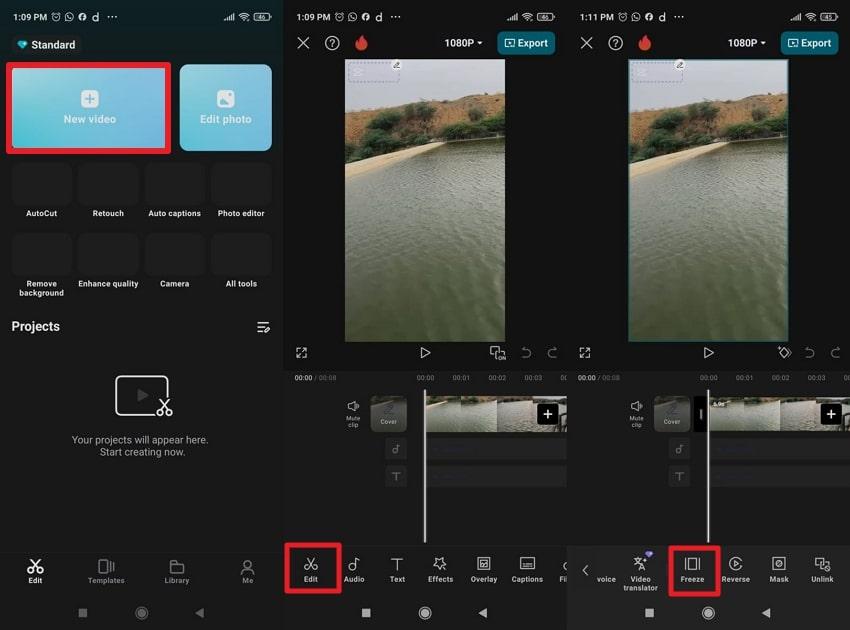
Step 1. Initially, download CapCut on your mobile, and press the “New Video” option from the main interface. Here, choose the “Edit” feature from the toolbar to locate and select the “Freeze” function.
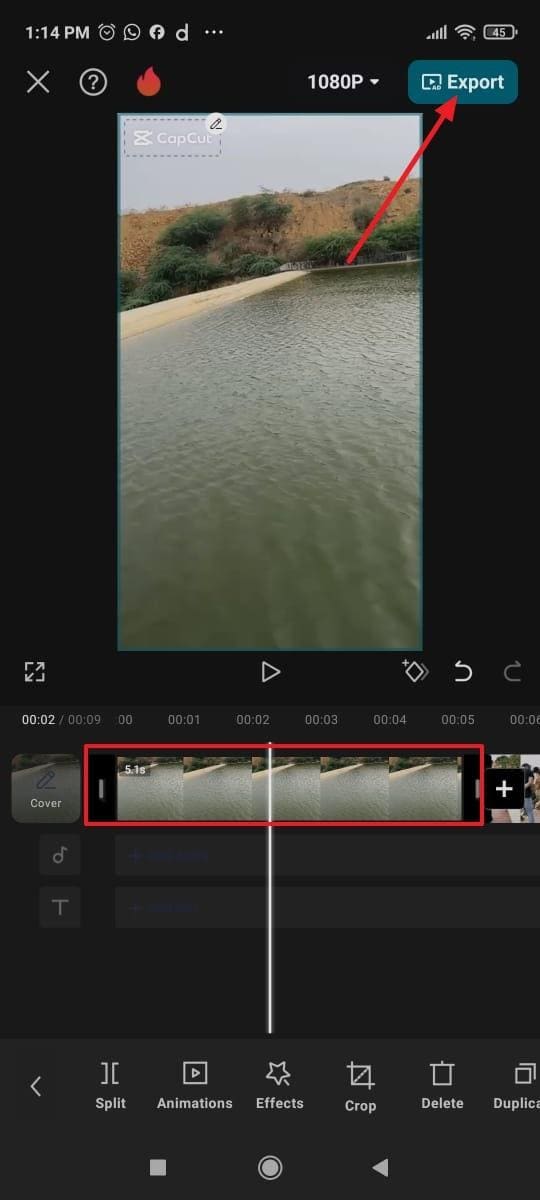
Step 2. After this, extend the time of freeze and navigate to the “Export” button for saving the final footage.
How to Use the CapCut Freeze Frame Tool on PC (Windows/Mac)
To fully harness the creative potential of your video on Windows, follow the manual for the CapCut freeze frame feature:
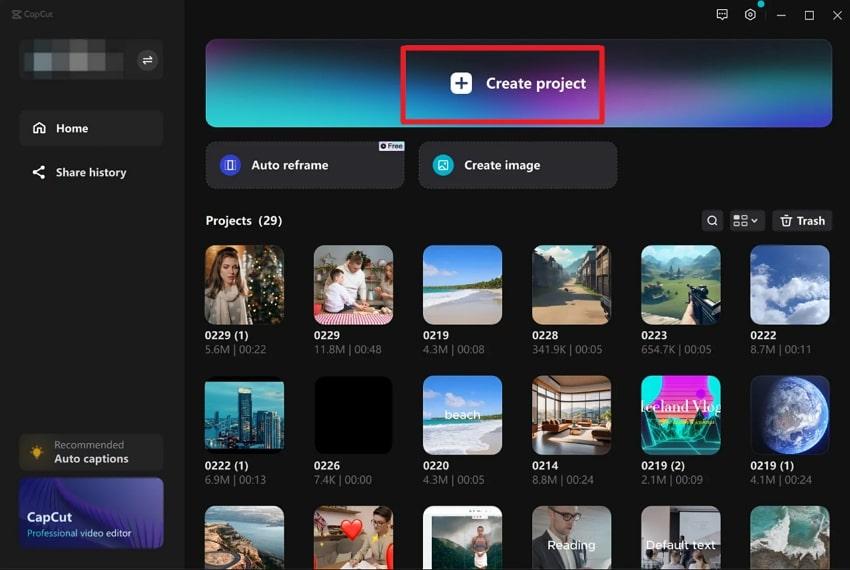
Step 1. At first, install CapCut on Windows, and press the “Create Project” option from the main screen.
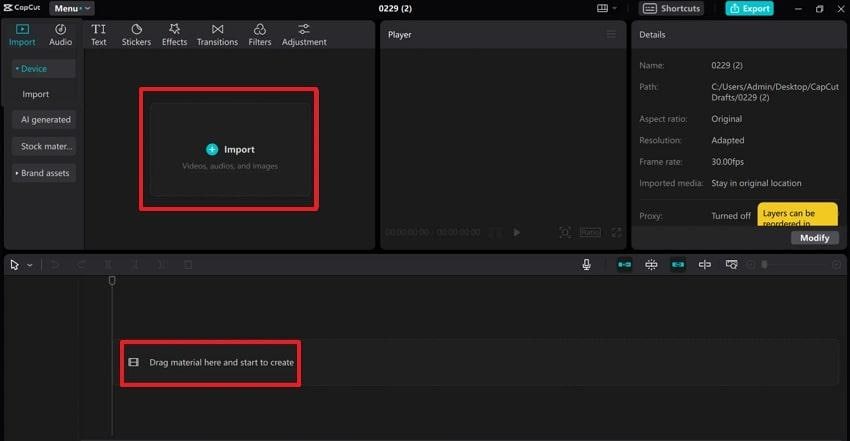
Step 2. Move forward, click on the “Import” option to insert your clip, and drag it to the timeline for editing.
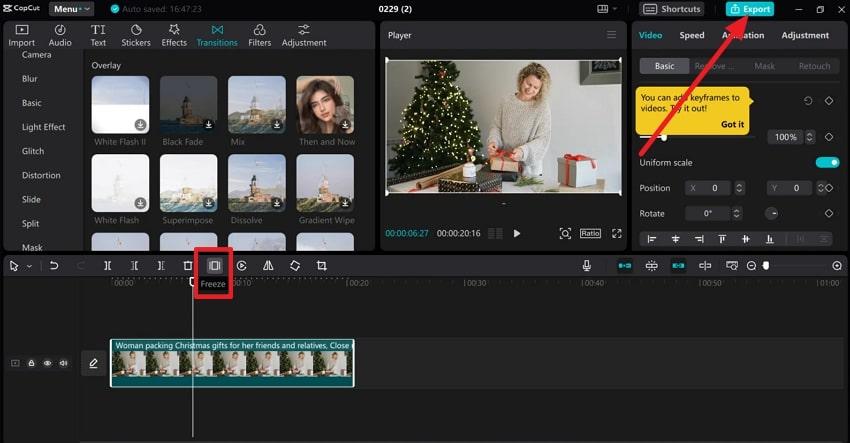
Step 3. Next, click on the clip and press the “Freeze” icon to insert a still segment at the playhead position. Once done, proceed to the “Export” button to adjust settings and save the edited version.
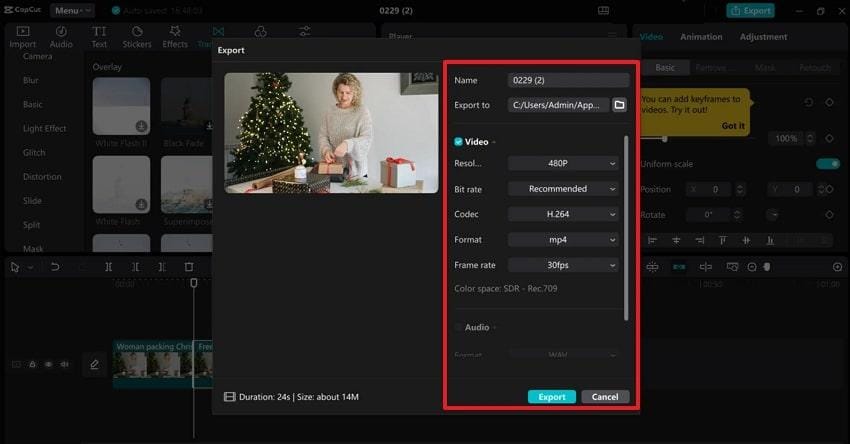
Step 4. Now, specify the export settings for the final video and press the “Export" button to secure the file accordingly.
Part 3. Common Freeze Frame CapCut Mistakes & How to Avoid Them
Even the most creative editors can stumble when using new features, and freeze frame CapCut is no exception. The section below covers the most frequent freeze frame mistakes with some practical tips on how to avoid them:
Common Freeze Frame Mistakes
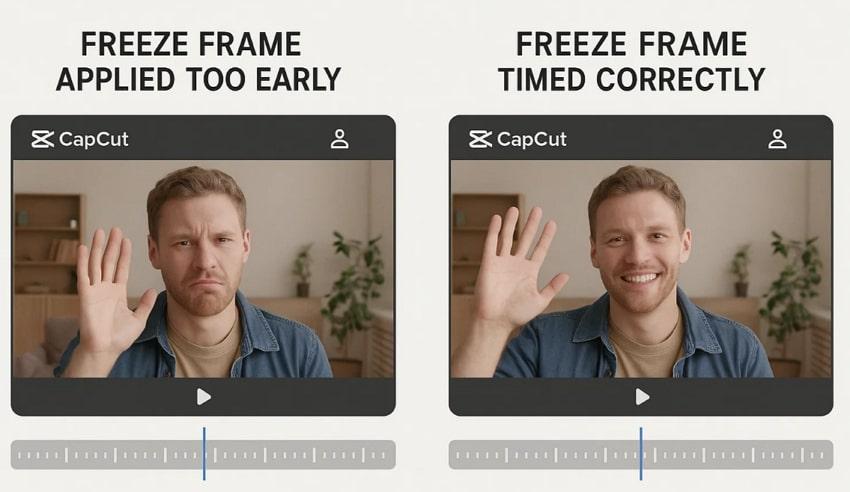
- Considering a Weak or Blurry Frame: A random frame instead of a clear, expressive one makes the paused image look unflattering.
- Wrong Freeze Duration: Freezing for too long or too short can make the video feel either dragged out or too fast.
- Freeze Not Synced with Audio: Misaligned audios, where music or voice keeps going, but the freeze doesn’t match the spoken emphasis.
- Inconsistent Framing or Aspect Ratio: When different resolutions or zoom levels are used on the freeze clip, it causes sudden changes in size.
How to Avoid These Mistakes
- Select a Strong, Clear Frame: Scrub frame-by-frame and pick a sharp, expressive pose (clear face or action) before tapping the freeze tool.
- Fine-Tune the Freeze Length: Drag the edges of the freeze clip so it lasts enough to read text and feel intentional.
- Sync with Beats and Phrases: Listen for music beats or keywords and place the freeze on those cues to make the pause appear perfect.
- Maintain Consistent Framing: Match the clip’s aspect ratio and size to the rest of the video and only change zoom intentionally.
Pro Tip: Fix Damaged Video Clips Before You Use Freeze Frame in CapCut
When working with CapCut freeze frame, damaged or glitchy clips can disrupt the effect and create unwanted visual jumps. Therefore, a professional video repair program, Repairit Video Repair, is introduced, highlighting the need for footage repair before freezing.
Why You Should Repair Footage Before Applying Freeze Frame CapCut Effects

-
It prevents CapCut from freezing when you add or extend freeze frame effects on damaged clips.
-
Keeps motion and audio in sync so the freeze lines up cleanly with beats and dialogue.
-
Improves the visual quality of the paused frame, which viewers inspect closely during a freeze.
-
Repairit has a quick and advanced scanning mode. You can use either depending on the level of corruption the video file has undergone.
-
Reduces extra quality loss when you later compress or export the edited video.
-
Protects important or irreplaceable clips by creating a stable, repaired master before heavy editing.
Considering the above repair needs, it is suggested to use Repairit as it supports multiple video repairs at the same time. Besides this, it delivers a 99.5% success rate for HD and even 8K videos from all devices. Most importantly, you can preview your repaired files that were previously damaged for any reason. The program facilitates multiple video formats, including mainstream, device-specific, and pro-level formats.
Comprehensive Guidelines to Repair Videos Before Freeze Frame
If your footage contains glitches or color issues, follow the guidelines before “freeze frame CapCut” to get them repaired:
Step 1. To do so, access the “Video Repair” section and press the “Start” button to incorporate all the broken CapCut clips.

Step 2. After this, click the “Repair” button and begin the process to repair all the corrupted CapCut videos at once.

Step 3. Soon, when the process finishes, press the “Preview” button to review and save the final repaired CapCut videos.

Fix Damaged Video Clips Before You Use Freeze Frame in CapCut
 Security Verified. Over 7,302,189 people have downloaded it.
Conclusion
In summary, freeze frame CapCut proves to be an incredibly powerful tool that adds drama, clarity, and impact to your video. When used well, it transforms every ordinary visual into highlights that hold viewers in and keep them watching more. Just remember, your results are only impressive when they are repaired with Repairit before you begin freeze framing in CapCut.
FAQs
-
Q1. How do I use the freeze frame effect in CapCut?
To use the freeze frame effect, import your video and move the playhead to the exact moment you want to pause. On mobile, tap the “Edit > Freeze" option, whereas on PC, click the footage on the timeline and choose the freeze frame icon. Following this, CapCut will automatically duplicate and hold that frame, creating a smooth, paused effect. -
Q2. Why is my CapCut freeze frame blurry or low quality?
A blurry freeze frame usually happens when the original footage is low resolution or contains motion blur. Even though CapCut's export option might improve quality, try to record video in a higher resolution for better results. If the video seems corrupted, consider repairing it through Repairit before freeze framing. -
Q3. How do I freeze just one frame in CapCut PC?
On CapCut for PC, place the playhead on the exact frame you want to freeze, then click and choose freeze frame. This way, you can create a still image for that single frame, which can be further stretched on the CapCut freeze frame timeline.




