
Suppose VALORANT hits you with the “VALORANT, the following components are required to run this program DirectX Runtime error.” For any gamer, this error is an instant killer moment before the game even starts. Instead of warming up your aim, you’re left staring at an error that doesn’t allow the game load.
Even if it appears due to damaged DirectX files, the result is VALORANT’s inability to communicate with your system’s graphics engine. Before the experience turns into technical disappointments, read the guide for some tested solutions that actually work. For better understanding, we’ll also explain why this error occurs in VALORANT.
Table of Contents
-
- Fix 1. Install the Legacy DirectX End-User Runtime
- Fix 2. Update or Repair Your Graphics Drivers and Windows
- Fix 3. Reinstall/Repair VALORANT and Vanguard
- Fix 4. Add Missing DirectX DLLs (Advanced)
- Fix 5. Disable or Adjust Third-party Antivirus
- Fix 6. Run System Repair Commands
- Fix 7. Clean Boot and Test
Part 1. Understanding “The Following Components Are Required” DirectX Runtime Error
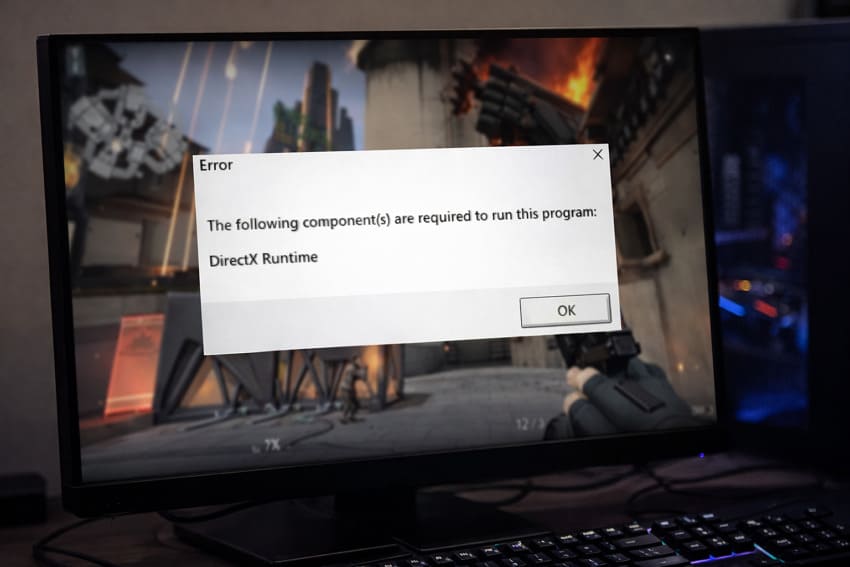
“The following components are required DirectX Runtime” means the game needs specific DirectX files (DLLs) that are missing or damaged. Due to this absence, the game or app refuses to start until those pieces are in place. Required components here are not generic drivers; they are concrete DirectX runtime libraries like d3dx9_43.dll.
The games are built against these components and are expected to work at launch. There’s also an important difference between your DirectX version and the DirectX runtime file. The version (for example, “DirectX 12” in DxDiag) tells you the highest DirectX feature level built into Windows.
However, it doesn't guarantee that all the older side‑by‑side runtimes are installed. The Runtime is the collection of DLLs from multiple DirectX generations that gamers can run at any time. Thus, you will need to install the DirectX End-User Runtime package to add the missing components.
DirectX End-User Runtime and Its Role in Game Launch
DirectX End‑User Runtime is a Microsoft package that installs extra DirectX libraries from older DirectX SDKs. It does not replace the DirectX version built into Windows; instead, it adds missing pieces. This way, games can find all the DirectX functions they are built with, giving them greater importance at launch:
- It provides legacy DirectX DLLs (such as D3DX and XAudio) that aren’t included by default in Windows.
- Prevents launch errors by ensuring that the older DirectX components are present when a game starts.
- Improves compatibility so Windows 10/11 PC that support DirectX 12 can still run games written for DirectX 9 or 10.
- Doesn’t change your main DirectX version, but installs side-by-side runtime libraries, enabling newer titles keep using the latest DirectX.
Pro Tip. Repairing Broken System Files Required for DirectX via Repairit
When VALORANT shows “the following components are required DirectX Runtime” error, it often means Windows file corruption. During power cuts or crashes, some of the system files the game uses for graphics or media can become corrupted. In this context, Repairit helps you recover corrupted VALORANT-related files that break at the same time. This way, you don’t lose your game data while you repair Windows and DirectX.
Most importantly, it lets gamers keep their match highlights and clips even if a crash occurs mid-recording. The program handles broken files by sudden system restarts, GPU driver crashes, or DirectX runtime faults that interrupt writes to disk. Repairit is designed to address files with unreadable content or unrecognizable formats caused by underlying system corruption. When multiple files are corrupted with a single DirectX runtime, its batch repair might help you out.
Key Features

-
Preserves Content After System Repair: The software reconstructs your damaged files without modifications, giving you fresh copies after Windows system repair.
-
Repairs Compressed Files by Crashes: Broken system components can cause apps to crash while saving files, but Repairit fixes these formats, restoring their structure.
-
Complete System Support: It fully supports both Windows and macOS with no feature loss, with the option to choose between online and desktop.
Simple Tutorial to Fix Broken Files for DirectX via Repairit
Now, follow the guided tutorial and fix broken system files for DirectX to get a game-ready state:
Step 1. Start the Document Repair Task
Initially, enter the “More Types Repair” section when the program launches, then select “Document Repair.”

Step 2. Add All the Broken System Files
Next, press the “+Add” button to incorporate corrupted VALORANT-related files for repair.

Step 3. Fix Your Corrupted Game Files
Proceed and click the “Repair” button to examine and fix corrupted game files for stable gameplay. Once the action is completed, perform an analysis of the final versions and save them.

Fix Broken Files via Repairit
 Security Verified. Over 7,302,189 people have downloaded it.
Part 2. Why Does the "The Following Components Are Required" Error Happen in VALORANT
For an informed fix, review the listed reasons behind “the following components are required to run this program, DirectX Runtime” error:
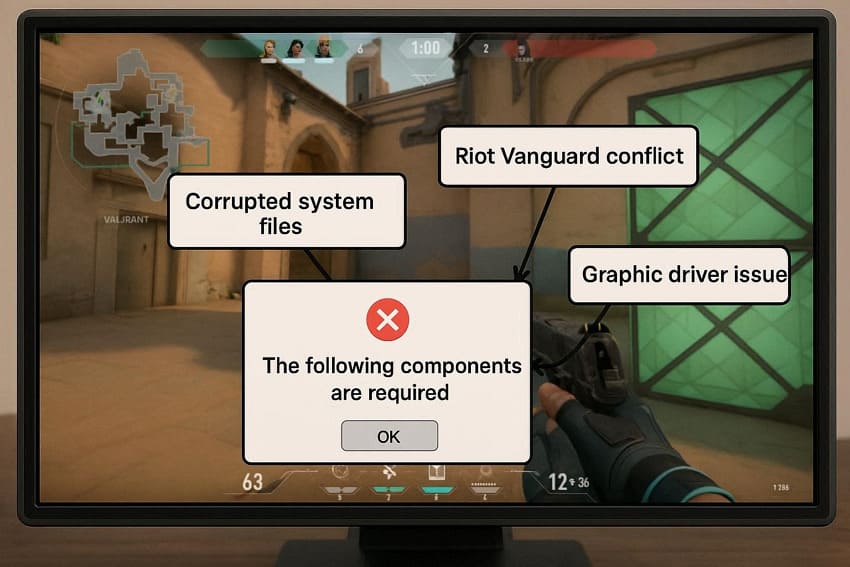
Graphics Driver Problems That Trigger Runtime Errors
Obsolete or broken graphics drivers can prevent VALORANT from communicating properly with DirectX. When this happens, the game might think DirectX is missing and show the error message, even though DirectX is installed. Moreover, if the driver update was interrupted or you installed an incorrect driver, the game can crash at launch.
Riot Vanguard and Client Conflicts with DirectX
Riot Vanguard (the anti‑cheat) loads very early in Windows and watches system files and drivers. When Vanguard blocks or conflicts with certain DirectX files or GPU drivers, VALORANT might fail to start. On occasion, Vanguard or the Riot Client itself gets corrupted after updates or clashes with other security software.
Corrupted System Files That Block DirectX Loading
Once important Windows system files or DirectX DLLs are damaged or missing, VALORANT cannot load the DirectX pieces. When these core files are damaged, even reinstalling the game may not help, as the problem lies within Windows itself. All this might happen after sudden shutdowns, disk errors, and even incomplete Windows updates.
Part 3. Step-by-Step Fix for ‘The Following Components Are Required’ Error
From missing DirectX libraries to conflicting software, the section below addresses every possible cause of this error. Simply, walk through and get “the following components are required DirectX Runtime” error fixed systematically in VALORANT:
Fix 1. Install the Legacy DirectX End‑User Runtime
As discussed, VALORANT depends on certain older DirectX libraries that aren't included in current Windows installations. That is why the game can't communicate with your GPU and instead displays an error when you play. Hence, consider installing the DirectX End‑User Runtime components to ensure all essential libraries are available and compatible. For overall graphical stability, follow the stepwise manual and install the legacy DirectX End‑User Runtime:
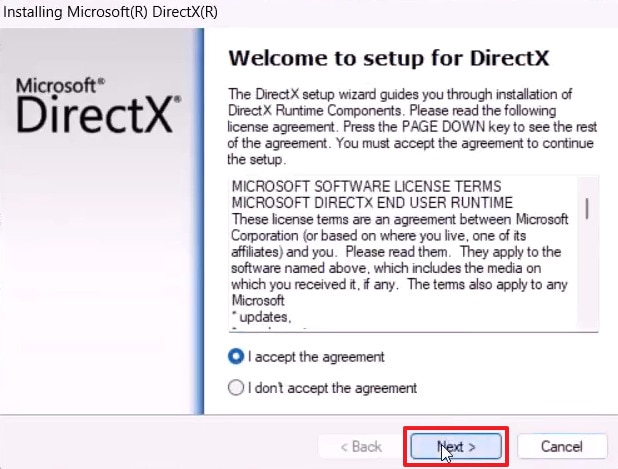
Step 1. Go to Microsoft’s DirectX End‑User Runtimes page and press the “Download” button to save the file, then run it. Next, choose a temporary folder to extract, then access that folder, and run DXSETUP.exe.

Step 2. Now, in the Installing Microsoft DirectX(R) window, accept the agreement and click “Next.” Follow the on-screen instructions, wait until the install completes, then restart your PC and re-launch VALORANT.
Fix 2. Update or Repair Your Graphics Drivers and Windows
Remember, if your GPU cannot properly interface with DirectX, VALORANT won’t be able to launch. Similarly, a pending Windows update can block important system components and increase the chances of runtime conflicts. Therefore, updating both your drivers and Windows ensures your system has the latest performance optimizations. To proceed, follow the guidelines and update your graphic drivers and Windows:
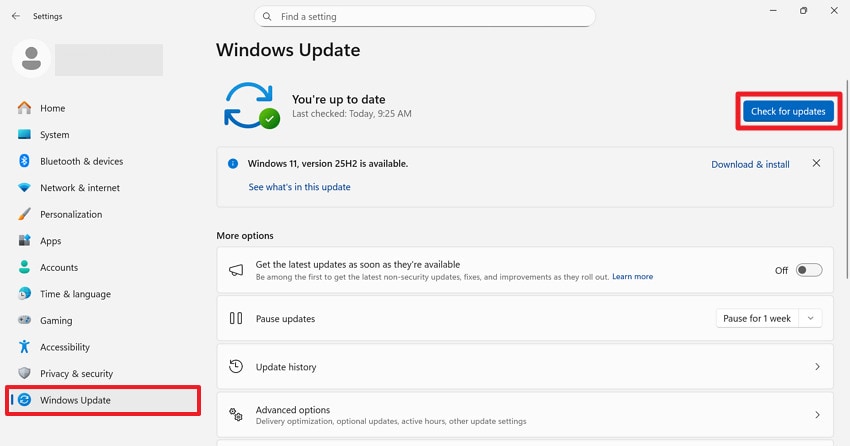
Step 1. Open Windows Settings, access the “Windows Update” section, and click the “Check for Updates” button. Following this, install all the pending updates, then restart your PC and check VALORANT.
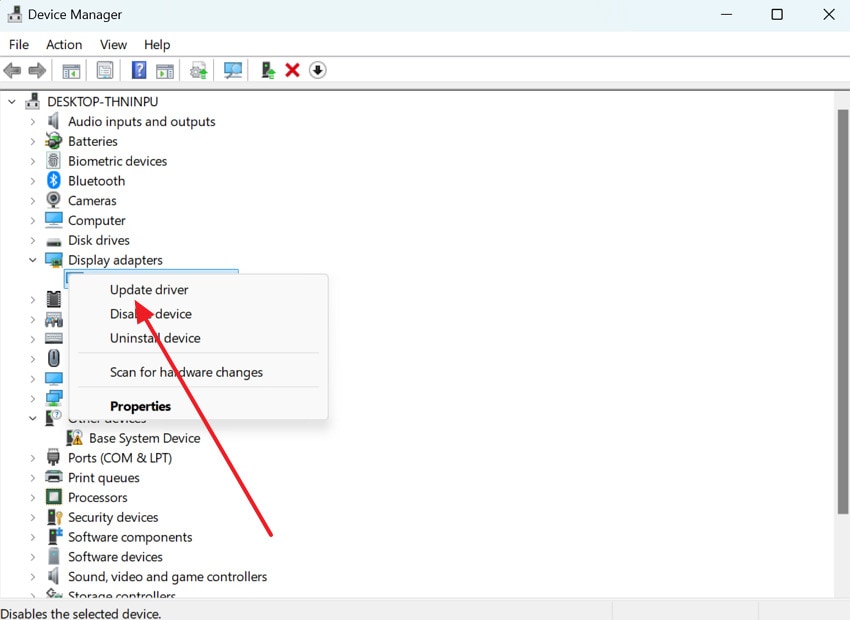
Step 2. To update drivers, access Device Manager in Windows and expand the Display Adapters option. Here, right-click the driver and press the “Update Driver” option from the drop-down menu.
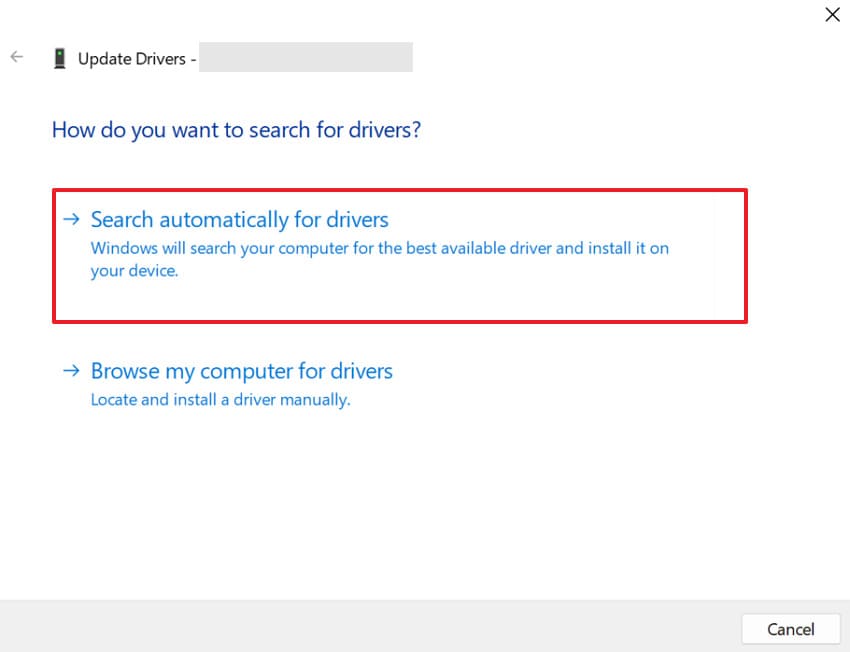
Step 3. After this, select the “Search Automatically for Drivers” option and let Windows install the latest version.
Fix 3. Reinstall/Repair VALORANT and Vanguard
Corrupted VALORANT files or an improperly installed Riot Vanguard anti-cheat can block DirectX from loading necessary components. For this, consider reinstalling both to ensure that all game dependencies, including DirectX-related files, are installed correctly. This approach not only resolves the error but also eliminates other potential glitches, delivering a stable environment to play. Adhere to the manual and fix "the following components are required to run this program, DirectX Runtime” promptly:
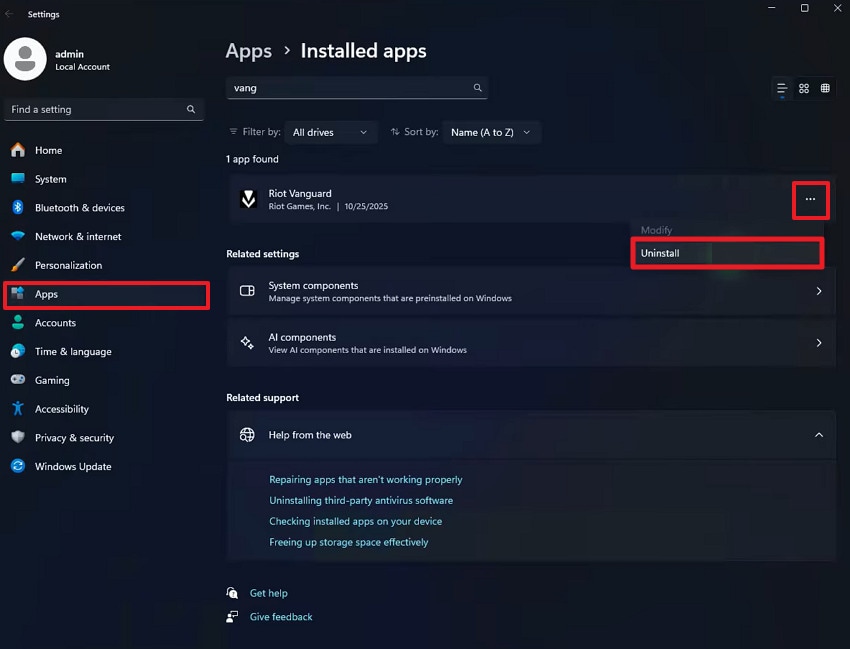
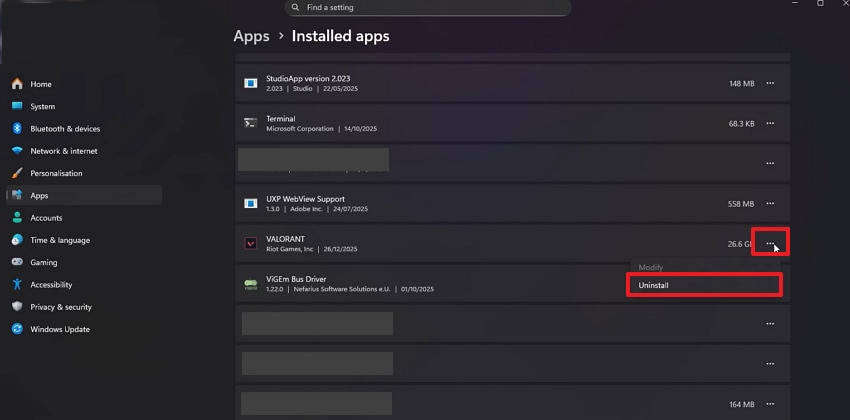
Step 1. At first, enter the “Apps” section, then access the Installed Apps option and look for Riot Vanguard. Once found, press the “Three Dots” icon and choose the “Uninstall” Option from the revealing menu.
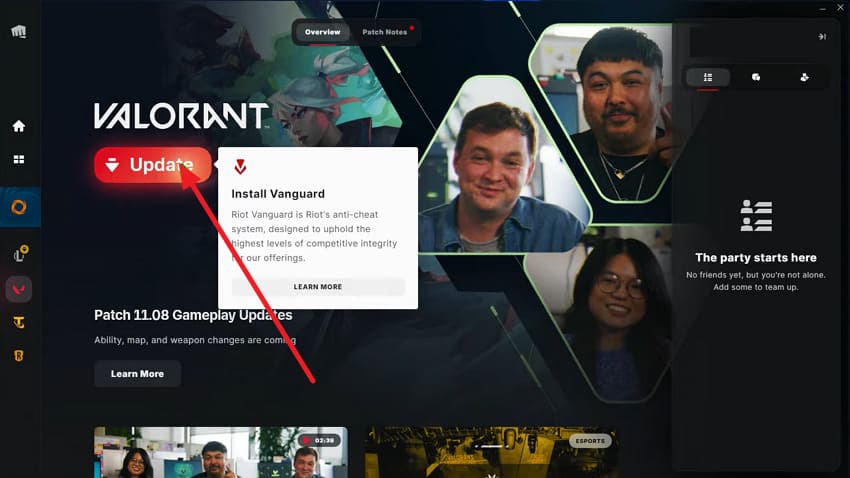
Step 2. Now, open your Riot Client, search for VALORANT, and press the “Update” button. Following this, you’ll be prompted to install the latest version of Vanguard automatically and check if the issue is resolved now.
Step 3. If not resolved, then search for VALORANT in the Installed Apps, then press the “Three Dots” icon. Now, select the “Uninstall” button to remove it from your system's installed apps. Once removed, return to your Riot Client, look for VALORANT, and press the “Install” button beside it.
Fix 4. Add Missing DirectX DLLs (Advanced)
At times, when certain DirectX DLL files are missing or corrupted, it might not allow VALORANT to launch. Thus, consider manually adding these files ensure the game can access all the components it needs to run properly. This advanced step even restores DirectX functionality, eliminates runtime errors, and improves overall stability. Be conscious and follow the tutorial to add missing DirectX DLLs from a trusted source:
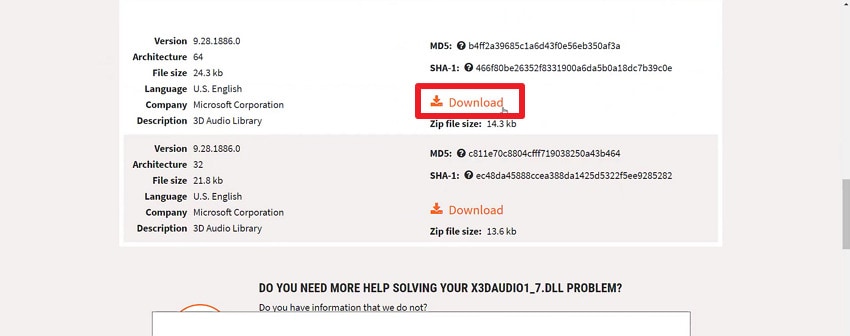
Step 1. Browse the website for DLL Files.com, search for your missing DirectX DLL file, and press “Download” to install it.
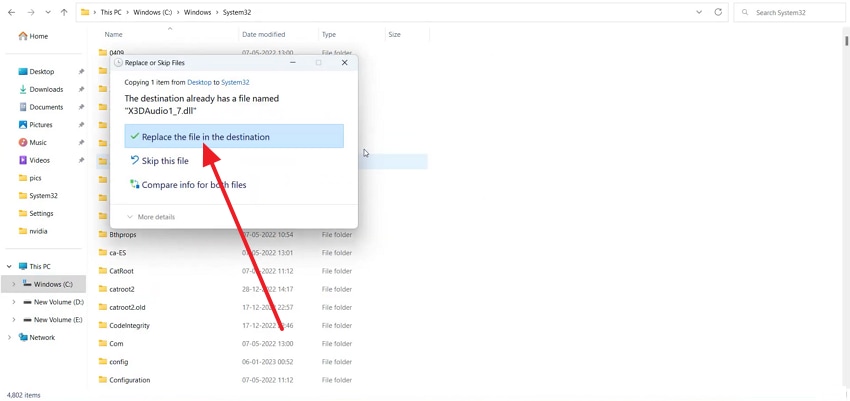
Step 2. Now, save the folder on your desktop, then extract the folder and copy the DLL file. Follow this path: “This PC > Windows © > System 32 > Paste copied file > Replace the File in the Destination.” Subsequently, paste the file in the SysWOW64 folder in your Windows to add those missing files.
Fix 5. Disable or Adjust Third‑party Antivirus
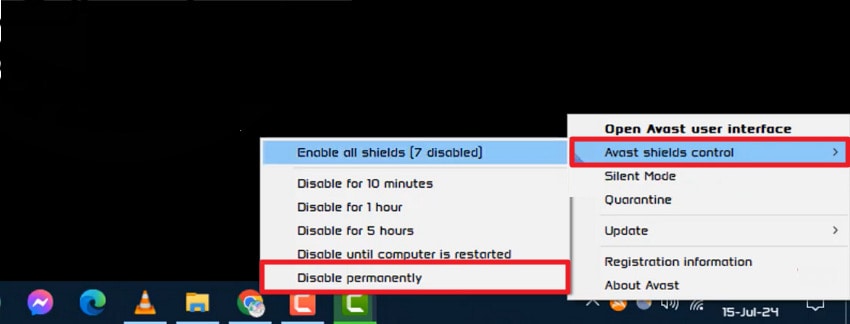
Any third-party antivirus programs might mistakenly block VALORANT or DirectX components, thinking they are harmful. This can activate the “the following components are required DirectX Runtime" error, requiring immediate turn-off of that software. By doing so, your game can access the files it needs without interference, ensuring a smooth launch and gameplay on a protected system. Read the instructions and disable your third-party antivirus program to overcome the error:
Instructions: Locate and right-click your antivirus program on the Windows taskbar. After this, expand the sub-menu for “AVAST Shields Control” and choose the “Disable Permanently” option. Confirm your action in the prompt window, then restart your PC and try launching VALORANT again.
Fix 6. Run System Repair Commands
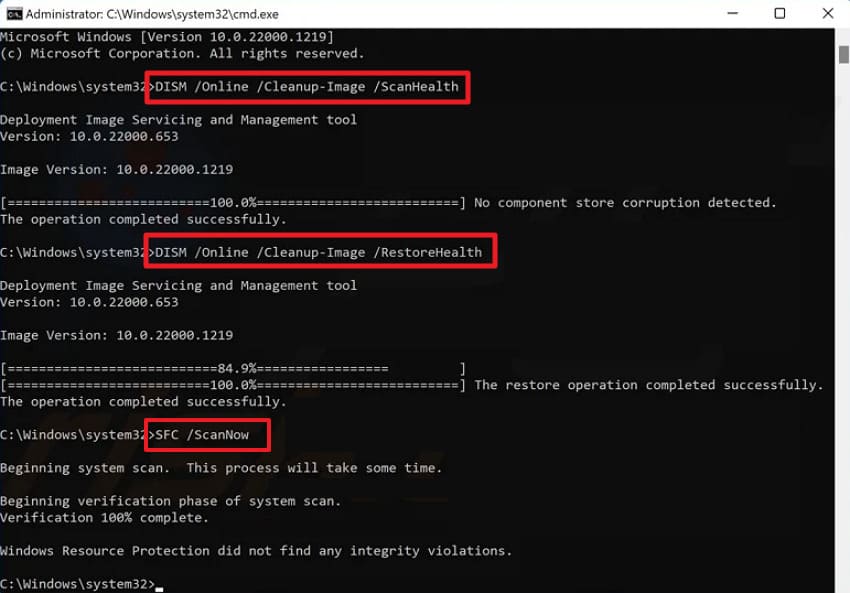
Once core Windows system files become corrupted or go missing, DirectX may fail to load essential libraries. Eventually, this leads to a runtime error in VALORANT, requiring the use of built-in tools like SFC and DISM. The approach is valuable for repairing these deep system-level issues without requiring reinstallation, while improving overall stability. For a how-to guide, explore the guided tutorial and run system repair commands to reduce errors:
Instructions: Open the Command Prompt as an administrator, then run the following commands in the following order:
- “DISM /Online /Cleanup-Image /ScanHealth”
- “DISM /Online /Cleanup-Image /RestoreHealth”
Soon, when the scan completes, type “sfc /scannow” and enter, then wait for the scan to finish. Later, restart your PC and try launching VALORANT to see if the error persists.
Fix 7. Clean Boot and Test
“The following components are required to run this program DirectX Runtime” error isn't always caused by DirectX itself, but by the background applications. Third-party tools such as overlays, performance boosters, RGB software, and security utilities can conflict with DirectX during game setup. This is why performing a clean boot temporarily disables all non-essential services, allowing you to test VALORANT freely. Follow the manual and perform a clean boot to launch VALORANT smoothly:
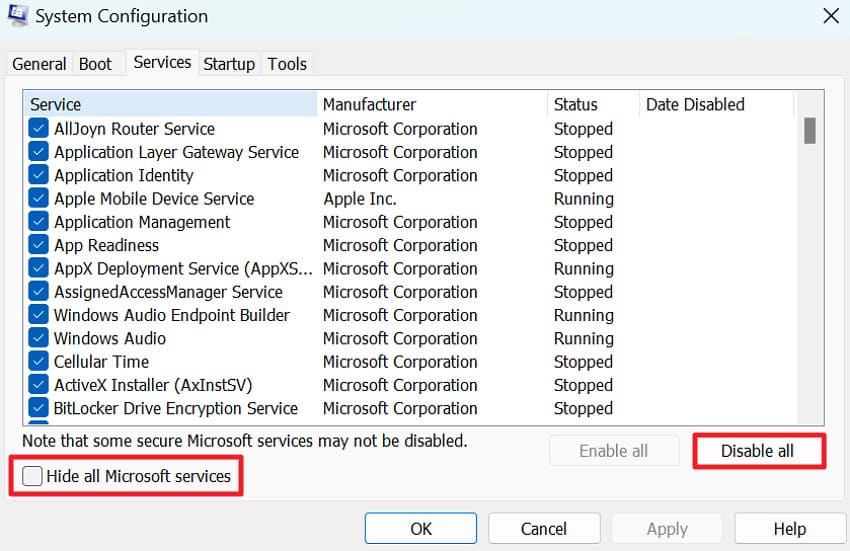
Step 1. Press the “Windows + R” keys together and run a dialogue box, then type “msconfig.” In the System Configuration window, open the “Services” section and check the box for “Hide all Microsoft Services.” Click the “Disable All” button to toggle off all the remaining third-party services.
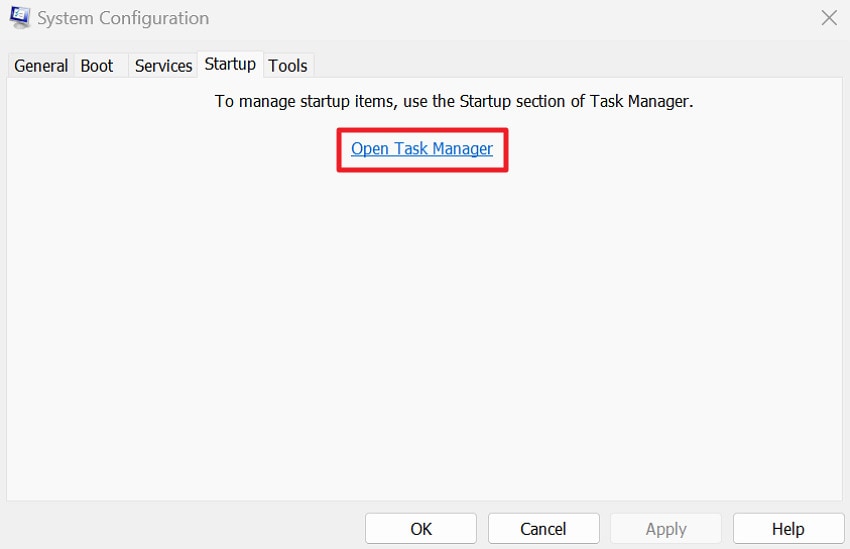
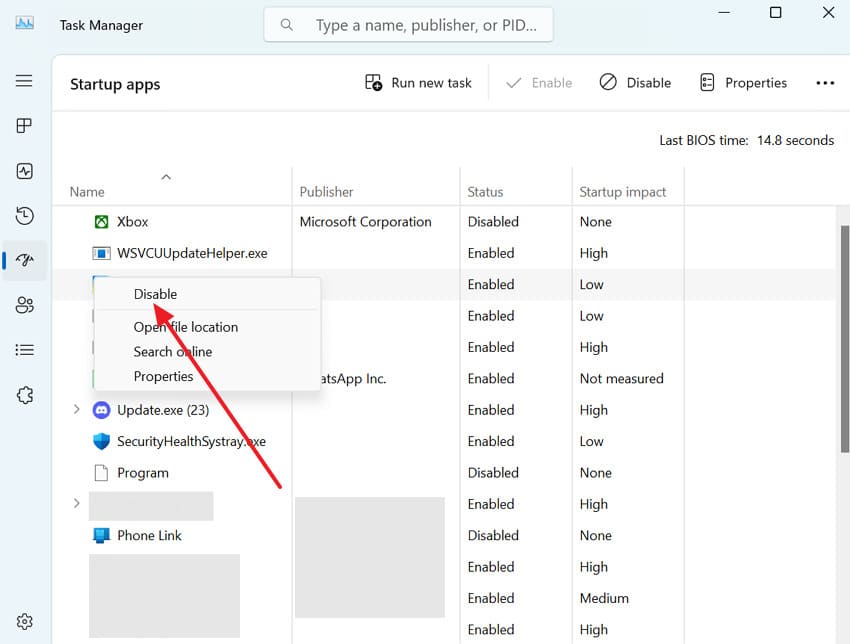
Step 2. Afterward, switch to the “Startup” tab and press the “Open Task Manager” option.
Step 3. Upon entering Task Manager, right-click each startup application, then choose the “Disable” option. After this, close the Task Manager, click “OK” in System Configuration, and restart your computer.
Conclusion
In conclusion, for serious gamers, “VALORANT, the following components are required to run this program, DirectX Runtime error” is a hard stop. The issue might stem from missing DirectX components, corrupted system files, or software conflicts, all of which require addressing. Considering the need, you’re thoroughly guided on how to regain access to the game through step-by-step tutorials. However, if built-in possibilities aren’t enough, use Repairit and get your damaged system files repaired.
FAQs
-
1. Does Riot Vanguard have anything to do with this error?
Absolutely, Riot Vanguard runs at a deep system level and may sometimes block DirectX-related files or drivers. Thus, if Vanguard fails to initialize correctly, VALORANT may assume required components are missing. -
2. Can overclocking my GPU or CPU trigger this error?
Indeed, aggressive overclocking can introduce system instability that directly affects how DirectX communicates with your hardware. When your GPU or CPU is pushed beyond its stable limits, it might fail to correctly process graphics instructions. Even if overclocking appears stable in other games, VALORANT is particularly sensitive to low-level system inconsistencies due to anti-cheat integration. -
3. Does installing older DirectX versions conflict with newer ones?
Not at all, installing legacy DirectX runtimes does not overwrite newer versions. Instead, it simply adds missing libraries that certain games still depend on to function correctly. To resolve “the following components are required DirectX runtime” error, VALORANT may require older DirectX files that aren’t already included.




