
When you’re tight on a deadline, trying to install an important update, and suddenly a pop-up appears, labelling “operation could not be completed." There's no clear guidance, no helpful details, just an abrupt stop that breaks your workflow immediately. You retry the action, restart your system, but the same error keeps showing up, turning a simple task into a forever task.
In such situations, fixing this 0x00000005 error becomes more than a technical task; it becomes an emergency. When your everyday operations fail repeatedly, it's time to apply workable solutions as guided in the following article.
Table of Contents
Part 1. What is the Hidden Meaning of “0x00000005” Error in Windows
The “operation could not be completed 0x00000005” error in Windows often relates to access denial or blocked execution. This also indicates that something is trying to perform an operation that is not allowed, such as writing to a protected file/folder. Simply put, Windows is blocking the action due to permissions, security rules, or low-level issues. Most importantly, users may see this error during file access, application launches, installations, or restricted operations.
Real Causes Behind 0x00000005 Error
To resolve the error completely, you'll need to identify the causes listed for the 0x00000005 error and what triggers it:
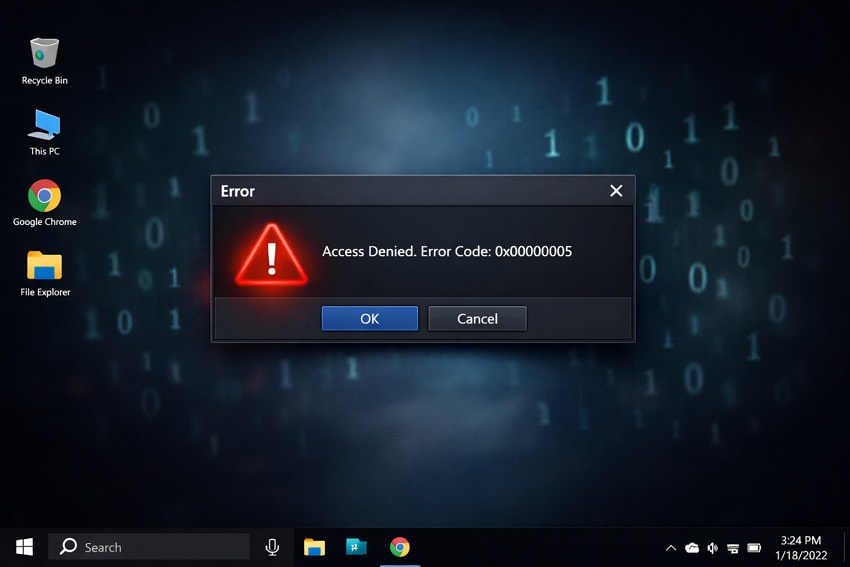
- Wrong Permissions on Files or Folders: If your user account doesn’t have the right permission, Windows can block access with error 0x00000005. This mostly happens with shared printers, network folders, or system folders where your account has limited or no control rights.
- Security Software or Firewall Blocking Access: Antivirus or other security tools can block programs from opening files, changing settings, or using devices. Sometimes, they treat normal actions as suspicious, so an app/installer fails even though nothing is wrong with the file itself.
- Corrupted Windows System Files or Registry: When core system files or critical registry entries are damaged, Windows might return a 0x00000005 error. This can occur after improper shutdowns, failed updates, or incorrect software installations, often requiring tools such as SFC or DISM.
- Due to Incompatible or Older Drivers: Any obsolete or incomplete drivers can cause operations to fail with this error code. For example, a broken printer or a network driver can prevent you from connecting or printing, and Windows displays the 0x00000005 error.
- Faulty Hardware (RAM or Disk) Issue: Defective RAM or a failing hard drive/SSD can corrupt data and system files in the background. When Windows later tries to read or use those damaged parts, operations might fail with 0x00000005 or related stop errors.
Part 2. 6 Reliable Fixes for “Operation Could Not Be Completed 0x00000005”.
Rather than relying on guesswork, utilizing the right approach adds a huge help in solving the issue. Below are dependable, tested fixes designed to resolve the “operation could not be completed” error stepwise:
Fix 1. Run as Administrator
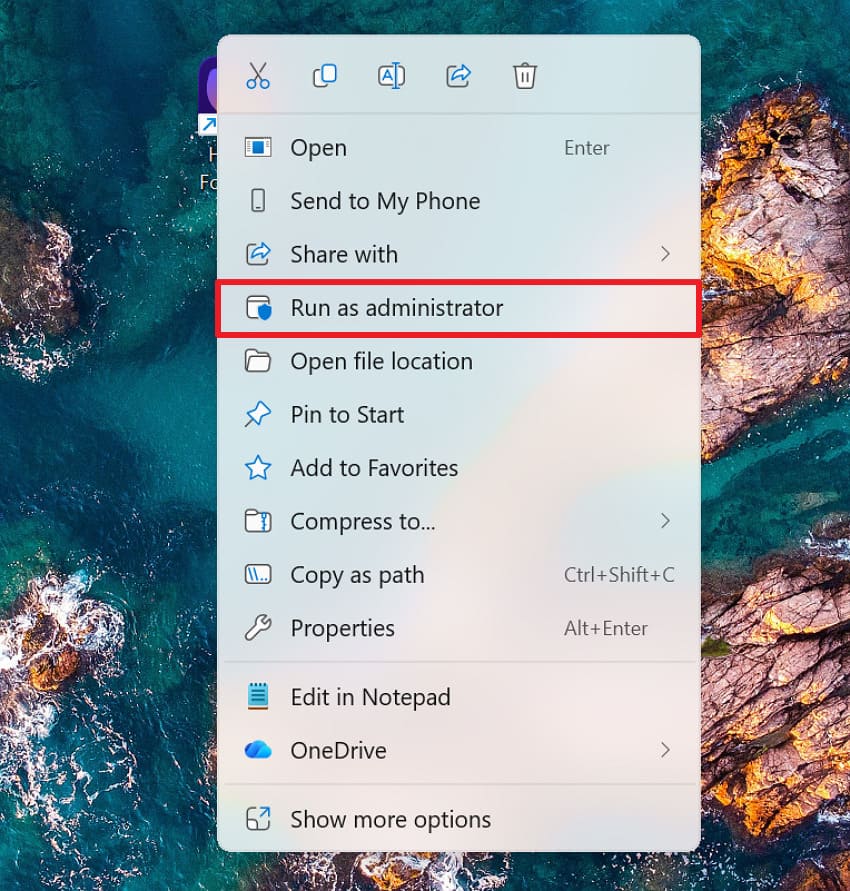
When you run an affected program with administrator privileges, it gives the required system-level access. This helps bypass permission restrictions that commonly cause the error during file changes or software installation. Thus, running as admin ensures that Windows doesn’t block important actions and reduces the chances of error recurrence. Follow the instructions and run the error showing app as an administrator to resolve it:
Instructions: Simply, locate the app/printer program and choose the “Run as Administrator” option from the menu. If prompted by User Account Control (UAC), click “Yes” to allow elevated access, then retry the action.
Fix 2. Check File/Folder Permissions
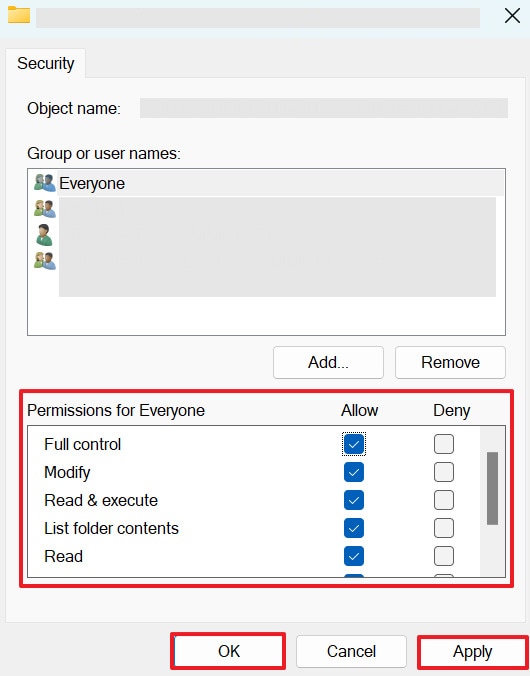
Verifying and adjusting file or folder permissions ensures authorized access, preventing the "operations could not be completed” error. Properly setting permissions not only fixes the immediate issue but also prevents future access problems. While incorrect or missing permissions prevent Windows from completing tasks, checking permissions smoothens the workflow. Adhere to the stepwise tutorial and learn how to check an error showing file or folder permissions:
Step 1. Initially, right-click the affected file/folder and select the “Properties” option from the menu. Access the “Security” section and press the “Edit” option to review permission settings.
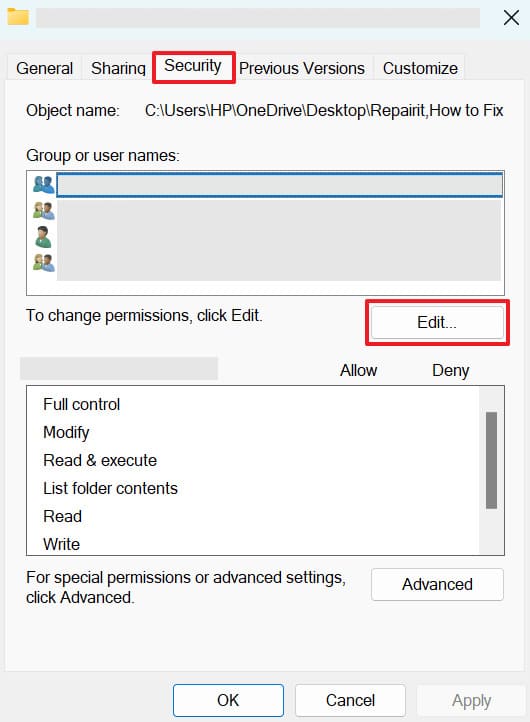
Step 2. Now, select a username and make sure “Full Control” and other permissions are checked under Allow. Once done, press the “Apply” button, then “OK” for confirmation.
Fix 3. Close Programs Locking the File
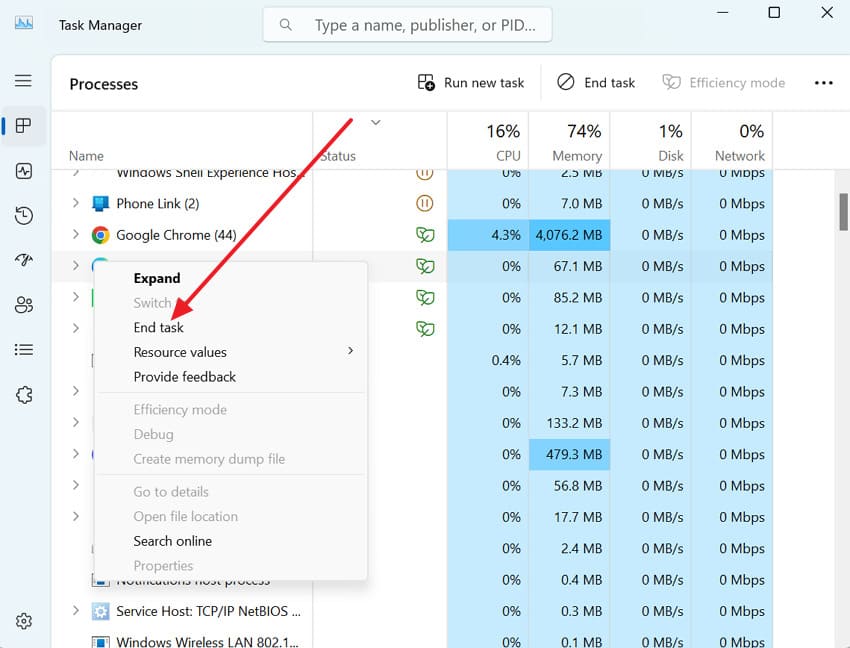
When another application is actively using the file, Windows blocks any further changes. Therefore, immediately closing background programs releases the file lock, reducing conflicts and allowing the action to complete. It works when multiple applications are competing for the same resource and prevents repeated interruptions of the "operation could not be completed 0x00000005” error. To do so, read the instructions and close programs locking the file with the error code:
Instructions: Open Task Manager in Windows, then look for a program that might be using the file. Once found, right-click it and select the “End Task” option to completely close it.
Fix 4. Use Safe Mode to Perform the Operation
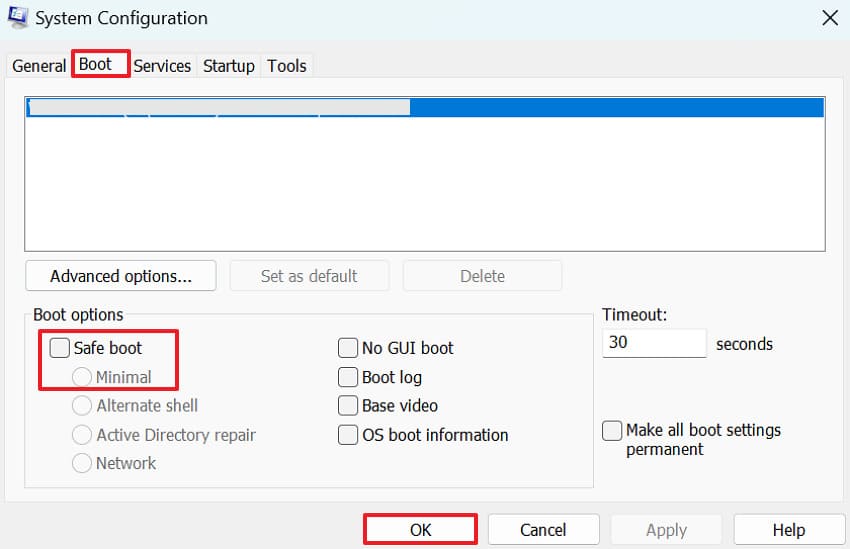
Safe Mode runs Windows with minimal drivers and services, reducing interference from third-party software. This generally creates a clear space where blocked actions can be completed without activating the “operation could not be completed” error. A Safe Mode ensures that only essential system processes run, making it easier to perform sensitive operations. For a better understanding, explore the tutorial and make use of Safe Mode to proceed with operations:
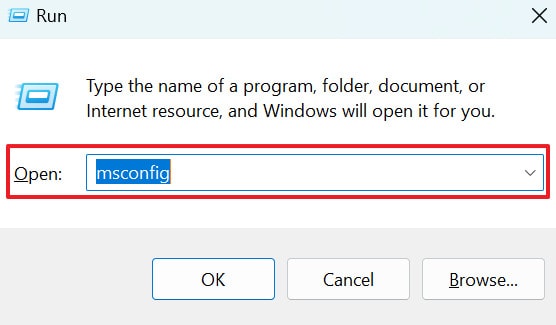
Step 1. Press the “Windows + R” keys together on your keyboard, then type “msconfig” and run the command.
Step 2. From the System Configuration window, access the “Boot” tab, then tick the “Safe Boot” option under Boot Options. Here, choose “Minimal,” click OK, and restart your PC to perform the task that previously failed.
Fix 5. Run SFC and DISM Scans
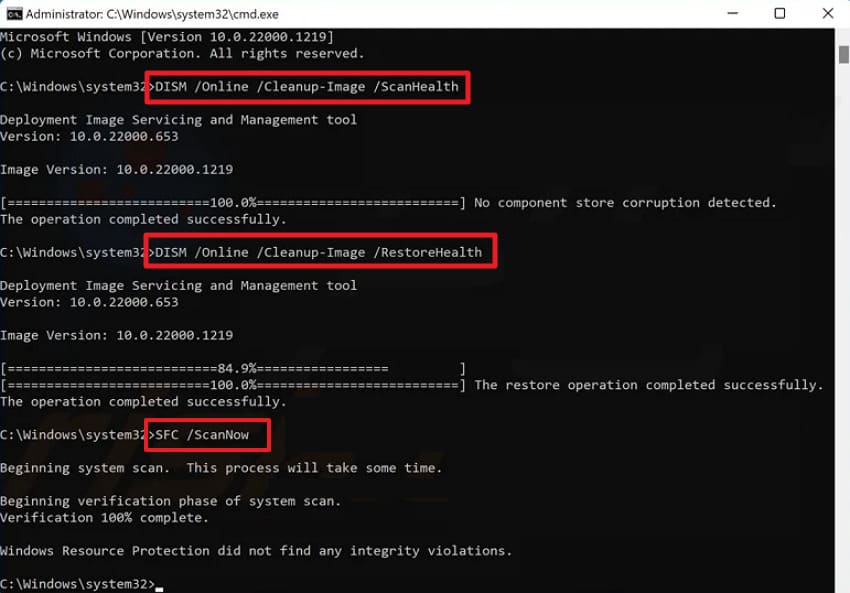
While system file corruption is a frequent cause of “operation could not be completed,” running SFC and DISM can be effective. This way, you can repair damaged Windows components, improve system stability, and prevent the error from recurring. These scans not only address immediate errors but also help maintain your system's well-being. Explore the instructions to run SFC and DISM scans for reducing the risk of errors in the future:
Instructions: First, open Command Prompt as an administrator, and then run the following commands in the given order:
- “DISM /Online /Cleanup-Image /ScanHealth”
- “DISM /Online /Cleanup-Image /RestoreHealth”, let both the scans complete, and then run the SFC command “sfc /scannow.”
Now, wait for the scans to finish, then restart your PC and retry the operations.
Fix 6. Repair User Profile if Corrupted
Any damaged user profile can cause persistent permission and access issues, making its repair the only solution. Though there’s no direct way to repair an existing user profile, creating a new one and transferring your details can resolve the error. Essentially, fixing a corrupted profile addresses a deep-rooted problem, providing a permanent solution to everyday tasks. Thus, follow the guided tutorial below and repair your user profile if corrupted:
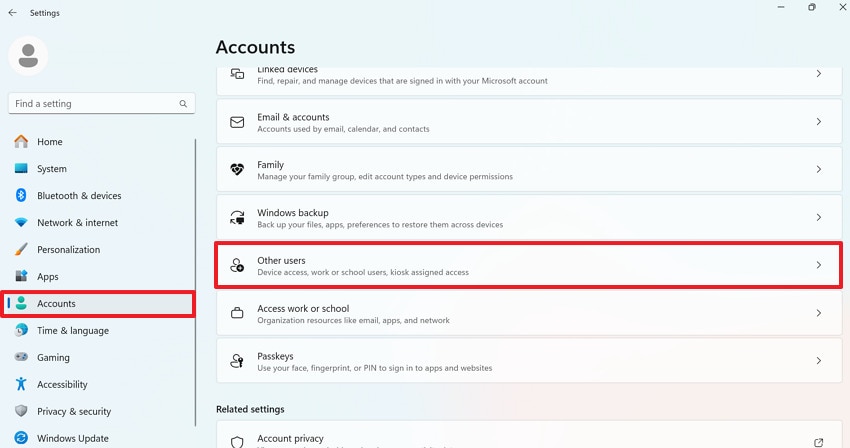
Step 1. Gain entrance to your Windows Settings, access the “Accounts” tab, and press the “Other Users” option.
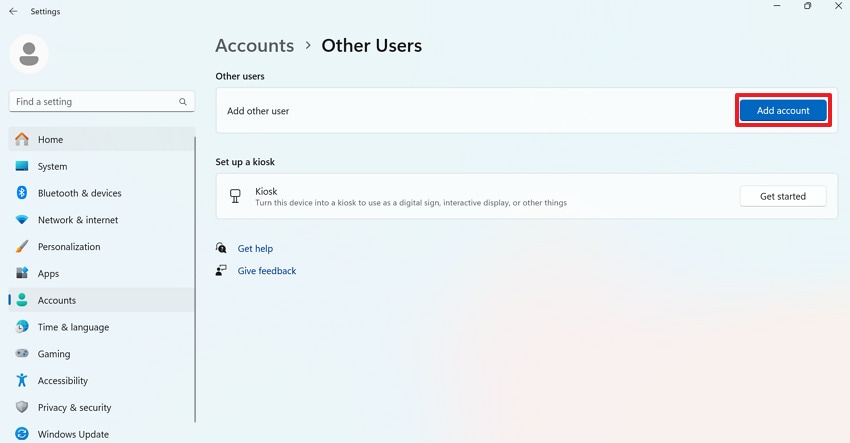
Step 2. After this, click the “Add Account” option to create a new user profile for Windows.
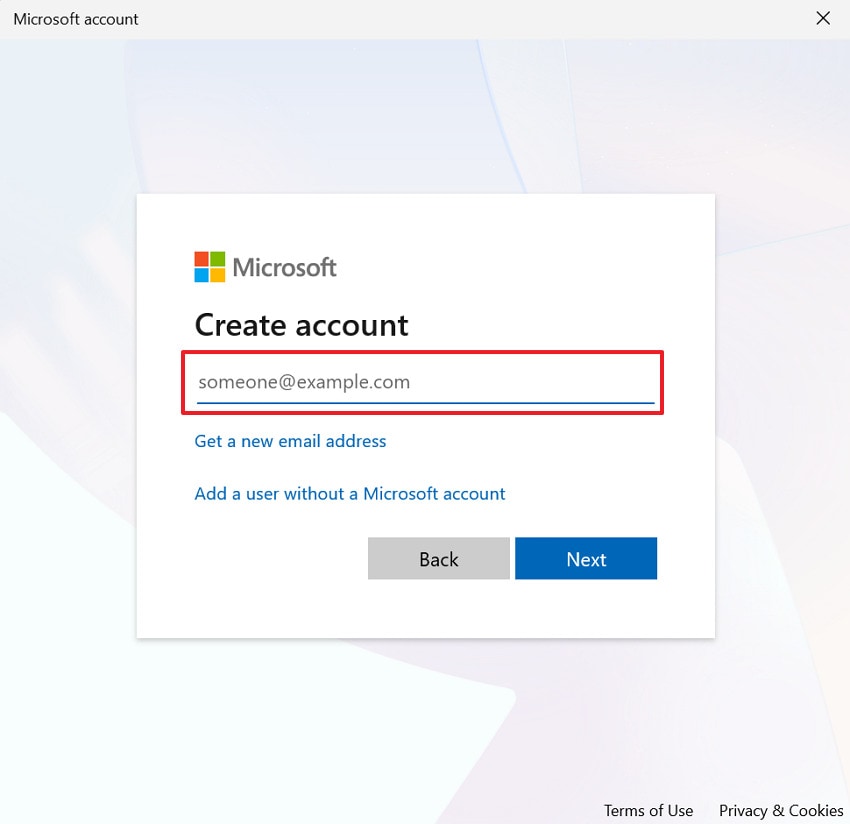
Step 3. In the Microsoft Account window, press the “I don’t have this person’s sign-in information” option. Enter new credentials and create an account to copy all the essential files from the older account (C:\Users\[Old Username]) to the new one.
Pro Tip. Fix Access Denied Errors Quickly by Repairing Corrupted Files with Repairit
For a professional repair, consider using Repairit, which helps users fix corrupted files that may be causing “operation could not be completed 0x00000005.” It repairs corrupted documents that cause access-denied errors, including Word, Excel, and other files. Overall, the program supports all files that Windows or apps refuse to open after a crash or after showing this error.
The software addresses many corruption scenarios, including when files start showing a “file is corrupted” or “cannot be opened” message. Besides this, it's useful after a power outage, forced shutdowns, or system freezes, when incomplete documents leave them tied to access errors.
Key Features

-
Supports Multiple File Formats: It supports more than 30 file formats and fixes them when permissions or system errors damage them.
-
Facilitates OneDrive or Shared Folders: Repairit helps when OneDrive or shared folders show “operation could not be completed” error, fixing the underlying corruption.
-
Repairs Numerous Corrupted Files: Address multiple damaged files in a single go, which is helpful when the 0x00000005 error corrupts the entire project.
Guidelines to Fix Corrupted Files for Access Denied Errors Using Repairit
When permission settings aren't the actual cause, following the file repair guidelines becomes essential to restore normal access:
Step 1. Access the Document Repair Tool
Initially, access the “More Types Repair” tab and press the “Start” button for Document Repair to get started.

Step 2. Insert the Corrupt Files Showing Access Denied Error
Here, click the “+Add” button to insert all the corrupted files, showing the operation failed error.

Step 3. Start the Process to Repair Corrupted Documents
Next, press the “Repair” button to begin repairing all the added files on the go. After this, preview your final repaired versions and save them on your device.

Repair Corrupted Files for Access Denied Errors
 Security Verified. Over 7,302,189 people have downloaded it.
Part 3. How to Avoid Errors Like 0x00000005 on Your Computer
All the listed maintenance practices will significantly reduce the chances of the “operation could not be completed 0x00000005” error thereafter:
- Keep Windows and Drivers Updated: Install Windows updates regularly so bugs and security holes get fixed before they cause errors. Moreover, update key drivers from Windows Update or the manufacturer’s site to avoid crashes and access problems.
- Use a Trusted Antivirus or Scan Often: Run a reputable antivirus or security suite and keep it updated so malware can’t change permissions. Plus, schedule regular full scans and remove any threats it finds to prevent access-denied and crash errors.
- Be Careful with System Folders and Registry: Do not delete or change files in Windows, Program Files, or the registry unless you’re sure what you’re doing. Incorrect edits can break permissions or damage system components, leading to errors such as 0x00000005.
- Check File/Folder Permissions Before Changing Them: First, gradually grant only the rights needed, and avoid removing SYSTEM or Administrator access. This reduces the chances that Windows or apps lose the access they need and start throwing access-denied errors.
- Close Programs Properly Before Unplugging: Save and close apps before removing drives, network shares, or editing important files they use. It helps prevent files from being locked, half-written, or corrupted, which can later trigger access denied errors.
Conclusion
In conclusion, the “operation could not be completed” error might be alarming, but it's simply the result of manageable issues like access restrictions. Considering this, you’ll need to resolve the error promptly using the corrective guidelines outlined throughout the article. For a dependable fix, Repairit is regarded as the best solution because it restores corruption with original file integrity and accessibility.
Frequently Asked Questions
-
1. Can this error appear in third-party software only?
No, the operation could not be completed 0x00000005 error can appear in both Windows built-in tools and third-party applications. It might appear during software installation, file access, or system-level changes that require elevated permissions. -
2. Is it safe to ignore the operation could not be completed error?
An ignorance of this error is not at all recommended, as it might prevent important tasks from being completed. Not only this, but it could indicate underlying system or file corruption that may worsen over time. Finally, if left unresolved, the issue may also lead to repeated application crashes, data access failures, and broader system instability. -
3. Will reinstalling the affected application fix the error?
Reinstalling the application can help if the 0x00000005 error is caused by a corrupted program file. However, if the root cause is due to system permissions or a Windows-level issue, additional steps might still be required. In this context, you can use Repairit to repair your corrupted files instead of reinstalling the apps.




