
A Canon Support Code 5200 error on your Canon printer screen is an immediate issue; it can appear unexpectedly. Although it doesn’t stop printing, it creates confusion and stress, leaving you wondering whether the problem is ink- or hardware-related. Since this error often indicates internal printer faults, continuing to use the printer without proper troubleshooting can worsen the issue.
Instead of repeated trial-and-error, a guided approach helps you restore everyday printing without turning a simple error into a costly problem. Keep on reading the guide for a better grip on its causes with tested solutions to address them.
Table of Contents
Part 1. Understanding Canon Support Code 5200
Canon printer Support Code 5200 usually indicates the printer detects an issue with the ink system. Precisely, the print head runs too hot because insufficient ink is flowing through it, or because the cartridges/ink tanks are not working. Simply put, the printer is saying, “there’s an issue around the ink or print head area,” likely caused by clogged nozzles.
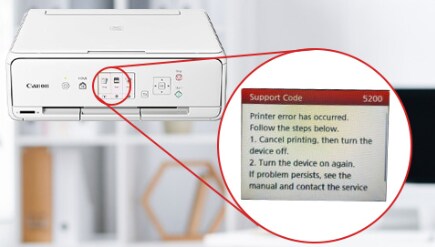
Common Scenarios Where Error 5200 Appears
With a brief knowledge of error, now explore the most frequent conditions that trigger it:
- When ink levels are very low or a cartridge/tank is empty, the print head overheats during printing.
- After refilling or replacing cartridges/tanks, if a cartridge is installed incorrectly or its chip isn’t recognized.
- If the printer has been idle for a long time, the print head or nozzles may have become clogged.
- During maintenance actions such as ink flushes, if a color is missing or the ink system cannot circulate ink.
- In rare cases, there is a fault in the print head itself or in the printer's internal logic/circuit board.
Part 2. Common Causes of Support Code 5200 on Canon Printers
The following section will now help you explain why the Support Code 5200 Canon error occurs and what actually goes wrong inside:
- Due to Low or Empty Ink: When one or more cartridges/tanks are very low, not enough ink flows through the print head. The printer detects this condition and throws 5200 to protect the print head from overheating.
- Incorrect or Loose Cartridge Installation: A cartridge that is not clicked in or is in the wrong slot can cause the printer to indicate an ink system fault. The printer may then stop printing and display 5200, indicating a problem with the cartridge.
- Defective or Incompatible Cartridges: Non-original, damaged, or incorrect-model cartridges may have faulty chips or poor ink flow. As a result, the printer cannot read ink levels correctly, activating Support Code 5200 even if you recently refilled the ink.
- Clogged or Failed Print Head: If the printer isn’t used for an extended period, ink can dry in the nozzles and clog the print head. Conversely, a physically damaged print head can also fail its temperature or ink-flow channels, generating the same error.
- Ink System Errors or Overheating: Long print jobs or internal ink-supply problems can make the print head turn hotter than usual. When sensors detect an abnormal temperature or an ink-detection fault, the printer stops and displays Support Code 5200 to prevent permanent damage.
Part 3. How to Fix Canon Support Code 5200 (Step-by-Step)
Considering the possible causes, follow the guided steps to resolve Canon printer Support Code 5200 and restore smooth printer performance:
Fix 1. Identify the Exact Support Code and Printer Model
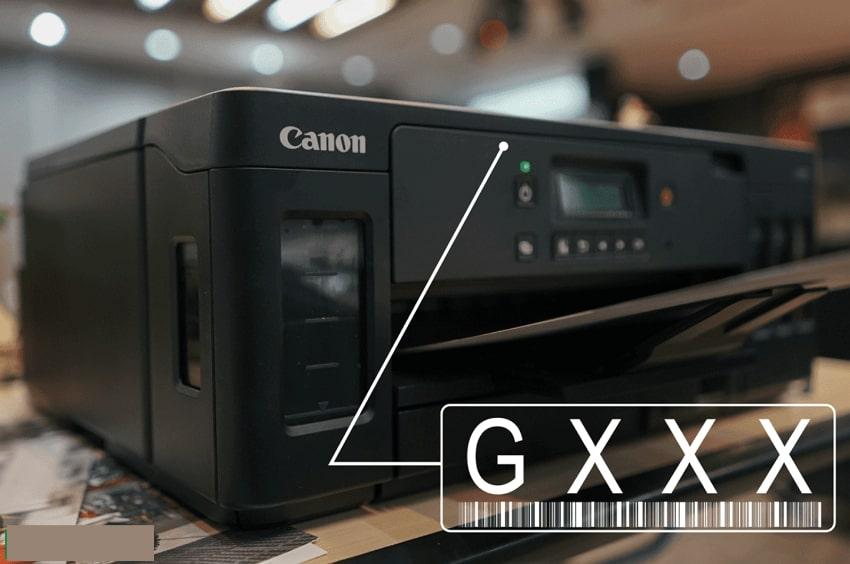
First, confirm the exact error code and printer model, as Canon printers may display similar-looking errors for different causes. The precise code might help you target the correct solution, while exact model assurance ensures you follow steps compatible with your printer. With this perspective, note your exact printer model from the front label or sticker. Refer to Canon’s official support page for your specific model to understand the real cause.
Fix 2. Power Cycle and Perform a Basic Reset
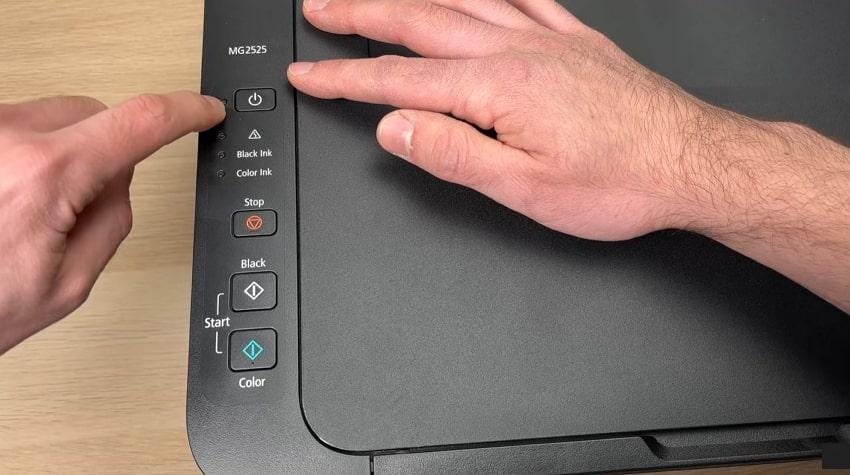
To clear temporary glitches and reset the printer’s internal memory, consider performing a power cycle. A basic reset can restore normal operations and eliminate the Support Code 5200 errors without requiring complex repairs. For better learning, follow the instructions as guided and perform a complete reset of your Canon printer:
- Press the printer’s “Power” button to turn it off and wait until all lights go out.
- Later, unplug the cable from the socket and wait 5-10 minutes before plugging it back in.
- For a reset, follow the sequence described in your model’s manual (e.g., press the Power and Stop buttons several times).
Fix 3. Check Paper, Media Type, and Print Settings
Incorrect paper or media settings can force the printer to work harder than necessary, causing the “Support Code 5200 Canon” error. Confirmation of loaded paper, media type, and printer settings match, you can reduce strain on the printer's components. Adhere to the manual and check your printer’s settings for improved print quality without any errors:
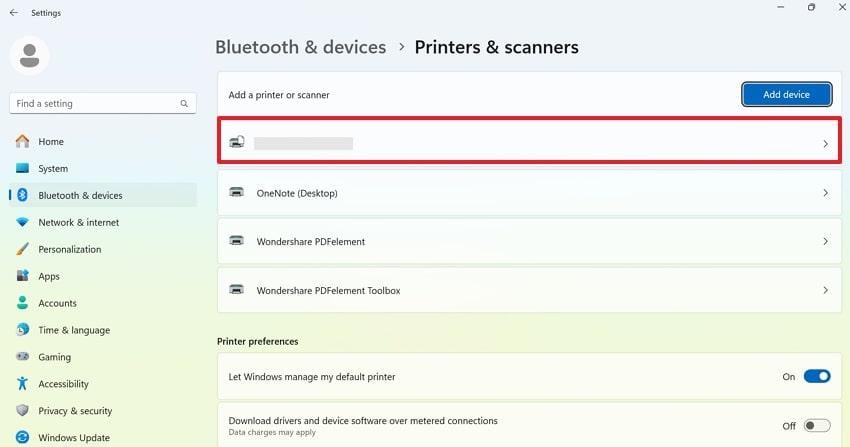
Step 1. Access “Settings” on your PC, choose the “Bluetooth & Devices” option, and press “Printers & Scanners.” Look for the printer within the list and proceed further into its settings.
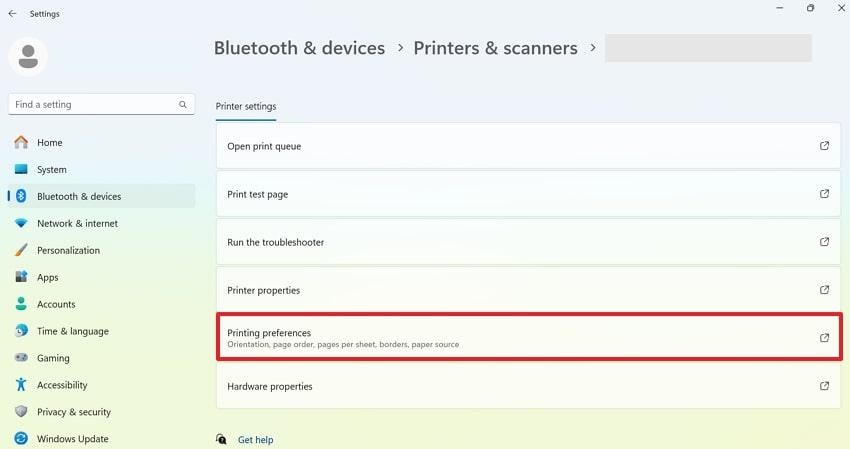
Step 2. After this, select the “Printing Preferences” option to open the printing settings window later.
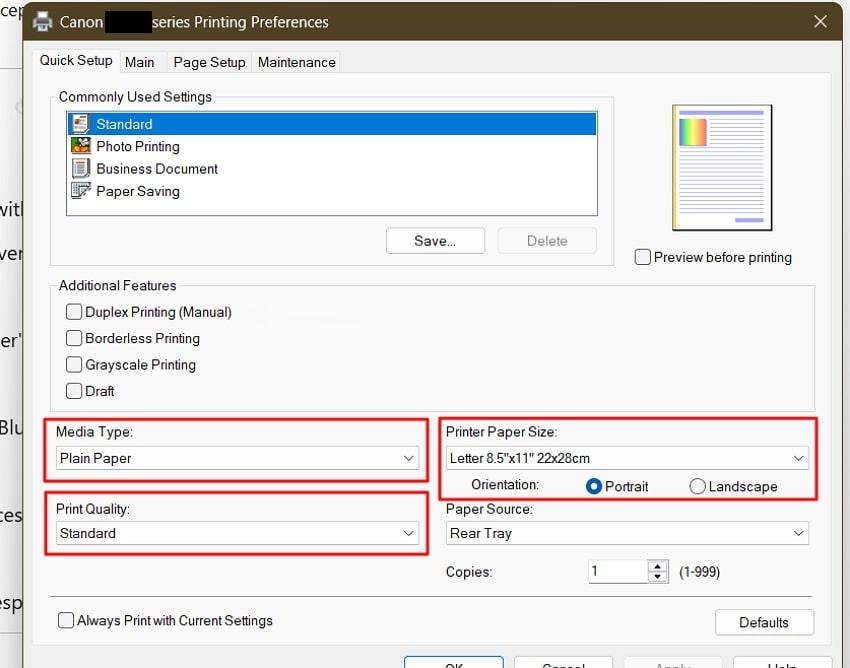
Step 3. Now, check the selected “Media Type,” “Printer Paper Size,” and “Print Quality” to resolve the error code.
Fix 4. Inspect Ink Cartridges and Print Head
As discussed, Canon Pixma Support Code 5200 is triggered most frequently by low or improperly installed cartridges. Thus, inspecting cartridges and the print head not only fixes the immediate error but might prevent future malfunctions. Read the guidelines and ensure the printer receives the correct amount of ink to keep internal components running smoothly:
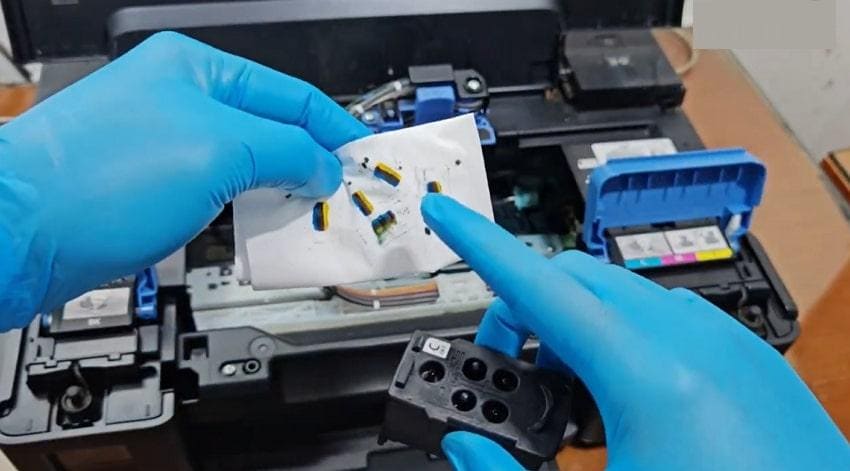
- Open the print cover and wait for the cartridge to move to the replacement position.
- Now, remove each cartridge and check for torn labels by wiping them with a tissue.
- Afterward, reinsert the cartridges firmly into their correct slots to ensure proper connection.
Fix 5. Update Printer Firmware and Drivers
Once you keep your print firmware and drivers updated, it guarantees compatibility with your operating system and improves performance. It enhances Support Code 5200 error detection and optimizes performance to prevent overheating and other technical issues. To do so, simply follow the tutorial and learn how to update Canon firmware and drivers:
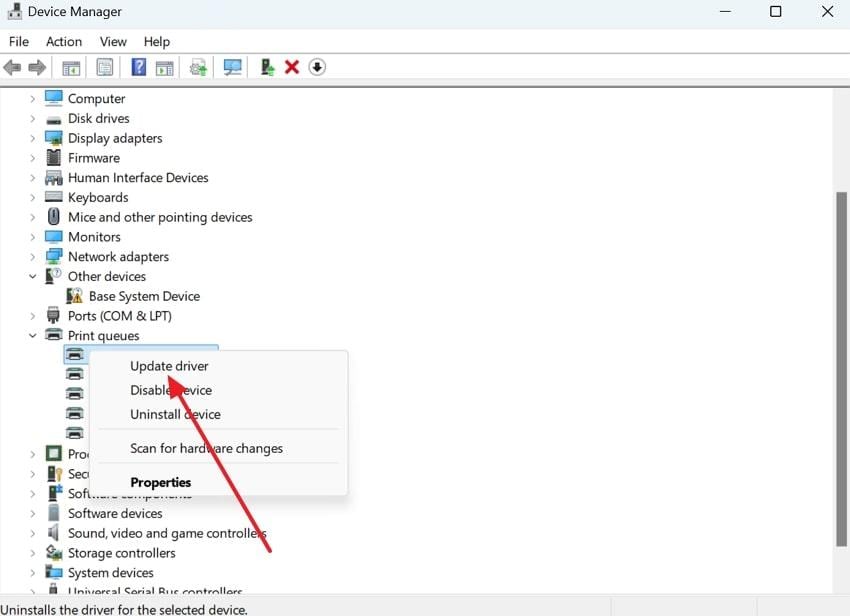
Step 1. On your PC, visit the official Canon support page, then download the latest available firmware update. Move forward, access the “Device Manager” and expand the menu for the “Printer Queues.” Now, right-click your Canon printer and select the “Update Driver” option from the menu.
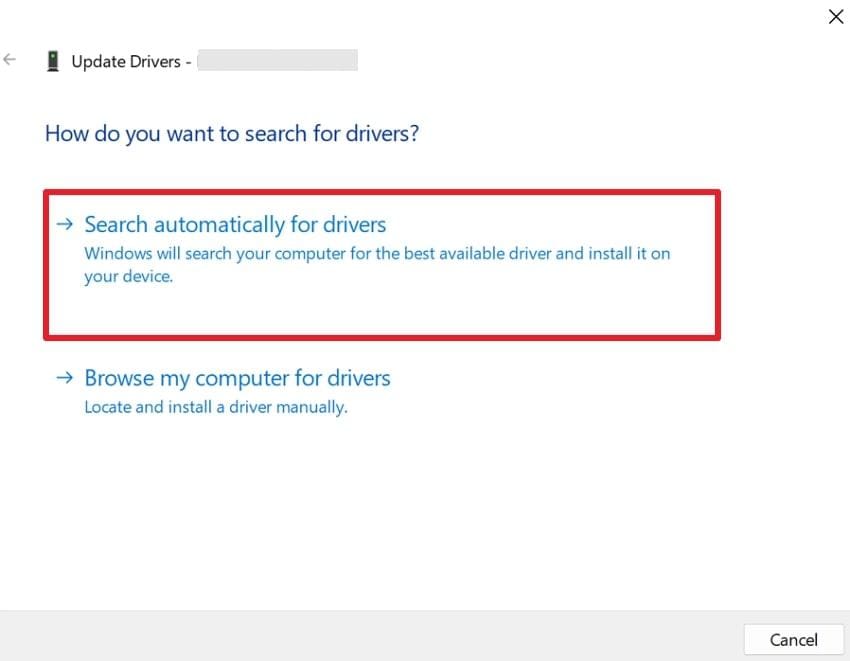
Step 2. Later, select “Search Automatically for Drivers” and let Windows install the latest driver version.
Fix 6. Cancel Stuck or Failed Print Jobs
Notably, stuck print jobs in the queue can overload the printer, causing repeated errors or halting printing completely. You can clear the queue to reset the printer’s operations and allow it to process new print jobs without interference. Explore the provided tutorial and cancel out all the stuck or failed print jobs to address Canon Support Code 5200:
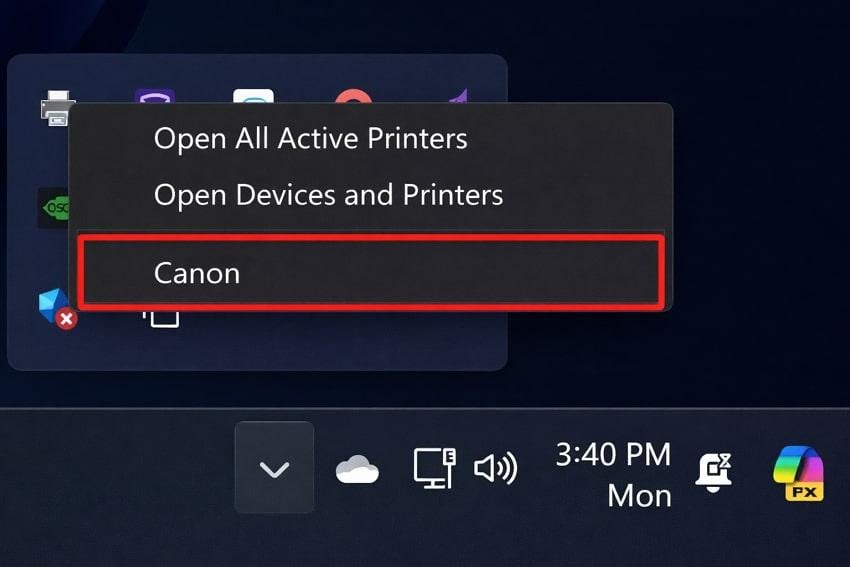
Step 1. Right-click the “Printer” icon from your computer’s system tray and select the “Canon” printer.
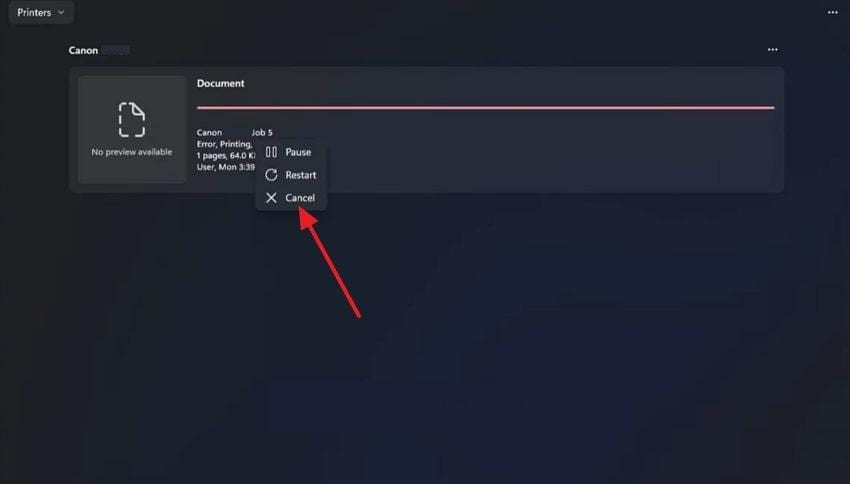
Step 2. Later, right-click the desired print job and select “Cancel” to stop printing action completely.
Part 4. Support Code 5200 Keeps Appearing? Check the File You’re Printing
If Canon Support Code 5200 keeps reappearing even after basic troubleshooting, the issue may not be the printer itself but the file you are trying to print.
In many cases, corrupted or improperly structured files can send invalid print data to Canon Pixma printers, triggering repeated 5200 errors. Below are common file-related causes:
- Damaged documents may contain unreadable data blocks that cause the printer to freeze during processing.
- Corrupt layout or font information can force the printer to repeatedly retry rendering the same page sections.
- Files affected by incomplete downloads, interrupted transfers, or storage errors may appear normal on-screen but fail during printing.
- Reprinting the same corrupted file can continuously trigger Support Code 5200.
- Heavily edited, merged, or converted files (PDFs, Word documents, images) may develop structural inconsistencies that Canon printers cannot interpret correctly.
Before sending the file to your Canon Pixma (including models like Canon G7020), repairing the document can help eliminate hidden corruption. Repairit File Repair is designed to fix damaged or unreadable documents caused by:
- System crashes
- Storage errors
- Improper file transfers
- Software interruptions during saving or editing
By repairing the file structure itself, Repairit helps ensure the printer receives clean, readable data, reducing the chance of Support Code 5200 reoccurring.
Key Repairit Features Relevant to Canon 5200 Errors
- Wide File Format Support: Repairs commonly printed formats such as PDF, Word, Excel, PowerPoint, JPG, PNG, and more while preserving original formatting as much as possible.
- Repairs Corrupted File Structures: Fixes files with broken internal data, unreadable elements, or layout corruption that may interfere with printing.
- Cross-Platform Compatibility: Fully supports Windows and macOS, ensuring consistent repair results across systems.
When dealing with Canon G7020 Support Code 5200, simply follow the guidelines and get your files repaired:
Step 1. Once launched the program, access the “More Types Repair” section and press the “Start” button for “Document Repair.” Later, click the “+Add” button and insert all your corrupted files for printing.

Step 2. Once done adding, proceed to the “Repair" button and get all the files repaired instantly.

Step 3. Soon, when the repair action completes, press the “Preview” button to analyze, then save the final version.

Fix Corrupted Printed Files
 Security Verified. Over 7,302,189 people have downloaded it.
Part 5. How to Prevent Canon Support Code 5200 in the Future
Now that your printer is back in action, consider the discussed measures to prevent Support Code 5200 from happening again:
- Look After Ink Levels Regularly: Make a habit of checking the ink levels from the printer's screen and replace/refill them accordingly. Enough ink in all colors helps prevent the print head from running dry and overheating, a common trigger for Support Code 5200.
- Use the Right Ink and Supplies: Prefer genuine or high-quality Canon ink so the printer can read levels correctly and ink flows smoothly. Also, avoid mixing random third-party inks or damaged/refilled cartridges, as they can cause poor flow or leaks.
- Run Regular Print Head Maintenance: If you don’t print often, run a Nozzle Check and Cleaning/Deep Cleaning from the maintenance menu periodically. This routine maintenance reduces clogs, improves ink flow, and lowers the chances of overheating.
- Print at Least a Small Test Page Weekly: Print a simple color test page (all colors) once a week so ink moves through the system and doesn’t sit idle. Light but regular use is better for the print head than long idle periods followed by heavy printing.
- Match Print Settings to the Paper: In the print dialog, choose the correct paper type and size, and avoid using maximum quality for simple documents. Proper settings reduce unnecessary ink load and long, stressful print runs that can aggravate a weak ink system.
Conclusion
In summary, the experience of Canon Support Code 5200 error can create immense confusion, and it doesn't have to remain a long-term problem. As discussed in the article, the issue is likely linked to ink system irregularities, incorrect printer settings, or pending print jobs. With the guided tutorials, you can easily get sorted, but repairing corrupted files for printing might need Repairit in the end.
Frequently Asked Questions
-
Q1. What does Canon Support Code 5200 mean?
Canon Support Code 5200 usually indicates an internal printer error related to the ink system or print head temperature. It often appears when ink levels are too low, cartridges are not installed correctly, or the print head overheats. Eventually, the printer stops working to protect itself from potential damage and shows this dreaded error. -
Q2. Why does Support Code 5200 keep coming back?
Common reasons include repeatedly printing with low or incompatible ink cartridges, incorrect print settings, and outdated drivers. Under such conditions, addressing both printer maintenance and file integrity might help prevent the error from recurring. -
Q3. Does Support Code 5200 mean my printer is broken?
Not at all; this error does not usually indicate that your printer is permanently damaged. In many cases, the support code error 5200 is a protective warning rather than a hardware failure. Following proper troubleshooting steps, such as checking ink and resetting the printer, can often restore regular operation. -
Q4. Can corrupted documents cause Canon printer errors?
Indeed, corrupted or damaged documents can trigger Canon printer errors, including Support Code 5200. To address this, it is recommended to repair files before printing using a dedicated program like Repairit.




