 TL;DR:
Resolve unreadable files following an OS upgrade by running built-in command line repairs, resetting administrative folder ownership, or utilizing Repairit File Repair to reconstruct severely damaged file structures.
● Execute sfc /scannow and chkdsk C: /f via an Administrator Command Prompt to replace corrupted system files and realign the file allocation table of the drive.
● Bypass Access Denied restrictions by opening the folder properties, navigating to the Security tab, and changing the owner to your current account name to regain read and write authority.
● Deploy Repairit File Repair if native utilities fail, as it specifically targets and rebuilds broken file headers and missing data in corrupted PDF, Word, Excel, and PowerPoint documents.
Ask AI for a summary
 ChatGPT
 Perplexity
 Gemini
 Claude
 Grok
Grok
Upgrading your operating system should be a smooth experience, but sometimes you may face files unreadable after an OS upgrade. This often happens due to OS upgrade file corruption, where changes during the update affect how your system reads or organizes files. As a result, some files may appear damaged or inaccessible. Understanding these causes can help you better protect your data during future updates.
In this article
Why Files Become Inaccessible After an OS Upgrade
When an operating system is upgraded, many system changes happen at once. If something goes wrong, some files may become unreadable after an OS upgrade. This is often caused by OS upgrade file corruption, where the system fails to properly read or reconnect to existing data.
Common Causes of File Issues
- File system changes or errors - Upgrades may switch drive formats, and disk errors can prevent files from being mapped correctly.
- Interrupted updates - Power loss or forced restarts can leave files partially saved and unreadable.
- Driver issues - Missing or outdated drivers may stop the system from accessing storage properly.
- Metadata problems - File information can become unsynced from the actual data, making files impossible to open.
- Permission changes or file relocation - User access settings or temporary folders during the update can lead to files appearing missing or inaccessible.
Signs of File Inaccessibility After an OS Upgrade
OS upgrade file corruption may not appear immediately, but issues often show when you try to open files or folders.
Common Signs
- Error messages like “Access Denied” or “File not supported”
- Files showing 0 KB size
- Missing or moved folders (e.g., into “Windows.old”)
- Slow system response or freezing in File Explorer
- Garbled or unreadable file content
- These signs suggest files unreadable after an OS upgrade and may need troubleshooting.
Basic Fixes for Unreadable Files After an OS Upgrade
Before trying advanced recovery methods, you can often fix files unreadable after an OS upgrade using built-in tools. These help repair system errors and restore normal file access after OS upgrade file corruption.
Fix 1. Run System File Checker (SFC)
This tool checks and repairs missing or damaged system files that may be affecting file access.
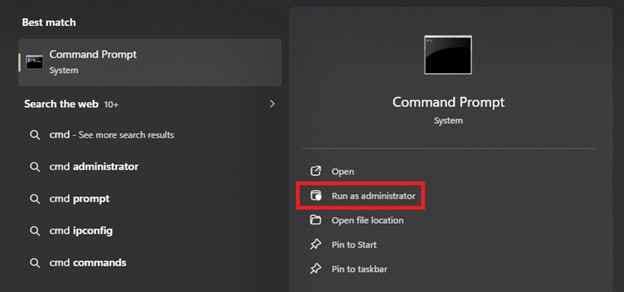
Step 1. Open the Command Prompt or Terminal as an Administrator to ensure full system access.
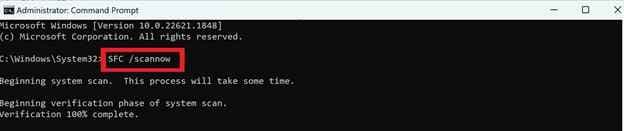
Step 2. Input the command sfc /scannow and press Enter, allowing the system to automatically replace corrupted files with a cached healthy copy.
Fix 2. Use CHKDSK
CHKDSK scans your drive for errors and fixes problems caused by a faulty or interrupted upgrade.
Step 1. Launch your common prompt and type chkdsk C: /f (replacing "C" with your specific drive letter).

Step 2. Schedule the scan for the next restart if prompted, then reboot your device to let the utility realign the drive's file allocation table.
Fix 3. Check file permissions
Sometimes an upgrade resets access settings, causing Access Denied errors even when files are still there.
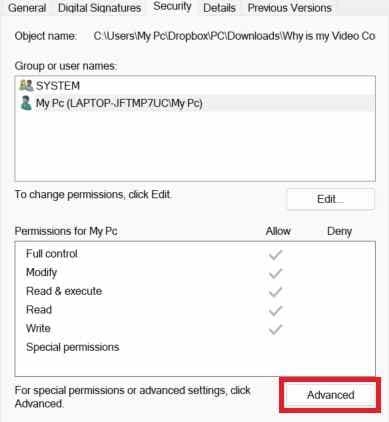
Step 1. Right-click the affected folder, select Properties, and navigate to the Security tab to view the current owner.
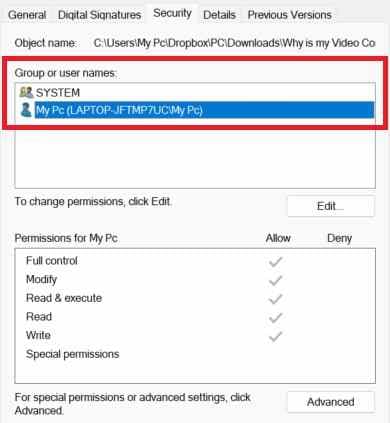
Step 2. Click Advanced, then Change owner, and enter your current account name to regain full read/write administrative authority over the directory.
Fix 4. Rebuild the search index
If files seem missing or incorrect, rebuilding the index can help the system rediscover them properly.
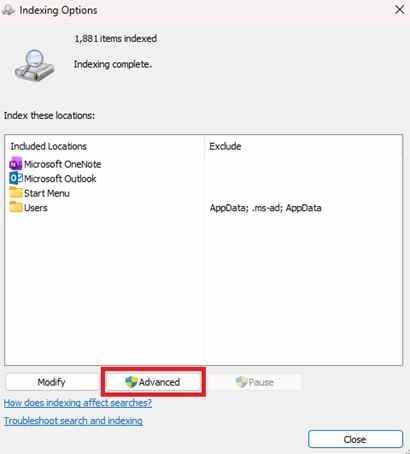
Step 1. Navigate to the Indexing Options in your Control Panel or System Settings.]

Step 2. Select Advanced and click the Rebuild button to force the OS to perform a fresh scan of all stored data and restore correct file paths.
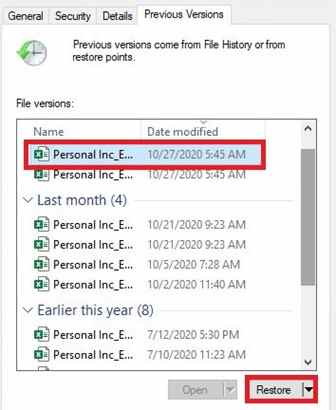
Fix 5. Restore from backups or previous versions
You may be able to recover files using system restore points, shadow copies, or version history created before the upgrade.
Step 1. Locate the folder of the unreadable files, right-click it, choose Properties and Previous Versions.
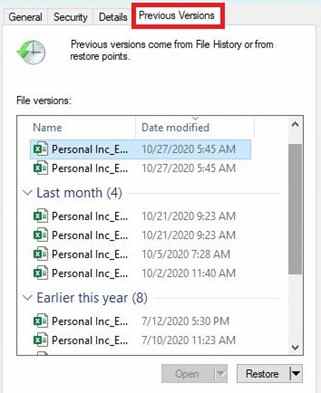
Step 2. Choose the most recent snapshot dated before the OS upgrade and click Restore to roll back the specific folder contents to their functional state.
Fix Severe File Corruption with Advanced Repair Tools
When basic tools like CHKDSK or SFC don’t work, it usually means the problem is more serious. The file itself may be damaged, not just its location or path. This can happen due to OS upgrade file corruption, where parts of the file structure or file headers get broken during the system update.
It CAN:
- Fix the part of the file that helps the system identify and open it.
- Handle issues in documents, spreadsheets, and media files.
- Allow batch recovery of several corrupted files.
- Let you check if the file is properly restored before finalizing.
Tools like Repairit File Repair can repair common files like PDFs, Word, Excel, and PowerPoint by rebuilding missing or damaged data caused by an interrupted OS upgrade. It works by analyzing the remaining file data and filling in missing parts to make the file readable again without changing its original content.
Step-by-Step (Optional)
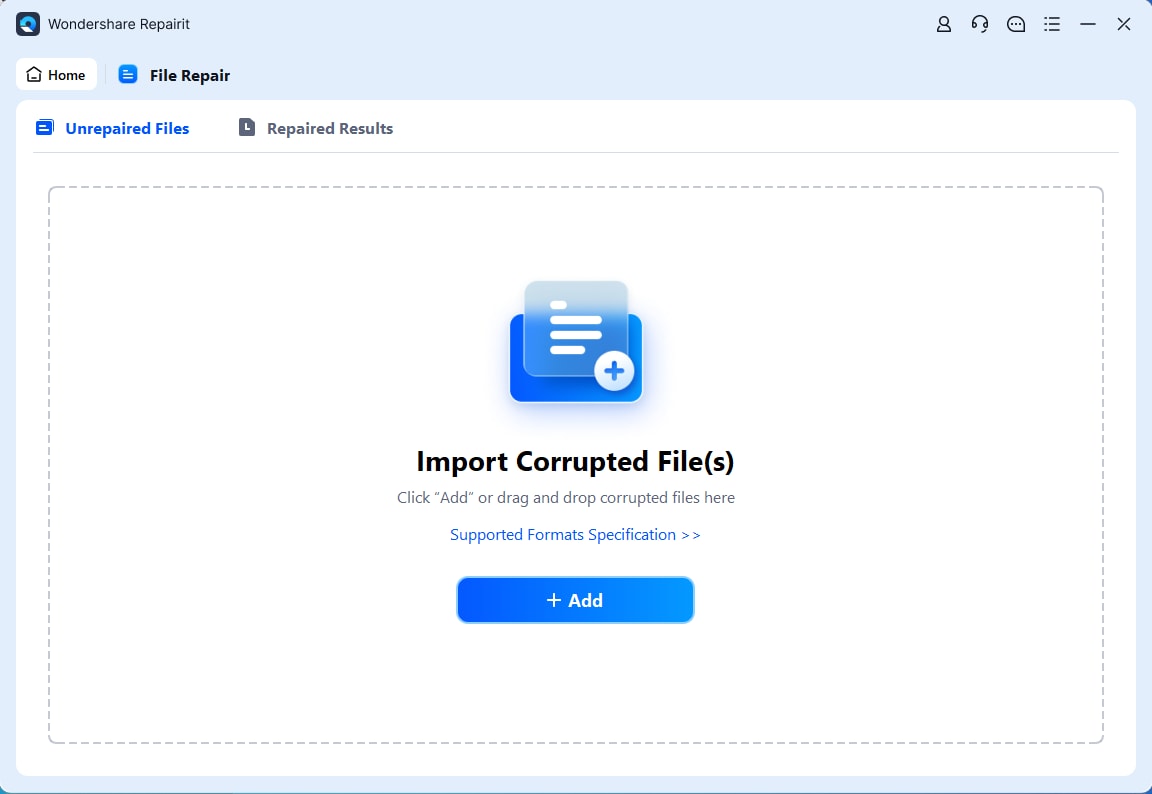
Step 1. Upload the corrupted file.
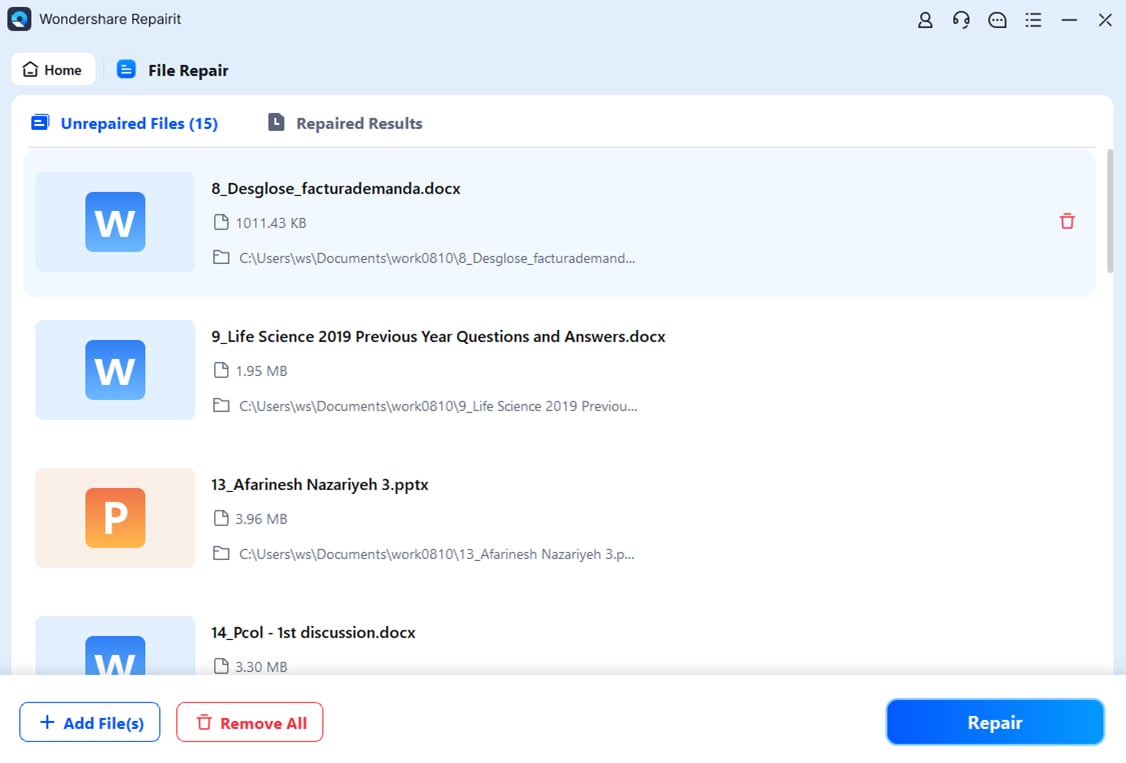
Step 2. Start the Repair process.
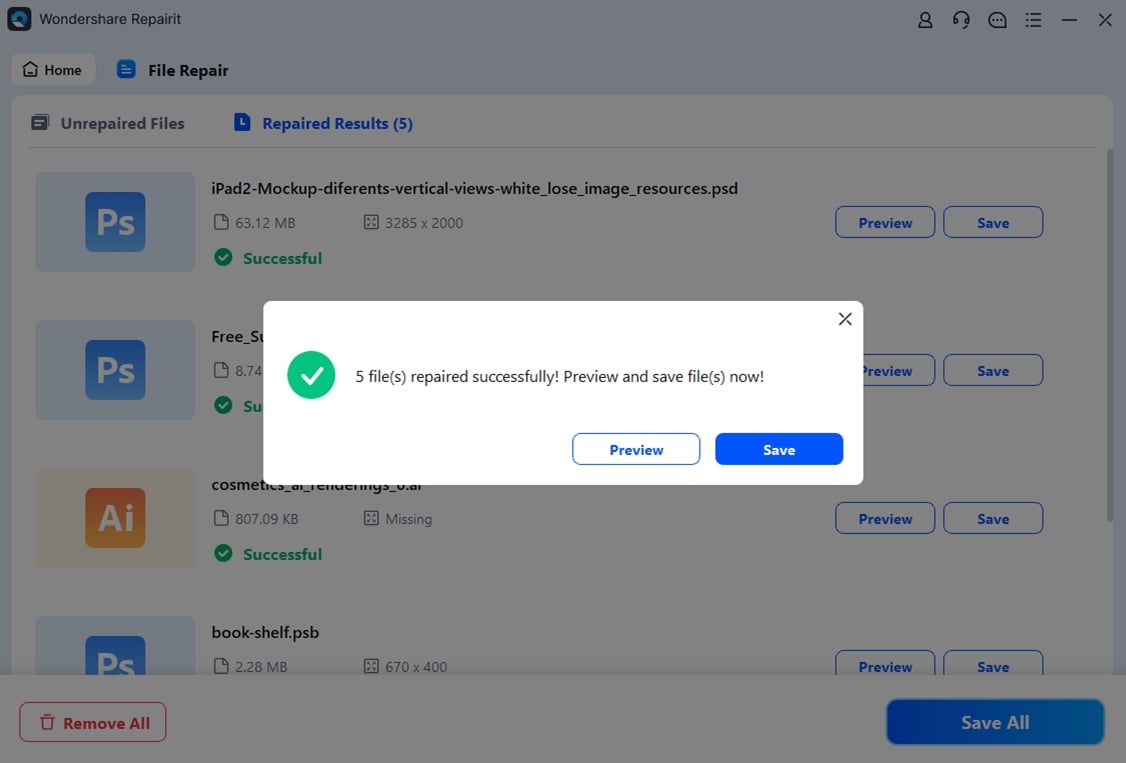
Step 3. Preview and save the restored file to a new location.
How to Prevent Issues in Future OS Upgrade
The best way to avoid files unreadable after an OS upgrade is to prepare before updating. Taking a few precautions can help prevent OS upgrade file corruption and protect your data from system errors.
Best Practices for Data Safety
- Keep 3 copies of your files, on 2 different storage types, with 1 stored in the cloud or off-site.
- Scan your drive for errors or bad sectors to avoid installing an OS on a failing disk.
- Use a UPS or reliable power source to prevent shutdowns during the update process.
- Remove or update outdated drivers and tools that may conflict with the new system.
- Let the system finish background setup tasks like indexing before using large files heavily.
Conclusion
Experiencing files unreadable after an OS upgrade can be frustrating, but the issue can be fixed. Problems often happen because of OS upgrade file corruption, permission changes, or errors during the update process. By using built-in repair tools or advanced recovery software, you may be able to restore file access. To avoid future issues, always back up your data and check your system’s health before upgrading.
FAQs
-
Why are my files unreadable after an OS upgrade?
This can happen because of file system errors, interrupted updates, or changes that prevent the new OS from reading your files correctly. -
Can OS upgrade file corruption be fixed without third-party software?
Yes, tools like SFC and CHKDSK can often fix system or disk errors causing file issues. -
Does an OS upgrade delete personal files?
Usually no, but a failed or incomplete update can make files appear missing or inaccessible. -
How do I fix Access Denied after an update?
This is often caused by permission changes. Adjusting file ownership or access settings can usually solve it. -
How can I prevent file corruption during updates?
Create backups before upgrading and scan your drive for errors to reduce the risk of problems.